Boards autofill
Boards autofill lets AI fill in a board’s columns for each task. You turn it on for a column and write a prompt that says what to fill in, and the prompt can point at the task’s other columns and at the assets the task holds. Use it for work that follows from what a task already says: a hook line drafted from the brief, a funnel stage picked from the concept, or a caption written from the attached video.
Autofill works on Text, Formatted text and Selection columns. It only fills empty cells, so it never overwrites a value someone has set. It runs when you ask it to on selected tasks, when another column changes to a value you choose, or as a step in a workflow. Autofill on a board needs AI turned on for the space in AI settings. To have AI fill in the attributes of assets rather than the columns of tasks, see Media tagging.
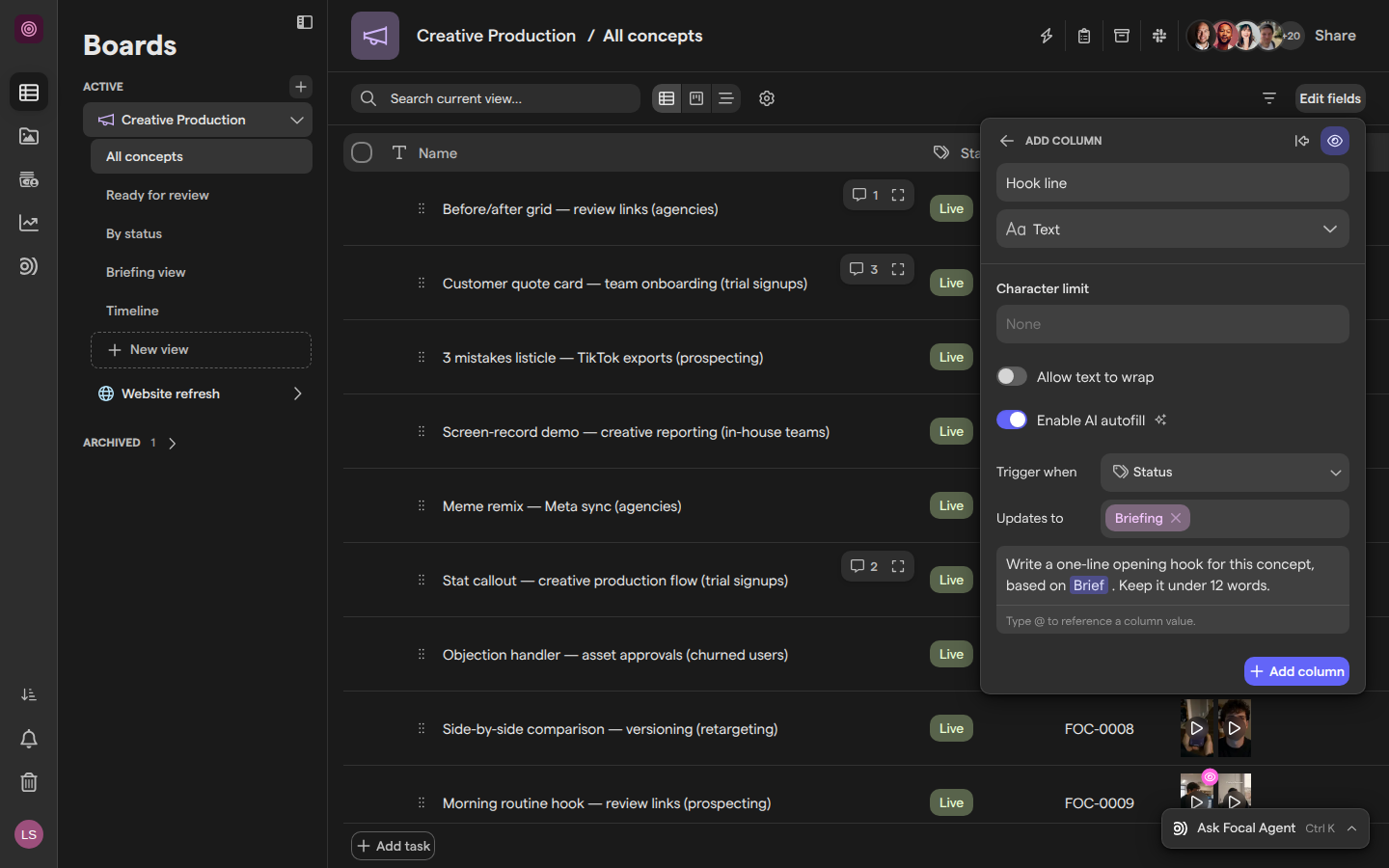
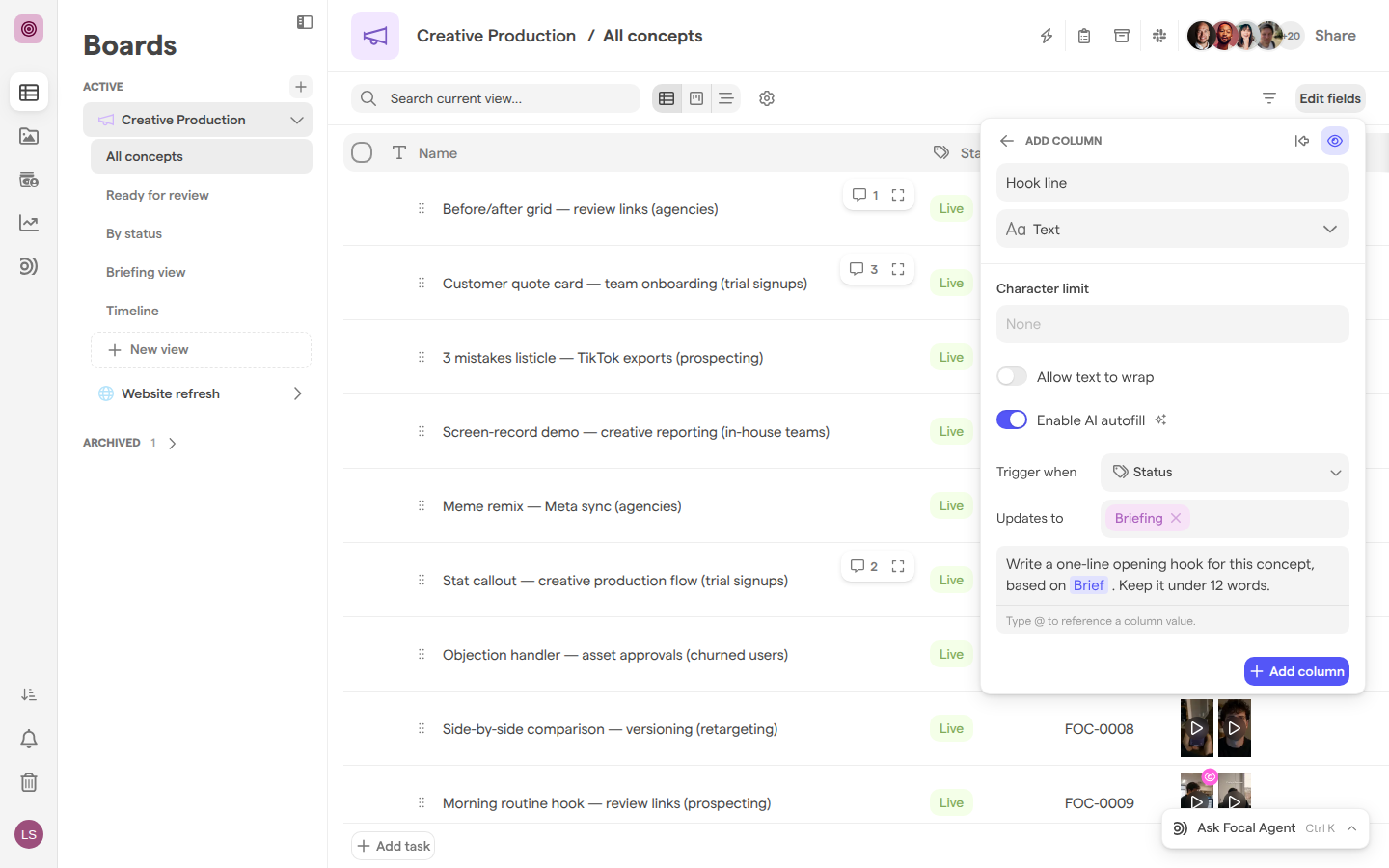
Turn on autofill for a column
Autofill is a setting on a board column, found in the column editor. It can be turned on for a Text, Formatted text or Selection column, while you add the column or later.
- Open the board.
- To add a new column, click Edit fields → Add new and choose Text, Formatted text or Selection as the type. To change an existing column, click the column’s header to open the Edit column panel.
- Turn on Enable AI autofill. The trigger settings and the prompt field appear under it.
- Write the prompt (see “Write the autofill prompt”).
- For a new column, click Add column. For an existing column, close the panel; its changes save when it closes.
When AI is turned off for the space, the toggle is greyed out and its tooltip reads “Enable AI in the space’s Automations settings first to use autofill”. A space owner turns AI on in AI settings.
A column with autofill on shows a sparkles icon in its header, with the tooltip “Autofill enabled”. If AI is later turned off for the space, the tooltip changes to “Autofill disabled - enable AI in the space’s Automations settings” and nothing is filled until AI is back on.
Turning Enable AI autofill off again removes the column’s prompt and trigger. Values AI has already filled in stay in their cells.
Write the autofill prompt
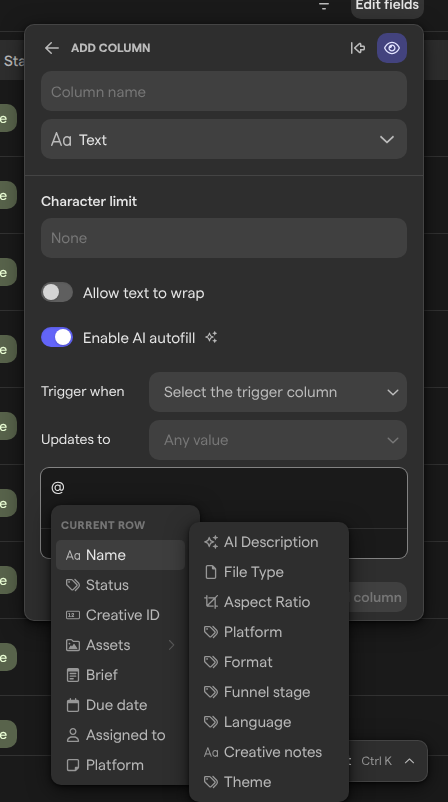
The autofill prompt tells AI what to put in the column for each task. Write it as an instruction, and name the columns AI should read: type @ in the prompt field (“Describe what to fill in…”) to insert a reference to a column value.
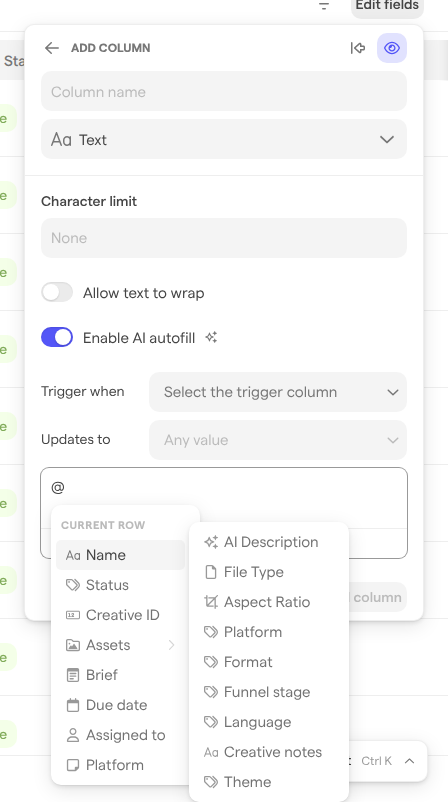
The @ menu lists the board’s columns in two groups, which the menu labels by row, its word for a task. Current row holds the task’s own columns. Parent row holds the columns of the parent task, which is useful when you autofill a sub-task. When a prompt has no references, AI reads the whole task.
A column of type Media, such as Assets on a production board, opens a submenu when you point at it:
- The column itself sends the task’s asset to AI, which then reads the image or video.
- AI Description, File Type and Aspect Ratio send only that detail of the asset. AI Description is the summary from Media analysis.
- The space’s media attributes send the asset’s value for that attribute, such as its Platform or Format.
For a Selection column, AI picks from the column’s existing options and never adds a new one. If none fits, the cell stays empty. Give each option a description (the Add description button next to the option) to tell AI when to pick it. A default option has no effect on a column with autofill on.
For a Text or Formatted text column with a Character limit, AI keeps its answer inside the limit.
Tip: We recommend referencing only the columns AI needs. A short prompt that names its sources gives more consistent results than one that relies on the whole task.
Fill a column when another column changes
An autofill trigger fills a column on its own when another column on the same task changes. Without a trigger, autofill runs only when you start it on selected tasks or from a workflow.
- Open the column’s Edit column panel (or the Add column panel) with Enable AI autofill on.
- Under Trigger when, choose the column to watch.
- Under Updates to, choose one or more values, or leave it at Any value.
- Save the column.
For example, with Trigger when set to Status and Updates to set to Briefing, a task’s hook line is drafted the moment its status moves to Briefing. The trigger fires only when the watched column’s value changes, only when the new value matches, and only when the autofill column is still empty. A task that already has a value is left as it is. Choose No trigger condition to remove the trigger.
Run autofill on selected tasks
Running autofill by hand fills every empty autofill column on the tasks you choose. It is the way to fill tasks that existed before you turned autofill on, or to fill tasks again after you have cleared a cell.
- Open the board.
- Click the checkbox at the start of the first task. The toolbar at the bottom shows how many tasks are selected.
- To add more tasks, Shift-click another task’s checkbox to select every task in between, or ⌘-click (Ctrl-click on Windows) a checkbox to add one task. A plain click on another checkbox replaces the selection.
- Click the sparkles button, Autofill tasks with AI, in the toolbar.
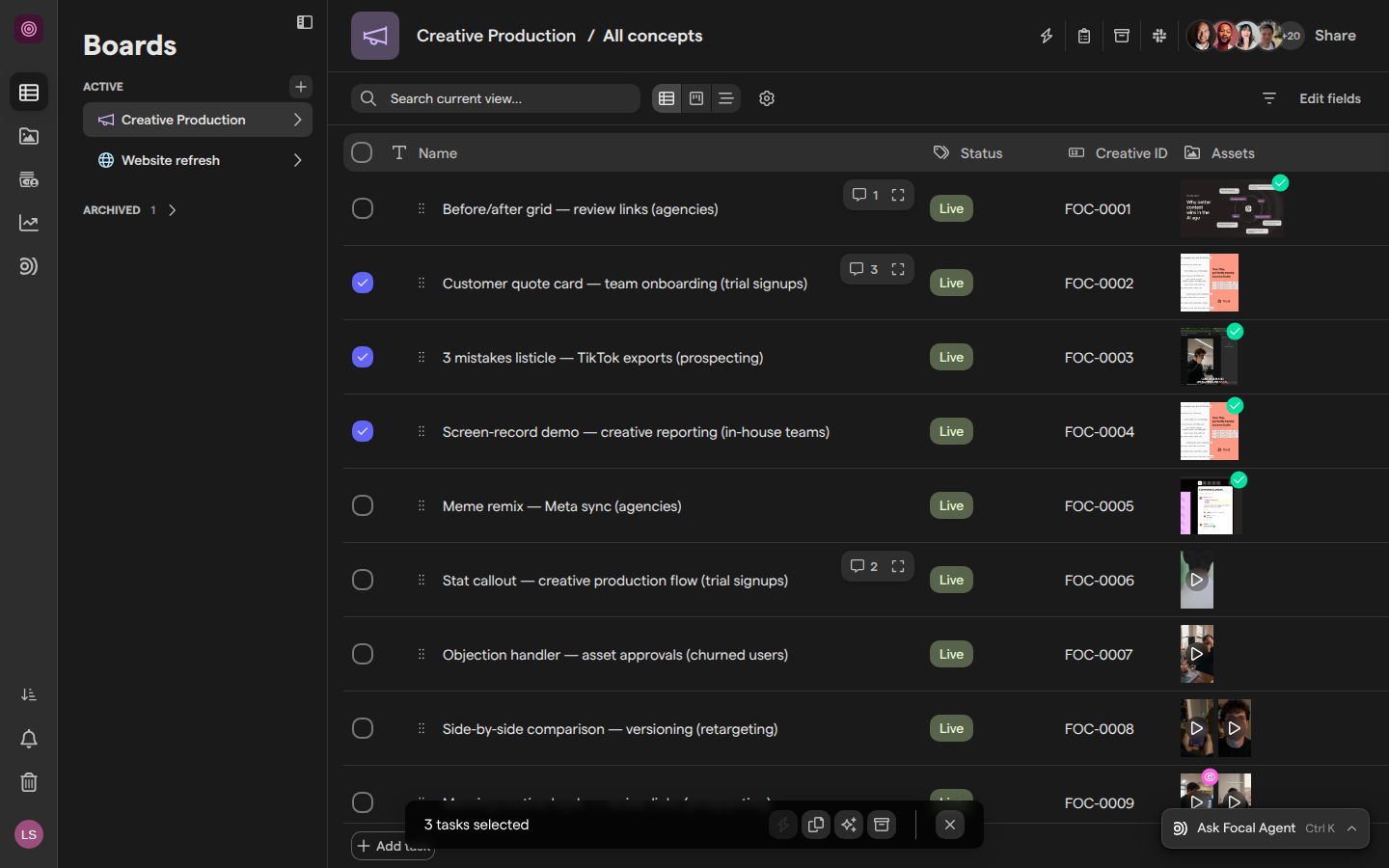
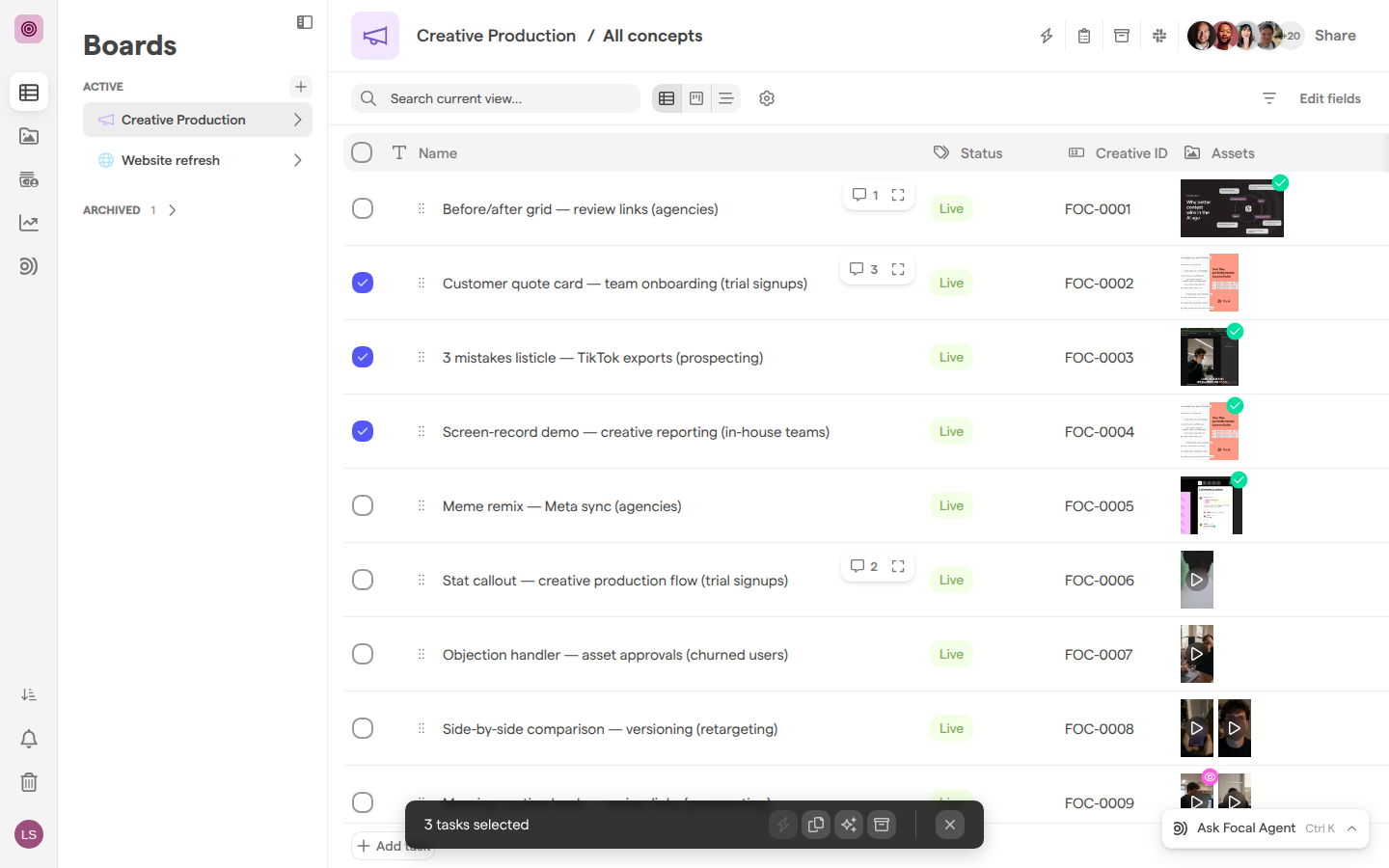
A message confirms how many tasks autofill started on; the values arrive a few moments later. If none of the selected tasks has an empty autofill column, the message says “No tasks found with empty autofill-enabled columns.” instead. The button appears only when AI is on for the space and at least one column on the board has autofill on.
See which values AI filled
While autofill works on a cell, the cell shows “AI is thinking…” in place of a value. When the value arrives, a sparkles icon beside it marks it as filled by AI, whether a board run, a trigger or a workflow’s Autofill produced it. A value a workflow step sets with Static or Field carries a bolt icon instead.
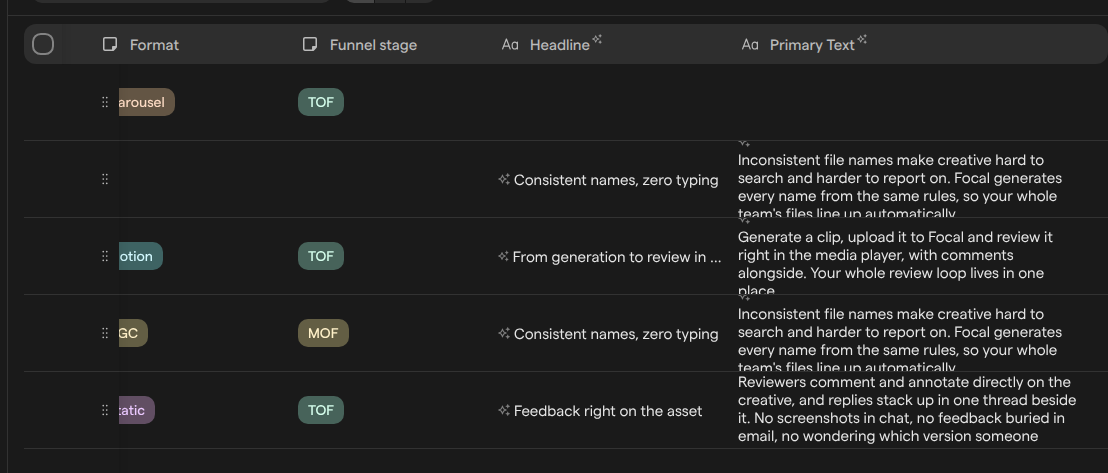
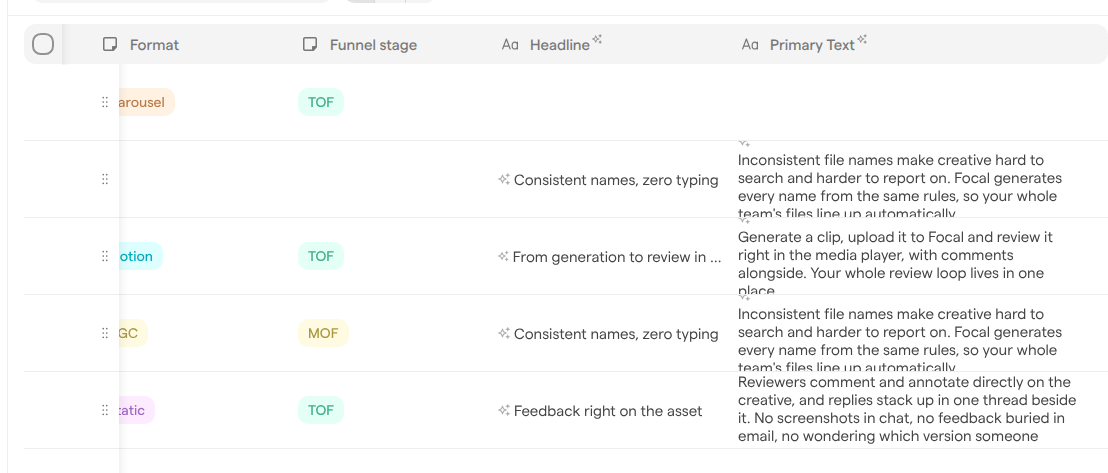
An AI-filled value is an ordinary value: anyone who can edit the task can change or clear it. Once someone edits it by hand, the sparkles icon goes away. Clearing a cell makes it empty again, so the next run or trigger fills it anew.
Fill a task’s columns from a workflow
A workflow can fill a task’s columns with AI as one of its steps. The Create Task and Update Task actions (see Actions) each list the columns they set, under Filled Columns and Columns to update. For each column, Fill with offers:
- Static
- Field
- Autofill
- In the workflow editor, select the Create Task or Update Task step.
- Click + Add column and choose the column.
- Set Fill with to Autofill.
- Write the Prompt. Type
@to use data from earlier steps, such as the task that started the workflow or an asset it produced.
When the prompt references assets, AI reads those assets before it answers, up to 10 assets per column, and the first 60 seconds of each video. Autofill is offered for Text, Formatted text and Selection columns; columns of type Media or User have no Autofill option. Unlike autofill on a board, a workflow step replaces the column’s value even when the cell already has one. If AI returns nothing, the step leaves the cell as it was. Workflow autofill steps still run when AI is off for the space.
Workflows are open to space owners and organization admins only, so a member does not see this editor.
Who can use boards autofill
Boards autofill follows the board’s access levels (see Roles and permissions and Sharing boards):
| Action | Who can do it |
|---|---|
| Turn autofill on or off, write the prompt, set a trigger | People with Full Access to the board |
| Run Autofill tasks with AI on selected tasks | People with Edit Access or Full Access |
| Set up autofill in a workflow step | Space owners and organization admins |
A trigger fires whoever makes the change: anyone who can edit the watched column can start autofill on that task, whatever their role. Autofill on a board, by hand or by trigger, stops while AI is turned off in AI settings. Workflow autofill steps still run when AI is off for the space.
Limits of boards autofill
- Column types. Text, Formatted text and Selection columns only.
- Empty cells only. Runs and triggers on a board never overwrite a value; clear the cell to fill it again.
- 50 tasks per run. Select at most 50 tasks for one Autofill tasks with AI run.
- Existing options. On a Selection column, AI chooses among the options the column has.
- One asset per reference on a board. When a prompt references a Media column, AI reads the first asset in that cell.
- No error in the cell. When AI cannot produce a value, the cell stays empty; there is no error message on the task.