Trash
The Trash is the page of the asset library that holds archived assets and folders, so you can restore them. When you delete an asset or a folder in a space, Focal archives it: it leaves the library and moves to the Trash, and it stays there until someone restores it or permanently deletes it.
The Trash is shared by the whole space. Everyone who can use the asset library sees every archived asset and folder in the space, whoever deleted it, and can restore any of them. Restoring an asset brings back its folder, its versions and its comments.
Move assets and folders to the Trash
Deleting an asset or a folder in the asset library archives it and moves it to the Trash. Each way of doing it asks you to confirm first, and the “Are you sure?” dialog says that the item moves to the trash and that you can restore it from there.
- One asset: right-click the asset and choose Delete asset.
- Several assets: select them, then click Delete assets in the selection toolbar.
- From the asset view: open the asset, open the Attributes tab and click Delete asset at the bottom.
- A folder: right-click the folder and choose Delete folder. The folder and everything inside it move to the Trash together. Space owners and space members can delete folders.
Click Yes, I’m sure! to archive, or Cancel to keep the item. An archived asset disappears from the asset library, from its folder and from the tasks it is attached to.
If the folder or one of its subfolders has an active sync from Google Drive or Dropbox, or an automation, the Delete folder dialog lists what is connected and you can’t confirm until it is turned off. Only a space owner can turn these off, so a space member is asked to contact a space owner. See Asset library for folders that are managed this way.
Open the Trash
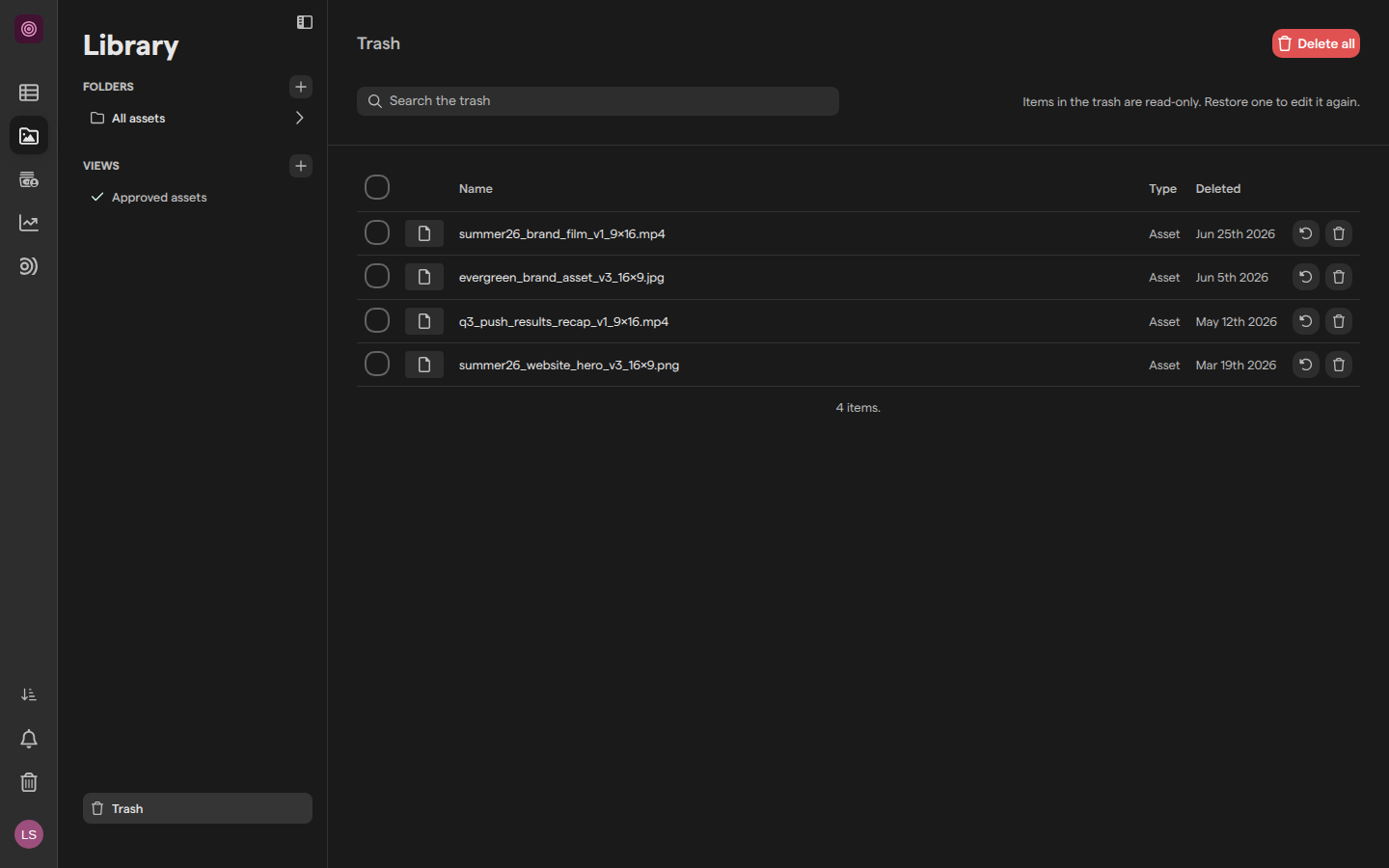
The Trash page lists everything archived in the asset library of the space you are in, the most recently deleted first.
- Open Assets in the left sidebar.
- Click Trash at the bottom of the library sidebar.
You can also go straight to the Trash. Each line shows the item’s name, its “Type” (“Asset” or “Folder”) and the date it was “Deleted”. The footer counts the items; when there are more than fit, it reads “Showing … of …” with a Load more link.
A deleted folder appears as one line, not as every asset inside it. Click the folder’s name to see what it held, and use the Trash link at the top to go back. An empty Trash reads “The trash is empty. Deleted folders and assets show up here.”
Find an item in the Trash
The Trash page has its own search, so you can find an archived asset without scrolling the list.
- Open the Trash.
- Type part of the asset’s name in Search the trash.
Search looks through every archived asset in the space, including the assets inside deleted folders, and shows only assets, never folders. When nothing matches, the page says so.
Click an asset’s name to open it in the asset view. Items in the Trash are read-only: you can look at the asset, its attributes and its versions, and download it, but you can’t edit it or comment on it until you restore it. Delete asset is greyed out there.
Restore items from the Trash
Restoring takes an archived asset or folder out of the Trash and puts it back where it was. A restored asset returns to its folder in the asset library with its name, attributes, asset status, versions and comments, and shows again on the tasks it was attached to.
To restore one item:
- Open the Trash.
- Find the item, by scrolling or with Search the trash.
- Click the circular-arrow button at the end of its line (its tooltip reads “Restore”), or right-click the line and choose Restore.
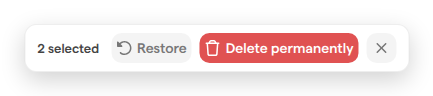
To restore several items at once, tick the box at the start of each line, then click Restore in the toolbar at the bottom of the page. A message confirms the restore.

Restoring a folder restores every folder and asset inside it. A large folder takes a moment: its line reads “Restoring…” until everything is back. Restoring a single asset from inside a deleted folder brings back that folder too, and the folders above it, so the asset has a place to go. The folder’s other assets stay in the Trash.
Restore non-library items
Non-library items are deleted assets that were never in the asset library, such as files attached to a task on a board and later deleted there. They are kept apart from library assets so they don’t crowd the Trash.
When the space has any, a Non-library items line is pinned to the top of the Trash, with the number of assets in it and the date the newest one was deleted.
- Open the Trash.
- Click Non-library items.
- Restore or permanently delete an item the same way as in the rest of the Trash.
A restored non-library item goes back to the task it is still attached to. If it is no longer on any task, it is added to the asset library. Search inside the area finds only non-library items. The Trash link at the top of the area returns to the rest of the Trash.
Permanently delete items
Permanently deleting removes an asset or folder for good, with its versions and comments, and can’t be undone. We recommend leaving items in the Trash unless you are sure nobody in the space needs them again.
- Open the Trash.
- Click the trash-can button at the end of the item’s line (its tooltip reads “Delete permanently”), or right-click the line and choose Delete permanently. For several items, tick their boxes and click Delete permanently in the toolbar.
- In the “Delete permanently?” dialog, click Yes, delete permanently.
Permanently deleting a folder also deletes everything inside it.
Delete all, at the top of the Trash, empties the whole Trash, non-library items included. Its “Empty the trash?” dialog asks you to type DELETE before Delete everything can be clicked. A large Trash takes a few minutes to empty.
How long items stay in the Trash
Archived assets and folders stay in the Trash until someone restores them or permanently deletes them. Focal does not empty the Trash on its own.
Who can use the Trash
Space owners and space members can open the Trash, restore items and permanently delete them, including Delete all. Space guests can’t use the asset library, so they don’t see the Trash. See Roles and permissions.
Because the Trash is shared by the space, anyone who can open it can restore or permanently delete an item that someone else deleted.
What isn’t in the Trash
The Trash holds only assets and folders from the asset library. Other things have their own place to be restored from, or can’t be restored:
- Tasks that are archived stay on their board. View archive in the board’s header shows them. See Tasks.
- Boards that are archived move to Archived in the Boards sidebar, where Restore Board brings them back. See Managing boards.
- A removed version of an asset is gone for good. See Versions.
- A deleted board view or library view can’t be restored. See Board views and Library views.
- A deleted shared collection can’t be restored. See Shared collections.