Navigation
Navigation in Focal is two places: the home page, where you pick a space to work in, and the sidebar, which takes you around the space you are in. The sidebar leads to the space’s boards, assets, shared collections and the rest of its work, and holds the Uploads & Downloads panel and your notifications.
This article says where each place is and links to its article. For what the words mean, read Concepts; for a first path through the app, read Quick start.
Open the home page
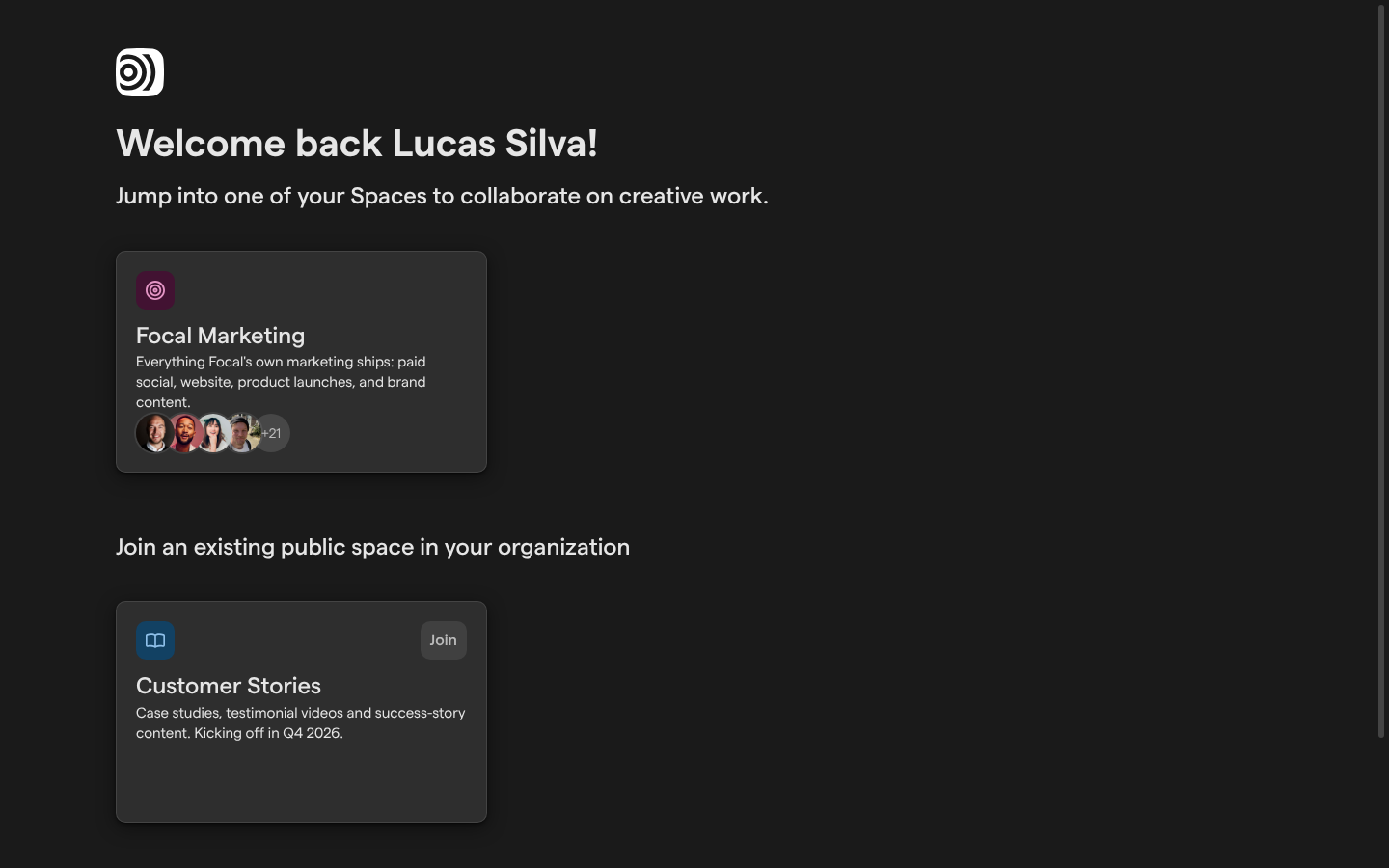
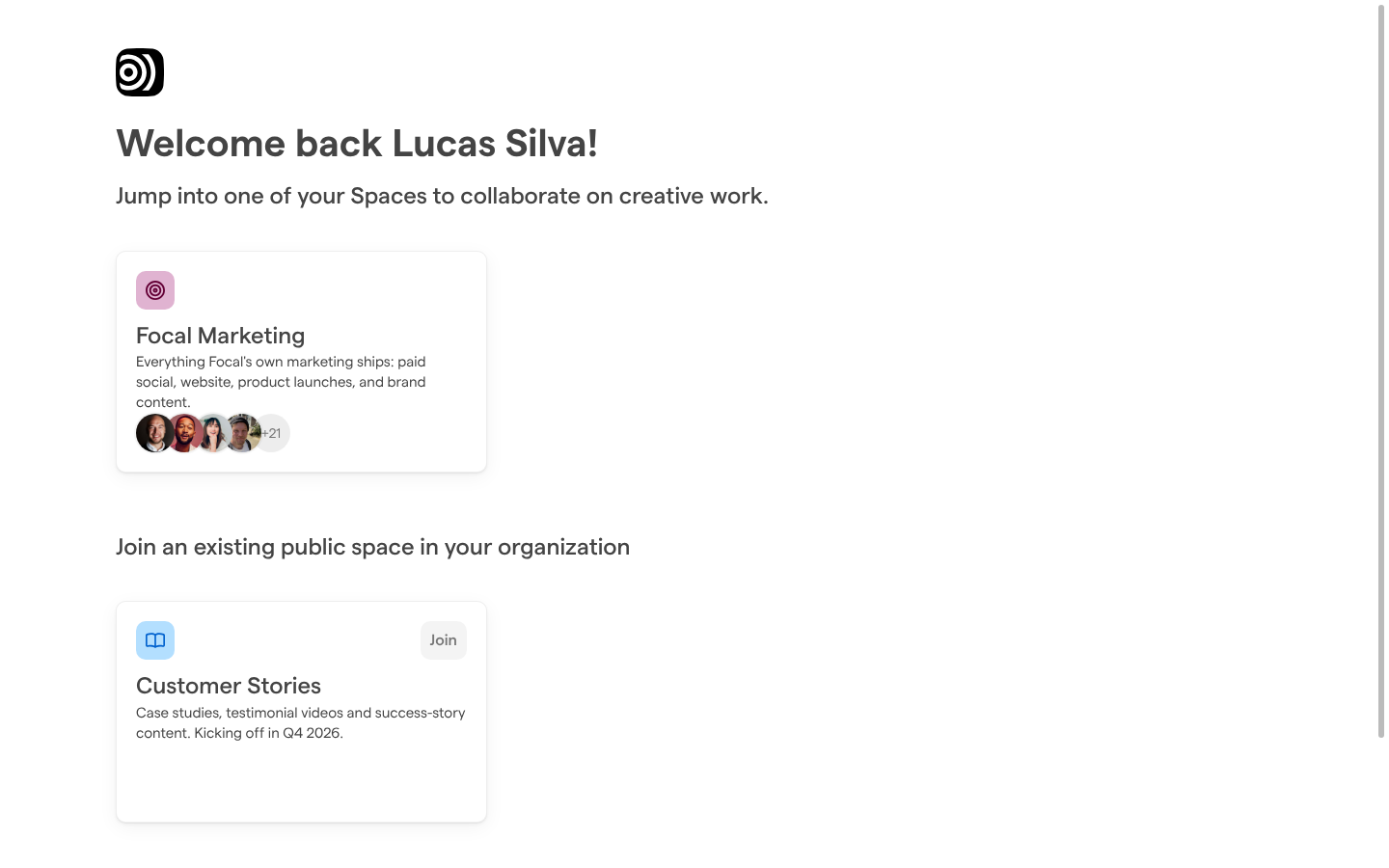
The home page is the first page you see after you sign in. It greets you (“Welcome back” and your name) and shows a card for each space you belong to, with the space’s description and the people in it. Select a card to open that space.
Below your own spaces, the section “Join an existing public space in your organization” lists the public spaces of your organization that you are not in yet. Select Join on a card to become a member of that space and open it.
Also on the home page:
- Favorites. Star a space to add it to your favorites. Favorite spaces are listed first, both on the home page and in the space switcher.
- Add new Space. Organization admins see an Add new Space card to create a space. Members and guests do not.
If you do not belong to any space yet, the home page says “No Spaces yet” and asks you to have an admin of your organization invite you.
Switch spaces
The space switcher moves you from one space to another without going back to the home page. It lists every space you are a member of.
- Select the space’s icon at the very top of the sidebar. The Select space list opens.
- Select the space you want to open, or select Home to go back to the home page.
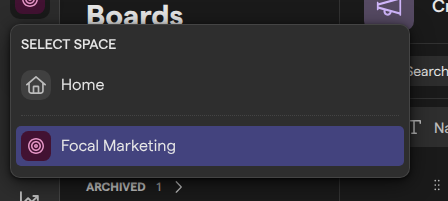
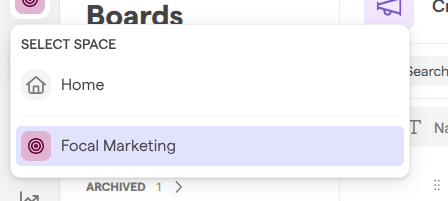
Star a space in the list to add it to your favorites. Once you have favorites, the list shows them first under Favorites and the rest under All spaces.
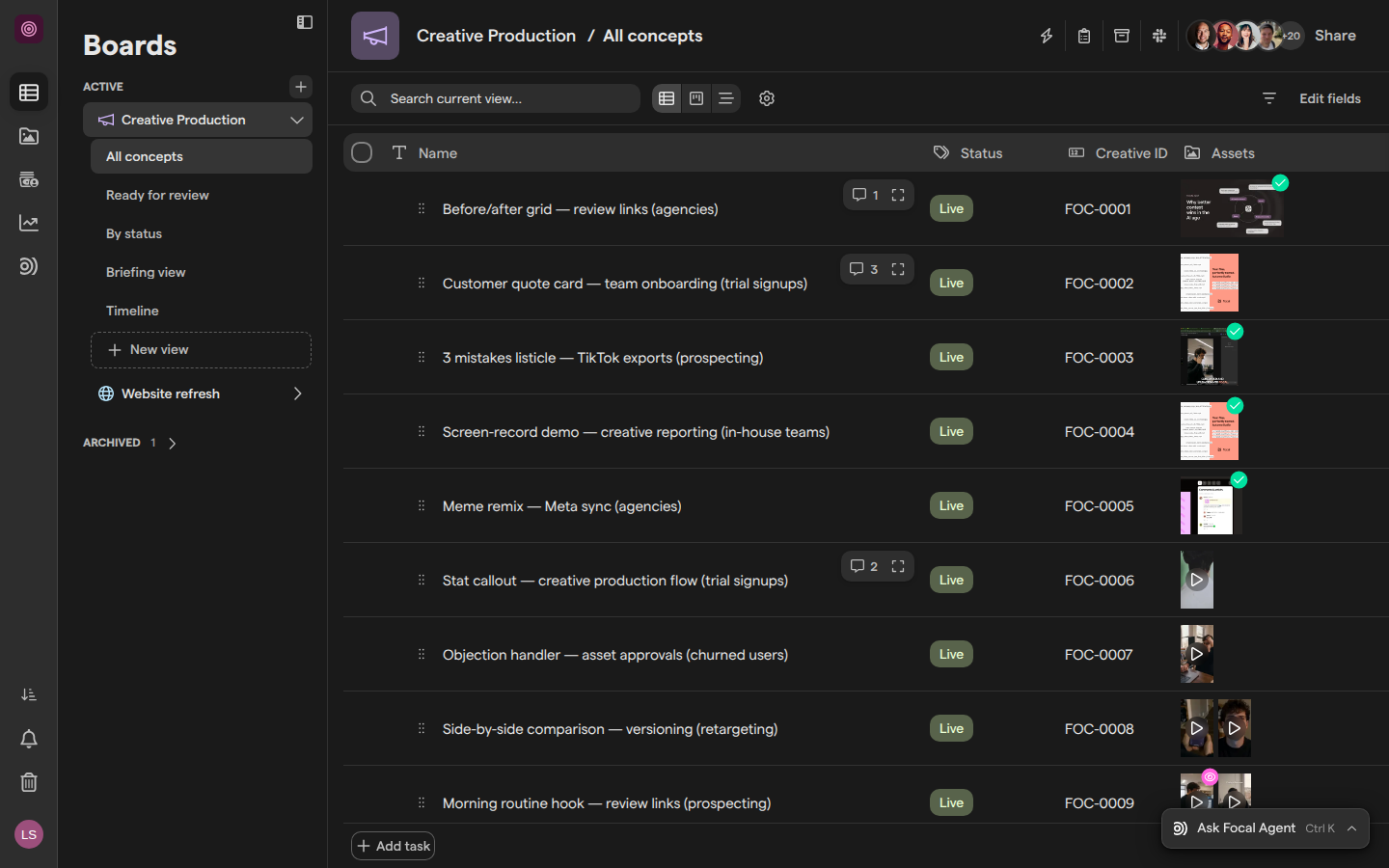
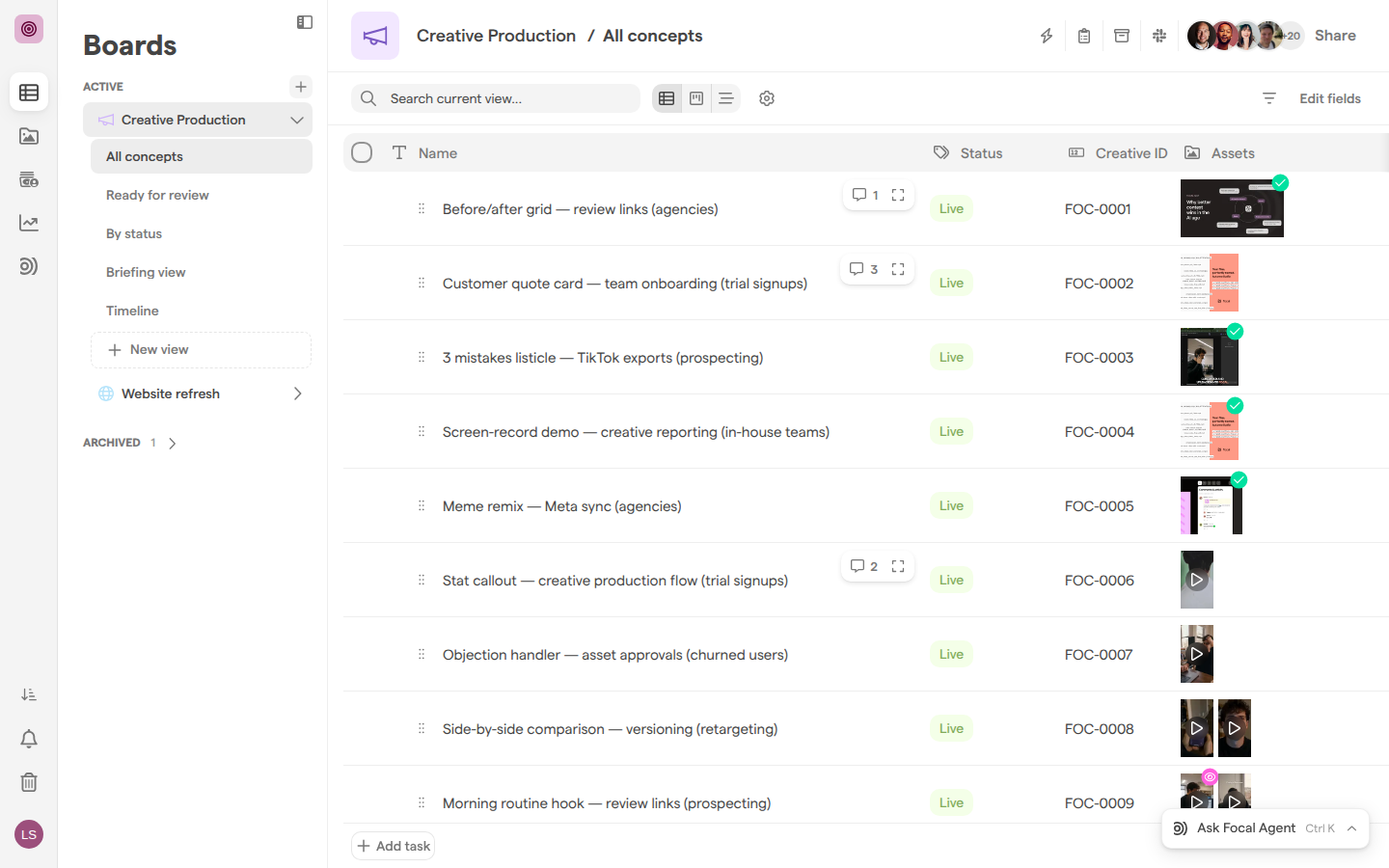
Find your way around a space
A space’s page has three parts, left to right:
- The sidebar, a narrow column of icons. Each icon opens one part of the space. Hover over an icon to see its name.
- The section’s own sidebar, next to it. It lists what is in the part you opened: the boards and their views under Boards, the folders and views under Library, your chats under Agent. Select the sidebar icon at its top right (Collapse sidebar) to fold it away, and again (Expand sidebar) to bring it back.
- The main area, which shows the board, asset, collection or chat you selected.
The sidebar lists its entries in this order:
- Boards
- Assets
- Shared collections
- Reports
- Workflows
- Agent
- Uploads & Downloads
- Notifications
- Space Settings
The first six are at the top and the last three at the bottom, with your avatar last. Not everyone sees every entry: see “What each role sees in the sidebar” below.
When you open a space from the home page, it opens on its boards if the space uses boards, and on its asset library if it does not.
Open boards, assets and shared collections
Boards, the asset library and shared collections are the main parts of a space, each with its own sidebar entry:
- Boards opens the space’s boards. The Boards sidebar lists every board, and under each board its views. See Managing boards and Board views. Open Boards.
- Assets opens the asset library, whose page is titled “Library”. It holds the space’s assets, in folders. See Uploading assets and Search. Open the asset library.
- Shared collections opens the space’s shared collections, whose page is titled “Collections”. A collection is a set of assets you share through a link. Open shared collections.
Space guests see Boards only for the boards shared with them. Assets and Shared collections are not shown to guests.
Open reports, workflows and the Focal Agent
Reports, workflows and the Focal Agent each have a sidebar entry that appears only for some people or organizations:
- Reports opens the space’s reports, which track how your content performs. It appears when reports are turned on for your organization, and not for guests. Open Reports.
- Workflows opens the space’s workflows, the automation that runs on its own. Only space owners and organization admins see Workflows; members and guests do not.
- Agent opens the Focal Agent, where you start a chat with New chat and find your earlier chats. The Focal Agent is in beta: Agent appears when it is turned on for your organization, and never for guests. Open the Focal Agent.
You can also open the Focal Agent from the button at the bottom right of the page, which reads “Ask Focal Agent” or the title of your latest chat, or with ⌘K (CtrlK outside a Mac). A dot on the Agent icon tells you when a chat needs you, for example “Waiting for your approval” or “Unread reply”.
Check your notifications
Notifications tell you when something needs your attention, such as someone mentioning you in a comment. They open from Notifications, the bell icon near the bottom of the sidebar. The bell shows how many notifications you have not seen yet, up to “10+”.
- Select Notifications in the sidebar. The Notifications list opens, grouped by date.
- Select Load more at the end of the list to see older ones.
- Select Mark all as read to clear the unread ones.
The gear button next to Mark all as read (Notification Settings) opens the settings for which notifications you get and where. See Notifications.
Restore archived items
Archiving is how you remove an asset, folder, board or task in Focal: the item leaves its usual place and is kept where you can restore it. Each part of a space keeps its own archived items: assets and folders in the asset library, boards in the Boards sidebar, and tasks on their board.
Archived assets and folders are on the asset library’s Trash page. To restore one:
- Select Assets in the sidebar.
- Select Trash at the bottom of the Library sidebar. Open the Trash.
- Type in Search the trash to find an asset or folder by name.
- Select the Restore button on its line.
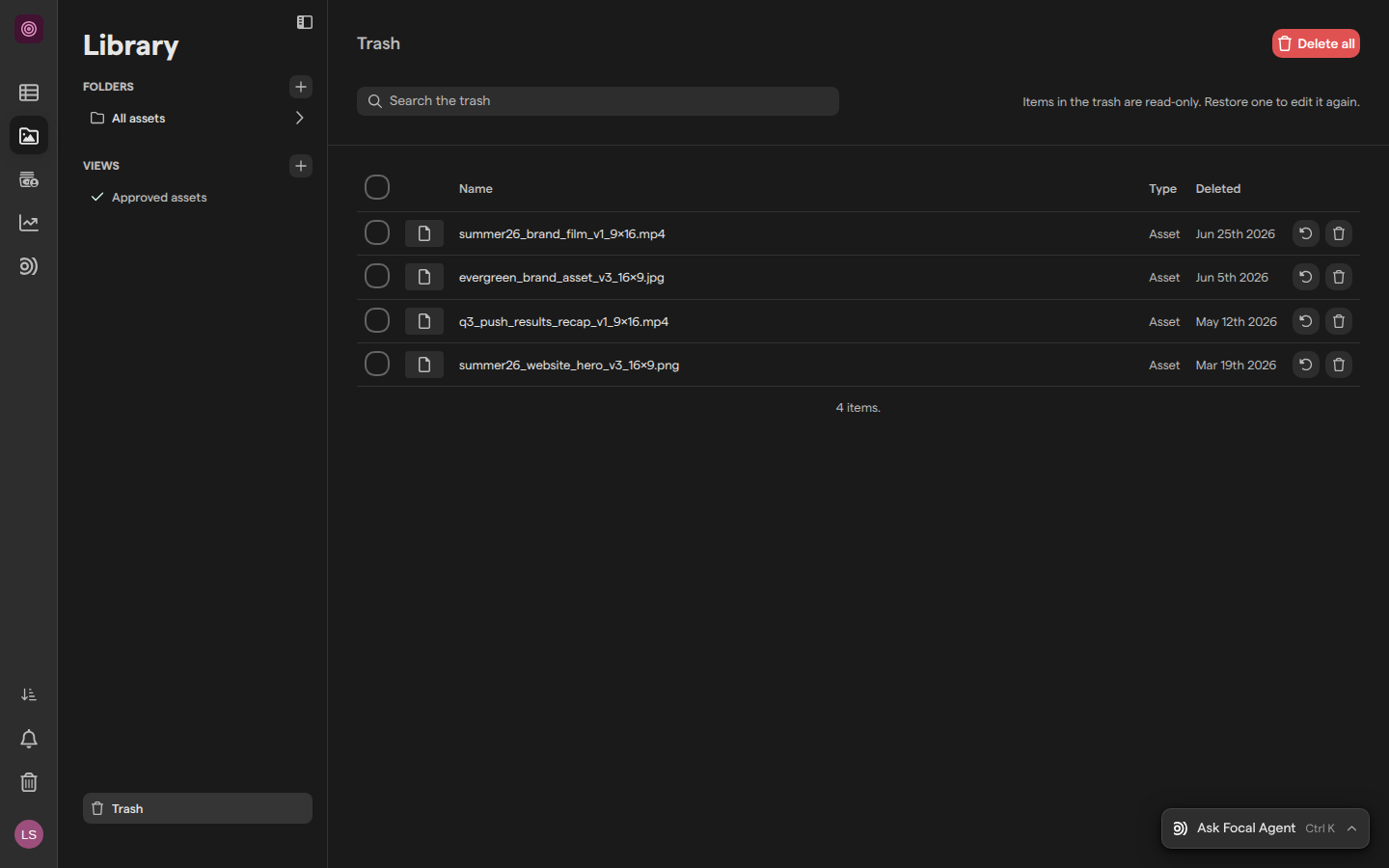
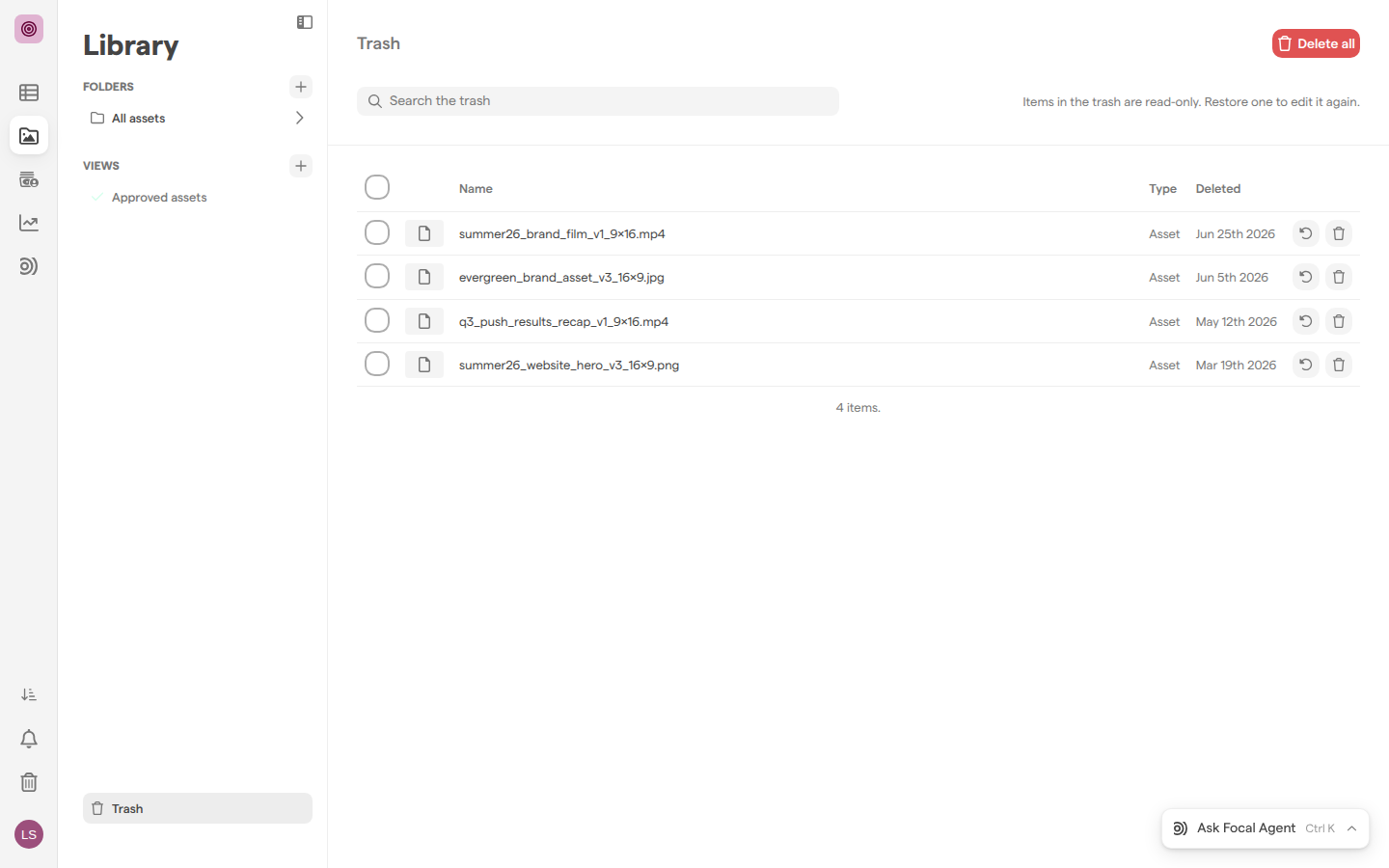
The Trash lists each item’s Name, its Type (“Asset” or “Folder”) and the date it was archived. Items in the Trash are read-only until you restore them. See Trash.
Archived boards are in the Archived section of the Boards sidebar, below Active. Right-click an archived board, or select the ⋮ button next to its name, then select Restore Board.
Archived tasks stay on their board. Select View archive (the box icon at the top right of the board) to see them; a line above the tasks reads “You are viewing the archive for this View.” Hover over a task and select Restore task, then select Exit archive to go back to the board. View archive is shown only to people who can edit the board.
Note: Archived items can also be permanently deleted with Delete permanently, which can’t be undone. We recommend restoring an item or leaving it archived instead. For an archived board, only space owners see Delete permanently.
Track uploads and downloads
The Uploads & Downloads panel shows the assets you are uploading and the downloads Focal is preparing for you, with their progress. It opens from Uploads & Downloads, the icon just above Notifications in the sidebar, and on its own when an upload starts. While something is in progress, a ring around the icon fills up, red if something failed.
The panel groups its items under these headings:
- Uploading
- Downloads
- Waiting
- Failed
- Completed
- Cancelled
From it you can:
- retry a failed upload (Retry upload), or cancel one that is running (Cancel upload)
- save a finished download to your computer (Download zip)
- remove an item from the list, or select Clear all on the Failed, Completed or Cancelled group
See Uploading assets and Exporting assets.
Open Space Settings and your user settings
Space Settings holds the settings of the space you are in: its name and access, its people and teams, its attributes, statuses and integrations. Space Settings, the gear icon at the bottom of the sidebar, is shown only to space owners and organization admins. See Settings.
Your own settings are under your avatar, the last item in the sidebar. Select it to open a menu with:
- User settings, for your profile, notifications and preferences. See User settings: Profile and User settings: Preferences.
- Theme, to choose:
- System
- Light
- Dark
- Contact support, which starts an email to Focal support.
- Sign out.
What each role sees in the sidebar
The sidebar shows only the parts of a space your role lets you use, so two people in the same space can see different entries:
| Sidebar entry | Space owner | Member | Guest |
|---|---|---|---|
| Boards | Yes | Yes | Yes, for boards shared with them |
| Assets, Shared collections | Yes | Yes | No |
| Reports | When turned on | When turned on | No |
| Workflows | Yes | No | No |
| Agent (beta) | When turned on | When turned on | No |
| Uploads & Downloads, Notifications | Yes | Yes | Yes |
| Space Settings | Yes | No | No |
Organization admins see what a space owner sees. Boards appears only in spaces that use boards. If you follow a link to a part of a space you cannot use, Focal opens the space’s first page instead of showing an error.