Variables
A variable is a placeholder in a step’s settings that stands for data from the trigger or an earlier step of a workflow. When the workflow runs, Focal fills the variable in with that run’s value. Variables are how one step passes data to the next: a message that names the task that changed, an Ask AI prompt about that task, or a column filled with the AI’s answer.
You add a variable by typing @ in a text setting, or by choosing it from a picker. A variable comes from a step that runs before the one using it, or from a few global values such as the space’s name. In the editor it shows as a chip, such as “Task · Name”.
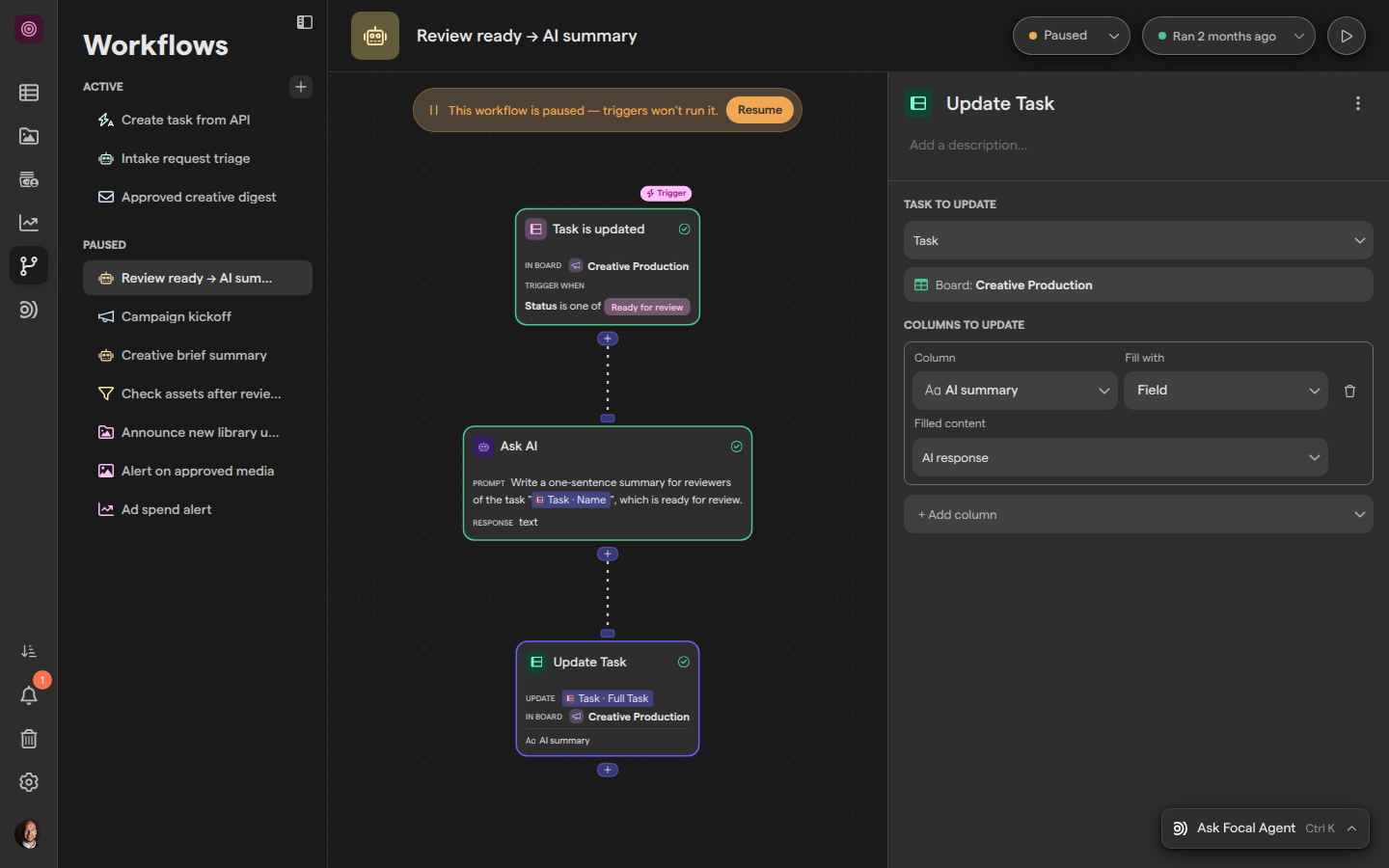
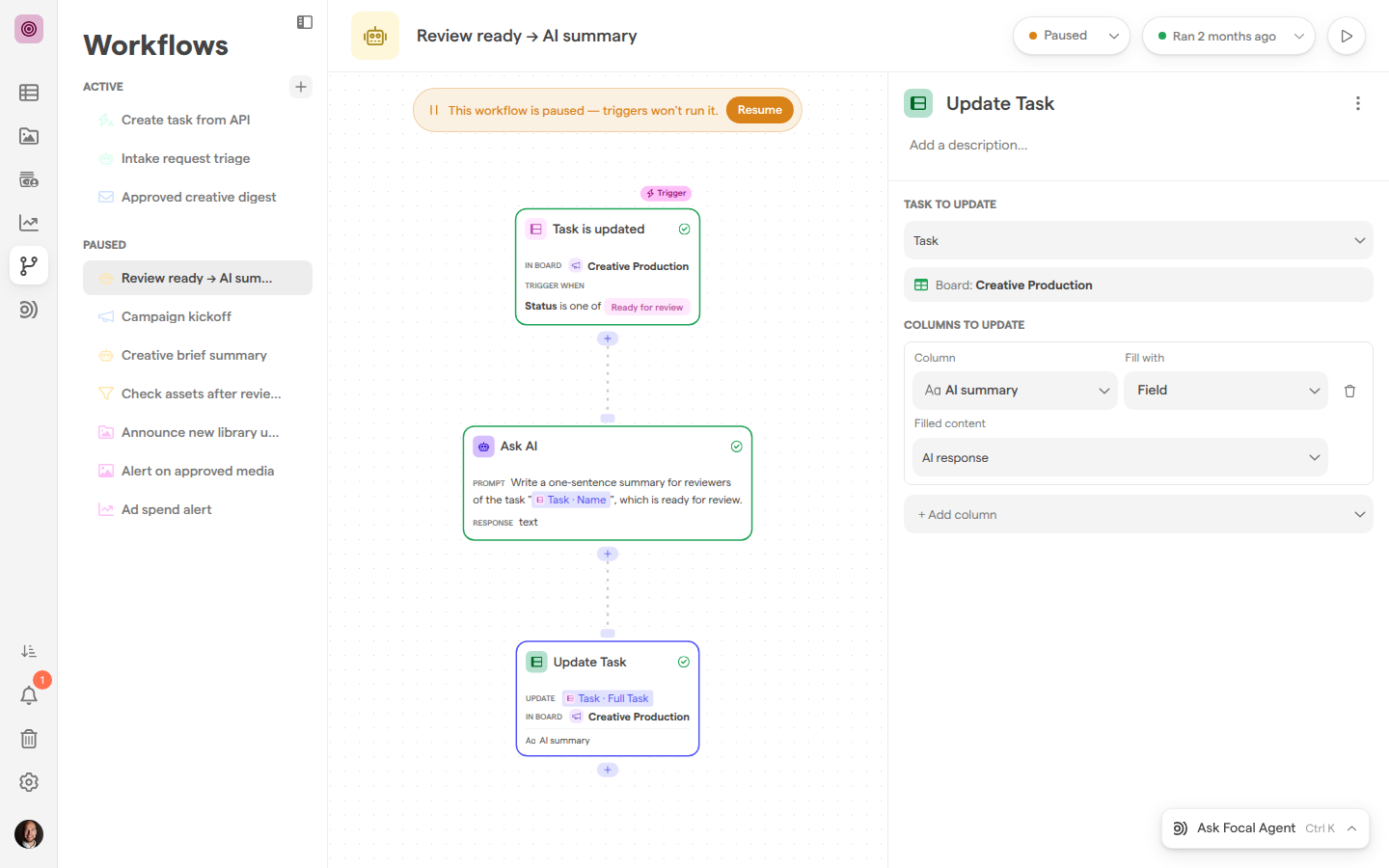
Insert a variable into text
Text settings accept variables anywhere in their text, mixed with words you type: a Slack or email message and subject, an Ask AI prompt, an HTTP Request URL, header or token, and a column filled with a Static or Autofill value. Their placeholder says so, for example “Type a message, @ to use data from previous steps”.
- Open Workflows and select the workflow.
- Select the step on the canvas to open its settings.
- In the text setting, type
@where the value should go. The variable menu opens. - Keep typing to search, or move through the menu (see Find the right variable).
- Select the value. It is inserted as a chip, followed by a space, and you can keep typing.
A prompt such as “Write a one-sentence summary for reviewers of the task Task · Name” puts the name of the task that started the run into the sentence. Changes save to the workflow’s draft and take effect when you publish; see Publishing and versions.
Pick a variable for a setting
Some settings take a value from an earlier step instead of free text. They show a picker field instead of a text box, and each takes exactly one value unless noted:
- Task to update in Update Task (“Select a task”), which takes one task or several (see Pick several tasks for one step)
- Media to update in Update Media (“Select a media”)
- Media source in the upload actions
- List to filter in a Filter step (“Select a list”)
- Select a field in a condition, and Select an output field for a column or attribute filled with Field
To choose the variable:
- Select the step on the canvas to open its settings.
- Select the picker field. The field changes to “Search variables…” and the variable menu opens below it.
- Type to search, or open a group and select the value.
- Press Esc to close the menu without changing anything. Inside a group, Esc first goes back a level.
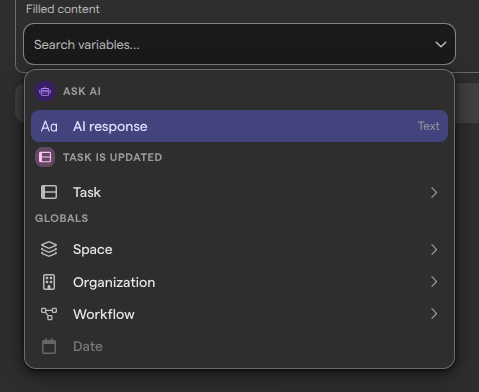
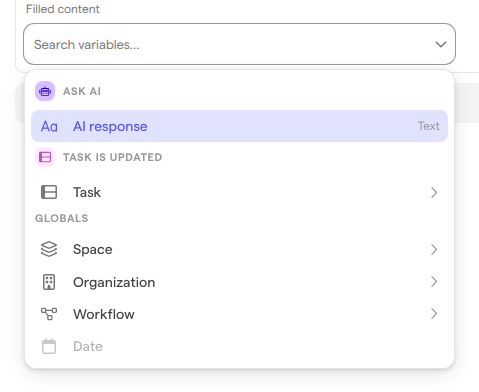
A picker only offers values of the kind the setting needs: Task to update lists tasks only. How columns are filled is in Actions.
Pick several tasks for one step
The task settings of three steps accept more than one task reference: Update Task, Export to Celtra and Import Celtra Outputs. Each step acts on every task you pick. To update the trigger’s task and all of its sub-tasks in one step, pick the trigger’s Task and its Sub-tasks in the task setting of Update Task. Because Sub-tasks is a list, it stands for each sub-task of that task. With no task reference, Import Celtra Outputs imports onto every task on the board, unlike Update Task and Export to Celtra, which need at least one.
All the references in one setting must be tasks on the same board. Once you pick the first, the picker offers only tasks from that board. To work on tasks from another board, use a separate step.
Find the right variable
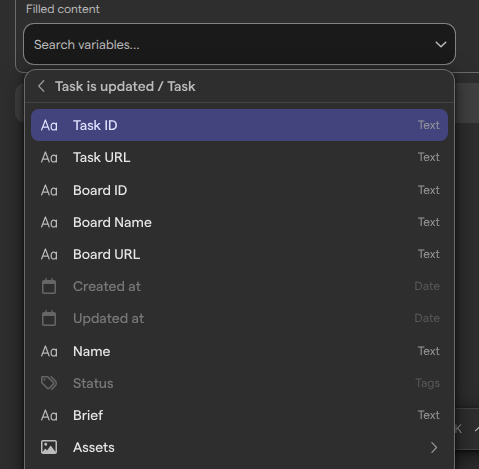
The variable menu lists every value a step can use, whether you open it with @ or from a picker. It groups values under one heading per earlier step, such as Ask AI or Task is updated, then Globals.
- Values show their type on the right: “Text”, “Number”, “Boolean”, “Date”, “Selection”, “Object”, “Task” or “Media”. “(multiple)” after the type means the value is a list.
- Groups show an arrow. Selecting one opens it, and the header shows the path, such as “Task is updated / Task”; select the header to go back. A task opens into its details, its board’s columns, such as Task URL, Name and Status, and its relations: Parent task and Sub-tasks. Parent task is one task. Sub-tasks is a list that holds every sub-task of that task, so it shows “(multiple)” after its type.
- Full entries, such as Full Task or Full Input data, insert the whole group as one value.
- Dimmed rows hold nothing the setting can take. In a text column, for example, Status and the dates are dimmed.
Typing narrows the menu to a flat list of matching values, each with its path. When nothing matches, it reads “No variables match” followed by your search.
The keyboard works throughout: ↑ and ↓ (or Tab) move, → opens a group, ← or Esc goes back a level, and Enter selects.
Use global variables
Global variables are values that every step can use, whatever the trigger. They sit under Globals at the bottom of the variable menu:
| Group | Values |
|---|---|
| Space | ID and Name of the space the workflow belongs to |
| Organization | ID and Name of the organization |
| Workflow | ID and Name of the workflow |
| Date | Current date, the date the run started |
Use them to name the space in a message, pass identifiers to another system, or compare a date with the day of the run. Current date is fixed when the run starts, so it stays the same for every step, even after a Wait step.
Some pickers, such as Task to update, only take a task or an asset and don’t show Globals.
Change or remove a variable
A variable chip in a text setting behaves like a single character.
- To remove or replace it, place the cursor after the chip and press Backspace; the whole chip goes at once. Type
@to insert another. - To check where it comes from, hover the chip. The tooltip shows the full path, such as “Task is updated · Task · Name”.
In a picker field, select the field again and choose another value; the new choice replaces the old one. Hovering a picker field shows its value’s full path, such as “Ask AI · AI response”.
Changing which task an Update Task step updates can change the board. When the new task belongs to a different board, the step’s Columns to update are cleared, because they belong to the old board.
Which data a step can use
A step can only use data from the steps that run before it: the trigger and every step connected above it on the canvas. A step on another branch, or one that comes later, never appears in its variable menu, because its value doesn’t exist yet when the step runs.
What each step offers is its output:
- The trigger passes what started the run: the task for Task is updated, the asset for the media triggers, and Input data with each field for Triggered via API. See Triggers.
- Each action passes its result, such as AI response from Ask AI or Created task from Create Task. Every action’s output is listed in Actions.
- A Filter step passes Filter result and Result count. Inside its own Keep items where conditions, the menu shows Item, the fields of one item of the list being filtered. See Conditions and timing.
Tasks and assets are read again after a Wait step, so a later step sees their current values; see How data changes during a wait.
How variables are filled in during a run
When a workflow runs, each step replaces its variables with that run’s values just before the step acts. In a message or a prompt, the text reads as if you had typed the values in:
- A list, such as the names of a task’s assets, is written out with its values separated by commas.
- A choice, such as a task status, is written as its label.
- A Full entry, such as Full Task, is written out as a block of that object’s fields.
Ask AI works a little differently. It sends your prompt with the values of the variables it names added after it, and when a variable is an asset, Ask AI also attaches the asset so the model can look at it, up to 10 assets per prompt. It can also pick up data your prompt describes in words, such as “the task’s brief”. We recommend inserting variables with @ anyway, so the prompt says exactly which data it means.
If the data a variable points to is missing when the step runs, for example a field that an API caller left out of the request, the step fails with an error such as “Missing reference for field”. The error shows in the run’s details; see Runs.
Fix a broken variable
A variable breaks when the data it points to is no longer there. This happens when you delete the step it comes from, disconnect that step so it no longer runs before this one, or remove the field it used, for example by changing the trigger type or the board. A broken variable stays in place as a red chip, so nothing is lost silently:
| Chip | What happened | How to fix it |
|---|---|---|
Missing reference |
The source step was deleted | Remove the chip and pick another value |
<step>: Not connected |
The source step isn’t a previous step any more | Connect it above this step again |
<step>: Missing field '<field>' |
The field was removed or renamed | Remove the chip and pick another value |
Hover a red chip to see why it is broken. The step’s card turns red too, with an error such as “This step references a variable from a step that no longer exists.” A workflow with a broken variable can’t be published until you fix it; see Publishing and versions. The card states are explained in Building a workflow.
Who can use variables
Variables are part of Workflows, which only space owners and organization admins can open. Anyone who can open a workflow can add, change and remove every variable in it; there is no separate permission for variables.
Space members and guests who are not organization admins don’t see Workflows in the space sidebar, and a link to a workflow takes them back to the space.