Triggers
A trigger is the first step of a workflow: the event in Focal that starts it. Every workflow has exactly one trigger, fixed at the top of the canvas, and the steps after it run each time the trigger fires. Focal has five triggers: Task is updated, Media is added to library, Media is updated, Ad performance reaches a value and Triggered via API.
Most triggers take conditions, so a workflow starts only for the changes you care about, such as a task moving to “Ready for review”. A trigger only fires for a workflow that is published and active; see Publishing and versions.
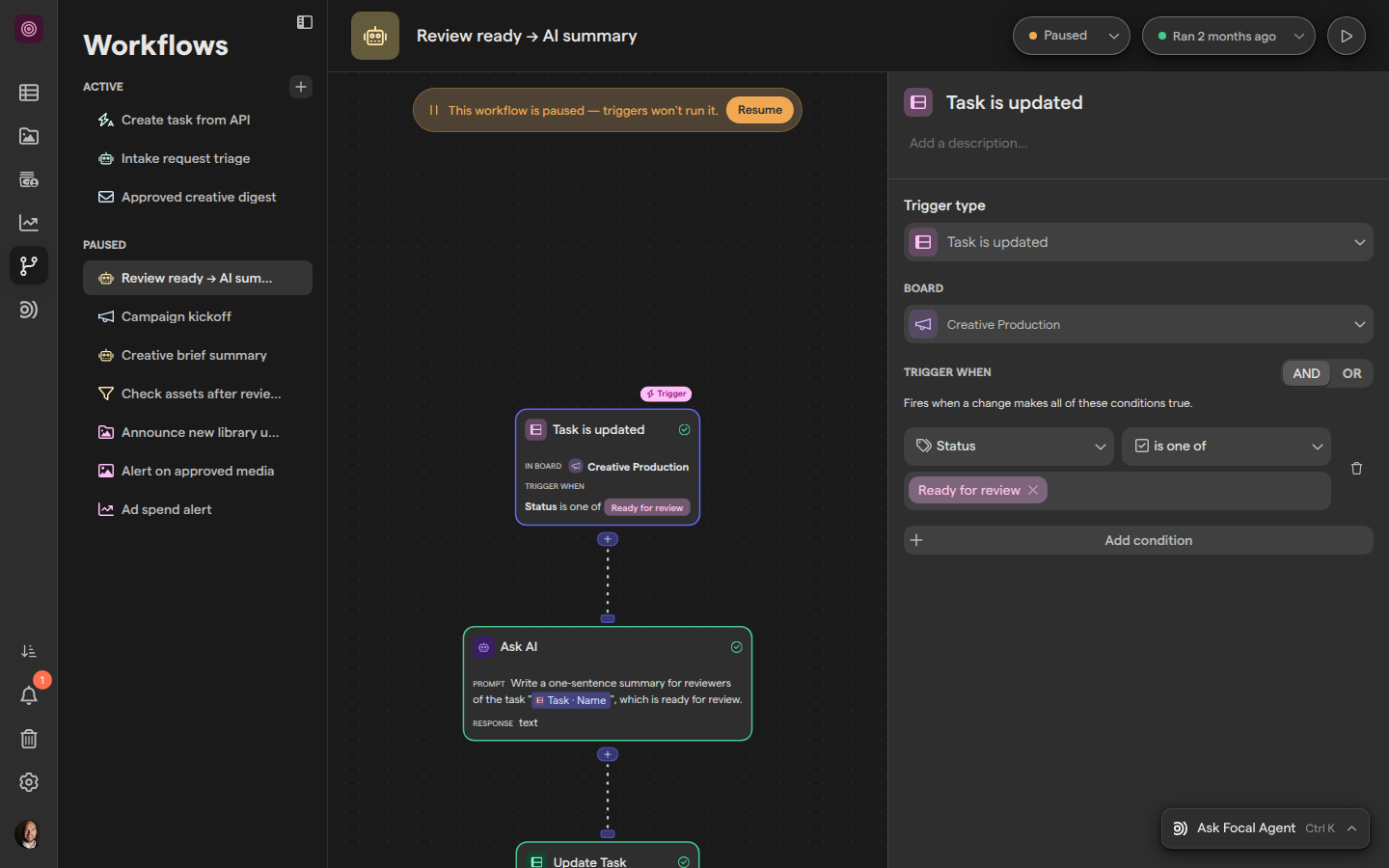
Choose a trigger
A workflow’s trigger is chosen when the workflow is created, and it can be swapped for another trigger later. A new workflow opens on a picker titled Start a workflow when…, which lists every trigger with a one-line description. Triggered via API carries an “Advanced” badge.
To choose the trigger for a new workflow:
- Open Workflows and create a workflow (see Building a workflow).
- On Start a workflow when…, type in Search triggers… to narrow the list, or scroll it.
- Click the trigger you want. It becomes the workflow’s first step.
To change the trigger of an existing workflow:
- Click the trigger step on the canvas. Its settings open on the right.
- Open the Trigger type menu and pick another trigger.
Changing the trigger type resets the trigger’s settings to the new type’s defaults, so its board and conditions are cleared. Later steps stay connected, but any step that used data from the old trigger shows an issue until you fix it. The trigger step itself can’t be deleted.
Set trigger conditions
Trigger conditions decide which changes start a workflow. Task is updated, Media is updated and Ad performance reaches a value all take conditions, set under Trigger when in the trigger’s settings. Each condition is a field, an operator and a value, for example Status is one of Ready for review.
-
Click the trigger step on the canvas.
-
Under Trigger when, click Add condition.
-
Choose a field in Select a field.
-
Choose an Operator, such as:
- is
- is one of
- exists
The operators offered depend on the field.
-
Enter or choose the value.
-
Pick AND to require every condition, or OR to accept any one of them.
A trigger needs at least one condition with a value. Until then the step shows “Set up a condition.” or “Add a value to the condition.”, and the workflow can’t be published. Remove a condition with the trash icon next to it.
A condition fires on a change, not on a state. For Task is updated and Media is updated, the workflow starts when a change makes a condition newly true: a task that is already “Ready for review” does not start the workflow again when someone edits its name. With AND, the change must leave all the conditions true. When the run starts, Focal checks the conditions again against the task or asset as it is then; if they no longer hold, the run is skipped.
Task is updated
Task is updated starts a workflow when a task on one board changes so that it meets the trigger’s conditions. Use it to react to work moving through a board: a task set to a status, assigned to someone, or given a due date.
The trigger takes a Board and conditions:
- Board. Choose the board in Select a board. The trigger watches that board only. Changing the board clears the conditions, because they refer to the old board’s columns.
- Conditions. The fields are the board’s columns, such as Name, Status, Assigned to or Due date. The conditions section appears once a board is chosen.
A task created on the board that already meets a condition also starts the workflow. Under Trigger when, the settings read “Fires when a change makes all of these conditions true.” with AND, or “…any of these conditions true.” with OR.
The trigger passes the task to later steps, so an action can read its columns or update it. See Variables for using that data.
Media is added to library
Media is added to library starts a workflow each time an asset is added to the asset library of the space. It fires for a new upload to the library and for an existing asset that becomes part of the library. Use it to process every new asset the same way, for example to notify a channel or tag it.
This trigger has no settings: its settings panel reads “This step does not have any settings.” It fires once per asset, when the asset enters the library, and not again when the asset is edited later. To start a workflow only for some assets, add a Filter or Condition step after the trigger, or use Media is updated with the Is in library field instead.
The trigger passes the asset to later steps, so they can read its details or update it. See Variables for using that data.
Media is updated
Media is updated starts a workflow when an asset in the space changes so that it meets the trigger’s conditions. It watches every asset in the space and has no board or folder to choose, so the conditions do all the narrowing.
The condition fields are:
- Name
- Status, the asset’s asset status
- Is in library
- Aspect ratio
- the space’s media attributes
As with tasks, the workflow starts when a change makes a condition newly true, and with AND the change must leave all conditions true. A typical use is a review flow: when an asset’s status becomes “Approved”, send it to an ad account or notify the team. The trigger passes the asset to later steps.
Ad performance reaches a value
Ad performance reaches a value starts a workflow when ad performance from connected ad accounts matches the criteria you set. It reads the same data as Reports, so you can act on a threshold, for example flag every ad whose spend passes a limit.
The trigger has four settings. The last three appear once an ad account is chosen.
-
Ad accounts. Choose one or more in Select ad accounts. To add an account, use Connect an ad account at the bottom of the list (see Ad accounts).
-
Breakdown by. What one run is about:
- Ad
- Creative
- Media
A creative sums the ads that share it; an asset sums every ad it appears in.
-
Timeframe. The period performance is measured over, set in Performance window: a rolling window such as Last 7 Days (the default) or a date range picked on the calendar.
-
Trigger when. Conditions on the metrics and ad details the chosen ad accounts report, and on media attributes, for example Spend is over
500.
This trigger runs on a schedule rather than on a change: once a day at 9 AM in each ad account’s timezone. The time can’t be changed. Each ad, creative or asset starts the workflow once for a given set of conditions and timeframe; changing the conditions or the timeframe lets it fire again. If a condition uses a metric none of the selected accounts report, the settings warn that the condition can never match.
Note: This trigger is offered only where Reports is available. If Reports doesn’t appear in the sidebar, Ad performance reaches a value isn’t in the list of triggers either.
Triggered via API
Triggered via API starts a workflow when another system sends a request to it, such as a form tool, a script or an automation platform. Use it to bring outside events into Focal, for example to create a task from an intake form.
The trigger’s settings hold everything the caller needs:
- API URL. The address to send the request to. Copy it with the copy button next to it.
- API Token. The secret the caller sends in the
Authorizationheader asBearer <token>. Copy it with the copy button, or create a new one with the renew button (“Renew token”). After renewing, update every system that calls the workflow. - Fields. Optional named fields for the request body, edited in Visual or JSON view. Each field has a type and can be marked Array or Required. The types are:
- Text
- Number
- Boolean
- Date
- Object
- Enum
The caller sends a POST request with a JSON body to the API URL. Focal answers with “Workflow execution queued” when the run is accepted. It refuses the request when the token is wrong, the workflow is paused (“Workflow is disabled”) or has never been published (“Workflow has not been published”). When fields are defined, a body that doesn’t match them fails the run. Later steps can read each field on its own, and the raw body is always available too.
When a trigger runs a workflow
A trigger only starts runs for a workflow that is published and active. Edits to a trigger are saved to the workflow’s draft and take effect when you publish them; see Publishing and versions. A paused workflow shows “This workflow is paused — triggers won’t run it.” and its trigger does nothing until you click Resume.
Workflows can start each other, for example when one workflow updates a task that another workflow watches. To stop endless loops, Focal skips a run that would start a workflow already in the chain that caused it, or that would make the chain longer than 20 workflows. To start a workflow once without waiting for its trigger, run it manually; see Runs.
Who can set up triggers
Workflows, and so their triggers, are open to space owners and organization admins. Space members and guests don’t see Workflows in the sidebar, and opening a workflow link takes them back to the space. See Roles and permissions for the roles.
A trigger acts on everything it watches, whoever set it up: Media is updated watches every asset in the space, and Task is updated watches every task on its board.