Space settings: Integrations
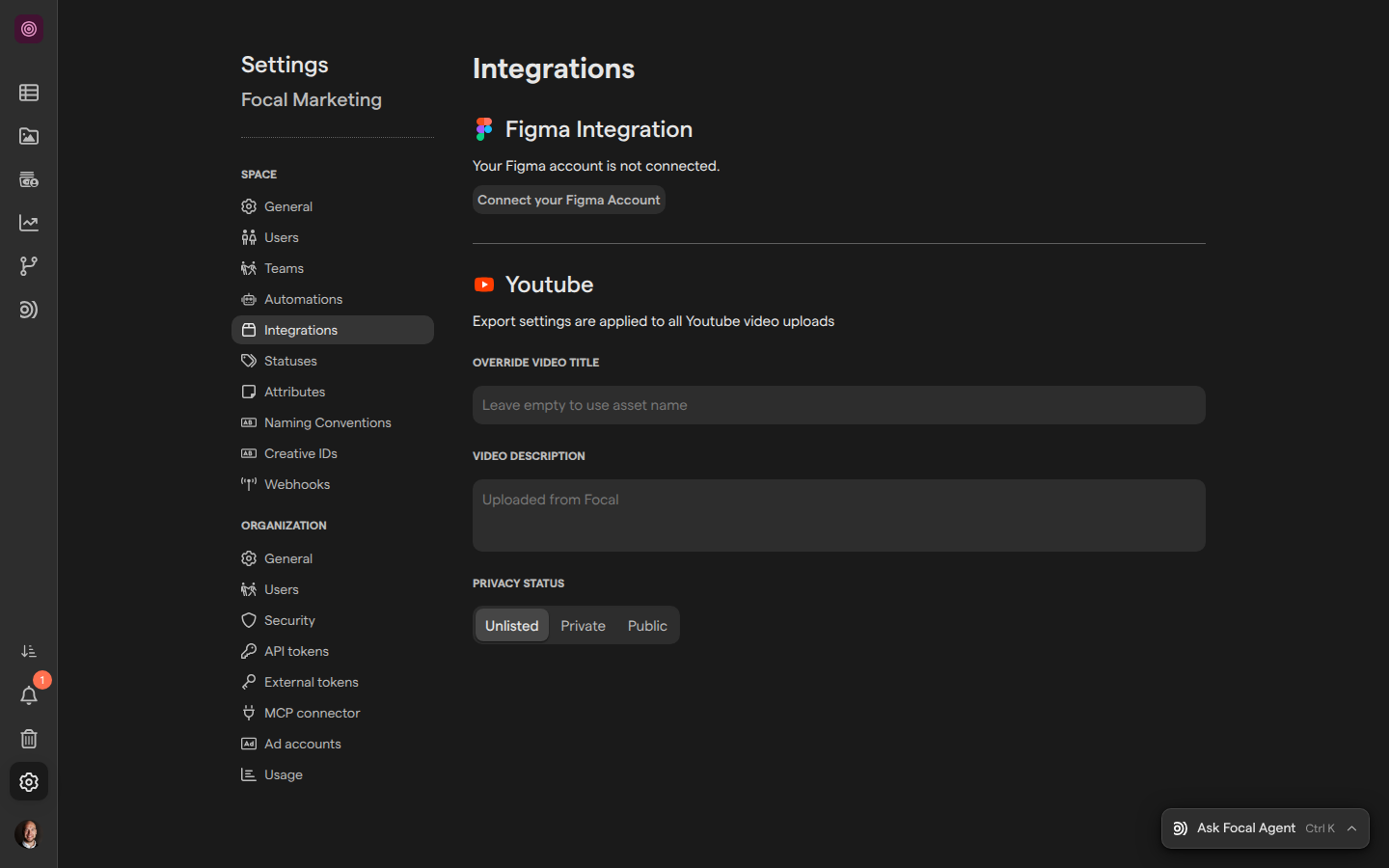
The Integrations page of Space Settings holds the space’s settings for two integrations: Figma, which brings frames from your Figma files into Focal as assets, and YouTube, which uploads videos from Focal to a YouTube channel. The page lets you connect and remove your Figma account, and set the title, description and privacy status every YouTube upload from the space gets.
Figma signs in with your own Figma account, so a connected Figma account belongs to you, not to the space. For YouTube, each person connects their own Google account when they export. Only space owners and organization admins can open the page (see “Who can use the Integrations page” below). The other integrations Focal offers are set up elsewhere; see Integrations.
Open the Integrations page
The Integrations page is one of the space’s pages in Space Settings, between Automations and Statuses. Space Settings always opens on the space you are in, so switch to the right space first if you belong to more than one.
- Open the space whose integrations you want to set up.
- Select Space Settings, the gear icon at the bottom of the sidebar.
- Select Integrations under Space in the settings menu.
You can also go straight to the page with Integrations settings.
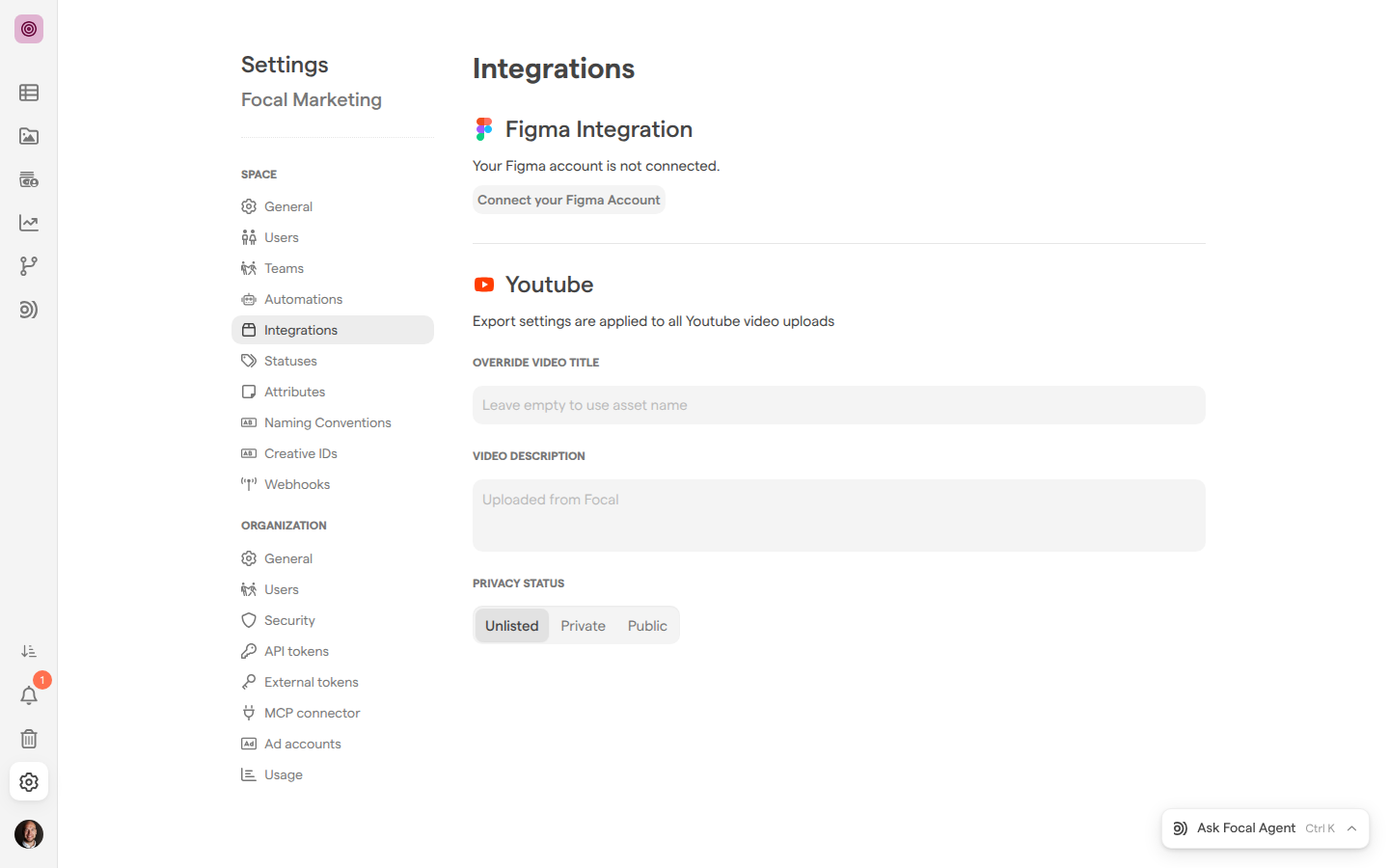
The page has two sections. Figma Integration says whether your Figma account is connected and has the buttons to connect it, import from it and remove it. Youtube holds the export settings for YouTube uploads. While Focal checks your Figma account, the Figma section reads “Please Wait”; if the check fails, it reads “Something went wrong, please try again later”.
Connect your Figma account
Connecting your Figma account lets you import frames from your Figma files as assets, and add a frame as a new version of an asset. Until you connect, the Figma section reads “Your Figma account is not connected.”
- Open the Integrations page of Space Settings.
- Under Figma Integration, click Connect your Figma Account. Focal sends you to Figma.
- Sign in to Figma if it asks, and allow Focal access to your account.
Figma sends you back to the Integrations page, with the Figma import dialog open so you can import your first frames (see the next section). The Figma section now reads “Your Figma Account is connected to Focal.”
Finish signing in on Figma within about six minutes of clicking Connect your Figma Account; a sign-in that takes longer fails, and you start again from the button. You don’t have to start from Settings: the first time you choose Import from Figma in the asset library or on a board, the import dialog asks you to connect with Sign in with Figma (see Uploading assets).
Import assets from Figma
Once your Figma account is connected, the Import Assets button in the Figma section opens the Figma import dialog, titled “Figma -> Import”, without leaving Settings. It is the same dialog as Import from Figma in the asset library.
- Open the Integrations page of Space Settings.
- Under Figma Integration, click Import Assets.
- Paste the address of a Figma design into Paste a Figma design URL here and click Import, or pick a file under Recent files.
- Select the frames you want, click Next, check the list and click Submit.
When the import starts, Focal opens the asset library, where the frames arrive as new assets. How importing works, and where the assets go, is described in Uploading assets.
Set the default details for YouTube uploads
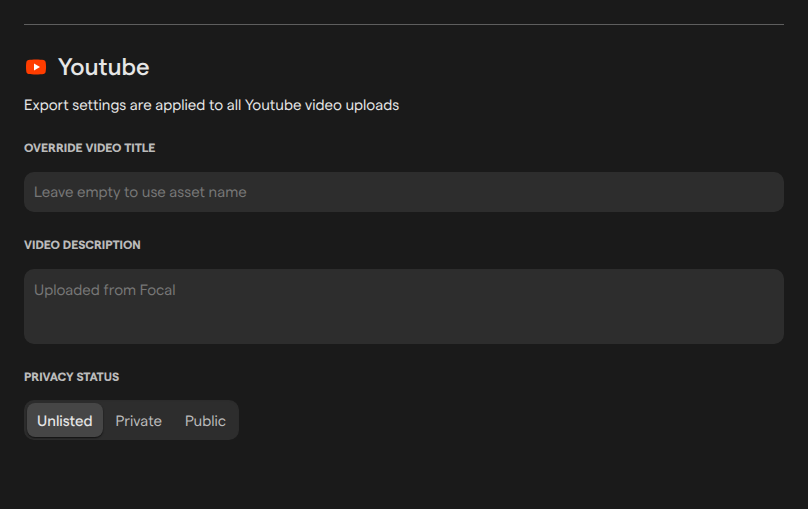
The Youtube section of the Integrations page sets what every video uploaded from the space to YouTube is called, how it is described and who can watch it. The page says so: “Export settings are applied to all Youtube video uploads”. The settings apply to exports from the asset library and from boards (see Exporting assets), and to the Upload to YouTube action in Workflows.
| Setting | What it does | If left empty |
|---|---|---|
| Override Video title | Gives every uploaded video this title | Each video is titled with the asset’s name |
| Video description | The description of every uploaded video | “Uploaded from Focal” |
| Privacy status | Unlisted, Private or Public on YouTube | Unlisted |
Changes save as you make them; there is no Save button. They apply to uploads that start after the change, not to videos already on YouTube.
Before upload, Focal cleans up the title: it keeps letters, numbers, spaces, dashes, underscores and periods, drops every other character, and cuts the title at 100 characters. A title with accented letters or emoji loses those characters. We recommend leaving Override Video title empty unless the space uploads one video at a time, since every video gets the same title.
Each person connects their own Google account the first time they export a video to YouTube, as described in YouTube export.
Remove the Figma integration
Removing the Figma integration disconnects your Figma account from Focal. Assets you already imported stay in Focal. To import more frames, connect again.
- Open the Integrations page of Space Settings.
- Under Figma Integration, click Remove Integration, at the top right of the section.
- Click Yes, I’m sure! in the confirmation, “Are you sure you want to remove Figma?”.
The Figma section goes back to “Your Figma account is not connected.” Because the Figma integration belongs to your account, removing it disconnects Figma for you in every space, not only the one whose settings you have open. Other people’s Figma accounts are not affected.
The Figma integration can also end without anyone removing it: when Figma no longer accepts Focal’s access to your account, the Figma section shows Connect your Figma Account again. Connect it again to carry on importing.
Who can use the Integrations page
The Integrations page, like the rest of Space Settings, opens only for space owners and organization admins (see Roles and permissions). An organization admin has the same rights as a space owner in every space. Everyone with the page open can connect and remove their own Figma account and change the YouTube export settings.
Members don’t need the page to use either integration. A member connects their own Figma account the first time they choose Import from Figma, and their own YouTube channel the first time they export a video to YouTube. The YouTube export settings a space owner sets still apply to the videos members upload from the space.
How the integrations are tied to your account
The Figma and YouTube integrations connect one person’s account on the other service, not the space’s. That has a few consequences:
- The Figma section shows your own status. A colleague who opens the same page sees “Your Figma account is not connected.” until they connect their own account.
- Your Figma account works in every space you belong to, and removing it on one space’s Integrations page removes it in all of them.
- A YouTube channel you connect is used for your exports only. Each person signs in with a Google account that can upload to the channel.
- The YouTube export settings are the exception: they belong to the space, so everyone’s uploads from the space get the same title, description and privacy status.