Managing reports
A report is a page of blocks that shows how the ads and creatives in your connected ad accounts perform, next to what your team produced. This article covers the life of a report once it exists: finding, renaming, filtering, saving, reordering, duplicating and permanently deleting it. To start a new report, connect an ad account or set its timeframe, see Creating a report.
Changes to a report are not saved as you make them. Renaming, filtering and editing blocks are collected as pending changes, and someone with Edit Access or Full Access to the report reviews and saves them in one go. Each report lives in a space, and who can open and change it is set in Sharing reports.
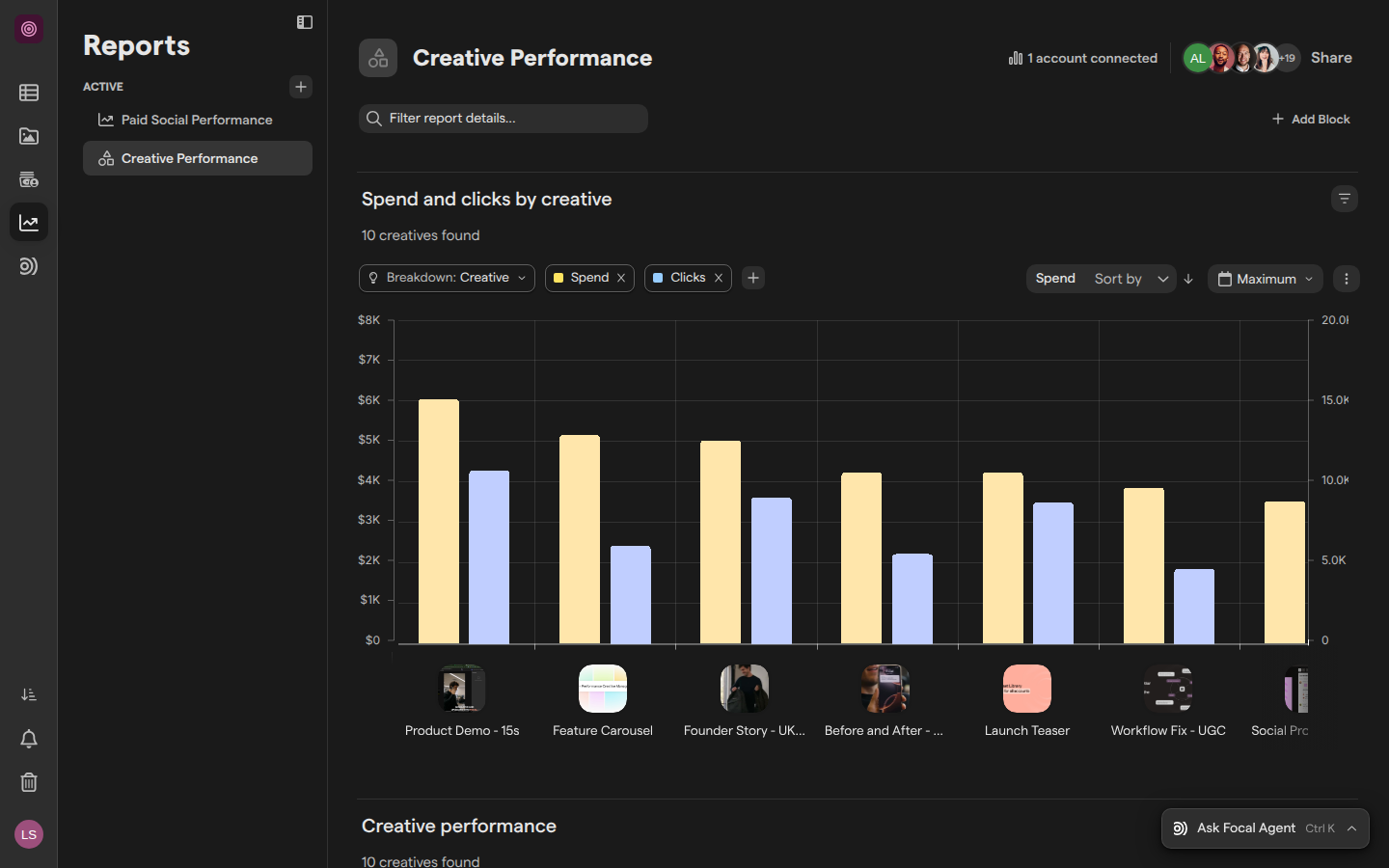
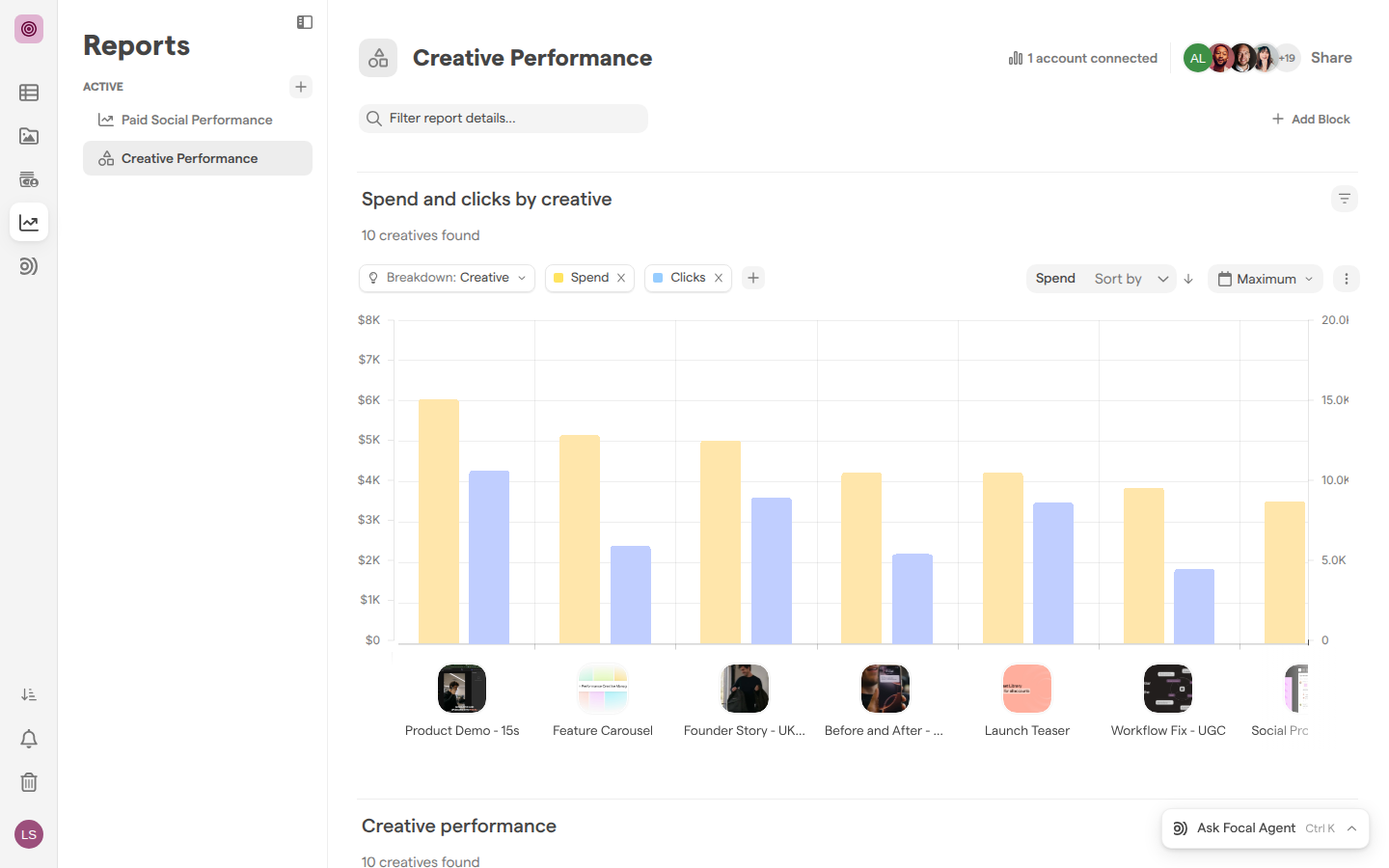
Find a report in the Reports sidebar
The Reports sidebar is the list on the left of the Reports page. Open it from Reports in the app’s main navigation, or through Reports. The Active section lists the reports in the space that you can open, in the order your team has arranged them.
- Click a report’s name to open it.
- When you open Reports without picking a report, Focal opens the report you used last in that space, or the first one in the list.
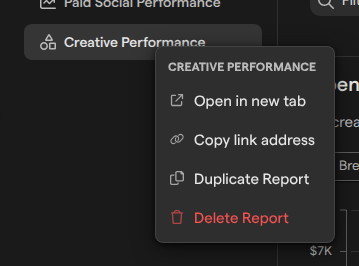
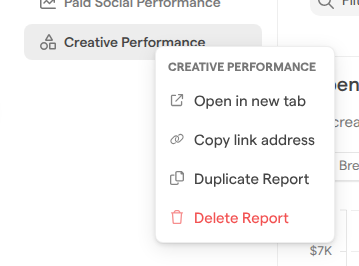
- Right-click a report, or hover over it and click the ⋮ icon, for its menu:
- Open in new tab
- Copy link address
- Duplicate Report
- Delete Report
When the space has no reports yet, the sidebar says “You don’t have any reports yet” and the page offers New report. The + button next to the Active heading (its tooltip reads “New report”) creates one: see Creating a report.
Guests do not see Reports in the navigation and cannot open reports. See Navigation.
Rename a report and change its icon
A report’s name and icon are shown at the top of the report and in the Reports sidebar. Anyone with Edit Access or Full Access to the report can change them.
- Open the report.
- Click the report’s name at the top of the page.
- Type the new name and press Enter.
To change the icon, click the icon to the left of the name (its tooltip reads “Click to choose an icon”). Pick a color and an icon, or find one with Search icons…. Press Escape to close the picker.
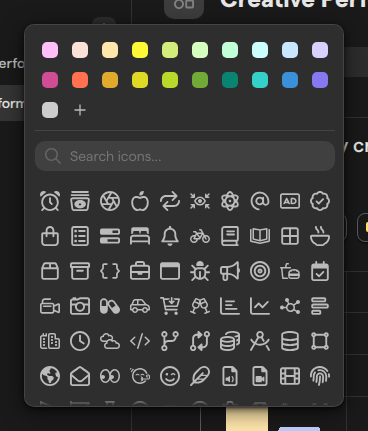
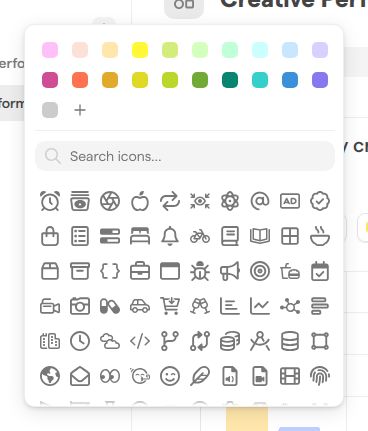
A new name or icon is a pending change, listed as “Renamed the report” or “Changed the report icon”. It shows in the sidebar and for everyone else only after you save it. See “Review and save changes to a report” below.
Filter a whole report
A report filter narrows every block in the report at once, for example to live ads only, or to one campaign. Each block can also have filters of its own; a report filter applies on top of them. Anyone with Edit Access or Full Access can filter a report.
-
Open the report.
-
Click Filter report details… under the report’s name.
-
Pick a filter. Filters are grouped as:
- Common Metrics
- Dates
- Ads / Creatives
- Formulas
- Ad Campaigns
- Ad Sets
- Custom Actions
- Metadata
These are followed by the space’s media attributes, such as Format or Aspect ratio. Type in Search filters… to find one.
-
Press Escape to close the panel.
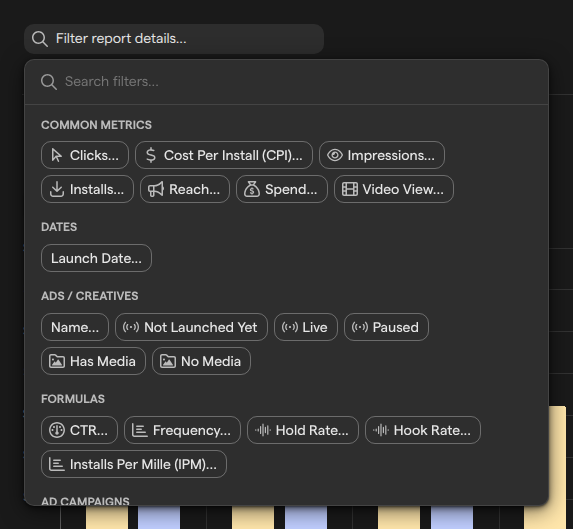
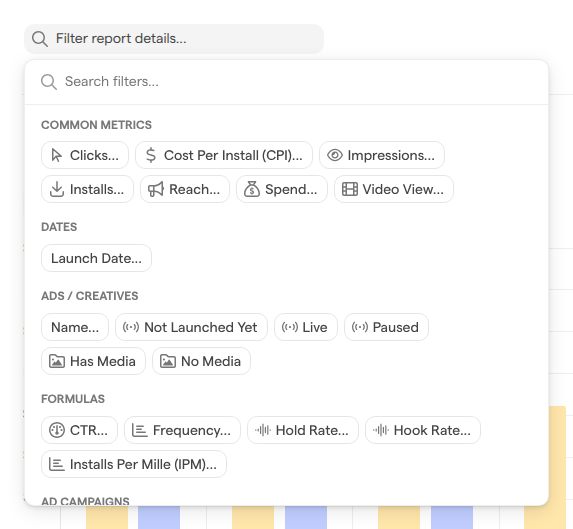
Each filter appears next to the bar, for example “Status Live”, and the blocks update right away. Click a filter to change its values, or click Clear in it to remove it. A report filter is a pending change, “Changed the report filters”, until it is saved.
A property filtered at the report level is locked in every block’s own filters: in a block’s filter panel its options are greyed out, with the tooltip “Already filtered at the report level”. Remove the report filter to filter that property block by block instead. Block filters are covered in Report blocks.
Review and save changes to a report
Changes to a report are staged: they show on your screen right away, but nothing is written to the report until someone with Edit Access or Full Access saves them. As soon as there is something to save, a Review changes button appears on the right, under the Share button.
- Click Review changes. The Unsaved changes list shows one line per change, such as “Renamed the report”, “Changed the report filters”, “Added …”, “Edited …”, “Removed …” or “Reordered blocks”.
- Click Save Changes to save them all, or Reset to throw them all away.
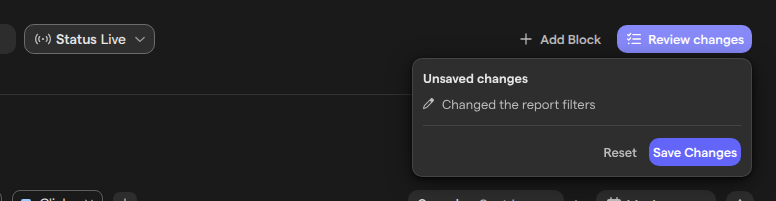
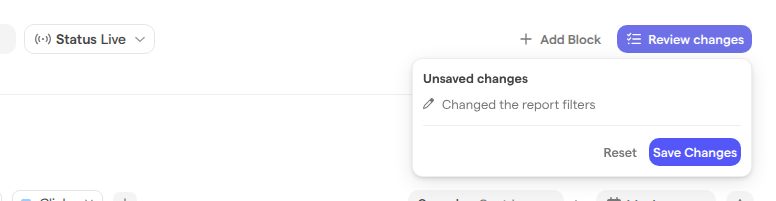
Saved changes appear for everyone who can open the report. If you try to leave a report with unsaved changes for another page in Focal, the “You have unsaved changes” dialog asks what to do: Save changes, Ignore changes to leave without saving, or Cancel to stay. Closing the browser tab shows the browser’s own warning instead.
Note: With View Access, you can read the report but not change it. Ask someone with Edit Access or Full Access to make changes, or to give you Edit Access. See Sharing reports.
Reorder reports in the Reports sidebar
The order of the Active section is shared: everyone in the space sees the reports in the same order. To move a report, drag it up or down the Active section. The new place is saved as soon as you drop it, with no review step.
Reordering the blocks inside a report is different: it is a pending change, saved through Review changes, and covered in Report blocks.
Duplicate a report
Duplicating a report makes a copy of it in the same space, with the same blocks, icon, timeframe and connected ad accounts. Use it to start a report for a new campaign from one your team already built.
- In the Reports sidebar, right-click the report, or hover over it and click the ⋮ icon.
- Choose Duplicate Report.
There is no confirmation: Focal creates the copy, named after the original with “(Copy 1)” added (or the next number), opens it and confirms with “Report duplicated.” The copy is made from the report as last saved, so unsaved changes are not included.
The copy starts with the access a new report gets: only you can open it until you share it. To share it, see Sharing reports.
Permanently delete a report
Permanently deleting a report removes it, and every block in it, from the Reports sidebar for everyone. It cannot be undone. The data the report showed stays in your ad accounts, so a new report can show it again.
- In the Reports sidebar, right-click the report, or hover over it and click the ⋮ icon.
- Choose Delete Report.
- In the “Are you sure?” dialog, click Yes, delete it.
Focal confirms with “Report deleted.” If you had the report open, Focal closes it.
Note: Permanently deleting a report cannot be undone.
Permanently deleting a report needs Full Access to it.
When someone else saves the same report
Two people can have the same report open at once. When someone else saves changes to the report you are looking at, a “This report has been modified” banner replaces the Add Block and Review changes buttons, until you load their version.
Click Refresh in the banner to load the saved report. If you had unsaved changes of your own, Focal first asks “You have unsaved changes to this report. Discard them?”: confirm to load the new version, which throws your changes away, or cancel to keep looking at your version.
Who can manage a report
What you can do with a report depends on your access level to it. Access levels are set in the report’s sharing settings: see Sharing reports. Space owners and organization admins always have Full Access.
| Action | Who can do it |
|---|---|
| Open a report | Anyone with View, Edit or Full Access; never guests |
| Filter a report, change blocks, rename it, change its icon or its ad accounts, save or reset changes | Edit Access and Full Access |
| Share a report, permanently delete a report | Full Access |
| Duplicate a report | Space owners and space members who can open it |
With View Access, the report is read-only: the name and icon cannot be edited, Add Block is greyed out with the tooltip “You need edit access to add blocks to this report”, and the filters are locked with the tooltip “You need edit access to change the filters on this report”.