Space settings: Statuses
An asset status is a label set on an asset to say where it stands, such as Draft, Waiting for approval or Approved. The Statuses page of Space Settings holds the list of asset statuses a space uses, under the heading Media Statuses. Space owners use it to rename the statuses to their team’s own review steps, add new ones, change their colors and icons, put them in order, and remove the ones nobody needs.
The list is shared by the whole space: every status picker, filter and workflow in the space offers the statuses on this page, in this order. Changes save as you make them, with no Save button. The page is about asset statuses only; the task statuses on a board are set on the board itself (see “Asset statuses and task statuses” below).
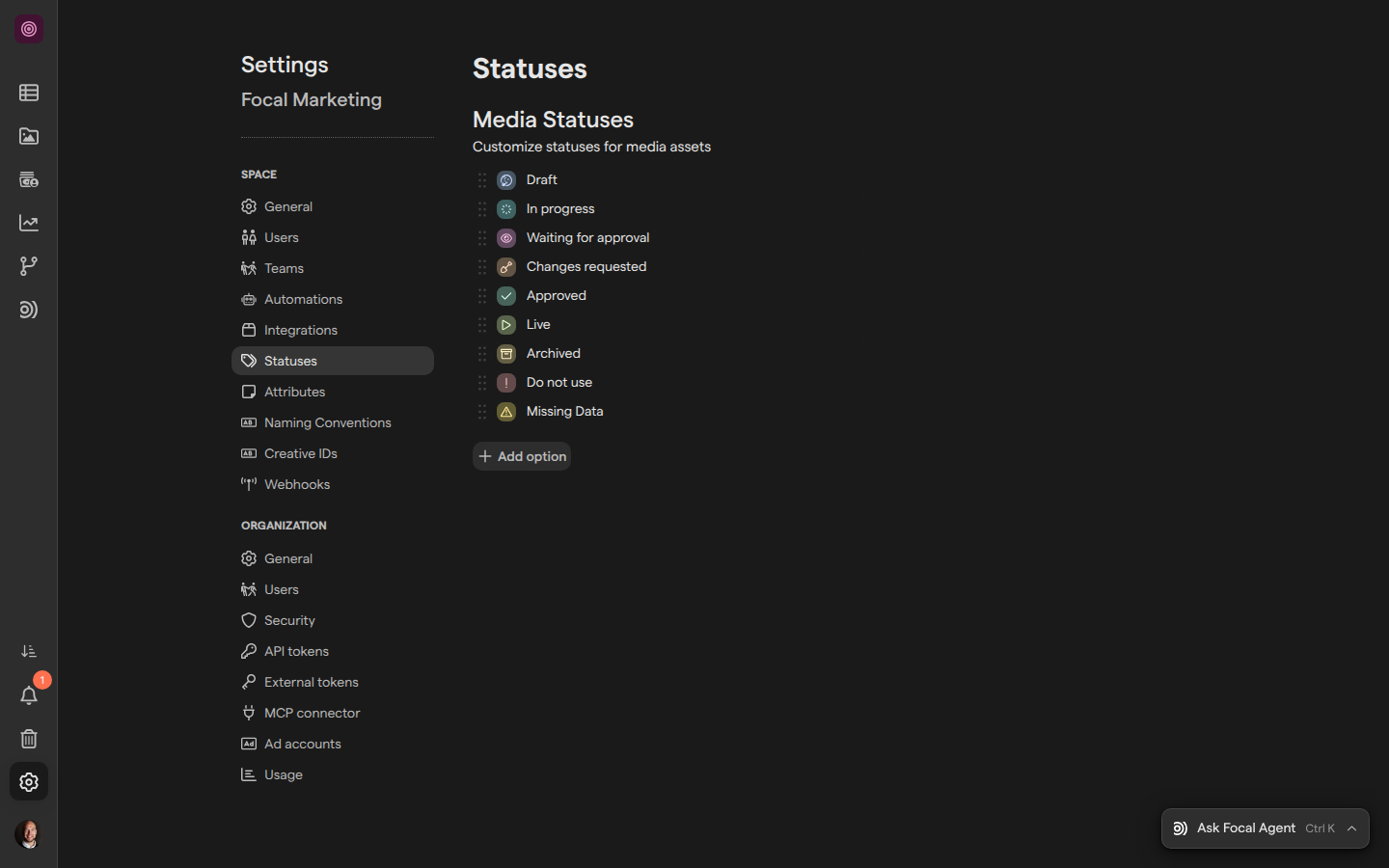
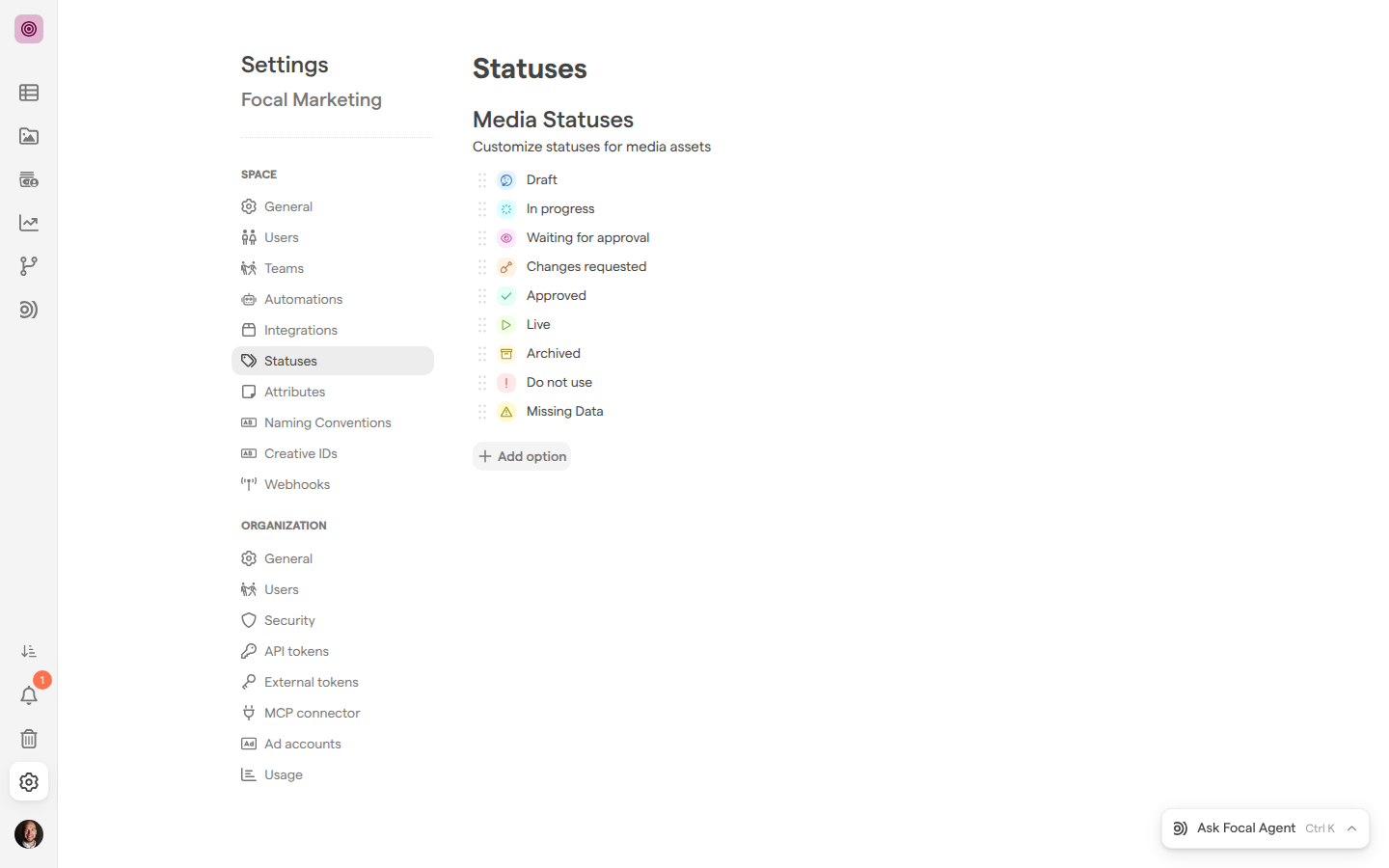
Open the Statuses page
The Statuses page is one of the pages under Space in Space Settings, and it always shows the statuses of the space you are in. To change another space’s statuses, switch to that space first (see Navigation).
- Open the space whose asset statuses you want to change.
- Select Space Settings, the gear icon at the bottom of the sidebar.
- Select Statuses in the settings menu on the left.
You can also go straight to the page with Statuses settings. See Settings for the other pages of Space Settings.
The page lists one line per asset status. Each line has a drag handle, the status’s icon on its color, and its name. A space that has never changed its statuses has Focal’s nine: Draft, In progress, Waiting for approval, Changes requested, Approved, Live, Archived, Do not use and Missing Data.
Add an asset status
A new asset status gives your team another step to mark assets with, such as “Legal review” or “Ready for export”. It is available on every asset in the space as soon as you add it.
- Open the Statuses page of Space Settings.
- Select Add option below the list. A new, empty line appears at the end of the list.
- Type the status’s name in the field that reads “Add a name”.
- To pick its color and icon, see “Change a status’s name, color or icon” below.
The new status gets a color from Focal’s palette to start with. It saves while you type, and it is added even if you leave the name empty, so give every status a name or remove the empty line.
Change a status’s name, color or icon
An asset status’s name, color and icon are what people see on the asset: the name in the asset view and in pickers, and the icon on its color on each thumbnail in the gallery. Changing them on the Statuses page changes them on every asset that has the status.
- Open the Statuses page of Space Settings.
- To rename a status, select its name and type the new one.
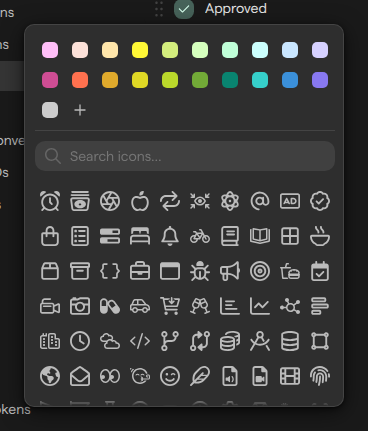
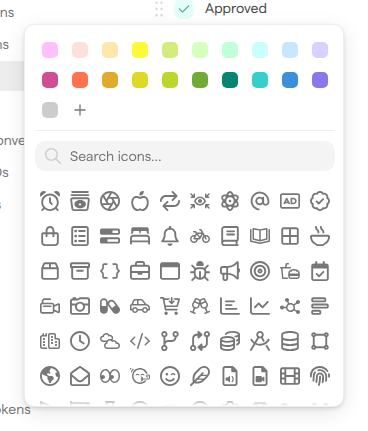
- To change its color or icon, select the icon at the start of its line. Its tooltip reads “Click to choose an icon”.
- Pick a color from the palette at the top of the panel, then pick an icon. Type in Search icons… to find one by name.
- Press Escape to close the panel.
Renaming a status keeps it on the assets that have it: an asset marked “Approved” shows the new name at once. Each change saves as you make it.
Reorder asset statuses
The order of the asset statuses on the Statuses page is the order people see them in wherever they pick one: the Set Status picker in the asset view, Change status in the asset library’s selection toolbar, and the Status filter in search. We recommend putting them in the order assets move through your review, from first draft to live.
- Open the Statuses page of Space Settings.
- Hover over the status you want to move. The drag handle at the start of its line shows fully.
- Drag the handle up or down to the new position, and drop it.
The new order saves when you drop the status.
Remove an asset status
Removing an asset status takes it off the list, so nobody in the space can set it on an asset any more. Remove a status your team has stopped using, or one added by mistake.
- Open the Statuses page of Space Settings.
- Hover over the status you want to remove. A trash icon appears at the end of its line.
- Select the trash icon.
The status is removed at once, and the removal is final. Assets that had the status are not changed otherwise, but they no longer show a status: the asset view reads “Set Status” and the thumbnail has no status icon. Adding a status with the same name again creates a new status, and it does not come back on those assets.
Note: Before you remove a status, check what uses it: library views and saved filters that look for it, and workflows that start on it or set it. A workflow step that sets a removed status fails with the error “Unknown media status”.
If you remove every status, the page shows “No statuses are currently assigned”, and nobody can set a status on an asset until you add one.
Where asset statuses appear
The asset statuses on the Statuses page are the ones offered everywhere in the space that shows or sets a status on an asset:
- The asset view. The status shows next to the asset’s name; select it, or Set Status, to pick another. See Asset library.
- The asset library. Gallery thumbnails show the status icon on its color, with the name in its tooltip. Grid mode has a Status column, Group by can group by status, and Change status in the selection toolbar sets one status on many assets.
- Search and library views. The Status group of the search panel lists every status; see Search and Library views.
- Shared collections. With Guests can change asset statuses on, people with the link pick from the same list; see Shared collections.
- Workflows. The Media is updated trigger can start on a status, and the Update Media step can set one; see Triggers and Actions.
- Naming conventions. A naming convention can put an asset’s Status in its name.
Asset statuses and task statuses
An asset status and a task status are two different things in Focal. An asset status belongs to an asset and comes from the list on the Statuses page, the same for the whole space. A task status belongs to a task on a board: it is the value of the board’s status column, and each board has its own list, such as Backlog, Briefing and In production. Changing the Statuses page never changes a board’s task statuses.
To add, rename or recolor a board’s task statuses, edit its status column; see Columns. See Concepts for how the two fit together.
The asset status “Archived” is a label like the others. Setting it does not archive the asset or move it to the Trash: the asset stays in the asset library. To archive an asset, use Delete asset, which moves it to the Trash.
Who can change asset statuses
The list of asset statuses can be changed by the space’s space owners and by organization admins. An Admin (an organization admin) has the same rights as a space owner in every space of the organization. Members and guests don’t see Space Settings in the sidebar, and a link to the Statuses page takes them back to the space. See Roles and permissions.
Setting a status on an asset is a different right. Space owners, members and organization admins can set and change asset statuses in the asset library. Space guests can’t open the asset library; on an asset opened from a board, the board’s access level decides whether they can change its status.