Assets
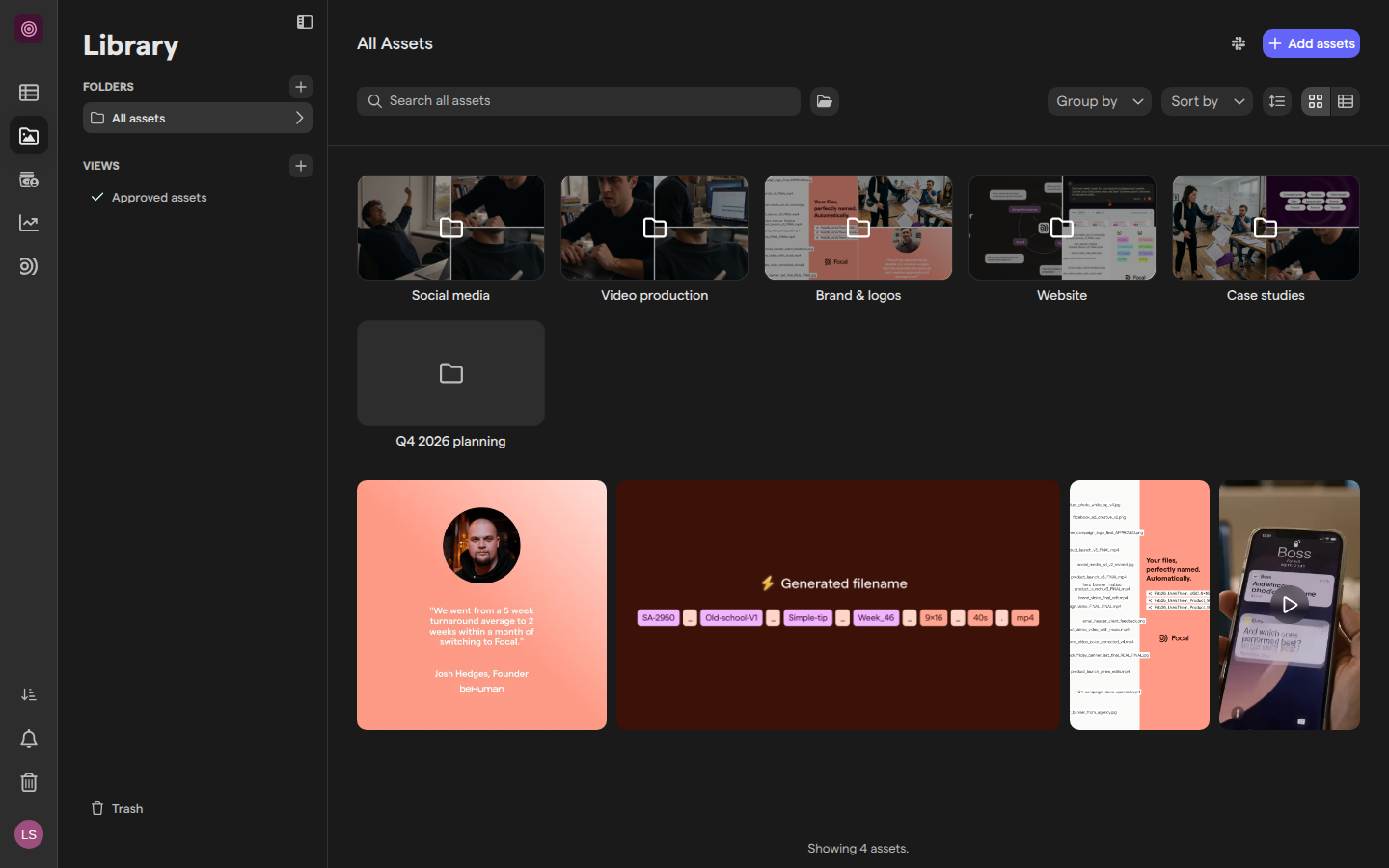
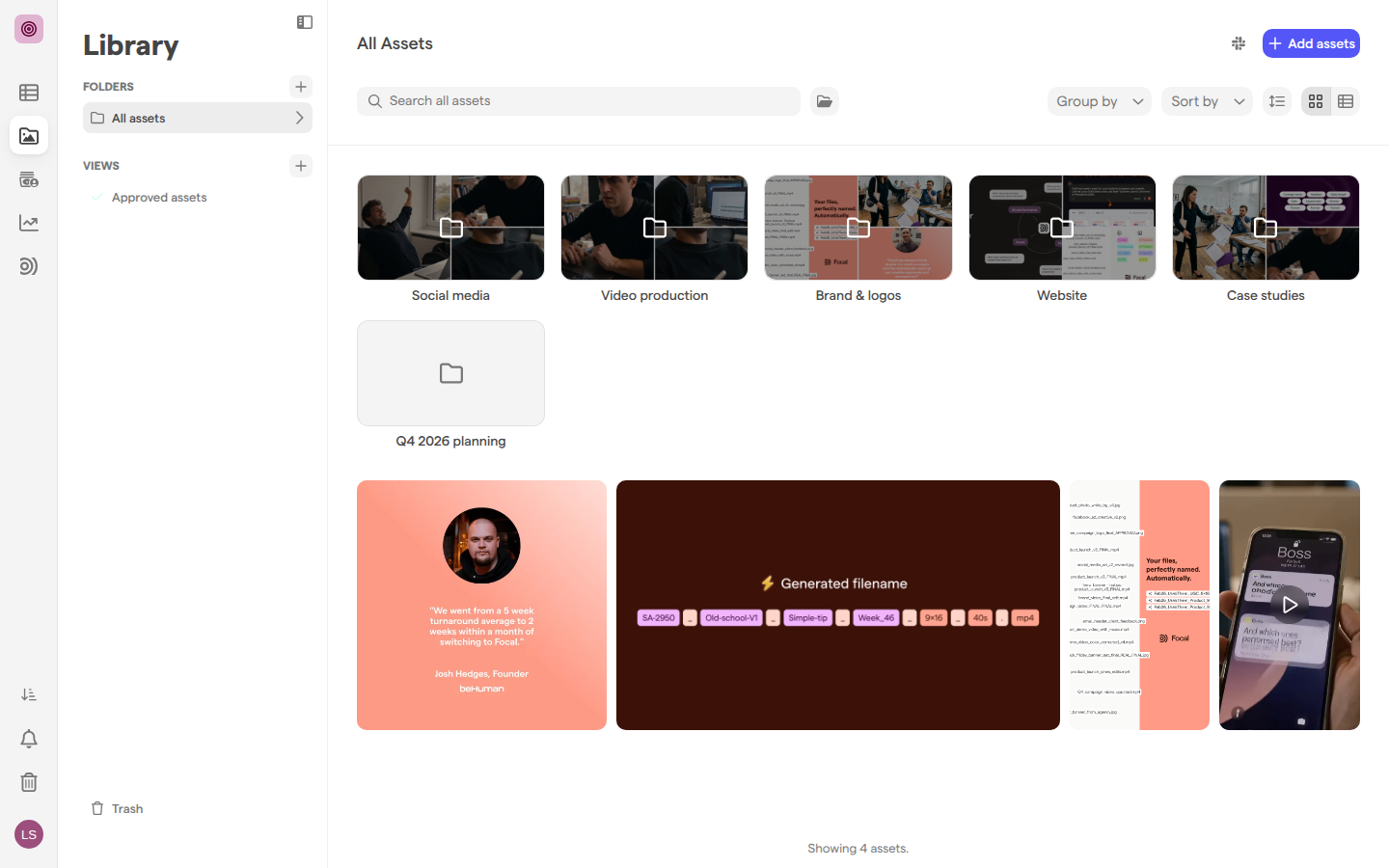
An asset is an image, video, document or any other file your team keeps in Focal. Every asset belongs to one space and lives in that space’s asset library, which you open with Assets in the sidebar. In the library, assets sit in folders, and the library sidebar lists the space’s folders under Folders and its saved searches under Views. Focal accepts any format and builds a preview for common image, video and 3D formats, so you can view and play most creative without downloading it.
An asset is more than the file behind it. It carries a name, a folder, an asset status such as Approved, the values of your team’s media attributes, a history of versions, and the comments and annotations left on it. The same asset can be attached to tasks on a board and added to shared collections without being copied: change it in one place and the change shows everywhere it is used. Delete asset archives an asset: it moves to the space’s Trash, at the bottom of the library sidebar, where anyone who works in the library can restore it to its folder with its versions and comments.
What teams use assets for
Teams use the asset library as the one place their creative lives, from the first draft to the ad that runs. A few examples of how that looks in practice:
- Reviewing a launch campaign. A designer uploads the first cuts of a campaign’s videos into the campaign’s folder. Reviewers leave comments in the asset view, draw annotations on the frame they mean, and pin a comment to a moment in the video. The designer uploads each revision as a new version of the same asset, so the feedback stays with it, and the team sets the asset status to Approved once it is final. A library view of every approved asset then gives the whole team the finished set.
- Handing off deliverables. An agency or an in-house team puts the final assets for a client or partner in a shared collection and sends its link. The people who open the link don’t need a Focal account: depending on the collection’s settings, they can view, download and comment, behind a password and an expiration date if you set them.
- Keeping creative consistent and findable. A space owner defines media attributes such as Platform or Funnel stage, a naming convention that renames every asset added to a folder, and creative IDs that give each ad on a board a stable code. Everyone can then search the library by attribute, status, file details or ad results, and, with AI Search, by the text, speech and content inside an asset.
- Getting assets out. When assets are ready, the team downloads them as originals, in new sizes or as a ZIP, or sends them to Meta, TikTok, YouTube, Google Drive or a webhook. See Exporting assets.
Space owners and members work in the asset library. Space guests have no access to the asset library: they don’t see Assets in the sidebar, and they see assets only through the boards shared with them. Who can do what is described in Roles and permissions.
Articles about assets
The Assets section of the help center covers the asset library, getting assets in and out, finding them, working on a single asset, sharing sets of them, and the space settings that shape them.
- Asset library: browse folders in Gallery or Grid, select several assets to change, move or archive them, and open one asset in the asset view.
- Uploading assets: upload files and folders, drag them in, import from Google Drive or Figma, and follow progress in the Uploads & Downloads panel, with the supported formats and limits.
- Search: find assets with AI Search by what they show, say or contain, by name, or with filters for status, attributes, file details, dates and ads, or find assets that look like another one.
- Library views: save a filtered library as a view in the library sidebar, then edit, duplicate, share or delete it.
- Versions: upload a new version of an asset, switch between versions, restore an earlier one or remove one.
- Comments and annotations: comment on an asset, draw on it, comment on a moment in a video, reply and react, and edit or remove your own comments.
- Shared collections: put a set of assets on a public link for people outside Focal, with settings for downloads, comments, a password and an expiration date.
- Exporting assets: download one asset or a ZIP, crop and resize before downloading, and send assets to Meta, TikTok, YouTube, Google Drive or a webhook.
- Trash: open Trash at the bottom of the library sidebar to find the assets and folders archived in the space, including non-library items (archived assets that came from tasks rather than the library), and restore or permanently delete them. It also says where archived tasks and boards are, and what can’t be restored.
- Media attributes: define the fields every asset in a space carries, such as Tags attributes with a list of colored options, fill them by hand or with AI, and show them on boards.
- Naming conventions: build a naming pattern from text, fields and counters, and turn it on for a folder so Focal names new assets for you.
- Creative IDs: set up the concept ID and variant ID that Focal gives each asset on a board, for use in names, exports and reports.
The last three articles cover pages in Space Settings, such as Attributes settings, that only space owners and organization admins can open.