Google Drive
The Google Drive integration connects Focal’s asset library to your Google Drive. It does three things: it imports files from Drive into a library folder, it exports media assets from Focal into a Drive folder, and it keeps a library folder and a Drive folder in sync, so new files, renames and removals on one side show up on the other.
Imports and exports are one-off copies that any space member can make from the asset library. A sync is ongoing: a space owner sets it up once on a top-level folder, and Focal keeps the two folders in step from then on. Syncing works the same way with Dropbox. The first time you use any of the three, Focal asks you to sign in to Google in a pop-up window.
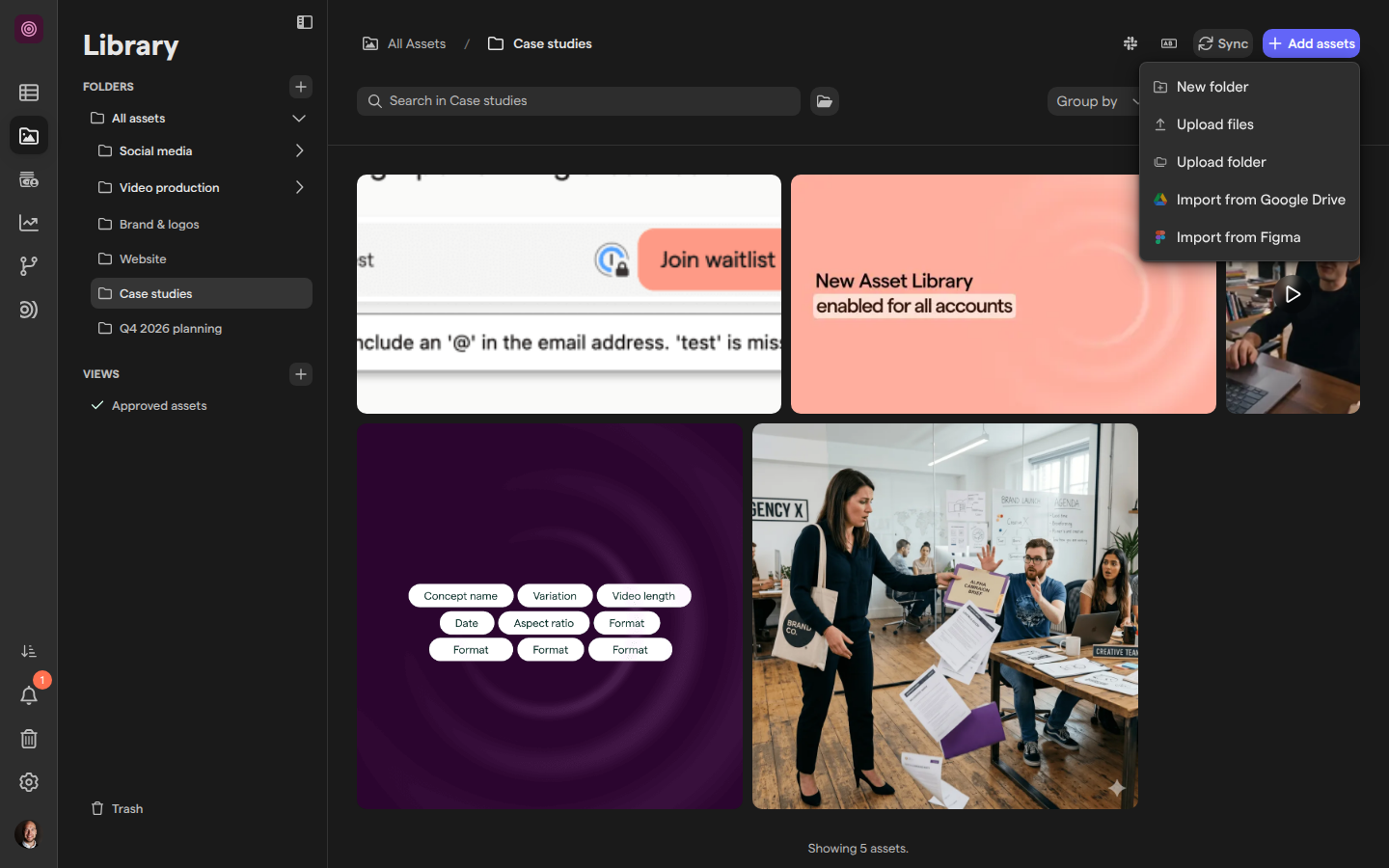
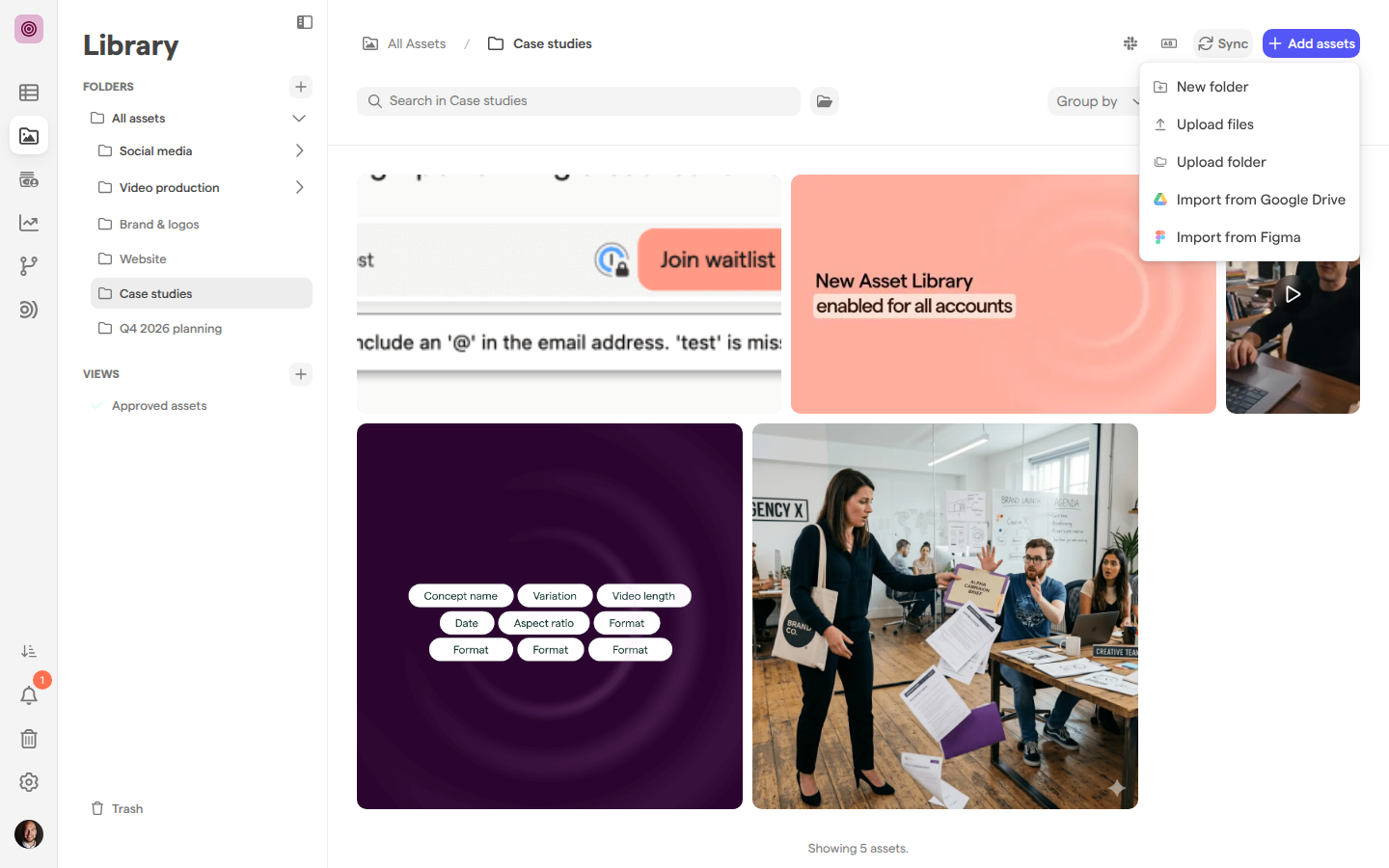
Import files from Google Drive
Importing copies files from your Google Drive into the library folder you have open. The copies are independent assets in Focal: later changes to the files in Drive stay in Drive.
- Open the folder in the asset library where the assets should go.
- Click Add assets and choose Import from Google Drive.
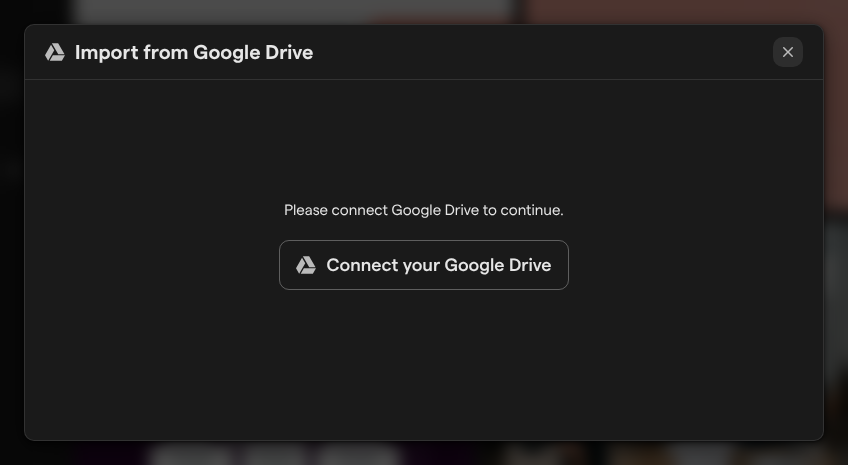
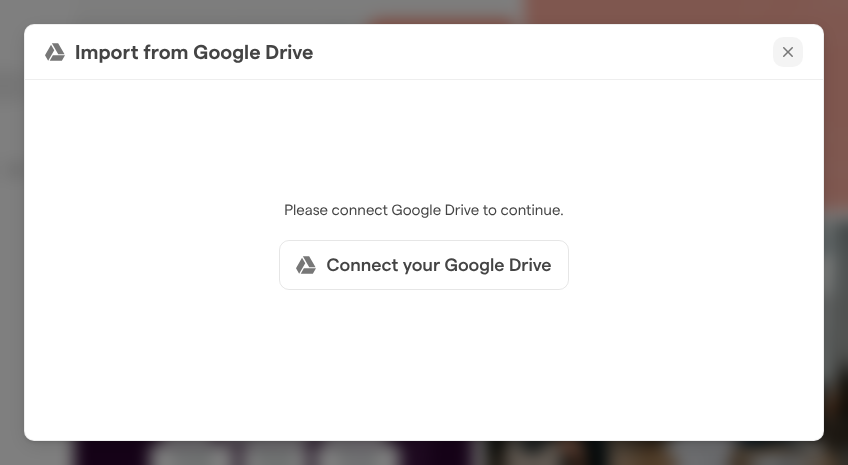
- The first time, click Connect your Google Drive and sign in to Google in the window that opens.
- Pick a drive. Focal lists your personal drive and the shared drives your account can open.
- Select the files or folders to import. Search… and Sort results by help in a large drive.
- Click Continue, check the list of files, then click Import Files.
The imported files show in the Uploads & Downloads panel with a “Google Drive” label next to each, as described in Uploading assets. Import from Google Drive is also in the menu for adding assets to a task’s asset column on a board.
Export assets to Google Drive
Exporting copies assets from Focal into a folder in your Google Drive, without downloading them to your computer first.
- Select one or more assets in the asset library.
- Click the export button in the selection toolbar (Export asset or Export assets) and choose Google Drive.
- The first time, click Connect your Google Drive and sign in to Google.
- Pick a drive, then select the folder the assets go into. Create Folder makes a new folder at the top of the drive.
- Click Continue, check what will be exported and the target folder, then click Export Files.
The dialog then reads “Export Started” and gives a link to the Drive folder. The upload runs in the background, so open the link after a few minutes to see the files. The same export is on a board for people with Upload, Edit or Full access. See Exporting assets for the other export destinations.
Set up a sync with a Google Drive folder
A sync pairs one top-level folder in the asset library with one folder in Google Drive and keeps them in step. Only a space owner or an organization admin can set one up. Everyone else sees the Sync button greyed out, with “Only organization admins and space owners can set up sync” on hover.
- Open a top-level folder in the asset library. The sync covers the folder and all its subfolders.
- Click Sync in the folder’s header.
- Under Choose a platform, click Google Drive.
- Under Connect your account, click Connect Google Drive and sign in to Google. The step then reads “Connected to Google Drive” with your account’s email.
- Under Choose the folder on Google Drive, click Choose folder, pick a drive and select the folder. Search folders by name finds one in a large drive.
- Under Which way should it sync?, pick a direction (see the next section).
- Click Start syncing.
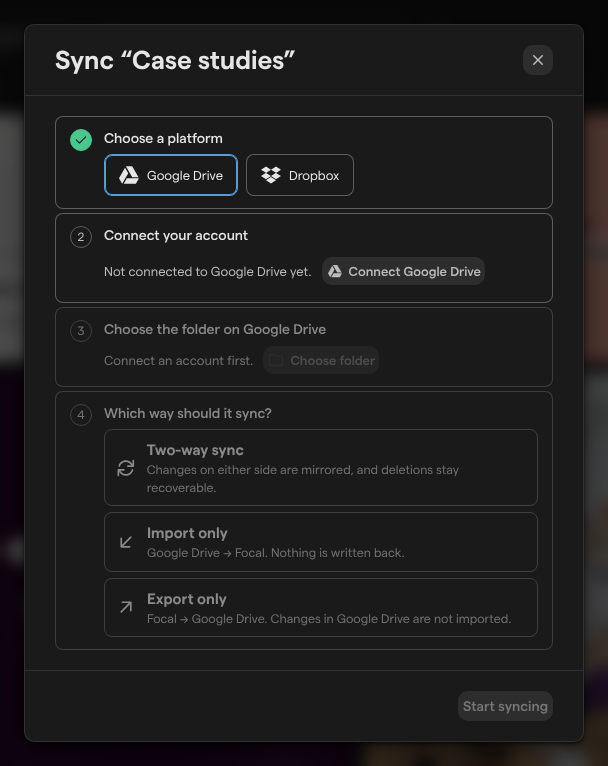
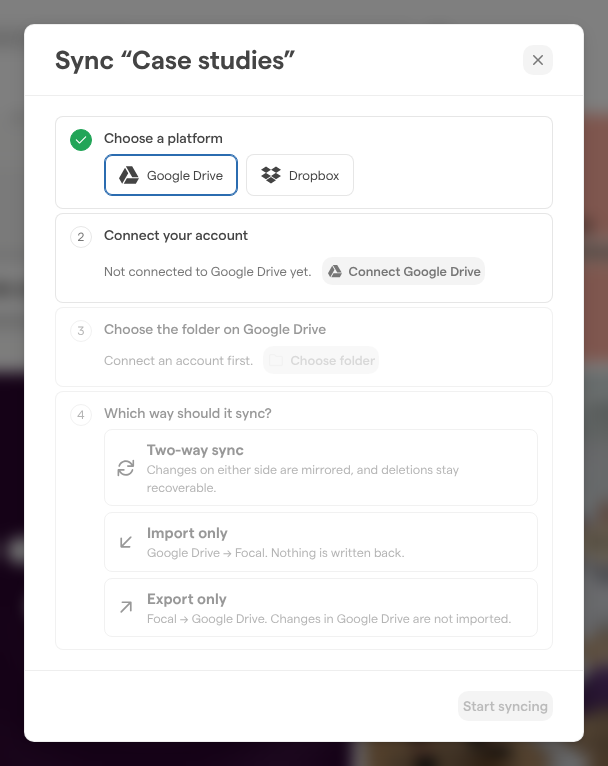
The folder’s Sync button turns into the Google Drive logo, and the folder and its subfolders show the Google Drive icon in the library sidebar. In a trial organization, sync is turned on by contacting us: the Sync button is greyed out, and hovering over it shows “Google Drive and Dropbox sync aren’t part of the trial. Contact us to turn them on.”
Choose which way a folder syncs
A sync’s direction decides which side’s changes are copied to the other. It is chosen when the sync is set up. To use a different direction, unlink the sync and set it up again.
| Direction | What it does |
|---|---|
| Two-way sync | Changes on either side are copied to the other: new files and folders, renames, moves, new content and removals |
| Import only | Google Drive → Focal. Changes in Drive appear in Focal; nothing is written back to Drive |
| Export only | Focal → Google Drive. Changes in Focal appear in Drive; changes in Drive are not imported |
A removal never destroys anything on the other side. Archiving an asset or a folder in Focal moves the matching file to the Google Drive trash, and moving a file to the Drive trash archives the asset in Focal, where it waits in the Trash. When a file’s content changes in Drive, the new content becomes a new version of the asset.
The first sync only adds: it copies what is missing on each side and never removes anything. Files with the same name in the same place on both sides are paired up rather than copied twice.
How sync conflicts are resolved
A sync conflict happens when the same thing changes on both sides of a two-way sync before Focal has copied either change. Focal compares names, locations and content separately, so a file renamed in Focal and edited in Google Drive is not a conflict: both changes are applied.
- The same file’s content changed on both sides. The more recent change wins. Nothing is lost: when the Drive version wins, the Focal content stays in the asset’s version history, and when the Focal version wins, Google Drive keeps the old content in the file’s own version history.
- The same folder renamed or moved on both sides. Google Drive’s change wins.
- Same-named files that differ when a sync starts. The first sync pairs them up, and the more recent one wins the same way.
Check a sync’s status
Every folder in a synced tree shows the sync’s state on its header button. Click the Google Drive logo to open the sync’s details: the Drive folder, which opens in Google Drive when clicked, the direction, how many folders and files are synced, and the status:
- “Up to date”: both sides match.
- “Syncing”, with how many changes are running and queued, or “Checking for changes…”.
- “1 item needs attention” or “N items need attention”: some files could not be synced. Each kind of problem is listed by name, such as “No permission for this file” or “Unsupported file type”, some with a hint on what to do.
- “Paused”: the sync is paused and copies nothing.
- “Reconnect needed”: Google Drive asks for the account to be signed in again.
- “Google Drive folder missing”: the Drive folder is gone from the connected account, for example because it was moved to the Drive trash.
Opened from a subfolder, the details say “You are in a folder inside a synced folder” and link to the root folder, where the sync is managed.
Fix a sync that needs attention
A sync that stops copying says why in its details, and a space owner fixes it from the top-level synced folder.
- Reconnect needed. The Google Drive connection has expired or been revoked. Click Reconnect Google Drive and sign in again; the sync picks up where it left off.
- Items need attention. Follow the hint under each problem. “No permission for this file” means the connected Google account needs access to the file or the folder: share them with that account, or move the files out of the synced folder. “Provider refuses to serve this file” means Google has flagged the file: download it yourself and upload it to Focal.
- Google Drive folder missing. Restore the folder in Google Drive. Focal checks for it again on its own and resumes the sync once it is back. If the folder is gone for good, unlink the sync and set it up again with another folder.
Click Sync now to make Focal check both sides straight away instead of waiting for the next change.
Pause or stop syncing
A space owner can pause a sync, resume it, or unlink it from the sync details on the top-level synced folder.
- Pause stops copying in both directions. Nothing is removed, and Resume catches up on everything that changed in the meantime.
- Unlink removes the sync permanently. Confirm with Unlink this folder. Files stay where they are on both sides: only the connection between the two folders is removed.
Note: Unlinking can’t be undone. To sync the folder again, set up a new sync with Sync.
Archive a synced folder
Choosing Delete folder on a library folder archives it and moves it to the Trash. When the folder is synced, the “Are you sure?” dialog first checks what is connected to it.
- Space members archiving a folder that has a sync, contains a synced subfolder, or sits inside a folder with a two-way or export-only sync see that sync listed in the dialog, with “Ask a space owner to turn these off before this folder can be deleted.” A space owner turns the sync off, and the folder can then be archived. A folder inside an import-only sync gets the usual dialog, and nothing changes in Google Drive.
- Space owners see the folder’s own syncs, and those of its subfolders, listed with an Unlink button each, and must unlink them before confirming. Inside a two-way or export-only synced folder, the owner is warned instead of blocked: “Files in this folder will also be moved to the Google Drive trash”, because the parent folder is synced.
Restoring the folder from the Trash brings back the folder and its assets. A folder that had its own sync comes back with the sync paused, and it stays paused until a space owner reconnects it.
Who can use Google Drive
What you can do with Google Drive depends on your role in the space, as described in Roles and permissions.
- Import: space owners, space members and organization admins.
- Export: space owners, space members and organization admins from the asset library, and on a board, people with Upload, Edit or Full access.
- Set up, pause, resume, unlink or reconnect a sync: space owners and organization admins. Space members see a sync’s status and details but no buttons.
- Space guests work with assets through the boards shared with them. Importing, exporting from the library and syncing happen in the asset library, which is for space owners, space members and organization admins.
Each person connects their own Google account for imports and exports. A sync uses the account of the space owner who set it up, so it can only reach the files that account can open.