Space settings: Users
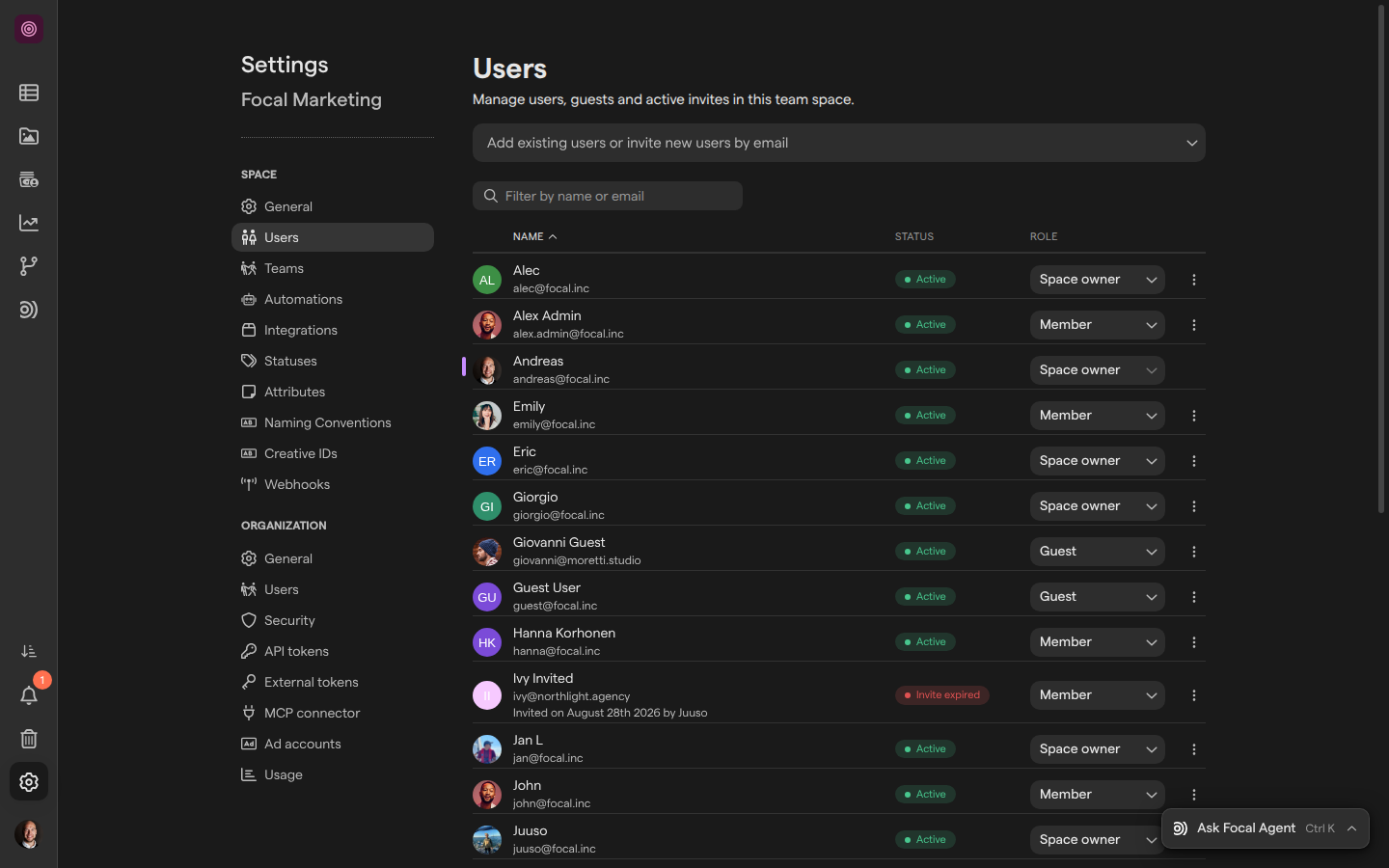
The Users page of space settings lists everyone who belongs to a space, with their status and their space role: Space owner, Member or Guest. Space owners use it to invite people to the space, add people who are already in the organization, change someone’s role and remove people who no longer need access. The page opens from Space Settings → Users in the sidebar (Users settings).
Each person has exactly one space role, and a role change or a removal takes effect as soon as you make it. What each role can see and do is described in Roles and permissions. Membership of the organization itself is managed separately, in Organization settings: Users.
See who is in the space
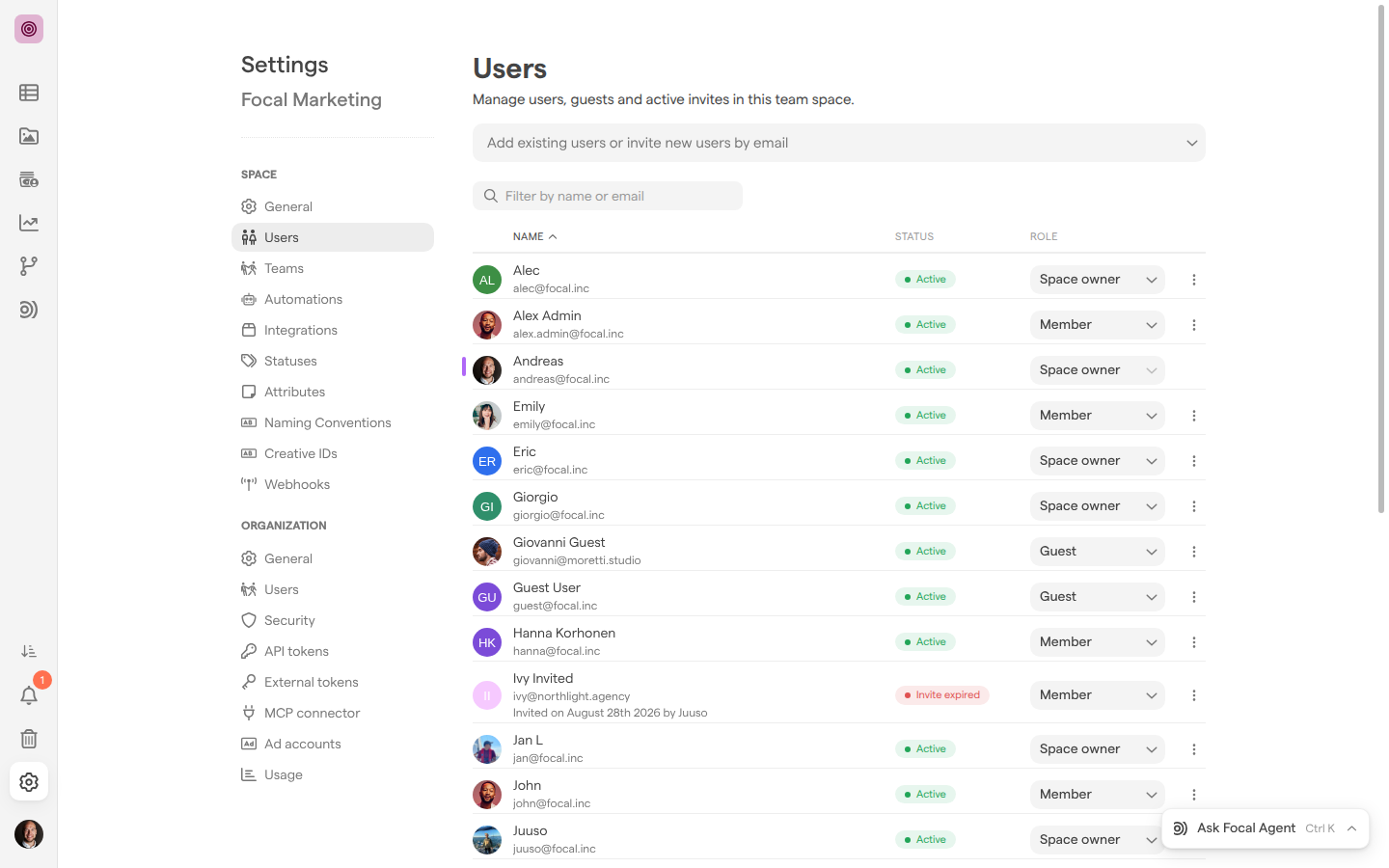
The list on the Users page shows every person in the space, including invites that have not been accepted yet. Each entry has the person’s name and email address, a status and a space role. An invite that has not been accepted also says when it was sent and by whom, as in “Invited on August 28th 2026 by Juuso”.
The status tells you whether the person uses Focal:
| Status | Meaning |
|---|---|
| “Active” | The person has signed in. Hover over the status to see when they last did |
| “Inactive” | The person has not signed in for more than 90 days |
| “Invited” | The invite has been sent and not accepted yet. Hover over the status to see when it expires |
| “Invite expired” | The invite was not accepted in time and no longer works. See Resend an invite, below |
To find someone in a long list, type part of their name or email address in “Filter by name or email”, which appears once the space has more than five people. If no one matches, the list says so, for example “No users match “anna”“. Select the Name, Status or Role heading to sort the list by that column; select it again to reverse the order.
Invite people to the space
Inviting someone by email address gives a person who is not in your organization yet access to the space, and sends them an email with a link to join. You choose their space role while inviting them.
- Open Space Settings → Users.
- Select “Add existing users or invite new users by email” and type the person’s email address.
- Select
Invite "<their email>". TheAdd new users to <space name>dialog opens. - To invite several people at once, add more addresses in the field at the top of the dialog.
- Pick their space role in the list next to the addresses: Space owner, Member or Guest. The dialog starts on Member.
- Choose how they join the organization: Invite only to this space, which is selected when the dialog opens, or Invite as organization member.
- Select Add.
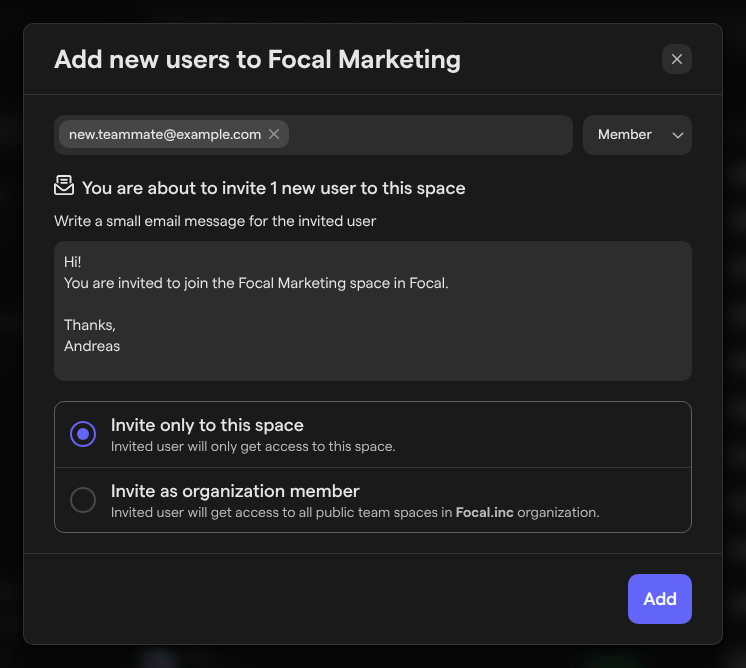
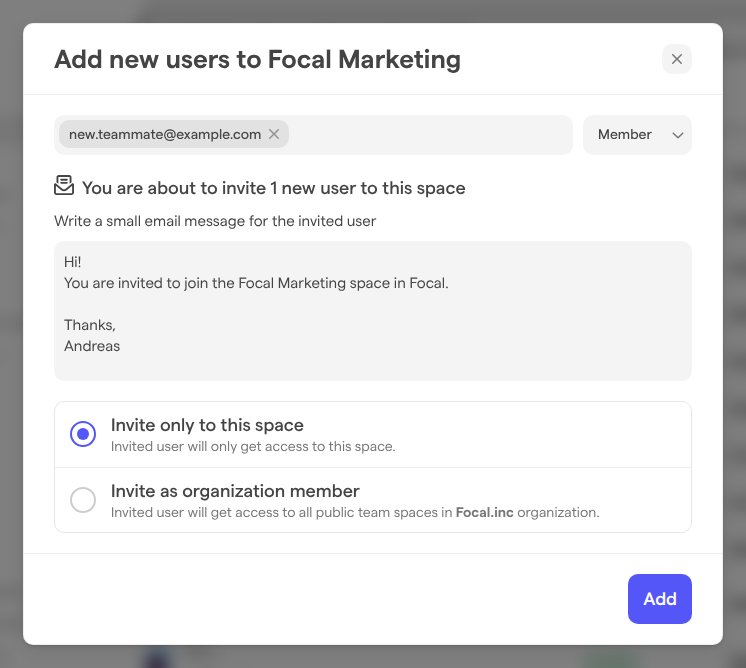
The dialog shows the email message the invited person receives, which starts “You are invited to join the Focal Marketing space in Focal.” and is signed with your name.
The role list sets the person’s space role, and the invite option sets their organization role:
- Invite only to this space: the person joins the organization as a Guest and opens only the spaces they are added to.
- Invite as organization member: the person joins the organization as a Member and opens every public space in it. This option is shown to organization admins only.
For an address that is not a valid email, the list shows “Enter a valid email” under the invite. The new person appears in the list with the status “Invited” until they accept.
Add someone from your organization
People who are already in your organization but not in this space can be added without a new invite. The same field finds them by name or email.
- Open Space Settings → Users.
- Select “Add existing users or invite new users by email” and type part of the person’s name or email address.
- Select the person in the list. The
Add new users to <space name>dialog opens. - Pick their space role: Space owner, Member or Guest.
- Select Add.
For people who are already in the organization, the dialog shows the people and the role list only. When everyone in the organization already belongs to the space, the list reads “No options” and offers only to invite a new address.
Change someone’s space role
A person’s space role decides what they can do in the space, from managing its settings to working only on the boards shared with them. You can change it for anyone in the list except yourself.
- Open Space Settings → Users.
- Find the person, and select their current role at the end of their entry.
- Pick the new role: Space owner (“Can change space settings and manage users”), Member (“Can collaborate on boards and create new ones. Has access to asset library.”) or Guest (“Can only collaborate on selected boards (by invitation)”).
The change is saved at once, with no confirmation. Your own role is greyed out: another space owner or an organization admin has to change it. A guest’s access to particular boards is set on each board, not here; see Sharing boards.
Resend an invite
An invite that is not accepted expires 30 days after it is sent, and its status changes to “Invite expired”. Resending it gives the person another 30 days.
- Open Space Settings → Users.
- Select the ⋮ menu at the end of the person’s entry.
- Select Resend invite.
Focal confirms with Invite to <their email> reactivated. Resend invite is shown only for people who have not accepted their invite yet, whether it is still open or has expired.
Remove someone from the space
Removing a person from the space takes away their access to it. They stay in the organization and keep their access to any other spaces they belong to, so you can add them back later from “Add existing users or invite new users by email”.
- Open Space Settings → Users.
- Select the ⋮ menu at the end of the person’s entry.
- Select Remove from space.
The person is removed at once, with no confirmation. Your own entry has no ⋮ menu, so another space owner or an organization admin has to remove you. To take someone out of the organization altogether, use Organization settings: Users.
Who can manage the people in a space
The Users page is part of space settings, which only space owners and Admins (organization admins) can open. Space Settings appears in the sidebar for them alone, and a link to the page takes anyone else back to the space.
Space owners and organization admins can invite people, add people from the organization, change roles and remove people. Only organization admins see Invite as organization member in the invite dialog, because it adds the person to the organization as a member. Organization admins have the same rights as a space owner in every space, whatever space role the list shows for them, so an organization admin keeps those rights when their space role here changes. To share a set of boards with a group of people at once, create a team instead of changing roles one by one.
When an invite fails
An invite can fail. Seat limits are enforced only while your organization is on a trial: during a trial, inviting a new person when every seat is in use fails. Outside a trial, invites go through whatever the number of seats in use. Adding a person who is already in the organization does not take a new seat. When an invite fails, Focal shows “Failed to invite user.” and the person is not added. To see how many seats are in use, open Organization settings: Usage. To free a seat, remove someone from the organization in Organization settings: Users, or contact Focal to raise the limit.