Board views
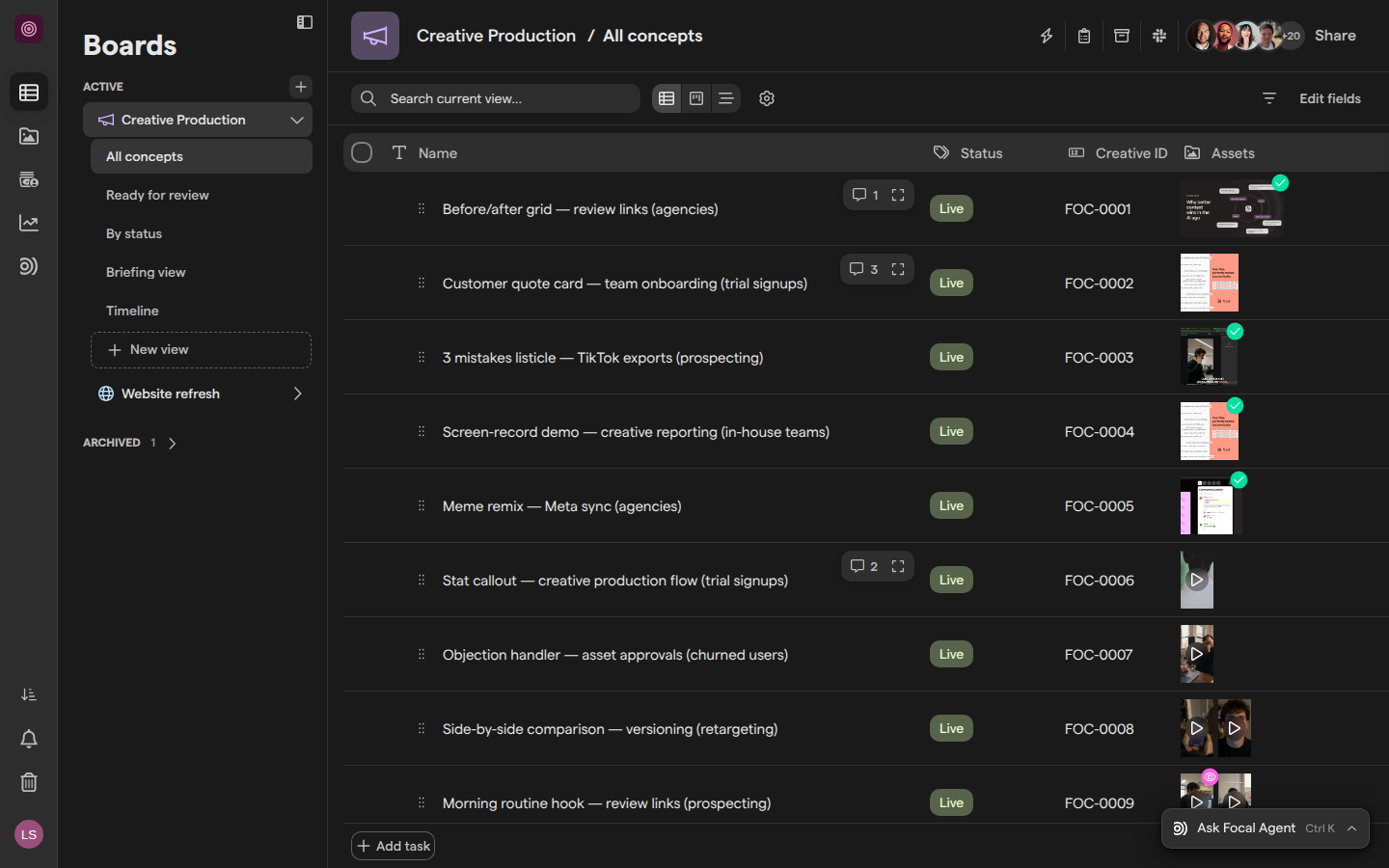
A board view is a saved way of looking at the tasks on a board: which tasks show, in what order, grouped how, and with which fields. A board has one or more views, such as “Ready for review” for approvers and “Timeline” for planning. All views of a board show the same tasks; changing a task in one view changes it everywhere.
You can look at any view in three layouts: Table (a list of tasks with a field in each column), Kanban (cards in lanes) and Timeline (bars on a calendar). A view’s filters, sorting, grouping and fields are saved with the view for everyone who opens it. Board views are separate from library views, which save filters on the asset library.
Create a view
A new board view starts as a copy of the view you are on, with its filters, sorting, grouping and fields, so start from the view closest to what you want.
- Open the board in Boards and go to the view you want to start from.
- In the sidebar, under the board’s views, click New view.
- Focal creates the view, named after the original with “(copy)” added, opens it and opens Edit fields.
- Choose the fields to show, then set filters, sorting and grouping (see the sections below).
- Click the view name in the header and type a new name.
To copy a specific view instead, right-click it in the sidebar and choose Duplicate View. Creating and duplicating views needs Full Access to the board.
A new view is shared with you only at first: you get Full Access and the rest of the space does not see it until you share it (see “Share a view” below).
Find and organize views
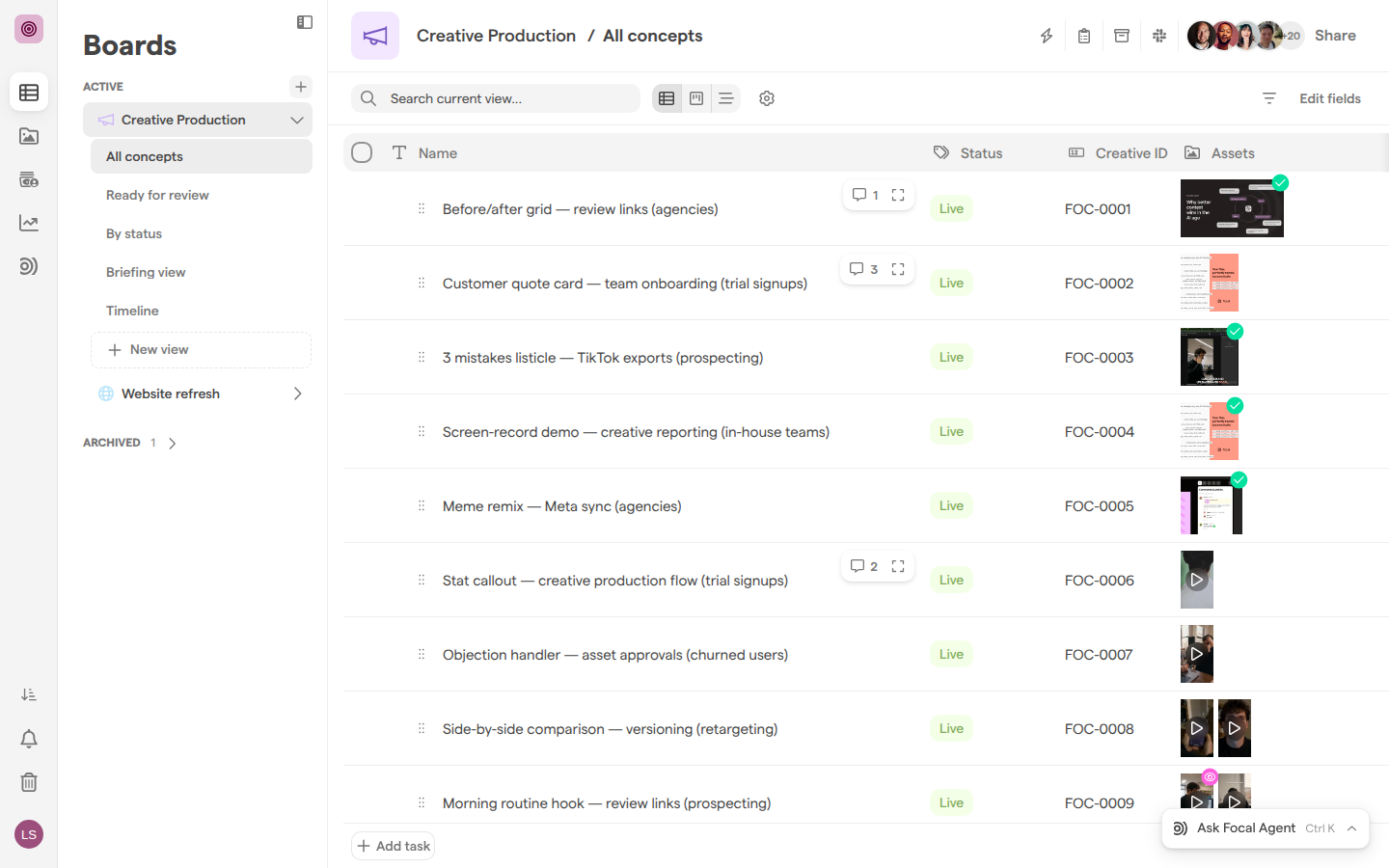
A board’s views are listed under the board in the Boards sidebar. Click the board to expand it, then click a view to open it.
To keep the views you use most within reach:
- Favorites: right-click a view and choose Add to favorites. It then appears in the Favorites section at the top of the sidebar. Choose Remove from favorites to take it out.
- Order: drag a view up or down in the sidebar to change the order everyone sees.
- Name: click the view name in the header and type to rename it.
Switch between Table, Kanban and Timeline
The layout buttons next to Search current view… switch the view you are on between:
- Table (Board View)
- Kanban (Kanban View)
- Timeline (Timeline View)
All three show the same tasks with the same filters.
The layout you pick is remembered for you, per view, on the device you use. It is not saved with the view: a teammate who opens the same view sees the layout they last used there, and Table the first time. A link copied from the address bar includes the layout, so the person you send it to opens it in the same layout.
Each layout has its own settings button (the gear icon to the right of the layout buttons): Table settings, Kanban settings or Timeline settings. Grouping and sorting are shared between them: choosing a Group by field or a Sort by field in one changes it in the others.
Filter a view
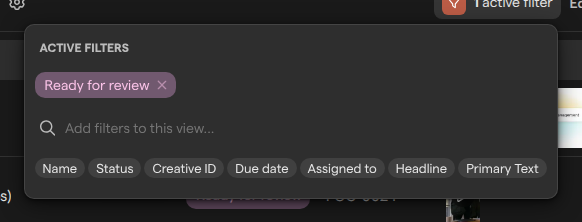
A board view’s filters decide which tasks the view shows, and they are saved with the view for everyone. A view with filters shows a badge such as 1 active filter in the header.
- Open the view.
- Click the filter icon to the left of Edit fields, or the active filter badge if the view already has filters.
- Click a field under Add filters to this view…, such as Status, to list its values, or type to search for one.
- Click a value to add it as a filter.
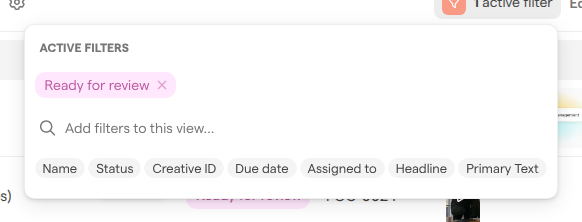
- To remove a filter, click the × on it under Active Filters.
Changes apply straight away; there is no save button.
To narrow a view for yourself without changing it for others, use Search current view… on the left of the header instead. It works the same way but only for you, on top of the view’s own filters. The search is kept in the page address and clears when you switch views.
Sort and group tasks
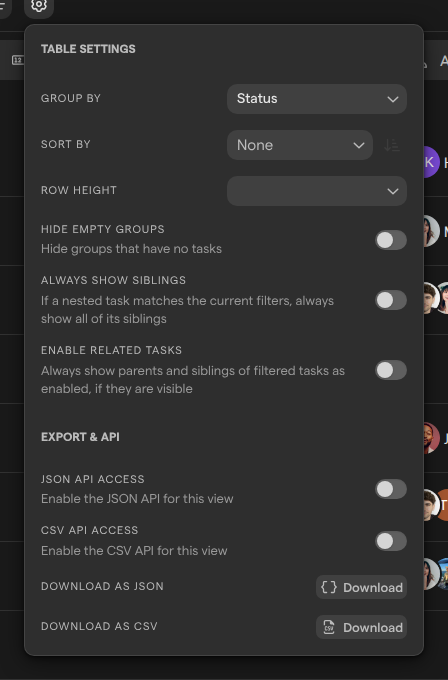
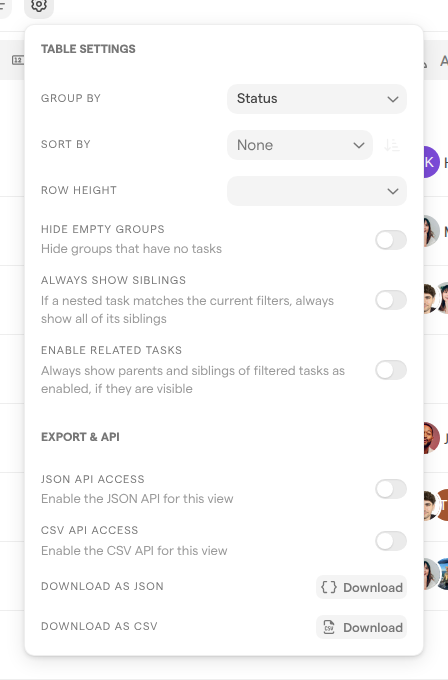
Sorting and grouping in a board view are saved with the view. Group by and Sort by are in the settings menu of each layout, the gear icon next to the layout buttons: Table settings, Kanban settings and Timeline settings. The other options below are in Table settings.
- Group by splits the tasks into groups by a field’s value, such as one group per task status. Turn on Hide empty groups to hide groups that have no tasks.
- Sort by orders the tasks by a field: pick the field in the dropdown, then use the direction button beside it to switch between Ascending and Descending, shown when you hover over the button. The button stays disabled until you pick a field. Picking a field always starts ascending. Choose None to clear the sort and its direction. The sort is shared by the Table, Kanban and Timeline layouts of the view. In the Table layout you can also click the sort button in a column header to sort ascending, then descending, then remove the sort; it changes the same sort.
- Row height sets how tall each task’s row is, from Short to Super Tall.
Only fields that can be sorted or grouped are offered. The same menu has Always show siblings and Enable related tasks, for boards with sub-tasks, and Export & API, for downloading the view’s tasks as JSON or CSV. Guests without Full Access on the board do not get Export & API; what guests see is covered in Sharing boards.
Set up a Kanban view
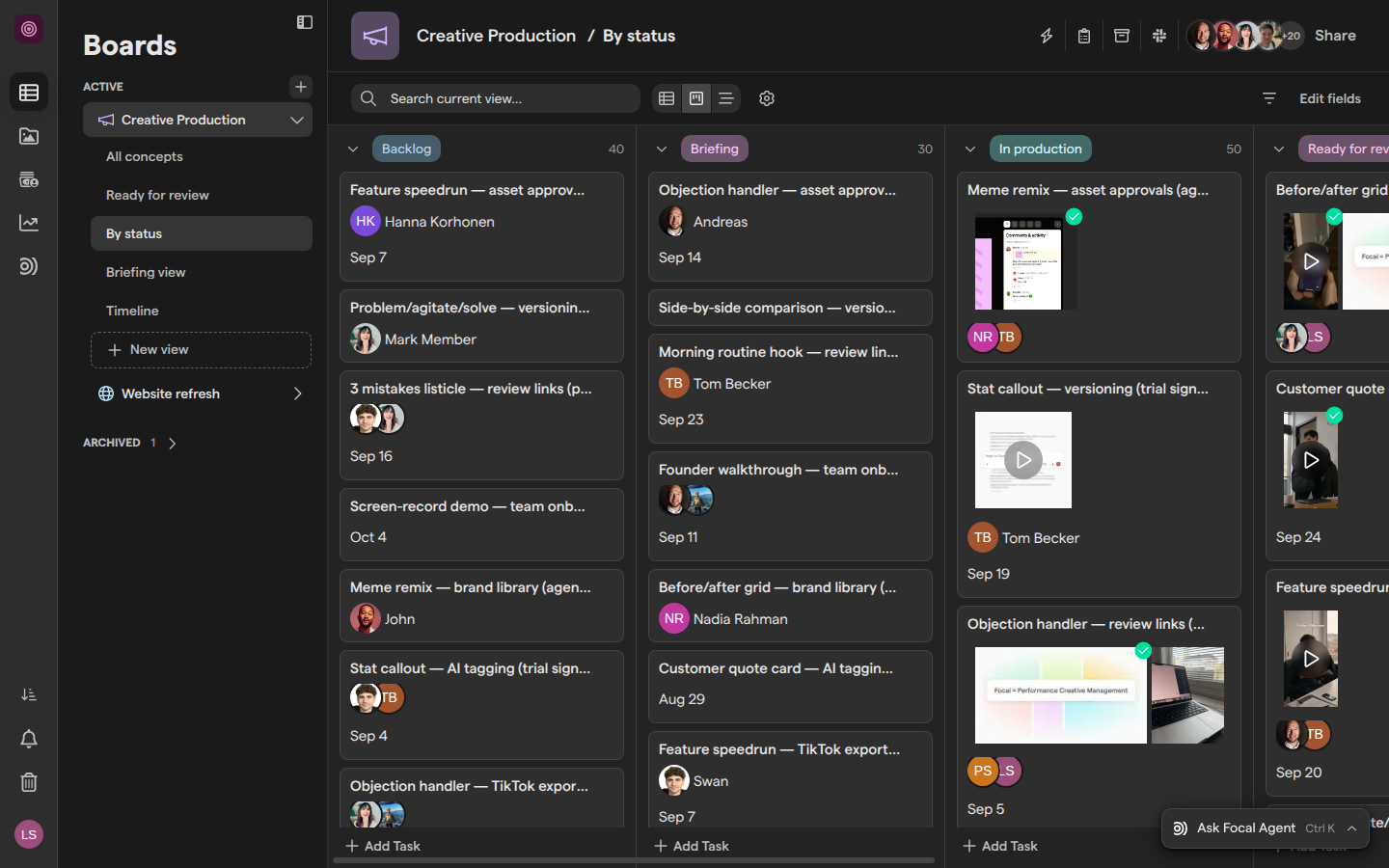
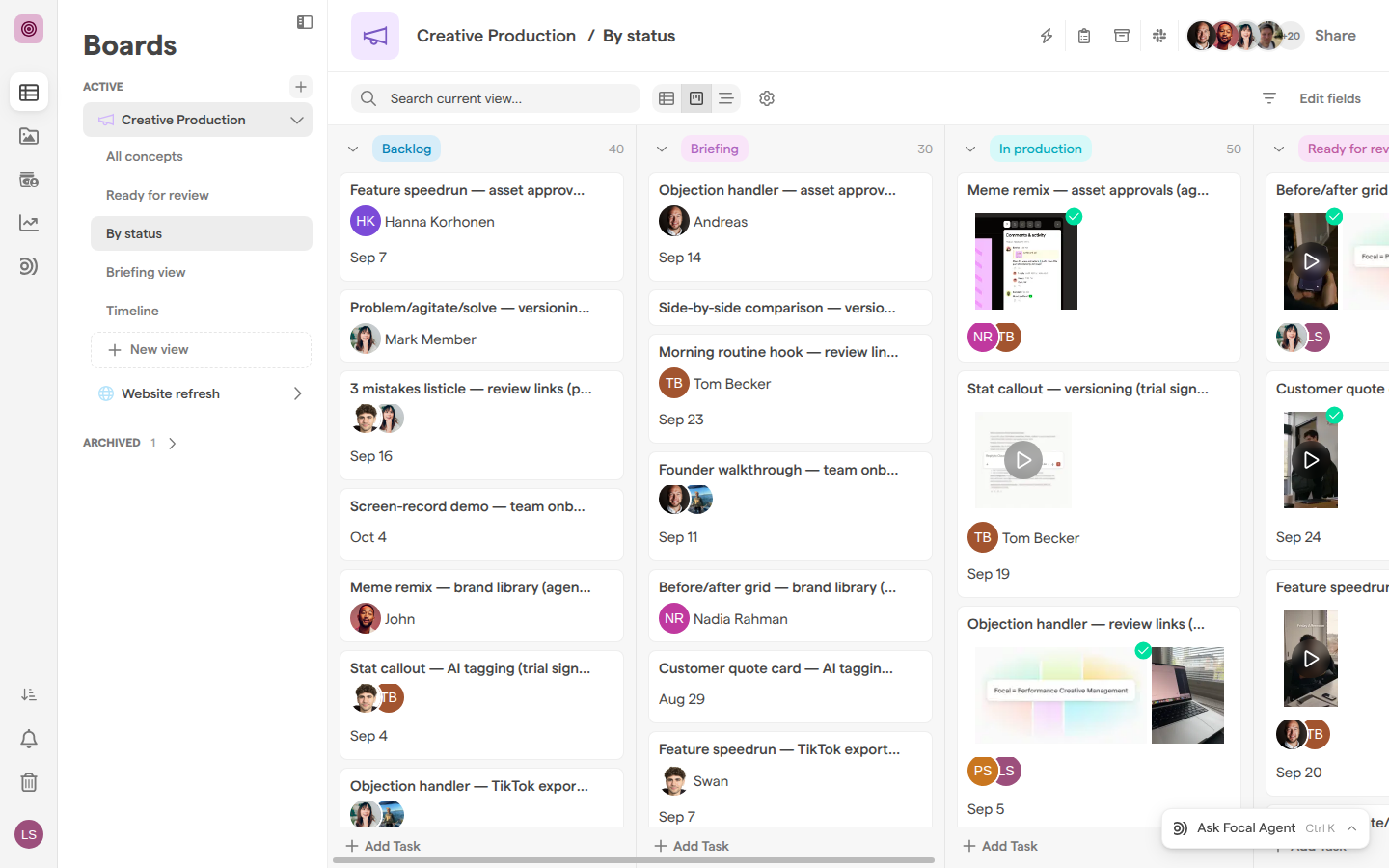
The Kanban layout shows a board view’s tasks as cards in lanes, one lane per value of the field you group by, such as one lane per task status.
- Open the view and click Kanban View.
- If the view has no grouping yet, the page says Set up your kanban board. Pick the field to make lanes from in Select a column.
- To change the lanes later, open Kanban settings and pick another Group by field.
- To order the cards in each lane, pick a field in Sort by, below Group by (see “Sort and group tasks” above).
- Turn on Show field labels to show each field’s name above its value on the cards.
- Turn on Show sub-tasks to show sub-tasks as their own cards.
Dragging a card to another lane changes the task’s value for that field, for example moving it from Briefing to In production. Click Add Task at the bottom of a lane to add a task to it. To choose which fields a card shows, see “Choose the fields a view shows” below.
Set up a Timeline view
The Timeline layout shows each task in a board view as a bar from a start date to an end date, taken from two date fields on the board.
- Open the view and click Timeline View.
- If the view has no dates set yet, the page says Configure your timeline. Pick the date fields in Select start date and Select end date.
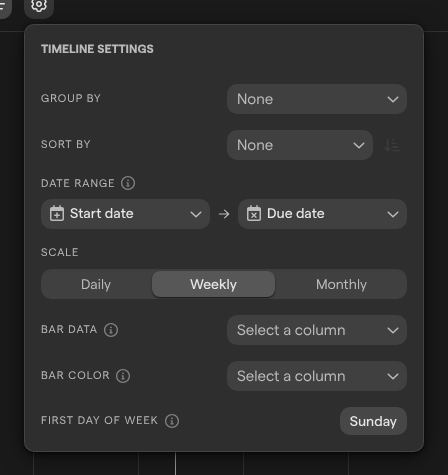
- To change them later, open Timeline settings and set Date range.
- Choose a Scale:
- Daily
- Weekly
- Monthly
- Optionally, choose a field under Bar data to show inside the bars, and one under Bar color to color them.
Sort by in Timeline settings orders the rows, and the sub-tasks under each row follow the same sort. With no sort set, sub-tasks stay in their manual order.
Drag a bar to move the task’s dates, or drag one of its ends to change the start or end date. Scale is remembered for you on your device. First day of week is a personal setting, changed in Preferences.
Choose the fields a view shows
Each board view chooses which of the board’s fields it shows, so a view for approvers can leave out the brief. Click Edit fields in the header. The panel has a tab per layout: Table, Kanban (the fields on each card) and Task view (the fields in a task’s detail view).
Fields under Fields in this view are shown; fields under Removed from this view stay on the board and in other views. Use the buttons beside each field to move it between the two lists:
- Add to View and Remove from View
- Add to card and Remove from card on the Kanban tab
Permanently deleting a field (Delete column) removes it from every view along with its values, and cannot be undone; adding fields and permanently deleting them is covered in Columns.
Share a view
Sharing a board view lets people see that view without seeing the whole board. Click Share in the header and choose Current view instead of Full board, then add people or teams and choose their access. People who have access to the board show as Inherited from Board.
A view can only give the access levels up to Edit Access; Full Access is set on the board. Access levels, teams and guests are covered in Sharing boards.
Permanently delete a view
Permanently deleting a board view removes the view only; the board’s tasks stay. A board view cannot be archived, so this is the only way to remove one.
Note: Permanently deleting a view cannot be undone. The view does not go to Archived and cannot be restored; you would have to rebuild its filters, sorting, grouping and fields from scratch.
- Right-click the view in the sidebar.
- Choose Delete View.
- Confirm with Yes, I’m sure!.
A board’s last view cannot be permanently deleted. To remove the whole board, archive it (see Managing boards).
Who can change a view
What you can do with a board view depends on your access to the board:
- Full Access can create, duplicate, permanently delete and reorder views, and change a view’s filters, sorting, grouping, fields and layout settings.
- Edit Access can rename a view.
- Everyone who can see the board can switch layouts and use Search current view…, which change nothing for others.
Space owners and organization admins always have Full Access. Without Full Access the settings gear, the filter icon and Edit fields are not shown; a view with filters still shows its badge, with the tooltip “Some tasks may be hidden because this view has active filters.” Roles are described in Roles and permissions.