Actions
An action is a step in a workflow that does something: it creates or updates a task, adds or changes an asset, sends a message, calls another service, or asks an AI model a question. A workflow starts with a trigger, and every step after it is either an action or a logic step (Condition, Filter or Wait).
Each action is set up in its step’s settings panel, where most fields accept data from the trigger or earlier steps through @ variables. Each action also produces an output that later steps can use the same way. This article is a reference to every action in the step picker.
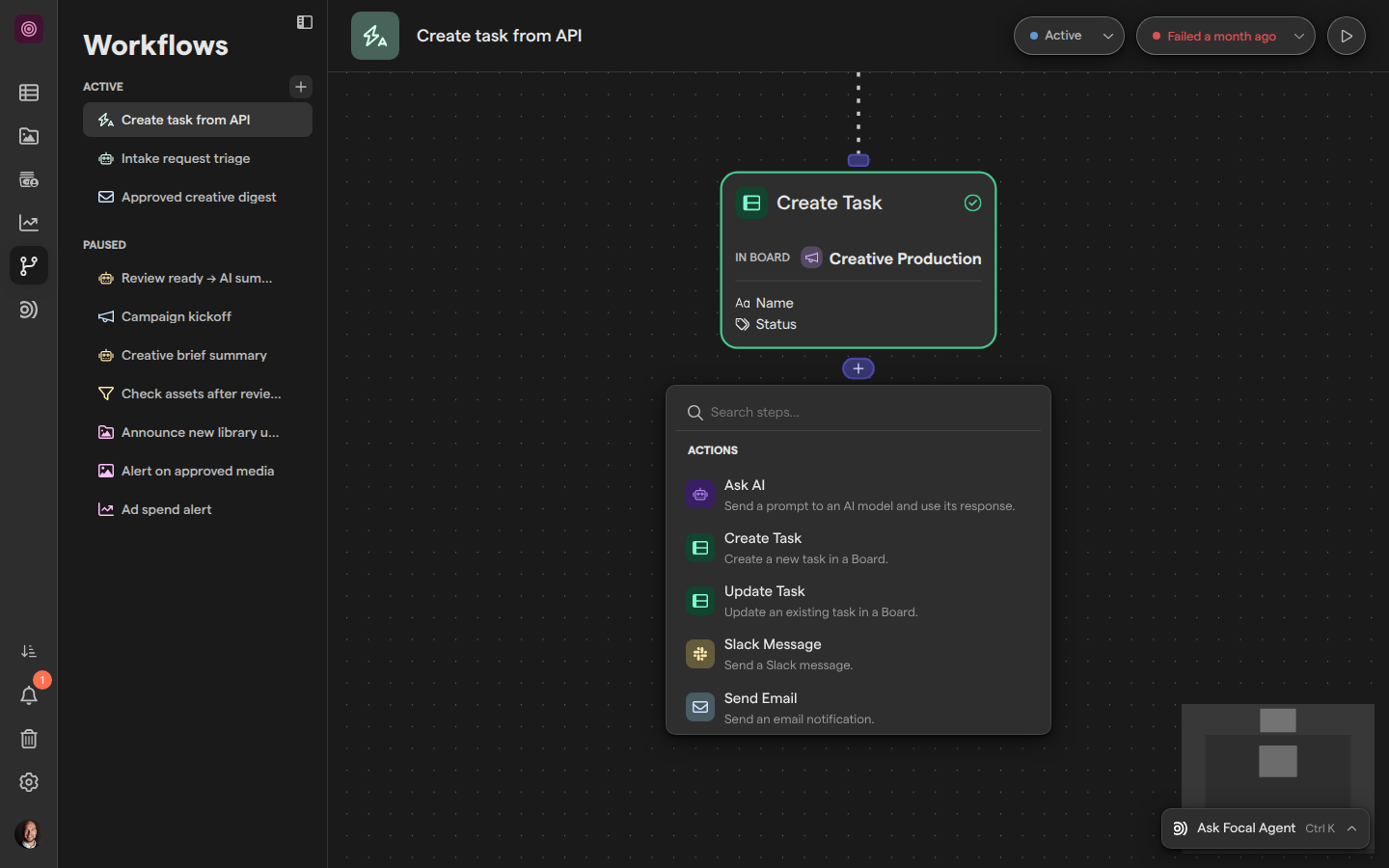
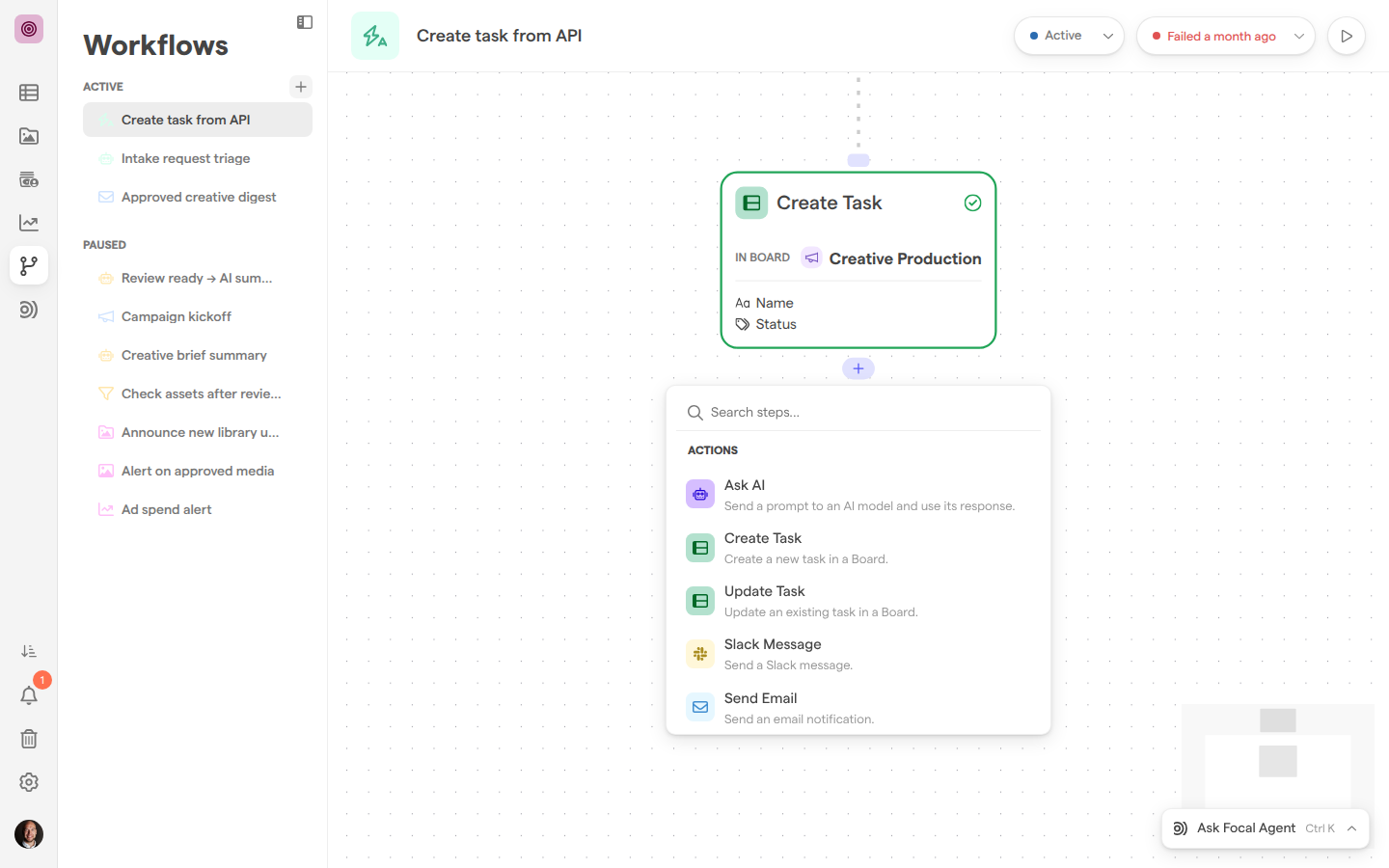
Add an action to a workflow
Actions are added from the step picker, the searchable list that opens from the + under a step (“Add next step”) or on a connection between two steps (“Add step between”). It has two groups, Logic and Actions, and shows each action with a one-line description.
- Open a workflow from Workflows.
- Click the + under the step the action should follow.
- Type in Search steps… to narrow the list, or scroll to Actions.
- Click the action. It is added below the step and its settings panel opens.
- Fill in the settings. Until every required setting is filled in, the step shows an issue, such as “Choose a Board.”, and the workflow cannot run.
Connecting, moving and deleting steps is covered in Building a workflow.
Create Task
Create Task adds a new task to a board in the space, for example one task per request that arrives through the API trigger.
- Board: the board the task is created in. Required.
- Filled Columns: the columns to fill in on the new task. Add one with + Add column, then choose how it is filled (see “Fill in columns and attributes”).
Output: Created task, the new task, which later steps can update or reference.
Update Task
Update Task changes the column values of an existing task: the task that fired a “Task is updated” trigger, for example, or one an earlier Create Task step made.
- Task to update: pick the task from the list of earlier steps. The panel then shows the board the task belongs to. Required.
- Columns to update: the columns to change, added with + Add column. At least one is required.
When the chosen task is a list of tasks, Update Task updates each of them, up to 100 in one run.
Output: Updated task, the task (or list of tasks) after the change.
Fill in columns and attributes
Create Task, Update Task and Update Media all set values the same way: each column or attribute you add gets a Fill with choice that decides where its value comes from.
| Fill with | Where the value comes from |
|---|---|
| Static | A fixed value you enter or pick, such as the task status Backlog |
| Field | A value from the trigger or an earlier step, chosen in Select an output field |
| Autofill | An AI model fills the value from a Prompt you write, which can include @ variables |
For a selection column filled with Field, the incoming text is matched exactly against the column’s options. If nothing matches, the value is left as it is. Field only offers outputs whose type fits the column.
Create Media
Create Media downloads a file from a URL and creates an asset from it, for example an image a partner’s system links to.
- Source: the file’s URL, typed in or taken from an earlier step with
@. Required. The URL must usehttps://. - File name: the name for the new asset. Optional.
- Save to library: when on, the asset is added to the asset library, in the folder you pick. When off, the asset is kept for use by later steps, such as an upload, without appearing in the library.
When the source is a list of URLs, Create Media creates one asset per URL, up to 100 in one run, numbering the file name you set. A download that fails temporarily is tried up to three times.
Output: Created media, the new asset (or list of assets).
Update Media
Update Media changes an asset that already exists, typically the asset that fired a media trigger.
- Media to update: the asset from the trigger or an earlier step. Required.
- Properties: the asset’s own fields, added with + Add property:
- Name
- Status (an asset status)
- Valid from
- Expires at
- Media attributes: the space’s media attributes, added with + Add attribute.
At least one property or attribute is required. Values are filled with Static, Field or Autofill (see “Fill in columns and attributes”). A list of assets is updated one by one, up to 100 in one run.
Output: Updated media, the asset (or list of assets) after the change.
Slack Message
Slack Message posts a message to a Slack channel or sends it as a direct message. It needs a Slack workspace connected to Focal (see Slack). When none is connected, the step shows a Connect Slack button instead of its settings.
- Workspace: the Slack workspace. + Add workspace connects another one.
- Message: choose Channel Message or Direct Message.
- Channel: the channel to post in, for a channel message. Mention Users adds people to mention.
- Direct Message Users: the people to message, for a direct message.
- Message: the text, with
@variables for data from earlier steps. Required.
Output:
- Result
- Message ID
- Channel ID
- DM user IDs
- Message
Send Email
Send Email emails a notification to one or more people.
- Recipients: people in the space, or any email address typed in and added with
Add "<address>". An address that is not valid is marked “Not a valid email”. Required. - Subject: the subject line, with
@variables. Required. - Message: the body, with
@variables. Required.
Every email ends with a line saying which workflow in which space sent it automatically.
Output:
- Result
- Subject
- Message
- Recipient emails
HTTP Request
HTTP Request calls another service’s API, for example to send a task’s details to your own system. It carries an “Advanced” badge in the step picker.
-
Request: the method (
GET,POST,PUT,PATCHorDELETE) and the URL, which can contain@variables. Required. -
Params and Headers: key and value pairs. Click Add parameter or Add header to add one.
-
Body:
- None
- JSON
- Form Data
- x-www-form-urlencoded
The JSON editor shows “Valid JSON” or “Invalid JSON”.
-
Auth:
- No Auth
- Bearer
- Basic
- API Key
An API key is added to the Header or the Query params.
HTTP Request has two exits, On success and On error. The error exit is taken for a status of 300 or higher, a timeout or a network failure.
Output:
- Status code
- Response data on success
- Error message on error
Upload to Meta, TikTok or YouTube
Upload to Meta, Upload to TikTok and Upload to YouTube send assets to an ad account or channel, for example every asset approved in a review. See also Meta ads export, TikTok export and YouTube export.
- Media source: the asset or list of assets from the trigger or an earlier step. Required.
- Ad Account (Meta and TikTok) or YouTube Channel (YouTube): click Connect account to sign in to the platform, then pick the account or channel. Log out disconnects the signed-in account. Required.
One run uploads up to 100 assets. When the account list cannot load, the step shows “Couldn’t load your ad accounts. Please try again.” with a Retry button.
Output: Uploaded count, the number of assets uploaded.
Ask AI
Ask AI sends a prompt to an AI model and passes its answer to later steps, for example to summarize a task before a later step writes the summary into a column.
- Model: the Gemini model to use. The default is gemini-3.1-flash-lite.
- Message: the prompt, with
@variables for data from earlier steps. Required. - Use structured output: when on, you define the fields the answer must contain, and later steps can use each field on its own. When off, the answer is plain text.
Output: AI response, text or the fields you defined.
Who can use actions
Actions are part of Workflows, which only space owners and organization admins can open. Other space members do not see Workflows, and a link to it takes them to the space’s home page. Anyone who can open a workflow can add and change every action in it.
The board list in Create Task offers every active board in the space. Some actions depend on setup outside the workflow: Slack Message needs a connected Slack workspace, and the upload actions need a signed-in ad account or channel.
Limits of actions
Actions that work on a list stop the step when the list is longer than 100 items. This applies to Create Media, Update Media, Update Task and the three upload actions. The step then fails with an error such as “Update Task ran against 150 tasks; the limit is 100”, visible in the step’s Error details in Runs.
HTTP Request and Create Media only call https:// addresses on the public internet. An HTTP Request gives up after 30 seconds, rejects a response larger than 10 MiB, and does not follow redirects. A response with status 429 or 503 (rate limited or temporarily unavailable) is retried later automatically.