AI & Agents
AI & Agents is the part of Focal where AI does work for you: it reads your assets, fills in media attributes and board columns, answers questions and makes changes through Focal Agent, and lets AI assistants outside Focal, such as Claude or ChatGPT, work with your content. Each AI feature works inside a space, and the ones you talk to, Focal Agent and connected assistants, act as you and see only what you can see.
Most of it runs on its own once it is set up. Focal analyzes each new image and video as it arrives, and autofill fills empty fields from the prompts your team writes. Focal Agent and the outside assistants act when you ask them. The background features need AI turned on for the space in AI settings.
What AI does in Focal
AI in Focal is five features. Three work on your content in the background, and two are ways to ask AI for something.
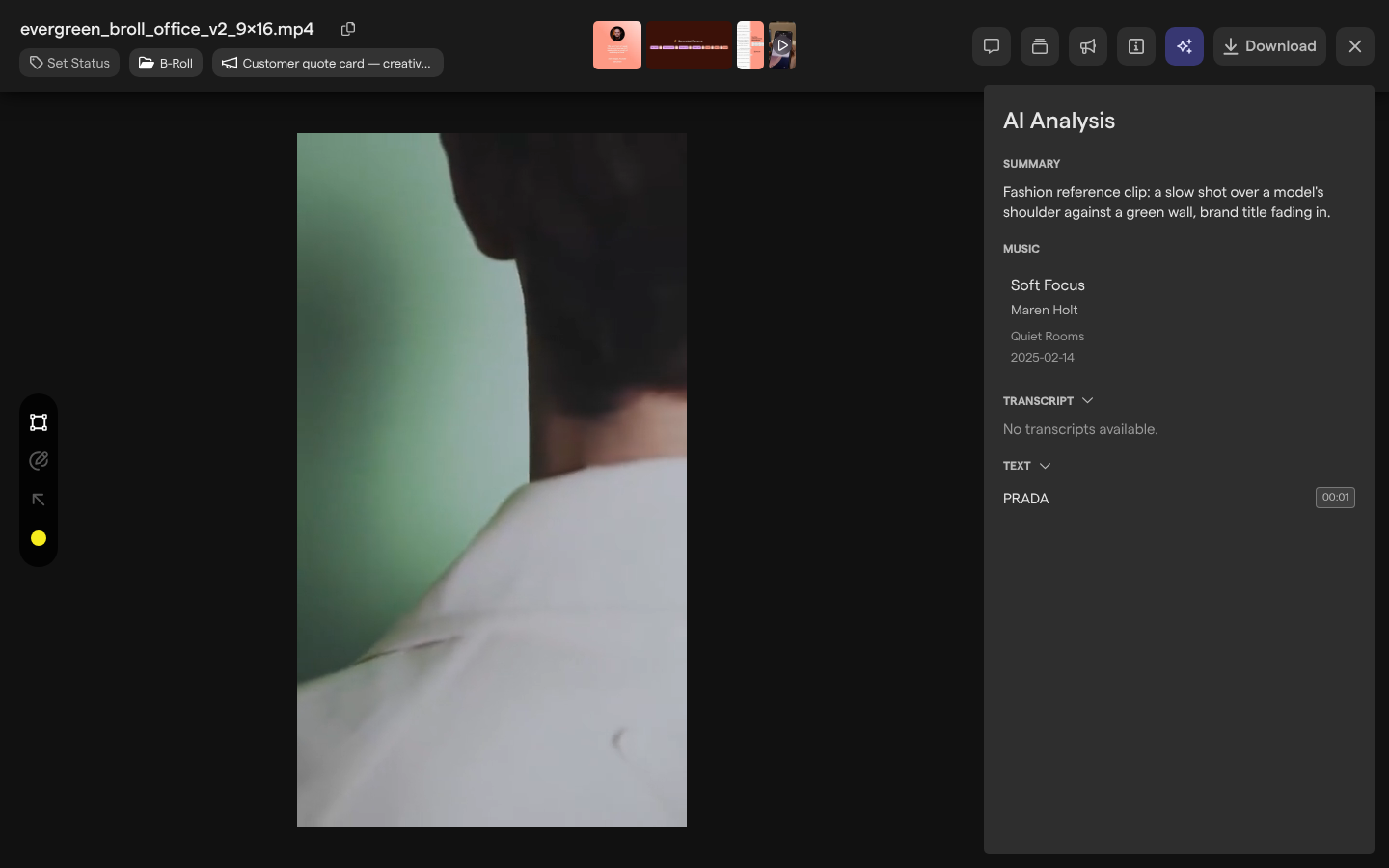
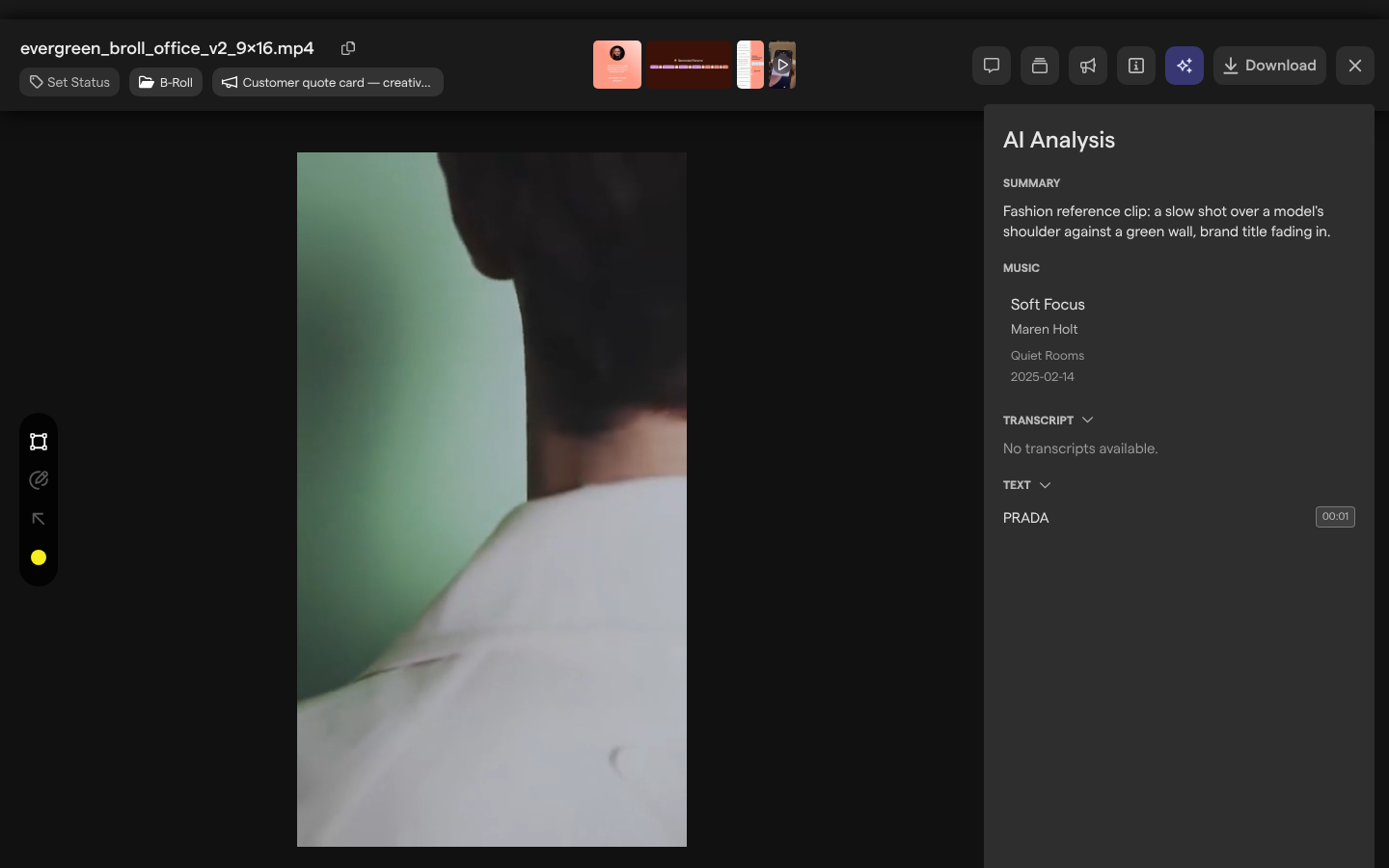
- Media analysis reads every image and video added to the space: a short summary of what it shows, the text that appears in it, a transcript of what is said, the song that plays and its main colors. The results are in the AI Analysis panel of the asset view.
- Media tagging is AI autofill on a Tags or Text media attribute. You write a prompt for the attribute, and AI picks the tags or writes the text for each asset, such as a platform, a format or a funnel stage.
- Boards autofill is AI autofill on a Text, Formatted text or Selection column of a board. The prompt can point at the task’s other columns and at the assets it holds, so AI can draft a hook line from a brief or a caption from the attached video.
- Focal Agent is a chat inside your space. You ask in plain words, and it searches assets, reads boards and workflows, and makes the changes you ask for, asking your approval before it changes anything.
- The MCP connector connects an AI assistant outside Focal, such as Claude, ChatGPT or Cursor, so you can work with your Focal content from that assistant.
Autofill, in both media tagging and boards autofill, fills only empty fields and never overwrites a value someone has set; only an autofill step in a workflow replaces one. Media analysis feeds autofill: the summary it writes is the AI Description that autofill prompts can reference. The asset library’s search also offers AI Search, which finds assets by the meaning of the words you type, while AI is on for the space; it is covered in Search.
AI settings
AI settings are the space settings that control AI for a whole space. They are on the Automations page of space settings (Settings → Automations), and every article in this section points to them.
The page holds two settings:
- The AI toggle, “Enable AI-powered features and LLM integrations in this space”, turns media analysis, media tagging and boards autofill on or off for the space. Autofill steps in a workflow still run when AI is off.
- The Media Analysis Prompt decides what AI extracts from images and videos during media analysis. It can be edited, or reset to the default.
Only space owners and organization admins can open space settings. When AI is off, the autofill toggles are greyed out with the tooltip “Enable AI in the space’s Automations settings first to use autofill”, and the AI Analysis panel of an asset that was never analyzed shows “AI Features Disabled”. If you are a member and see either, ask a space owner to turn AI on. See Space settings: Automations for the page itself and Roles and permissions for the roles.
Two AI features have their own switches instead. Focal Agent is in beta and is turned on per organization, and the MCP connector is turned on or off by an organization admin in MCP connector settings.
What teams use AI for
Teams use AI in Focal to keep a large library usable and to take repetitive work off the people on a board.
A performance team uploading dozens of ad variants a week turns on media tagging for Platform, Format and Funnel stage. Every new upload arrives tagged, and the team filters the asset library by those attributes instead of opening each asset. When someone needs to know which song a cut uses before it goes live, or where a line is said in a video, they read it from the AI Analysis panel instead of playing the video through.
A creative production team sets up boards autofill on its concept board. When a task’s status moves to Briefing, AI drafts the hook line from the brief. Once the videos are attached, the producer selects the tasks and runs autofill to get a first caption for each. The team edits what AI wrote rather than starting from an empty cell.
A marketing lead asks Focal Agent to find every approved video for the summer launch, or to summarize which tasks on a board are still waiting for review. A strategist attaches a spreadsheet of results and asks for the top performers. Someone who works in Claude all day connects Focal through the MCP connector and pulls in transcripts or fills in tasks from there.
Articles in AI & Agents
The AI & Agents section has one article per feature:
| Article | What it covers |
|---|---|
| Media analysis | The summary, on-screen text, transcript, music and colors Focal reads from each image and video, and where to find them |
| Media tagging | Turning on AI autofill for a Tags or Text media attribute, writing its prompt, and filling attributes on new assets, one asset or a selection |
| Boards autofill | Turning on AI autofill for a board column, triggering it when another column changes, running it on selected tasks, and filling columns from a workflow |
| Focal Agent | Chatting with Focal Agent, attaching files, approving its changes, running code on your data, and managing what it remembers |
| MCP | Turning on the MCP connector for an organization, connecting an outside AI assistant, and revoking a connection |