Conditions and timing
Conditions and timing are the three logic steps of a workflow: Condition, Filter and Wait. A Condition step lets the workflow continue only when something is true, a Filter step narrows a list down to the items that match, and a Wait step pauses the workflow for a set time before the next step runs. Use them to stop a workflow that should not act, to split one workflow into an if/else, or to give people time to react before a follow-up.
All three steps sit under Logic in the step picker of the workflow editor, next to the actions. Condition and Filter share one condition builder, and all three read their values from the trigger and earlier steps through variables.
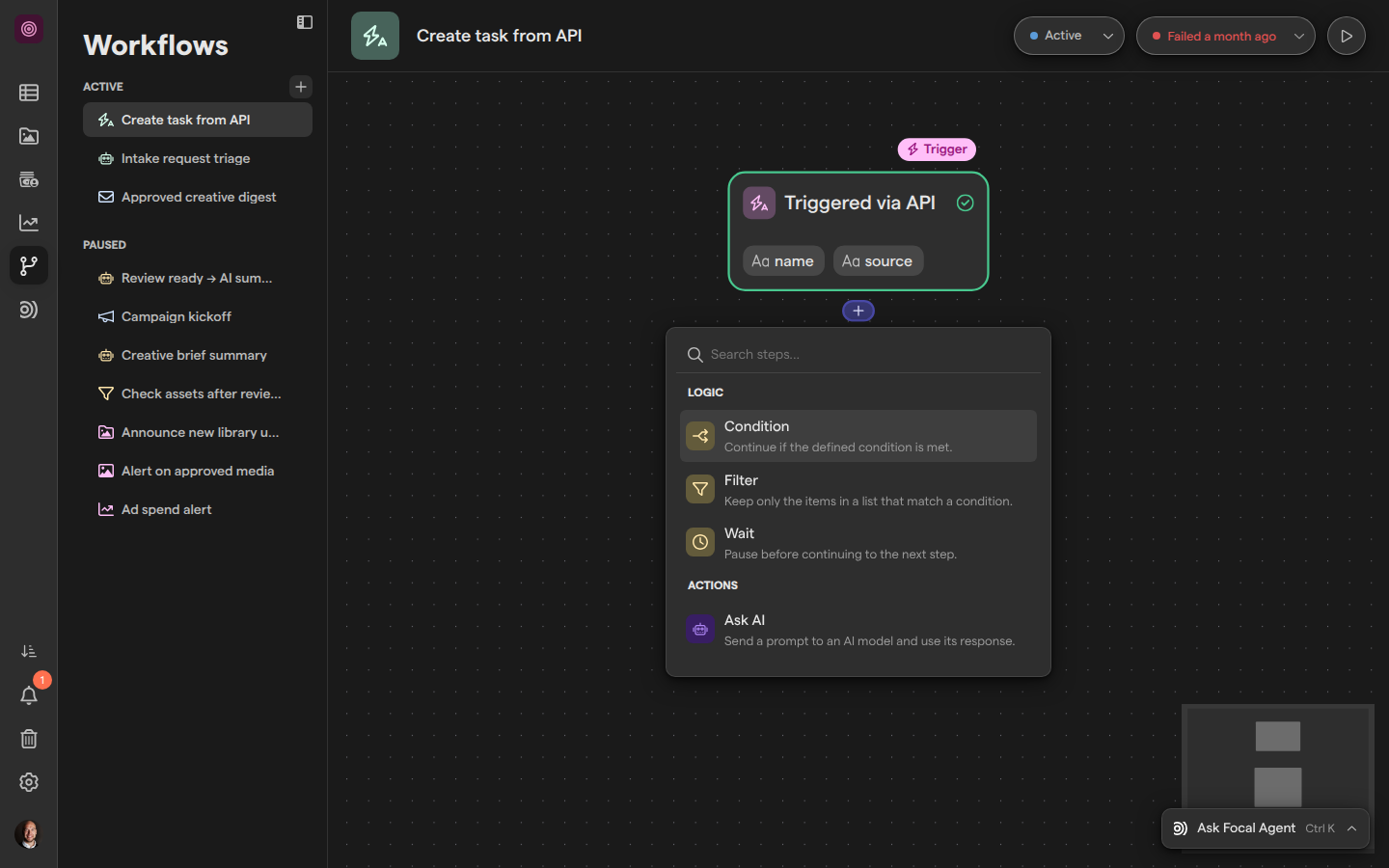
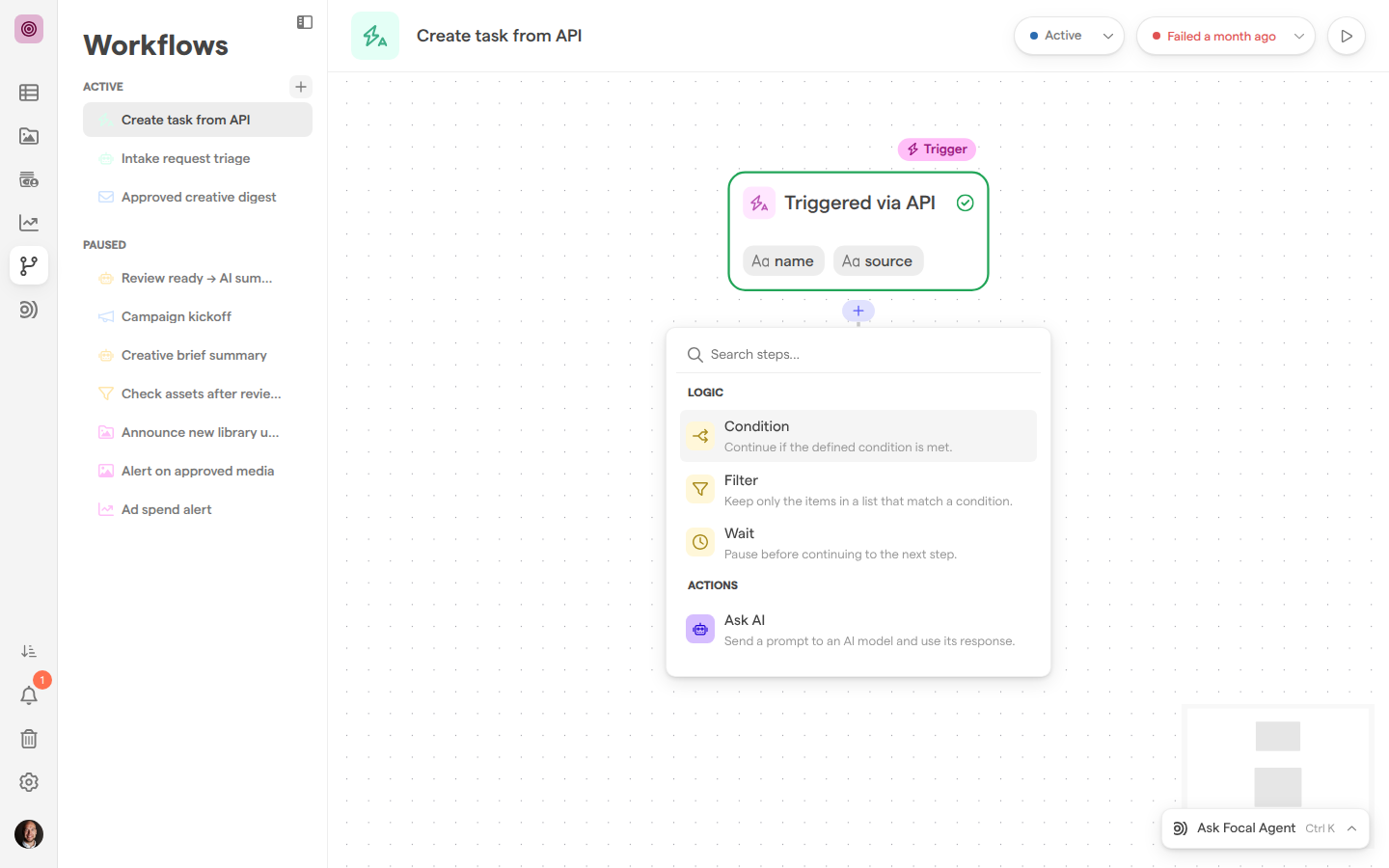
Add a logic step
A logic step is added to a workflow like any other step: from the step picker on the workflow canvas. The picker lists the logic steps first, under Logic, with a one-line description of each.
-
Open Workflows and select the workflow.
-
Click the + under the step the logic step should follow (its tooltip reads “Add next step”). To put a step between two connected steps, use the + on the line between them (“Add step between”).
-
Pick one of:
- Condition
- Filter
- Wait
Or type in Search steps… to find one.
-
The new step is added, connected and selected, and its settings open in the panel beside the canvas.
A new step lands unconfigured. Until its settings are complete, the step shows an issue, and an issue blocks publishing. The editor itself, including how to connect, rename and delete steps, is described in Building a workflow.
Set up conditions
The condition builder is where a Condition step or a Filter step says what has to be true. Each condition is one row with three parts: a field, an operator and a value.
- Under Conditions (on a Condition step) or Keep items where (on a Filter step), click Select a field and pick a value from the trigger or an earlier step.
- Pick an operator from Operator. The list depends on the field’s type.
- Enter or pick the value. Operators such as exists, is true or is empty need no value.
- To add another row, click Add condition. To remove one, click the trash icon on its row (“Remove condition”).
- With more than one row, use the AND / OR switch at the top of the section. AND means every condition must match; OR means any one of them is enough.
The operators follow the field’s type:
| Field type | Operators |
|---|---|
| Text | is, is not, contains, does not contain, starts with, does not start with, ends with, does not end with, exists, does not exist |
| Number | is, is not, is over, is under, is at least, is at most, exists, does not exist |
| Yes or no | is true, is not true |
| Date | is before, is after, is between, exists, does not exist |
| Choice (such as a task status) | With one choice: is, is not, is one of, is not one of, exists, does not exist. With several: contains exactly, does not contain exactly, contains any of, contains all of, contains none of, exists, does not exist |
| Asset | is empty, is not empty |
Text comparisons ignore upper and lower case. Date comparisons compare calendar days in UTC, not times. A row with no field shows the issue “Set up a condition.”, and a row with a field but no value shows “Add a value to the condition.”
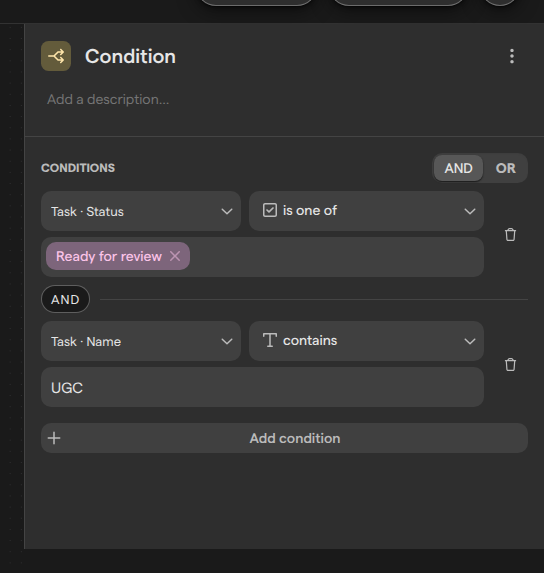
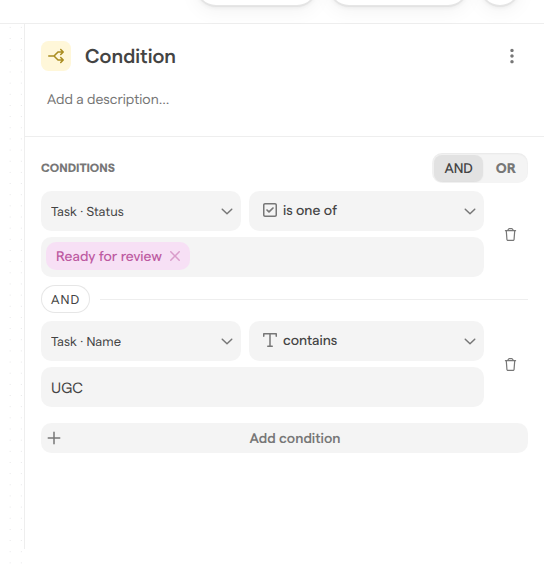
Continue only when a condition is met
A Condition step is a gate: the workflow continues past it only when its conditions match. Its description in the step picker reads “Continue if the defined condition is met.” Use it when a trigger fires more often than you want to act, for example to notify reviewers only about tasks whose priority is high.
- Add a Condition step after the trigger or step whose values it checks.
- Set up its conditions under Conditions.
- Add the steps that should run when the conditions match after the Condition step, using its +.
When the conditions do not match, the steps after the Condition step do not run. The run still completes, and those steps show as “Skipped” in the run’s details (see Runs).
Branch a workflow with if/else
An if/else branch runs one set of steps when a condition matches and another set when it does not. A Condition step has a single way out, so a workflow branches by giving one step two Condition steps, one for each case.
- Click the + under the step to branch from and add a Condition step with the “if” conditions.
- Click the same + again and add a second Condition step. The first one stays connected; the step now has two paths.
- Give the second Condition step the opposite conditions, for example is not where the first uses is.
- Add the steps for each case after its own Condition step.
Every path out of a step runs, so both Condition steps are checked on every run. Only the path whose conditions match continues; the other path’s steps are skipped. If both sets of conditions can be true at once, both paths run, so we recommend writing the second condition as the exact opposite of the first.
Keep only matching items with a filter
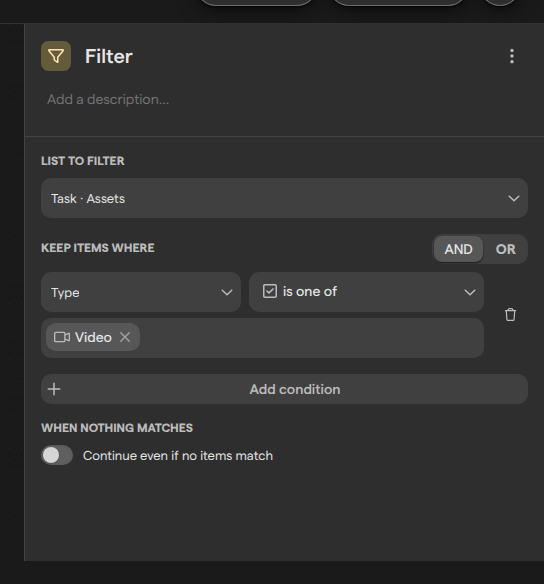
A Filter step takes a list, such as several assets or tasks from the trigger or an earlier step, and keeps only the items that match its conditions. Its description reads “Keep only the items in a list that match a condition.” Later steps then work on the shorter list instead of all of it.
- Add a Filter step.
- Under List to filter, open Select a list and pick the list.
- Under Keep items where, set up the conditions. The fields offered are the fields of one item in the list.
- Under When nothing matches, decide whether to turn on Continue even if no items match.
A Filter step produces two variables for later steps: Filter result, the items that matched, and Result count, how many there are. When no item matches and Continue even if no items match is off (the default), the workflow stops at the Filter step and the steps after it are skipped, the same way as after an unmet Condition step. Turn the option on when a later step should run even for an empty list, for example to report that nothing matched. Until a list is picked, the step shows “Select a list to filter.”
Pause a workflow with a wait
A Wait step pauses a workflow for a set time, then continues to the next step. Its description reads “Pause before continuing to the next step.” Use it to give people time to act before a follow-up, for example to wait an hour after a task is ready for review and then check whether its status has changed.
- Add a Wait step where the pause should happen.
- Under Duration, enter a whole number.
- Pick the unit: seconds, minutes or hours. A new Wait step starts at 5 minutes.
A wait can last from 5 seconds to 24 hours; the editor shows “The shortest wait is 5 seconds.” or “The longest wait is 24 hours.” outside that range, and “Enter a whole number greater than zero.” for anything that is not a whole number. While a run is waiting, it shows as running in the run history, and it can be stopped with Cancel run from its details.
How data changes during a wait
A Wait step is usually there because something is expected to change while the workflow waits, so the steps after it read current values. When a step comes after a Wait step, Focal reads the tasks and assets it refers to again when that step runs, instead of using the values captured before the pause. A Condition step after a one-hour wait therefore checks the task’s status as it is after the hour, not as it was when the workflow started.
Only tasks and assets are read again. Other values, such as an AI response, the reply to an HTTP request, or the details of the change that started the workflow, keep the value they had when their step ran.
Who can use logic steps
Condition, Filter and Wait steps have no permissions of their own: anyone who can edit a workflow can add, change and remove them. Workflows are open to space owners and organization admins. A space member does not see Workflows in the space’s sidebar, and a link to the Workflows page takes them back to the space instead (see Roles and permissions).
FAQ
Is there an if/else step?
Yes: the Condition step is the if/else of a workflow. A Condition step lets the workflow continue only when its conditions match, so to run one set of steps when a condition matches and another when it does not, add two Condition steps from the same step: one with the conditions, the other with their exact opposite. Each path then continues only when its own Condition step matches.