Library views
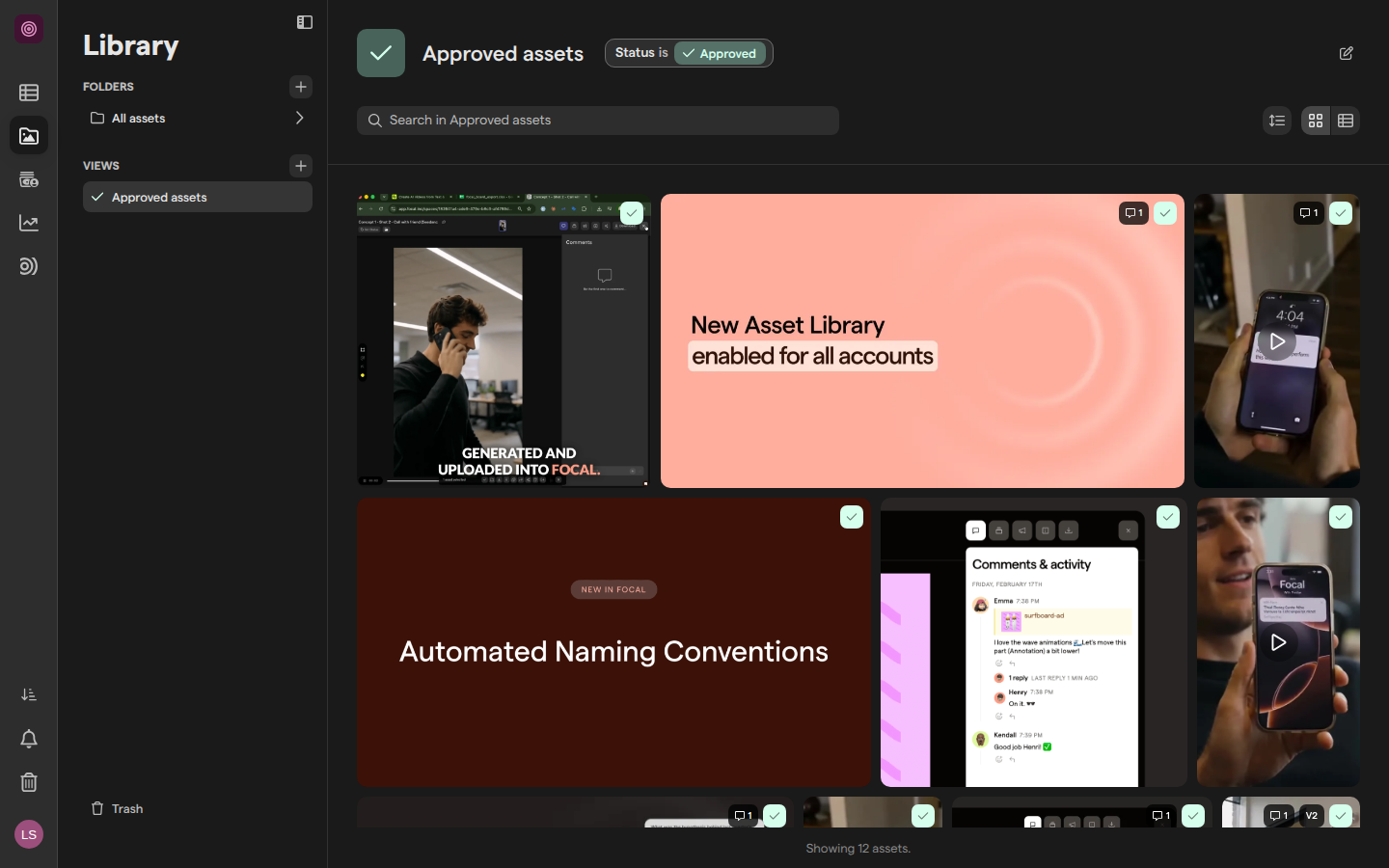
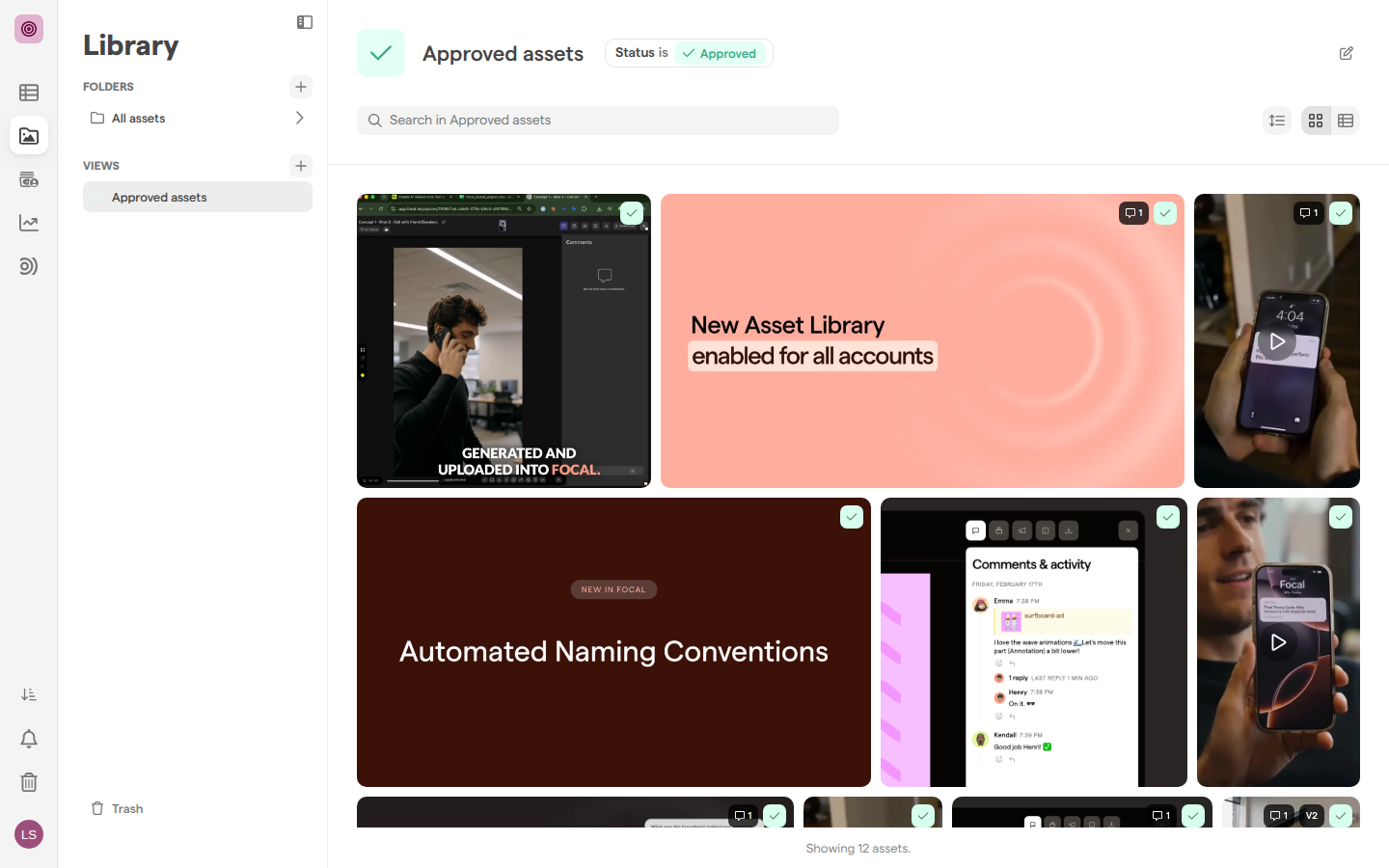
A library view is a saved set of filters on the asset library, kept in the library sidebar under Views. Opening a view shows every asset in the space that matches its filters, sorted and grouped the way the view was saved. Use a library view for a selection your team returns to often, such as all approved assets, every video for one platform, or the assets waiting for review.
Library views belong to the space, so everyone who works in the library sees the same list. A view saves its filters, its grouping, its sort order and its columns; it does not copy or move any assets, and new assets that match its filters appear in it on their own. Library views are separate from board views, which organize the tasks on a board.
Save a filtered library as a view
A new library view starts from what you are looking at in the library. The filters in the search bar, the folder you are in, and the current Group by, Sort by and column choices are all carried over, so the quickest way to create a view is to filter the library first (see Search) and then save it.
- Open Assets and filter the library down to the assets you want the view to show.
- In the library sidebar, click + next to Views (its tooltip is “New view”). You can also right-click the empty area under the view list and choose New view.
- The view editor opens. Type a name over “Untitled view”, or leave it empty (see below).
- Click the icon next to the name to pick an icon and color in Icon & Color, or upload your own image in Custom Image.
- Use the Add filters to this View search bar to add filters, and click a filter to change it or its × to remove it.
- Set Group by and Sort by if you want them, and choose the columns with the settings button at the right end of the table header (Configure columns).
- Click Save view.
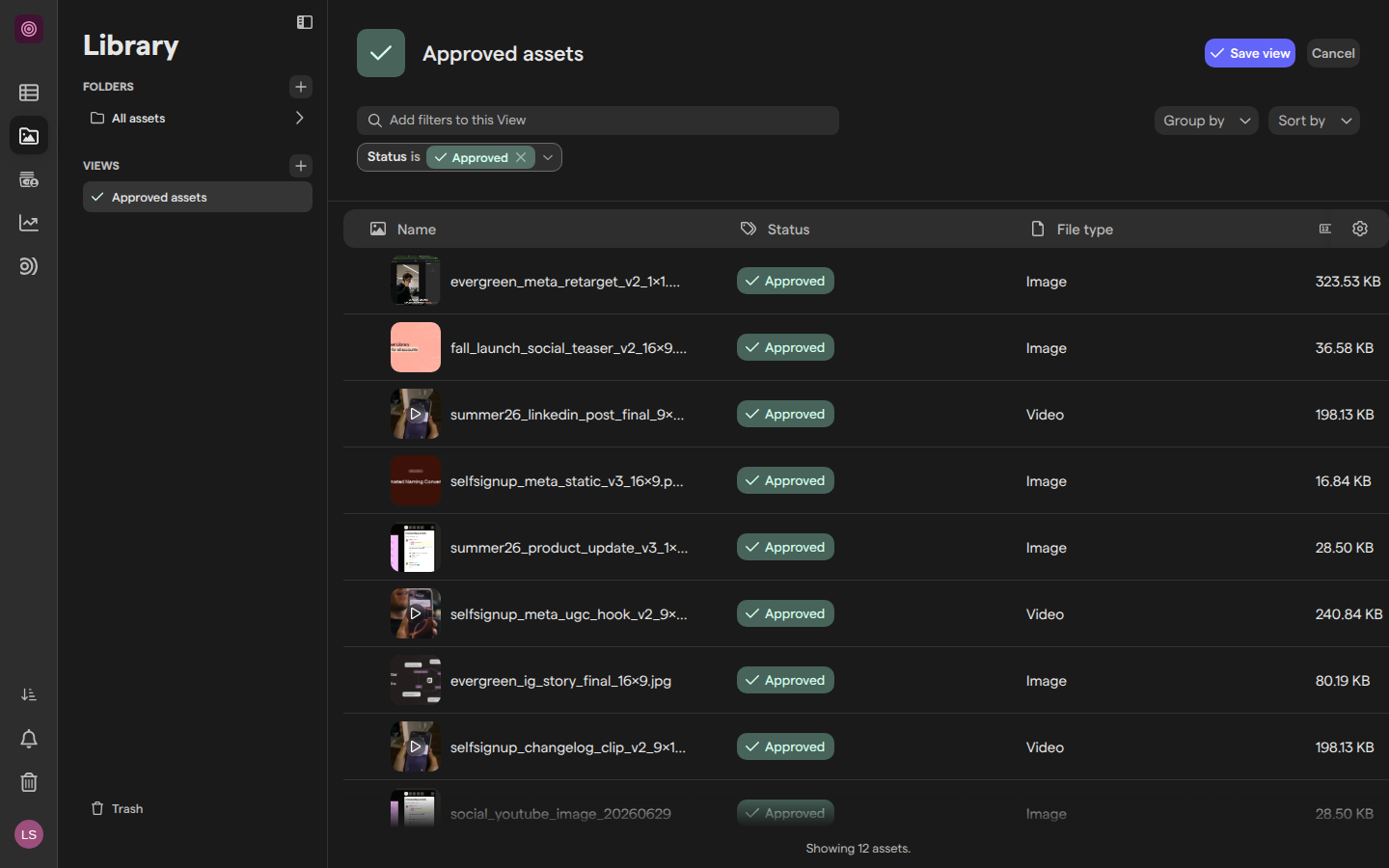
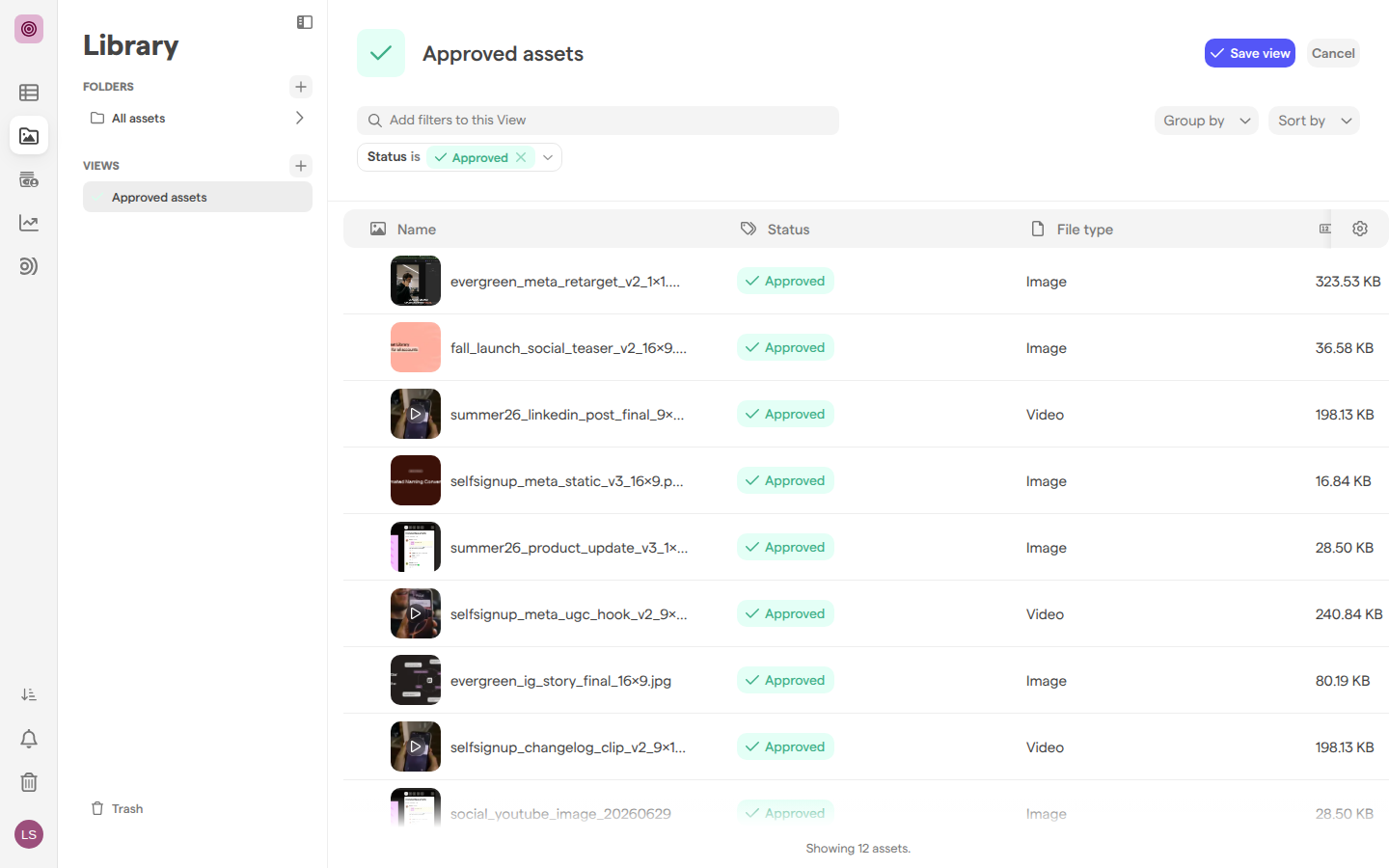
A view saved without a name gets one written from its filters, and the sidebar shows “Naming…” until the name arrives. While a view has no filters, the editor shows “Add some filters” in place of the assets.
Click Cancel to throw away a new view you have not saved. If you try to leave the editor any other way, the browser asks “Leave without saving?” first.
Find and open a library view
Every library view in the space is listed in the library sidebar, under Views, below Folders. A space with no views shows “No views yet” there.
- Open Assets.
- In the library sidebar, click the view’s name under Views.
The open view shows its name, its icon and its filters at the top, and the assets that match below them. A library view always searches the whole library, across every folder, unless one of its filters is a folder. When no assets match, the view shows “No results” and “No assets match this view’s filters.”
The search bar in an open view reads “Search in” followed by the view’s name. A search there narrows the view further for you alone: its filters are added to the view’s own and are not saved in the view. The buttons at the right of the toolbar switch between Gallery and Grid and set the asset size or row height. Those choices are your own display settings and do not change the view for anyone else.
To change the order of the views in the sidebar, drag a view up or down the list.
Edit a library view
A library view’s filters, grouping, sort order and columns are changed in the view editor, where nothing is saved until you click Save view. The view’s name and icon can also be changed straight from the open view.
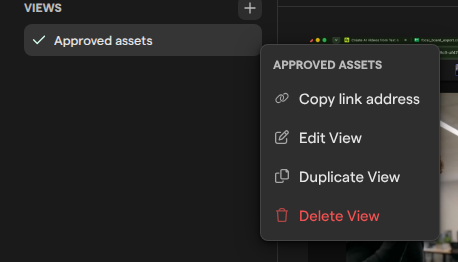
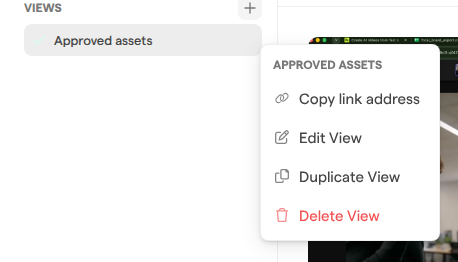
- In the library sidebar, right-click the view under Views, or hover over it and click ⋮.
- Choose Edit View. In an open view, the pencil button (Edit view) at the top right does the same.
- Change the filters in the Add filters to this View bar, and adjust Group by, Sort by and the columns.
- Click Save view to keep the changes, or Cancel to leave the view as it was.
To rename a view without opening the editor, open it, click its name at the top and type the new one. To change its icon, click the icon next to the name. Both changes are saved as you make them, and everyone in the space sees them.
Duplicate a library view
Duplicating a library view makes a copy with the same filters, grouping, sort order, columns and icon. It is the fastest way to build a view that differs from an existing one by one filter.
- In the library sidebar, right-click the view under Views, or hover over it and click ⋮.
- Choose Duplicate View.
The copy is named after the original with “(copy)” at the end, is added at the bottom of the list, and opens straight away. A “View duplicated.” message confirms it. Rename the copy and change its filters in the view editor, with Edit View in the same menu.
Share a library view
A library view is shared with the space from the moment it is saved: everyone who can open the space’s library sees it in the sidebar. There is no separate invite or permission setting for a single view. To point someone to a view, send them its link.
- In the library sidebar, right-click the view under Views, or hover over it and click ⋮.
- Choose Copy link address.
- Paste the link where you want to share it. A “Copied to clipboard” message confirms the copy.
The link opens the view for space owners and members. Guests can’t open the library, so to share assets with a guest or with someone outside the space, use a shared collection instead.
Delete a library view
Deleting a library view permanently deletes its saved filters and settings: views are not archived. The assets it showed stay in the library, untouched.
- In the library sidebar, right-click the view under Views, or hover over it and click ⋮.
- Choose Delete View.
- The “Are you sure?” dialog warns that deleted views cannot be restored. Click Yes, I’m sure!.
Note: Deleting a library view can’t be undone. Deleted views do not go to the library’s Trash page and cannot be restored. Deleting a view removes it for everyone in the space.
Who can create and change library views
Library views follow the space roles described in Roles and permissions. A space owner or member can create, edit, rename, duplicate, reorder and delete every library view in the space, whoever created it. Organization admins can do the same in every space. There is no per-view owner: a view one member saved can be changed or deleted by any other member.
Space guests have no access to the library or its views. A guest’s navigation has no Assets link, and opening a link to the library or to a library view takes a guest to the space’s start page instead. A guest cannot open, create, change or delete a view.