Creative IDs
A creative ID is a short code that Focal gives each asset on a board, such as FOC-0031-2. It has two parts. The concept ID (FOC-0031) belongs to the task, so every asset on one task has the same concept ID. The variant ID (2) is a number that tells apart the assets on that task. Use creative IDs when your team needs one stable code per ad, to put in file names, in exports and in the reports you compare later.
You set up the format once, as a creative ID pattern, in Space Settings. A pattern is a small naming rule built from text, a counter and a date. You then add a Creative ID column to a board, and Focal fills in the IDs as assets are added to tasks. A creative ID is set once and does not change afterwards.
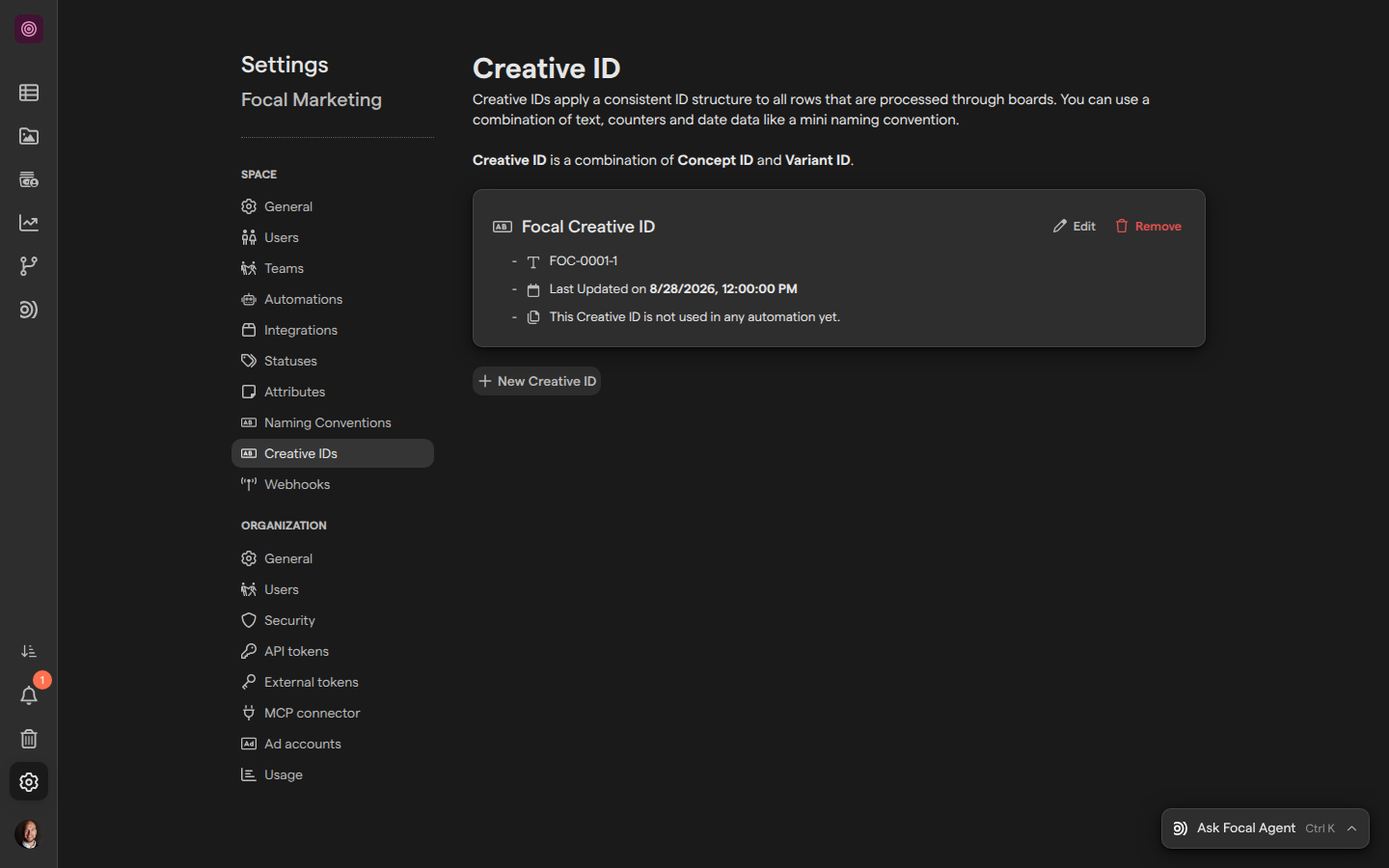
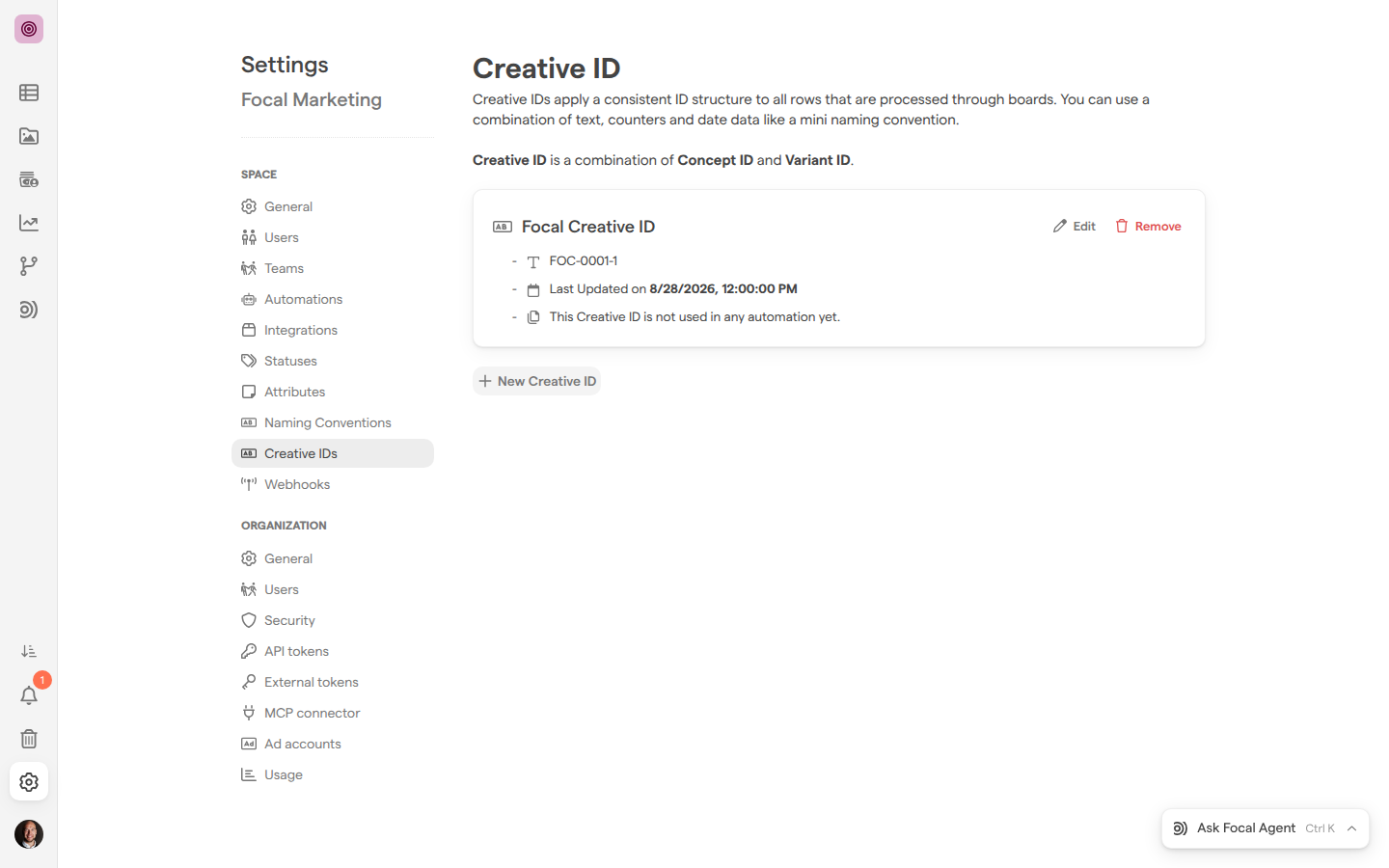
Create a creative ID pattern
A creative ID pattern sets what a concept ID looks like, and whether a variant number is added to the end. Patterns belong to the space, and a space can have several, for example one per brand.
- Open Creative IDs settings (Space Settings → Creative IDs).
- Click New Creative ID. The Create New Creative ID configuration dialog opens.
- Type a name in Title. This name is what you pick later on a board.
- Choose a Delimiter, the character placed between the parts, such as Hyphen (-) or Underscore (_).
- Under Add another field, add the parts of the concept ID, in order. Drag them to change the order.
- To change the letter case, turn on Convert name to. Choose lowercase, UPPERCASE or Capitalized Text.
- To add a variant number to each asset, turn on Append Variant ID and choose a format, such as Number (1, 2, 3…) or Padded (01, 02, 03…).
- Check the preview under “Here’s what the Creative ID will look like:”, then click Save Changes.
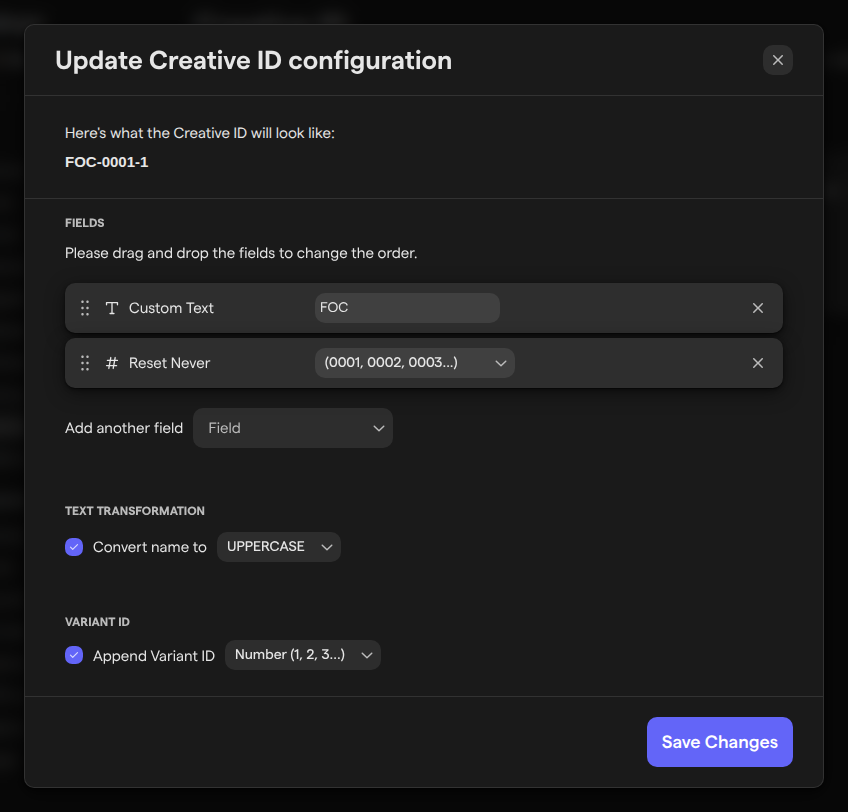
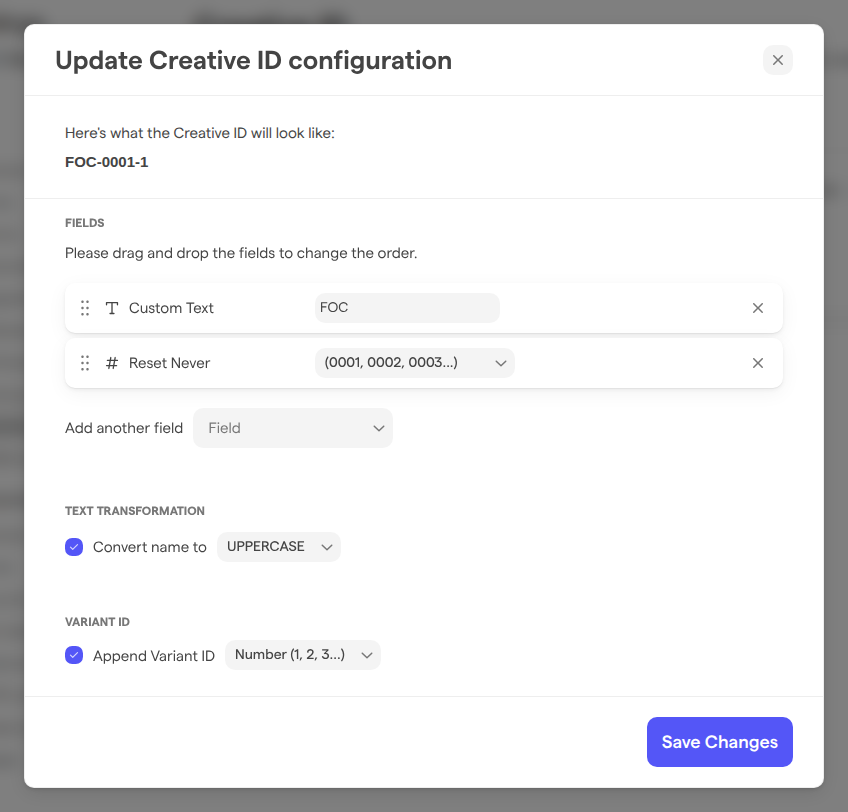
A pattern needs at least one field. The fields you can add are:
- Custom Text: fixed text you type into Custom Value…, such as a brand prefix.
- Creative ID created at: the date the ID is created, in a format such as
YYYYMM,YY-MMorDay (DD). - A counter, listed under INDEXED COUNTER: a number that goes up by one for each new concept. Reset Never keeps counting forever, Reset Monthly and Reset Yearly start again from 1. Its format sets the number of digits, from
(1, 2, 3...)to(000001, 000002, 000003...).
Generate creative IDs on a board
A Creative ID column tells a board which pattern to use and when to create the IDs. A board can have one Creative ID column. See Columns for how columns work in general.
- Open the board in Boards.
- Click Edit fields, then Add new.
- Type a column name and choose the column type Creative ID.
- Under Creative ID pattern, choose the pattern.
- Under Reference columns, choose the asset columns whose assets get IDs. These are the board’s columns of the type Media.
- Under Trigger, choose when the IDs are created (see below).
- Click Add column.
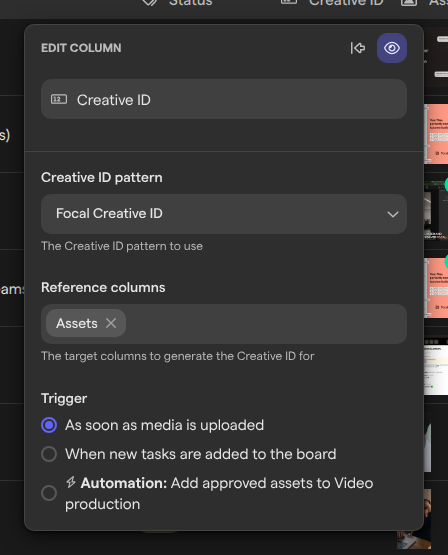
The trigger options are:
- As soon as media is uploaded: a task gets its concept ID when its first asset is added to a reference column, and each asset gets its creative ID as it is added.
- When new tasks are added to the board: every new task gets a concept ID the moment it is created, before it has any assets. Assets added later get creative IDs as well.
- Automation: followed by an automation’s name: IDs are created when that board automation runs. It is listed only for boards with a board automation that syncs assets to a folder. Board automations are legacy; see Board automations.
To change these settings on an existing column, click the column’s header. If the pattern list says “No Creative ID patterns found”, create a pattern first. Assets already on a task when you add the column get IDs only if they are added again later.
Find a creative ID on a board
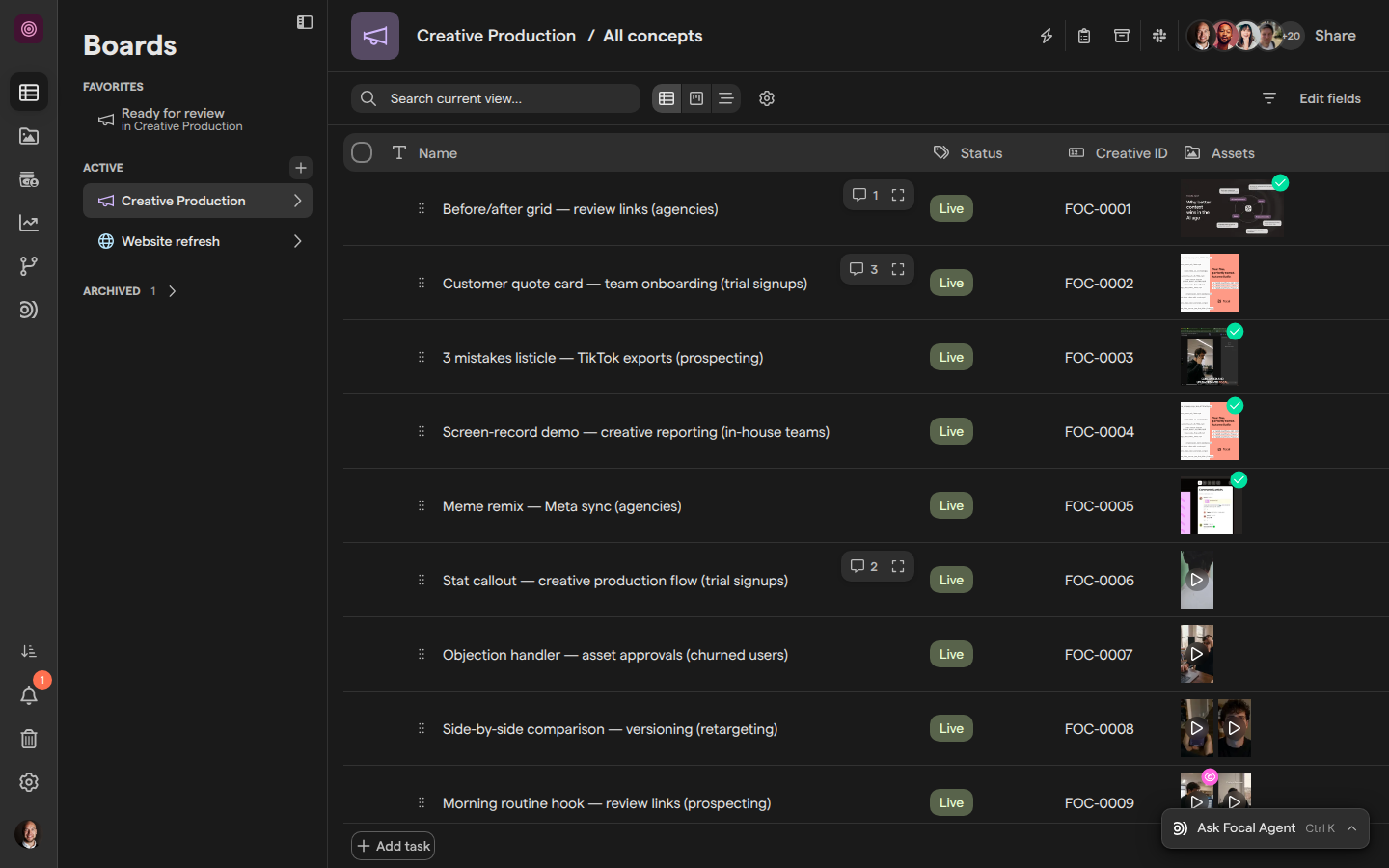
The Creative ID column of a board shows each task’s concept ID, such as FOC-0031. It does not show the variant numbers, because a task can hold several assets. Tasks that have no assets yet show an empty cell, unless the column’s trigger creates IDs for new tasks.
The column is read-only: Focal fills it in, and you cannot type into it. You can sort a board by the Creative ID column to list tasks in ID order.
Find a creative ID on an asset
The asset view shows an asset’s creative ID. Double-click the asset in the asset library, open the Attributes tab, and look under File metadata. It lists Creative ID, Concept ID and Variant ID.
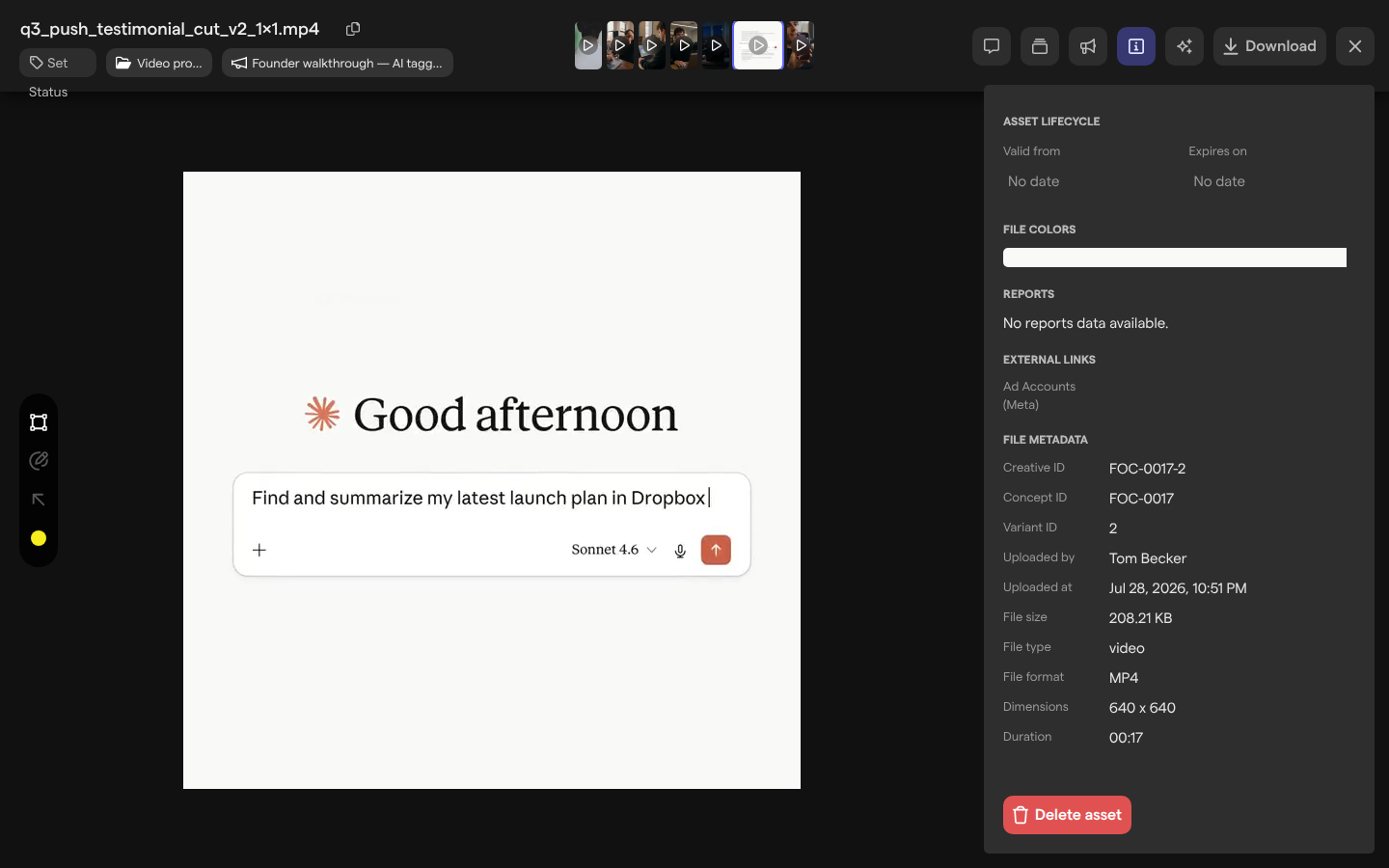
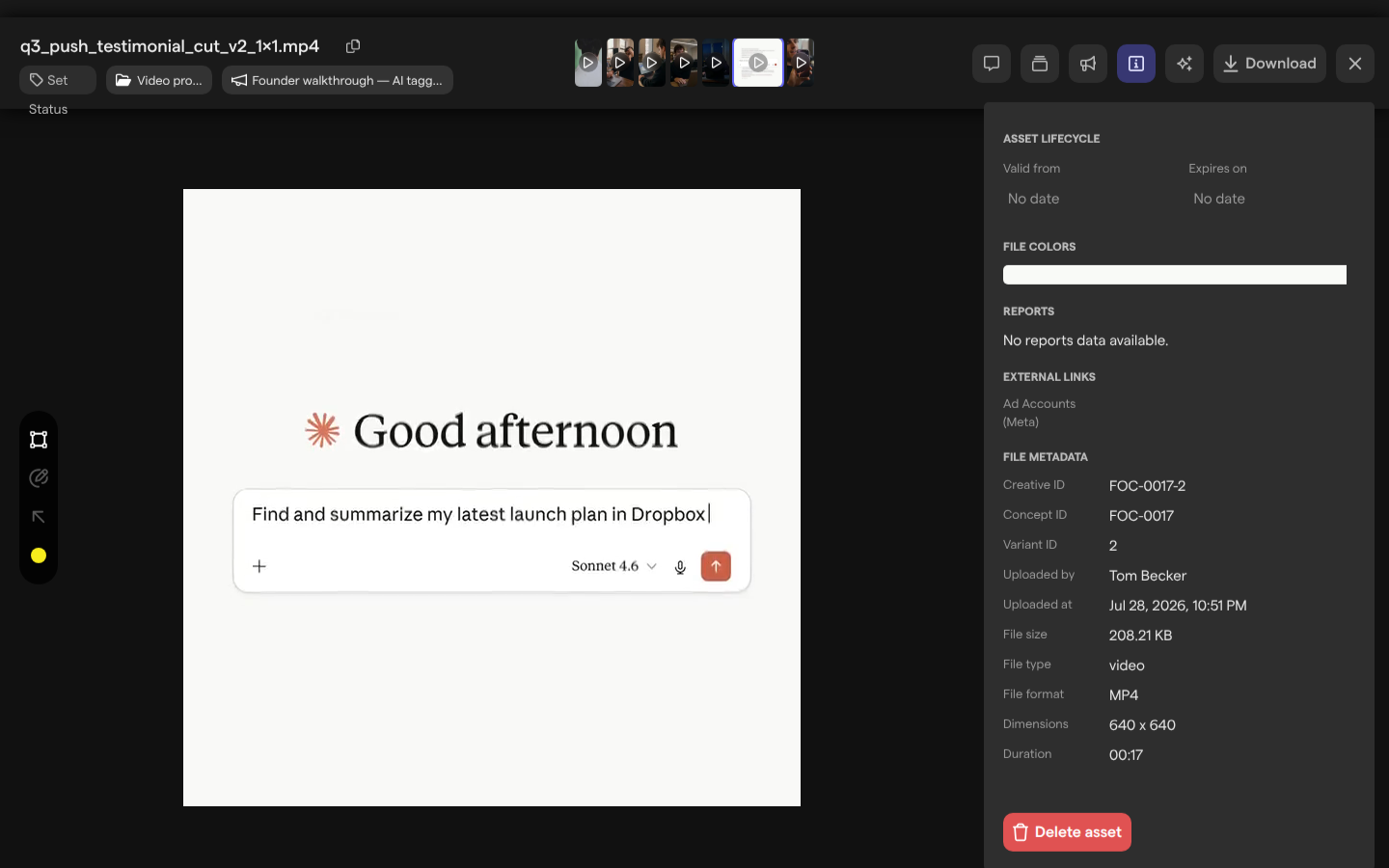
The asset library can also show the IDs as columns. In the grid view of a folder, click Configure columns and add Creative ID or Concept ID from the IDS group. To find one asset by its ID, search the library with the Creative ID… filter; see Search.
Change a creative ID pattern
Changing a pattern affects only the IDs Focal creates from then on. Assets that already have a creative ID keep it, and tasks keep their concept IDs.
- Open Creative IDs settings.
- Click Edit on the pattern. The Update Creative ID configuration dialog opens.
- Change the title, the delimiter, the fields, the letter case or the variant setting.
- Click Save Changes.
New concept IDs follow the changed pattern at once, on every board whose Creative ID column uses it. If you want the old and the new format kept apart, we recommend creating a new pattern instead and switching the board’s column to it.
Delete a creative ID pattern
Deleting a pattern removes it from the space for good. It does not go to the trash.
- Open Creative IDs settings.
- Click Remove on the pattern.
- Confirm with Yes, I’m sure!. The dialog warns: “Once you delete a Creative ID configuration you are not able to get the existing configuration back.”
Creative IDs already given to assets and tasks stay where they are. A board whose Creative ID column used the deleted pattern stops creating new IDs until you choose another pattern in the column’s settings.
How concept IDs and variant IDs are assigned
Focal follows the same rules every time it gives an asset a creative ID:
- One concept ID per task. When an asset is added to a task, Focal reuses the task’s concept ID. If the task has none yet, it takes the concept ID of another asset already on the task. Only when neither exists does it create a new concept ID from the pattern, and the counter goes up by one.
- Variant IDs count up per concept. The next variant ID is one higher than the highest variant ID any asset in the space has for that concept, including assets in the trash. Numbers are not reused, so removing an asset leaves a gap.
- An asset keeps its creative ID. An asset that already has a creative ID keeps it, even when it is added to another task. If that task has no concept ID yet, it takes the asset’s concept ID.
Use creative IDs in asset names, exports and reports
A creative ID is stored on the asset, but the asset’s name does not change on its own. To put the ID into the name, use a naming convention on a folder: its fields include Creative ID, Concept ID and Variant ID.
The name matters for exports. When you send assets to Meta, TikTok, YouTube or Google Drive, Focal sends the asset’s name with it (see Exporting assets). A naming convention that includes the creative ID is how the ID reaches your ad accounts and shared drives.
In Reports, a Production Timeseries block can count Concepts added to library, the number of distinct concept IDs among your assets over time. The option appears once the space has at least one creative ID pattern.
Who can manage creative IDs
Creative ID patterns are part of Space Settings, so only space owners and organization admins can create, change or delete them. Other users can’t open the page.
Anyone who can add and edit columns on a board can add a Creative ID column and choose one of the space’s existing patterns. See Roles and permissions.