Integrations
An integration connects Focal to an outside tool your team already uses. Integrations bring files into the asset library from Google Drive, Dropbox and Figma, send media assets out to Meta, TikTok, YouTube, Google Drive and Ad Manage, and post board and library activity to Slack. Others let your own systems and AI assistants work with Focal: webhooks, ad accounts for reports, and the MCP connector.
Each integration is connected where it is used: most from the asset library, Slack also from a board and from Workflows, and a few from Settings. Some connections belong to the whole organization, some to one space, and the Meta, TikTok, YouTube and Google Drive export sign-ins belong to each person.
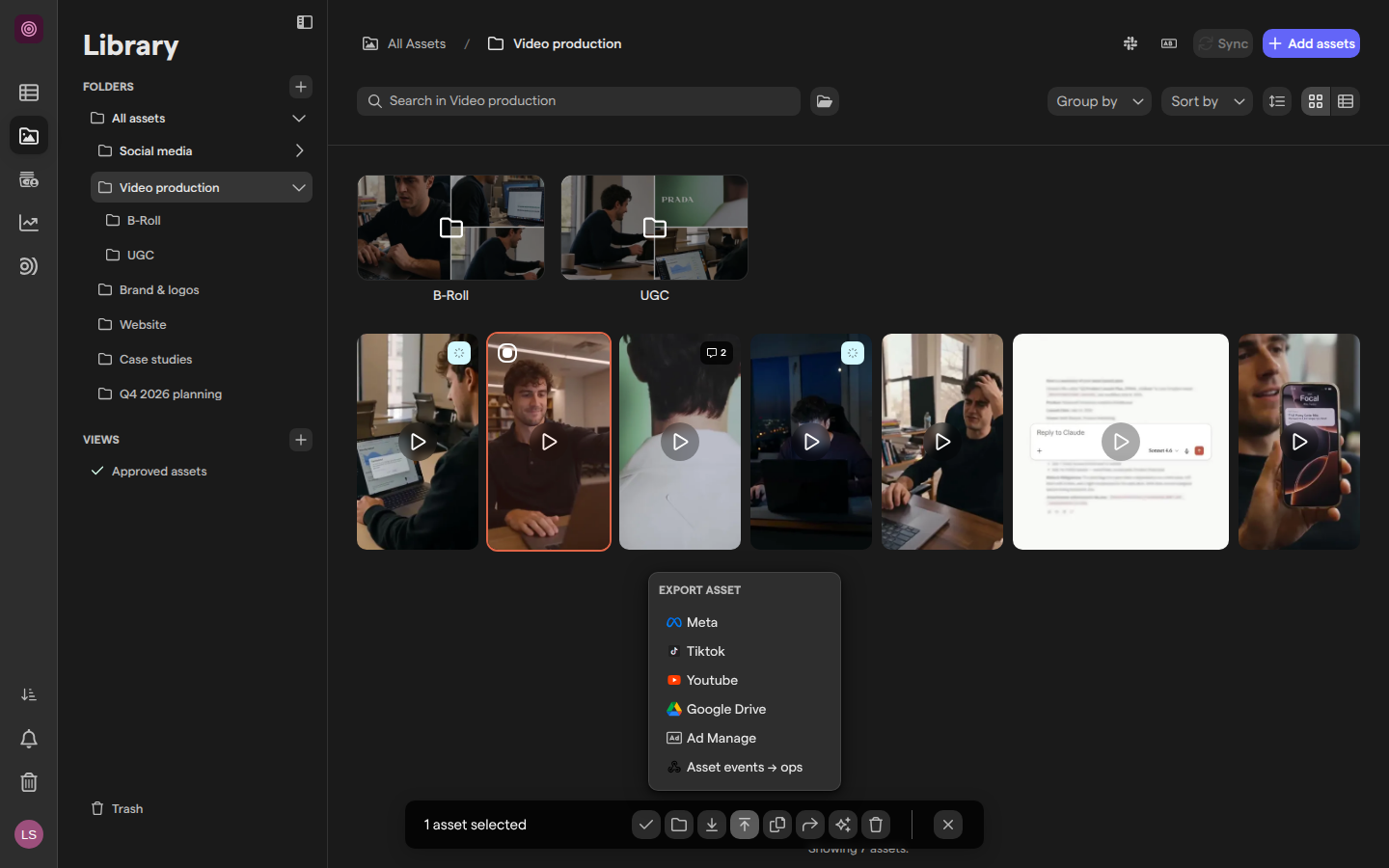
Where each integration is set up
Each integration in this section is set up from the part of Focal it works with, and the connection belongs to different people depending on the integration. The asset library holds most of them: the Slack icon and the Sync button sit next to Add assets in a top-level folder’s header, Add assets has Import from Google Drive, and the export button in the selection toolbar lists Meta, Tiktok, Youtube, Google Drive and Ad Manage.
| Integration | Where you set it up | Whose connection it is |
|---|---|---|
| Slack | A board view’s Slack Settings, the asset library’s Slack icon, or a workflow’s Slack Message step | The organization’s: a connected Slack workspace serves every space |
| Google Drive | The asset library: Add assets → Import from Google Drive, the export button’s Google Drive, and Sync on a top-level folder | Your own Google account for imports and exports; a sync runs on the account of the space owner who set it up |
| Dropbox | Sync on a top-level folder in the asset library | The account of the space owner or organization admin who set up the sync |
| Meta ads export | The export button in the selection toolbar, Meta | Yours: each person signs in to Meta |
| YouTube export | The export button in the selection toolbar, Youtube | Yours: each person signs in with the Google account that owns the channel |
| TikTok export | The export button in the selection toolbar, Tiktok | Yours: each person signs in to TikTok |
| Ad Manage export | The export button in the selection toolbar, Ad Manage; the token is added in Space Settings → External tokens, in the Organization group | The organization’s: an organization admin adds an Ad Manage API token, and nobody signs in personally |
The export button is on a board’s selection toolbar too, for people with Full Access, Edit Access or Upload Access to the board’s view. A board view’s Slack channel is connected by organization admins and people with Full Access to the board, and the asset library and its folders by anyone who can open the library: space owners and space members. Space owners and organization admins set up Google Drive and Dropbox syncs, and space members see each sync’s status. Only organization admins can add the Ad Manage token; when the organization has none, the Ad Manage export dialog says so, and everyone else asks an admin. See Roles and permissions.
Integrations in workflows
A workflow can use integrations as steps, so outside tools are reached on their own when something happens in Focal. The steps are part of Workflow actions, and workflows are open to space owners and organization admins.
- Slack Message posts to a Slack channel or sends direct messages, using the organization’s connected Slack workspaces. See Slack.
- Upload to Meta, Upload to TikTok and Upload to YouTube send assets to an ad account or a channel, for example every asset approved in a review. Each step signs in to the platform with its own Connect account button.
- HTTP Request calls another service’s API, for example to send a task’s details to your own system.
The Slack Message step can connect a Slack workspace itself, with a Connect Slack button when the organization has none.
Integrations set up in Settings
Some integrations are set up on a Settings page and documented with that page. Space settings are open to space owners and organization admins, and the Organization group of Settings to organization admins.
| Integration | Where it is set up | What it does |
|---|---|---|
| Figma | Space Settings → Integrations, the Figma Integration section | Connects a Figma account, so designs can be brought into the library with Add assets → Import from Figma |
| YouTube upload defaults | Space Settings → Integrations, the Youtube section | Sets the title, description and privacy of every video uploaded to YouTube from the space |
| Webhooks | Space Settings → Webhooks | Notifies your own systems when assets are exported from the space; each active webhook also shows in the export menu |
| Ad accounts | Space Settings → Ad accounts, in the Organization group | Connects Meta ad accounts, for the whole organization, one space or your own use, so their ad performance shows in reports |
| MCP connector | Space Settings → MCP connector, in the Organization group | Lets AI assistants outside Focal, such as Claude or ChatGPT, work with your content |
Note: The Youtube section of space settings sets the upload defaults for the space. The YouTube channel itself is connected by each person, with their own Google account, in the Export to Youtube dialog, as described in YouTube export.
Ad accounts and Meta ads export are separate connections, each with its own sign-in: ad accounts in Settings feed reports, and Meta ads export sends assets to the ad accounts you sign in to when you export. The MCP connector is turned on by an organization admin, and each person then connects their own assistant; it is described under AI & Agents.
What teams use integrations for
Teams use integrations so creative work moves between Focal and the tools around it without anyone downloading and uploading files by hand.
An agency delivers finished videos into a shared Dropbox folder. The brand team syncs that folder to Focal with Import only, so every delivery arrives as an asset in the library, ready to review on a board. A team that keeps its brand files in Google Drive syncs a folder both ways instead, and designers bring frames in from Figma.
A production team connects its review board’s view to a Slack channel. The channel gets a message when tasks are added or someone comments, and reviewers answer in the Slack thread; their replies land on the comment in Focal. The library can post to its own channel whenever an asset is added to a folder.
When creative work is approved, the media buyers select the final assets and export them to their Meta ad accounts and TikTok advertiser account, where they are ready to use in new ads, and the social team uploads the cut-downs to the brand’s YouTube channel. A team that does this every week sets up a workflow with an upload step, so approved assets go out on their own. The connected ad accounts then feed reports on how those ads perform.
Articles in Integrations
The Integrations section has one article per integration that is set up outside Settings:
| Article | What it covers |
|---|---|
| Slack | Connect a Slack workspace, choose channels for board views and library folders, reply from Slack, link your Slack email, and reconnect or disconnect |
| Google Drive | Import files from Drive, export assets to Drive, and set up, check, pause and unlink a sync with a Drive folder |
| Dropbox | Set up a sync with a Dropbox folder, choose its direction, check its status, reconnect, and stop syncing |
| Meta ads export | Sign in to Meta, export images and videos to one or more ad accounts, and find the exported assets in Meta |
| YouTube export | Connect your YouTube channel, upload videos to it, and set the title, description and privacy of uploads |
| TikTok export | Sign in to TikTok, export images and videos to an advertiser account, and find them in TikTok |