Tasks
A task is one piece of work on a board: a concept to produce, a page to write, an ad to ship. Each task has a name and one value per column of its board, such as its status, due date, the people assigned to it and the assets that belong to it. See Concepts for how tasks fit with boards, spaces and assets.
Every task opens into a detail view: its fields and brief on the left, and its comments on the right. Tasks move through a board’s statuses as work progresses. When a task is done with, you archive it, which hides it from the board without losing it.
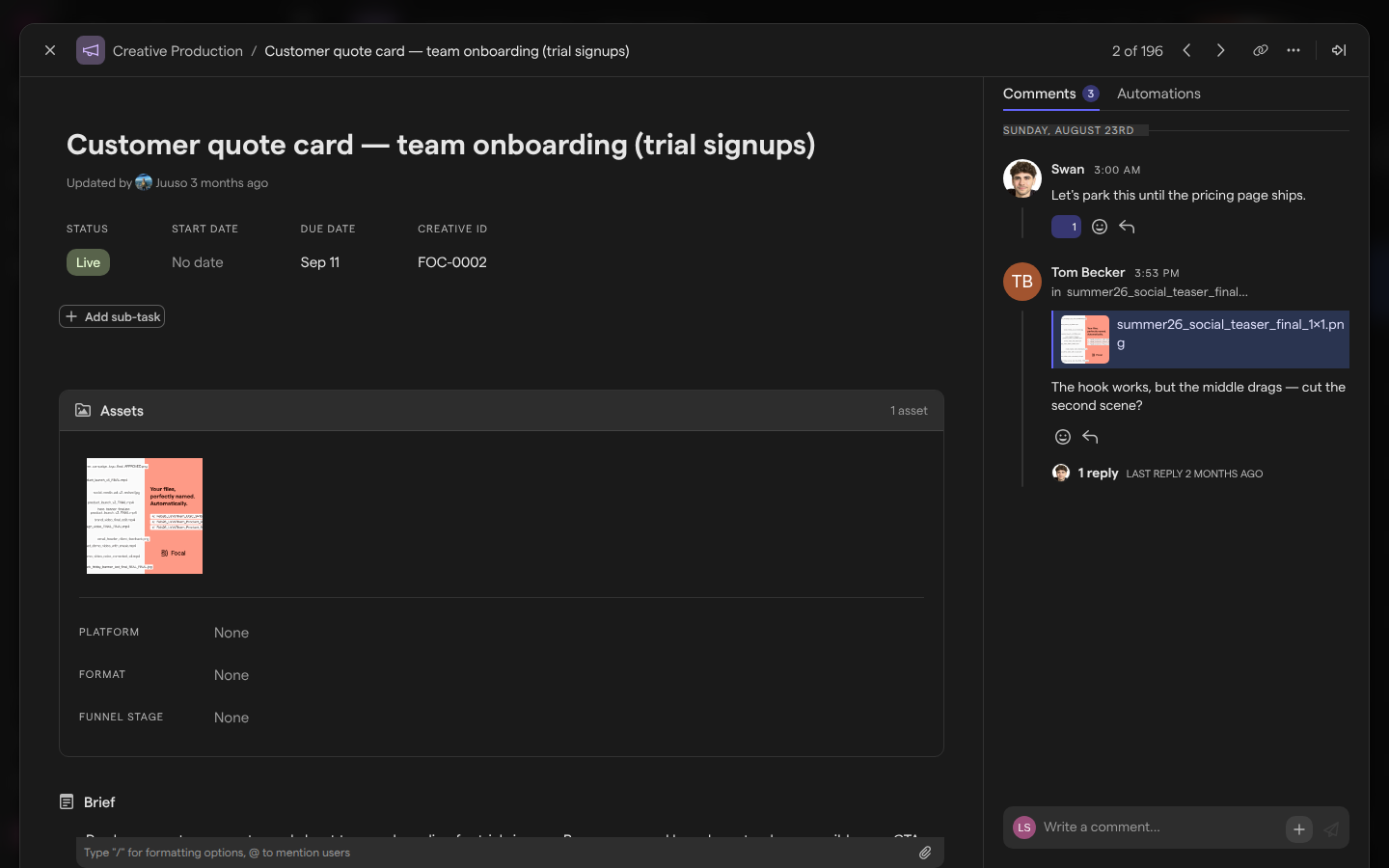
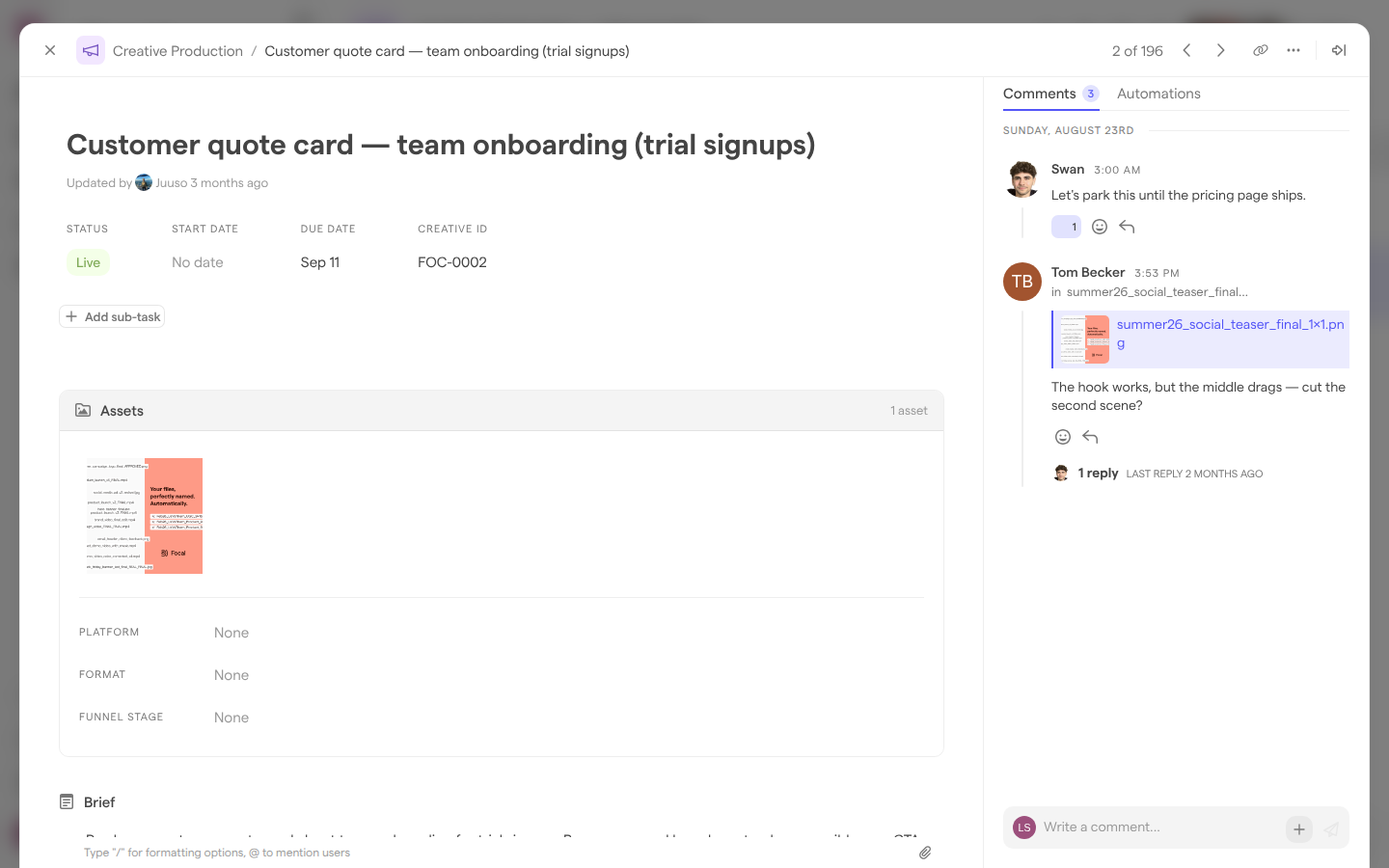
Add a task
A new task is added to the board you are looking at, in the view you are using. Focal opens the new task’s detail view straight away, with the cursor in its name.
- Open a board from Boards.
- Click Add task at the bottom of the table.
- Type the task’s name, then fill in the fields you need.
Other ways to add a task:
- In a Kanban view, click Add Task at the bottom of a lane. The task gets that lane’s value, for example its status.
- In a grouped view, click the + on a group’s header (“Add task to group”). The task gets that group’s value.
- In a task’s detail view, click Add sub-task to add a task inside it. Sub-tasks are listed in their parent’s detail view with their own status.
When the view has filters, the new task gets values that match them, so it does not disappear from the view you added it in. See Board views for filters, groups and Kanban lanes.
Open a task’s detail view
The detail view shows everything about one task on one screen: its name, who updated it last, its status and dates, its sub-tasks, its assets, its other fields and its brief, with the Comments and Automations tabs beside them.
- Hover a task on the board.
- Click the expand icon (“View task”) next to its name.
In the detail view:
- Previous task and Next task in the header step through the tasks of the current view, with a counter showing where you are in it.
- Copy link copies a link that opens this task.
- Dock to side pins the detail view to the right of the board so the board stays visible; Expand returns it to full size. Docked, the task’s fields move to a Details tab.
- Close, or Esc, returns to the board.
A task’s brief is a rich-text field: type / for formatting options and @ to mention someone.
Attach assets to a task
Assets on a task are the files that belong to that piece of work, such as the cuts of a video or the variants of an ad. They live in the space’s asset library and are linked to the task, so the same asset is also found in the library.
- Open the task’s detail view.
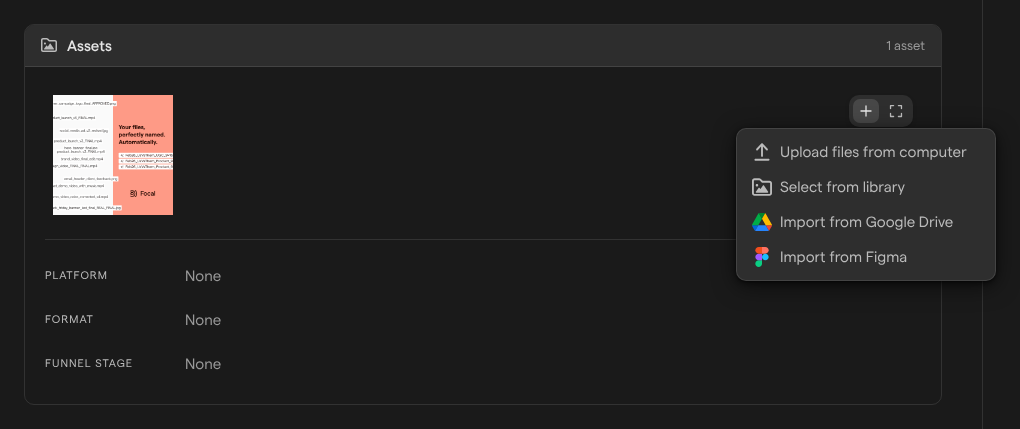
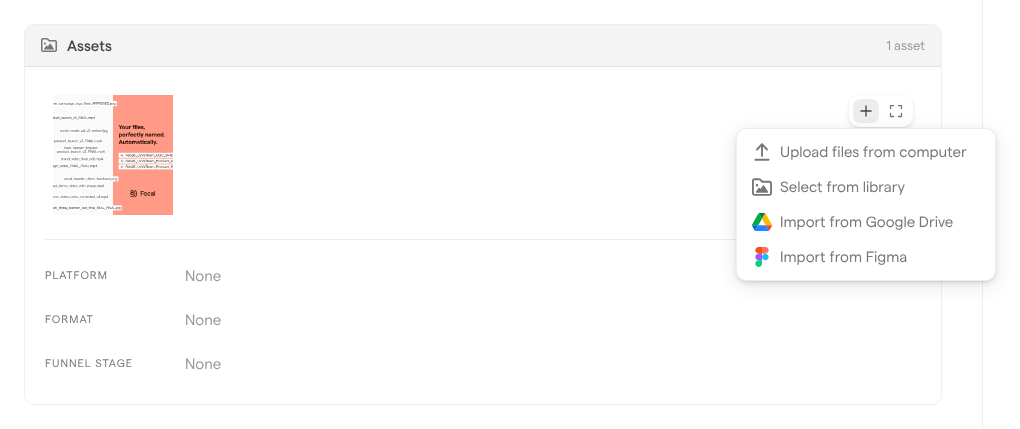
- Hover the Assets section and click the + (“Upload files”).
- Choose where the assets come from:
- Upload files from computer
- Select from library
- Import from Google Drive
- Import from Figma
You can also drag files from your computer onto the Assets section, or onto a task’s assets cell on the board. Uploads show their progress in Uploads & Downloads; see Uploading assets for file size limits. The attributes listed under the assets, such as Platform or Format, are the values set on the attached assets.
Set a task’s status
A task status is the value of the board’s status column: a Selection column with “status” in its name. Each board has its own list of statuses, for example Backlog, Briefing, In production and Approved. The status shows at the top of the detail view and next to each sub-task.
- Open the task’s detail view.
- Click the value under Status.
- Pick a status from the list, or type in Search options… to find one.
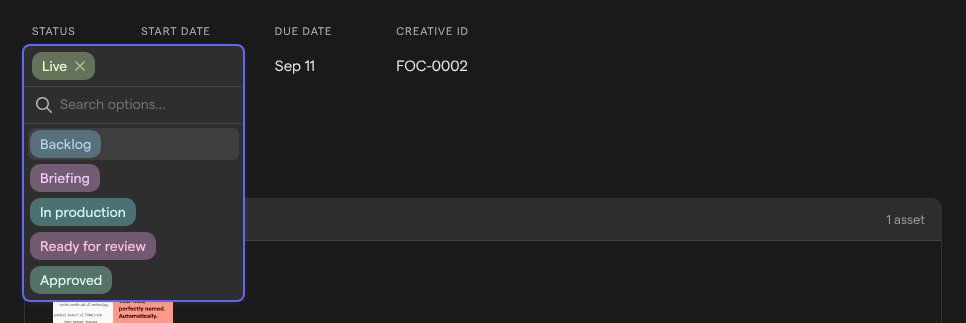
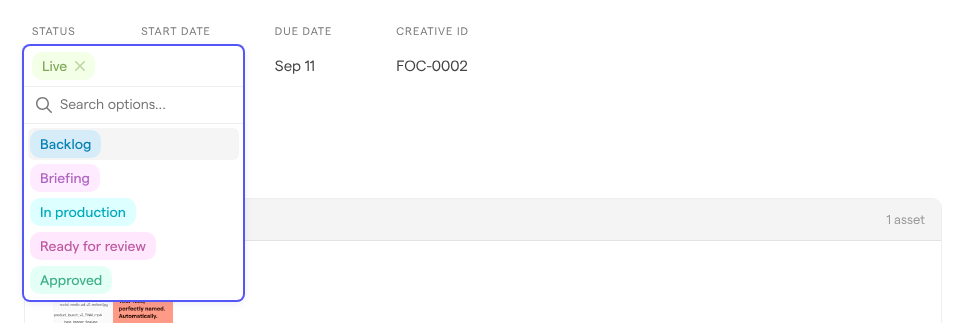
You can also change a status in the task’s Status cell on the board, or by dragging the task’s card to another lane in a Kanban view grouped by status. To add, rename or recolor the statuses themselves, edit the status column; see Columns.
Comment on a task
Comments are the conversation about a task. The Comments tab in the detail view lists them, with their count on the tab. Comments people leave on the task’s assets appear here too, labelled with the asset’s name, so the whole review sits in one place. On the board, the speech-bubble count next to a task’s name (“View comments”) opens the same tab.
- Open the task’s detail view.
- Click in Write a comment… on the Comments tab.
- Type your comment. Type
@to mention someone. - Press Enter to send. Press ShiftEnter for a new line.
To attach a file to a comment, click the + (“Attach”) and choose Upload files from computer, or drop files onto the comment list.
Under each comment, the smiley icon (“Add reaction”) adds a reaction and the arrow icon (“Add reply”) starts a reply; replies collect under the comment. On your own comments, the ⋮ menu has Edit comment and Remove comment. See Comments and annotations for comments on the assets themselves.
Duplicate a task
Duplicating makes a copy of a task on the same board, with the same name and field values. The copy starts without assets and without comments.
- Open the task’s detail view.
- Click More actions (the … icon) in the header.
- Click Duplicate task.
To copy several tasks at once, tick their checkboxes on the board and click Duplicate tasks in the toolbar at the bottom. When some of the tasks have sub-tasks you did not select, Focal asks what to copy: Selected only or With all sub-tasks. You can duplicate up to 60 tasks at a time.
Archive and restore a task
Archiving hides a task from the board and moves it to the board’s archived view, where it stays until you restore it. Its sub-tasks are archived with it. Archiving a task does not archive its assets: they stay in the asset library.
- Open the task’s detail view.
- Click More actions (…) in the header.
- Click Archive task, then Archive to confirm.
To archive several tasks, tick them on the board and click Archive tasks in the toolbar.
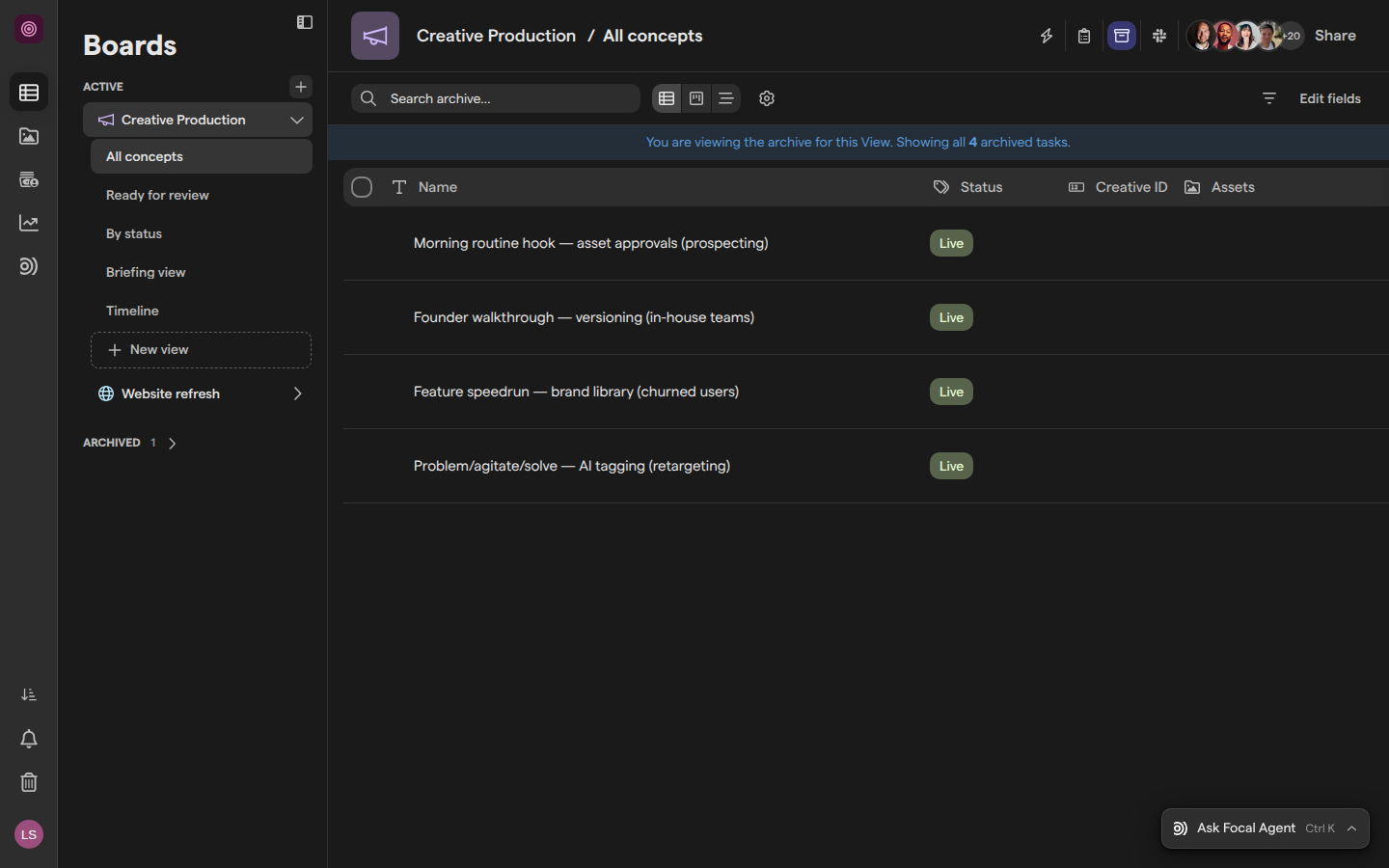
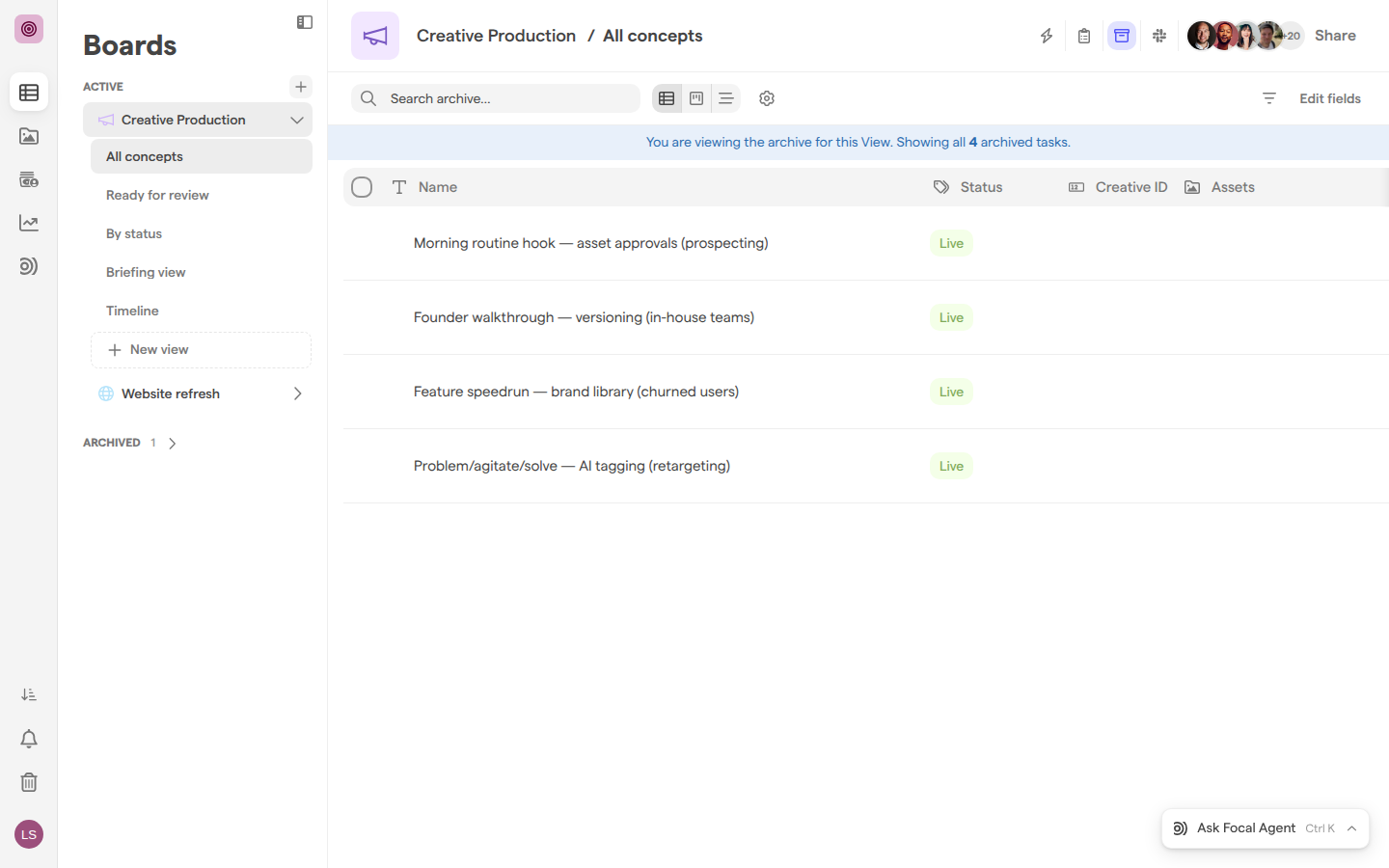
To see archived tasks, open the board’s archived view: click the archive icon (“View archive”) in the board’s header. A banner says you are viewing the archive, and the search box becomes Search archive…. Archived tasks are view-only. To bring one back, hover it and click Restore task, or open it and choose More actions → Restore task. Click the archive icon again (“Exit archive”) to return to the board.
Permanently delete a task
Permanently deleting a task removes it and its sub-tasks for good. We recommend archiving instead, since an archived task can always be restored. Only archived tasks can be permanently deleted, so a task is always archived first.
Note: Permanently deleting a task cannot be undone.
- Click the archive icon (“View archive”) in the board’s header.
- Hover the task and click Delete task permanently, or open it and choose More actions → Delete permanently.
- Confirm with Delete in the Permanently delete task? dialog.
When the task has assets, the confirmation offers a checkbox, Also delete followed by the number of related media assets. Ticked, those assets are archived and appear in the asset library’s Trash, where they can be restored; left clear, they stay in the asset library.
Who can change a task
What you can do with a task depends on your access to its board, or to a view of the board that shows the task. See Sharing boards for the access levels and Roles and permissions for space roles.
- View access opens the detail view read-only, with a banner saying you don’t have permission to edit the task.
- Comment access adds the Comments tab. Without it, the tab is hidden.
- Upload access lets you attach assets to a task.
- Edit and Full access let you add, change, duplicate, archive, restore and permanently delete tasks. The checkboxes and the toolbar for several tasks appear only with this access.
Guests do not see columns hidden from guests, on the board or in a task’s detail view; see Columns. The Automations tab in the detail view shows the board automations that ran on the task.