Space settings: Teams
A team is a named group of people inside a space, such as a design team or a growth team. Teams let you share a board with several people in one step: you add the team to the board’s sharing once, and everyone in the team gets the access level you pick. When someone joins or leaves the team, their access to every board shared with the team changes with it.
Teams are managed on the Teams page of space settings, which opens from Space Settings → Teams in the sidebar (Teams settings). Each team has a name, an icon with a color, and a list of members. A team belongs to one space, and only people in that space can be its members. Every change on the page is saved as you make it; there is no Save button.
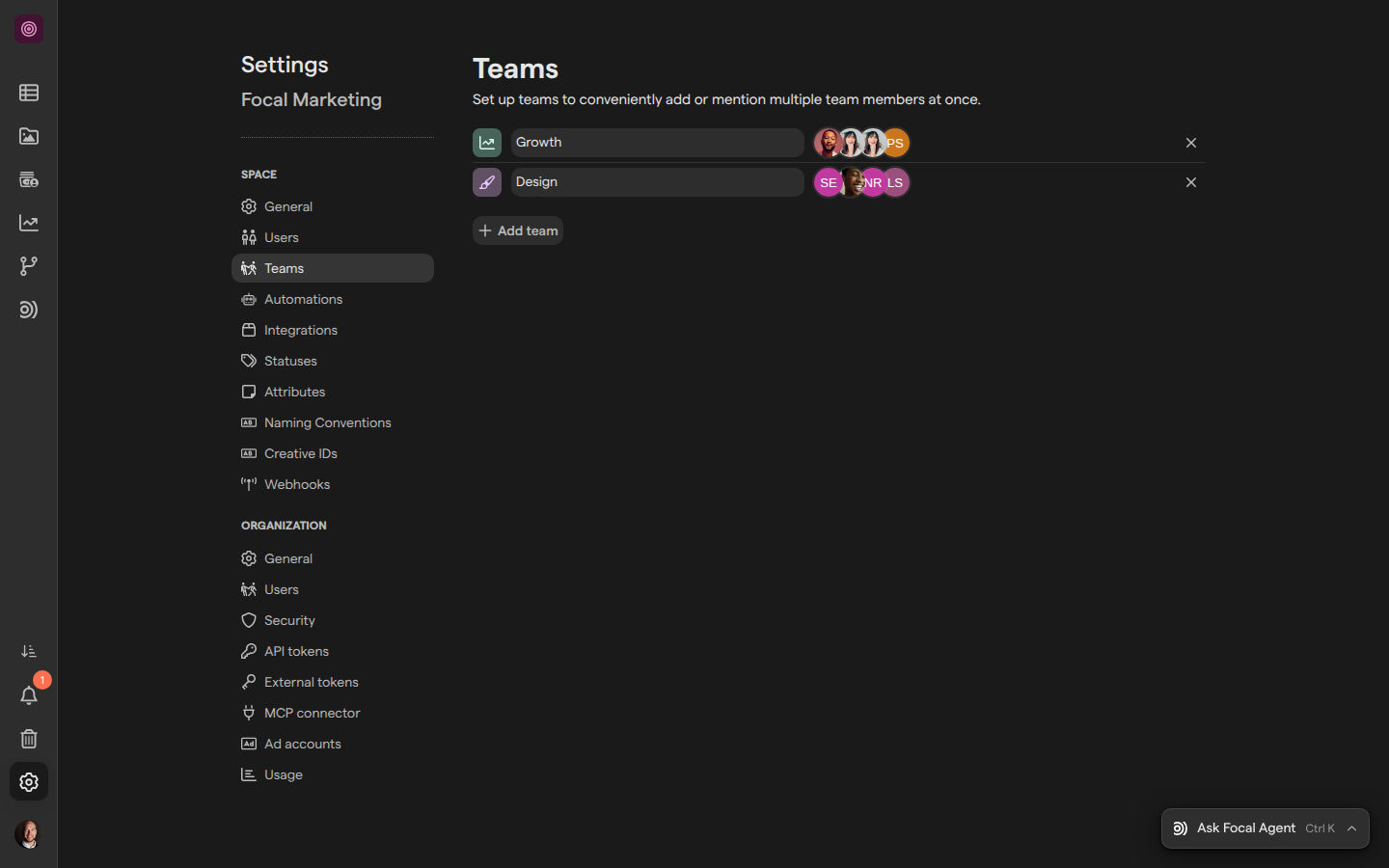
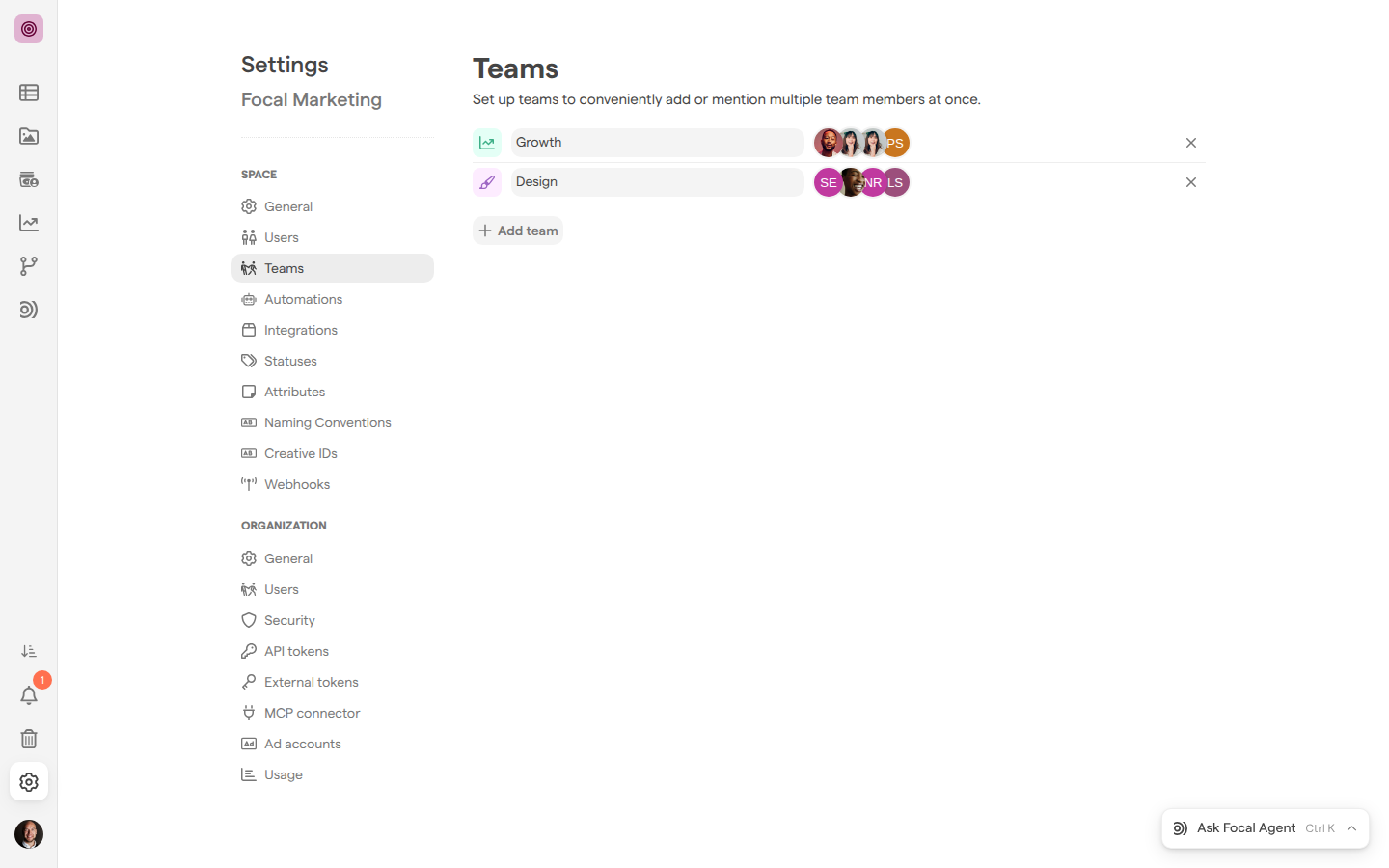
Create a team
Creating a team adds a new group to the space, which you then fill with people and share boards with. Space owners and organization admins can create teams.
- Open Space Settings → Teams.
- Click Add team under the list of teams. A new line appears, with an icon and a color picked at random.
- Type the team’s name in the Team name field.
- Click the person icon next to the name, and pick the people who belong to the team.
The team is saved as soon as you click Add team, before it has a name or any members. Give it a name straight away: the name is what people pick the team by in a board’s Sharing panel. The icon and color can be changed later.
Add or remove team members
Team members are the people who get a board’s access when the team is shared on the board. Anyone in the space can be a member of a team, including guests and people who have not accepted their invite yet. Someone who is not in the space yet has to be added to it first, in Space settings: Users.
- Open Space Settings → Teams.
- Click the avatars next to the team’s name. On a team with no members, click the person icon instead.
- Type part of a name to narrow the list, if you need to.
- Click a person to add them to the team. A checkmark marks the people already in it.
- Click a checked person to take them out of the team.
- Press Escape to close the list.
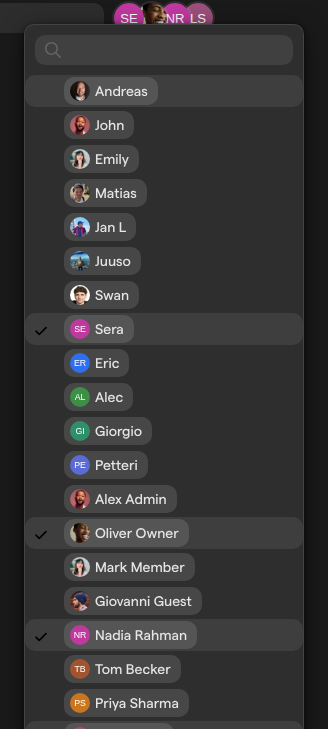
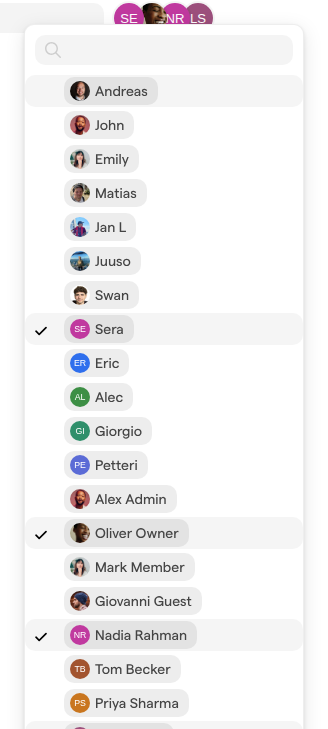
Each change to a team’s members is saved straight away, and applies at once on every board and view the team is shared with. The member list also works from the keyboard: ↑ and ↓ move through it, and Enter adds or takes out the highlighted person. Pressing Backspace while the search field is empty takes the last person out of the team, so clear a search with care.
Rename a team or change its icon
A team’s name and icon are how people recognize the team in a board’s Sharing panel. You can change both at any time, and the boards shared with the team keep their access.
- To rename a team, click its name on the Teams page and type the new one. The name is saved as you type.
- To change a team’s icon or color, click the team’s icon, whose tooltip reads “Click to choose an icon”. Pick a color from the palette at the top, then an icon from the list. Type in Search icons… to find an icon by name, and press Escape to close the picker.
Share a board with a team
Sharing a board with a team gives every member of the team the same access level on the board in one step. Teams are listed in the board’s Sharing panel together with people. Sharing needs Full Access to the board, so anyone with Full Access can share it with any team in the space, not only space owners.
- Open the board from Boards.
- Click Share at the top right of the board.
- Click Full board at the top of the Sharing panel, or Current view to share only the view you are on.
- Click the field that reads “Add existing users, teams or invite new users by email”, and type part of the team’s name. Teams are listed after people.
- Pick the team.
- Pick an access level on the team’s new entry.
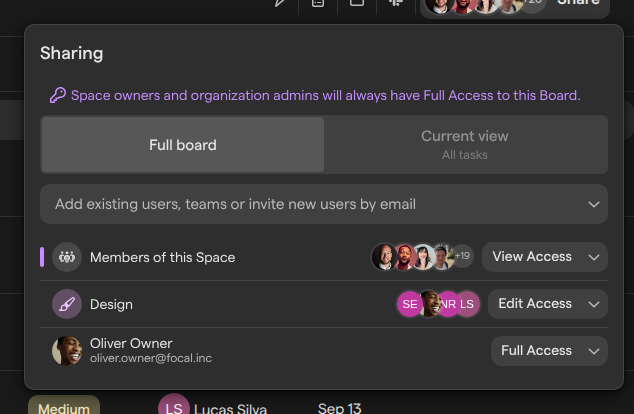
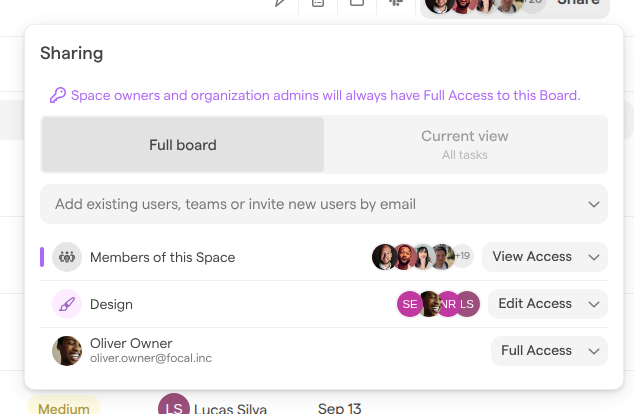
A team’s entry shows its icon, its name and its members’ avatars, and a short mark at its left edge when you are in the team. A team that is already on the board is not offered again. Changing a team’s level or clearing its entry works the same way as for a person; the steps and the access levels are in Sharing boards.
Permanently delete a team
Permanently deleting a team removes it from the space for good. It disappears from the Teams page and from the Sharing panel of every board and view it was shared with, and it can’t be restored. The people in the team stay in the space.
- Open Space Settings → Teams.
- Click the × at the end of the team’s line.
- Click Yes, I’m sure! in the “Are you sure?” dialog, which warns “Once you delete a team you are not able to get the existing data back.”
Click Cancel instead to keep the team. Focal confirms a deletion with “Team removed successfully”.
People who could open a board only through the deleted team lose that access. They keep what their own entries, their other teams and the Members of this Space entry give them.
Note: Permanently deleting a team can’t be undone. We recommend opening the boards that are shared with the team and giving their people access another way before you permanently delete it.
How a team’s access combines with other entries
A team entry on a board counts like a person’s own entry when Focal works out what someone can do there. A person’s access can come from three kinds of entry in the board’s Sharing panel: their own entry, the entries of the teams they are in, and the Members of this Space entry.
- Space owners and organization admins always have Full Access.
- When a person has their own entry or is in a team on the board, those entries count and Members of this Space does not. The highest of them wins.
- Otherwise, a member or owner of the space gets the level of Members of this Space, and a guest gets no access.
So a team entry can lower its members’ access as well as raise it. On the Website refresh board, Members of this Space has View Access and the Design team has Edit Access, so the people in Design can edit tasks and everyone else in the space can only look. Had Design been given View Access and the space Edit Access, the people in Design would get View Access. The full rules are in Roles and permissions.
A team is also a way to share boards with guests. Members of this Space never includes guests, but a guest who is in a team gets the team’s level on every board shared with the team, which suits a group of reviewers from an agency or a client.
What teams are used for
A team is used only for sharing boards and their views. Teams appear in the Sharing panel of boards and views, and nowhere else in Focal: other things you share, such as folders in the asset library, are shared with people.
Being in a team doesn’t change anyone’s space role. A Member stays a Member and a Guest stays a Guest; the team only adds the access it is given on each board.
Who can manage teams
The Teams page is part of space settings, which only space owners and organization admins can open. Members and guests don’t see Space Settings in the sidebar, and a link to the Teams page takes them back to the space. Space owners and organization admins can create, rename and permanently delete any team in the space and change its members. What each role can do is described in Roles and permissions.
Sharing a board with a team is separate from managing the team. Anyone with Full Access to a board can add any team in the space to it, and see the team’s members in the board’s Sharing panel, without being able to change who is in the team.