TikTok export
TikTok export sends images and videos from Focal’s asset library to a TikTok advertiser account, where they are ready to use as ad creatives in TikTok Ads Manager. Use it when creative work is approved in Focal and the media buyers need the final files in TikTok, without anyone downloading and re-uploading them.
You start an export from the selection toolbar, sign in to TikTok once, pick an advertiser account, and Focal uploads a copy of every selected asset to it. The asset in Focal stays as it is. TikTok export is one of the destinations described in Exporting assets.
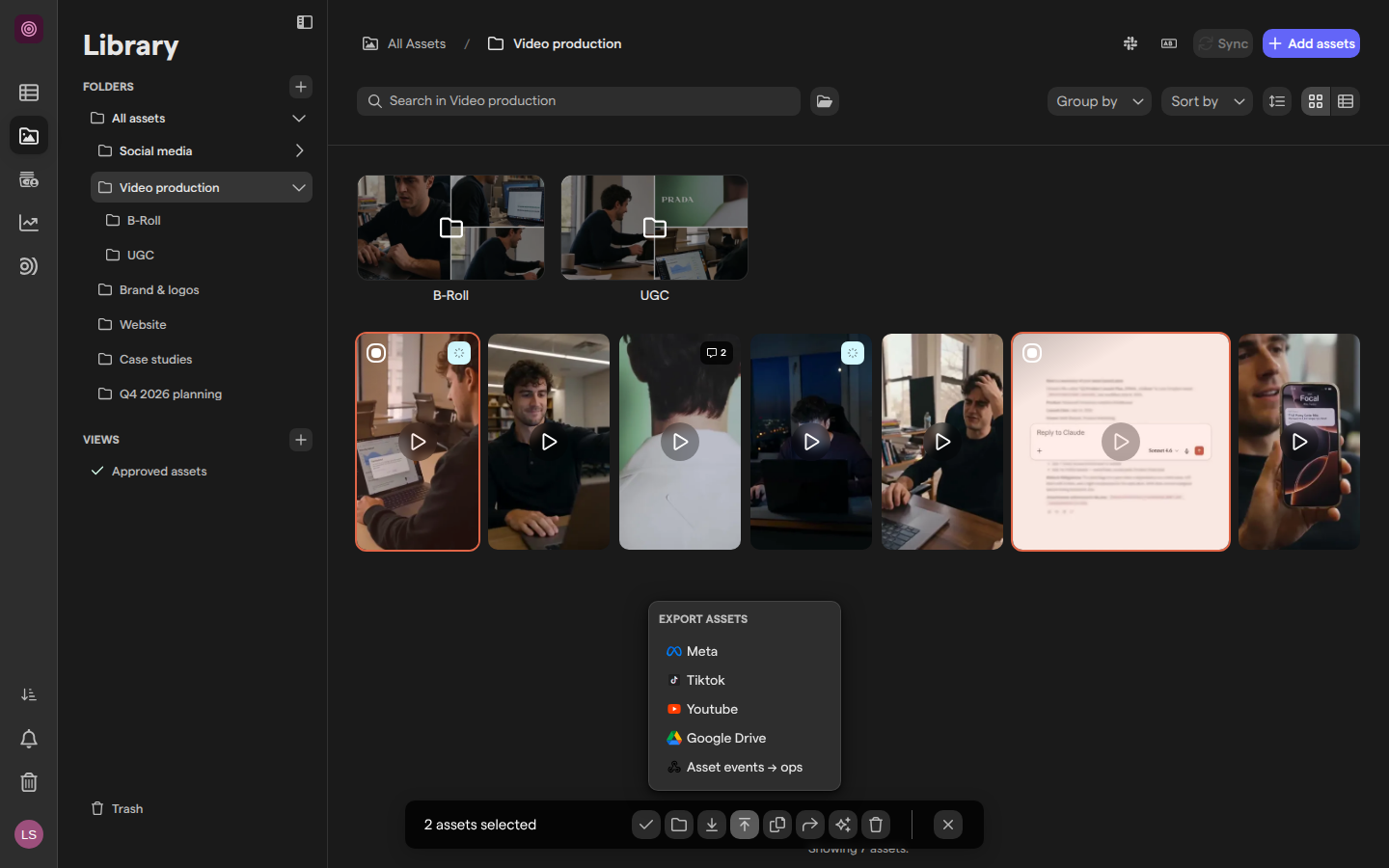
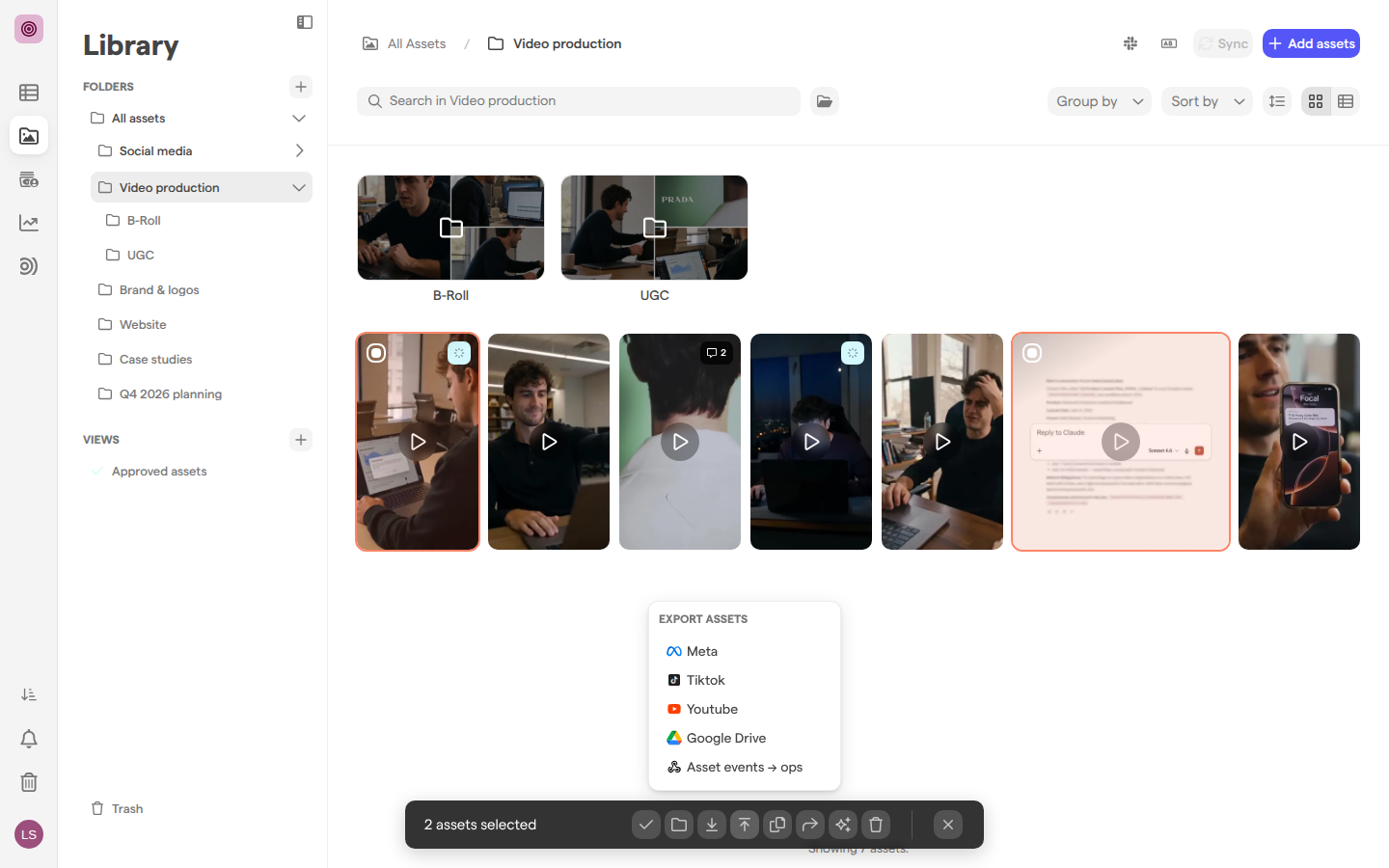
Connect your TikTok account
Focal needs your permission to upload to TikTok, so the first export asks you to sign in to TikTok. The sign-in is personal: it belongs to you, not to the space or the organization, and every teammate who exports to TikTok connects their own TikTok account.
- Open Assets, select one or more assets, and click the export button in the selection toolbar (Export assets).
- Choose Tiktok. The Export to Tiktok dialog opens and reads “Please connect Tiktok Advertiser account to continue.”
- Click Connect your Tiktok Advertiser account. A TikTok sign-in window opens.
- Sign in to TikTok for Business and allow Focal access to your advertiser accounts.
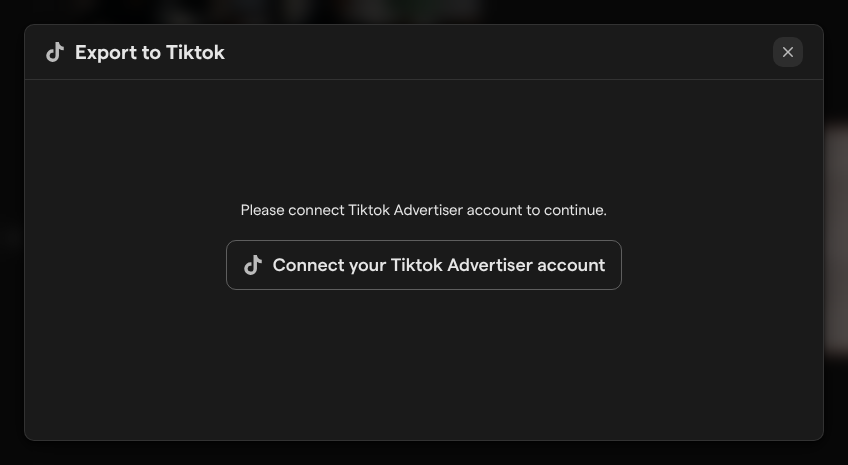
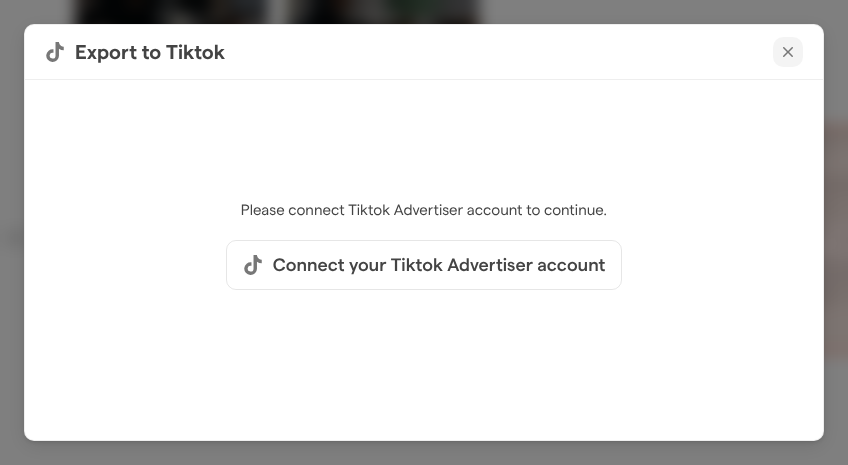
When the sign-in window closes, the dialog moves on to the advertiser accounts your TikTok login can use. Focal remembers the connection, so later exports skip this step until you disconnect or the sign-in expires; then the dialog asks you to connect again.
Note: The TikTok sign-in opens in a pop-up window, so allow pop-ups from Focal in your browser.
Export assets to TikTok
Exporting to TikTok uploads the selected assets to one advertiser account. After you connect, the dialog lists your advertiser accounts under a line such as “Focal has detected 2 Tiktok Advertiser accounts.”, each with “Ad Account” under its name.
- Open Assets and select the assets to send. Hold ⌘ (Ctrl on Windows) and click to add more, or hold Shift to select a range.
- Click the export button in the selection toolbar (Export asset or Export assets) and choose Tiktok.
- Connect your TikTok account if the dialog asks you to (see the previous section).
- Click the advertiser account to export to. The dialog lists the account with a checkbox.
- Tick the checkbox next to the account’s name.
- Click Continue to review the export.
Continue stays greyed out until the checkbox is ticked. Click Back to return to the list and open another advertiser account. One export goes to one advertiser account: to send the same assets to a second account, export them again. The review step and the end of the export are described in the next section.
Review and start a TikTok export
The review step of the Export to Tiktok dialog shows what is about to be sent before anything leaves Focal.
- Under What will be exported, a thumbnail of every selected asset, with the name of the advertiser account they go to.
- Under “And the advertiser account(s) below will be the target destinations:”, the Target destination, naming the advertiser account after “All media will be exported into the following folder:”.
- Check the assets and the destination. Click Back to pick another advertiser account.
- Click Export.
- The dialog shows “Export Started”: “The export process to Tiktok for” the advertiser account “has been initiated”, with the number of media assets being uploaded.
- Click Close Modal.
Focal uploads the assets in the background, one after another, so you can keep working. Each asset goes to the advertiser account under the asset’s name in Focal, and appears in the advertiser account’s media library in TikTok once its upload is done.
Find exported assets in TikTok
An exported asset lands in the media library of the advertiser account it was sent to, where it can be picked as the image or video of a new ad in TikTok Ads Manager. Focal also keeps a link to the uploaded copy.
- In the asset view, open the Attributes tab. Under External Links, the TikTok link opens the asset’s copy on TikTok.
- In the asset library’s Grid mode, add the TikTok URL column with Configure columns to see the same link for every asset at once. See Asset library for Grid mode.
Disconnect your TikTok account
Disconnecting signs Focal out of your TikTok account and revokes the access you gave Focal on TikTok’s side. Do it to export with a different TikTok login, or when you no longer want Focal to upload on your behalf. Assets already exported stay in TikTok.
- Select any asset in the asset library, click the export button and choose Tiktok.
- On the list of advertiser accounts, click Logout at the bottom of the dialog.
The dialog returns to “Connect your Tiktok Advertiser account”. The next export asks you to sign in to TikTok again, with whichever account you choose. Disconnecting affects only your own sign-in; teammates keep their own TikTok connections.
Who can export to TikTok
Space owners, space members and organization admins export from the asset library. Space guests reach assets through the boards shared with them. See Roles and permissions.
Assets in a board’s tasks can be exported to TikTok from the board’s selection toolbar too. Exporting from a board takes Full Access, Edit Access or Upload Access to the board’s view. See Sharing boards.
On TikTok’s side, the dialog lists the advertiser accounts your TikTok login has access to in TikTok. When TikTok returns no advertiser accounts at all, the dialog reads “Focal was unable to connect to your export account. This could be due to a permissions issue with your account. Please try again later.” Ask the account’s admin in TikTok Business Center to give your TikTok login access to the advertiser account, then try again.
Formats and limits of TikTok exports
TikTok export has a few limits, whatever your role:
- Images and videos: TikTok takes images as ad images and videos as ad videos, so select images and videos to export.
- TikTok’s own rules: TikTok applies its own format and size rules to each file it receives.
- Count: up to 100 assets per export. Split a larger selection into several exports.
- One advertiser account per export: export again to send the same assets to another account.
- Assets you can see: an export only includes assets you have access to in Focal.
TikTok export and workflows
Focal can send assets to TikTok in two ways, each with its own sign-in:
- TikTok export, this article: your personal sign-in, used to send assets from the library or a board when you choose to.
- Upload to TikTok, a workflow step: sends assets to a TikTok advertiser account automatically, for example every asset approved in a review. See Actions.
Ad performance from ad platforms is reported through ad accounts connected in organization settings, which is a separate connection from the sign-in used here. See Organization settings: Ad accounts and Reports.
Meta and YouTube exports work the same way as TikTok export; see Meta ads export and YouTube export.