Comments and annotations
A comment is a message your team leaves on an asset, and an annotation is a comment drawn on the asset itself: a square, a path or an arrow marking the spot the feedback is about. Use comments and annotations to review creative inside Focal, so the feedback sits next to the image or video it concerns instead of in a separate chat.
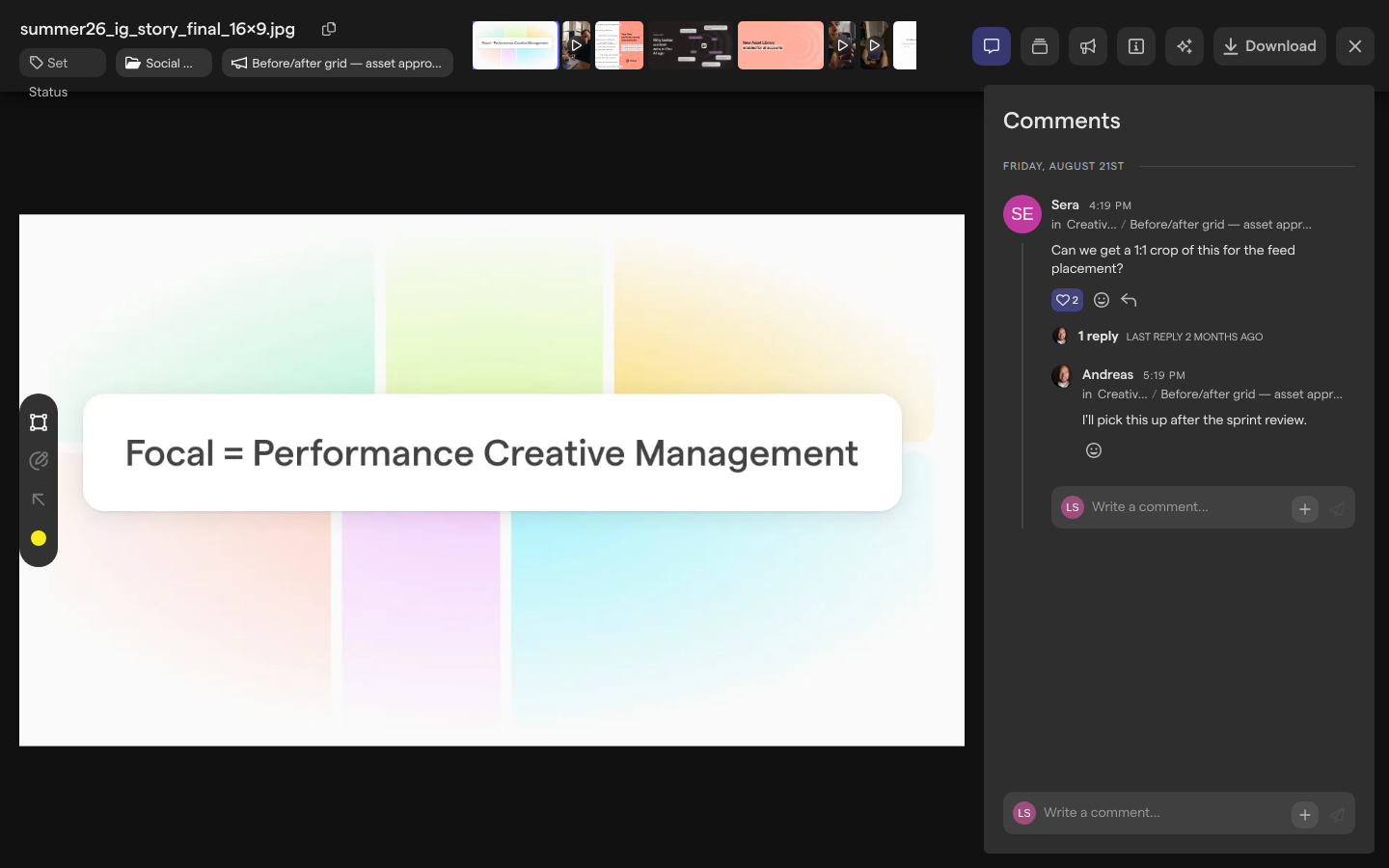
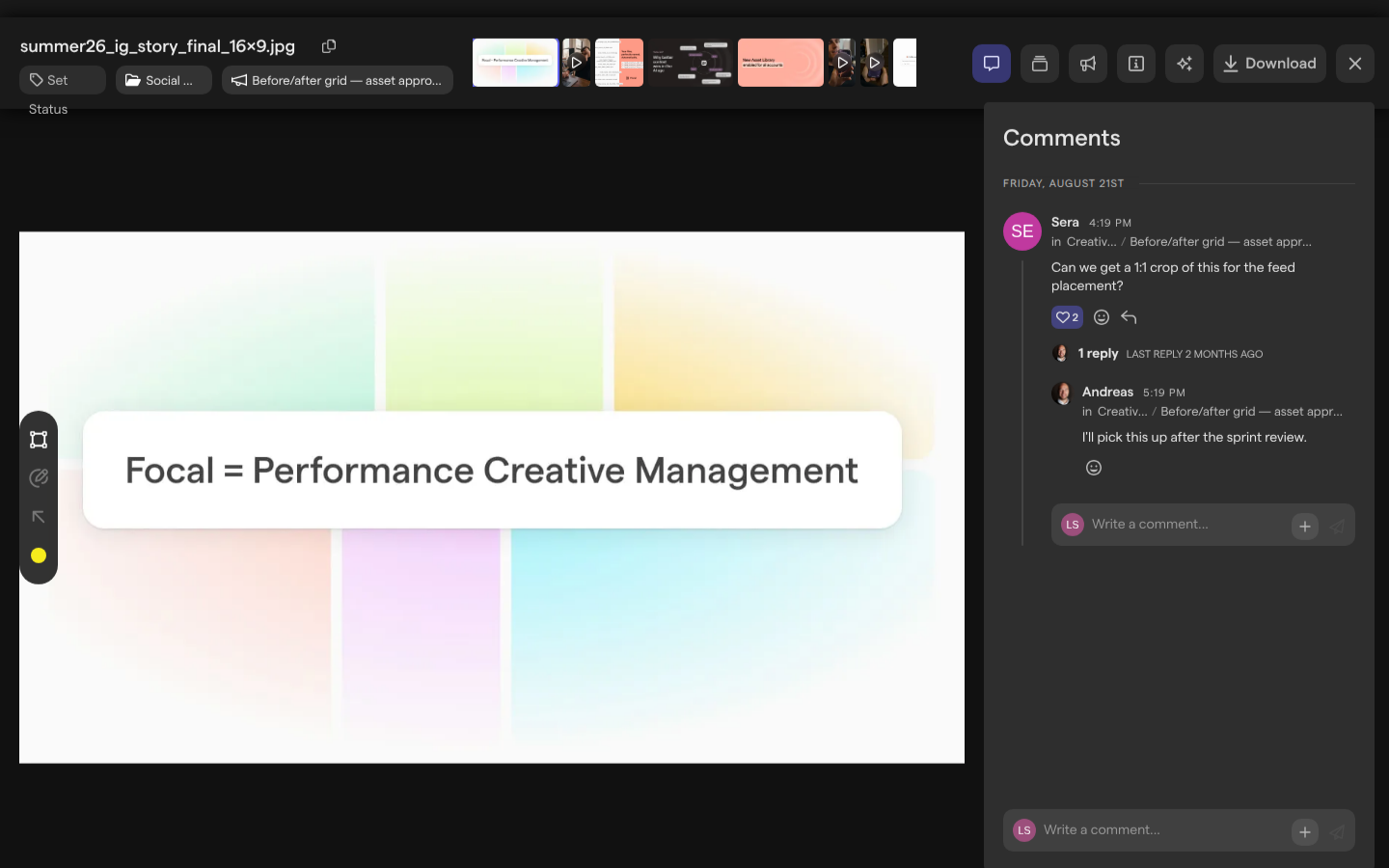
Comments live in the Comments panel of the asset view, the full-screen view that opens when you open an asset from the asset library. A comment can carry replies, reactions, @mentions, attached files and, on a video, the moment in the video it refers to. Mentions and replies send notifications.
Open the comments on an asset
The Comments panel is the right-hand sidebar of the asset view. It lists every comment on the asset, grouped by day, with the composer at the bottom. When an asset has no comments yet, the panel reads “Be the first one to comment…”.
- Open Assets from the sidebar.
- Double-click an asset to open the asset view.
- If the panel shows something else, select the Comments button (the speech bubble) at the top right, next to Versions and Attributes.
Press ← and → to move to the previous or next asset without closing the view, and Esc to close it.
Comment on an asset
A comment is text, with optional @mentions and attached files, posted to the asset’s Comments panel for everyone in the space to see.
- Open the asset and its Comments panel.
- Click Write a comment… at the bottom of the panel.
- Type your comment. Press ShiftEnter for a new line.
- Press Enter, or select the send button, to post it.
To attach files to a comment, select the Attach button (+) in the composer and choose Upload files from computer, drag files onto the Comments panel (“Drop files here to attach them to your comment”), or paste them into the composer. Attached files upload like any other upload, and you can follow them in Uploads & Downloads.
To mention a teammate, type @ and pick a name from the list. The list shows the people in the space. A mention notifies the person you name (see “Who gets notified” below).
Draw an annotation
An annotation marks the part of an image or video frame your comment is about. Annotations work on image and video assets; other asset types take text comments only. The drawing toolbar sits on the left edge of the asset. The first time you open the asset view, an Annotations tip points at it: “Click here to annotate with rectangles, paths and arrows to help communicate your creative feedback.”
- Open an image or video asset.
- In the toolbar on the left, choose Draw a square, Draw a path or Draw an arrow.
- To change the color, select Change color (the colored dot) and pick one of five colors.
- Drag on the asset to draw. You can draw several shapes in one annotation.
- To take back the last shape, select Undo annotation or press ⌘Z.
- Type your comment in the composer, which now shows an Annotation header, and press Enter.
To drop the drawing and keep the text, select the × in the Annotation header. On a video, drawing pauses playback and pins the annotation to that frame; moving to another frame cancels the drawing.
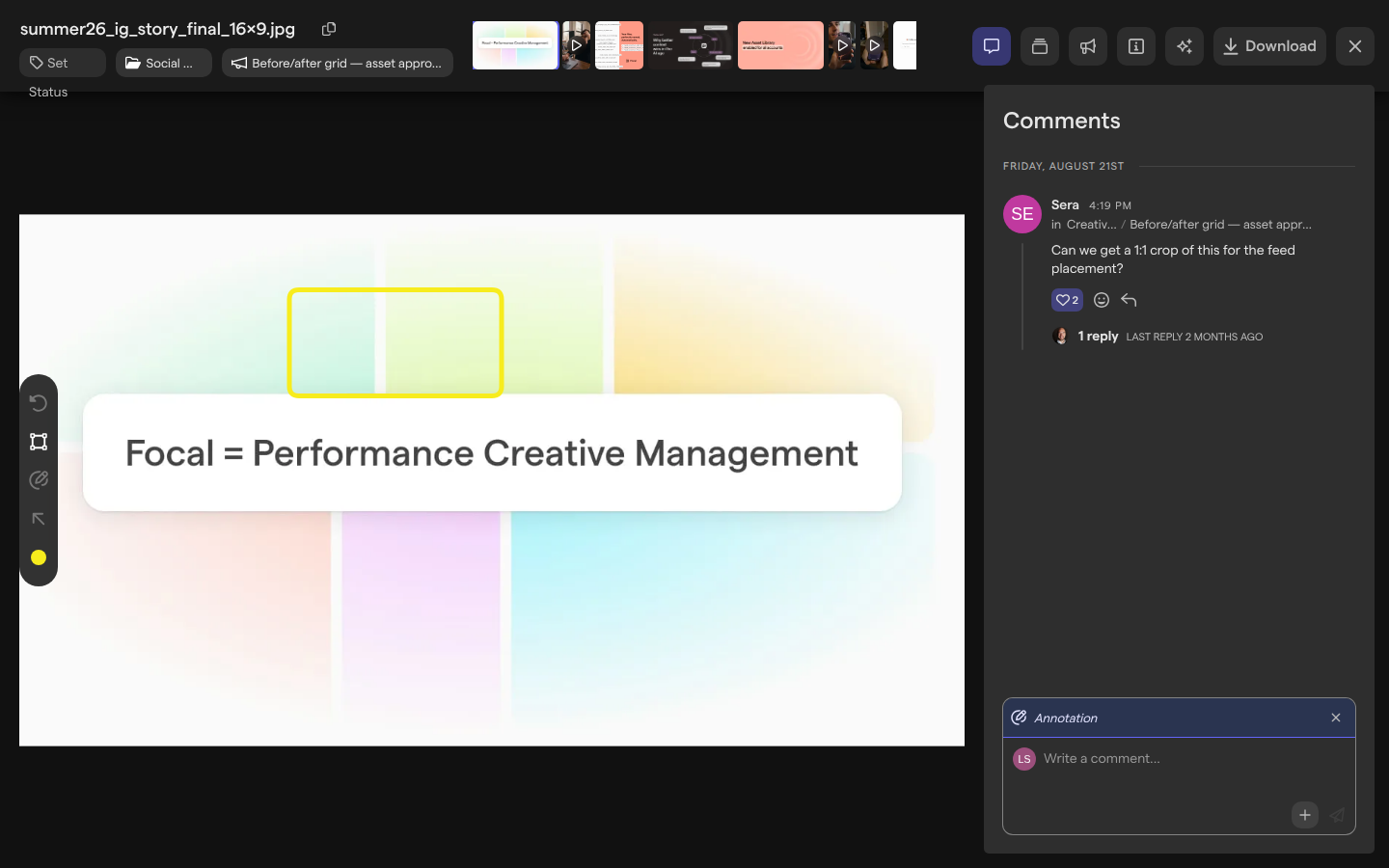
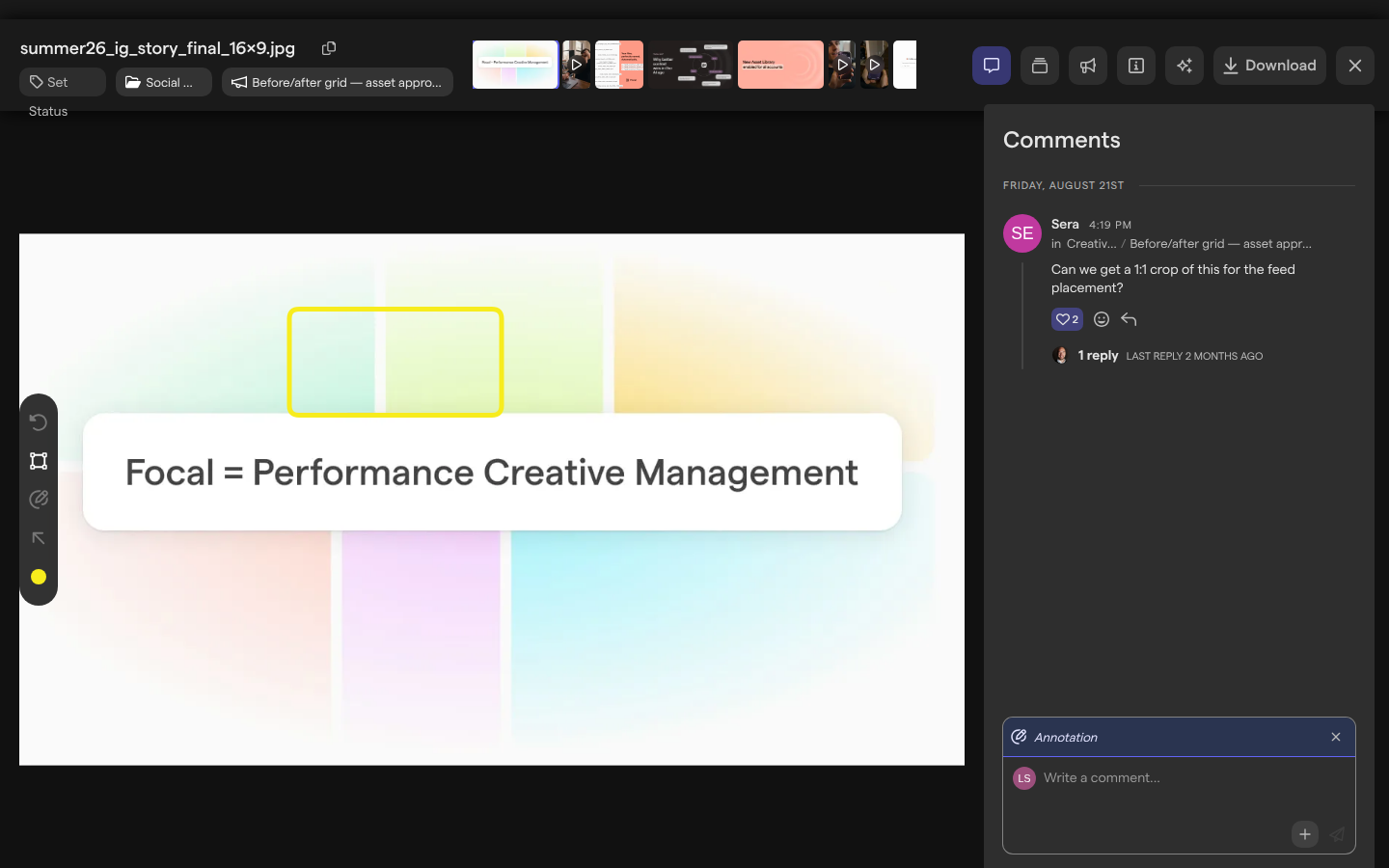
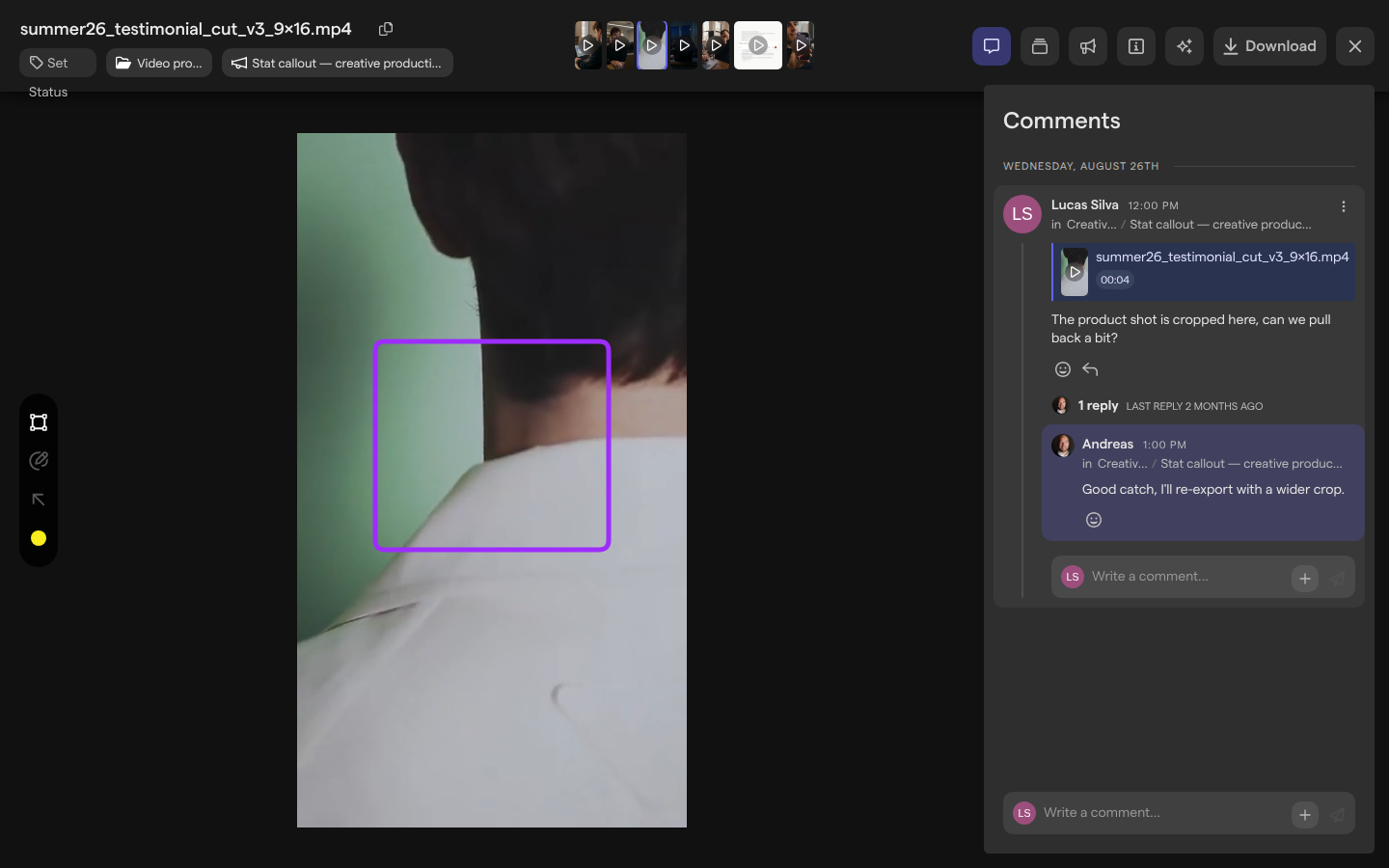
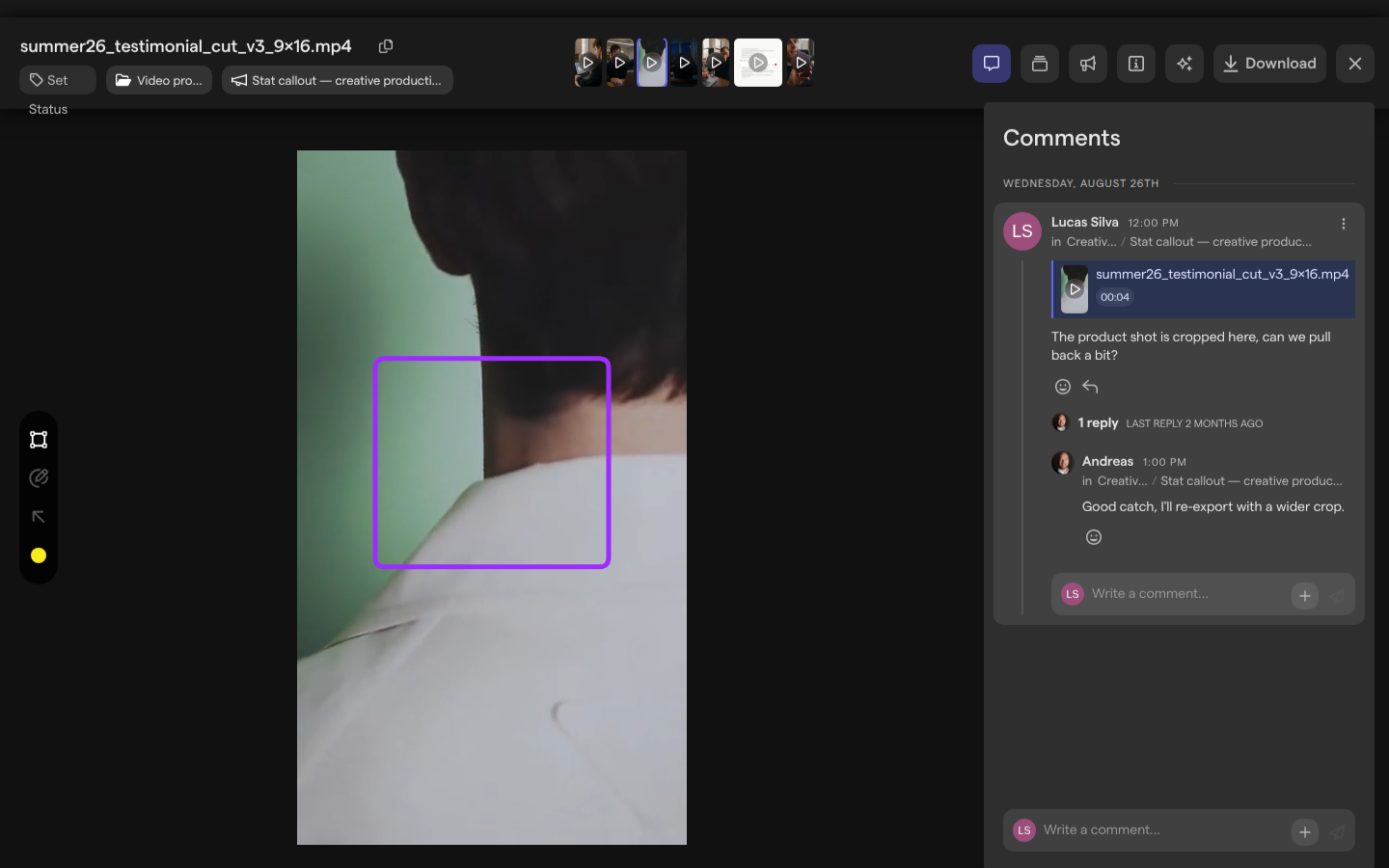
A posted annotation is saved with its comment, and the comment shows a preview of the asset above its text. Select the preview to show the drawing on the asset again; on a video, the video also jumps to the moment the comment is pinned to.
Comment on a moment in a video
A comment on a video can point at a moment in it, so reviewers see the exact frame the feedback is about. Focal pins a video comment to the current frame when you start typing: the video pauses and the composer shows Comment at followed by the time.
- Play or scrub the video to the moment you want, or pause on it.
- Click Write a comment… and start typing. The composer shows Comment at and the time.
- Press Enter to post.
To step one frame at a time, press Shift← or Shift→. If you move to another frame while writing, the comment follows the new frame. To post the comment without a time, select Remove timestamp (the × in the header). Pinned comments show their time in the Comments panel; select that part of a comment to jump the video to it and show its drawing.
Reply to and react to a comment
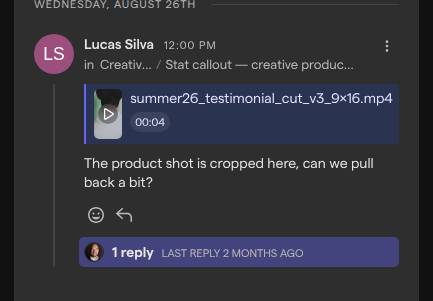
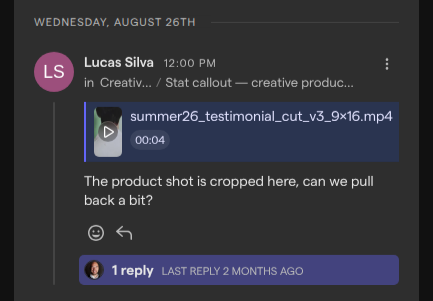
Replies keep the discussion about one piece of feedback in a thread under the first comment. A thread has one level: you reply to a comment, not to a reply.
- On the comment, select Add reply (the arrow).
- Write your reply in the composer that opens under the thread and press Enter.
A comment with replies shows how many it has, such as “1 reply”, and when the last one came in. Select the count to open or close the thread.
To react, select Add reaction (the smiley) on a comment or reply and pick one of the eight reactions, such as a thumbs up, a heart or a check mark. Select a reaction again to remove yours. Hover over a reaction to see who added it.
When the feedback leads to a new file, upload it as a new version of the asset. Once an asset has more than one version, each comment shows a badge with the version it was made on, such as “V2”, so the team can tell old feedback from new.
Edit or remove a comment
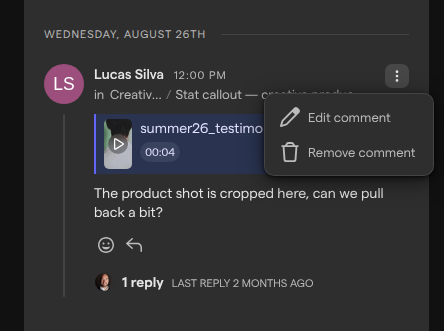
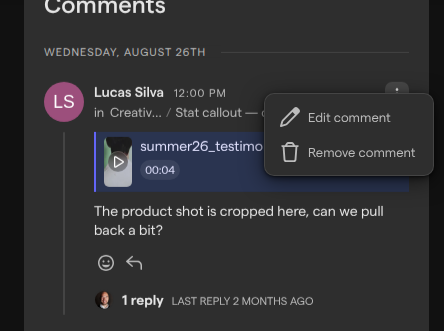
You can edit or remove only your own comments; other people’s comments have no menu. Editing opens the comment in a dialog.
- Open the menu (⋮) at the top right of your comment.
- Choose Edit comment.
- Change the text in the Edit your comment dialog and select Save.
To delete a comment, choose Remove comment from the same menu. Focal removes it at once, without asking for confirmation, and a removed comment cannot be restored.
Who gets notified
Two things send a notification about a comment on an asset:
- An @mention notifies the person you mention: “mentioned you in a comment”.
- A reply notifies the author of the comment you reply to: “replied to your comment”. If you mention that author in the reply as well, they get one notification, not two.
Everyone else sees new comments in the Comments panel but gets no notification. Each notification arrives in the app and by email, according to the person’s @mentions and Replies settings under In App and Email in their notification settings. The email links back to the asset with a View Comment button.
If your space posts library activity to a Slack channel, comments on assets in that library or folder are posted there too.
Who can comment
Commenting on an asset in the asset library depends on the person’s space role:
| Space role | Can comment and annotate |
|---|---|
| Space owner | Yes |
| Member | Yes |
| Guest | No: guests can’t open the asset library |
Organization admins can always comment. When an asset is opened from a board, the board’s access level decides instead: people with Comment access or higher can comment, and people with View access cannot. Assets opened from the Trash page are read-only and show no comments.
Comments across boards and the library
An asset has one set of comments, wherever it is opened. A comment left on the asset from a task on a board also appears in the asset view in the library, with a line under the author’s name saying which board and task it was made in.
Archiving an asset, which moves it to the Trash, archives its comments with it, and restoring the asset brings them back. Permanently deleting an asset from the Trash also permanently deletes its comments, and that can’t be undone.
FAQ
Can I mark a comment thread as resolved?
No. Focal has no resolve or done state for comment threads: every comment stays in the Comments panel until its author removes it. We recommend agreeing on a convention with your team instead, such as reacting with the check mark when feedback is handled, or replying to say what changed.