Managing boards
A board is a shared list of tasks in a space, with columns for the details a team tracks and views that show the same tasks in different ways. Managing boards covers the life of the board itself: creating it, finding it again in the boards sidebar, renaming it, duplicating it, and archiving it when the work is done.
Every space that has Boards turned on has a boards sidebar, reached from Boards in the app’s main navigation or through Boards. The sidebar lists every board you can open, grouped into sections, with each board’s views nested under it. Archived boards stay in the sidebar in their own section and can be restored at any time.
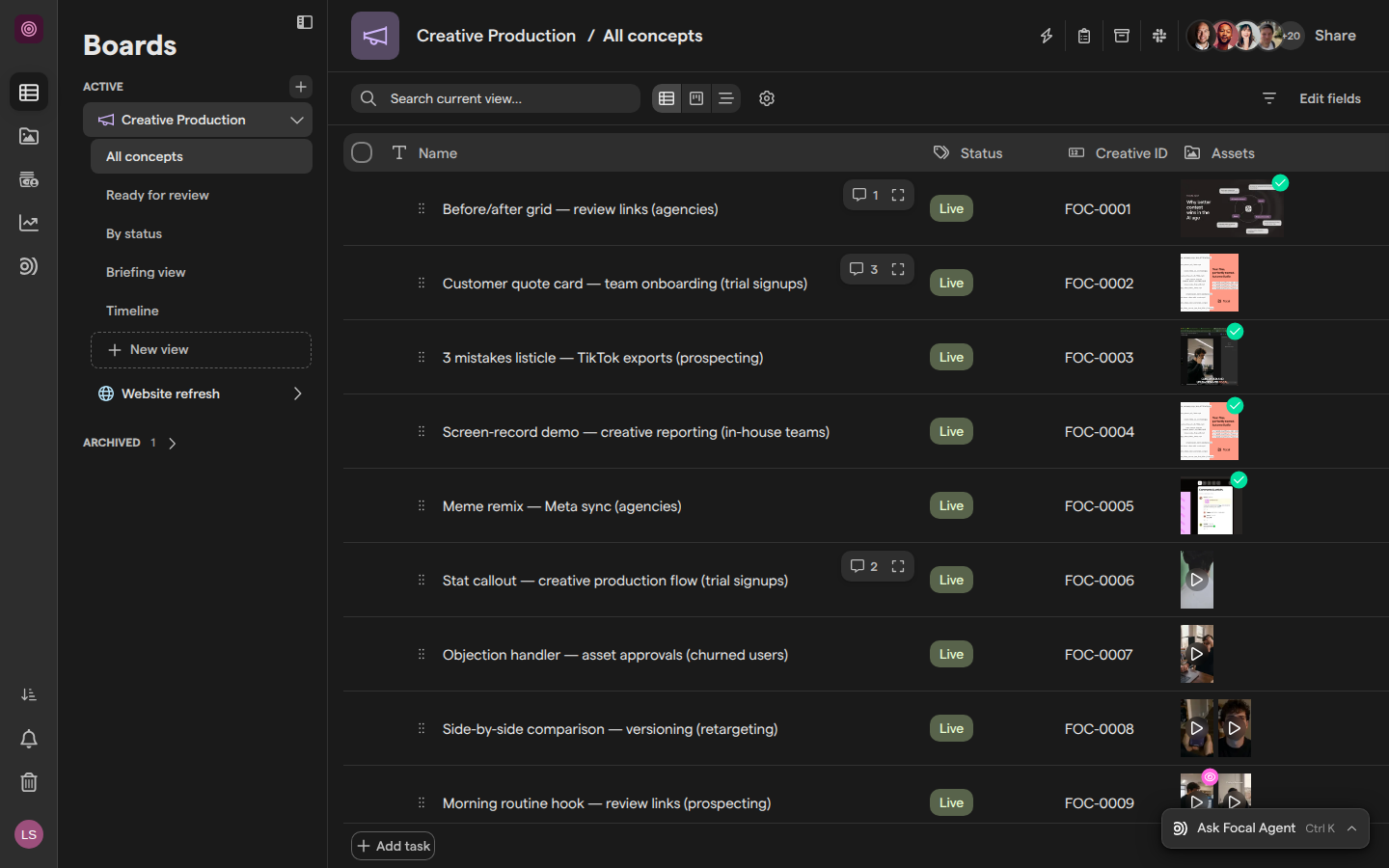
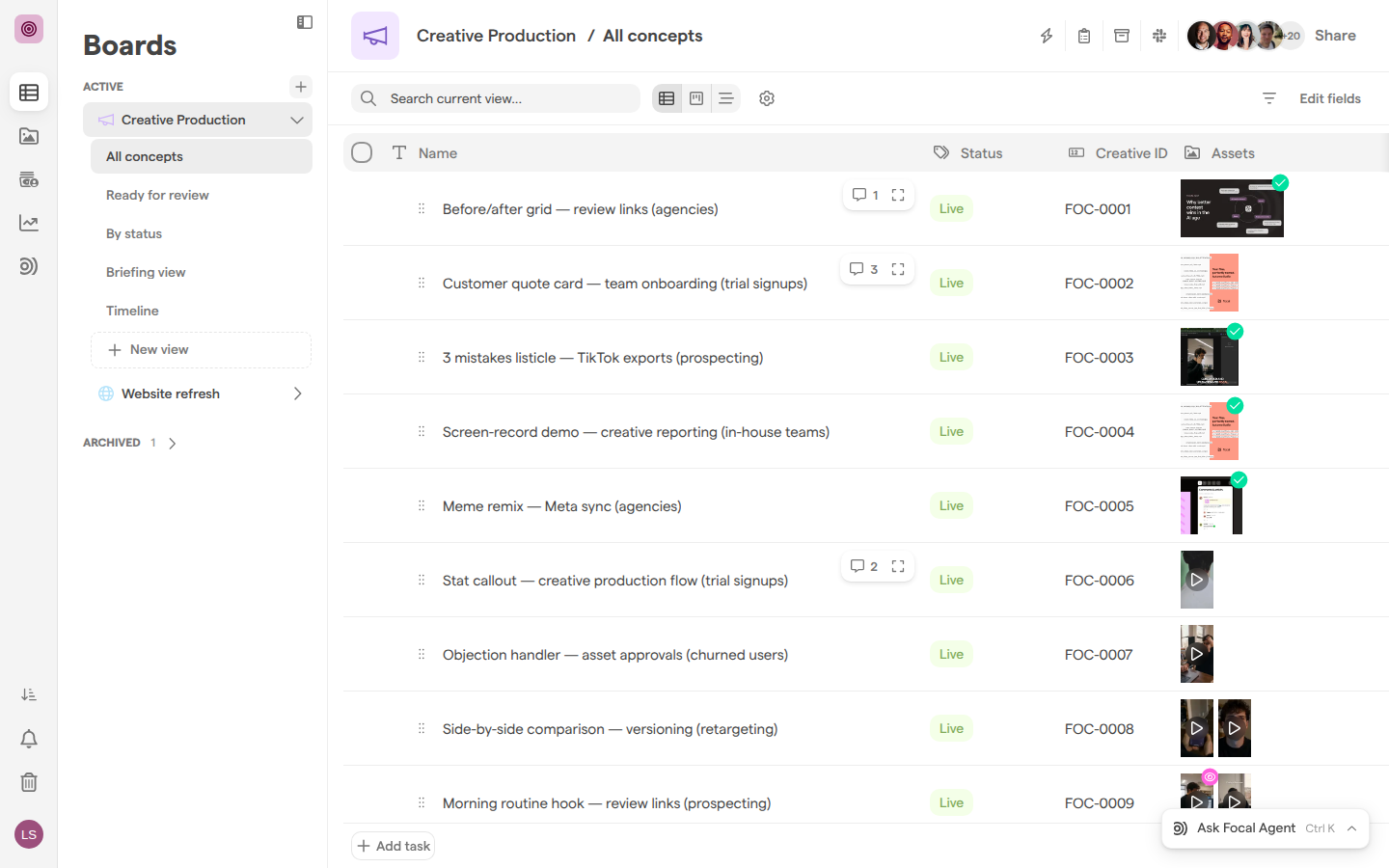
Create a board
A new board starts from a standard set of columns, so a team can add tasks right away and adjust the structure later. Space owners and space members can create boards; guests cannot.
- Open Boards.
- In the boards sidebar, click the + button next to the Active heading. Its tooltip reads “New board”.
- Type a name in the board title at the top of the page, where it says “Untitled board”.
The new board opens as soon as it is created. It has one table view, “All Tasks”, three empty tasks named “Task 1”, “Task 2” and “Task 3”, and these columns: Name, Status, Start Date, Due Date, New assets, Brief, Created by, Updated by and Updated at. The Status column comes with the task statuses Backlog, In progress, In review and Done.
A new board is not shared with anyone else yet. To bring your team in, see Sharing boards. To change the columns, see Columns.
Note: If a space has no Boards item in its navigation, Boards is turned off for that space. A space owner can turn it on in Space settings under Enabled features. See Space general settings.
Find a board in the boards sidebar
The boards sidebar is the list of boards on the left of the Boards page. It groups boards into sections:
- Favorites: views you have added to your favorites, with the name of the board each one belongs to. The section appears once you have at least one favorite.
- Active: the boards shared with you, in the order your team has arranged them.
- Not shared with you: boards you can open because of your role, such as a space owner, but that nobody has shared with you directly. The section appears only when there are such boards.
- Archived: archived boards that you can see, with their number next to the heading. The section appears only when there are any, and starts collapsed.
To open a board, click its name. A board’s views are listed under it once it is expanded: click the arrow next to a board to expand it, then click a view to open it. When you open Boards without picking a board, Focal opens the board you used last in that space.
To keep a view one click away, right-click it in the sidebar and choose Add to favorites. Choose Remove from favorites to take it off the list. Favorites are your own and do not change the sidebar for anyone else.
Drag a board up or down the Active section to change its place in the list.
Rename a board
A board’s name and icon are shown at the top of the board and in the boards sidebar. Both can be changed at any time by anyone with Full Access to the board.
- Open the board.
- Click the board’s name at the top of the page, to the left of the “/”.
- Type the new name. Focal saves each change as you type; there is no save button.
To change the board’s icon, click the icon to the left of the name (its tooltip reads “Click to choose an icon”). Under Icon & Color, pick a color and an icon, or search for one with Search icons…. Under Custom Image, use an image of your own instead. Press Escape to close the picker.
The name after the “/” is the name of the view you are looking at, not the board. Renaming a view is covered in Board views.
Duplicate a board
Duplicating a board makes an exact copy of it, including all of its views and tasks. Use it to start a new campaign from a board your team already set up, without rebuilding its columns and views.
- In the boards sidebar, right-click the board, or hover over it and click the ⋮ icon.
- Choose Duplicate Board.
- In the “Duplicate board?” dialog, click Yes, duplicate it.
Focal opens the copy as soon as it is ready. Duplicate Board is greyed out on boards where you do not have Full Access.
Archive a board
Archiving a board is how you remove a board whose work is finished. Archiving takes the board out of the Active section without losing anything: the board, its tasks and its views can all be restored later.
- In the boards sidebar, right-click the board, or hover over it and click the ⋮ icon.
- Choose Archive Board.
- In the “Are you sure?” dialog, click Yes, archive it.
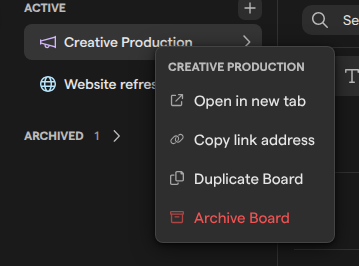
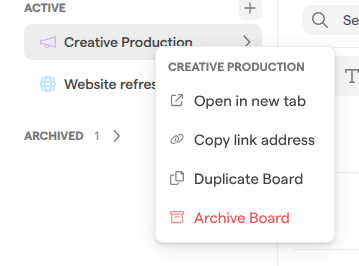
The board moves to the Archived section of the sidebar for everyone who could see it. Its tasks, views and columns are archived with it, and so are its intake forms and board automations. An archived board is listed only in the boards sidebar: it never appears in the asset library’s Trash, which lists only assets and folders.
Archive Board is greyed out on boards where you do not have Full Access.
Note: The archive icon in a board’s header, “View archive”, is a different feature: it shows the archived tasks inside that board. It does not archive the board.
Restore an archived board
An archived board keeps everything it had when it was archived, and restoring it puts it back in the Active section with its tasks and views. An archived board cannot be opened until it is restored.
- In the boards sidebar, click Archived to expand the section. The number next to it is how many archived boards you can see.
- Right-click the board, or hover over it and click the ⋮ icon.
- Choose Restore Board.
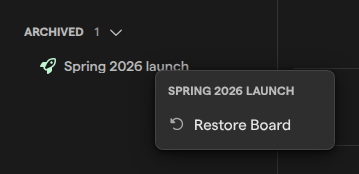
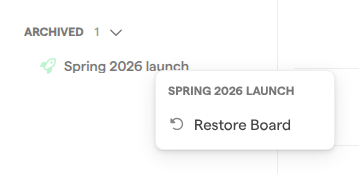
Focal confirms with “Board restored.” and the board reappears under Active. Restoring needs Full Access to the board; without it, Focal shows “Failed to restore board. Please try again.” and the board stays archived.
Remove a board for good
Boards are removed by archiving them, and we recommend leaving it at that: an archived board is out of the Active section for everyone and can be restored from the Archived section at any time. A board in the Active section cannot be permanently deleted; only an archived one can.
Space owners and organization admins can permanently delete an archived board. In the boards sidebar’s Archived section, right-click the board and choose Delete permanently, then confirm with Yes, delete permanently in the “Are you sure?” dialog. Focal confirms with “Board deleted permanently.”
Note: Permanently deleting a board cannot be undone. It removes the board with all of its tasks, views and comments, and they cannot be restored. Space members and guests do not see Delete permanently.
Removing a single view works differently. Delete View, in a view’s menu in the sidebar, permanently deletes that view and cannot be undone, but the board’s tasks are kept. See Board views.
Who can manage a board
What you can do with a board depends on your role in the space and your access level on the board. The roles and access levels themselves are described in Roles and permissions.
| Action | Who can do it |
|---|---|
| Create a board | Space owners and space members |
| Rename, change the icon, duplicate | Anyone with Full Access to the board |
| Archive and restore | Anyone with Full Access to the board |
| Permanently delete an archived board | Space owners and organization admins |
| Add a view to favorites | Anyone who can see the view |
Space owners and organization admins have Full Access to every board in the space, whether or not the board was shared with them. Boards they reach only this way are listed under Not shared with you in the sidebar.
Guests cannot create boards. On a board with Edit, Upload, Comment or View Access, the board’s name and icon cannot be edited, and Duplicate Board and Archive Board are greyed out. To change someone’s access level, see Sharing boards.