Organization settings: Security
The Security page of organization settings controls how people sign in to your organization. Organization admins use it to verify the email domains the organization owns, connect Okta for single sign-on (SSO), require SSO, turn password sign-in on or off, and choose whether people from a verified domain get a Focal account automatically the first time they sign in. The page opens from Space Settings → Organization → Security (Organization security settings).
The page has three sections, in this order: Domains, Authentication and User provisioning. Okta is the only identity provider you can connect, and an organization connects one Okta integration at a time. Every setting on the page applies to the whole organization, across all of its spaces.
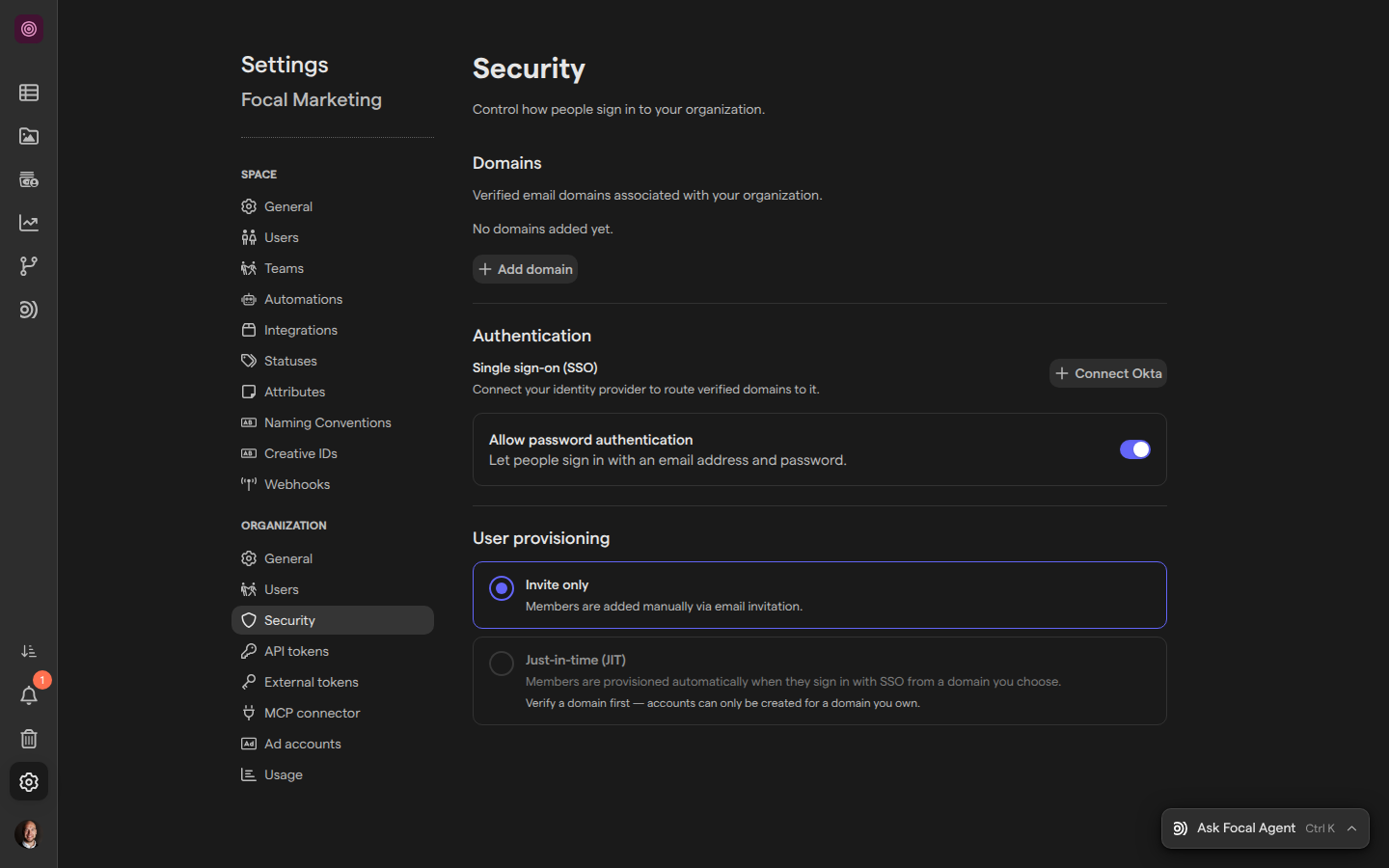
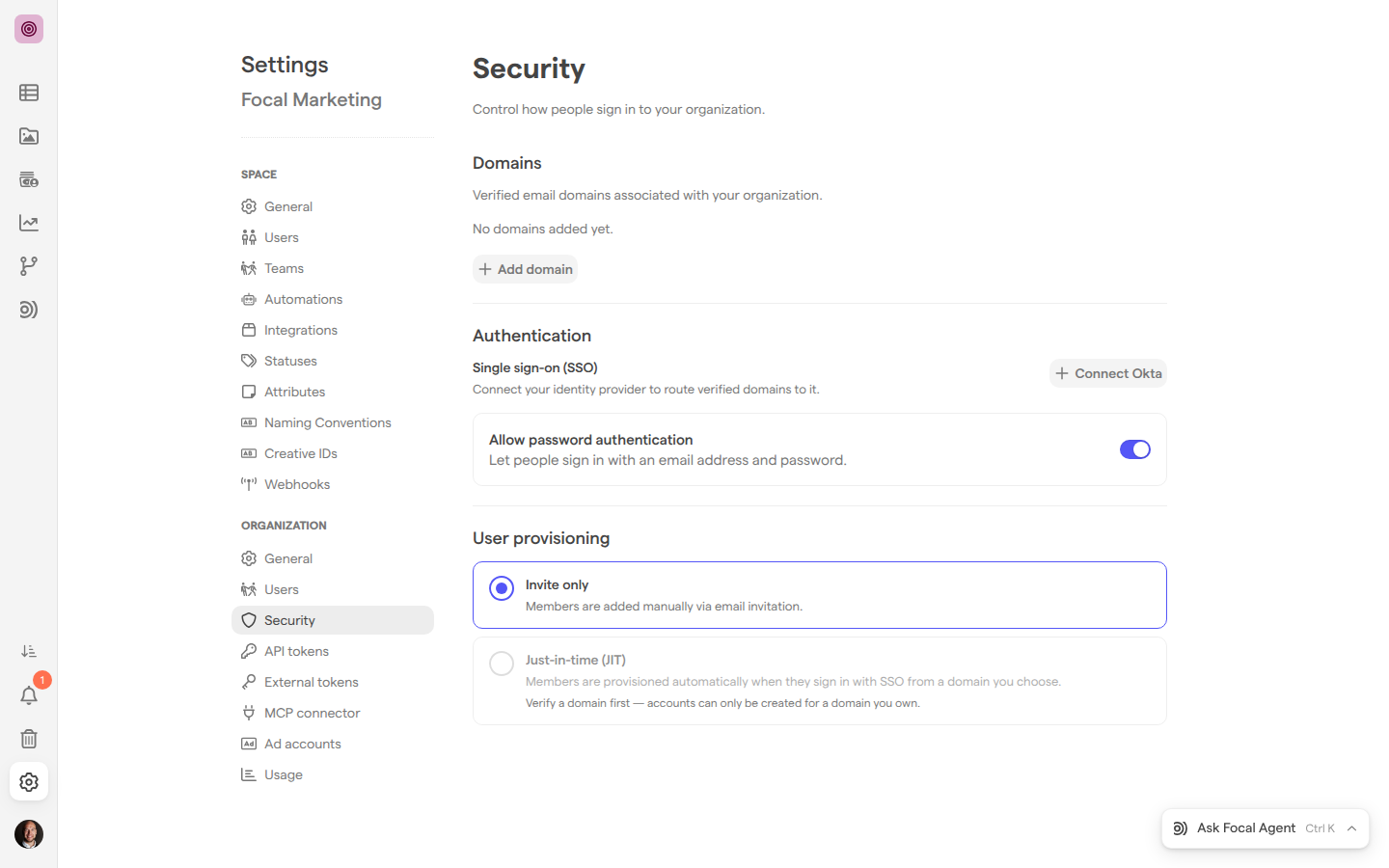
Add and verify a domain
A verified domain is an email domain, such as example.com, that your organization has proved it owns by publishing a DNS TXT record. Focal uses verified domains to send people with an address on that domain to your Okta sign-in, and only a verified domain can create accounts automatically (see “Create accounts when people first sign in” below). A domain that is added but not verified does neither.
- Under Domains, select Add domain.
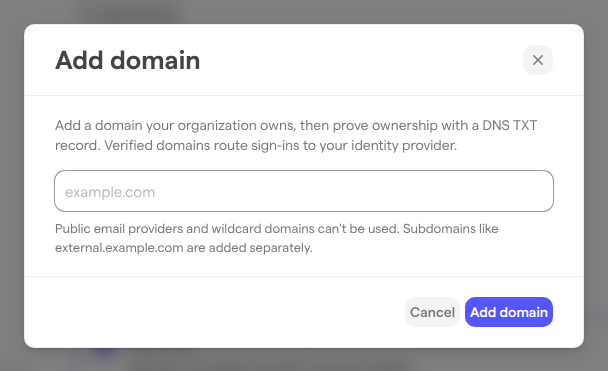
- Type the domain, for example
example.com, and select Add domain. - In the dialog that opens next, copy the TXT record value with the copy button. It starts with
focal-domain-verification=. - Publish the value as a TXT record on the domain at your DNS provider.
- Back in Focal, select Check DNS record. When Focal finds the record, a message says the domain is verified.
- Select Done.
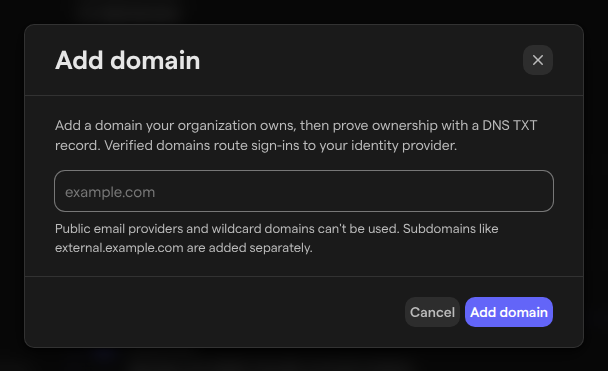
DNS changes can take a while to reach Focal. If Focal doesn’t find the record yet, it says so, and the button changes to “Check again in” with a countdown of about two minutes before you can check again. Public email providers such as gmail.com and wildcard domains can’t be added. Subdomains like external.example.com are added separately. A domain can be verified by only one organization at a time.
Check a domain’s status
The list under Domains shows each domain your organization has added, with a status:
| Status | Meaning |
|---|---|
| “Pending” | The domain was added, and Focal hasn’t found its TXT record yet |
| “Verified” | Focal found the TXT record. The domain routes sign-ins to Okta and can create accounts automatically |
| “Record missing” | The domain was verified, but Focal can no longer find the TXT record |
Keep the TXT record in place after the domain is verified. Focal checks verified domains again from time to time, and a domain whose record has been gone for three days changes to “Record missing”. To fix it, select the gear icon (“Verification and settings”) on the domain’s row, publish the record shown there again, and select Check DNS record. The same dialog shows the record and, for a verified domain, when it was verified.
Connect Okta
Single sign-on with Okta lets people sign in to Focal with their Okta account instead of a Focal password. You set it up by installing the Focal app in Okta and copying three values from it into Focal. Connecting Okta doesn’t sign you out.
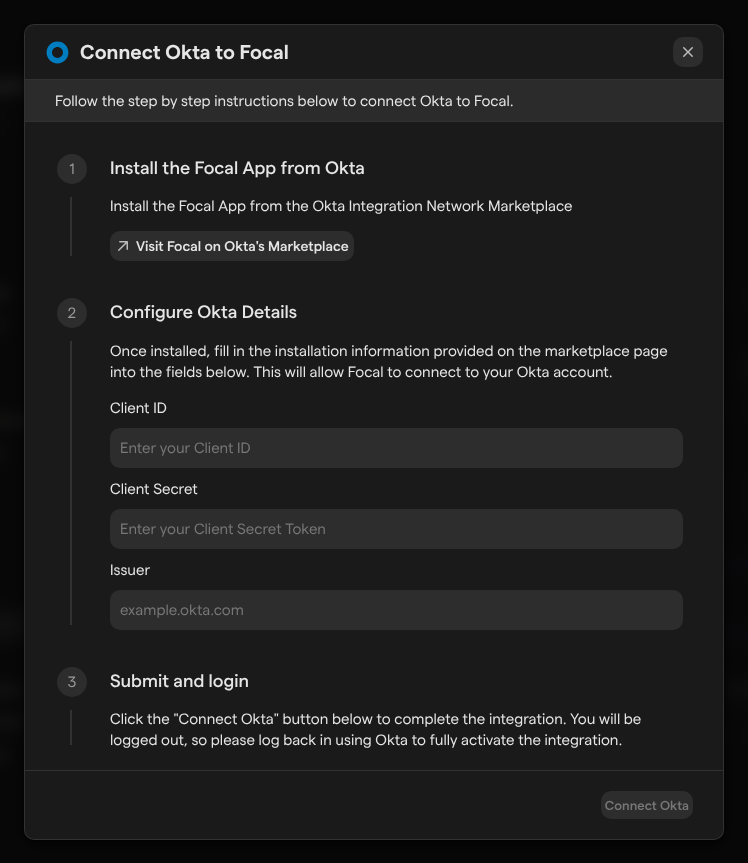
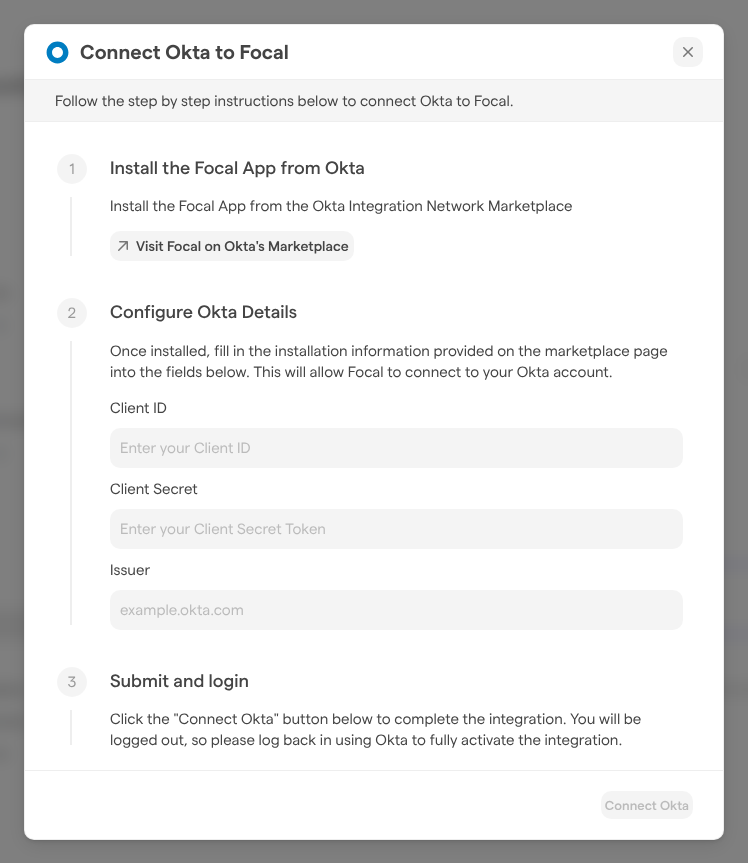
- Under Authentication, select Connect Okta.
- In the Connect Okta to Focal dialog, select Visit Focal on Okta’s Marketplace and install the Focal app in your Okta organization.
- From the installed app in Okta, copy the client ID, client secret and issuer.
- Paste them into Client ID, Client Secret and Issuer.
- Select Connect Okta. The button stays unavailable until all three fields are filled in.
When the connection succeeds, the dialog closes and a message says “Okta connected — use Test login to confirm it works”. The Authentication section then shows “Connected to Okta”, a Require SSO for login toggle, and a panel with the issuer, the client ID, the end of the client secret and a Test login button. If Focal can’t save the values, the dialog shows the reason.
If your organization has no verified domain yet, the section says so: people who already have an account can sign in with Okta, but new addresses aren’t sent to Okta and no accounts are created automatically.
Test the Okta sign-in
Test login runs a real sign-in through Okta and brings you back to the Security page, so you can confirm the integration works before you require it. It checks what the saved values can’t show on their own, such as whether Okta lets your account use the Focal app.
- In the Okta panel under Authentication, select Test login.
- Sign in to Okta if it asks you to.
When the sign-in works, you land back on the Security page with the message “Login successful — Okta SSO is working”. When it fails, you land on the Focal sign-in page instead. We recommend testing the sign-in before you turn on Require SSO for login or turn off password sign-in.
Require single sign-on
Require SSO for login makes Okta the only way Members and Admins of your organization can sign in. The toggle appears once Okta is connected and takes effect as soon as you change it. Guests are excluded: they keep signing in the way they do today.
With the toggle on, a Member or Admin who tries to sign in with an email address and password, or with Google, is refused with “Okta Single Sign-On is required for this organization”. On the sign-in page, “Sign in to Focal”, they choose Sign in with Okta, enter their address under Okta Email and select Continue.
Turn password sign-in on or off
Allow password authentication decides whether people can sign in with an email address and a Focal password. It is on by default and is shown whether or not Okta is connected. Like the SSO requirement, it applies to Members and Admins of the organization, not to Guests.
With the toggle off, a Member or Admin who signs in with a password sees “Password authentication has been disabled for this organization”, and “Lost your password?” no longer sends them a reset email. They can still sign in with Google or Okta, unless Require SSO for login limits them to Okta.
Note: Turning off password sign-in takes effect at once for everyone in the organization, including you. Check that people have another way in, such as Okta or Google, before you turn it off.
Create accounts when people first sign in
The User provisioning section decides how people who don’t have a Focal account yet get one. It has two options:
- Invite only: people are added by invitation only (see Space settings: Users). This is the default.
- Just-in-time (JIT): Focal creates an account the first time someone signs in with Okta or a Google Workspace account on a domain you choose. The new account joins the organization as a Member.
Just-in-time (JIT) is available once at least one domain is verified. After you choose it, each verified domain gets its own toggle, labelled with the domain, such as @example.com, and accounts are created only for the domains you turn on. Choosing Invite only again turns automatic accounts off for every domain.
When automatic accounts are off for someone’s domain, a first sign-in through Okta stops with a message asking them to request an invite from an admin.
Rotate the client secret or permanently delete the Okta integration
The client secret is the password Focal uses to talk to your Okta app. When you generate a new one in Okta, give it to Focal by rotating it:
- Select the rotate icon (“Rotate client secret”) next to “Connected to Okta”.
- Paste the new secret into New client secret.
- Select Rotate secret.
The current secret keeps working until you save the new one. To change the issuer or the client ID, permanently delete the integration and connect Okta again.
To permanently delete the Okta integration, select the trash icon (“Remove the Okta integration”), then Yes, I’m sure! in the “Are you sure?” dialog. People who signed in with Okta can no longer use it, and Require SSO for login stops applying. We recommend turning on Allow password authentication first, so Members and Admins still have a way to sign in.
Note: Permanently deleting the Okta integration can’t be undone. To use Okta again, connect it from the start with the client ID, client secret and issuer.
Remove a domain
Removing a domain stops sign-ins from that domain from being sent to Okta, and any SSO requirement stops applying to it. People who already have an account keep it.
- Under Domains, select the trash icon (“Remove domain”) on the domain’s row.
- In “Remove this domain?”, select Yes, remove it.
The domain is removed at once. To use it again, add it and verify it from the start.
Who can change security settings
Only organization admins (the Admin organization role) see the Security page: the Organization group of Space Settings appears only for them, and anyone else who opens the page’s address is sent back to the space. Space owners who aren’t organization admins can’t change how people sign in. See Roles and permissions for what each role can do.