Exporting assets
Exporting assets means getting assets out of Focal: downloading them to your computer, or sending them to another tool. You download one asset as its original file or in a new size, or several at once as a ZIP file. You send assets to Meta, TikTok, YouTube, Google Drive, Ad Manage or a webhook when they are ready to run as ads or to be used somewhere else.
Downloads and exports start from the selection toolbar in the asset library, or from the asset view of a single asset. A ZIP download is prepared by Focal first and shows its progress in the Uploads & Downloads panel; a single asset downloads straight away.
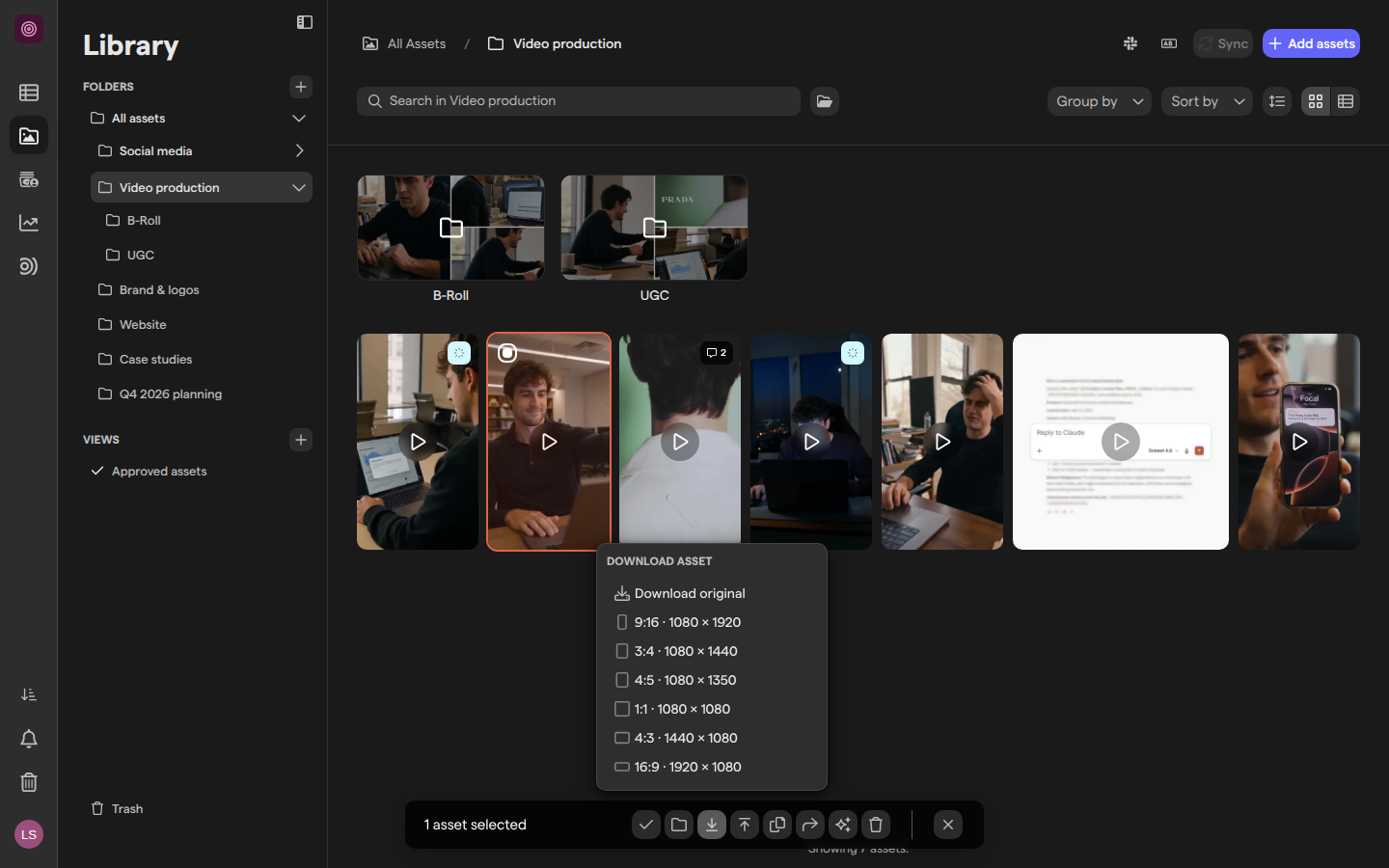
Download an asset
Downloading an asset from the asset library saves a copy of it to your computer, either the original file you uploaded or a copy resized to a common ad format.
- Open Assets and go to the folder that holds the asset.
- Click the asset to select it. The selection toolbar opens at the bottom of the page.
- Click the download button in the toolbar (Download asset).
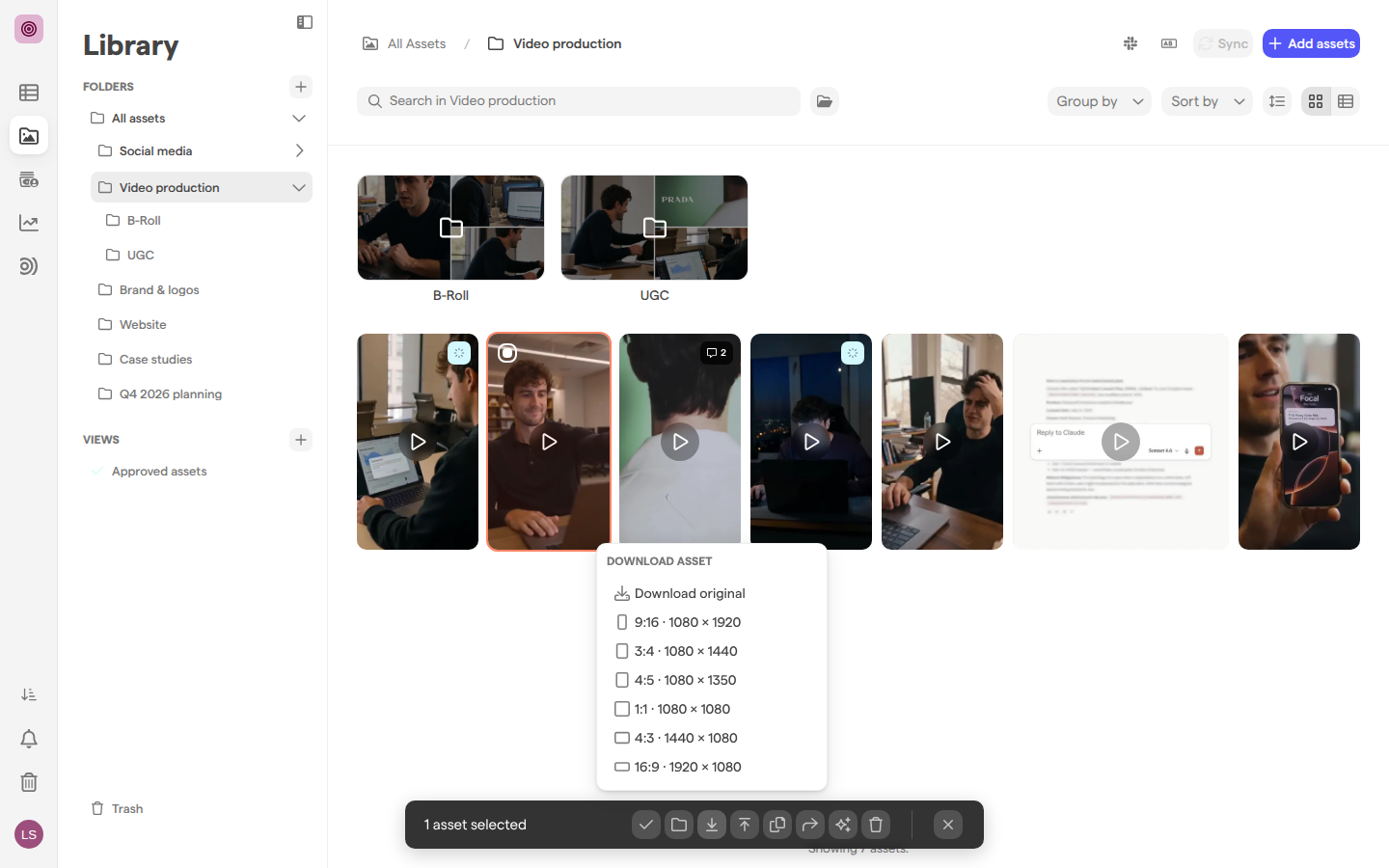
- Choose Download original, or one of the sizes under it, such as 9:16 · 1080 × 1920 or 1:1 · 1080 × 1080.
The sizes are 9:16, 3:4, 4:5, 1:1, 4:3 and 16:9. A resized copy fills the whole size, so Focal trims the edges of an asset whose shape differs. The sizes are offered for images and videos; for other files, such as documents, the menu has only Download original.
Your browser downloads the file right away. A single asset does not appear in the Uploads & Downloads panel.
To download an earlier version of an asset instead of the current one, see Versions.
Download an asset from the asset view
The asset view, the full-screen page for one asset, has its own Download button in the top right corner. It offers the same choices as the selection toolbar, plus a way to pick your own crop and size.
- Open the asset: double-click it in the asset library.
- Click Download in the top right corner.
- Choose an option:
- Download original saves the file you uploaded.
- An option under Download in custom size saves a copy in that size.
- Crop & Resize, under Customize yourself, opens a dialog to choose the crop and the size yourself (see the next section).
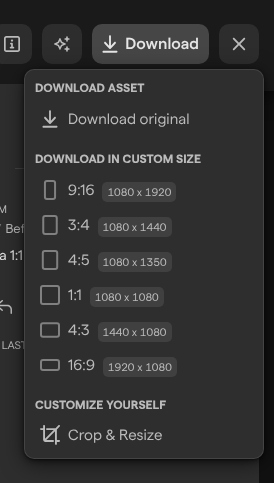
The custom sizes and Crop & Resize are shown for images and videos once Focal has finished processing them. The Download button is greyed out while the asset is still uploading.
Crop and resize before downloading
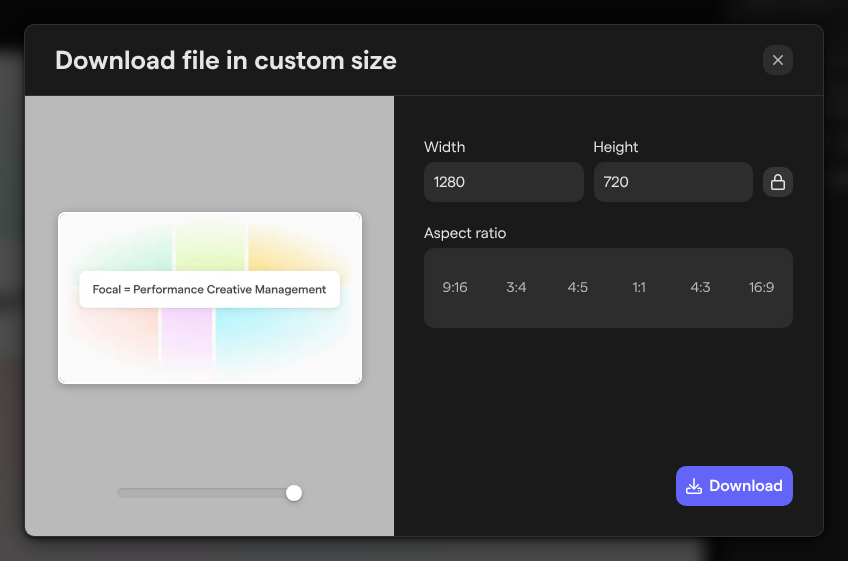
The Download file in custom size dialog downloads part of an image or video at the exact size you need, in the file format you choose. Use it when none of the preset sizes fits, for example to cut a square out of a wide banner.
- In the asset view, click Download and choose Crop & Resize.
- Pick a shape under Aspect ratio, such as 9:16 or 1:1.
- Drag the crop area over the preview to choose which part to keep. Move the slider under the preview to make the crop area larger or smaller.
- Type the output size in Width and Height. The lock button (Lock aspect ratio) keeps the two in proportion.
- Click Download and choose a format: JPG, PNG, WEBP or AVIF for an image, MP4, MOV or WEBM for a video.
Your browser downloads the cropped file. The asset in Focal is not changed.
Download several assets as a ZIP
Downloading several assets at once puts them in one ZIP file, which Focal prepares for you before your browser downloads it. The file is named focal-assets- followed by the date and time.
- Open Assets and select the assets. Hold ⌘ (Ctrl on Windows) and click to add assets, or hold Shift and click to select a range. Asset library lists every way to select.
- Click the download button in the selection toolbar (Download assets).
- Choose Download as a ZIP.
The Uploads & Downloads panel opens and shows the ZIP file while Focal prepares it. When it is ready, your browser starts the download on its own, in the tab where you asked for it. You can keep working in the meantime.
A ZIP file holds up to 1,000 assets with a combined size of up to 5 GB. A larger selection shows the message “ZIP downloads are limited to 1000 files and 5 GB. Try selecting fewer files.” For a larger set, download it in several parts.
Follow a download in the Uploads & Downloads panel
The Uploads & Downloads panel lists your uploads and your ZIP downloads, with their progress. It opens on its own when you ask for a ZIP file. To open it yourself, click Uploads & Downloads in the sidebar, just above Notifications. How the panel shows uploads is described in Uploading assets.
ZIP files are listed under Downloads. Each one shows its status:
- “Preparing download…”, with a progress ring, while Focal builds the file.
- “Ready to download” once it is finished. Click the download button beside it (Download zip) to save it again, for example from another tab or after the first download was interrupted.
- “Failed to create zip file. Please try again.” when Focal could not build it. There is no retry button: select the assets and choose Download as a ZIP again.
The panel keeps your five most recent finished ZIP downloads, including ones from earlier sessions. Click the trash button beside a download (Remove download) to take it off the list; the assets in the library are not affected. With nothing to show, the panel reads “No uploads or downloads yet.”
Send assets to other tools
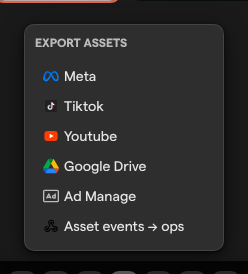
Exporting sends the selected assets from the asset library to another tool, without downloading them first. Select one or more assets and click the export button in the selection toolbar (Export asset or Export assets), then choose where to send them:
- Meta sends them to a Meta ad account as ad creatives. See Meta ads export.
- Tiktok sends them to a TikTok advertiser account. See TikTok export.
- Youtube uploads videos to a YouTube channel. It is greyed out unless every selected asset is a video. See YouTube export.
- Google Drive copies them into a folder in your Google Drive. See Google Drive.
- Ad Manage sends them to your organization’s Ad Manage (admanage.ai) library, or to an ad account connected there. It uses an Ad Manage API token instead of a sign-in; see the end of this section.
- A webhook, listed by its name, sends them to your own system. A webhook appears here once it is set up in space settings with Active and Export turned on. Choosing a webhook opens the Webhook Export dialog, which lists the assets and the address they are sent to; click Export to send them. See Space settings: Webhooks.
The first export to Meta, TikTok, YouTube or Google Drive asks you to connect your account on that service. Ad Manage works differently: it does not ask you to sign in, because an organization admin adds an Ad Manage API token once, on the External tokens page of organization settings. A token can be limited to certain spaces, and the export only offers tokens that are turned on and allowed in the space you are exporting from.
When you choose Ad Manage, the Export to Ad Manage dialog checks for those tokens:
- With no usable token, the dialog reads “Add an Ad Manage API token to continue” and has an Add Ad Manage token button that opens the External tokens page. Adding a token needs an organization admin; ask one if you are not.
- With one token, the dialog connects with it straight away.
- With several tokens, the dialog asks “Choose which Ad Manage connection to export with” and lists each token by its name and the last four characters of the token. Click the one to use.
Once connected, the dialog lists the destinations: Ad Manage Library and each ad account connected in Ad Manage. Click one, check the assets on the review step and click Export. There is no folder to choose.
Download and export from a board
The same selection toolbar opens on a board. Click an asset in a task’s asset column to select it, and hold ⌘ (Ctrl on Windows) to add more. Downloading works as it does in the asset library: one asset as the original or a preset size, several as a ZIP file. On a board, the toolbar also has Remove assets from cell for people who can edit the board’s tasks.
Whether the export button appears on a board depends on your access to the board’s view, described next.
Who can download and export
Space owners, space members and organization admins can download and export from the asset library. Space guests don’t see Assets in the sidebar, so they reach assets only through the boards shared with them.
On a board, anyone who can see an asset in a task can download it. Exporting depends on the access level you have to the board’s view:
| Access level | Download | Export |
|---|---|---|
| Full Access, Edit Access, Upload Access | Yes | Yes |
| Comment Access, View Access | Yes | No |
Access levels are set when a board or view is shared; see Sharing boards and Roles and permissions. A download or export only ever includes assets you are allowed to see.
Download and export limits
Downloads and exports have a few limits, whatever your role:
- ZIP files: up to 1,000 assets and 5 GB in total per ZIP file. Focal refuses a larger request and shows “ZIP downloads are limited to 1000 files and 5 GB. Try selecting fewer files.” Split the selection and download it in parts.
- Exports to Meta, TikTok, YouTube, Google Drive and Ad Manage: up to 100 assets per export.
- Meta: only JPG, BMP, PNG, GIF, MOV and MP4 files can be exported. Export fails when the selection includes another format.
- YouTube: videos only.
- Custom sizes and Crop & Resize: images and videos only.