Space settings: Webhooks
A webhook is an address in your own system that Focal sends assets to. When someone in the space exports assets to a webhook, Focal sends a message to the webhook’s address for each asset, with the asset’s details, its media attributes and a link to download the file. Teams use webhooks to hand finished assets to a digital asset management system, a publishing tool or an internal script.
The Webhooks page of Space Settings is where space owners create webhooks, check that they work, and turn off, change or permanently delete them. Each webhook belongs to one space and appears by name in that space’s export menu. Webhooks only send from Focal: to have another system start work in Focal, use a workflow with the Triggered via API trigger (see Triggers).
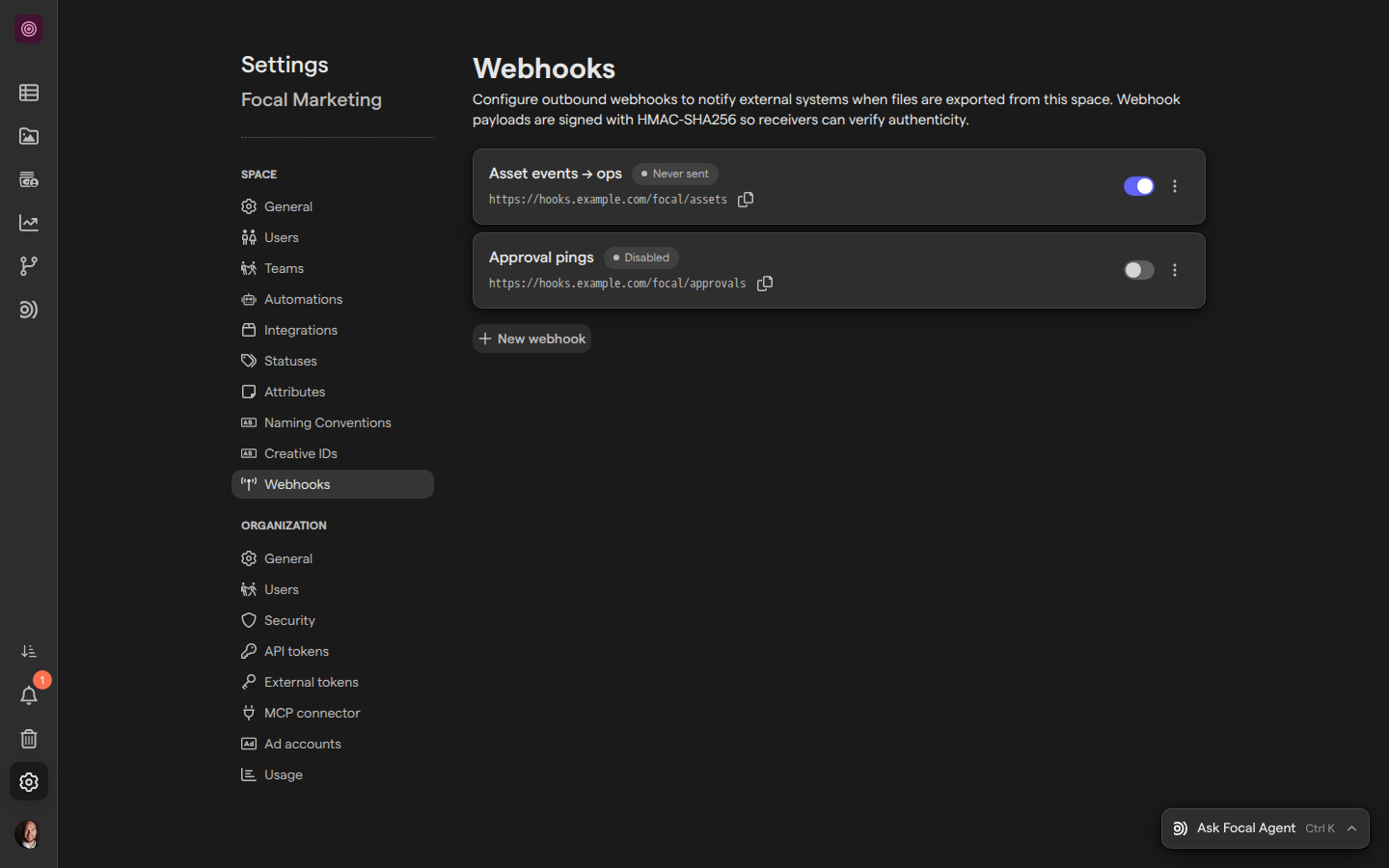
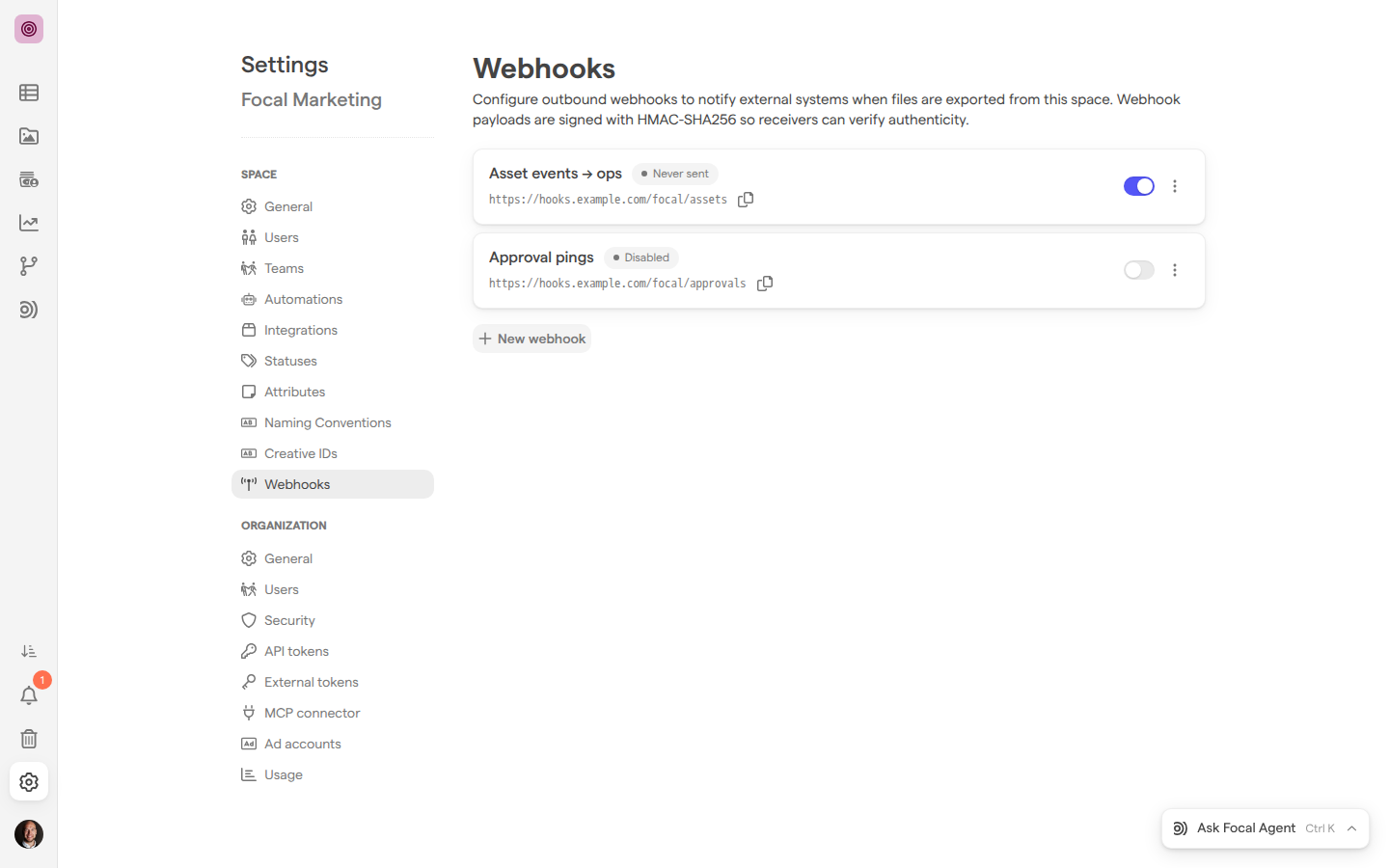
Open the Webhooks page
The Webhooks page is the last page under Space in Space Settings, and it always shows the webhooks of the space you are in. To see another space’s webhooks, switch to that space first (see Navigation).
- Open the space whose webhooks you want to see.
- Select Space Settings, the gear icon at the bottom of the sidebar.
- Select Webhooks in the settings menu on the left.
You can also go straight to the page with Webhooks settings. See Settings for the other pages of Space Settings.
The page lists one line per webhook, with its name, its address and a switch that turns it on or off. A badge beside the name says how the webhook is doing:
- “Never sent”: the webhook is on and has not sent anything yet.
- “Last delivery OK” or “Last delivery failed”: the outcome of the most recent message.
- “Disabled”: the webhook is turned off.
- “Auto-disabled after too many failures”: Focal turned the webhook off because its messages kept failing (see “Delivery retries and automatic turn-off” below).
Select the copy icon after an address (“Copy URL”) to copy it.
Create a webhook
Creating a webhook gives the space a new place to send assets to. You need the address of the system that receives them, which must start with https://.
- Open the Webhooks page of Space Settings.
- Select New webhook.
- Type a name in Webhook name. People see this name in the export menu, so we recommend naming the destination, such as “DAM handoff”.
- Type the receiving address in the field that reads
https://example.com/webhook. - Leave Active on to use the webhook right away.
- Under Notifications, leave Export on so the webhook appears in the export menu.
- Select Create webhook.
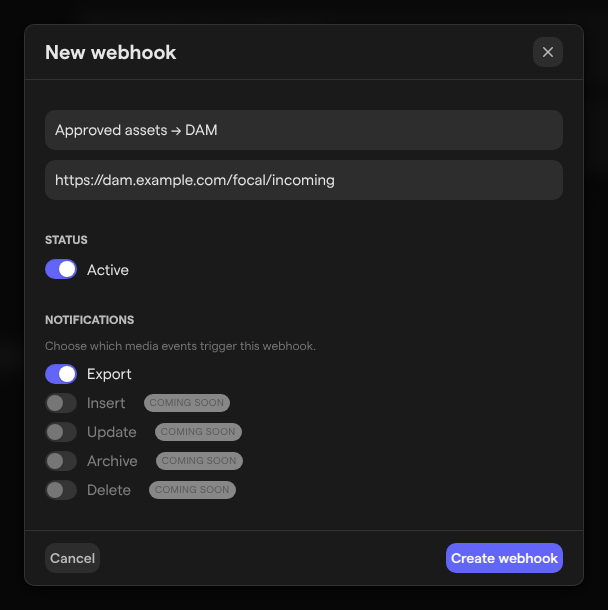
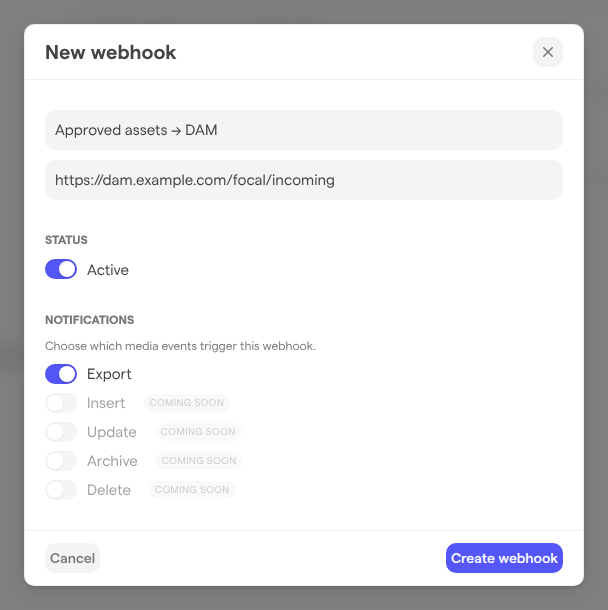
To leave without creating the webhook, select Cancel. If the name is empty or the address is not a valid https:// address, the dialog says what to fix, such as “Name is required.” or URL must use https://..
Save the signing secret
A signing secret is a key, starting with fws_, that your system uses to check that a message really comes from Focal. Focal shows it once, in the Save your webhook secret dialog that opens after you create a webhook or rotate its secret.
- Select the copy button beside the secret (“Copy secret”). The message “Secret copied to clipboard” confirms it. If copying fails, select the secret’s text and copy it yourself.
- Store the secret in your receiving system or a password manager.
- Select Continue.
The dialog warns: “This is the only time we’ll show this secret. Copy it now and store it somewhere safe — you won’t be able to view it again.” Afterwards the webhook’s line shows only the end of it, as “Secret ends in …” followed by the last five characters. If you lose the secret, rotate it to get a new one (see “Rotate a webhook’s signing secret” below).
Send assets to a webhook
Exporting to a webhook sends the selected assets to your system without downloading them first. In the asset library or on a board, select one or more assets, select the export button in the selection toolbar, and choose the webhook by its name. Only webhooks that are on and have Export turned on are listed.
The Webhook Export dialog opens. Under What will be exported, it shows the assets and the address they are sent to. Select Export to send them, or close the dialog to cancel. The message “Webhook export started” confirms that Focal is sending them.
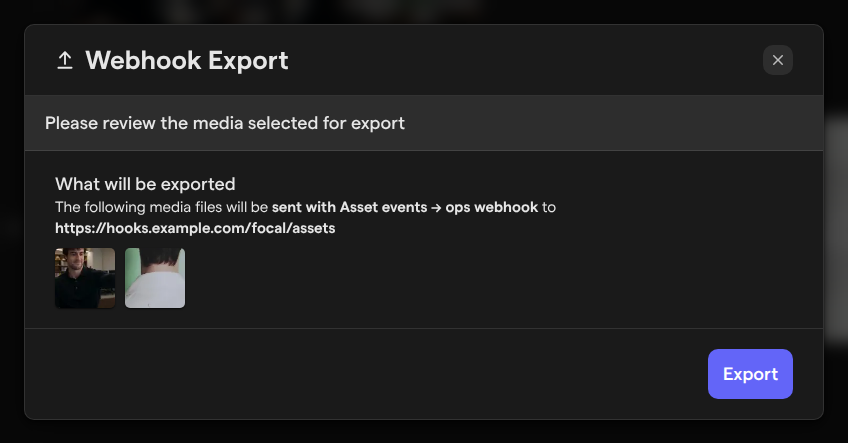
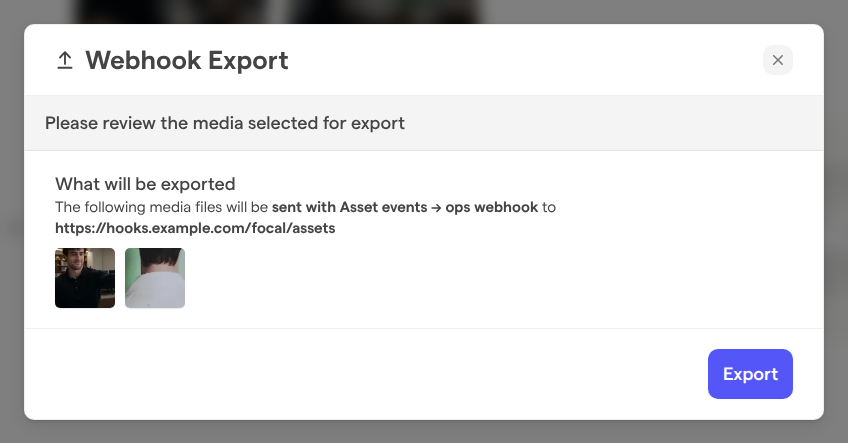
Focal sends one message per asset. Only images and videos are sent; other assets in the selection are skipped. One export holds up to 200 assets. See Exporting assets for the export menu and who can use it.
Test a webhook and check its deliveries
A test message checks that your system receives messages from Focal, before anyone exports real assets. The test sends a short message with no asset in it, signed like a real one.
- Open the Webhooks page of Space Settings.
- Select the menu button at the end of the webhook’s line.
- Select Send test.
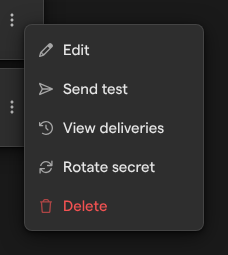
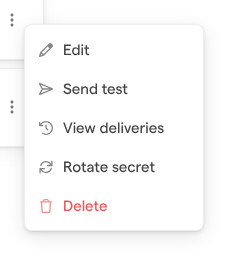
A message such as “Test delivered (200 in 120ms)” confirms that it arrived. If it didn’t, the message starts “Test failed:” and gives the reason, with the status code your system returned when there is one.
To see what a webhook has sent, select View deliveries in the same menu. The dialog lists the webhook’s latest 20 messages, tests included, most recent first, each marked “OK” or “FAIL” with its status code, time and duration. Select a line to see the error, your system’s response, its request ID and which attempt it was. A webhook that has sent nothing reads “No deliveries yet. Send a test from the row to see it here.”
Change or turn off a webhook
Turning a webhook off stops it from sending and removes it from the export menu, while keeping its name, address and secret for later. Use the switch on the webhook’s line to turn it off or on again; the change saves at once.
To change a webhook’s name, address or settings:
- Open the Webhooks page of Space Settings.
- Select the menu button at the end of the webhook’s line, then Edit.
- Change the fields in the Edit webhook dialog.
- Select Save changes.
Editing a webhook keeps its signing secret. Turning Export off has the same effect on the export menu as turning the webhook off.
Rotate a webhook’s signing secret
Rotating replaces a webhook’s signing secret with a new one. Rotate it when the old secret may have leaked, or when nobody saved it.
- Open the Webhooks page of Space Settings.
- Select the menu button at the end of the webhook’s line, then Rotate secret.
- Select Rotate secret in the “Rotate signing secret?” dialog.
- Copy the new secret from the Save your webhook secret dialog and select Continue.
The old secret stops working at once. Messages signed with the new secret, retries of earlier messages included, fail your system’s check until it uses the new secret.
Permanently delete a webhook
Permanently deleting a webhook removes it from the space and from the export menu for good. Permanently delete a webhook your team no longer sends to; to stop it for a while, turn it off instead.
- Open the Webhooks page of Space Settings.
- Select the menu button at the end of the webhook’s line, then Delete.
- Select Delete webhook in the “Delete webhook?” dialog.
Note: Permanently deleting a webhook can’t be undone. Messages still waiting to be sent are dropped.
What a webhook sends
Every message from a webhook is a POST request to its address with a JSON body. An export message has action set to file_export and two parts:
context: the space and organization, the time, the email of the person who exported, a request ID and the attempt number.file: the asset’s ID, name, format, type, size, width, height and duration, its media attributes, andurl, a link to download the file that works for one hour.
A test message has action set to test and the text “Hello from Focal”.
Each request carries two headers for checking the signature: X-Focal-Timestamp, the time of sending in milliseconds, and X-Focal-Signature, an HMAC-SHA256 of the request body in hex. The signing key is the webhook’s secret followed by the timestamp. Your system computes the same value and rejects requests that don’t match.
Delivery retries and automatic turn-off
When your system doesn’t answer within 15 seconds or answers with an error, Focal tries the same message again, up to three attempts, waiting a few minutes between them. Tests are sent once, without retries.
Focal keeps count of failed messages for each webhook: a message that fails every attempt counts up, and a successful one counts down, never below zero. When the count reaches 100, Focal turns the webhook off and its line reads “Auto-disabled after too many failures”. Fix your system, then turn the webhook back on with its switch: the count starts again from zero, and the page confirms with “Webhook reactivated — the failure streak has been reset.”
Who can manage webhooks
Webhooks are managed by the space’s space owners and by organization admins. An Admin (an organization admin) has the same rights as a space owner in every space of the organization. Members and guests don’t see Space Settings in the sidebar, and a link to the Webhooks page takes them back to the space. See Roles and permissions.
Sending assets to a webhook is a different right: anyone who can export assets sees the space’s webhooks in the export menu. See Exporting assets for who can export.