Organization settings: Users
The Users page of organization settings lists everyone who belongs to your organization, with their status and their organization role: Admin (an organization admin), Member or Guest. Organization admins use it to see who has access to Focal, change someone’s organization role, resend an invite that was not accepted and remove people who should no longer have access. The page opens from Space Settings → Organization → Users (Organization users settings).
Each person has one organization role, and a role change takes effect as soon as you make it. The organization role is separate from the role a person has in each space, which is managed in Space settings: Users. What each role can see and do is described in Roles and permissions.
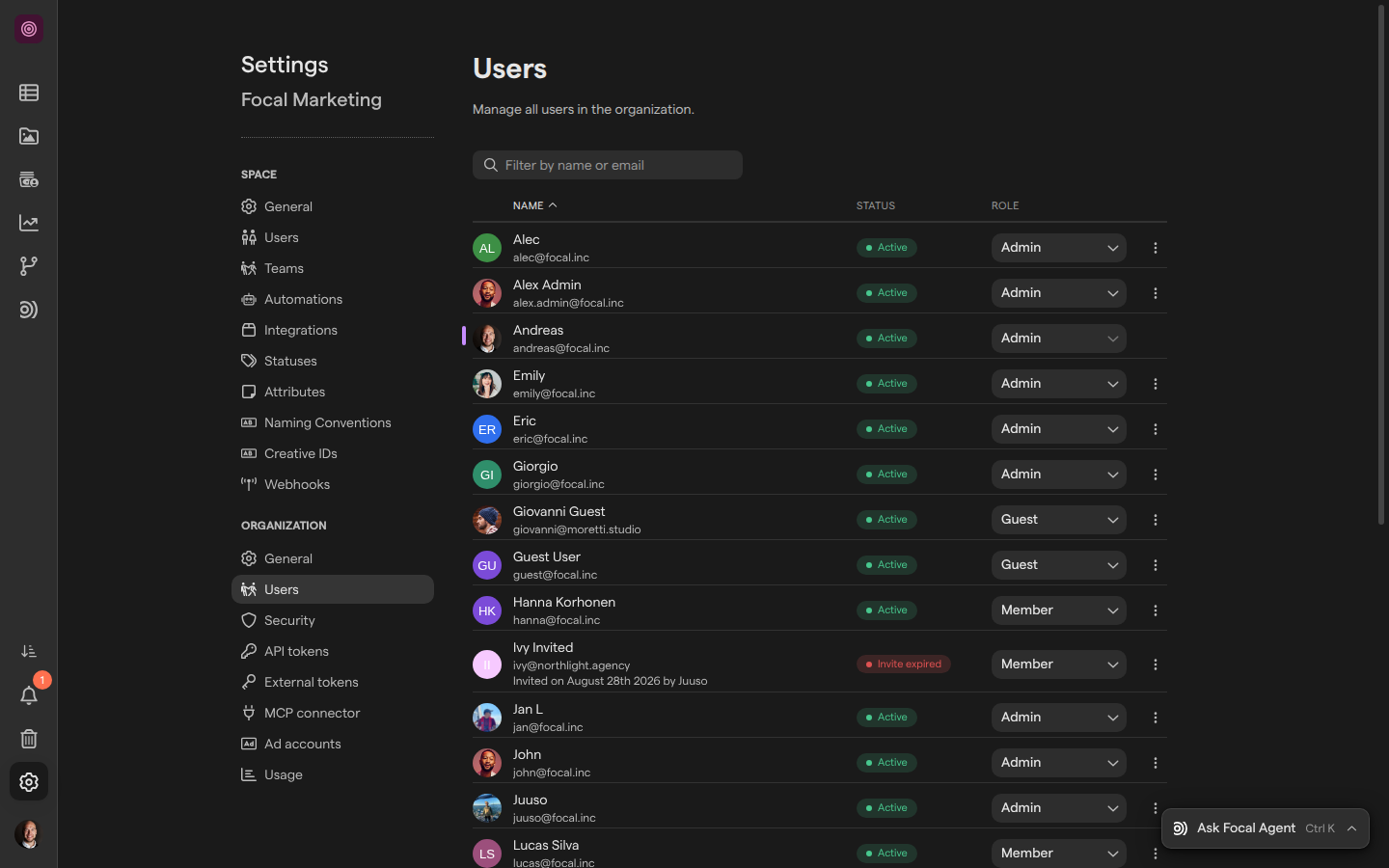
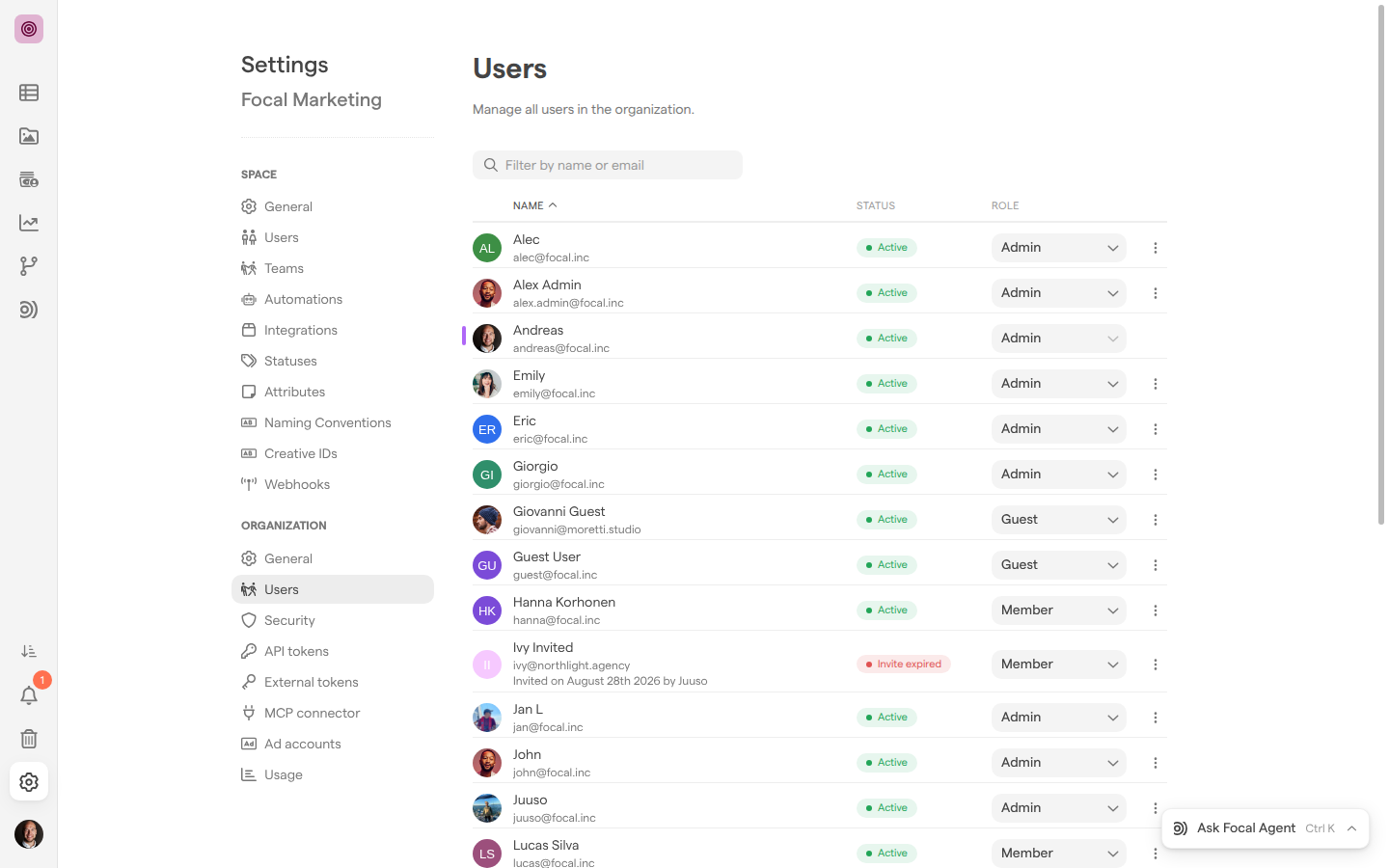
See who is in the organization
The list on the organization’s Users page shows every person in the organization, including invites that have not been accepted yet. Each entry has the person’s name and email address, a status and an organization role. An invite that has not been accepted also says when it was sent and by whom, as in “Invited on August 28th 2026 by Juuso”.
The status tells you whether the person uses Focal:
| Status | Meaning |
|---|---|
| “Active” | The person has signed in. Hover over the status to see when they last did |
| “Inactive” | The person has not signed in for more than 90 days |
| “Invited” | The invite has been sent and not accepted yet. Hover over the status to see when it expires |
| “Invite expired” | The invite was not accepted within 30 days and no longer works |
To find someone, type part of their name or email address in “Filter by name or email”, which appears once the organization has more than five people. If no one matches, the list says so, for example “No users match “anna”“. Select the Name, Status or Role heading to sort the list by that column; select it again to reverse the order.
Invite people to the organization
Inviting someone to the organization happens from a space, because every new person joins through at least one space.
- Open Space Settings → Users, in the space part of the settings menu (Users settings).
- Select “Add existing users or invite new users by email” and type the person’s email address.
- Select
Invite "<their email>". TheAdd new users to <space name>dialog opens. - Pick their space role: Space owner, Member or Guest.
- Choose Invite as organization member.
- Select Add.
The dialog opens with Invite only to this space selected. The option you choose sets the person’s organization role:
- Invite only to this space: the person joins the organization as a Guest and can open only the spaces they are added to.
- Invite as organization member: the person joins the organization as a Member and can open every public space in it. Only organization admins see this option.
Their space role is the one picked in the dialog’s role list, which starts on Member, whichever option you choose. The whole invite dialog, including the email message the person receives, is described in Space settings: Users.
A new person appears on the organization’s Users page with the status “Invited” until they accept. To make someone an organization admin, invite them as a member first, then change their organization role.
Change someone’s organization role
A person’s organization role decides what they can do across the whole organization, from managing its settings to working only in the spaces they were invited to. The list on the organization’s Users page offers three roles, each with a short description:
- Admin: “Can change organization settings and manage spaces, users”
- Member: “Can collaborate, own spaces and join any public space”
- Guest: “Can only collaborate on selected spaces (by invitation)”
To change a role:
- Open Space Settings → Organization → Users.
- Find the person, and select their current role at the end of their entry.
- Pick the new role.
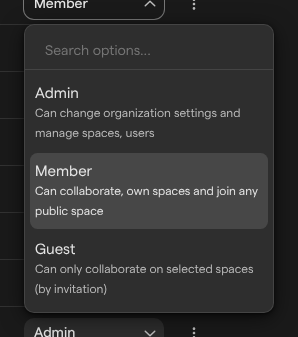
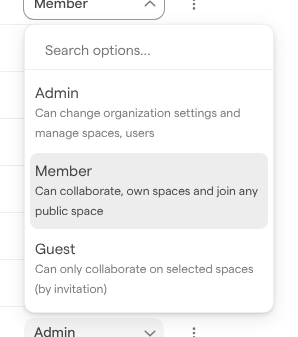
The change is saved at once, with no confirmation. Your own role is greyed out, so another organization admin has to change it. Changing someone’s organization role does not change their role in any space; set that in Space settings: Users.
Resend an invite
An invite to Focal expires 30 days after it is sent, and its status on the organization’s Users page changes to “Invite expired”. Resending the invite sends the person a new email and gives them another 30 days, with the same role.
- Open Space Settings → Organization → Users.
- Select the ⋮ menu at the end of the person’s entry.
- Select Resend invite.
Focal confirms with Invite to <their email> reactivated. Resend invite is shown only for people who have not accepted their invite yet, whether it is still open or has expired.
Remove someone from the organization
Removing a person from the organization takes away their access to Focal for your organization. It also removes them from every space in the organization, so they lose access to all of its spaces at once. Their Focal account itself is not deleted.
- Open Space Settings → Organization → Users.
- Select the ⋮ menu at the end of the person’s entry.
- Select Remove from organization.
- Confirm with Yes, I’m sure! in the “Are you sure you want to remove this user from the organization?” dialog, or select Cancel to keep them.
Note: Removing someone from the organization is permanent. Inviting the person again brings them back to the organization, but not to their earlier spaces: add them to each space again in Space settings: Users.
Your own entry has no ⋮ menu, so another organization admin has to remove you. To take someone out of one space only and keep them in the organization, use Remove from space in Space settings: Users instead.
Who can manage the organization’s users
The organization’s Users page is open to organization admins only. Members and guests don’t see the Organization group in the settings menu, and a link to the page takes them back to the space.
Organization admins can change anyone’s organization role except their own, resend invites and remove people from the organization. Inviting someone as an organization member also takes an organization admin, because only organization admins see Invite as organization member when inviting from a space. Organization admins have the same rights as a space owner in every space, whatever space role the space’s Users page shows for them. For the full list of what each organization role, space role and board access level allows, see Roles and permissions.
Seats and failed invites
A seat is one person’s place in your organization. Everyone on the organization’s Users page takes one, whatever their role, and pending invites count too. The seats in use are shown in Organization settings: Usage.
Seat limits are enforced only while your organization is on a trial. During a trial, inviting a new person when every seat in the trial’s allowance is in use fails: Focal shows “Failed to invite user.” and the person is not added. The trial’s allowance is shown in Your trial limits, as described in Organization settings: Usage. Adding someone who is already in the organization to another space does not take a new seat. To free a seat during a trial, remove someone from the organization, for example an invite that has expired, or contact Focal to add more seats.