Organization settings: Ad accounts
An ad account is an advertising account on an ad platform, such as a Meta ad account, that Focal reads ad performance from: campaigns, ads, spend, results and the creatives behind them. Organization admins connect ad accounts on the Ad accounts page of organization settings, and decide for each one which spaces can use it. The page opens from Space Settings → Organization → Ad accounts (Ad accounts settings).
A connected ad account belongs to the organization, not to one space. Once it is shared into a space, that space’s reports can show its performance, and the same data feeds the Ad performance reaches a value workflow trigger and the ad filters in search. Ad accounts are Meta ad accounts today.
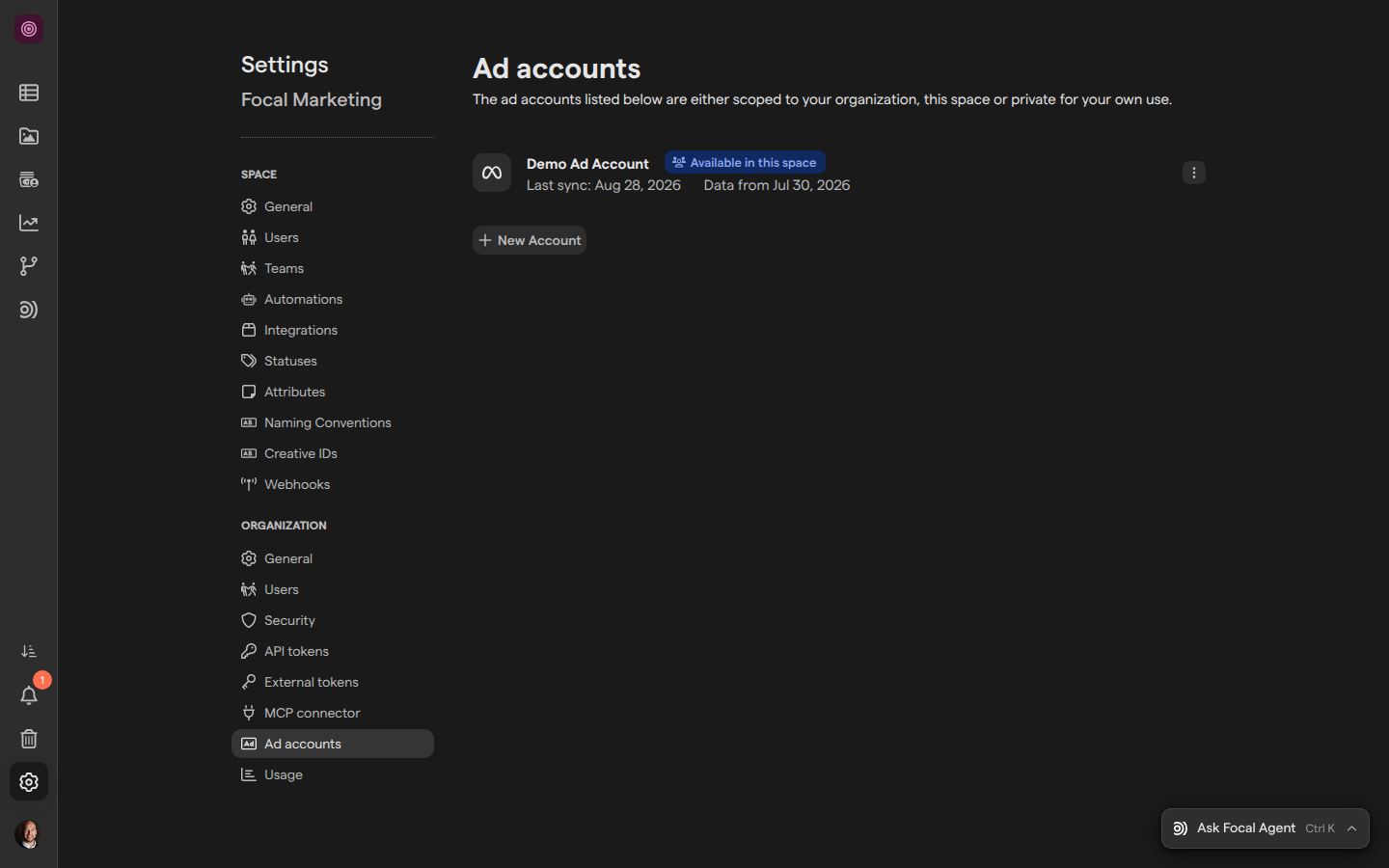
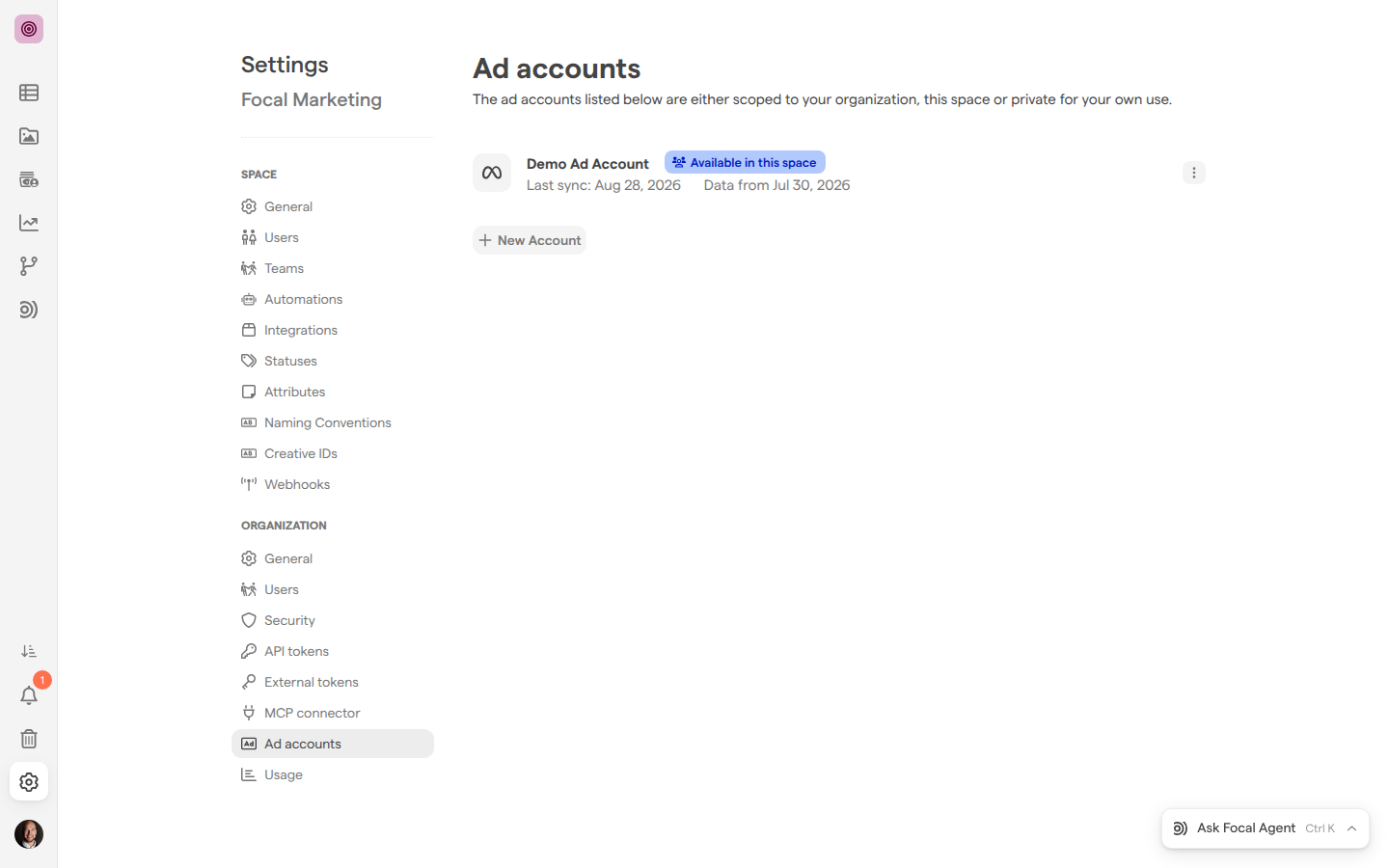
Connect a Meta ad account
Connecting a Meta ad account gives Focal read access to its ads and performance. You sign in to Meta in a separate window, pick the ad account, and choose who can use it.
- Open Space Settings → Organization → Ad accounts.
- Select New Account. The Connect to Meta dialog opens with “Connecting to Meta…”, and a Meta sign-in window opens beside it.
- Sign in to Meta in that window and allow Focal access. The window closes when you are done.
- Back in Focal, the dialog says “Choose which Meta Business Library account you want to connect.” and lists your Meta businesses. Select a business to see its ad accounts.
- Select Connect next to the ad account.
- Choose who can use the ad account (see “Choose who can use an ad account” below).
- Select Connect ad account.
The dialog closes and the ad account appears in the list. To connect another, select New Account again. An ad account the organization already has shows “Already Connected” and can’t be picked twice; a business with no ad accounts shows “No accounts found”.
If connecting fails, the dialog says “Failed to connect ad account”.
Choose who can use an ad account
An ad account’s access decides which spaces’ reports can use it. You choose it when you connect the ad account, and the person who connected it can change it later. The question in the dialog is “Who can use this ad account in reports?”, with three answers:
- Private: “Only you can connect it for use in reports.” Only you see the account, in every space, and only you can add it to a report.
- Limit to spaces: “Only the spaces you choose can use it.” Pick the spaces in “Choose spaces”. The space you are in is picked to start with.
- Organization wide: “Everyone in the organization can use it across all spaces.”
To change the access of an ad account you connected:
- Open Space Settings → Organization → Ad accounts.
- Select the ⋮ button at the end of the ad account’s entry (“Manage this ad account”).
- Select Manage access. The dialog is titled with the account’s name and “(who has access)”.
- Choose an option, and the spaces if you limit it.
- Select Save access.
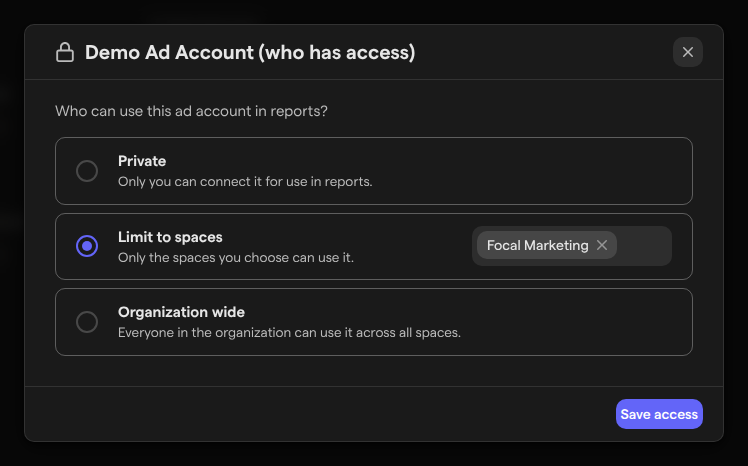
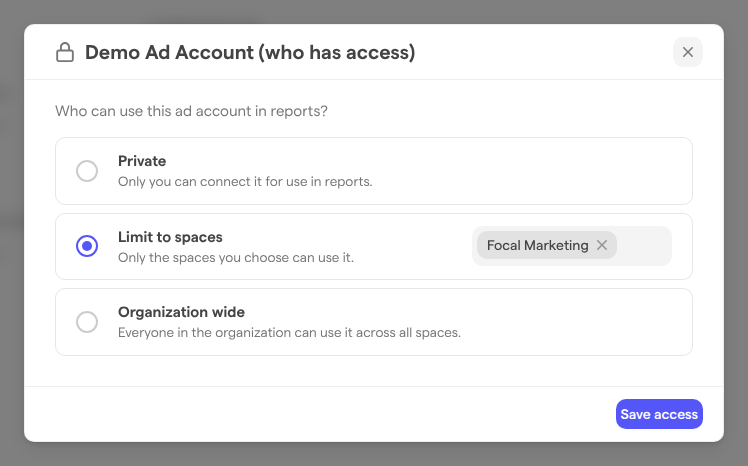
Focal confirms with “Access updated”. Save access stays unavailable while Limit to spaces has no space picked.
Review your ad accounts
The list on the Ad accounts page shows every ad account you can use in the space you opened settings from, sorted by name: the organization-wide ones, the ones shared into this space, and your own private ones. Each entry shows:
- the account’s name and the platform’s icon
- its access: “Available across all spaces”, “Available in this space”, “Available in 2 spaces” (point at it to see which), or “Only you can see this” for a private account
- “Syncing” while Focal is importing its data
- “Last sync:” with when its data was last imported, and “Data from” with the oldest day Focal has performance for
When your own connection to the account is missing, the entry shows “No active connection” (nobody has one) or “Disconnected” (someone else has one, you don’t) in place of its access. With no ad accounts yet, the page says “No ad accounts connected yet.”
Note: The list depends on the space. An ad account limited to other spaces, or another admin’s private account, doesn’t appear here; open settings from one of those spaces to see it.
Sync or reconnect an ad account
Focal imports an ad account’s ads and performance in the background, through the connections of the people who connected it. Two actions in the account’s ⋮ menu help when the data looks out of date:
- Sync now starts an import right away. Focal says “Sync started”, and the entry shows “Syncing” until it is done. The action is hidden while a sync is already running.
- Reconnect appears in place of the other actions when the entry shows “No active connection” or “Disconnected”. It opens the Meta sign-in again and restores your own connection; Focal confirms with “Ad account reconnected”.
When either fails, Focal says “Failed to start the sync.” or “Failed to reconnect ad account.”
Disconnect from an ad account
Disconnecting removes only your own connection to an ad account. The account stays in the organization with its data, and other people’s connections keep working.
- Select the ⋮ button at the end of the ad account’s entry.
- Select Disconnect.
- Confirm with Yes, disconnect in the “Disconnect your access?” dialog, or select Cancel.
As the dialog says, “Reports you own that use this ad account will stop syncing data from this account until reconnected.” Focal confirms with “Ad account disconnected”, and the entry then shows “Disconnected” or “No active connection”. Select Reconnect to connect again.
Permanently delete an ad account
Permanently deleting an ad account takes it out of the whole organization: every space loses it, and every report that uses it drops it. Only the person who connected the ad account can permanently delete it.
- Select the ⋮ button at the end of the ad account’s entry.
- Select Remove.
- Confirm with Yes, remove it in the “Remove this ad account?” dialog, or select Cancel.
Note: Permanently deleting an ad account can’t be undone. Connecting the same Meta ad account again adds it back, but its data has to be imported again. To stop only your own access, disconnect instead.
Who can manage ad accounts
The Ad accounts page is for organization admins only: Admin (an organization admin) is the organization role that sees the Organization group in Space Settings. Members and guests don’t, and being a space owner doesn’t give access to it. See Roles and permissions.
Within the page, the organization admin who connected an ad account is its owner. Only the owner sees Manage access and Remove. Any organization admin can sync, reconnect or disconnect their own connection. When another admin connects a Meta ad account the organization already has, the access they choose can add spaces or make the account organization wide, but never takes away what the owner chose.
Where ad accounts are used
A connected ad account is the source of all ad performance data in Focal. The spaces it is shared into get it in:
- Reports, where people with ownership rights in a report add ad accounts from the report’s ad accounts menu. The menu’s Connect new ad account connects one from there, and Manage in Settings opens this page.
- the Ad performance reaches a value workflow trigger, which checks the chosen ad accounts once a day
- the ad filters in search, such as Spend… and Campaign name…, which match assets linked to ads
- the Focal Agent and the MCP connector, and API tokens with the
metrics:readscope
Manage naming in the account’s ⋮ menu opens Naming & Attributes. There, Process Ads reads the account’s ad names for naming and attribute data, which reports can then use.
Sending assets to Meta or TikTok as ads is a separate feature: see Meta ads export and TikTok export.