Organization settings: Usage
The Usage page of organization settings shows how much of Focal your organization uses: how many seats are taken, how many assets the library holds, and how many automations ran this month. Each number covers the whole organization, every space together, whichever space you open the page from. Open it to see where you stand against your limits, before inviting a group of people or starting a large import.
The page is read-only. A number is shown against its limit, or against “Unlimited” when your organization has no limit for it. Only an Admin (an organization admin) can open the page.
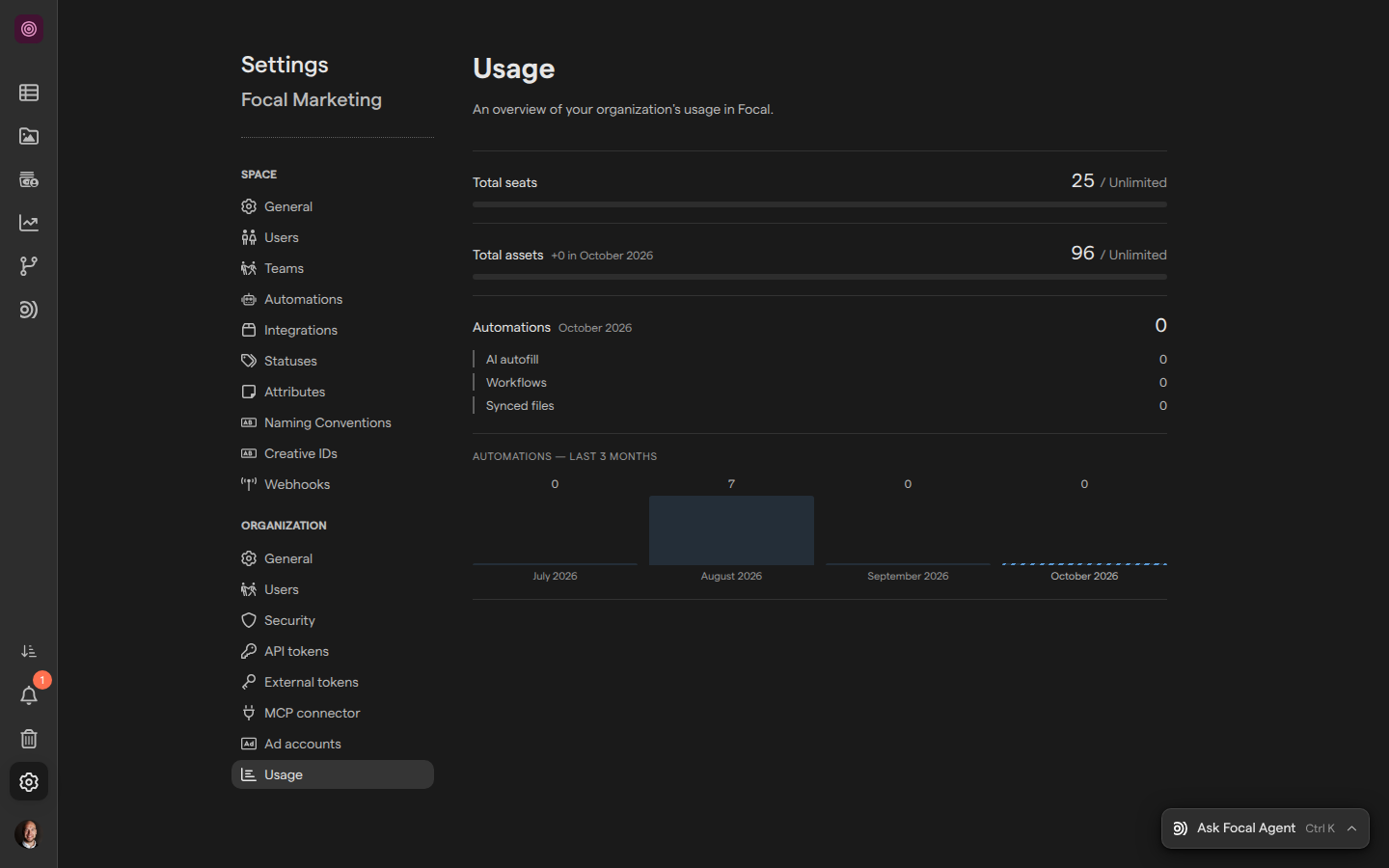
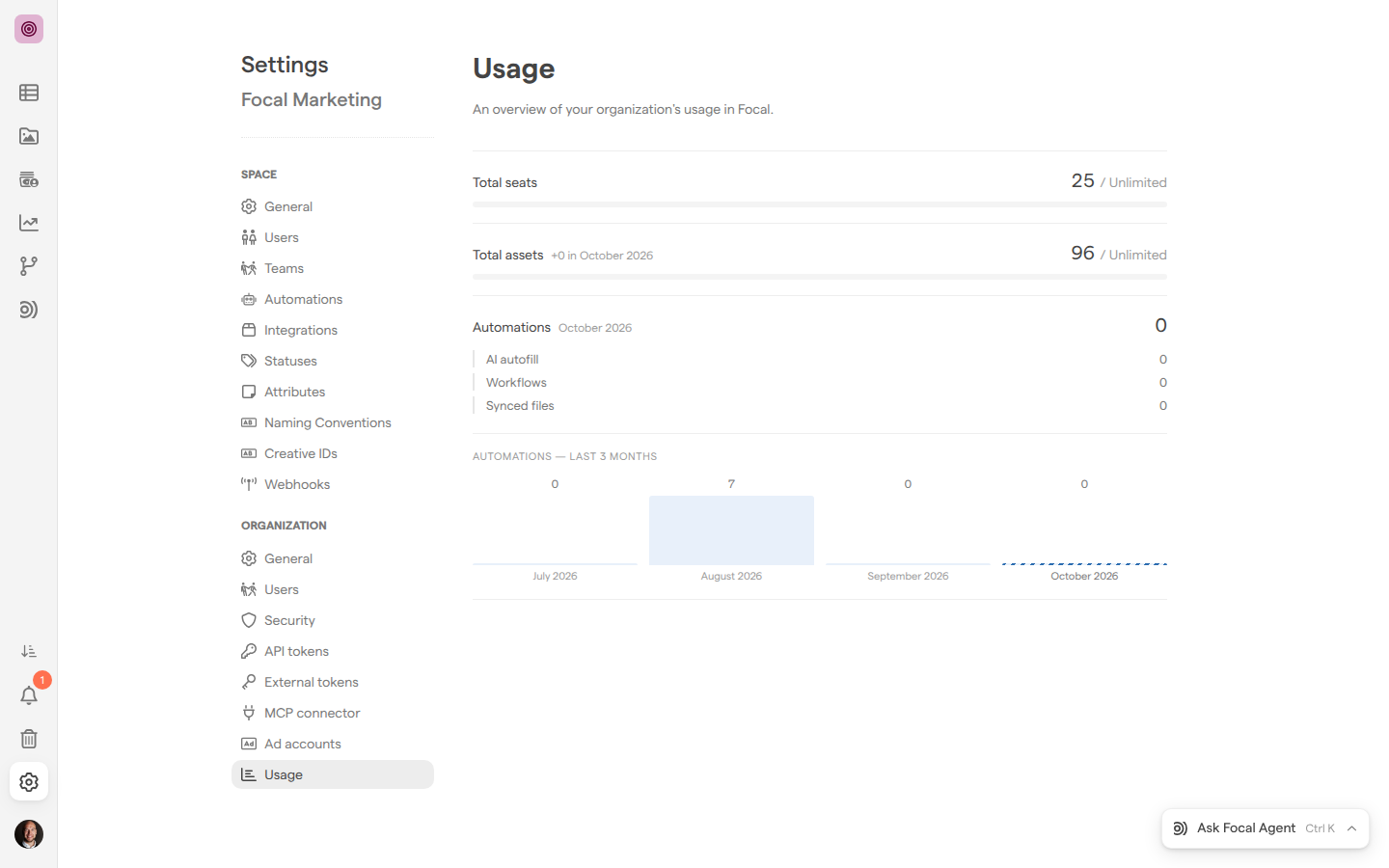
Open the Usage page
The Usage page sits in the Organization group of the settings menu, the last entry below the organization’s Ad accounts page. Only organization admins see that group.
- Open any space in the organization.
- Select Space Settings, the gear icon at the bottom of the sidebar.
- Under Organization in the settings menu, select Usage.
You can also go straight to the page with Organization usage settings. The page says “Loading…” while it counts, then shows three rows: Total seats, Total assets and Automations. If the numbers can’t be loaded, the page shows “Failed to load usage data.” with the reason in brackets; reload the page to try again.
The numbers are counted each time the page opens, so they are current as of that moment. The other pages of the Organization group are described in Settings.
Check how many seats are in use
A seat is one person’s place in your organization. The Total seats row counts everyone who belongs to the organization, whatever their role: Admin, Member or Guest. Someone who was invited and hasn’t accepted yet already takes a seat, because Focal adds a person to the organization when the invite is sent. Users that Focal creates to act for its agents don’t take a seat.
The row reads as the seats in use, then the limit: “25 / Unlimited”, for example. A person counts once however many spaces they belong to, so adding someone who is already in the organization to another space doesn’t take a new seat.
To free a seat, remove someone from the organization, for example an invite nobody accepted. People are added to and removed from the organization in Organization settings: Users.
Check how many assets the library holds
The Total assets row counts the media assets in every space of the organization. Archived assets, the ones in a space’s Trash, are not counted, so archiving an asset lowers the number and restoring it raises it again. Versions of an asset don’t count separately: an asset with three versions counts once.
Next to the label, the row shows how many assets were added in the current calendar month, such as “+12 in October 2026”. The figure counts new assets added that month and still in the library; it turns green once it is above zero. A new version of an existing asset doesn’t add to it.
The row reads as the assets kept, then the limit. Assets come into the library through uploads and through folder syncs with Google Drive or Dropbox, and both count the same way.
Check this month’s automations
The Automations row counts the work Focal did on its own in the current calendar month, named next to the label (“October 2026”). Its number is the sum of three counts, listed under it:
- AI autofill: each value AI wrote into an empty field, an asset’s Tags or Text attribute through media tagging or a board cell through boards autofill. A field filled in counts once; an asset with three attributes filled counts three.
- Workflows: each action step of a workflow that completed, such as Slack Message or Update Task. Triggers and the logic steps (Condition, Filter and Wait, see Conditions and timing) don’t count, and neither does a step that failed or was skipped.
- Synced files: each file that a folder sync with Google Drive or Dropbox linked to an asset in Focal for the first time that month. Later changes to the same file are not counted again.
The count starts again at zero on the first of each month. When your organization has a limit for automations, the row shows it after the number and draws a bar; with no limit, the row shows the number alone. Workflow runs and their steps are described in Workflow runs.
Compare automations by month
The chart under the Automations row, “Automations — last 3 months”, shows the automations total for each of the last three full months and for the current month, one bar per month. The current month is the last bar, drawn striped because the month is not over yet. Each bar is labelled with its month and topped with its total, and the tallest bar sets the scale.
Use the chart to see whether automation use is growing before it reaches a limit, for example after you publish a new workflow or turn on autofill for another attribute.
When a usage number reaches its limit
The bars on the Usage page show how close each number is to its limit. A bar is green, turns amber at 75% of the limit and red at 90%. A number with no limit shows “Unlimited” and its bar stays empty. The Usage page reports usage; it doesn’t stop anyone from working.
During a trial, Focal enforces the trial’s allowance for seats, assets and storage:
- Inviting a new person when every seat is in use fails: Focal shows “Failed to invite user.” and the person is not added.
- Uploading past the asset or storage allowance fails with “Your trial’s upload limit has been reached.” or “Your trial’s storage limit has been reached.”, and Focal opens Your trial limits with your usage.
A trial’s allowance is shown in Your trial limits, which also opens from the trial card in the sidebar (“Trial ends in …”). Automations have no trial allowance. To raise a limit, get in touch with Focal.
Who can see usage
The Usage page is open to organization admins only. An organization admin sees the Organization group in the settings menu of every space and can open the Usage page from any of them; the numbers are the same everywhere.
Members and guests of the organization don’t see the Organization group. If they follow a link to the Usage page, Focal takes them back to the space instead, without an error message. Being a space owner doesn’t open the page either: a space owner who is a Member of the organization manages that space’s settings, not the organization’s.
To let someone check usage, make them an Admin in Organization settings: Users. For what each organization role, space role and board access level allows, see Roles and permissions.