Publishing and versions
Publishing is how a change to a workflow goes live. Every workflow has a draft, where your edits on the canvas are saved as you make them, and a published version, the one its trigger actually runs. Nothing you change in the editor affects what the workflow does until you publish the draft.
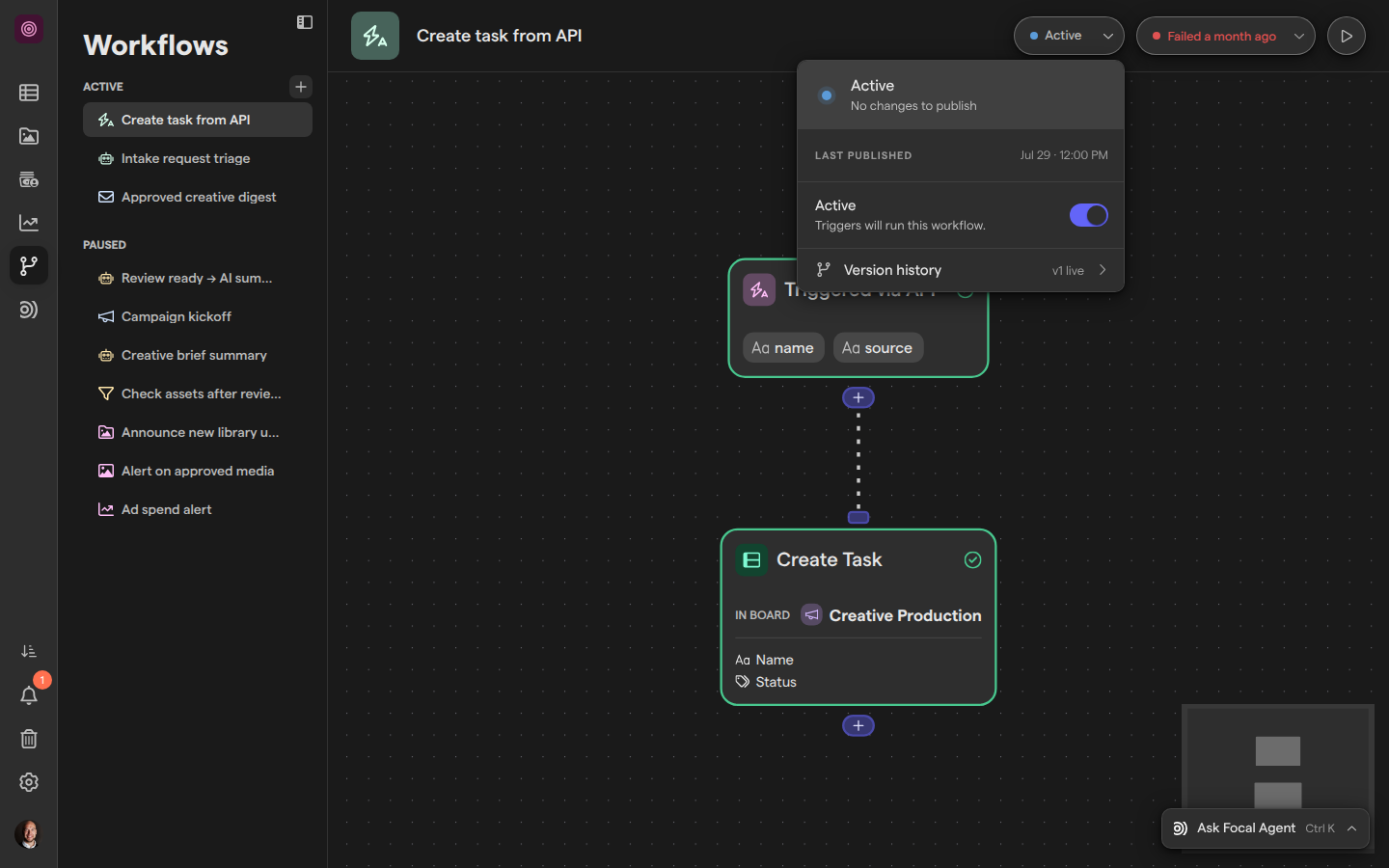
Each publish creates a new version of the workflow, and the draft starts again from it. You publish, discard changes and see earlier versions from one panel, opened from the status pill in the top-right corner of the workflow editor (see Building a workflow).
Check a workflow’s publish status
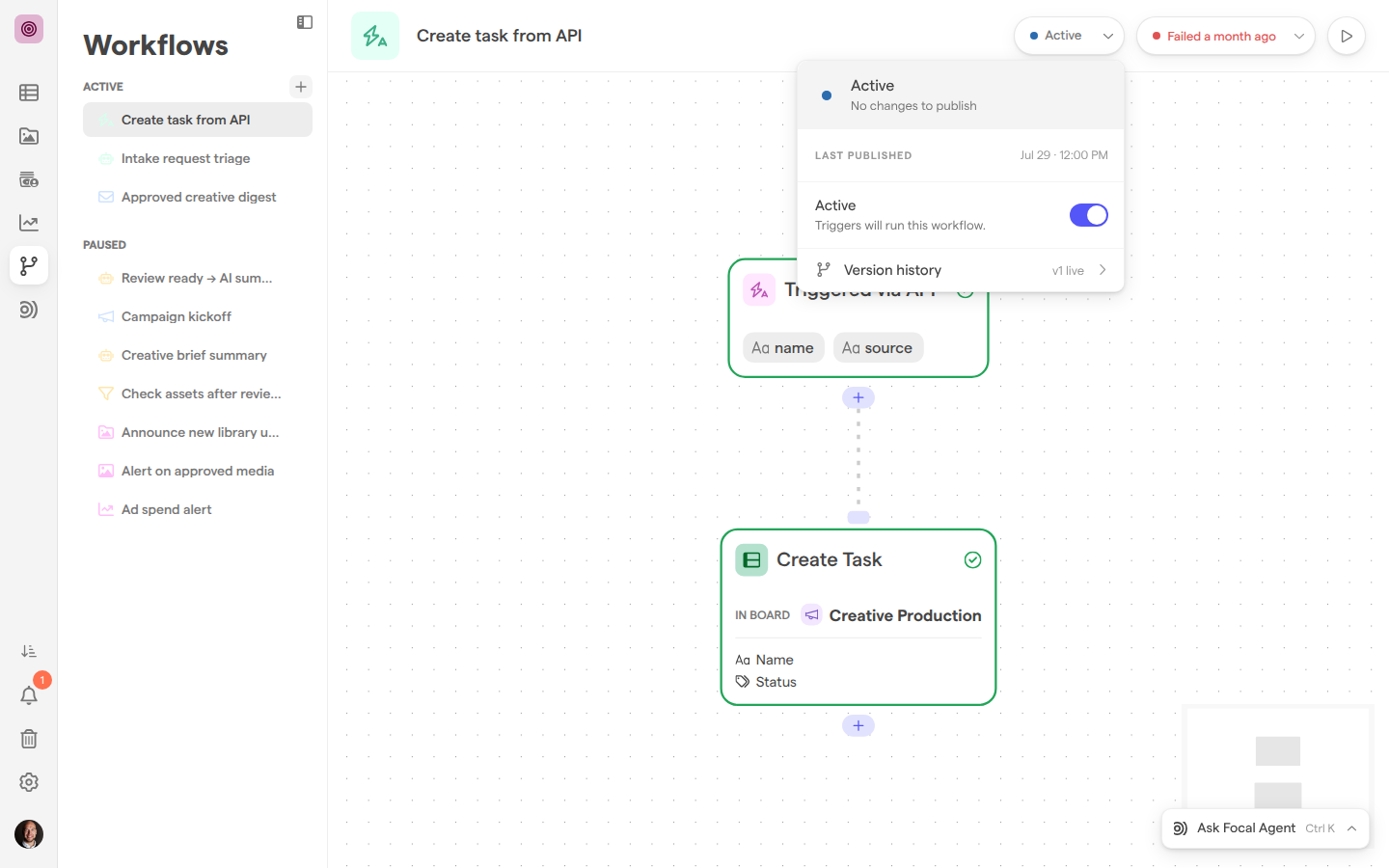
A workflow’s publish status says whether its trigger will run it, and whether the canvas shows what runs. The status pill in the editor’s header shows it at a glance; select the pill to open the publish panel with more detail.
| Pill | Meaning |
|---|---|
| Draft | The workflow has never been published. Its trigger does not run it |
| Unpublished changes | The workflow is published, and the draft has changes since then. Its trigger runs the last published version |
| Active | The draft matches the published version, and its trigger runs it |
| Paused | The workflow is published but paused. Its trigger does not run it |
When a published workflow has unpublished changes that can’t be published yet, the pill shows the number of problems instead, such as 2 issues (see Fix what blocks publishing).
The canvas repeats the state in a banner. This workflow has unpublished changes — triggers run the last published version. comes with a Publish button, which opens the publish panel rather than publishing straight away. The panel’s Last published line gives the date and time of the last publish, or “—” for a workflow that has never been published.
Publish a workflow
Publishing a workflow makes its draft the version its trigger runs. You can publish once every step is set up and the draft differs from the published version; the Publish button stays disabled otherwise.
- Open Workflows and select the workflow in the sidebar.
- Select the status pill in the top-right corner of the editor, such as Draft or Unpublished changes.
- In the panel, select Publish.
The draft becomes the new live version, and a fresh draft starts from it, so you can keep editing without affecting what runs. The pill changes to Active, or to Paused if the workflow is paused.
The first publish of a new workflow also turns it on: the workflow moves from Paused to Active in the Workflows sidebar, and its trigger starts running it. If the workflow has no name when you first publish it, Focal names it for you, and the header shows Naming workflow… while it does.
If publishing fails, Focal shows Failed to publish changes. Please try again. and the draft stays as it was.
Fix what blocks publishing
A workflow can’t be published while any of its steps has a problem, such as a step whose settings are incomplete, or a step that uses data from a step or board that no longer exists. Problems show on the step’s card on the canvas, and the publish panel lists all of them in one place.
When a workflow has problems, the panel’s heading reads Can’t publish yet, with a line such as “2 issues need fixing before this workflow can go live.” The panel splits into two tabs: Issues, which lists the problems, and Manage, which holds the disabled Publish button and the rest of the panel.
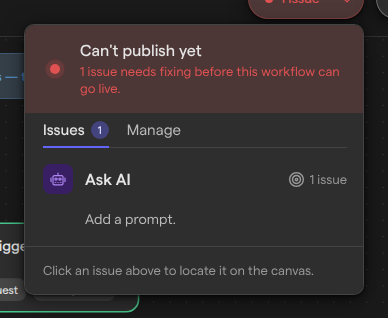
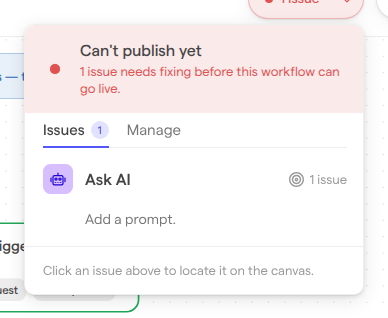
- Select the status pill. On a published workflow it shows the number of issues, such as 1 issue.
- On the Issues tab, select a step. Focal closes the panel, moves the canvas to that step and opens its settings.
- Fix the setting the issue names.
- Repeat for each step, then open the panel again and select Publish on the Manage tab.
Problems with the workflow as a whole are listed under Workflow, marked Error:. A workflow needs exactly one trigger, and it can have at most 50 steps.
A step that uses data from another step shows “This step references a variable from a step that no longer exists.” when that step was deleted, and a similar message when the step is no longer connected before it. Reconnect the steps or pick the data again (see Variables). A step whose board was deleted shows “This step references a board that no longer exists.”; choose another board in its settings. Trigger setup messages are in Triggers.
For a workflow that has never been published, the pill keeps showing Draft while you build, since unfinished steps are normal at that stage. The panel still lists the issues when you open it.
View version history
A workflow’s version history lists every version you have published, newest first, so you can see when the workflow last changed and by whom. It opens from the publish panel.
- Select the status pill in the top-right corner of the editor.
- Select Version history. The row shows the live version’s number, such as v3 live, or Not yet published.
- Select Back (the arrow in the top-left corner) to return to the panel.
Each published version is named by the date and time it was published, and under that shows its version number, how long ago it was published and the name of the person who created it. The version triggers run carries a Live tag. When the draft has unpublished changes, it appears at the top as Working draft with a Draft tag. A workflow with no versions shows No versions yet.
The list shows the 50 most recent versions. Version history is read-only: you can’t open an earlier version to see its steps or compare two versions.
Discard unpublished changes
Discarding throws away every change in the draft since the last publish and returns the canvas to the live version. Use it when an edit went wrong and you’d rather start again from what is running.
- Select the status pill; it reads Unpublished changes.
- In the panel, select Discard.
Discard takes effect at once, with no confirmation, and it can’t be undone: the discarded draft is deleted, not moved to Trash. A new draft starts from the live version.
Discard is disabled for a workflow that has never been published, because there is no published version to go back to. To start such a workflow over, delete its steps, or permanently delete the workflow, which can’t be undone (see Building a workflow). If discarding fails, Focal shows Failed to discard draft. Please try again.
Go back to an earlier version
Focal can’t restore an earlier published version of a workflow. Version history lists earlier versions, but it has no way to open, copy or republish one. Restoring an earlier version is planned, with no date yet.
What you can do:
- To undo changes you haven’t published, discard the draft (see Discard unpublished changes). The canvas returns to the live version.
- To undo a change you have already published, edit the draft back to the way it was and publish again. The result is a new version, not a restored old one.
Tip: Before a larger change to a workflow people rely on, we recommend noting down its current steps and settings, or taking a screenshot of the canvas, so you can rebuild it if you need to.
Which version runs
A workflow always runs its live version, the last one you published, never the draft on the canvas. That holds for runs started by the trigger and for runs you start with Run manually, so a manual run is not a way to test unpublished changes.
- A workflow that has never been published doesn’t run at all.
- A paused workflow doesn’t run from its trigger, but you can still run it manually.
- A run that is already in progress when you publish finishes on the version it started with.
Pause and activate a published workflow with the Active switch in the publish panel, or from the workflow’s menu in the sidebar (see Building a workflow). The switch appears only once the workflow has been published. Running a workflow and reading its run history are covered in Runs.
Who can publish
Publishing, discarding and version history are open to everyone who can open Workflows: the owners of a space and organization admins. Anyone with that access can publish or discard changes to every workflow in the space, including changes someone else made; there is no separate review or approval step.
Space members and guests who are not organization admins don’t see Workflows at all. To give someone access, make them a space owner (see Space users) or an organization admin (see Roles and permissions).