Boards
A board is a shared list of tasks in a space, where a team plans and tracks its work. A task is one piece of that work, such as a concept to produce or a page to write. Each task has a name and one value for every column of its board: its task status, its dates, the people assigned to it, its brief and the assets that belong to it. The same tasks can be shown in several board views, as a table, as Kanban lanes or on a timeline.
Boards are reached from Boards in the app’s main navigation, or through Boards. The boards sidebar lists every board you can open, with each board’s views nested under it. Each board decides who can open it and what they can do there, through its sharing. A space shows Boards only when the feature is turned on for it in the space’s settings (see Space general settings).
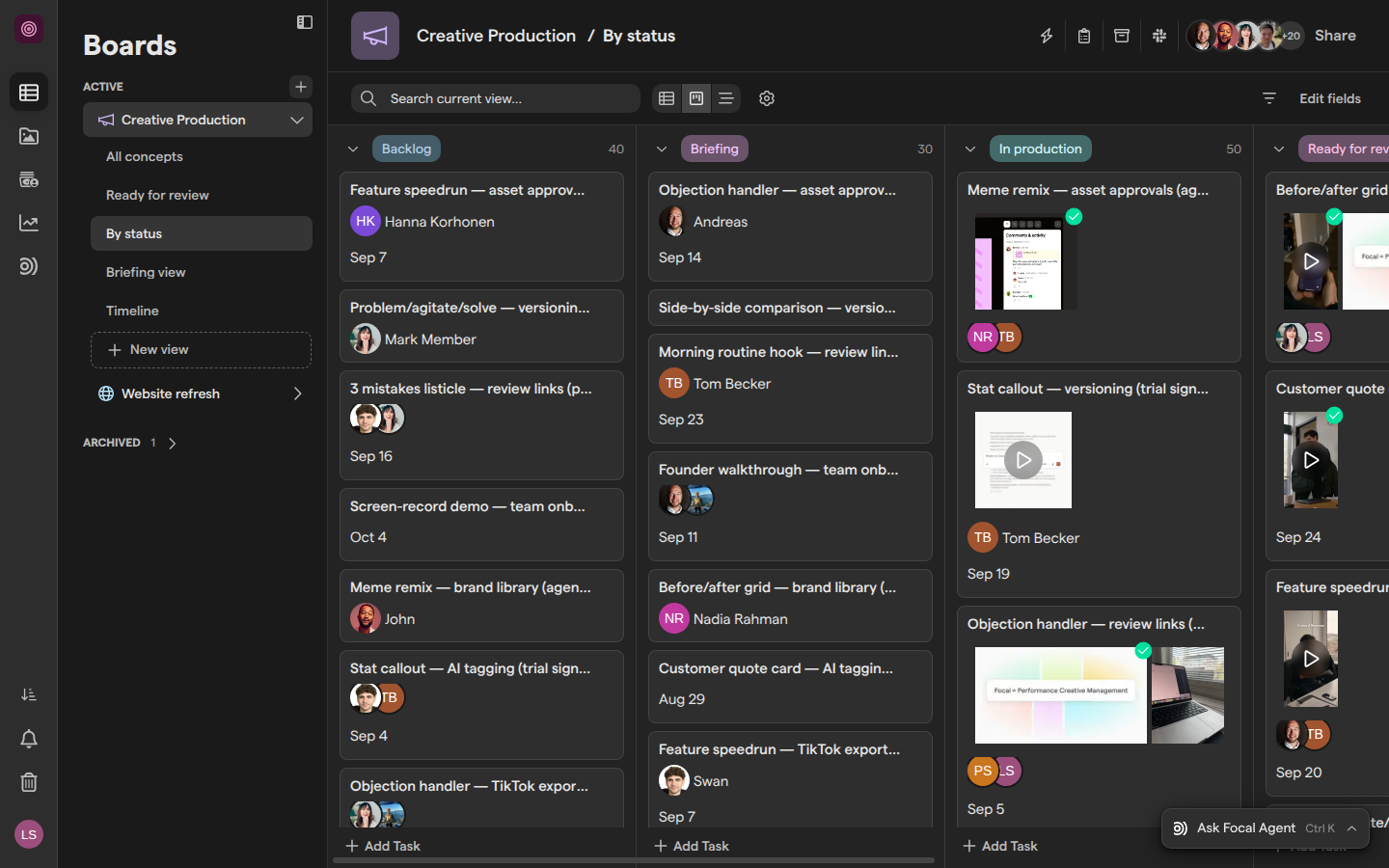
How a board is put together
A board in Focal is built from a few parts, each covered by its own article in this section:
- Tasks are the entries on the board. Every task opens into a detail view with its fields, its brief, its sub-tasks and its comments, so the conversation about a piece of work stays with it.
- Columns are the fields every task on the board has. A column’s type decides what it holds: text, dates, people, a task status, attached assets, the media attributes of those assets, or a creative ID.
- Views are saved ways of looking at the board’s tasks, each with its own filters, sorting, grouping and fields. All views of a board show the same tasks, so a change in one view shows in every other.
- Sharing gives each person or team an access level on the board or on a single view, from Full Access down to View Access.
Assets attached to a task live in the space’s asset library, so the same asset is found from the task and from the library. A board whose work is finished is archived: Archive Board moves it to the Archived section of the sidebar, where it can be restored with its tasks and views. Space owners and organization admins can also permanently delete an archived board, which cannot be undone.
What teams use boards for
Teams use boards for work that moves through stages and ends in assets. A creative team running a launch campaign keeps one task per concept on a board like Creative Production. The brief sits in the task, the finished cuts are attached to it, and the task status moves from Backlog through Briefing and In production to Ready for review. A “By status” view shows the work as Kanban lanes, and a “Timeline” view plans each concept against its start and due dates.
Boards also carry review with people outside the team. An agency or a freelancer can be invited to one board as a guest and see only that board. A client reviewing the campaign can get Comment Access to a “Ready for review” view and leave comments on the tasks and their assets, while the rest of the board stays internal. Columns such as a budget or an internal brief can be hidden from guests.
Other teams run boards for content that is not a campaign, such as a “Website refresh” board with one task per page. A board view can post its changes to a Slack channel, so a team that works in Slack follows new tasks, task status changes and comments without opening Focal. For automation beyond notifications, we recommend Workflows.
Articles in this section
| Article | What it covers |
|---|---|
| Managing boards | Create a board, find it in the boards sidebar, rename it, duplicate it, and archive or restore it. Space owners and organization admins can permanently delete an archived board |
| Tasks | Add tasks, open their detail view, attach assets, set a task status, comment, duplicate, archive, restore and permanently delete tasks |
| Columns | The column types, adding and editing columns, attribute and creative ID columns, hiding a column from guests, and permanently deleting a column |
| Board views | Create views, switch between Table, Kanban and Timeline, filter, sort and group tasks, choose a view’s fields, and share or permanently delete a view |
| Board automations | The legacy automations built from a board’s header, which post to Slack or put a task’s assets in a folder. They will be removed; use Workflows for new automation |
| Sharing boards | Access levels, sharing a board or a single view with people and teams, inviting someone by email, and what guests see |
| Slack notifications for boards | Connect a board view to a Slack channel, choose which changes it posts, change the channel and disconnect it |