Slack
The Slack integration connects a Slack workspace to your Focal organization, so Focal can post to its channels and send its members direct messages. Use it to keep a team that works in Slack up to date on boards and assets without opening Focal, and to send messages from Workflows.
A connected Slack workspace belongs to the whole organization: every space can use it, and an organization can connect more than one. Connecting the Slack workspace is one step; each thing that posts, such as a board view or an asset library folder, then gets its own channel. Slack is connected where it is used: a board’s Slack settings, the asset library’s Slack icon or a workflow’s Slack Message step.
Connect a Slack workspace
Connecting a Slack workspace installs the Focal app in Slack and links that Slack workspace to your organization. It happens once per Slack workspace, the first time someone in the organization connects Slack. The usual place to start is a board view:
- Open the board and the view, and click the Slack icon in the board header. Its tooltip reads “Slack Settings”.
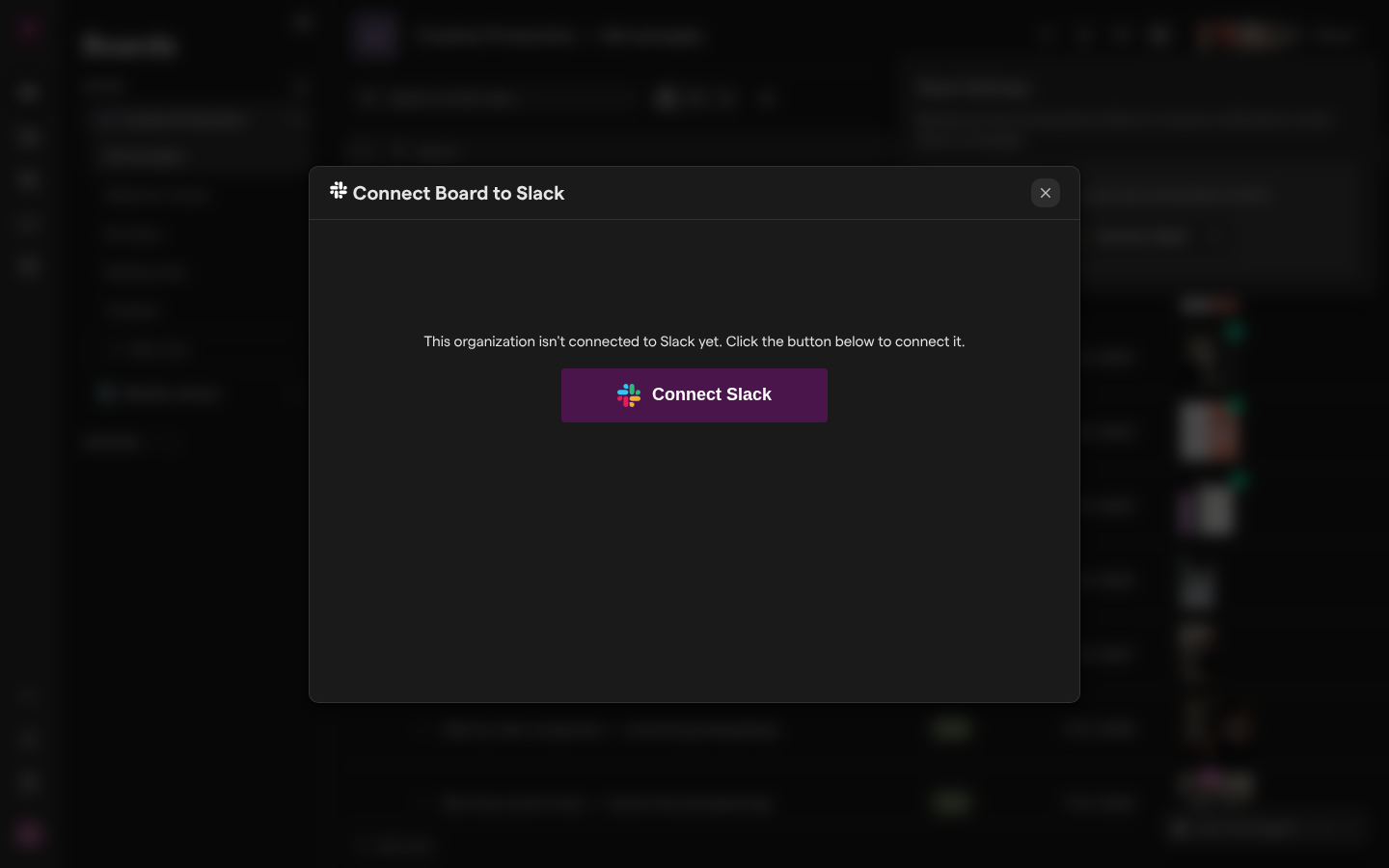
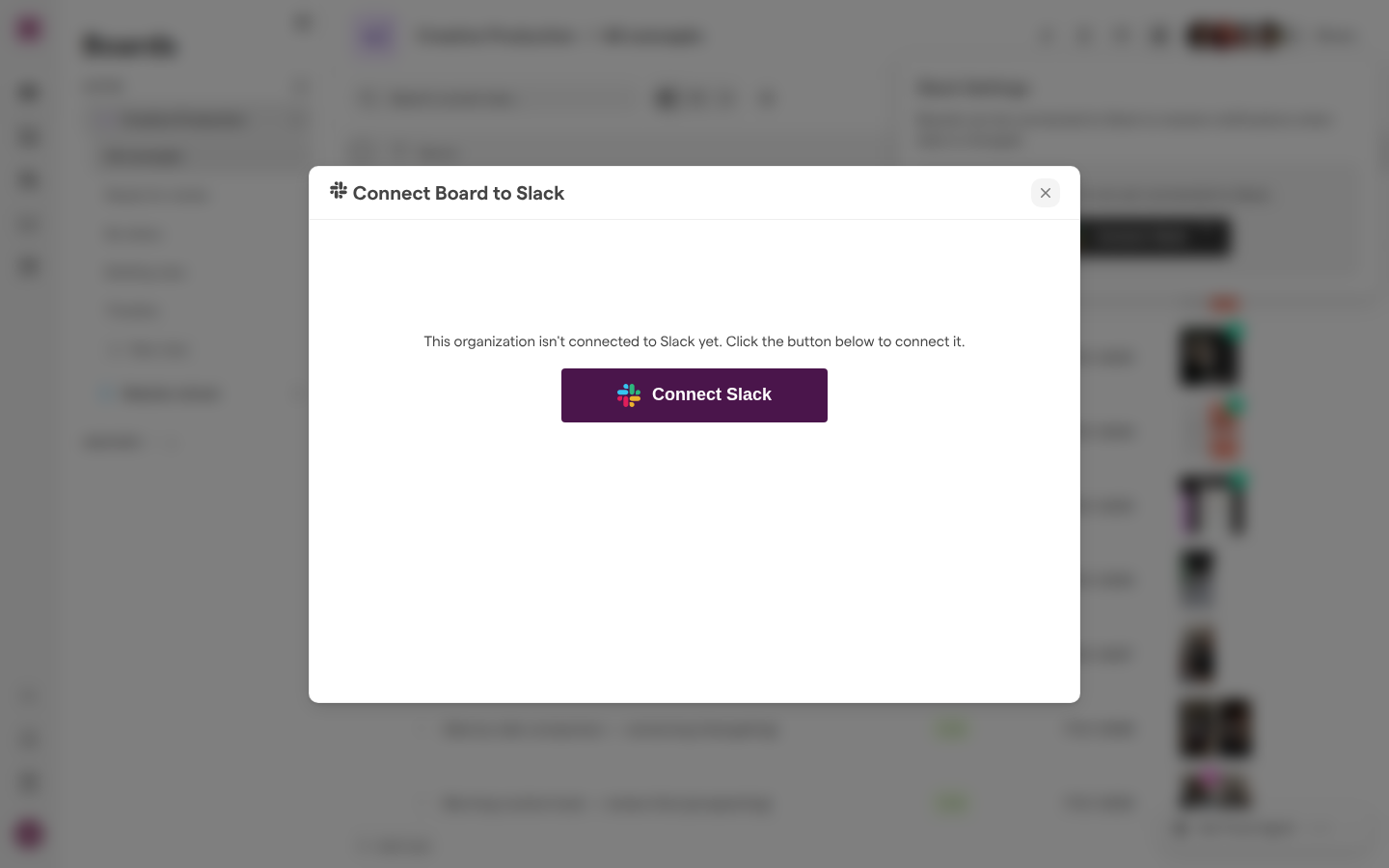
- Click Connect Slack. The Connect Board to Slack dialog opens.
- When the organization has no Slack workspace yet, the dialog says “This organization isn’t connected to Slack yet. Click the button below to connect it.” Click Connect Slack.
- On Slack’s page, pick the Slack workspace and approve the access Focal asks for.
Slack then sends you back to the board view, and the Connect Board to Slack dialog reopens on the new Slack workspace’s channels, ready for you to choose one (see “Choose a Slack channel”).
From the asset library or a workflow’s Slack Message step, Connect Slack goes straight to Slack’s page when the organization has no Slack workspace, with no dialog first. To connect a second Slack workspace, click Add Workspace under the list of Slack workspaces in the Connect Board to Slack dialog, or + Add workspace in a Slack Message step.
Choose a Slack channel
Choosing a channel tells Focal where one board view or asset library folder posts. Each of them posts to one channel, and different views and folders can use different channels in the same Slack workspace. When the organization already has a Slack workspace, Connect Slack opens the dialog on the list of Slack workspaces instead of sending you to Slack.
- In the dialog, click Connect next to the Slack workspace. Each Slack workspace shows how many boards and library folders already use it.
- Find the channel. Type in Filter channels to narrow the list.
- Click Use Channel next to the channel.
- When the dialog shows “Slack Channel Connected!”, click Close Modal.
The list holds the Slack workspace’s public channels. Focal keeps the list up to date on its own as channels are created and archived in Slack. If a channel is still missing, open the Slack workspace’s ⋮ menu next to Filter channels and choose Sync Channels / Users. A sync can be started once every three minutes; until then the menu shows how long to wait.
Archived channels are hidden. Tick Show archived slack channels to see them, marked “(Archived)”; only active channels have a Use Channel button. If picking a channel fails, the dialog says “There was an error” with the reason.
Post board changes to Slack
A board view can post to its channel when tasks are added or archived, when columns change, and when someone comments. Each view connects on its own, and a new connection posts nothing until you tick what it should post in the view’s Slack Settings. Setting this up, changing the channel and disconnecting a view are covered in Slack notifications for boards.
Post asset library activity to Slack
The asset library has its own Slack connection, for the top of the library and for each folder. A connected library or folder posts a message when an asset is added to it, with a preview of the asset, its name and an “Open in Focal” link, and posts the comments on its assets. A connection covers the assets directly in that place: the top of the library posts for the assets at its top level, and a folder for the assets directly in it. Each subfolder has a connection of its own.
- Open the asset library, or the folder.
- Click the Slack icon to the left of Add assets. The popover is titled “Library Slack Subscription” at the top of the library and “Slack Subscription for this Folder” in a folder.
- Click Connect Slack, then choose the Slack workspace and the channel (see “Choose a Slack channel”).

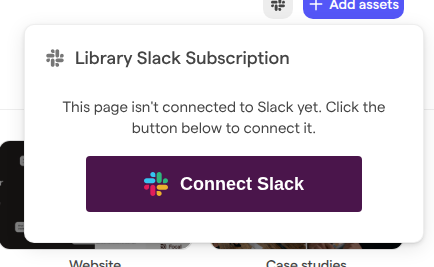
Once connected, Focal posts a first message in the channel saying it will post updates there, a check mark appears next to the Slack icon, and the popover says which channel it posts to, with Change Channel and Remove Subscription.
Send Slack messages from a workflow
A workflow’s Slack Message step posts a message to a channel or sends direct messages to people in Slack, as one step of a workflow. Its message can carry data from earlier steps, such as a task’s name. The step picks from the organization’s connected Slack workspaces, their channels and their members.
When the organization has no Slack workspace, the step shows a Connect Slack button in place of its settings, which sends you to Slack’s page. + Add workspace next to the Workspace field connects another one. Either way, Slack sends you back to the workflow. The step’s fields are described in Workflow actions.
The step needs its Slack workspace, its channel or people, and a message before the workflow runs. Running a workflow with one of them missing lists what to add, such as “Choose a Slack workspace.” or “Add a message.”
Reply to Focal comments from Slack
A comment that Focal posts to a Slack channel, from a board view or the asset library, stays tied to the comment in Focal. People in Slack can answer it without opening Focal.
- Replies: a reply in the Slack thread of a comment Focal posted is added in Focal as a reply to that comment, under the Slack user’s name followed by “(from Slack)”.
- Reactions: emoji reactions on the Slack message show on the comment in Focal, and reactions added in Focal are added to the Slack message. Only the emoji Focal supports are carried over.
- Removals: when the comment is removed in Focal, Focal removes its Slack message too.
Messages in the channel that are not replies to a Focal comment stay in Slack.
Link your Slack email
Focal matches people between Focal and Slack by email address. A mention or direct message reaches the right Slack user only when the email of their Slack account matches an email on their Focal account. When you use a different address in Slack, add it to your Focal account:
- Click your avatar at the bottom of the sidebar and choose User settings.
- Open Notifications. The Slack emails section lists your matched addresses.
- Click Add a Slack email and enter the address you use in Slack.
- Open the verification email Focal sends, and confirm.
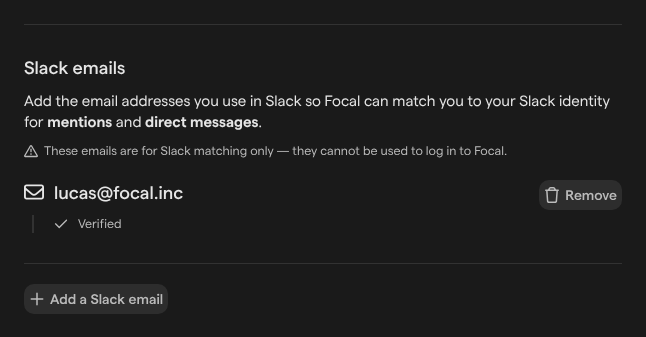
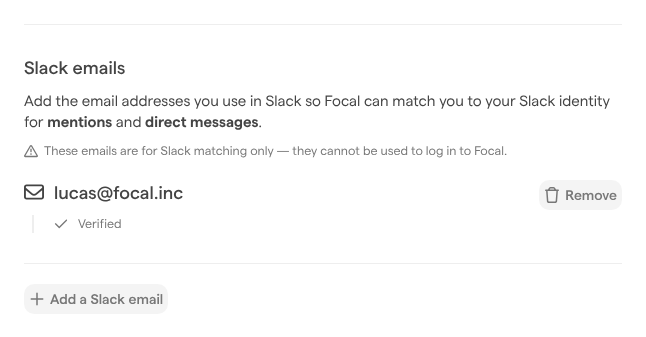
Once verified, the address shows “Linked to Slack” and Focal links it to every connected Slack workspace. Slack emails are used only for matching people with Slack; you sign in with your account email. See Notifications.
Reconnect a Slack workspace
A Slack workspace stops working in Focal when the Focal app is removed from it in Slack, or when Focal needs access Slack has not granted yet. Its connections stay in Focal but nothing is posted.
The list of Slack workspaces, and the channel list, then show “Slack has disconnected this workspace.” with a Reconnect button. A library or folder popover says “Please Reconnect Slack”, with a Reconnect Slack button. Click it and approve Focal on Slack’s page again, picking the same Slack workspace. Slack sends you back to the page you started from, and the existing connections post again.
Disconnect Slack
Disconnecting stops Focal posting to a channel. It can happen for one connection, or for a whole Slack workspace at once. Neither can be undone: to post again, connect the channel again and, for a board view, tick its options again.
- A board view: in the view’s Slack Settings, click Disconnect, then Yes, I’m sure!. See Slack notifications for boards.
- The asset library or a folder: in its Slack popover, click Remove Subscription, then Yes, I’m sure!.
- A whole Slack workspace: in the list of Slack workspaces in the Connect Board to Slack dialog, open the Slack workspace’s ⋮ menu and choose Remove Workspace. The “Remove Workspace?” dialog warns that every connection to that Slack workspace is removed; click Remove Workspace to confirm.
Note: Remove Workspace affects the whole organization: every board view and library folder in every space stops posting to that Slack workspace. We recommend Disconnect or Remove Subscription to stop a single connection. Removing the Focal app from the Slack workspace’s own app settings stops it too.
Who can connect Slack
Who can connect a channel, change it and disconnect it depends on where the connection is:
| Where | Who can connect a channel |
|---|---|
| A board view | Organization admins, and people with Full Access to the board |
| The asset library and its folders | Everyone who can open the asset library: space owners and space members |
| A workflow’s Slack Message step | Space owners and organization admins, who can open Workflows |
The people who see the Slack controls are the ones who connect a channel, change it and disconnect it. Board access levels are set when sharing a board, and roles are explained in Roles and permissions.