User settings: Preferences
Preferences are the personal settings that change how Focal looks and behaves for you alone: the first day of the week, how times are shown, whether videos start playing when you open them, and the short tutorials Focal shows the first time you use a feature. They sit on the Preferences page of your user settings, which you open from your avatar at the bottom of the sidebar. The app’s theme is chosen in the same avatar menu.
Nothing you set here changes what anyone else in your organization or space sees. Most preferences are saved to your user, so they follow you to every browser and device you sign in on. The theme and a few display choices are saved in the browser you use instead (see “Which preferences follow you and which stay in this browser” below).
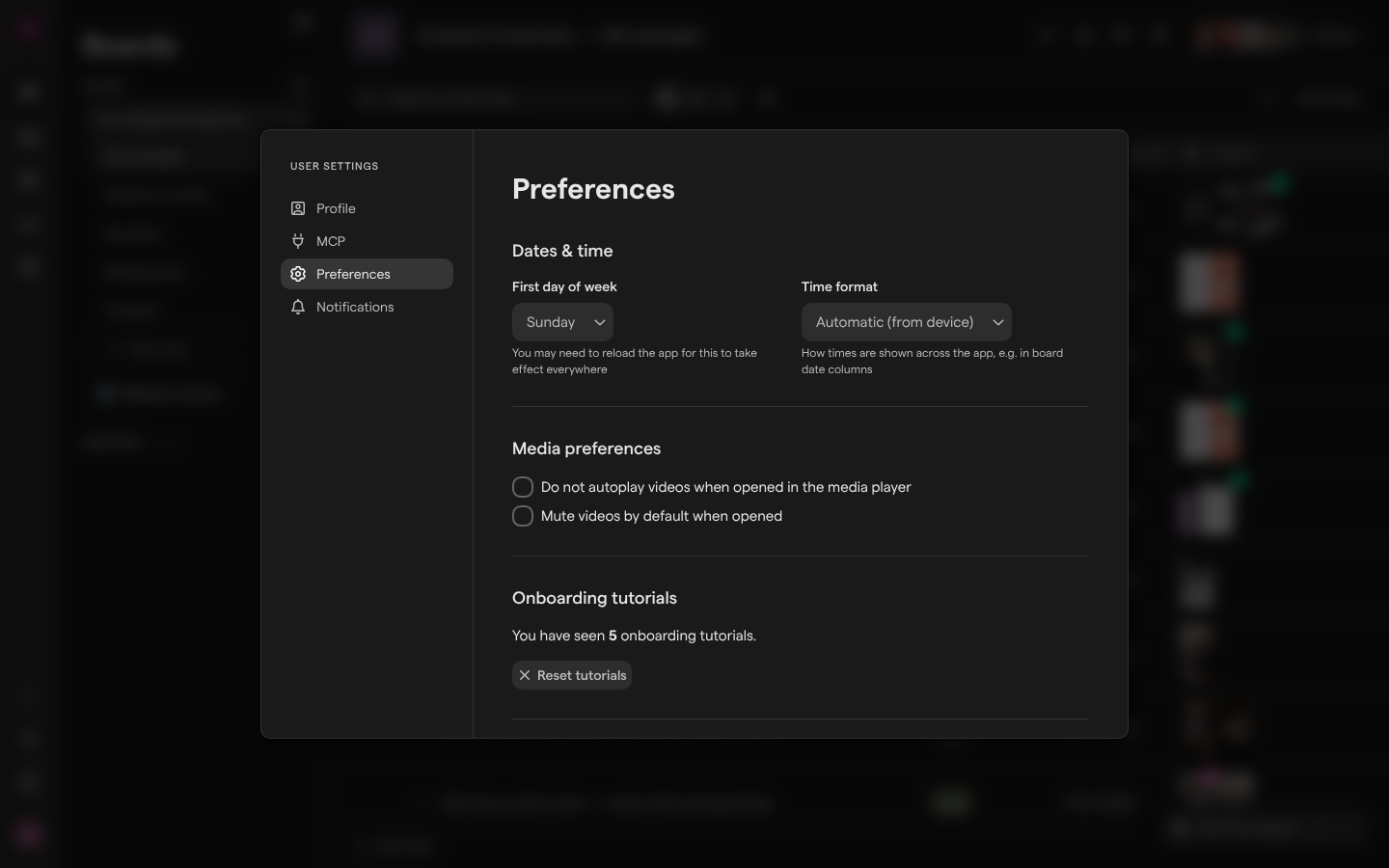
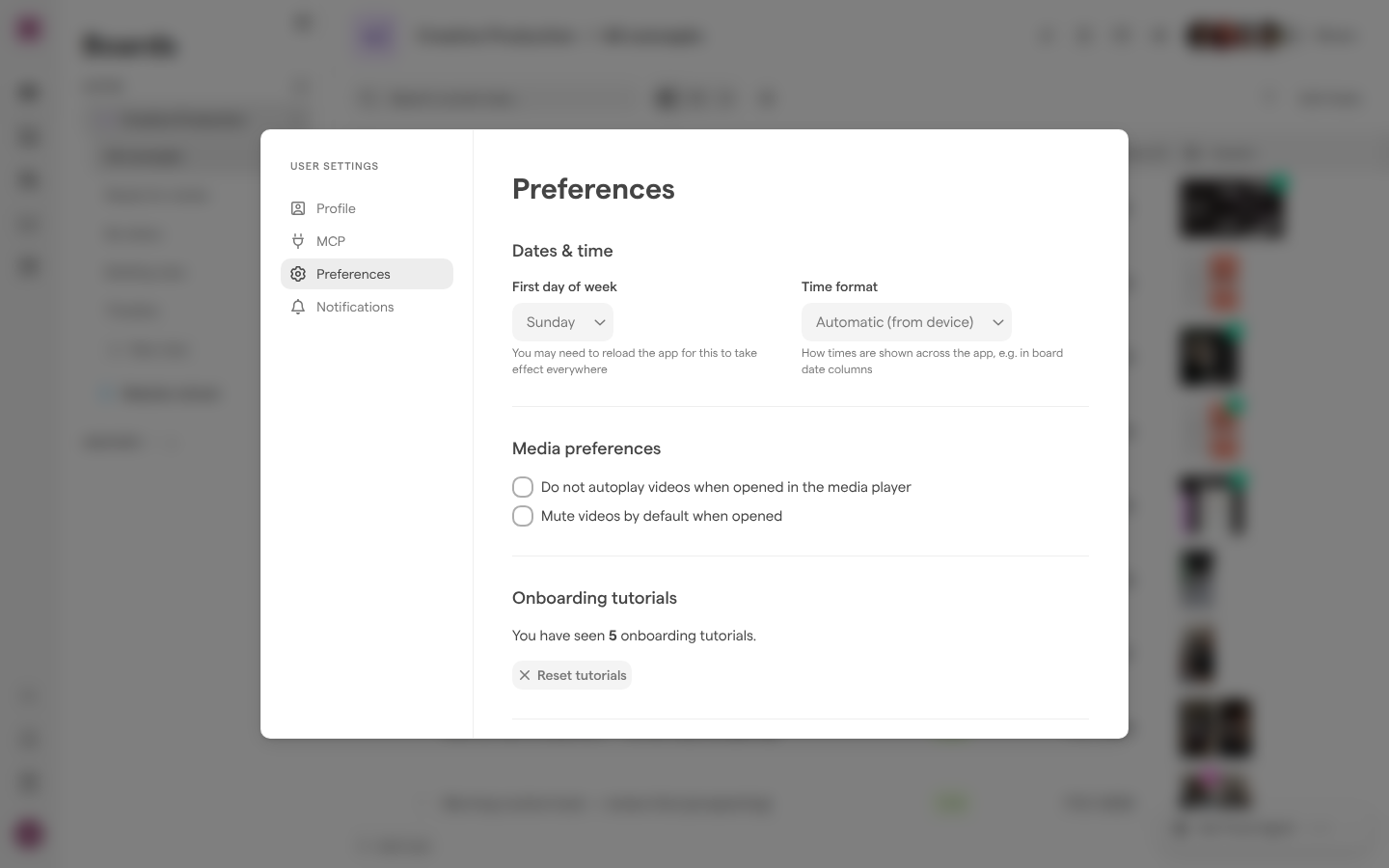
Open your preferences
Your preferences are a page of User Settings, the window that also holds your profile, your MCP connection and your notification settings. User Settings opens from your avatar, the last item in the sidebar, in any space.
- Select your avatar at the bottom of the sidebar.
- Select User settings. User Settings opens on Profile.
- Select Preferences in the list on the left.
Every change on the Preferences page saves as soon as you make it: there is no Save button. If a change can’t be saved, Focal shows “Failed to save preferences”. Press Escape to close User Settings.
The other pages of User Settings have their own articles: User settings: Profile, MCP and Notifications. For a tour of the sidebar, see Navigation.
Change the theme
The theme decides whether Focal is shown light or dark. It sits in the avatar menu rather than on the Preferences page, so you can switch it from anywhere in the app. There are three choices:
- System follows your computer’s light or dark setting, and changes when your computer does. This is the default.
- Light always shows Focal light.
- Dark always shows Focal dark.
- Select your avatar at the bottom of the sidebar.
- Open the list next to Theme. Pick System, Light or Dark.
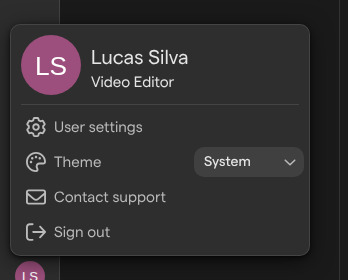
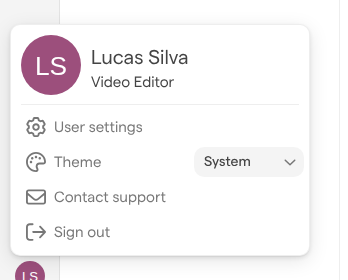
The theme changes at once. It is saved in the browser you picked it in, not to your user: another browser or computer keeps its own theme, and starts on System until you pick one there. Public pages of shared collections always use a light theme, whatever you pick.
Set the first day of the week and the time format
The Dates & time part of the Preferences page sets how Focal shows calendars and times to you.
First day of week decides which day starts the week in calendars, such as the date picker of a date field and the Timeline layout of a board. You can pick Sunday, Monday or Saturday. Until you pick one, Focal uses the usual first day for your device’s language and region, and shows that day in the field. Some parts of the app pick up a new first day only after a reload, as the page says: “You may need to reload the app for this to take effect everywhere”.
Time format decides how times of day are shown, for example in the date columns of a board that show a time:
- Automatic (from device) uses your device’s setting. This is the default.
- 12-hour (2:30 PM) always shows times with AM and PM.
- 24-hour (14:30) always shows times on a 24-hour clock.
- Open your preferences.
- Under Dates & time, pick a day in First day of week.
- Pick a format in Time format.
Choose how videos start in the media player
When you open a video asset, Focal plays it right away with sound, unless you change that under Media preferences on the Preferences page. The two settings are checkboxes:
- Do not autoplay videos when opened in the media player: videos open paused, and start when you press play.
- Mute videos by default when opened: videos start playing without sound. You can still turn the sound on in the player.
- Open your preferences.
- Under Media preferences, select the checkbox you want.
The two settings work together. When Do not autoplay videos when opened in the media player is on, Mute videos by default when opened is greyed out and can’t be changed: a video that waits for you to press play starts with sound. Both settings apply to every video you open in the media player, and follow you to every browser you sign in on.
See onboarding tutorials again
Onboarding tutorials are short tips that point out a feature the first time you reach it, such as the annotation tools in the media player (see Comments and annotations). A tip closes with Got it!, and once you have closed it, Focal does not show it to you again. The close button in the corner of a tip closes it and every other tip waiting on the same screen, and marks them all as seen.
The Onboarding tutorials part of the Preferences page says how many tutorials you have seen, for example “You have seen 4 onboarding tutorials.” To see them all again:
- Open your preferences.
- Under Onboarding tutorials, select Reset tutorials.
Focal confirms with “Onboarding tutorials reset”, and every tutorial shows again the next time you reach its feature. The reset applies to your user, so it takes effect in every browser you use. There is no confirmation step, and nothing else is reset.
Reset the preferences saved in this browser
Some of Focal’s display choices are kept in your browser’s local storage rather than on your user. The Preferences saved to browser part of the Preferences page clears them for the browser you are in. It is useful when the app keeps showing a layout you don’t want and you’d rather start again from Focal’s defaults.
- Open your preferences.
- Under Preferences saved to browser, select Reset local storage.
Focal confirms with “Local storage reset”. There is no confirmation step, and it can’t be undone, but it only resets display choices: no asset, board, task or setting of your space is touched, and you stay signed in. The reset clears everything Focal keeps in this browser, including the theme, which goes back to System the next time you open Focal. Your other browsers and devices keep their own choices.
Which preferences follow you and which stay in this browser
Focal saves preferences in two places. Knowing which is which explains why a setting can differ between your laptop and another computer.
Saved to your user, so the same everywhere you sign in:
- First day of week and Time format
- the two Media preferences checkboxes
- which onboarding tutorials you have seen
Saved in this browser only, cleared by Reset local storage:
- the theme
- how the asset library is shown: Gallery or Grid, the asset size and row height, and column widths (see Asset library)
- which sidebar sections are open or collapsed
- the space you were last in, where links from this help center open when you belong to more than one space
- your Recent searches (see Search)
- your progress on the Get started checklist, for organizations on a trial (see Getting started)
- the width of a docked task panel on a board
A private or incognito window starts with none of the browser-saved choices, and forgets them when you close it.