Space settings: Automations
The Automations page of Space Settings holds a space’s AI settings: the switch that turns AI on or off for the whole space, and the media analysis prompt, the instruction that decides what AI writes about each image and video added to the space. Workflows have their own page. The AI & Agents articles call this page “AI settings”.
Come here to turn AI off for a space that must not use it, or to steer what AI describes in your assets, for example to always name the product or the ad format. Both settings apply to the whole space and to everyone in it. Only space owners and organization admins can open the page.
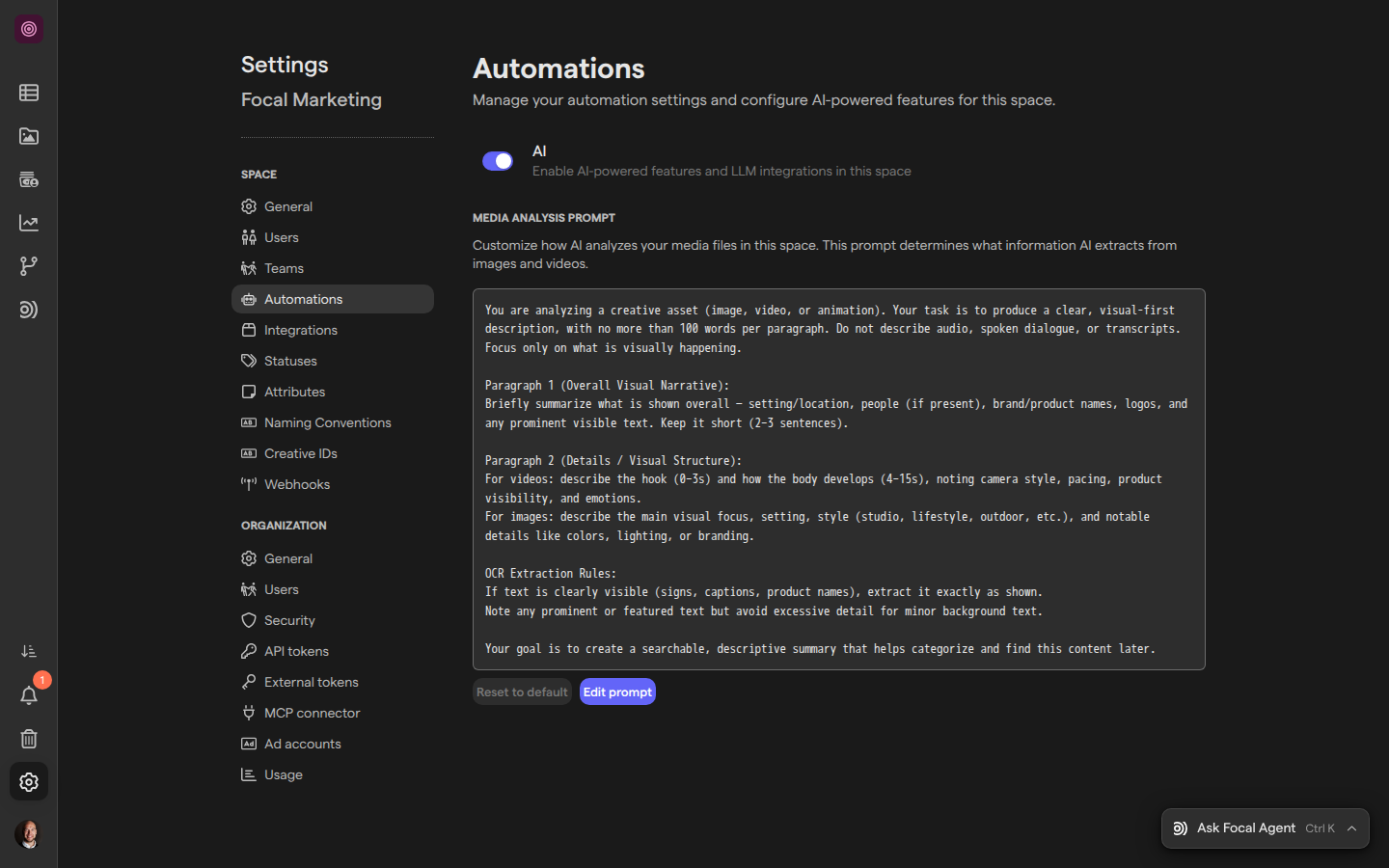
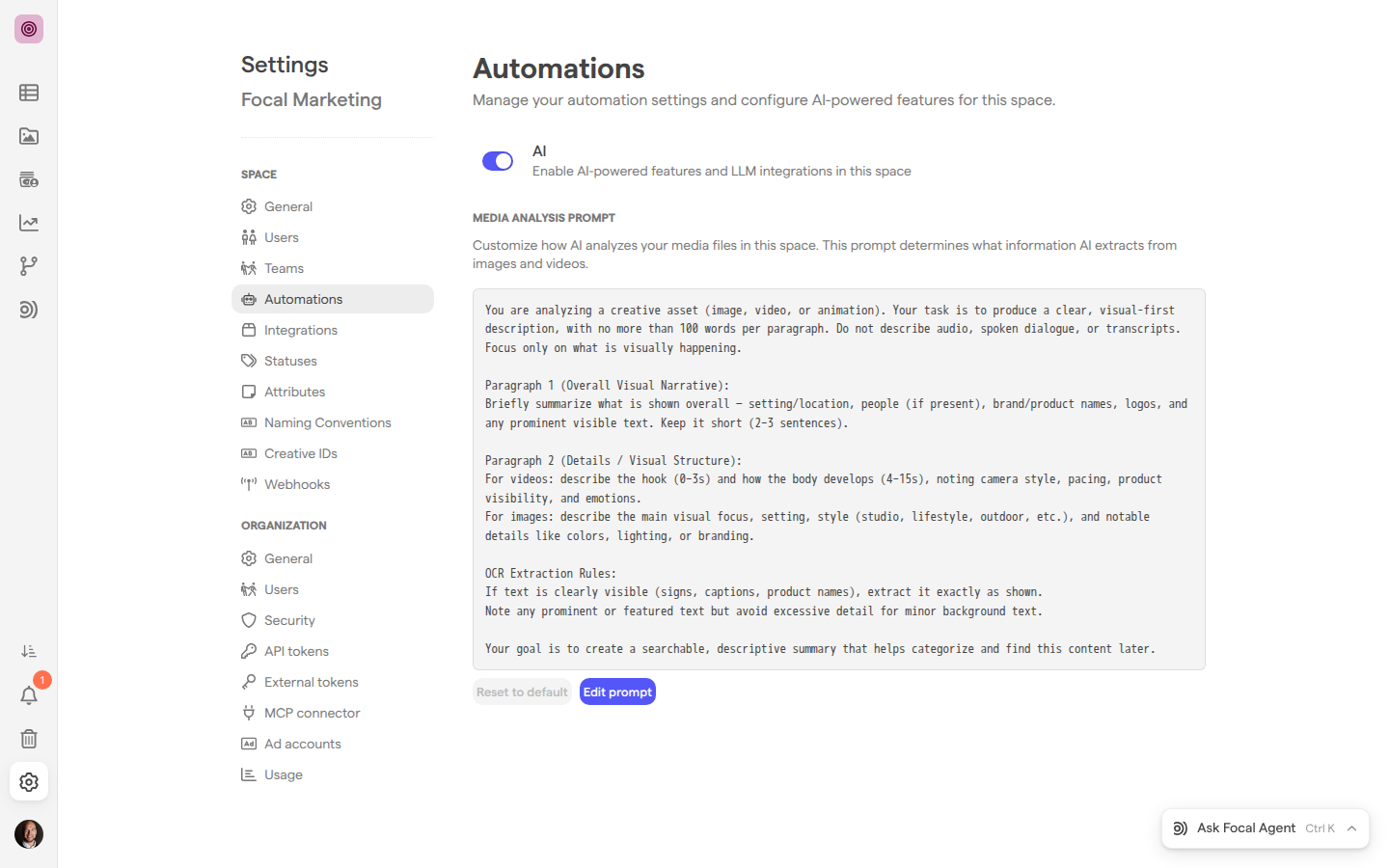
Open the AI settings
The AI settings are on the Automations page under Space in Space Settings. Space Settings always opens on the space you are in, so switch to the right space first if you belong to more than one.
- Open the space whose AI settings you want to change.
- Select Space Settings, the gear icon at the bottom of the sidebar.
- Under Space in the settings menu, select Automations.
You can also go straight to the page with Automations settings. The page opens with the AI switch at the top. While AI is on, the Media Analysis Prompt sits below it, with the prompt the space uses and the Reset to default and Edit prompt buttons. While AI is off, only the switch is shown. See Settings for the other pages of Space Settings.
Turn AI on or off for a space
The AI switch turns the AI features of a space on or off at once. Its description reads “Enable AI-powered features and LLM integrations in this space”. AI is on in a new space unless someone turns it off.
- Open the Automations page of Space Settings.
- Turn AI on or off.
The change saves at once, with no Save button, and applies to everyone in the space. While AI is off:
- Media analysis stops: assets added to the space get no summary, text, transcript or music. Turning AI back on does not go back and analyze them; only assets added from then on are analyzed.
- Media tagging and boards autofill stop, and their toggles are greyed out with the tooltip “Enable AI in the space’s Automations settings first to use autofill”. Values AI was still filling in when you turned it off are left empty.
- AI Search in the asset library matches mostly on names.
What AI already produced stays: the AI Analysis panel keeps the results of assets analyzed earlier, and filled-in attributes and task values keep their values. Autofill steps in a workflow still run while AI is off. The Focal Agent and the MCP connector have their own switches and are not affected.
Read the media analysis prompt
The media analysis prompt is the instruction AI follows when it describes an image or video during media analysis. Its result is the summary in an asset’s AI Analysis panel, and the AI Description that autofill prompts can reference.
The prompt is shown under Media Analysis Prompt on the Automations page, which describes it as “Customize how AI analyzes your media files in this space. This prompt determines what information AI extracts from images and videos.” The box always shows the prompt the space uses now:
- If someone has saved a prompt for the space, the box shows that prompt and Reset to default is available.
- Otherwise the box shows Focal’s default prompt, and Reset to default is greyed out.
The default prompt asks for a visual-first description in two short paragraphs: an overall summary of the setting, people, brand and product names, logos and prominent text, then the details, such as a video’s hook and pacing or an image’s style and lighting. It leaves out audio and speech, which media analysis puts in the transcript instead. The prompt section is hidden while AI is off for the space.
Edit the media analysis prompt
Editing the media analysis prompt gives the space its own prompt in place of the default. Use it to make AI describe what your team searches and filters on, for example the product shown, the ad format or the campaign.
- Open the Automations page of Space Settings.
- Under Media Analysis Prompt, select Edit prompt. The Edit AI Analysis Prompt dialog opens with the current prompt in the field.
- Change the prompt, or replace it with your own.
- Select Save changes.
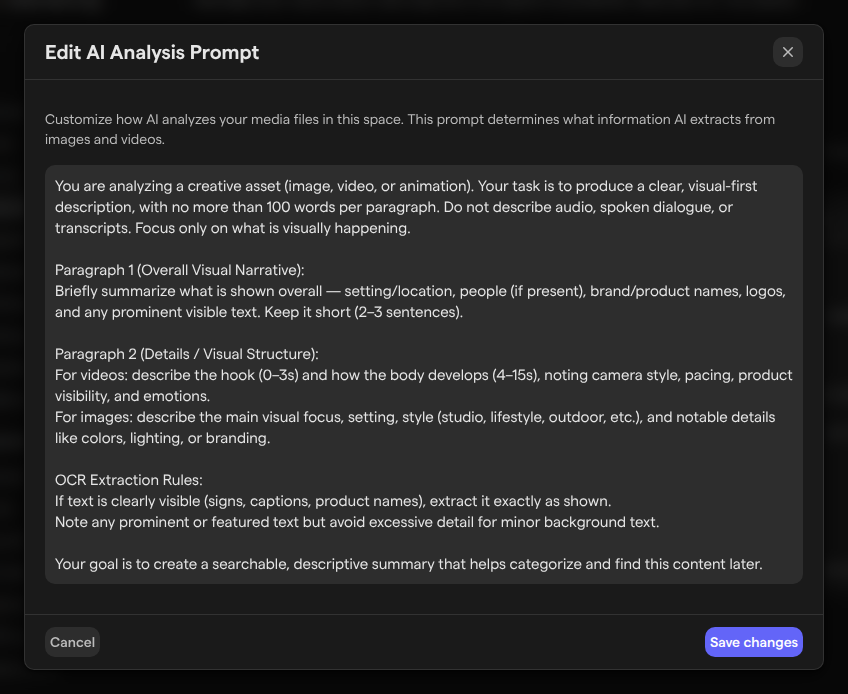
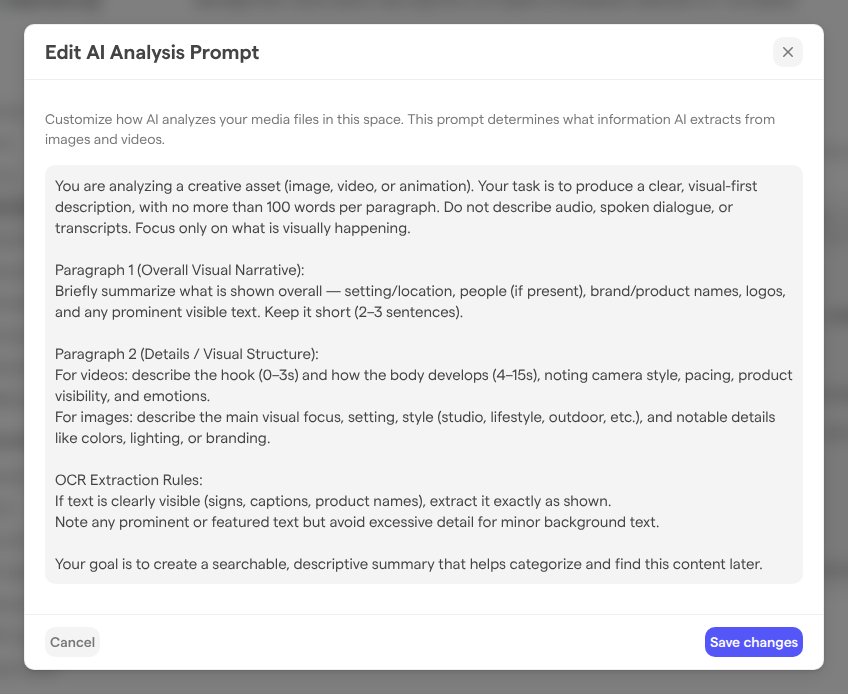
To close the dialog without saving, select Cancel. If you close it with Escape or the close button after changing the text, Focal asks “You have unsaved changes. Are you sure you want to close?” first. Saving an empty field puts the space back on the default prompt.
Tip: The summary in an asset’s AI Analysis panel shows only the first paragraph of what AI writes. We recommend keeping the short overall description in the first paragraph of your prompt, as the default does, and asking for details after it.
Reset the prompt to the default
Resetting the media analysis prompt removes the space’s own prompt, so media analysis goes back to Focal’s default. Reset to default is available only when the space has a prompt of its own.
- Open the Automations page of Space Settings.
- Under Media Analysis Prompt, select Reset to default.
- In the “Reset to default prompt?” dialog, select Yes, I’m sure!.
The dialog warns: “Are you sure you want to reset your custom AI analysis prompt? Your current custom prompt will be lost and cannot be recovered.” A reset can’t be undone. If you may want it back, copy it from the Edit AI Analysis Prompt dialog and keep it somewhere else before you reset.
Which assets a new prompt applies to
A change to the media analysis prompt, by an edit or a reset, applies to analyses that run after it. Assets analyzed earlier keep the summary they have.
Media analysis runs when an asset is added to the space, by uploading it or through an integration, and when a new version replaces it. So an asset gets a summary written with the new prompt when it is added, or when a new version is uploaded.
Because autofill prompts can reference the AI Description, a new media analysis prompt also changes what media tagging and boards autofill read from the assets analyzed after the change.
Who can change AI settings
AI settings can be changed by a space’s space owners and by organization admins. An Admin (an organization admin) has the same rights as a space owner in every space, so organization admins can open the Automations page of any space they are in. See Roles and permissions.
Members and guests of a space don’t see Space Settings in the sidebar, and a link to it takes them back to the space. When AI is off, they see its effects instead: greyed-out autofill toggles, and “AI Features Disabled” with “AI features are turned off for this space. Ask a space owner to turn them on.” in the AI Analysis panel of an asset that was never analyzed. Space owners and organization admins see a link to the Automations settings there instead.
To let someone change AI settings, make them a space owner in Space settings: Users.