Versions
A version is one uploaded file of an asset. When a designer delivers a new cut of a video or a revised image, you upload it as a new version of the same asset instead of as a separate asset, so the asset keeps its name, folder, comments and place in the asset library, and every earlier file stays available.
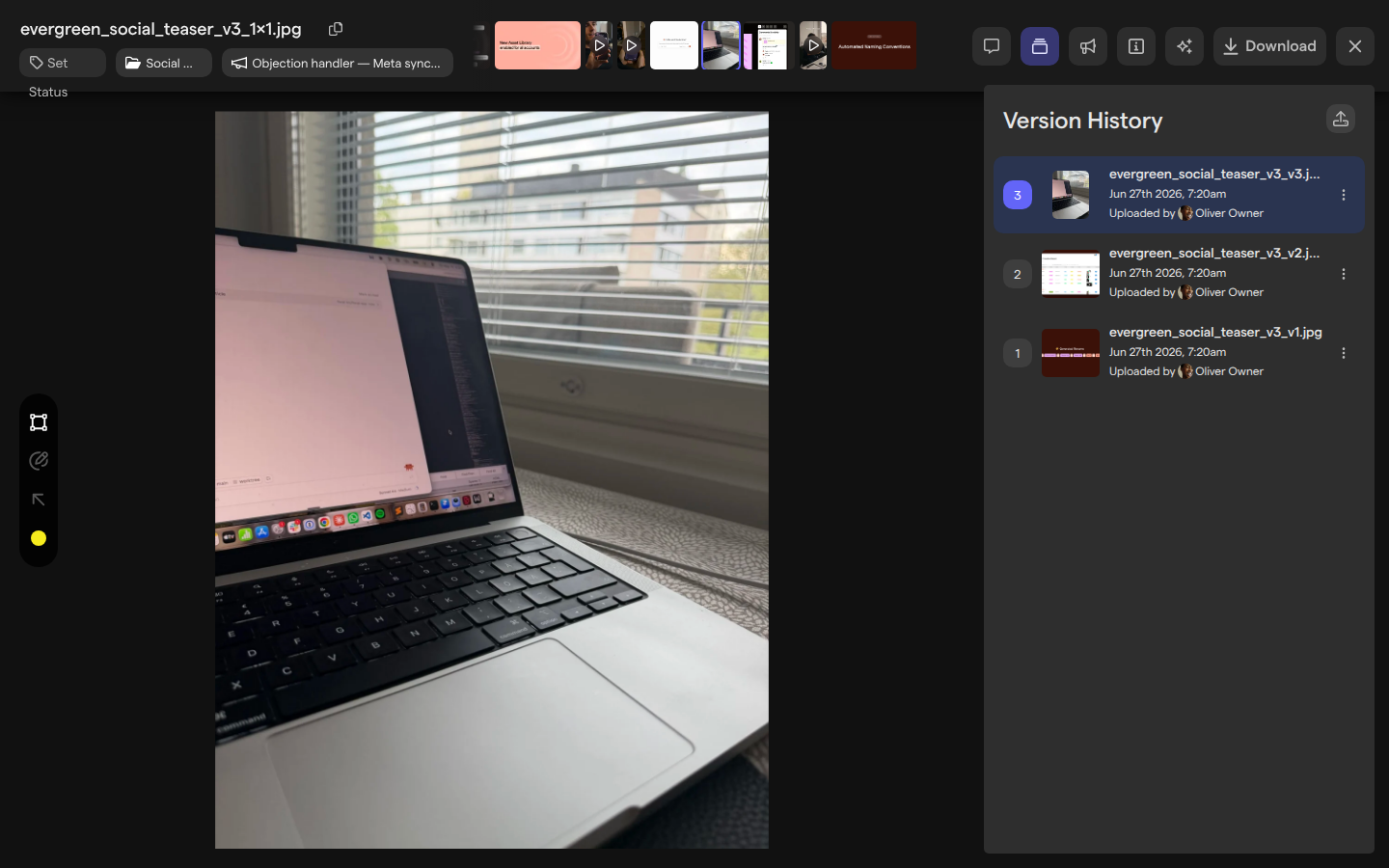
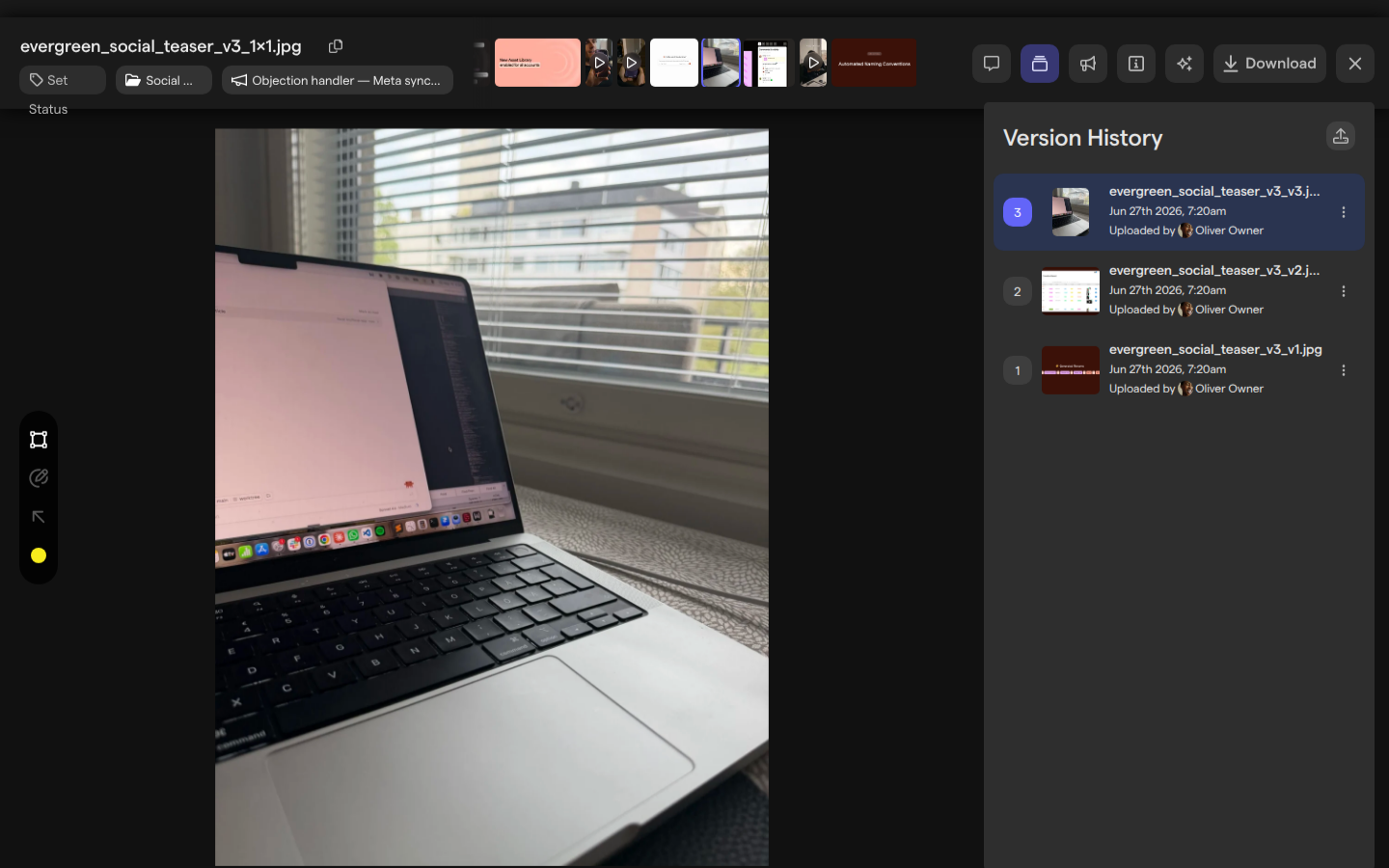
Every asset has at least one version. Versions are numbered 1, 2, 3 and so on in the order they were uploaded, and a number is never reused. One version is the current version: it is the one the library, boards and downloads show. You manage versions in the Version History panel of the asset view, where you can upload a new version, preview an earlier one, download any of them, and make an earlier version current again.
Upload a new version
A new version replaces what an asset shows without creating a second asset. The asset keeps its name, and the file you upload appears as the next number in the version list.
- Open the asset from the asset library.
- Select the Versions button in the top right of the asset view. The Version History panel opens.
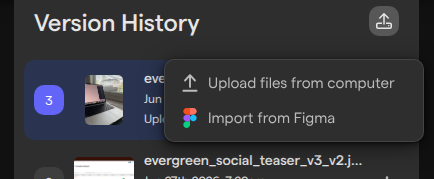
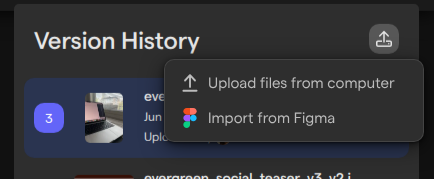
- Select the upload button to the right of Version History. Its tooltip reads “Upload a new version”.
- Choose Upload files from computer.
- Pick the file.
You can also drag a file from your computer onto the Version History panel and drop it when the panel shows “Drop here to upload a new version”. A version is always a single file: dropping a folder shows “Can’t upload a folder as a new version.”
While the file uploads, its row in the list shows “Uploading…” with a percentage, and the upload also appears in the Uploads & Downloads panel with a “New version” label (see Uploading assets). When the upload finishes, the new version becomes the current version. To stop an upload that is still running, open its row’s menu (⋮) and choose Cancel upload. If an upload fails, the failed version is taken out of the list and the current version stays as it was.
Import a new version from Figma
A Figma frame can become the next version of an asset, which keeps a design and its exported asset in step. The option sits in the same menu as the upload from your computer.
- Open the asset and select the Versions button in the top right of the asset view.
- Select the upload button to the right of Version History.
- Choose Import from Figma.
- If Focal asks for access, select Sign in with Figma and sign in with your Figma account.
- Browse to the file and select the frame you want to add as a new version.
When an asset is already linked to a Figma frame, the same menu also offers Refresh frame from Figma, which fetches the frame’s latest state as a new version. If the frame no longer exists in Figma, the item reads “Frame not found”.
Switch between versions
Previewing an earlier version shows its file in the asset view without changing anything for anyone else. The current version stays current until someone restores another one.
- Open the asset and select the Versions button in the top right of the asset view.
- In Version History, select the version you want to see.
- To go back, select the close button on the “You are previewing a version” banner, or select the current version in the list.
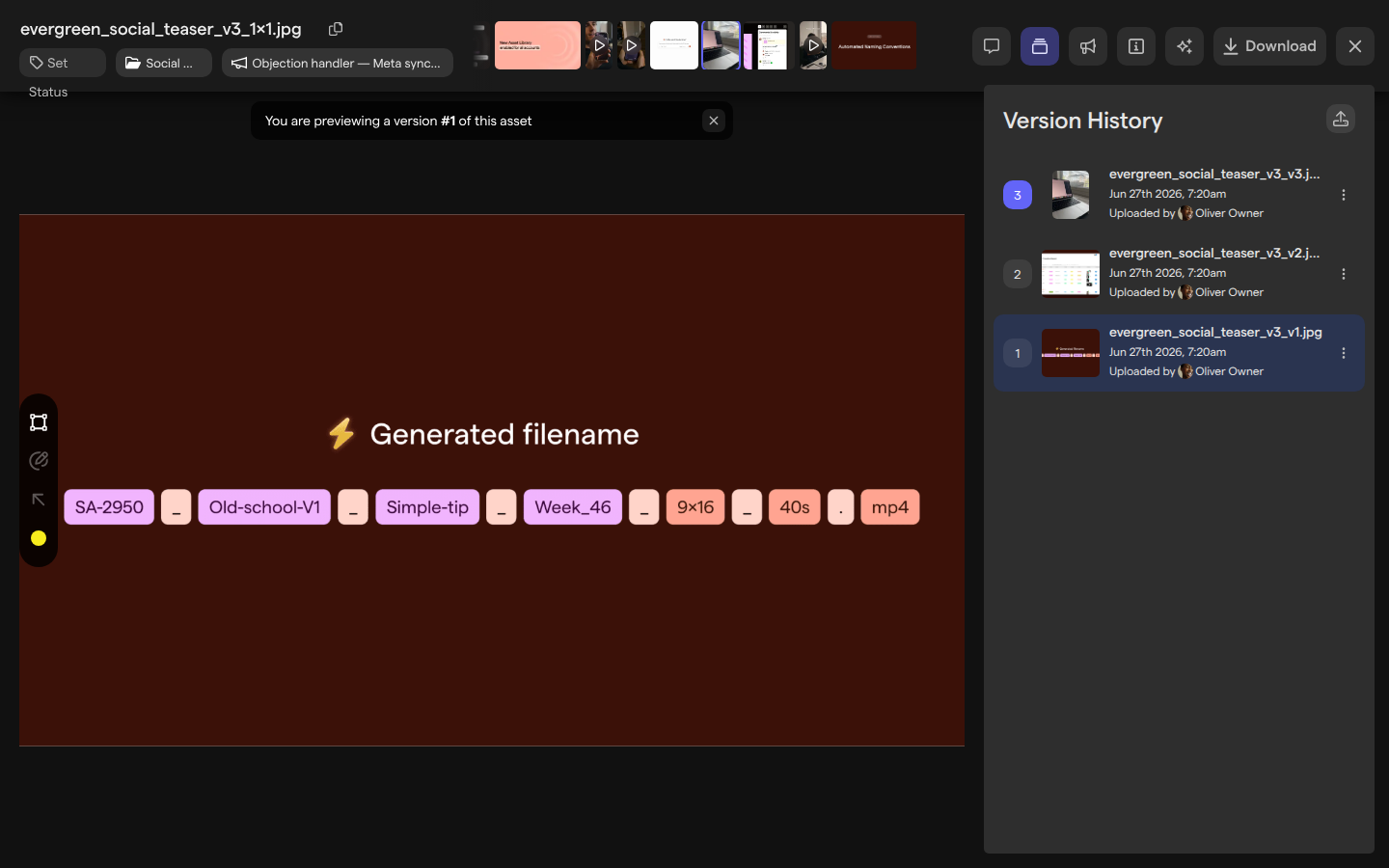
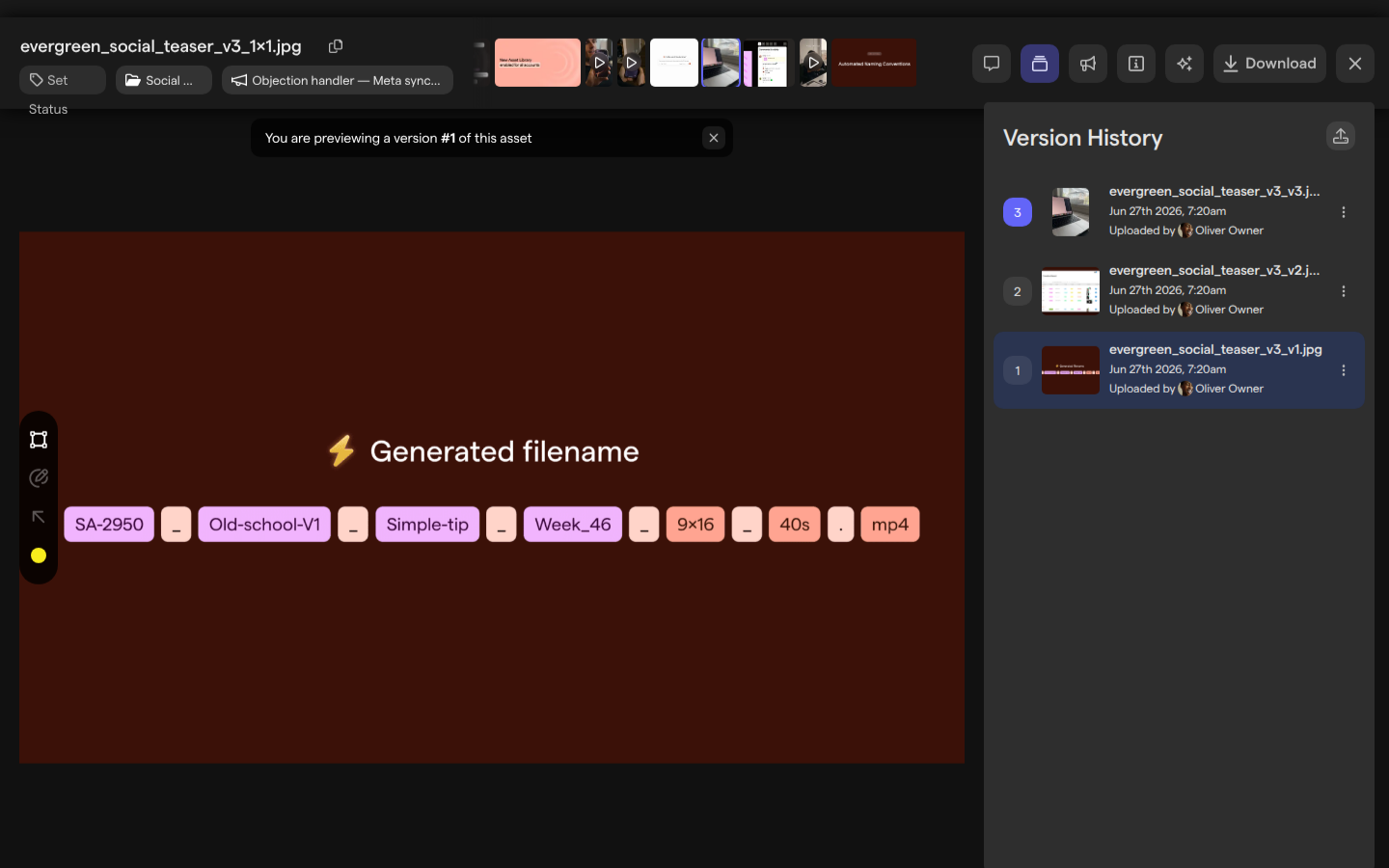
Each row in the list shows the version number, a thumbnail, the name of the file that was uploaded, when it was uploaded and who uploaded it. The current version’s number is highlighted. While you preview an earlier version, a banner above the file reads You are previewing a version #<number> of this asset.
To keep a copy of any version, open the menu (⋮) on its row and choose Download version. This downloads that version’s file, whichever version is current.
Restore an earlier version
Restoring makes an earlier version the current version again, for example when a new cut was approved by mistake or a change has to be rolled back. Nothing is deleted: the newer versions stay in the list with their numbers, and you can restore one of them later the same way.
- Open the asset and select the Versions button in the top right of the asset view.
- In Version History, open the menu (⋮) on the version you want back.
- Choose Revert to this version.
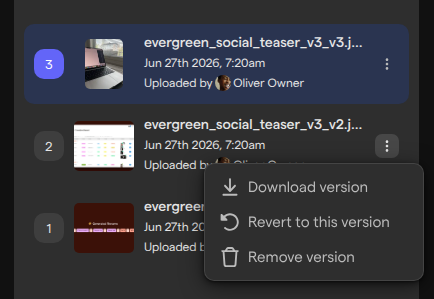
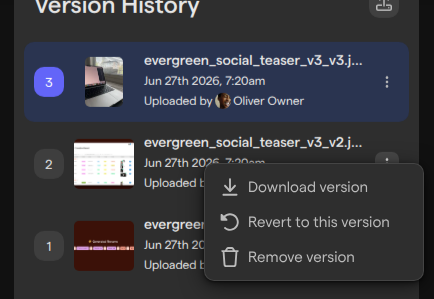
The change takes effect at once, with no confirmation. The asset keeps its name, and the library, boards and downloads show the restored file from then on. The current version’s menu offers only Download version, because it is already current.
Remove a version
Removing a version takes an unwanted file out of an asset’s version history, such as an upload to the wrong asset. It removes only that version; the asset and its other versions stay.
- Open the asset and select the Versions button in the top right of the asset view.
- In Version History, open the menu (⋮) on the version to remove.
- Choose Remove version.
The version disappears from the list at once, with no confirmation.
Note: Removing a version can’t be undone. A removed version doesn’t go to the Trash, and there is no way to restore it in the app.
The current version cannot be removed, so its menu has no Remove version. To remove the file an asset shows now, first restore another version (see “Restore an earlier version” in this article), then remove the one you no longer want. To remove the whole asset, archive it with Delete asset instead: the asset moves to the Trash with all its versions, and restoring it brings them back. A version removed before the asset was archived stays removed.
Comments on versions
Comments and annotations on an asset are tied to the version they were made on, so feedback on an early cut stays with that cut. See Comments and annotations for how to write them.
A comment you post while previewing an earlier version belongs to that version, not to the current one. On an asset with more than one version, each comment in the comments panel carries a label with its version number, such as “V2”. On a video, the timeline under the player shows the comments of the version you are looking at.
When a new version replaces a file that had open feedback, we recommend checking the comments on the previous version and resolving the ones the new version addresses.
Who can manage versions
Anyone who can open an asset can see its versions, preview them and download them. Uploading new versions, changing which version is current and removing versions depend on the user’s role and access.
- In the asset library, space owners and members can upload new versions, restore an earlier version and remove versions. Space guests can’t open the asset library.
- On a board, the board access level decides, for space members and guests alike (see Sharing boards). Full Access, Edit Access and Upload Access can upload a new version. Full Access and Edit Access can also restore and remove versions. Comment Access and View Access can view and download versions only.
- An asset opened from the Trash shows its versions read-only.
Space roles are described in Roles and permissions.
Limits for new versions
A new version follows the same file size limits as any upload:
| File type | Largest file |
|---|---|
| Image | 1 GB |
| Video | 4 GB |
| Any other file | 200 GB |
A file name can be at most 255 characters. A new version counts toward your organization’s storage, but not toward its number of assets, since it does not add an asset.