Sharing boards
Sharing a board decides who can open a board and what they can do on it. Each person or team a board is shared with gets one access level, from Full Access, which lets them change the board and its sharing, down to View Access, which only lets them look. You share a board when a team starts working on it, when a freelancer or client needs to review tasks, or when you want to keep a board to a smaller group.
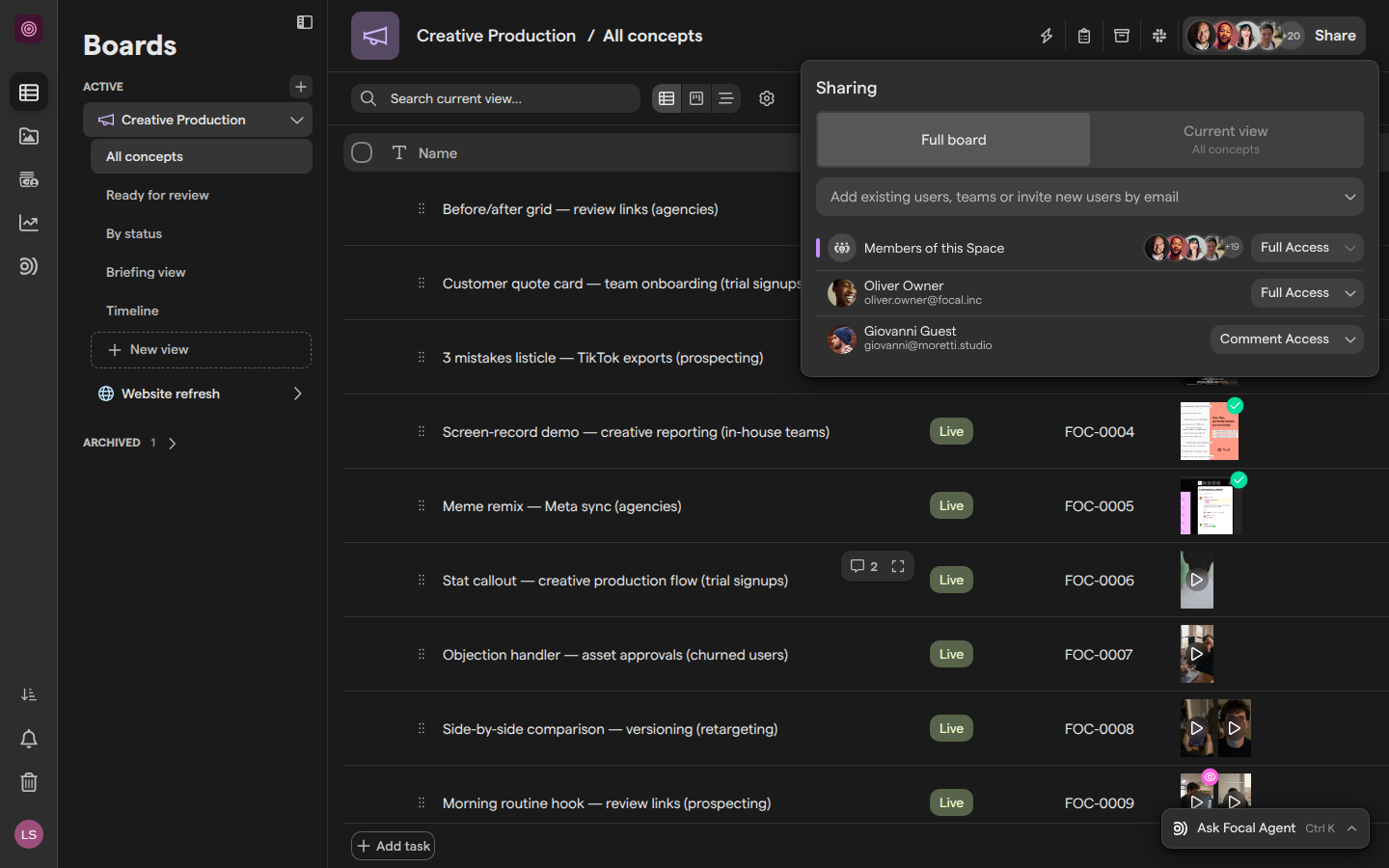
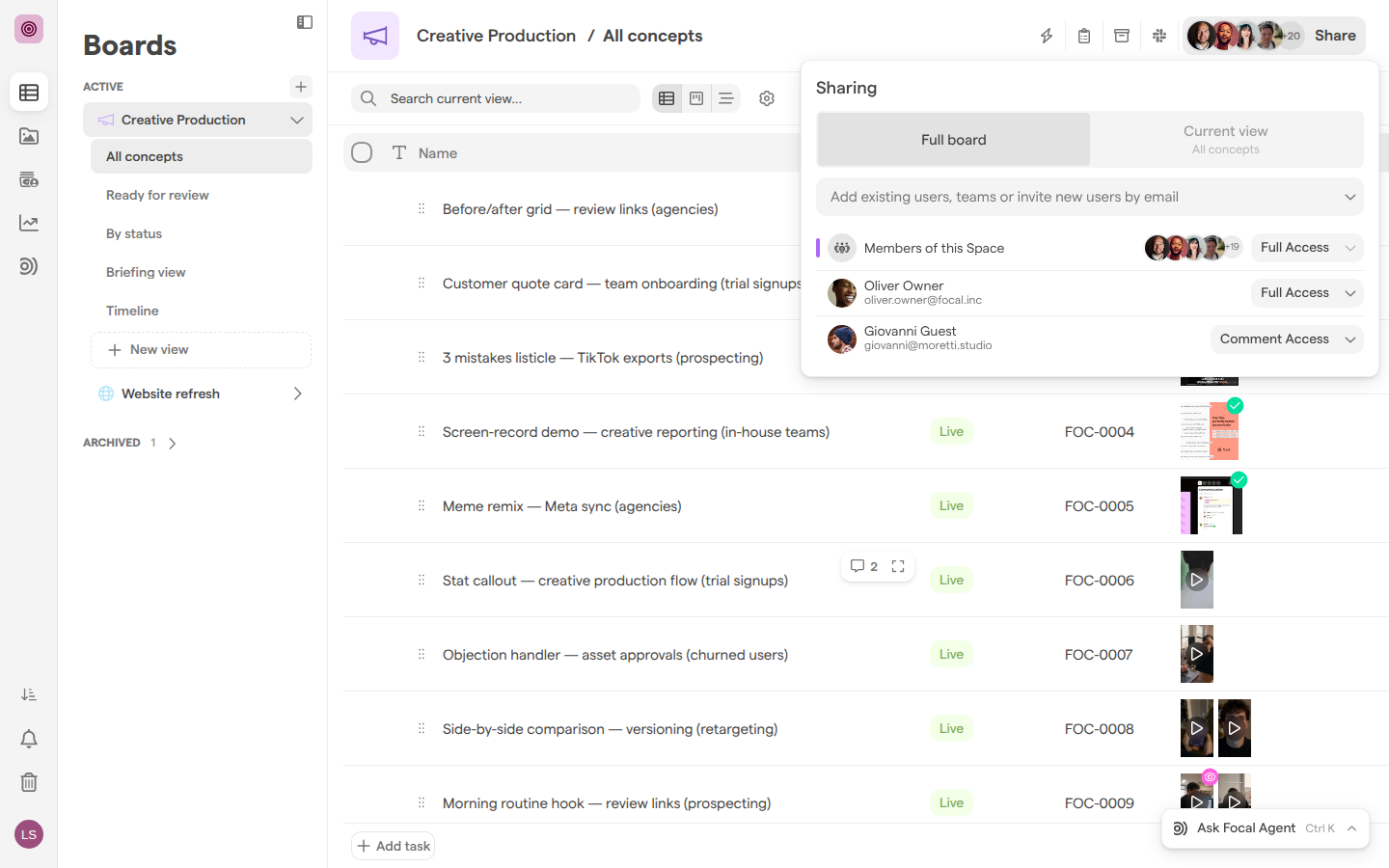
Sharing is set in the Sharing panel, opened from the Share button at the top right of every board. The panel lists everyone with access: Members of this Space, which covers every member of the space, then the teams and people the board is shared with, each with its access level. Sharing can be set for the whole board or for a single view.
Choose an access level
An access level is what a person or team can do on a board they are shared with. Each level includes everything the levels below it allow. These are the levels in the Sharing panel, from highest to lowest:
| Access level | What it allows |
|---|---|
| Full Access | Everything: change the board’s name, columns, views and sharing, as well as its tasks |
| Edit Access | Edit tasks and their values, and upload assets |
| Upload Access | Upload assets to the board, without editing tasks |
| Comment Access | See the board and comment on tasks, without editing |
| View Access | See the board, without editing or commenting |
| No Access | Cannot see the board |
We recommend giving Full Access to the few people who look after a board’s structure, and Edit Access to everyone who works on its tasks. Comment Access suits reviewers such as clients, and View Access suits people who only need to follow progress. No Access is useful on the Members of this Space entry, to keep a board to the people and teams it is shared with directly.
How access levels relate to space and organization roles is covered in Roles and permissions.
Share a board with people and teams
Sharing a board with a person or a team gives them access to every view on the board. You can share with anyone already in your organization and with any team in the space. Sharing a board needs Full Access to it.
- Open the board from Boards.
- Click Share at the top right of the board.
- Click Full board at the top of the Sharing panel.
- Click the field that reads Add existing users, teams or invite new users by email.
- Pick a person or a team from the list, or type to search by name or email.
- In the new entry, pick an access level from the dropdown on the right.
A person or team added from the list starts with Edit Access, and the change is saved as soon as you pick it.
To share a board with the whole space at once, change the level on the Members of this Space entry. That entry covers every member of the space and never includes guests, who have to be added by name or through a team. Press Escape to close the panel.
Invite someone new by email
Inviting someone by email adds a person who is not in your organization yet and shares the board with them in the same step. It is how you bring in a freelancer or a client to work on one board.
- Open the board and click Share.
- Click Full board at the top of the Sharing panel.
- In the Add existing users, teams or invite new users by email field, type the person’s full email address.
- Pick
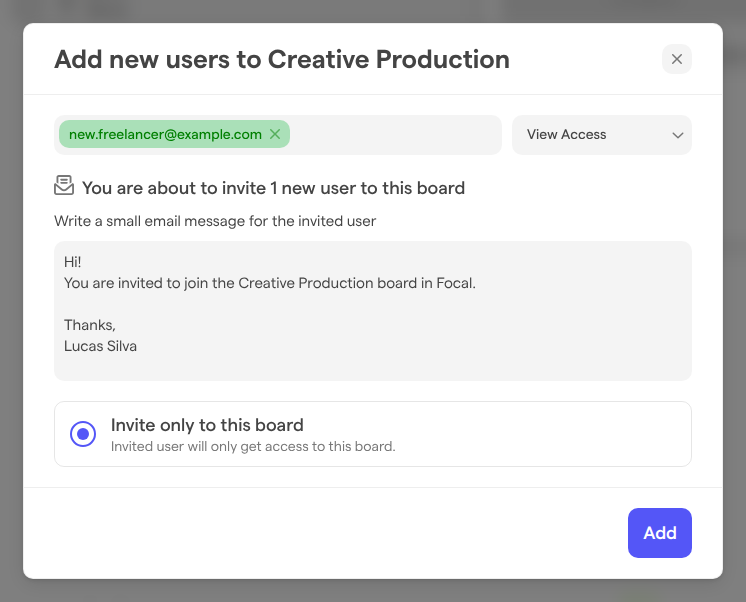
Invite "<email address>"from the list. TheAdd new users to <board name>dialog opens. - Pick an access level from the dropdown next to the email address. It starts at View Access.
- Edit the invitation message under Write a small email message for the invited user, if you want to.
- Click Add.
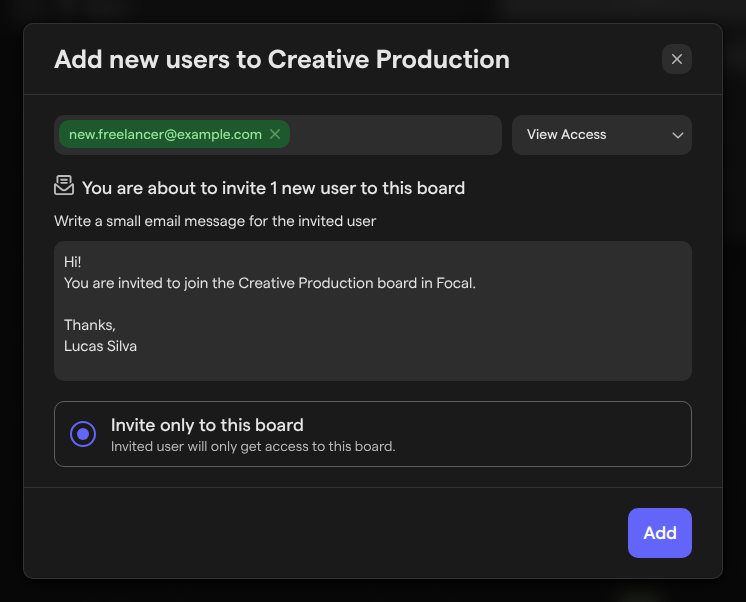
With Invite only to this board, the person joins as a guest and can open only this board. Space owners and organization admins also see Invite as space member, which gives access to the space’s public boards and asset library and lets the person create boards. Organization admins also see Invite as organization member, which gives access to the organization’s public spaces. These options appear only when you invite someone new by email, not when you pick someone from the list.
Share a single view
Sharing a single view gives a person or team access to one view of a board without changing the rest. Use it to show a client a “Ready for review” view while the rest of the board stays internal.
- Open the board and the view you want to share.
- Click Share.
- Click Current view, which shows the view’s name under it. The panel opens on Current view by default.
- Add a person or team, or change a level, the same way as for the whole board.
In Current view, access set on the whole board shows with the caption “Inherited from Board”. Picking a different level on one of those entries overrides it for this view only; the tooltip reads “This role has been set at the Board level. Click to override for this View.” Full Access cannot be given on a view: it shows “Only available at Board level”.
Change or remove someone’s access
Changing someone’s access level takes effect for them on the board straight away. Anyone with Full Access to the board can do it.
- Open the board and click Share.
- Choose Full board or Current view, depending on where the access was set.
- Click the access level on the person’s or team’s entry.
- Pick a new level, or pick Clear at the top of the list to remove the entry.
Removing a person from a board does not remove them from the space or the organization. To keep one person out of a board that the whole space can see, add them and set their entry to No Access. You cannot change your own access level unless you are a space owner or an organization admin.
A board always keeps at least one person or team with Full Access. On the last Full Access entry, the other levels are greyed out with “At least one member must keep Full Access”. If your own Full Access comes only from the Members of this Space entry, that entry is greyed out for you as well.
What guests see on a board
A guest is a person with the Guest role in a space, such as a client or freelancer invited to one board. A guest sees only the boards shared with them: the boards sidebar lists nothing else, and the app’s navigation has no asset library, collections or reports.
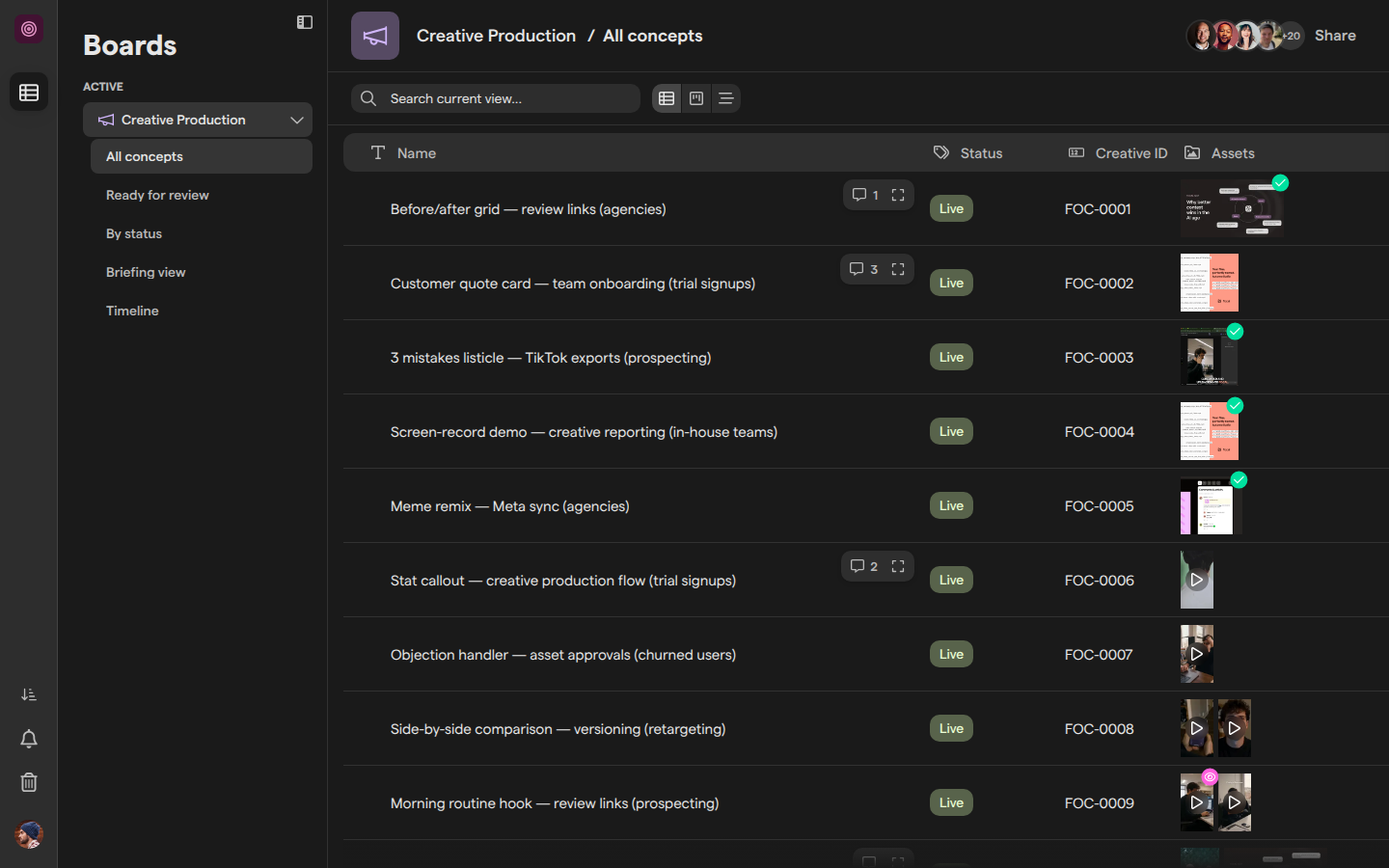
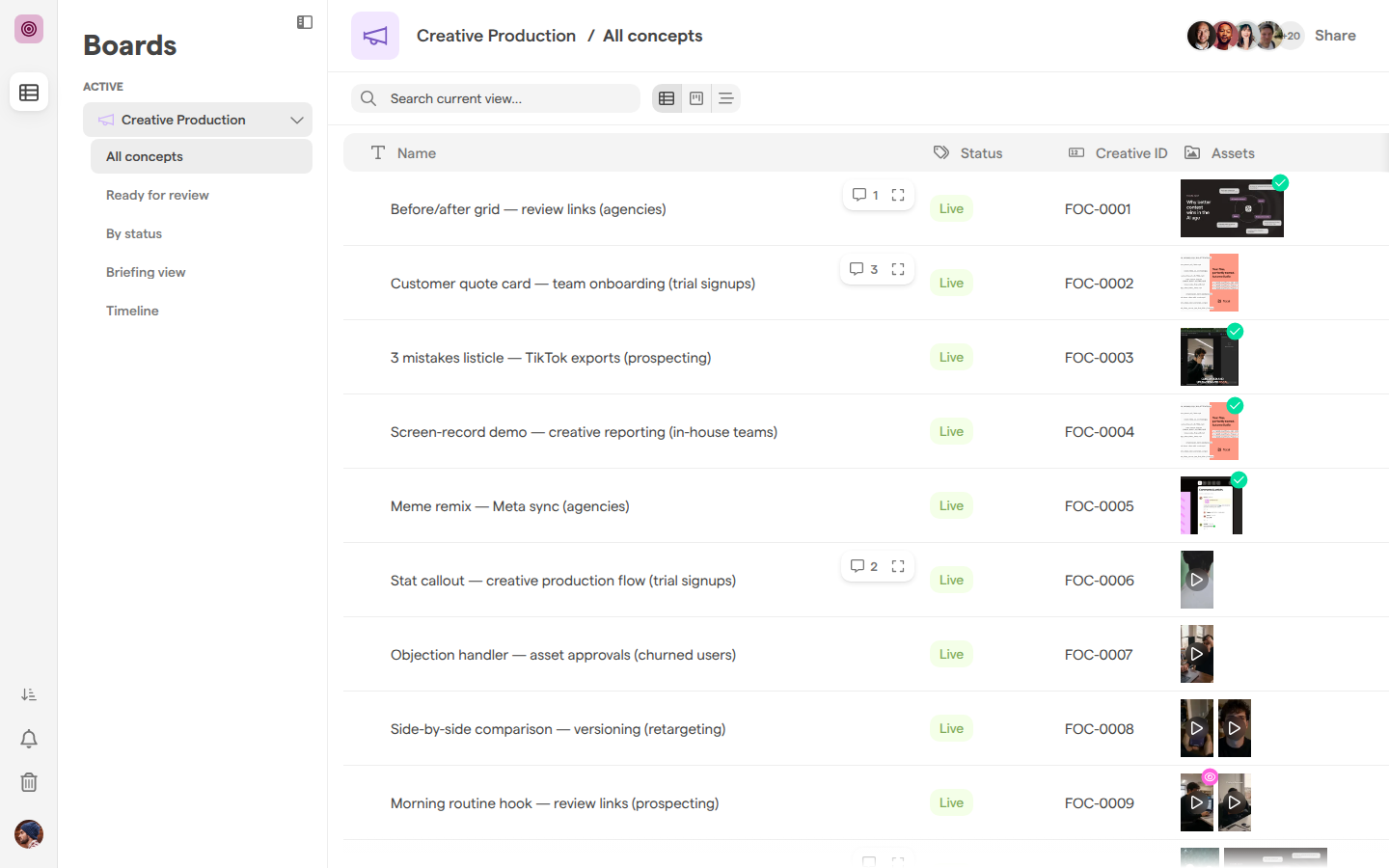
On a shared board, a guest can do what their access level allows. A guest with Comment Access can read tasks and comment on them, but the board name, view name and columns are not editable, and Edit fields is not there.
Columns hidden from guests are left out everywhere on the board for a guest without Full Access: in every view and the task detail panel, in the sort and group pickers, in the Kanban and timeline settings, and in the toolbar for selected tasks. On the Creative Production board, for example, a guest does not see the Brief column. A timeline whose dates come from a hidden column shows its setup state to such a guest. The same guests get no Automations tab on a task, and no Export & API section in the view’s settings, so they cannot download the view as CSV or JSON. How to hide a column is covered in Columns.
A guest with Full Access to a board sees its hidden columns, in the views and in the task detail panel alike, and keeps the Automations tab and the export.
When a guest opens Share, the panel opens with a notice such as “You are a guest in the Focal Marketing Space.” and shows who else has access. Unless the guest has Full Access, the entries are greyed out and there is no field to add people.
Who can change a board’s sharing
Changing a board’s sharing needs Full Access to the board, or to the view for view-level sharing. Space owners and organization admins always have Full Access to every board in the space, whatever the Sharing panel lists; a space owner sees “Space owners and organization admins will always have Full Access to this Board.” at the top of the panel.
Anyone else with access can open Share to see who the board is shared with, but cannot change it. The panel then reads “You don’t have sharing permissions in this Board.” and every entry is greyed out. To get access changed, ask someone with Full Access to the board or a space owner.
A board that is not shared with you does not appear under Active in the boards sidebar. Space owners see such boards under Not shared with you (see Managing boards). If you open a board or view in your organization that you have no access to, Focal shows a lock screen in its place: “You don’t have access to this Board” (or “View”), with “Please request access from a Board owner” under it.