Concepts
Concepts defines the words Focal uses for its main building blocks, each once, in the order you meet them: the basic units (organization, space, asset, board, task), the structures that organize them (columns, views, attributes, collections), where archived things go, the automation that works on them (Workflows, the Focal Agent) and the people who use them (teams, roles). The last section shows how they fit together.
Every other help center article uses these words exactly as they are defined here. When you want to know where each thing sits in the app, read Navigation. For a first path through the app, read Quick start.
Organizations and spaces
An organization is your company’s home in Focal. Billing and membership sit at this level, and every person belongs to it with one organization role: Admin, Member or Guest. Users covers who is in an organization and how to invite people.
A space is where work happens. An organization holds one or more spaces, usually one per team, brand or client. Each space has its own boards, asset library, shared collections, workflows and reports. The home page lists the spaces you belong to. A public space can also be joined by any member of the organization, from the “Join an existing public space in your organization” list.
Each person in a space has a space role: Space owner, Member or Guest. A space owner manages the space’s settings and its people. Space settings: General covers a space’s name, access and features.
Assets
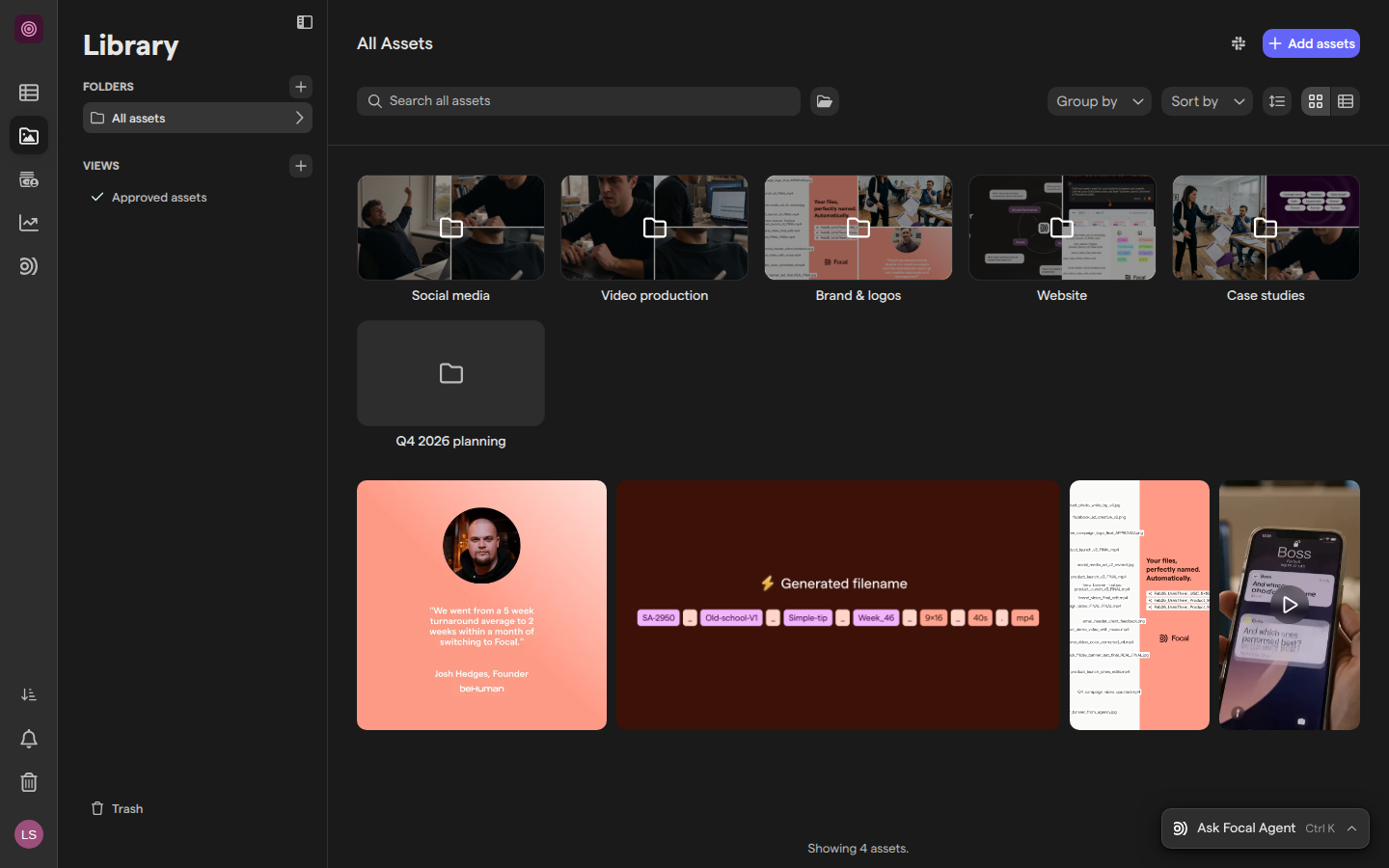
An asset is an image, video, document or other piece of content your team keeps in Focal. A space’s assets live in its asset library, which opens from Assets in the sidebar and is organized into folders. Uploads and downloads you start are listed in the Uploads & Downloads panel, which opens from the lower part of the sidebar. See Asset library and Uploading assets.
An asset carries more than its content:
- Versions. A version is one upload of the asset. Uploading a new version keeps the earlier ones, so you can switch back. See Versions.
- Comments and annotations. A comment is a note on the asset. An annotation is a comment drawn on the asset itself, with rectangles, paths and arrows. See Comments and annotations.
- Asset status. An asset status is set on the asset with Set Status. The list of statuses is defined in Space Settings → Statuses. See Space settings: Statuses.
An asset you no longer need is archived, not deleted: it moves to the asset library’s Trash page, where it can be restored. See Trash.
Boards and tasks
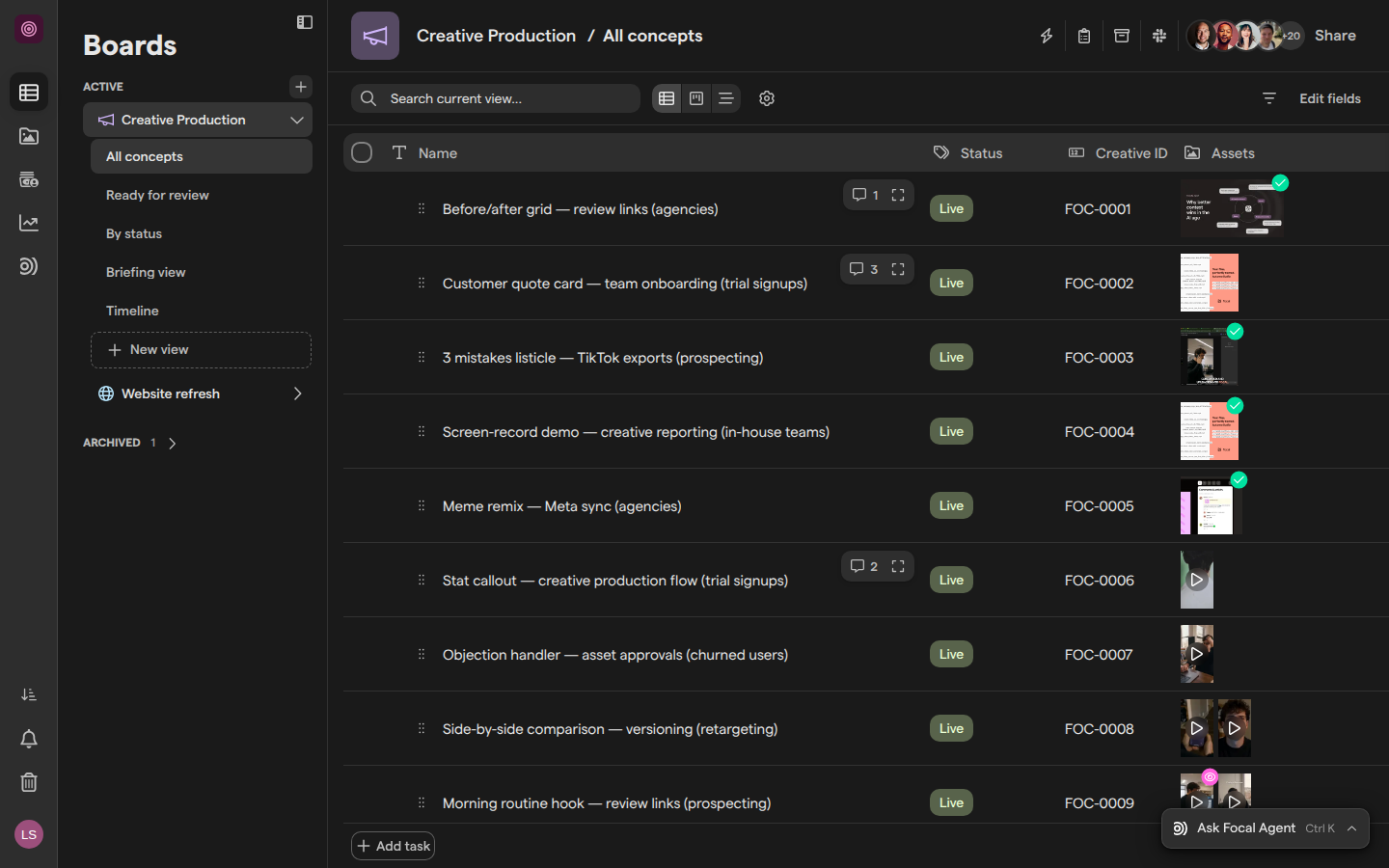
A board is where a team plans and tracks work, such as a campaign’s creative production or a website refresh. A space can have many boards, listed in the Boards sidebar. See Managing boards.
A task is one piece of work on a board: a concept to produce, an ad to review, a page to write. You add one with Add task at the bottom of the board. A task can hold sub-tasks, comments and the assets it produces. Open a task to see all of its details in one place. See Tasks.
A task status is the value of a board’s status column, such as Backlog. It says where the task is in the board’s process. A task status is not the same as an asset status: a task status belongs to a board, and an asset status belongs to an asset.
Columns and views
A column is one field that every task on a board has, such as Status, Due date, Assigned to, Brief or Assets. Each column holds one kind of value. A creative ID column gives each task a structured ID (see the next section). A column can also be hidden from guests. See Columns.
A view is a saved way of looking at a board. Each board has one or more views, listed under the board in the Boards sidebar. A view lays out the tasks as a grid, a kanban or a timeline, and it remembers its own filters, sorting and visible columns. Changing a view changes how the tasks are shown, not the tasks themselves. See Board views.
The asset library has views too: a library view saves a filtered set of assets under Views in the library sidebar. See Library views.
Attributes, naming conventions and creative IDs
An attribute (also called a media attribute) is a field every asset in a space can have, such as a campaign, a channel or a funnel stage. A space owner defines a space’s attributes in Space Settings → Attributes, and you fill in their values in the asset’s Attributes panel. A board can show an attribute as a column, so a task’s assets and their attributes appear side by side. See Media attributes.
A Tags attribute is an attribute whose values are picked from a fixed list of colored options, and each option is a tag. When people talk about tagging assets in Focal, they mean Tags attributes: there is no separate tagging feature. In Space Settings → Attributes, the attribute type is called Tags, and a Tags attribute can allow one value or several. Media tagging is AI filling in an asset’s Tags and Text attributes from the asset itself, turned on for each attribute with Enable AI autofill. Media tagging fills in attributes; it is not a different kind of tag. See Media tagging.
A naming convention gives every asset uploaded to a folder a consistent name, built from text, counters and the asset’s own details. See Naming conventions.
A creative ID is a structured ID given to the tasks on a board, built the same way from text, counters and dates. In the app’s words, a creative ID “is a combination of Concept ID and Variant ID”. It appears in a board’s Creative ID column. See Creative IDs.
Archived items and Trash
Archiving is how you remove an asset, folder, board or task in Focal. An archived item leaves its usual place but is kept, so it can be restored later. Where archived items are kept depends on what they are:
- Assets and folders go to the asset library’s Trash page, which opens from Trash in the library sidebar. The library’s Delete asset and Delete folder menu items archive the item; they do not remove it for good. A folder takes everything in it to the Trash. Items in the Trash are read-only until you bring them back with Restore. See Trash.
- Boards go to the Archived section of the Boards sidebar, together with all of their tasks and views. Archiving a board with Archive Board needs Full Access to the board, and Restore Board brings it back. See Managing boards.
- Tasks go to the board’s archived view, which opens with the archive icon at the top right of the board (its tooltip reads “View archive”) and lists the archived tasks of the view you are in. Restore task brings a task back. Archiving a task does not remove its assets from the asset library. See Tasks.
Note: Archived items can also be permanently deleted from the Trash page, the Archived section and the archived view. A permanent delete cannot be undone, so we recommend restoring or keeping archived items rather than deleting them.
Shared collections
A shared collection is a hand-picked set of assets you share with people, including people outside Focal, through a link. Teams use collections to hand off deliverables and to collect comments and approvals. A collection can be protected with a password and given an expiration date.
Shared collections open from Shared collections in the sidebar, and are not available to space guests. See Shared collections.
Workflows and the Focal Agent
A workflow is automation that runs on its own. A workflow starts from a trigger, such as a task being updated or an asset being added to the library, and then runs its steps: create or update a task, send a Slack message, ask AI to do something, and so on. Workflows are built and managed by space owners and organization admins; members do not see Workflows in the sidebar. See Workflows.
The Focal Agent is an AI assistant that works with the boards, tasks and assets in your space. You ask it a question or hand it a piece of work in an agent chat, and it can stop to ask for your input or approval before it goes on. Open it from Agent in the sidebar, or from the Focal Agent button at the bottom of the page, whose shortcut is ⌘K (CtrlK outside a Mac). The button reads “Ask Focal Agent” until you start a chat, then shows the chat’s title. The Focal Agent is in beta and is not available to guests. See Focal Agent.
The Focal Agent belongs to the AI & Agents part of Focal, together with media analysis, media tagging and boards autofill. See AI & Agents.
Reports and integrations
A report tracks your content, from what your team produces to how it performs across your ad campaigns. Reports open from Reports in the sidebar. See Reports.
An integration connects Focal to an outside tool. Integrations bring assets in from tools such as Google Drive, Dropbox and Celtra, send assets out to Meta, Google Ads and TikTok, and post updates to Slack. Some integrations are set up for the whole organization and some for one space. See Integrations.
Teams and roles
A team is a named group of people inside a space, such as a design team. Teams let you share a board with several people at once, or mention them together. A team belongs to one space, and space owners create teams in Space Settings → Teams. See Space settings: Teams.
A role decides what a person can see and do. Focal has roles at three levels:
| Level | Roles | What they decide |
|---|---|---|
| Organization | Admin, Member, Guest | Who manages the organization and its spaces, and who can join public spaces |
| Space | Space owner, Member, Guest | Who changes the space’s settings and people, and who sees the asset library |
| Board or view | Full, Edit, Upload, Comment, View, No Access | What a person can do on one board or one view |
A guest sees only the boards and spaces they are invited to. Space owners and organization admins always have Full Access to every board in their spaces. See Roles and permissions and Sharing boards.
How it fits together
An organization holds spaces, and each space is a self-contained place for one team’s work:
- The asset library holds the space’s assets, organized in folders, described by attributes and asset statuses, and named by naming conventions.
- Boards hold tasks, described by columns and shown through views. Tasks link to the assets they produce, and a board can show those assets’ attributes as columns.
- Archived assets and folders wait in the library’s Trash, and archived boards and tasks under Archived, until someone restores them.
- Shared collections gather assets from the library and share them outside the space.
- Workflows and the Focal Agent act on the boards, tasks and assets for you, and reports show how the content performs.
- Integrations connect the space to the tools your team already uses.
- Teams and roles decide who can see and change each of these, at the organization, space and board level.