Media analysis
Media analysis is what Focal reads from an image or video on its own, without anyone asking: a short summary of what the asset shows, the text that appears in it, a transcript of what is said, the music that plays, and its main colors. Focal runs it in the background when an asset is added to a space that has AI turned on, and shows the results in the asset view’s AI Analysis panel.
Use media analysis to see what an asset contains before you play it through, to find the exact line or on-screen text in a video, or to check which song a cut uses. Nobody has to fill anything in. The same analysis is what Media tagging and Boards autofill read when they fill in fields for you.
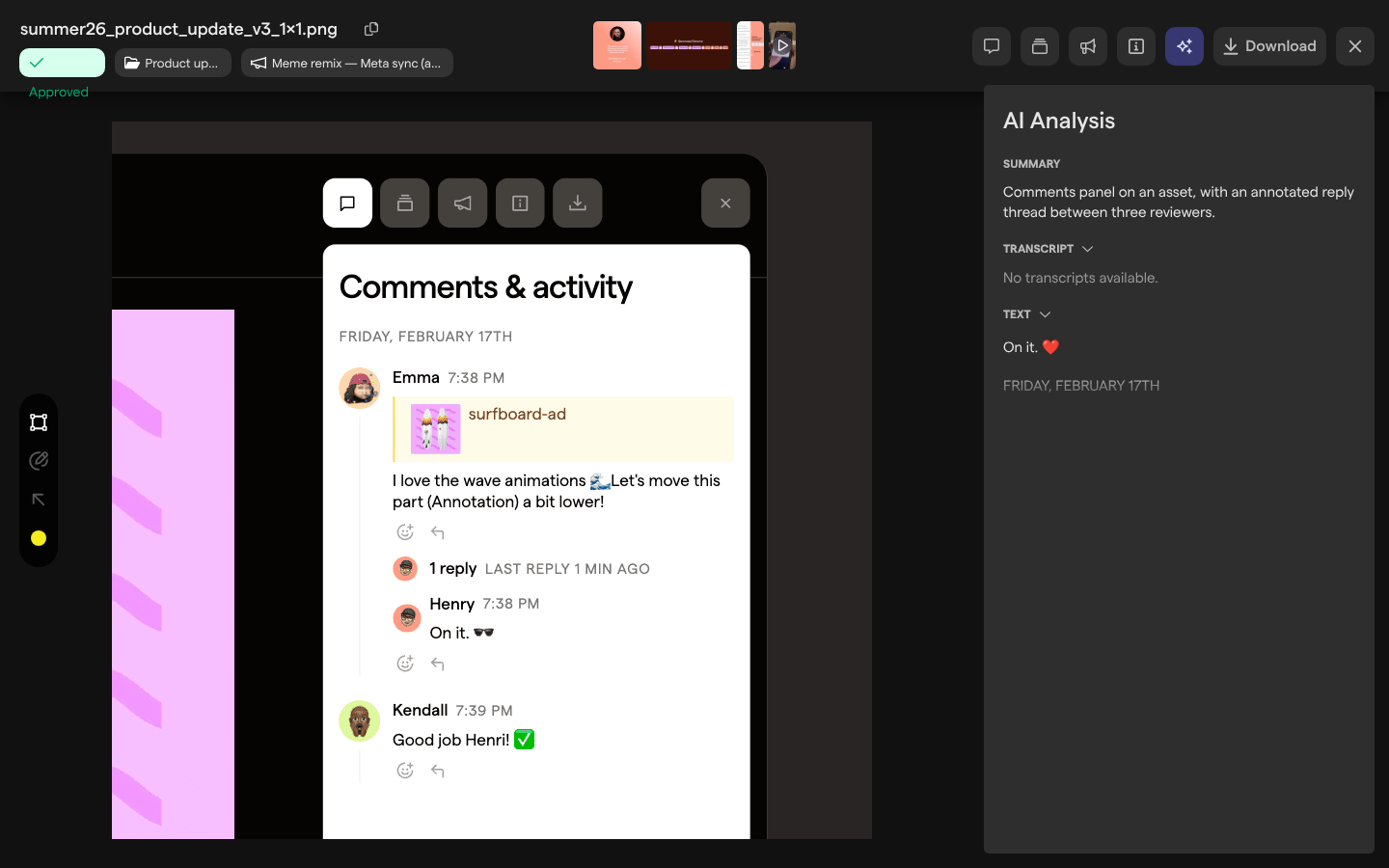
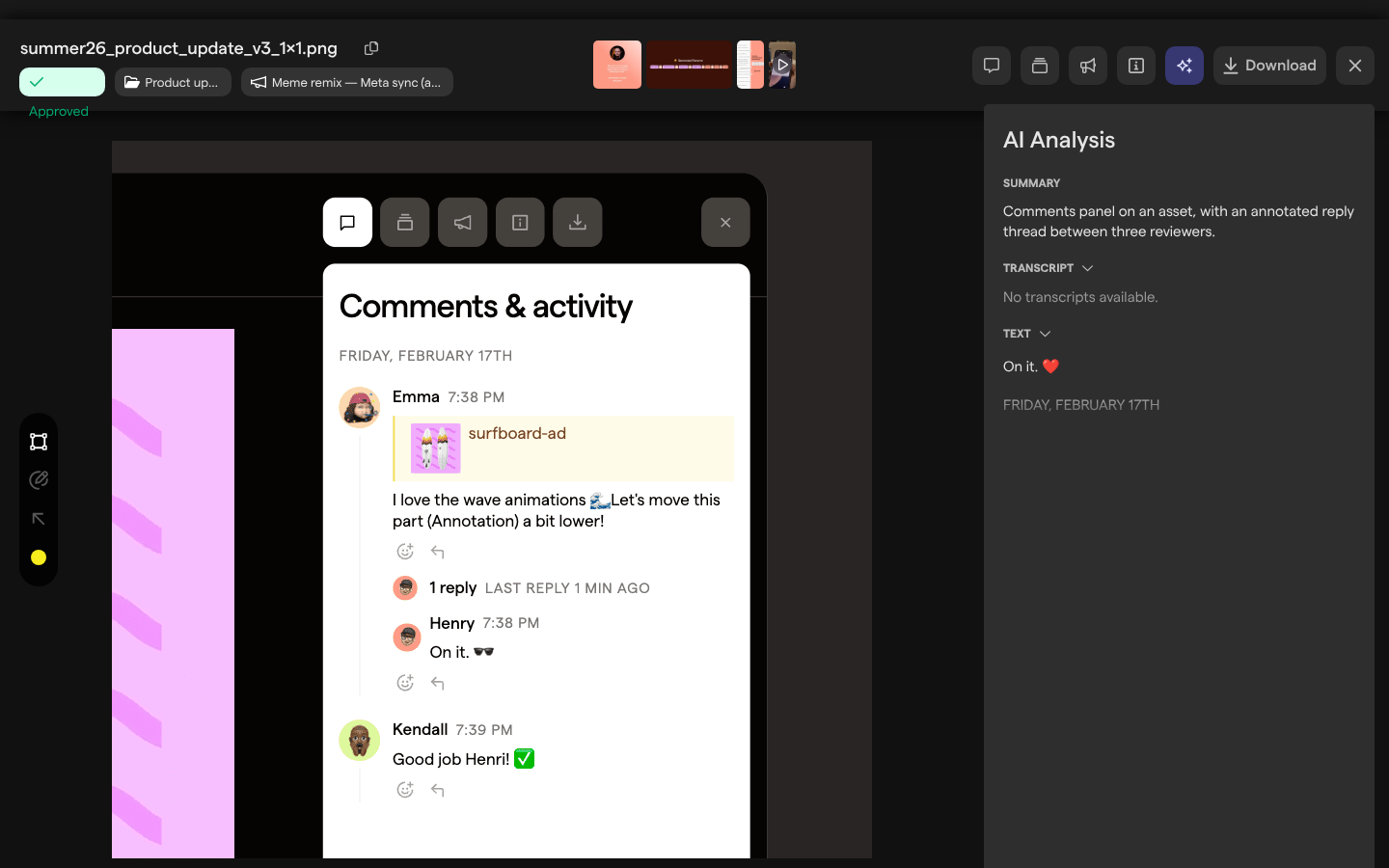
Open the AI Analysis panel
The AI Analysis panel is a tab in the sidebar of the asset view, the full-screen view an asset opens in. It holds everything media analysis found for the asset you are looking at.
- Open Assets in the sidebar.
- Click an asset to open it in the asset view.
- In the row of buttons at the top right, click the sparkles button, AI Analysis.
The panel lists up to four sections, top to bottom: Summary, Music, Transcript and Text. Music appears only when a song was recognized. While Focal is still analyzing a new asset, a section shows “AI is thinking…” in place of its result.
The Asset library article describes the asset view’s other tabs.
Read an asset’s summary
The summary is a short description of what an image or video shows, written by AI. It sits at the top of the AI Analysis panel under Summary.
The summary describes what is visible: the setting, any people, brand and product names, logos and prominent text. By default it leaves out audio and speech on purpose; what is said in a video appears in the transcript instead. The panel shows the first paragraph of the description, the short overall summary.
What the summary covers is set by the space’s media analysis prompt. A space owner can edit that prompt in AI settings to steer it, for example to always name the product or the format.
Find text in an image or video
Text recognition, also called OCR, picks out the words that appear in an asset: headlines, captions, labels, product names, text in screenshots. The results are listed in the AI Analysis panel under Text.
- In an image, Text lists each piece of text found.
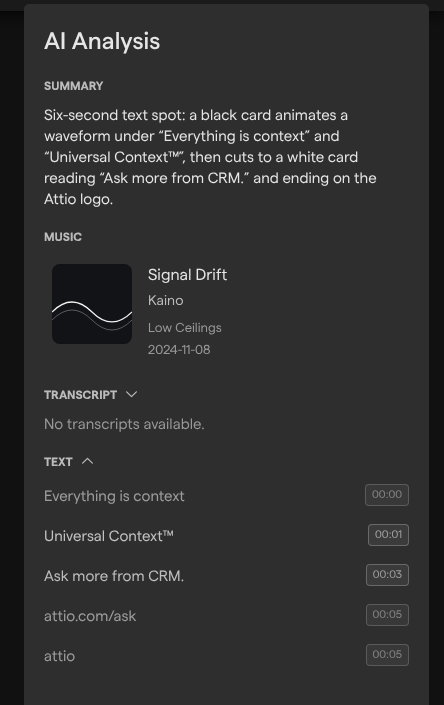
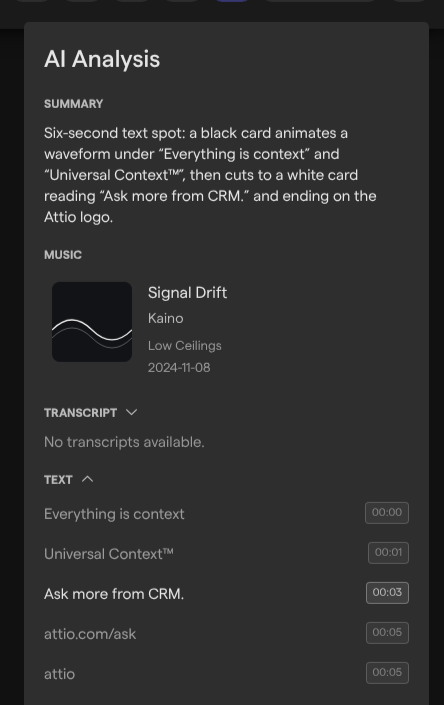
- In a video, each piece of text carries the time it appears. Click a line to jump the video to that moment. While the video plays, the line on screen is highlighted.
A long list starts collapsed. Click anywhere in the list, or click the Text heading, to expand it; click the heading again to collapse it. When nothing readable was found, the section says “No text detected.”
Read a video transcript
A transcript is a written record of what is said in a video, split into timed lines. It is listed in the AI Analysis panel under Transcript.
- Open a video in the asset view.
- Click AI Analysis.
- Read the lines under Transcript. Each line shows the time it starts.
- Click a line to jump the video to that moment.
While the video plays, the line being spoken is highlighted. A long transcript starts collapsed; click it, or click the Transcript heading, to expand it. A video with no speech shows “No transcripts available.”, and so does every image, since images have no audio.
Find the music in a video
Music recognition listens to a video’s soundtrack and names the song it finds. The result is shown in the AI Analysis panel under Music.
The Music section shows the track’s title and artist, and the album and release date when they are known. When the recognition service has cover art, it appears beside the track; clicking the cover opens the song on Shazam.
Music appears only for videos, and only when a song was recognized. A video with no music, or with music that could not be matched, has no Music section at all. Use it to check which track a cut uses before you publish it, for example when licensing matters.
See an asset’s colors
Color analysis measures the main colors in an asset. Unlike the other results, the colors are shown on the Attributes tab of the asset view, not on AI Analysis.
- Open an asset in the asset view.
- Click the Attributes button, next to AI Analysis.
- Find File colors.
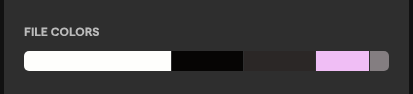
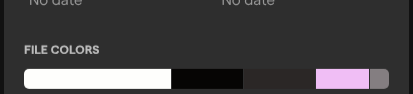
File colors is a strip of color blocks. Each block is one of the asset’s main colors, and its width shows how much of the asset that color covers. Colors are read from the asset’s preview image, and when a new version replaces the asset they are read again from the new one. The Attributes tab also holds the asset’s media attributes.
When media analysis runs
Media analysis runs by itself; there is no button to start it. Focal analyzes an asset when:
- the asset is added to the space, by uploading it or through an integration that syncs files into Focal;
- a new version replaces the asset. The earlier analysis is cleared and read again from the new version.
Both only happen while AI is turned on for the space. An asset added while AI was off is not analyzed, and turning AI on later does not go back and analyze it: only assets added from then on get analyzed.
Analysis starts once the upload has finished and Focal has processed the asset. Until a result is ready, its section in the AI Analysis panel shows “AI is thinking…”.
Which file types get what
Media analysis reads images and videos. Each kind of result applies to the file types that can contain it:
| Result | Where it shows | Images | Videos |
|---|---|---|---|
| Summary | AI Analysis → Summary | Yes | Yes |
| Text in the asset | AI Analysis → Text | Yes | Yes, with times |
| Transcript of speech | AI Analysis → Transcript | No | Yes |
| Music | AI Analysis → Music | No | Yes |
| Colors | Attributes → File colors | Yes | Yes |
Videos longer than 10 minutes or larger than 500 MB are skipped: they get no summary, text, transcript or music. Assets in other formats, such as ZIP or DOCX, are not analyzed either. Their AI Analysis panel shows no summary, and its sections say “No transcripts available.” and “No text detected.”, without an error.
Turn media analysis on
Media analysis needs AI turned on for the space. The switch is the AI toggle in AI settings, under Settings → Automations, described as “Enable AI-powered features and LLM integrations in this space”. The same page holds the Media Analysis Prompt, which decides what AI extracts from images and videos. See AI settings for both.
Only space owners and organization admins can open space settings. When AI is off, the AI Analysis panel of an asset that was never analyzed shows “AI Features Disabled”, with a message that depends on your role:
- Space owners and organization admins see “To access AI-powered analysis and features, please enable AI in your space’s Automations settings.” The Automations settings link opens the page with the AI toggle.
- Members and guests see “AI features are turned off for this space. Ask a space owner to turn them on.”
Who can see media analysis
Media analysis follows access to the asset. Everyone who can open an asset in the asset view can read its AI Analysis panel and its File colors; there is no separate permission for it. Reading the analysis changes nothing, so it is available at every access level.
Changing what media analysis does is limited to space owners and organization admins, who can turn AI on or off and edit the media analysis prompt in AI settings. See Roles and permissions for what each role can do in a space.