Shared collections
A shared collection is a hand-picked set of assets from your space, published on a public link. You use it to hand deliverables to people outside Focal, such as partners, the press or an agency, so they can view, download and comment on them without an account.
A collection points at assets in the asset library; it does not copy them. Each collection has its own link, and its settings decide what people with the link can do: download, comment, or change an asset’s status. You can also protect the link with a password and give it an expiration date. To open Shared collections, click Shared collections in the sidebar.
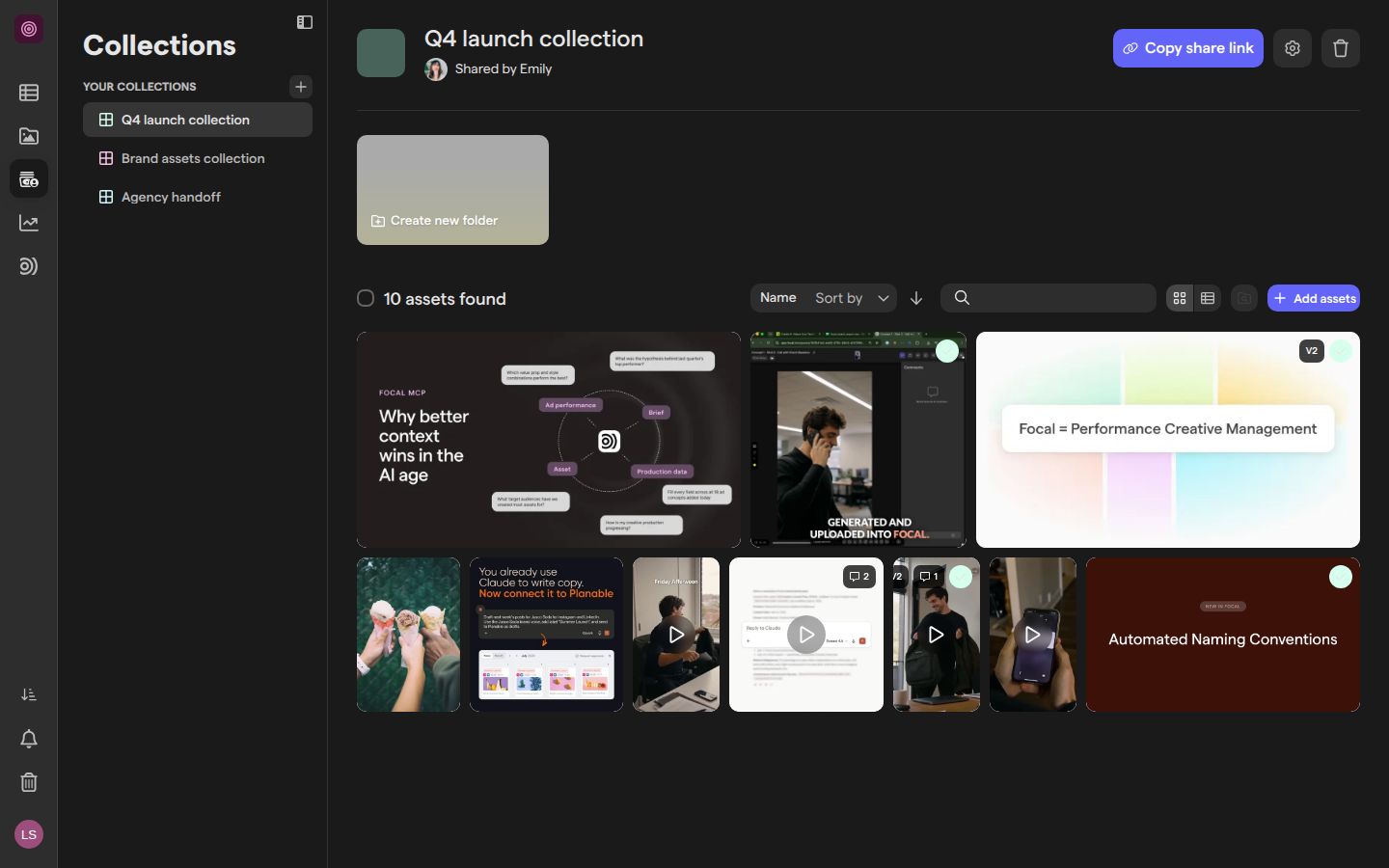
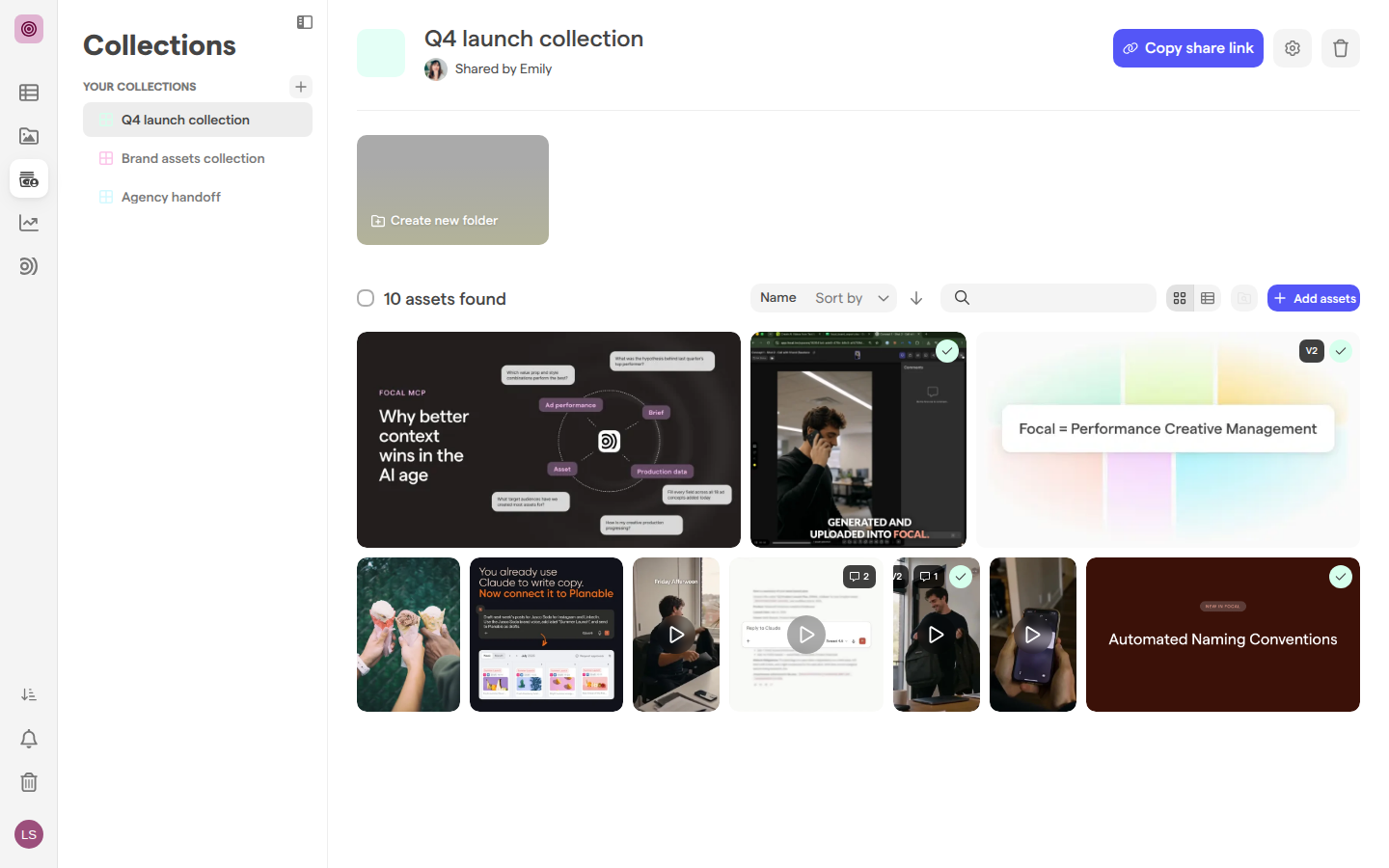
Create a collection
Creating a collection makes a new, empty shared collection in your space, with its public link ready to copy. The Collections sidebar lists every collection in the space under Your Collections.
- Click Shared collections in the sidebar.
- Click the + button next to Your Collections (its tooltip reads “New Collection”). Focal creates the collection and opens it.
- Click Add a name for collection at the top of the page and type a name. The name saves as you type.
- Optionally, click the square icon next to the name to choose the collection’s icon.
You can also create a collection while you add assets to it: select assets in the asset library, click Add to a collection in the selection toolbar, then pick Create a new collection, or type a name and pick Create '<name>'.
To change the order of the collections in the sidebar, drag them up or down the list.
Add assets to a collection
Adding assets to a collection places a reference to each asset in it. The asset stays where it is in the asset library, and any change to the asset shows in the collection too.
To add assets from inside the collection:
- Open the collection.
- Click Add assets, then Select from library.
- In the Select from library dialog, find the assets by folder, status or with Search Library…, and click each one to select it.
- Click Select.
To add assets from the asset library, select them and click Add to a collection in the selection toolbar. In the Add assets to a collection list, type in Search collections to find the collection, then click it. Focal confirms how many assets it added. If every selected asset is already in the collection, Focal says so and adds nothing.
An empty collection says “This collection is empty” and offers Select from library directly.
Organize a collection into folders
A folder groups the assets of a collection, for example one folder per market or per format. People who open the link see the same folders and can open them.
- Open the collection.
- Click the Create new folder tile above the assets.
- In Create a new folder, type a name in Folder Name and click Create.
To move assets into a folder, select them, then click Move to a collection sub folder in the selection toolbar and pick the folder. Click a folder to open it; the path above the assets leads back to the collection. Inside a folder, Add assets adds assets to that folder, and Create new folder makes a folder inside it.
To remove a folder, open it and click Remove Folder, then confirm. The folder’s assets leave the collection, and they stay in the asset library.
Browse and arrange a collection
A collection shows its assets in one of two modes, and the toolbar above the assets controls how they appear to you.
- Gallery shows thumbnails. Drag an asset to change its place in the collection.
- Grid shows a table with a column per field. The person who created the collection, and organization admins, can click Customize columns to choose the columns in Add/Remove Columns.
- Sort by orders the assets, and the arrow next to it switches between ascending and descending.
- The search field filters the assets by the values of the fields shown.
- Show/hide nested files in folders also lists the assets inside the collection’s folders.
The heading counts what is shown, such as “10 assets found”. Double-click an asset, or click the expand icon in its corner, to open it in the asset viewer with its comments and annotations.
Share a collection
Sharing a collection means sending its public link. Anyone who has the link can open the collection in a browser, without a Focal account and without signing in.
- Open the collection.
- Click Copy share link. Focal copies the link to your clipboard and confirms with “Link copied to clipboard”.
- Paste the link into an email or a message to the people you want to share with.
The same link sits at the top of Collection settings, with a Copy button next to it.
Collections are shared by link only: there is no way to invite particular people by email. To limit who can open a collection, set a password in Collection settings and send it separately, or set an expiration date so the link stops working. To share a set of assets with people who already belong to your space, we recommend a library view instead.
Change collection settings
Collection settings decide how the public page looks and what people who open the link can do. In these settings, “Guests” means anyone viewing the collection through its link.
- Open the collection.
- Click the gear button next to Copy share link.
- Change the settings you need.
- Click Save. Closing the dialog without saving discards the changes.
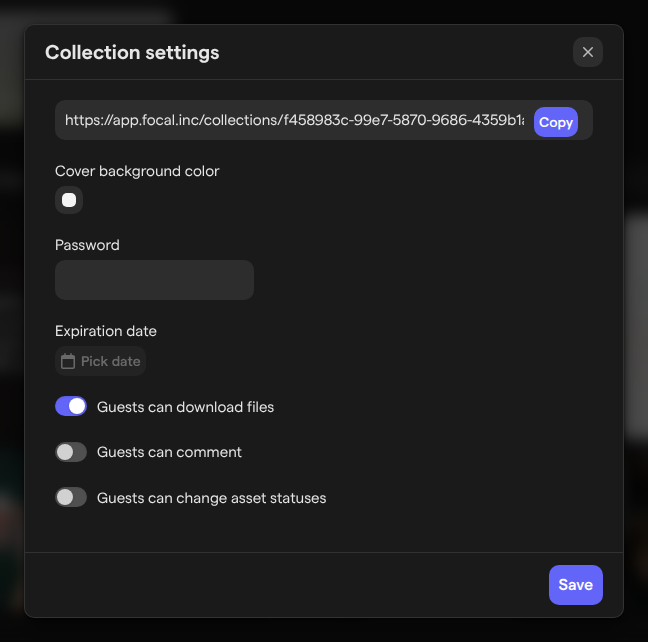
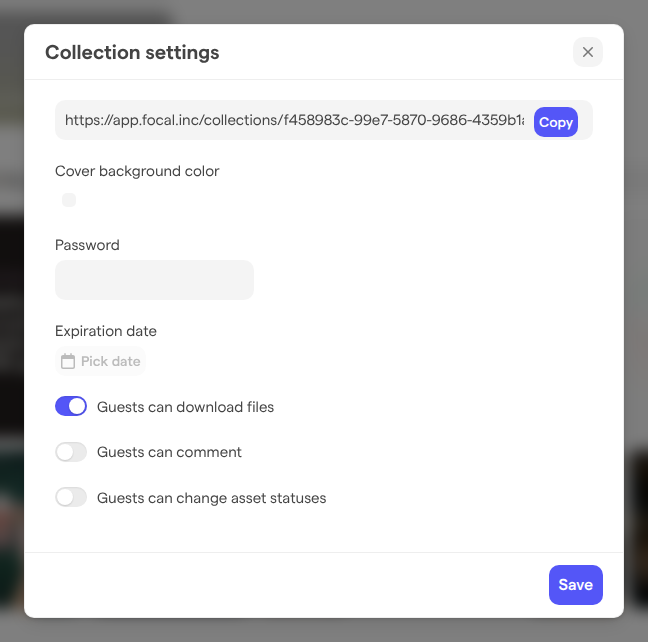
| Setting | What it does |
|---|---|
| Cover background color | The color of the cover block on the public page |
| Password | People must enter it before they can see the collection |
| Expiration date | After this date, the link no longer opens the collection |
| Guests can download files | Shows the download buttons on the public page and in its viewer |
| Guests can comment | Lets viewers leave comments and annotations on the assets |
| Guests can change asset statuses | Lets viewers set an asset’s status from the viewer |
A new collection starts with downloads and comments turned on, status changes turned off, and no password or expiration date.
Open a shared collection from its link
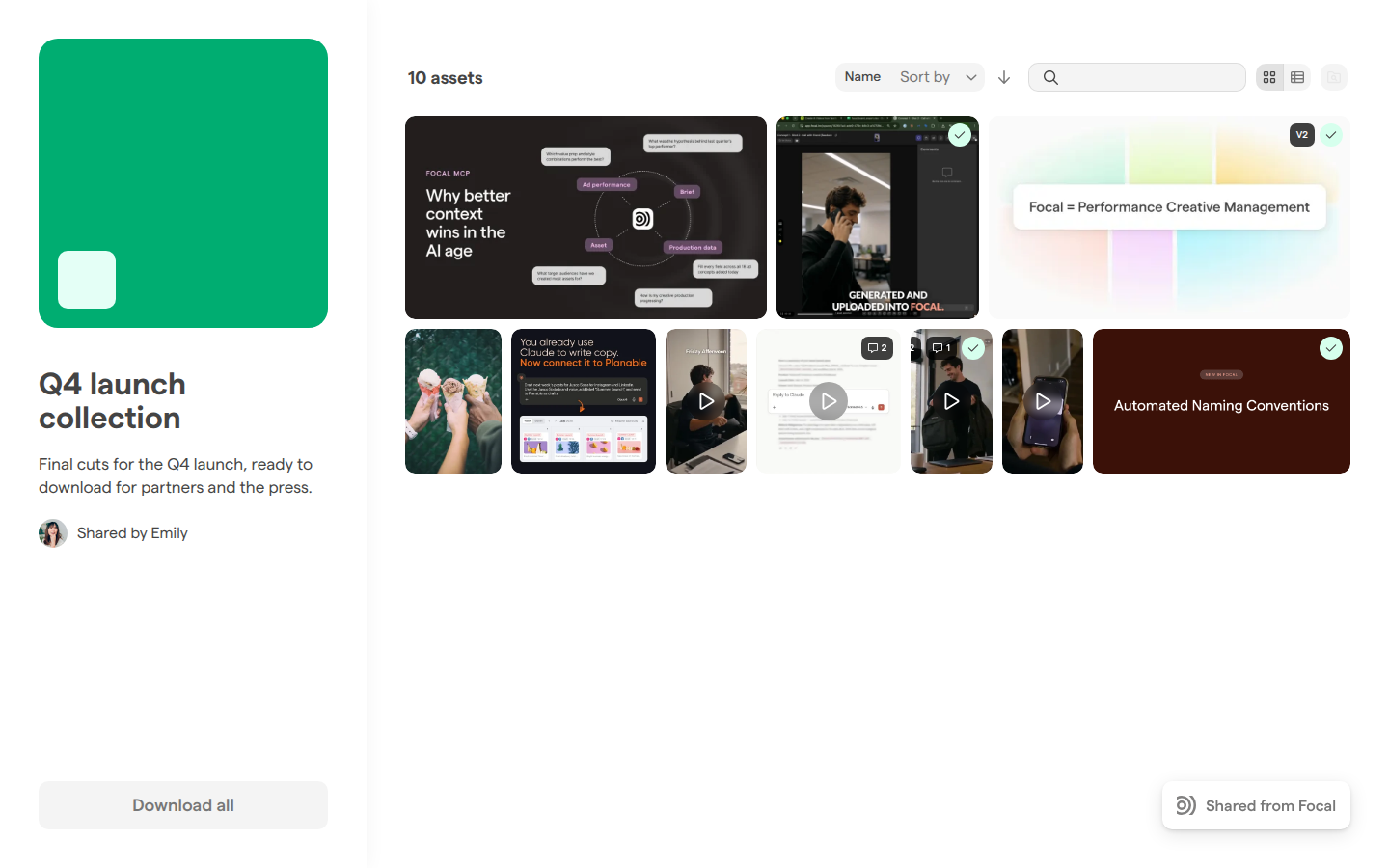
The public page is what people see when they open a collection’s link. It shows the collection’s cover, name and description, who shared it (Shared by <name>), and the assets and folders, with the same sort, search and Gallery or Grid controls as in the app. The public page always uses a light theme.
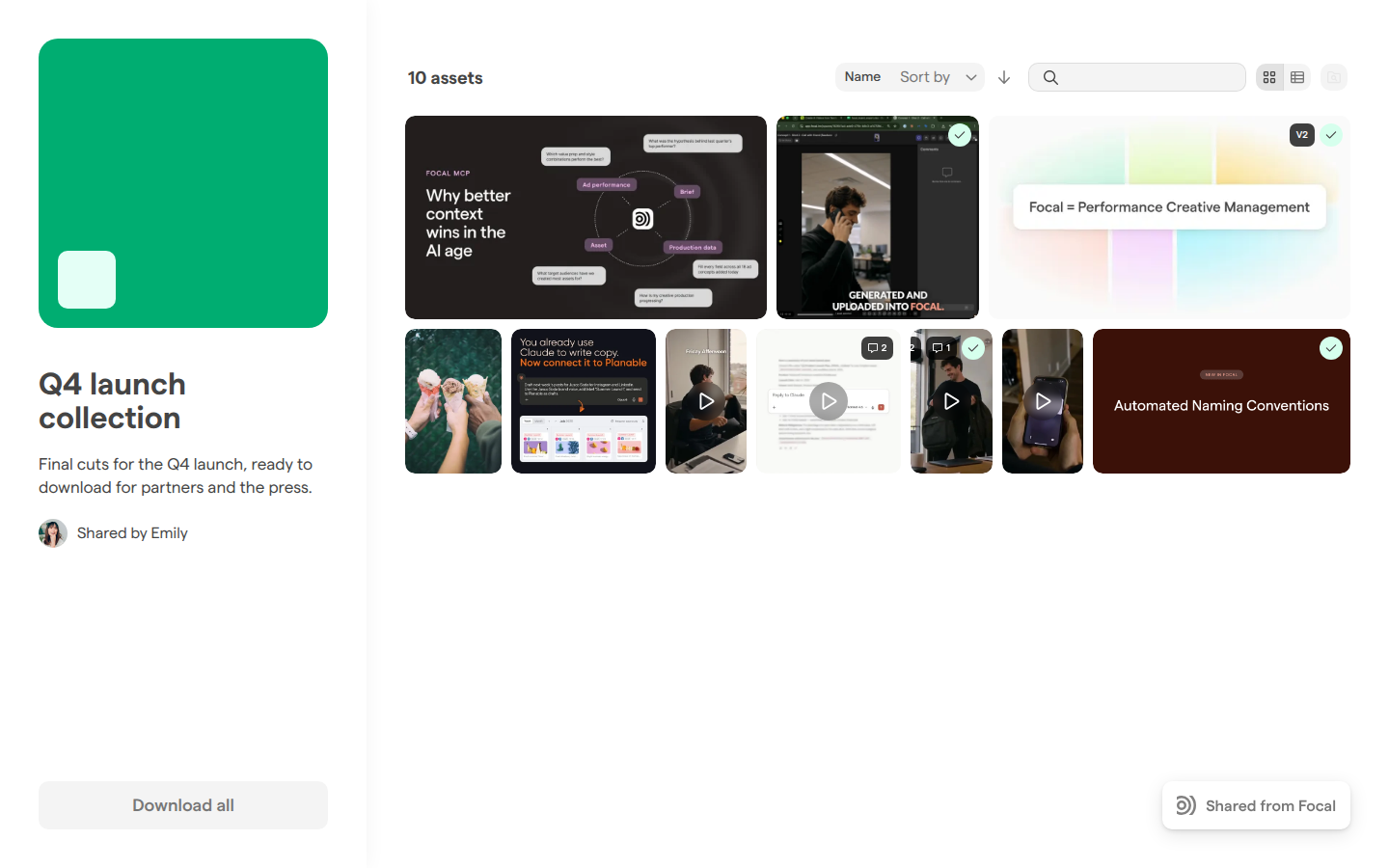
When the collection has a password, the page first says “This collection is password protected”. The viewer types the password in Enter password and clicks Continue. A wrong password shows “That password is incorrect.”
After the collection’s expiration date, the link shows “This collection link has expired.” instead of the collection.
When downloads are allowed, the button at the bottom left reads Download all, or Download 1 file and so on once the viewer selects assets. Several assets download as one ZIP, and the page shows “Preparing your download” with its progress while the ZIP is built.
Double-clicking an asset opens it in a viewer. The arrow keys ← and → move to the previous or next asset, Space plays or pauses a video, and Esc closes the viewer.
Comment on a shared collection
When Guests can comment is on, people who open the link can comment on each asset without an account. The comment button in the viewer’s top bar opens the Comments panel, and they can also draw an annotation on the asset.
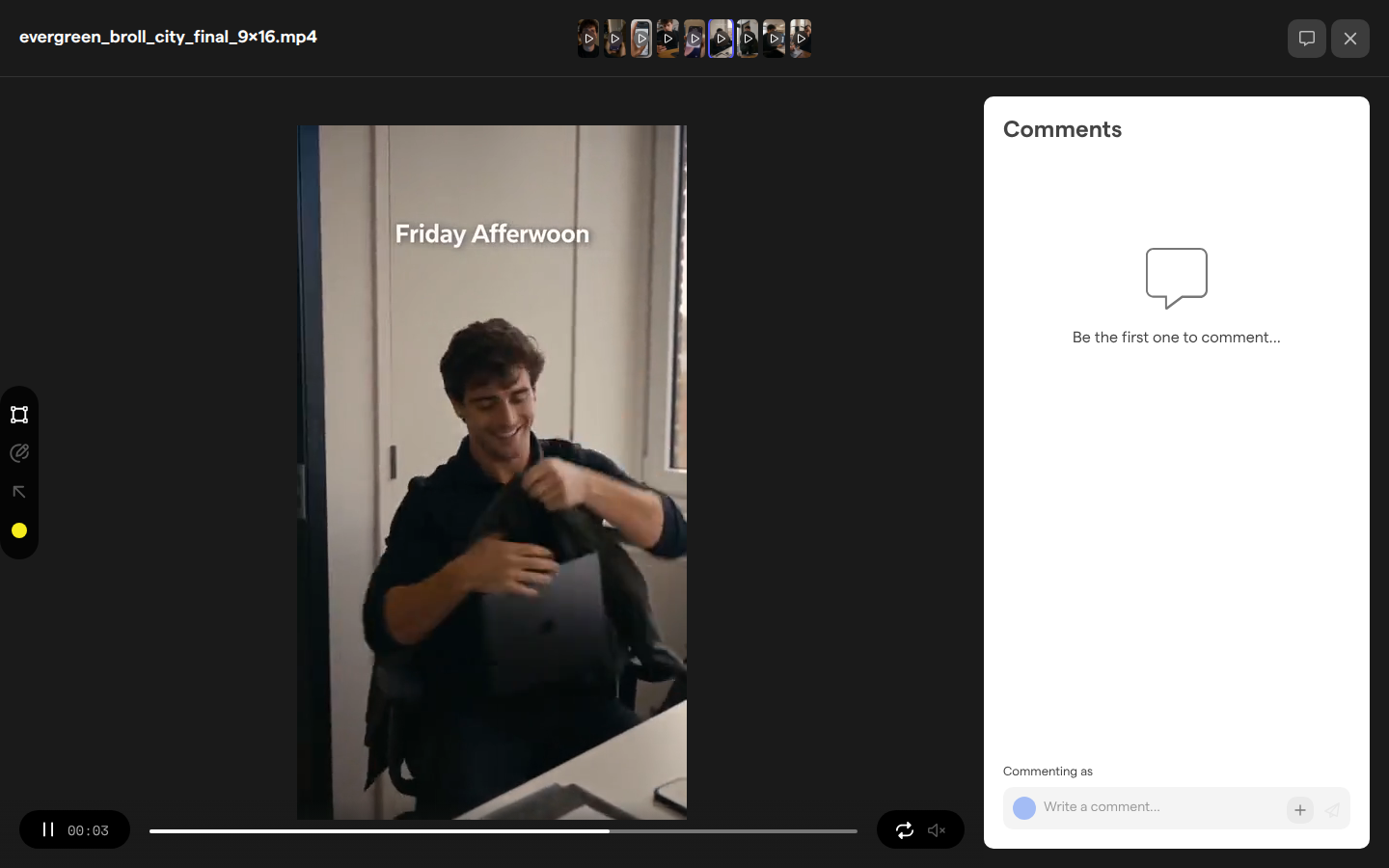
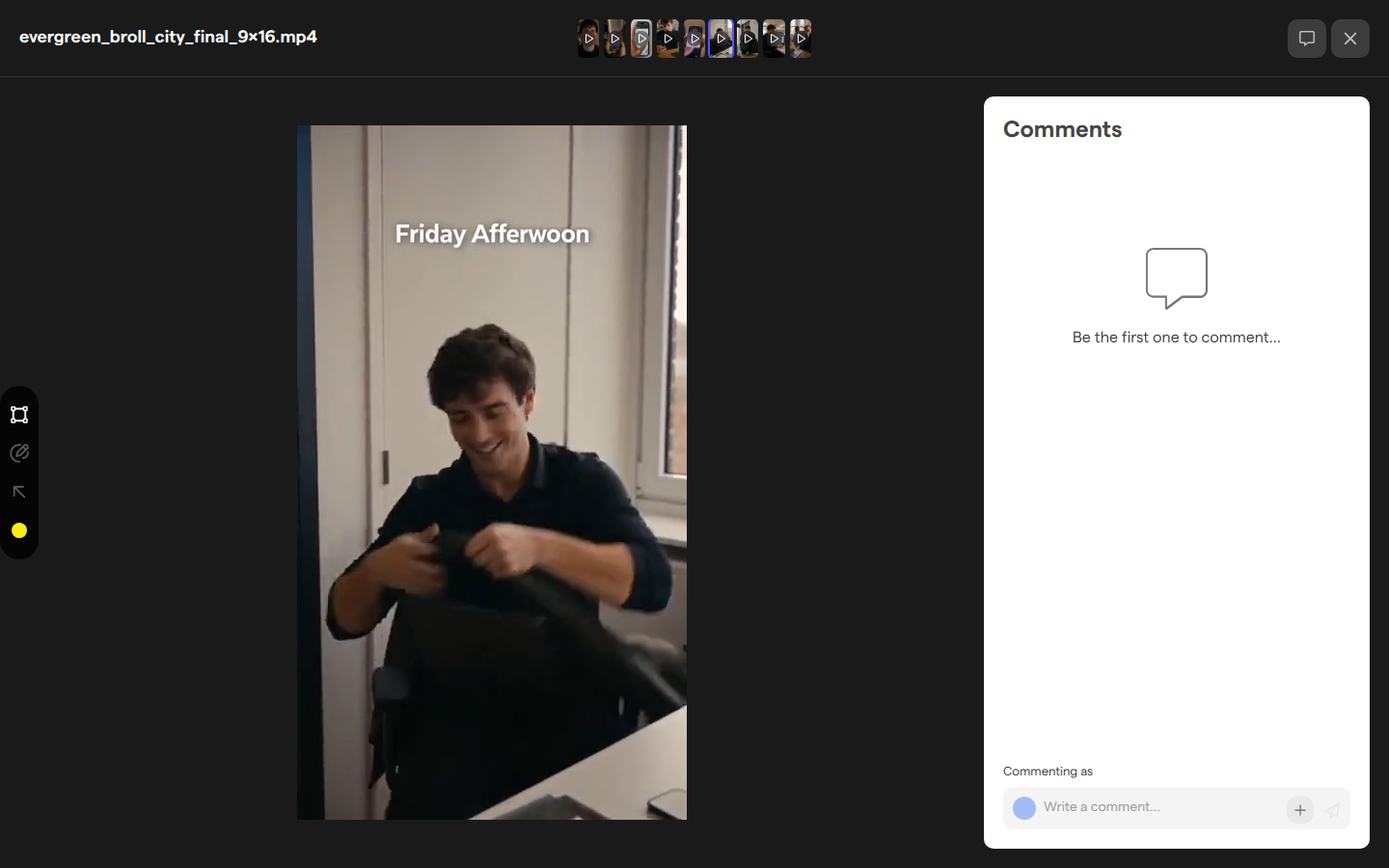
The first time a viewer posts, Focal asks them to “Fill in guest information”: an email address and a name. Their comments then show Commenting as <name>, and they can click Edit to change the details. The comments are not linked to a Focal user.
Comments from the link appear on the asset for your team as well, in the asset viewer in the app. When Guests can change asset statuses is on, the viewer also shows a status picker next to the asset’s name.
Remove assets or delete a collection
Removing assets from a collection only takes them out of the collection. They stay in the asset library, on their boards, and in any other collection.
To remove assets, select them in the collection and click Remove assets from collection in the selection toolbar.
To delete a collection:
- Open the collection.
- Click the trash button next to the gear button.
- In “Are you sure?”, click Yes, I’m sure!.
Deleting a collection disconnects all its assets from it, and its link no longer opens it: the link shows “This collection doesn’t exist or was deleted.” The collection does not go to the asset library’s Trash, and it cannot be restored from the app. The assets themselves stay in the asset library.
Who can use shared collections
Shared collections are for the members and owners of a space. They can see every collection in the space, create collections, add and remove assets, change settings and delete collections. Two things are kept for the person who created a collection and for organization admins: renaming the collection’s folders and choosing the columns in Grid mode. See Roles and permissions for the roles.
Space guests do not see Shared collections in the sidebar and cannot work on collections in the app. A space guest opens a shared collection the same way as anyone else: from its link, with the settings the collection allows.
Download limits for shared collections
A download from the public page of a shared collection is limited to 1,000 assets and 5 GB at a time. For a larger selection, the page says “ZIP downloads are limited to 1000 files and 5 GB. Try selecting fewer files.” Select fewer assets and download them in several rounds.
A ZIP that takes more than 20 minutes to prepare stops with “This is taking longer than expected. Please try again.” Other messages the viewer may see are “This link has expired. Refresh the page and try again.” and “Those files are no longer available.” To download assets inside the app instead, see Exporting assets.