Slack notifications for boards
Slack notifications for boards post a message to a Slack channel when something changes on a board: a task is added or archived, a column is updated, or someone comments. Use them to keep a team that lives in Slack up to date on a board’s work without opening Focal.
A Slack connection belongs to one board view, not to the whole board, and each view connects to one channel. The view decides which tasks count: only changes to tasks the view shows are posted. A new connection posts nothing until you choose what it should post. Slack itself is connected to your organization through the Slack integration.
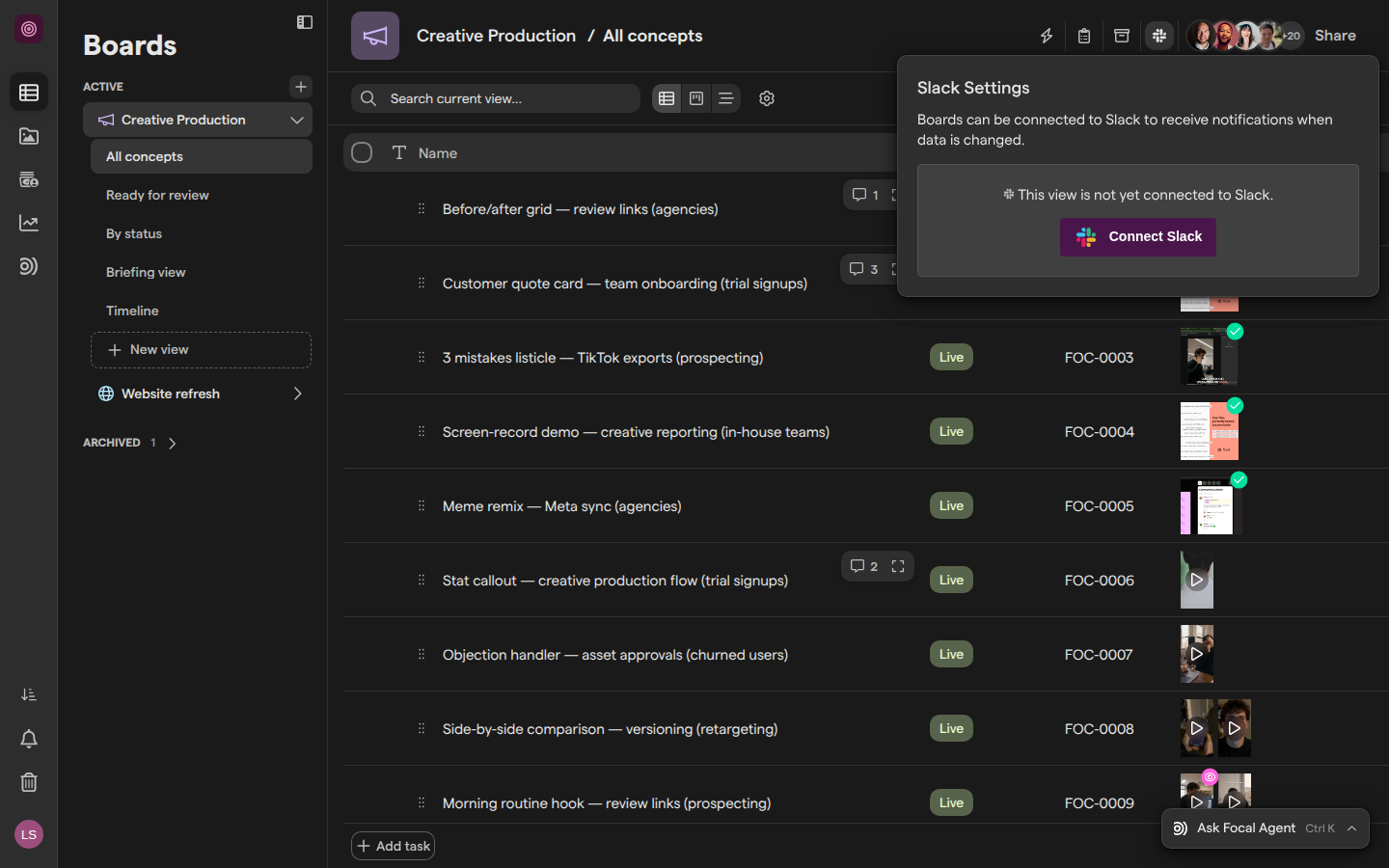
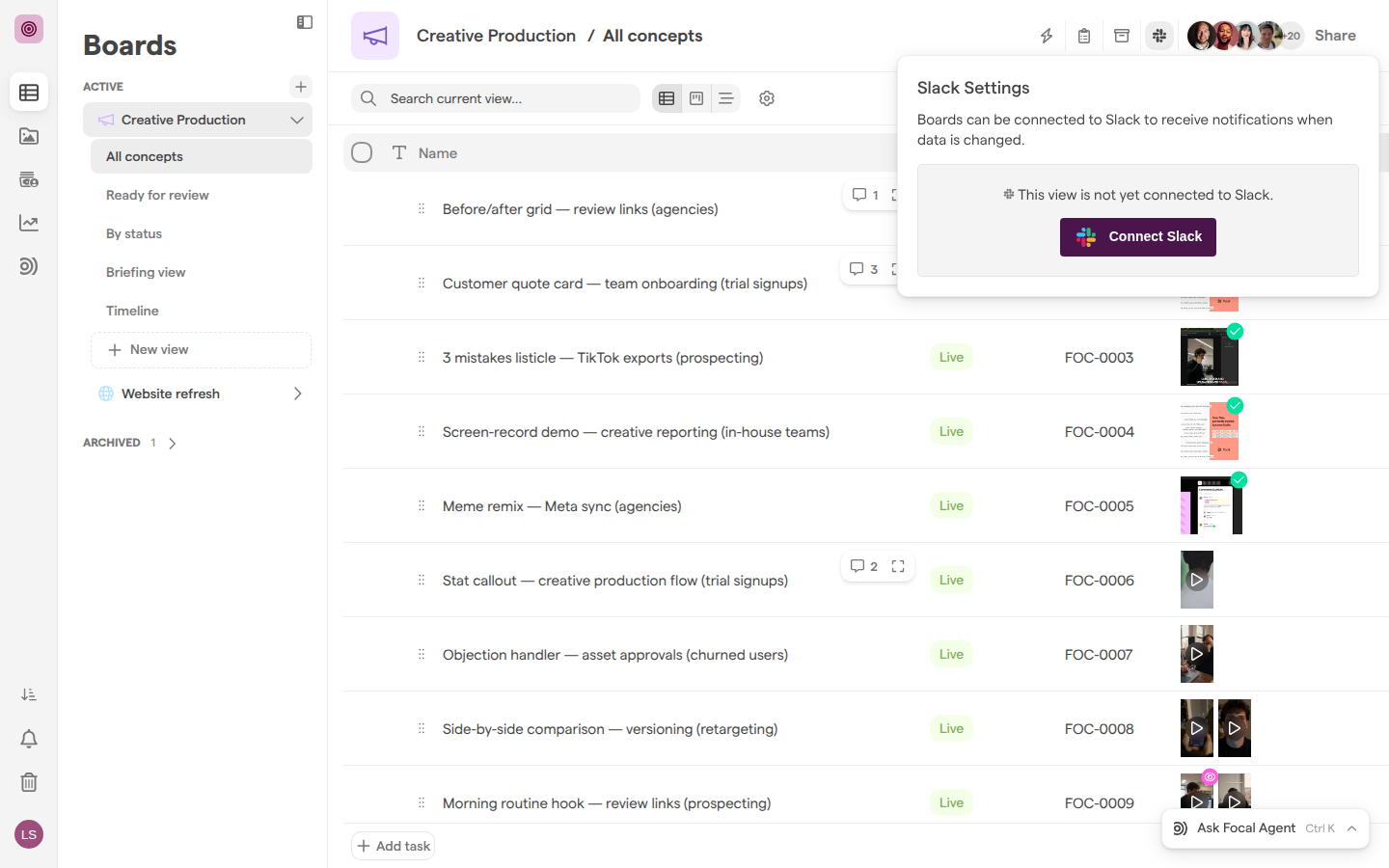
Open a board’s Slack settings
A board’s Slack settings live in a popover in the board header, and they apply to the view you have open. The popover is where you connect a channel, choose what it posts, change the channel and disconnect it.
- Open Boards and click the board in the boards sidebar.
- Open the view whose changes you want in Slack.
- In the board header, click the Slack icon to the left of Share. Its tooltip reads “Slack Settings”.
The popover opens with the heading Slack Settings. When the view has no channel yet, it says “This view is not yet connected to Slack.” and shows a Connect Slack button. When the view is connected, it shows Channel Details with the channel’s name, followed by the Board Data and Comments options.
Only people with Full Access to the board see the Slack icon. On a board shared with you at a lower access level, the header has no Slack icon.
Connect a Slack channel to a board
Connecting a channel subscribes it to one view of the board. Your organization needs a connected Slack workspace first; if it has none, the Connect Board to Slack dialog starts the Slack installation instead. See Slack for connecting Slack itself.
- Open the view’s Slack settings and click Connect Slack.
- In the Connect Board to Slack dialog, find the Slack workspace and click Connect.
- Find the channel in the list. Type in Filter channels to narrow it down.
- Click Use Channel next to the channel.
- When the dialog shows “Slack Channel Connected!”, click Close Modal.
If your organization has no Slack workspace yet, the dialog says “This organization isn’t connected to Slack yet. Click the button below to connect it.” Clicking Connect Slack there sends you to Slack to install Focal. When you come back, the dialog reopens at the channel list.
If a channel is missing from the list, open the Slack workspace’s ⋮ menu next to Filter channels and choose Sync Channels / Users to fetch the channels again.
A new connection posts nothing yet: tick the options in the view’s Slack settings to choose what it posts.
Choose what a channel posts
The options in a connected view’s Slack settings decide which changes Focal posts to the channel. Every option starts off, and each change saves as soon as you tick or clear it.
Under Board Data:
- When any data is changed in this board: posts every change to a task in the view. While this is ticked, the other Board Data options are greyed out, because they are already covered.
- When tasks are added or removed: posts when a task is added to the board or archived. It also posts when a task is permanently deleted from the board’s archive, which can’t be undone.
- Notify me when the … column is updated: one option per column the view shows, for example the Status column. Focal posts when that column’s value changes on a task. The list shows six columns; click Show All to see the rest.
Under Comments:
- When comments are added to this board or connected media: posts each new comment on the board’s tasks and on comments on the assets connected to them.
Only tasks the view shows are posted. A task that a view’s filters hide does not produce a message, even when it changes. To post a different set of tasks, connect a channel to another view with other filters.
Change the channel
Changing the channel moves a view’s Slack notifications to another channel in the same Slack workspace. The options you ticked stay as they are.
- Open the view’s Slack settings.
- Under Channel Details, click Change Channel.
- In the Connect Board to Slack dialog, find the new channel. The current one is marked “Currently Selected”.
- Click Use Channel next to the new channel.
- Click Close Modal.
To move to a channel in another Slack workspace, click the back arrow in the dialog (its tooltip reads “back to workspaces”) and pick the other workspace first.
Disconnect a channel from a board
Disconnecting removes the Slack subscription from the view. Focal stops posting to that channel for the view, and the view’s options are removed with it. Other views of the board keep their own connections.
- Open the view’s Slack settings.
- Under Channel Details, click Disconnect.
- In the “Remove this Slack subscription?” dialog, click Yes, I’m sure!.
A disconnection cannot be undone. To start posting again, connect a channel and choose its options again.
Note: Remove Workspace, in a Slack workspace’s ⋮ menu in the list of Slack workspaces of the Connect Board to Slack dialog, is a different action. It removes every subscription to that Slack workspace across the organization, on all boards, not only the view you are on. To stop one view’s notifications, use Disconnect.
When a Slack channel is archived
A view keeps its connection when its channel is archived in Slack, but Slack no longer accepts messages in an archived channel, so the view’s notifications stop arriving. Focal does not move them to another channel on its own.
The view’s Slack settings show the problem. Under Channel Details, the channel is shown in red with the message “This channel has been marked as archived in the Slack workspace. Please select another Slack channel to continue receiving notifications.”
To fix it, click Change Channel and pick a channel that is still active. Archived channels are hidden in the channel list; tick Show archived slack channels to see them, marked “(Archived)”. They cannot be picked.
If Slack disconnects the whole Slack workspace from Focal, the dialog shows “Slack has disconnected this workspace.” with a Reconnect button, which takes you through Slack again. See Slack.
Who can set up Slack notifications
A board’s Slack settings are open to people with Full Access to the board, whatever their role in the space. With Edit, Upload, Comment or View Access, the Slack icon does not appear in the board header. Access levels are set when sharing a board and are described in Roles and permissions.
Connecting a channel and changing a channel also need an organization admin at present. Someone with Full Access who is not an organization admin can open the dialog, but picking a channel ends in “There was an error” with “You don’t have permission to connect this channel to this space”. Choosing what a connected channel posts, and disconnecting it, work with Full Access alone.