Sharing reports
Sharing a report decides who can open a report and what they can do with it. Each person a report is shared with gets one access level: Full Access to change, share and permanently delete it, Edit Access to change and save it, or View Access to read it. You share a report when a colleague or client needs to follow campaign results, or to keep a report to a smaller group.
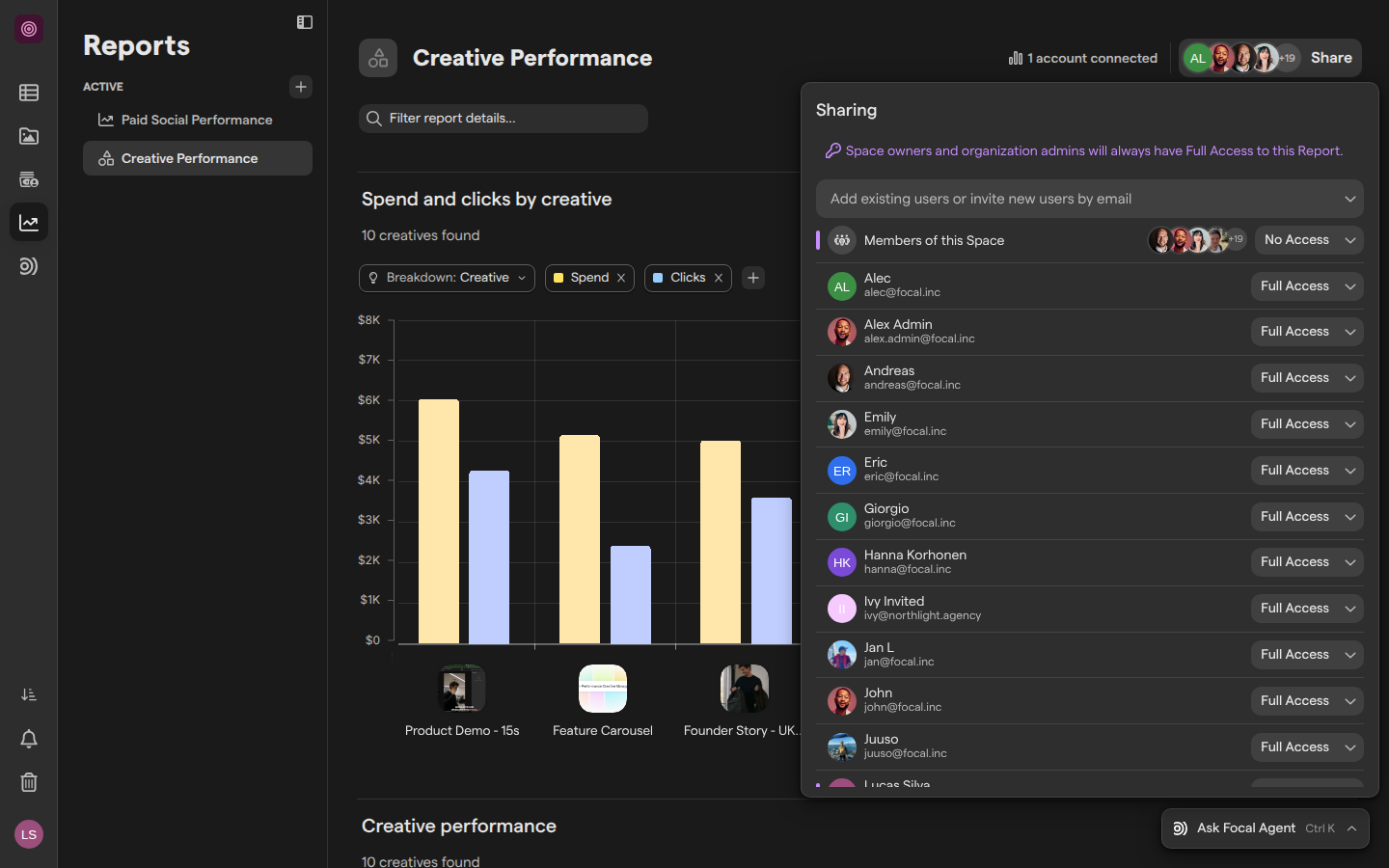
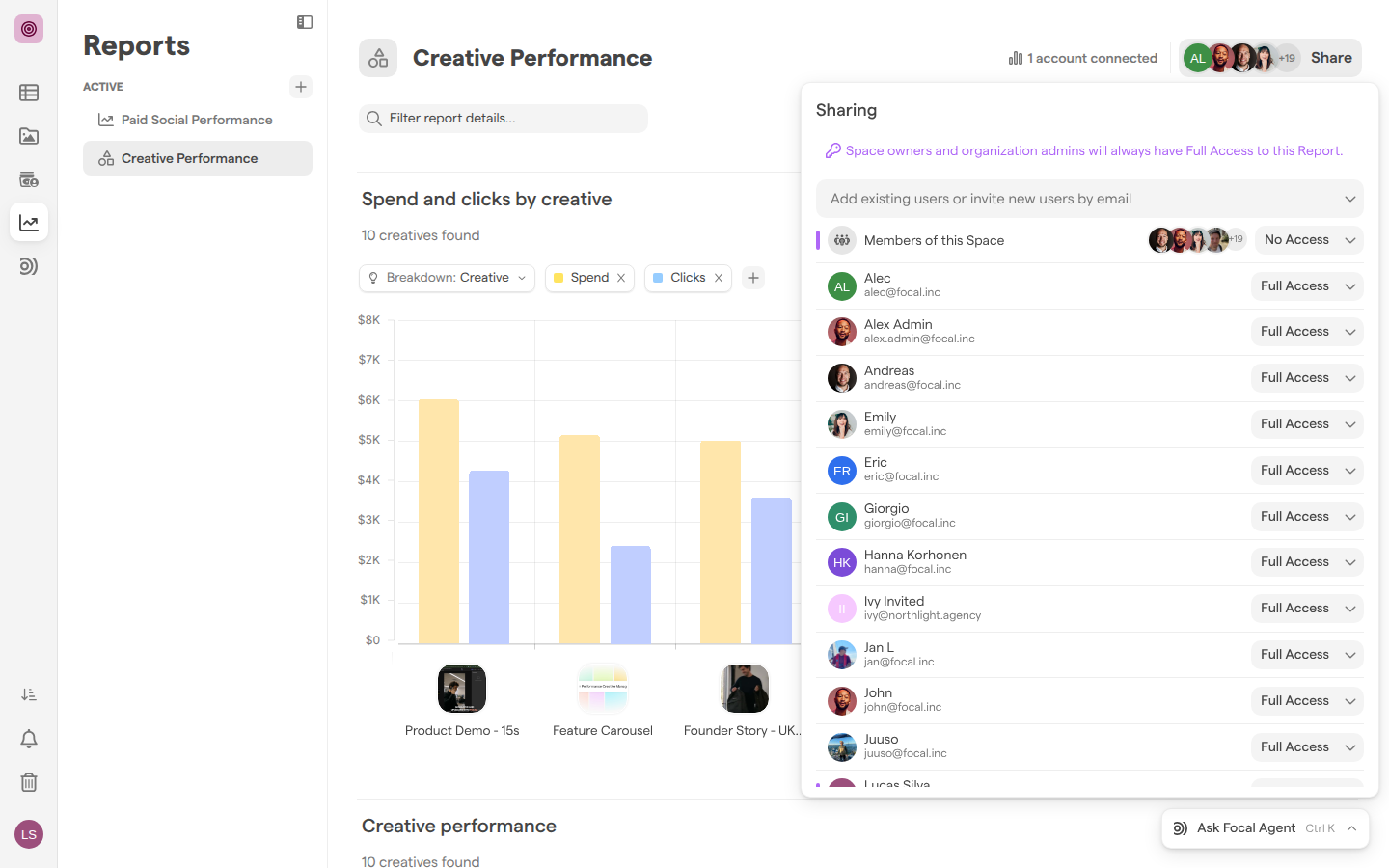
Sharing is set in the Sharing panel, opened from the Share button at the top right of every report. The panel lists Members of this Space, which sets the access for every member of the space, then each person the report is shared with. Reports are shared with people one by one: there are no teams in a report’s sharing and no public link to a report.
Choose an access level
An access level is what a person can do with a report shared with them. Each level includes everything the levels below it allow. These are the levels in the Sharing panel, from highest to lowest:
| Access level | What it allows |
|---|---|
| Full Access | Everything Edit Access can do, plus change the report’s sharing and permanently delete the report |
| Edit Access | Change and save blocks, filters and the report’s ad accounts, and rename the report and change its icon |
| View Access | Open and read the report, without changing it |
| No Access | Only on Members of this Space: space members get no access through that entry |
Changes to filters and blocks are saved through Review changes, by anyone with Edit Access or Full Access. What each level can do is covered in detail in Managing reports.
We recommend Full Access for the few people who own a report and decide who sees it, Edit Access for the people who build and update it with them, and View Access for everyone who only reads it.
See who can open a report
Every report shows who it is shared with. The Share button at the top right of the report carries the avatars of the people with their own access to it.
- Open the report from Reports.
- Click Share at the top right of the report.
The Sharing panel opens. At the top, Members of this Space shows the access every space member gets. Under it, each person the report is shared with is listed with their name, email address and access level. Press Escape to close the panel.
Space owners and organization admins can open every report in the space, whether or not the panel lists them. Anyone else who is neither listed nor covered by Members of this Space does not see the report in the Reports sidebar. Space and organization roles are covered in Roles and permissions.
Share a report with people in your organization
Sharing a report with a person gives them their own access level to it. You can share with anyone already in your organization. Sharing a report needs Full Access to it.
- Open the report and click Share.
- Click the field that reads Add existing users or invite new users by email.
- Pick a person from the list, or type to search by name or email.
- In the new entry, pick an access level from the dropdown on the right.
A person who is already in the space is added straight away with View Access. The change is saved as soon as you make it: sharing changes do not wait for Review changes.
A person marked “Not in space” is in your organization but not in this space. Picking them opens the Add user to <space name> window, which reads “Adding an existing organization member”. Choose their access level and how they join the space, then click Add. With Invite only to this report, they join the space as a guest and get access to this report only.
Invite someone new by email
Inviting someone by email adds a person who is not in your organization yet and shares the report with them in the same step. It is how you show a report to a client or an agency.
- Open the report and click Share.
- In the Add existing users or invite new users by email field, type the person’s full email address.
- Pick
Invite "<email address>"from the list. TheAdd new users to <report name>window opens. - Pick an access level from the dropdown next to the email address. It starts at View Access.
- Edit the invitation message under Write a small email message for the invited user, if you want to.
- Click Add.
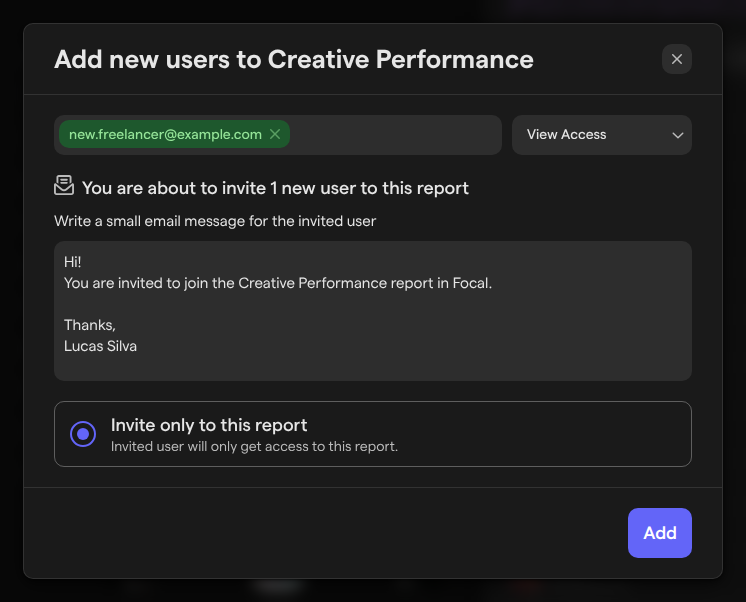
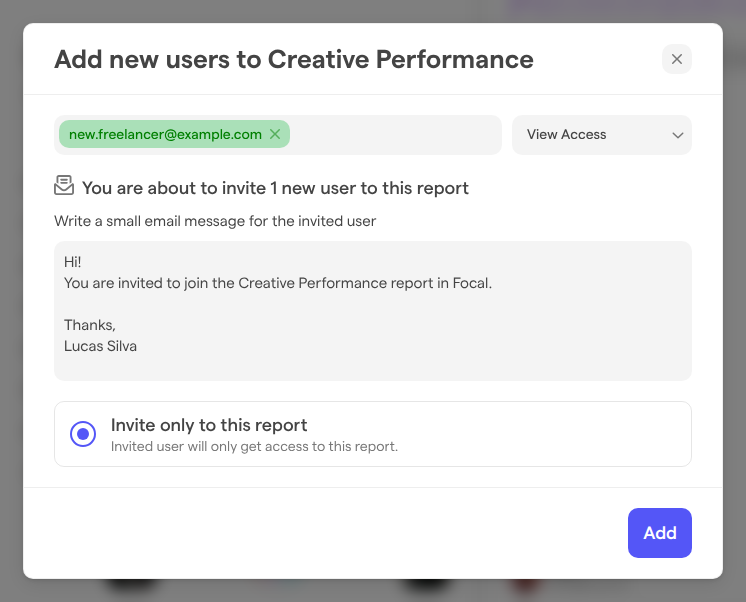
With Invite only to this report, the person joins the space as a guest and gets access to this report only. Space owners also see Invite as space member, and organization admins Invite as organization member, for wider access. An invalid address shows “Not a valid email” and cannot be picked.
Guests do not see Reports in the app’s navigation, so send an invited guest the report’s link: right-click the report in the Reports sidebar and choose Copy link address.
Set the access for everyone in the space
The Members of this Space entry gives every space owner and member the same access to a report in one step. Use it to open a report to the whole team, or set it to No Access to keep the report to the people listed under it.
- Open the report and click Share.
- Click the access level on the Members of this Space entry.
- Pick the access level:
- Full Access
- Edit Access
- View Access
- No Access
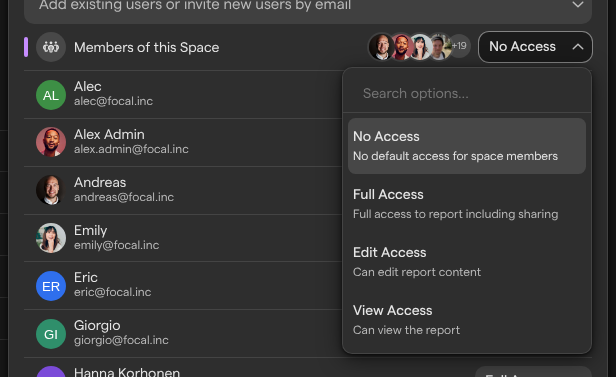
When a person has their own entry as well, the higher of the two levels applies. A person entry can give someone more access than the rest of the space, but not less. Members of this Space never includes guests: a guest gets access to a report only through their own entry.
A new report starts with Members of this Space at No Access and Full Access for its creator, so only the creator, space owners and organization admins can open it until it is shared.
Change or remove someone’s access
Changing someone’s access level takes effect for them straight away. Anyone with Full Access to the report can do it.
- Open the report and click Share.
- Click the access level on the person’s entry.
- Pick a new level, or pick Clear at the top of the list to remove the entry.
Removing a person from a report does not remove them from the space or the organization, and they keep any access Members of this Space gives.
Lowering your own access asks first: the “Downgrade your own access?” dialog warns “You may not be able to restore it yourself afterwards.” Click Downgrade to go ahead. In your own entry, your current level and the ones above it are greyed out, so you can lower your own access but never raise it.
What guests see
A guest is a person with the Guest role in a space, such as a client invited to one board or report. Guests do not see Reports in the app’s navigation, and no report is shared with them unless someone adds them by name.
A guest added to a report by name opens it from its link, with the access level they were given. For guests on boards, see Sharing boards.
Who can change a report’s sharing
Changing a report’s sharing needs Full Access to the report. Space owners and organization admins always have Full Access to every report in the space. Someone with Full Access sees “Space owners and organization admins will always have Full Access to this Report.” at the top of the panel.
Anyone else who can open the report can open Share to see who it is shared with, but cannot change it. The add field and the entries in the panel are greyed out. To get access changed, ask someone with Full Access to the report or a space owner.
If your Full Access comes only from Members of this Space, that entry is greyed out for you.