Ads and creatives
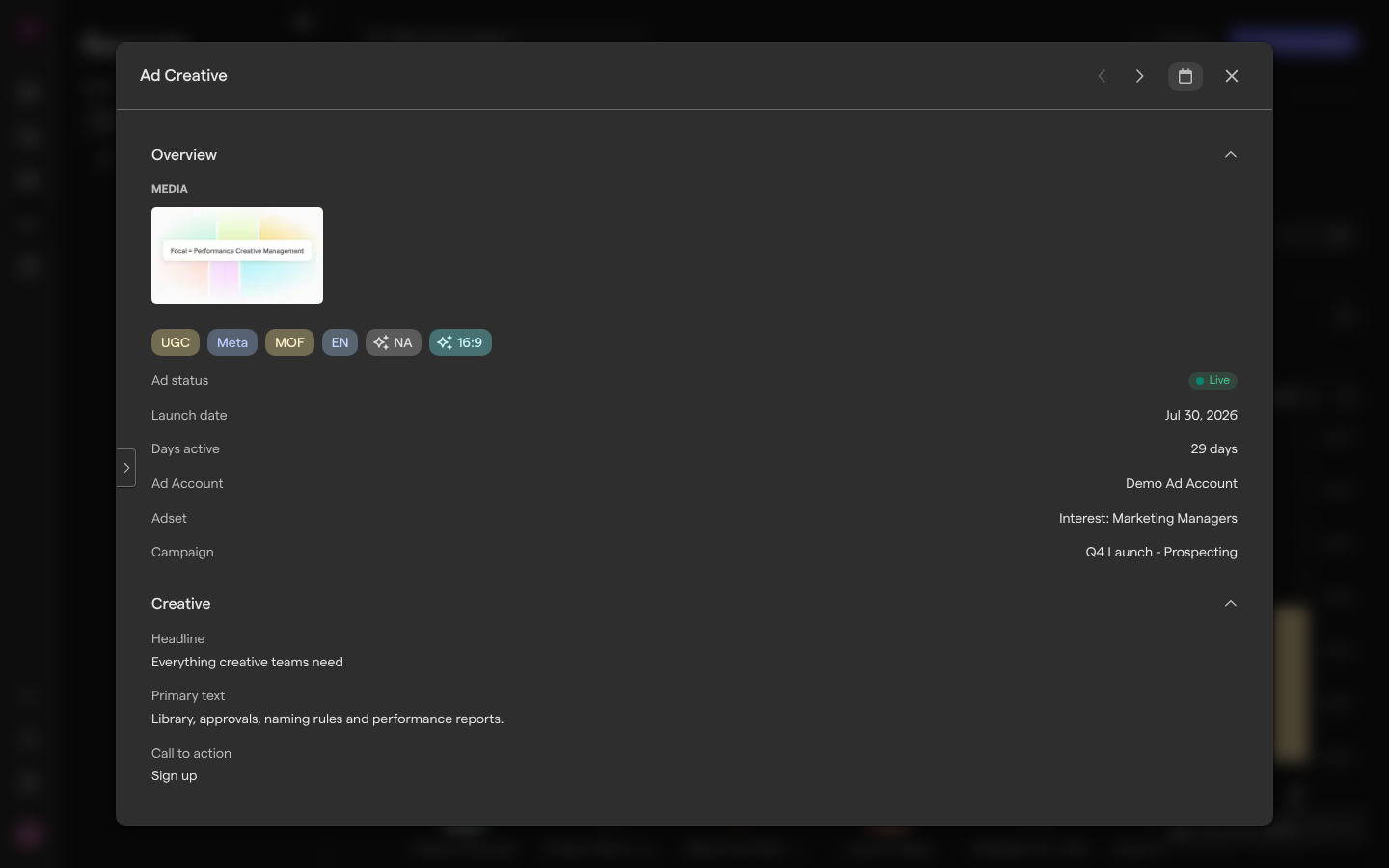
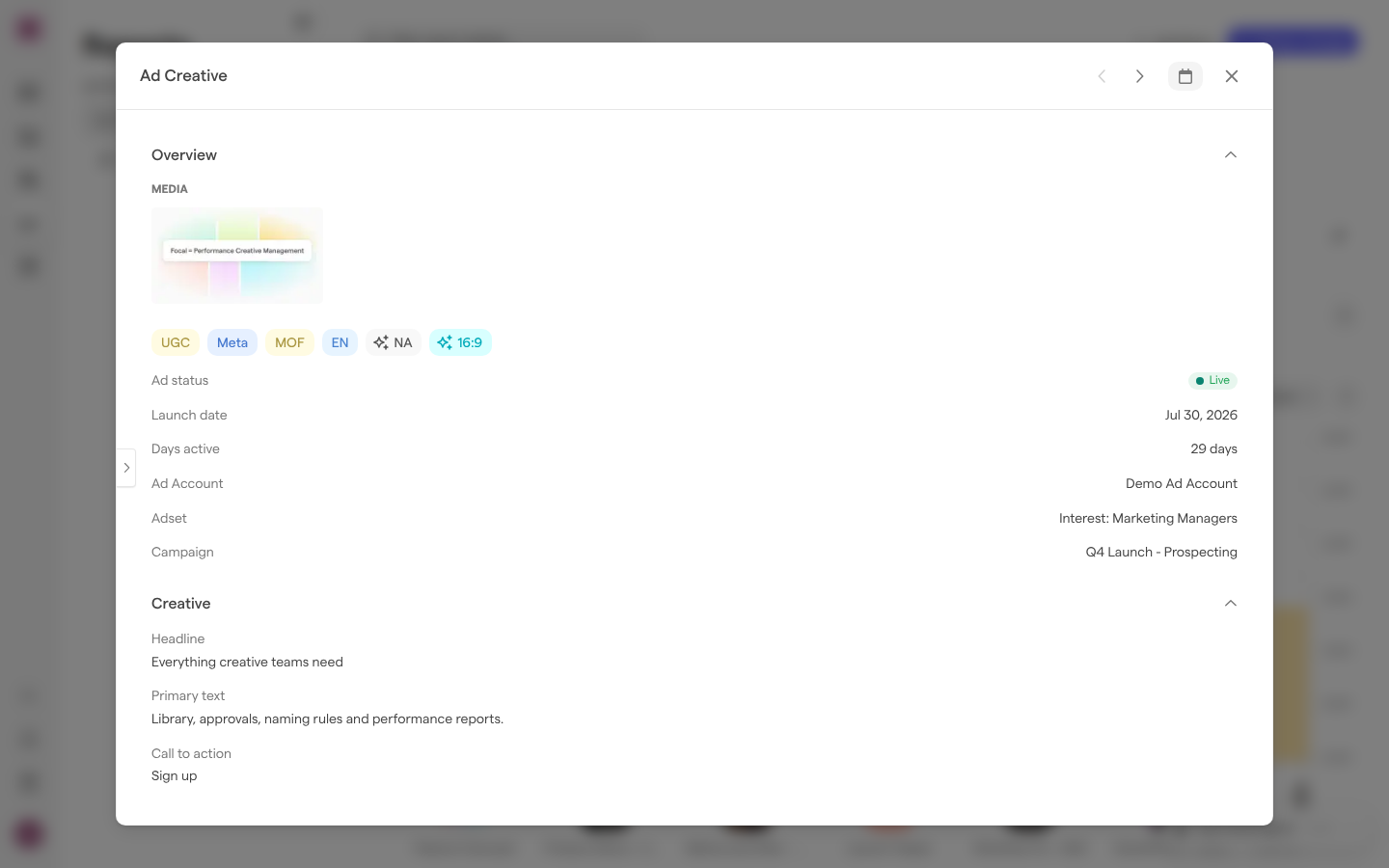
The ad window and the creative window are the detail views behind the ads in a report. The ad window shows one ad: its preview, where it runs, its creative text and its metrics. The creative window shows one creative, the visual an ad uses, with its totals across every ad that runs it. Open them from a report block when a number stands out and you want to see the ad behind it.
Two more windows sit next to them. Metrics by attributes groups every ad that shares an attribute value, such as all UGC ads, so you can compare a format, a hook or a funnel stage across a campaign. Connect to Library links a creative to the asset in your library it was made from, which is how Focal shows your own assets next to their ad results.
Open an ad
An ad opens in the ad window from any block that lists ads: a Table, Graph or Time Series block whose breakdown is by ad.
- Open Reports from the sidebar and choose a report.
- In a block, click an ad: its name in a table, its card in a gallery, or its label in a graph.
The ad window is titled with the ad’s name, and the creative window “Ad Creative”. Use the Previous and Next arrows at the top to step through the other ads in the same block, in the block’s order. In the ad window, the left and right arrow keys do the same. Press Escape or click outside the window to close it.
The page address changes to point at the open window, so you can copy it to send a colleague straight to the same ad.
When you move from one window to another through an attribute, a back arrow appears at the top left and returns you to the window you came from.
Read the ad window
The ad window has two columns. On the left is the ad preview, as Meta renders it. The placement menu under the preview switches it between Mobile placements and Desktop placements:
- Mobile placements:
- Feed
- Stories
- Marketplace
- Video Feeds
- Suggested Video
- Reels
- Instant Articles
- Desktop placements: Feed, Video Feeds, Marketplace
The preview starts on Stories. A link icon next to the window’s title opens the ad’s preview on Meta. Click the arrow between the columns to hide the preview and give the details the full width.
The right column lists the ad’s details:
- Overview: the asset or assets the ad uses, the ad’s attribute tags, “Ad status” (or “Last live” for an ad that is no longer live), “Launch date”, “Days active”, “Ad Account”, “Adset” and “Campaign”. Click an asset’s thumbnail to open it.
- Creative: the ad’s “Headline”, “Primary text”, “Description” and “Call to action”.
- Main Metrics: the ad’s totals for the window’s date range, with the change against the previous period.
If the ad’s preview can’t be loaded, the left column shows “Failed to load ad preview”.
See demographics, placements and video retention
The bottom of the ad window has three charts that Focal loads from Meta when you scroll down to them, under “Waiting for Facebook…”. They cover the window’s date range.
- Gender & age breakdown splits the ad’s results by age group and gender. A menu switches the metric between:
- Impressions
- Spend
- Clicks
- Reach
- Placement breakdown compares placements side by side, each marked with its platform’s icon. Two menus pick the two metrics to compare, such as Spend and CTR (link click).
- Video Retention shows, for a video ad, the percentage of viewers still watching at each point of the video, with the first 3 seconds highlighted. The info icon explains that retention is measured from the views that actually started playing, not from impressions. It only appears when Meta has enough retention data for the video.
When there is nothing for the date range, a chart says “No demographic data available for the selected time range.” or “No breakdown data available for the selected time range.”.
Open a creative
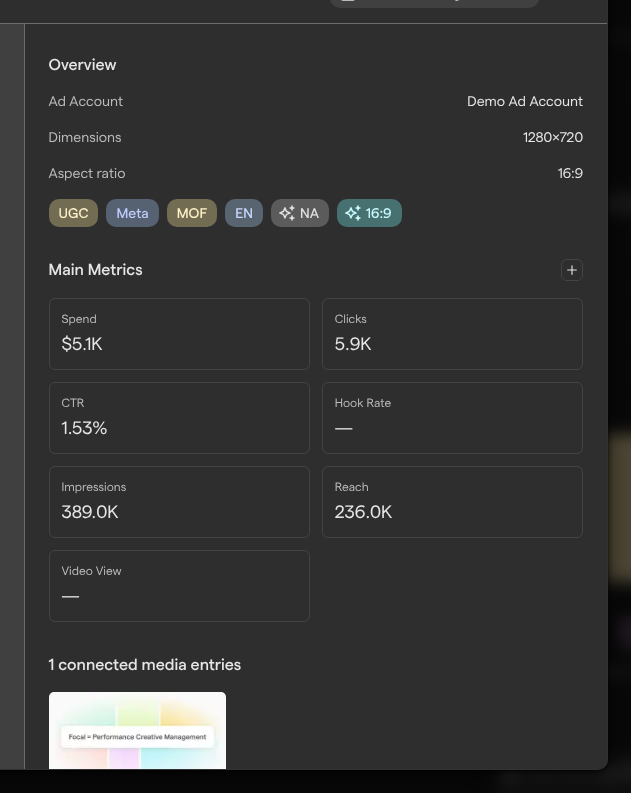
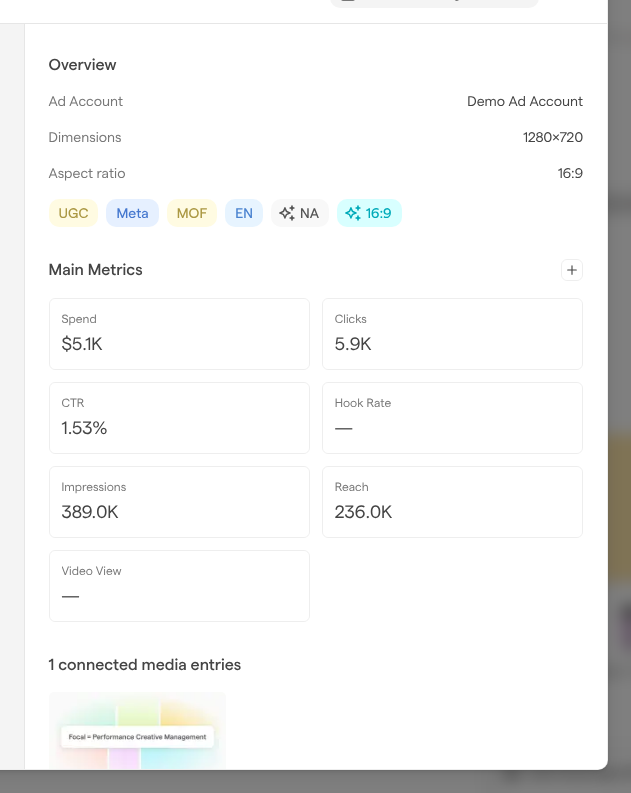
A creative opens in the creative window from a block whose breakdown is by creative: click the creative in the block, the same way as an ad. The creative window has the same preview on the left, without the option to hide it, and these details on the right:
- Overview: the “Ad Account” (or “Ad Accounts”) running the creative, its “Dimensions”, its “Aspect ratio” and its attribute tags.
- Main Metrics: the creative’s totals across all of its ads.
- connected media entries: the assets in your library linked to the creative. Click one to open it.
- connected ads in this creative: a card for each ad that uses the creative. The metrics menu above the cards picks which metrics each card shows. Click a card to open that ad in the ad window.
Change the date range
Each window has its own date range, in the calendar button at the top. It starts with the block’s timeframe and changes only the open window: the block and the report keep theirs.
- Click the date range at the top of the window.
- Pick a quick option, such as Last 7 Days, Last Month or Maximum, or select a start and an end date in the calendar.
- To count only ads launched within those dates, turn on Only show data for creatives launched during this period.
Reset returns to the date range the window opened with. Dates before the ad account’s synced data can’t be picked.
Choose the metrics a window shows
The metrics under Main Metrics are one list for the whole report: change them in one window and every ad, creative and attribute window in that report follows.
- Click + next to Main Metrics.
- Search with Search metrics… or browse the groups, and click a metric to add or remove it.
- To remove a metric, you can also hover over its box and click its ×.
A window shows at most 10 metrics. The cards in the creative and attribute windows have their own list, with up to 8 metrics, under the metrics selected menu.
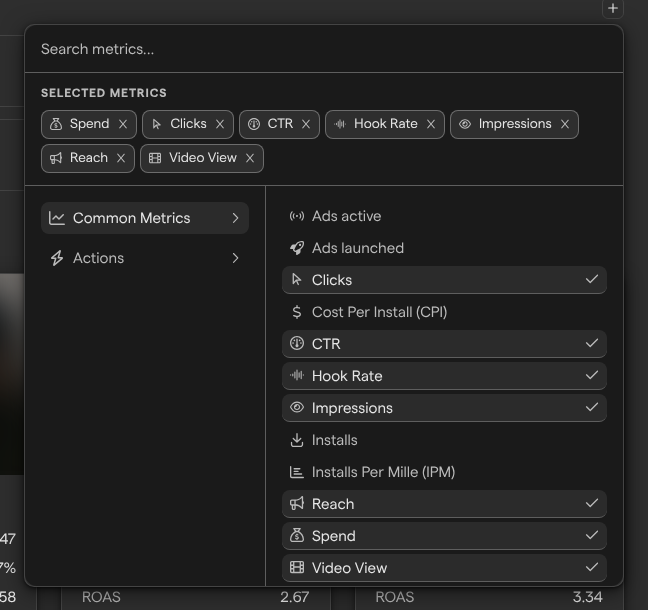
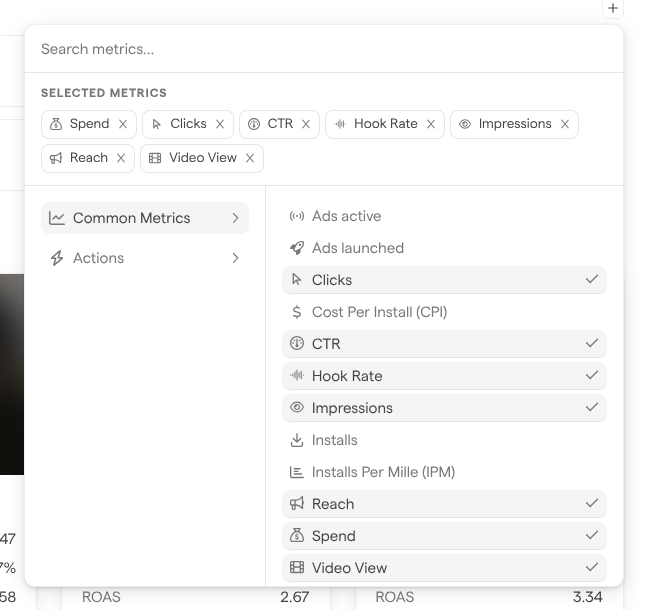
Either change is a report edit: it appears under Review changes as “Changed the displayed fields” or “Changed the card fields”, and stays until someone with Edit or Full access saves it. See Managing reports.
Break down performance by an attribute
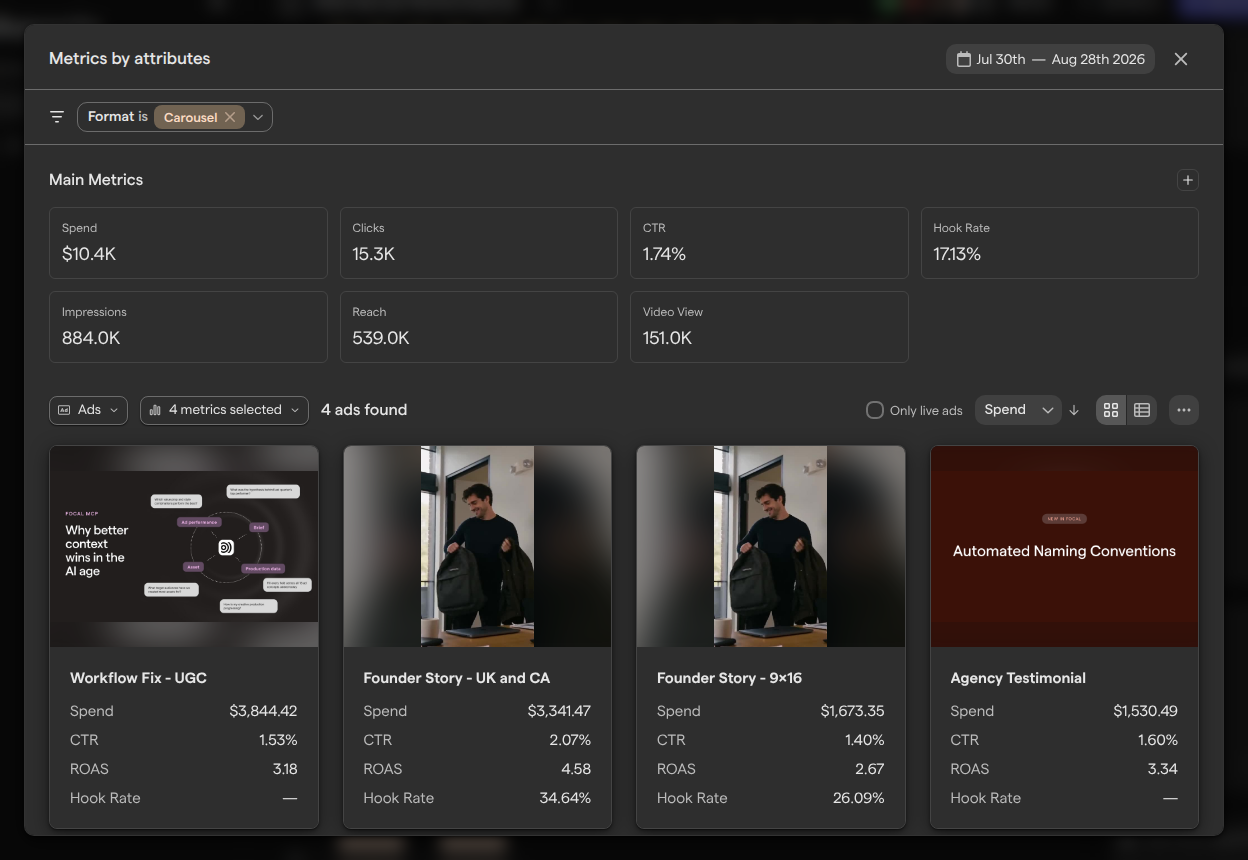
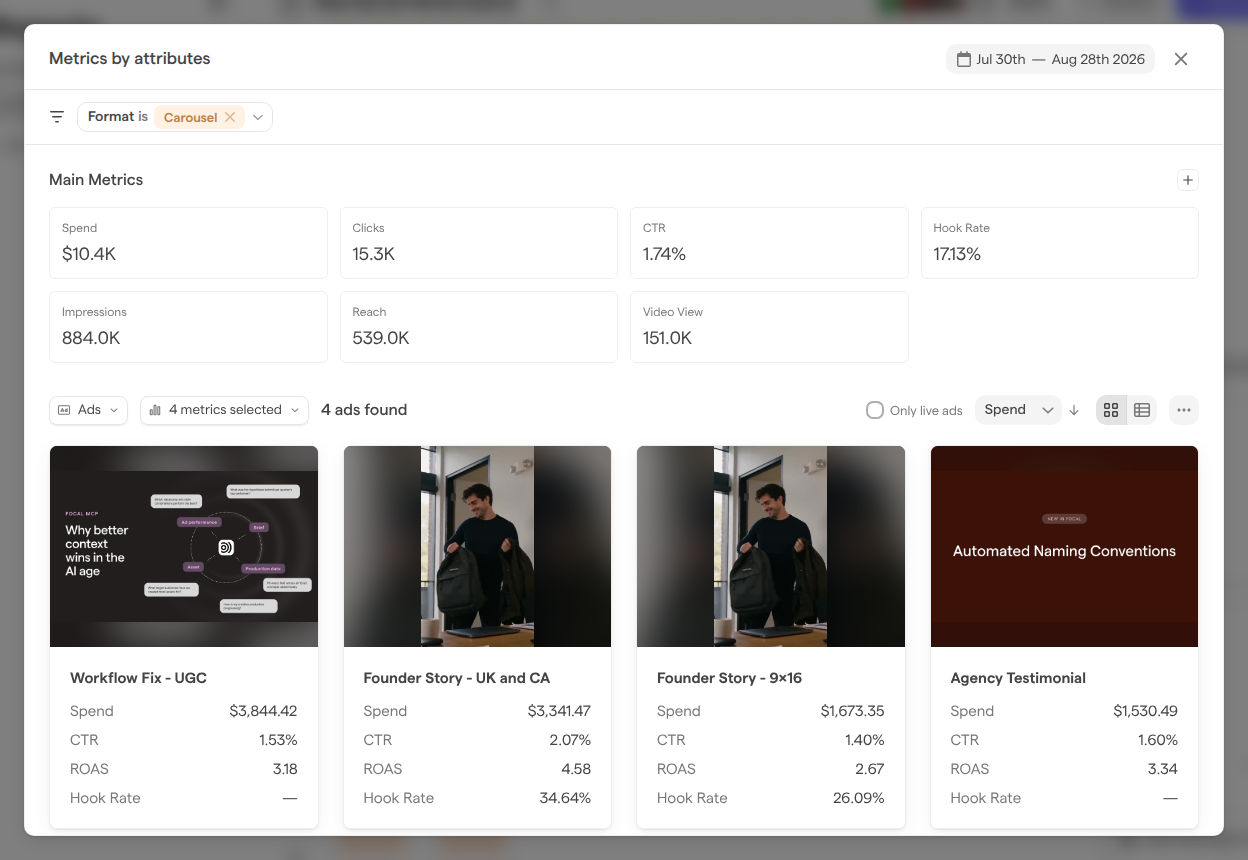
The Metrics by attributes window shows every ad that shares one value of a media attribute, with their combined metrics. It opens when you click an attribute tag in the ad or creative window or on a card, a card in a Trends by Attribute block, an attribute value in a table, or a bar in a Graph or Time Series block broken down by an attribute.
The window opens filtered to that value, such as “Format is UGC”. From there:
- Add or change filters with the filter button at the top left.
- Switch the list between Ads, Creatives and By Media with the breakdown menu.
- Turn on Only live ads to hide ads that are no longer running.
- Sort by:
- Spend
- Clicks
- Impressions
- Reach
- Launch date
- Last live
- Switch between Gallery and Grid.
- Click an entry to open its ad window, creative window or asset. Load More shows the next 20.
A sparkles icon on an attribute tag means AI filled in that value on the asset behind the ad. See Media tagging.
To keep a breakdown in the report, click ⋯ and then Add as block. Focal adds a Table block named after the attribute value, with the window’s filters, breakdown, view, card metrics and date range. Like any block change, it waits under Review changes until it is saved.
Connect a creative to its asset in the library
Focal links each ad’s creative to the assets in your asset library it was made from, and shows them in the ad window and in a table’s Media column. When a link is missing or wrong, fix it in Connect to Library.
- In a Table block, switch to Grid to see the Media column.
- Hover over the ad’s Media cell and click + (“Connect to library”).
- For each group, click + (“Connect a library file”) and pick an asset from Suggested matches, or search with Search by ID, name or keywords.
- Remove a wrong asset with its ×.
- Click Save.
The window groups the creative’s parts by type and aspect ratio, such as “Video · 9:16”, because every part of the same shape gets the same assets. A group takes at most six assets. Save replaces the group’s links and applies at once, without Review changes; the report’s blocks reload with the new links. If Focal has no details about the parts of the ad’s creative, the window says “No creative assets were found for this ad.” Connect to Library is also in the Grid view of the attribute window.
Who can use these windows
Everyone who can open a report can open its ad, creative and attribute windows and change their date ranges. What else they can do depends on their access to the report:
- View access can read the windows.
- Edit and Full access can also change the metrics and use Add as block. These changes wait under Review changes until they are saved.
A change made with Connect to Library shows in every report in the space that includes the ad. See Sharing reports for the access levels.