Creating a report
A report is a page in a space built from blocks that show how your ads and creatives perform and what your team produced. You create a report when you want one place to follow a campaign, a channel or a team’s output, and you connect the ad accounts whose numbers it should read.
A new report starts empty, with nothing to set up first: you pick its first block, and connect an ad account when a block needs performance data. Ad accounts are wired to each report separately from the report’s header, and every report has a timeframe its blocks use until you give a block its own.
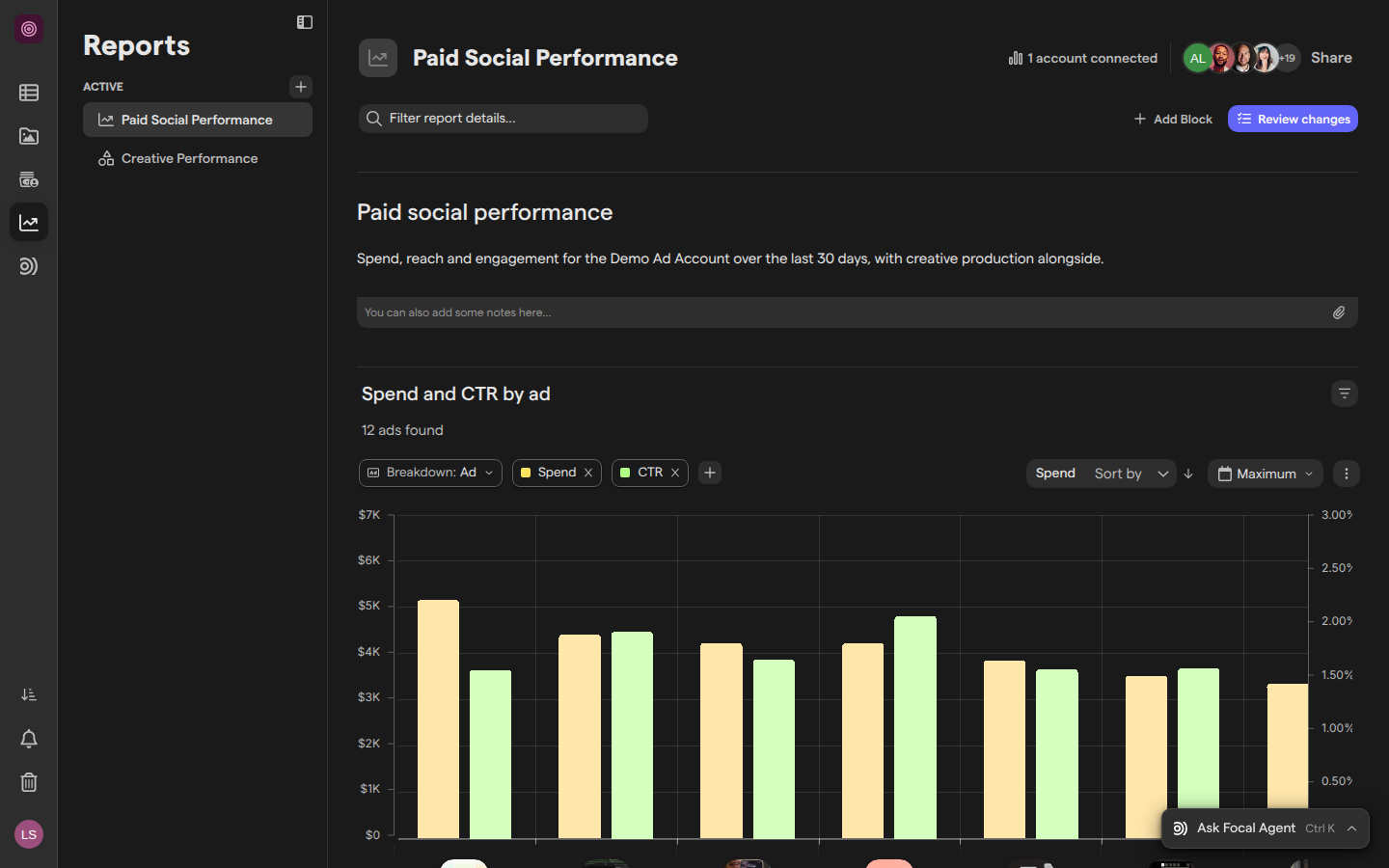
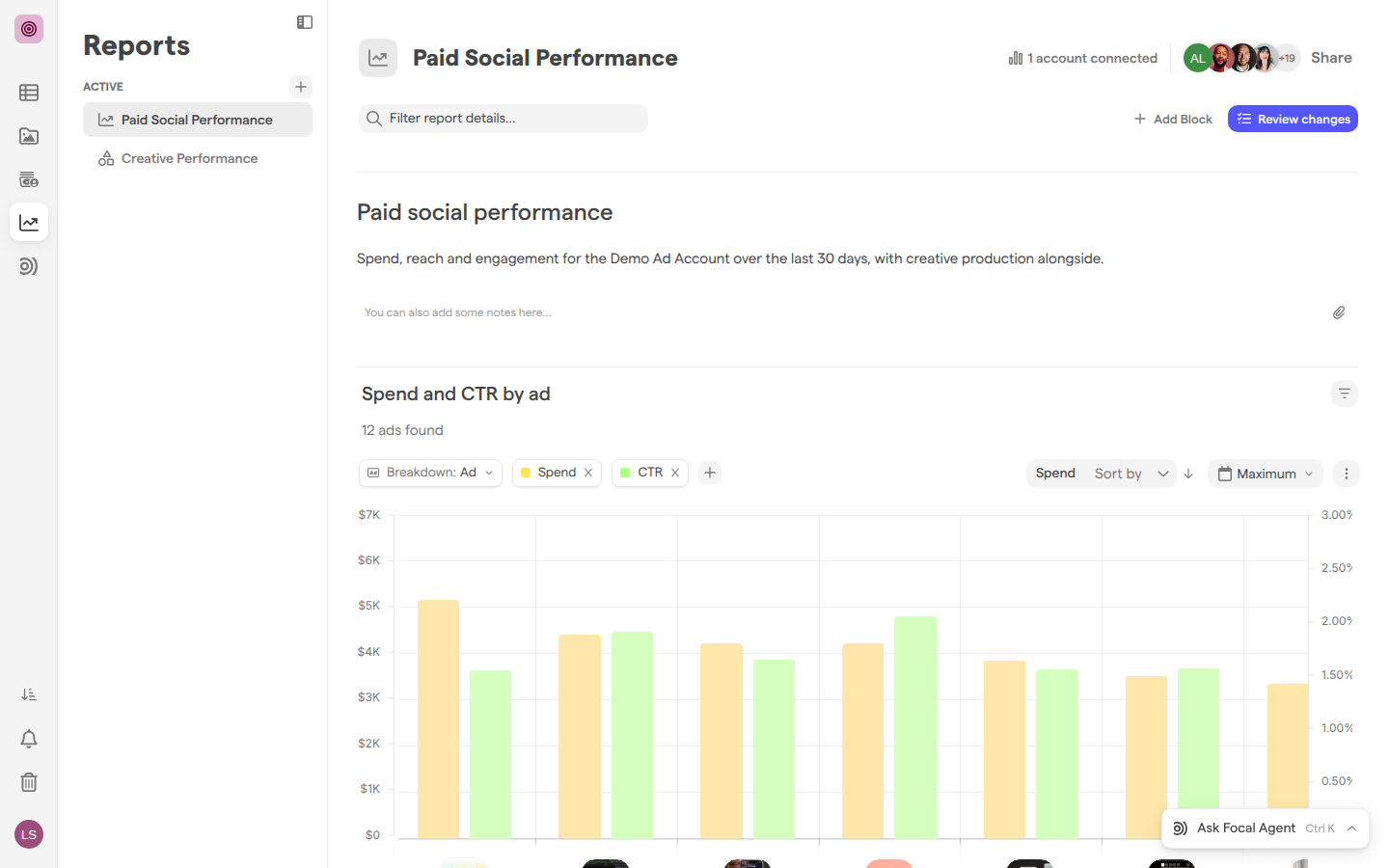
Open the Reports start page
The Reports start page is what Reports shows in a space that has no reports yet. It reads “Welcome to Focal Reports”, with the line “Track, analyze, and optimize your content — from what your team produces to how it performs across your ad campaigns.” and a New report button. The Reports sidebar says “You don’t have any reports yet”.
To open it, select Reports in the sidebar, or open Reports. See Navigation for where the sidebar entry sits and who sees it.
Once a space has reports, Reports opens a report instead of the start page: the one you last had open, or the first in the list. The sidebar lists every report you can open under Active.
Create a report
A report is created in one click and saved straight away. The new report is empty and opens on its block picker; you connect an ad account to it afterwards.
- Open Reports.
- Click + next to Active in the Reports sidebar (its tooltip reads “New report”). On the start page, click New report instead.
- The report opens on Add your first block, “Choose a block type to start building your report”. Pick a block.
The block picker groups blocks by where their data comes from: Performance, “Blocks built from ad platform data.”, and Production, “Blocks built from your media library.” Production blocks fill in from your asset library right away. Most Performance blocks need an ad account (see “Blocks that wait for an ad account” below). Each block type is described in Report blocks.
A new report is named “Empty Report”; if the space already has a report by that name, today’s date is added to it. Click the name at the top of the report to rename it, and see Managing reports for changing its icon, saving changes and the rest.
Connect an ad account to a report
An ad account is the advertising account, such as a Meta ad account, whose campaigns, ads and numbers a report reads. Ad accounts are connected to Focal once, for the organization, and then added to each report that should use them. A report can have up to 10 ad accounts.
The button at the top right of a report shows what is connected: “No connected accounts”, “1 account connected”, or a count such as “3 accounts connected”.
- Open the report.
- Click the ad accounts button in the report header.
- Under Available accounts, find the ad account you want and click Add.
The account moves to Accounts in this report and the report’s blocks reload with its data. The change is saved at once; there is nothing to review or save.
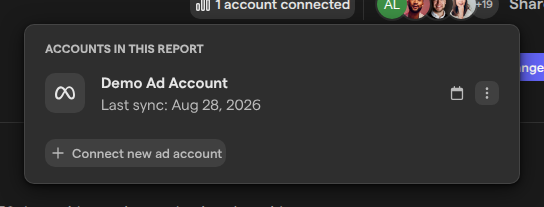
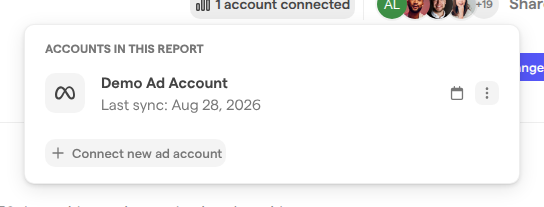
Each account in the menu shows “Last sync:” and when its data was last brought in. Hover the calendar icon next to it to see the dates its data covers. Available accounts lists only the ad accounts shared into your space; when an account you expect is missing, see Ad accounts.
Connect a new ad account
Connecting a new ad account brings an account from Meta into Focal and adds it to the report in one go. You sign in to Meta in a separate window and choose the account there.
- Open the report and click the ad accounts button in its header.
- Click Connect new ad account. The Connect to Meta window opens, and a Meta sign-in window opens next to it.
- Sign in to Meta and allow Focal access.
- Back in Connect to Meta, under “Choose which Meta Business Library account you want to connect.”, click a business account to list its ad accounts.
- Click Connect next to the ad account. An account your organization already has shows Add to report instead, and one already in the report shows “Already Connected”.
- For an account new to Focal, choose who can use it in reports: Private, Limit to spaces or Organization wide. Then click Connect ad account.
Who can use an ad account, and how it is shared into spaces, is covered in Ad accounts.
Manage or remove an ad account in a report
Each ad account in a report has a menu for the account’s upkeep and for taking it out of the report. Open it with the ⋮ button next to the account in the ad accounts menu (its tooltip reads “Manage this ad account”). The menu offers:
- Sync now to bring in the account’s latest data, or Reconnect when the account’s connection to Meta needs renewing.
- Remove from report to take the account out of this report.
- Manage Naming to set the account’s naming convention.
- Manage in Settings to open the account in organization settings.
Remove from report takes effect at once, without a confirmation. It only unlinks the account from this report: the ad account, its data and the other reports that use it are unchanged, and you can add it back from Available accounts at any time.
When an account’s connection has stopped working, the header button reads, for example, “1 account needs attention”, its tooltip says “Some ad accounts need reconnecting”, and the account shows “No active connection” or “Disconnected” in the menu. Naming conventions and connections are covered in Ad accounts.
Set the timeframe a report shows
A report’s timeframe is the period its blocks show data for until a block is given its own. A new report’s timeframe is the most recent day of data its ad accounts have; there is no control for it in the report header. The seeded reports use all available data, which the blocks show as “Maximum”.
To change the period, set it on the block. Each block has a date button, such as Maximum, that opens Block Timeframe: “Overrides the report timeframe for this block only.” Pick a preset such as Last 30 Days or This Month, or choose a start and end date in the calendar. Presets and dates outside the data your ad accounts have are hidden or greyed out.
A new block starts with the timeframe of the block you changed most recently, so the blocks you add after setting one timeframe line up. Every block option, including Only show data for creatives launched during this period, is described in Report blocks.
Blocks that wait for an ad account
The Table, Graph, Time Series and Trends by Attribute blocks read their numbers from an ad account, so they can’t show anything until the report has one. Until then each of them shows “Connect an ad account”, “This block reads performance data from your ad platform. Connect an ad account to fill it in.” and a Connect ad account button. The button opens the report’s ad accounts menu, or Connect to Meta straight away when your space has no ad accounts yet.
After you connect a new account, its data takes a while to arrive. The block shows “Your data is being imported” and fills in once the first five days of data are available, with a progress line such as “Waiting for the first sync to start…”.
The other block never waits for an ad account. Production Timeseries reads from your asset library instead and counts the assets your team adds.
Who can create a report and connect ad accounts
Reports are for space owners and members. Any space owner or member can create a report. A new report starts out shared only with the person who created it: the creator gets Full Access, Members of this Space starts with no access, and other space members don’t see the report until it is shared with them. Space owners and organization admins can open every report in the space. Guests don’t see Reports at all.
What you can do with a report’s ad accounts depends on your access to that report:
- Edit access and Full access add and remove ad accounts, connect new ones and see each account’s menu, including the Connect ad account button on a waiting block.
- View access sees the number of connected accounts as plain text.
Access levels, and who has each, are covered in Sharing reports.