Columns
A column is one field that every task on a board has, such as its status, due date, assignee or attached assets. Columns decide what a team can record about its work, so you add them when a board needs to track something new and edit them when the options or rules change.
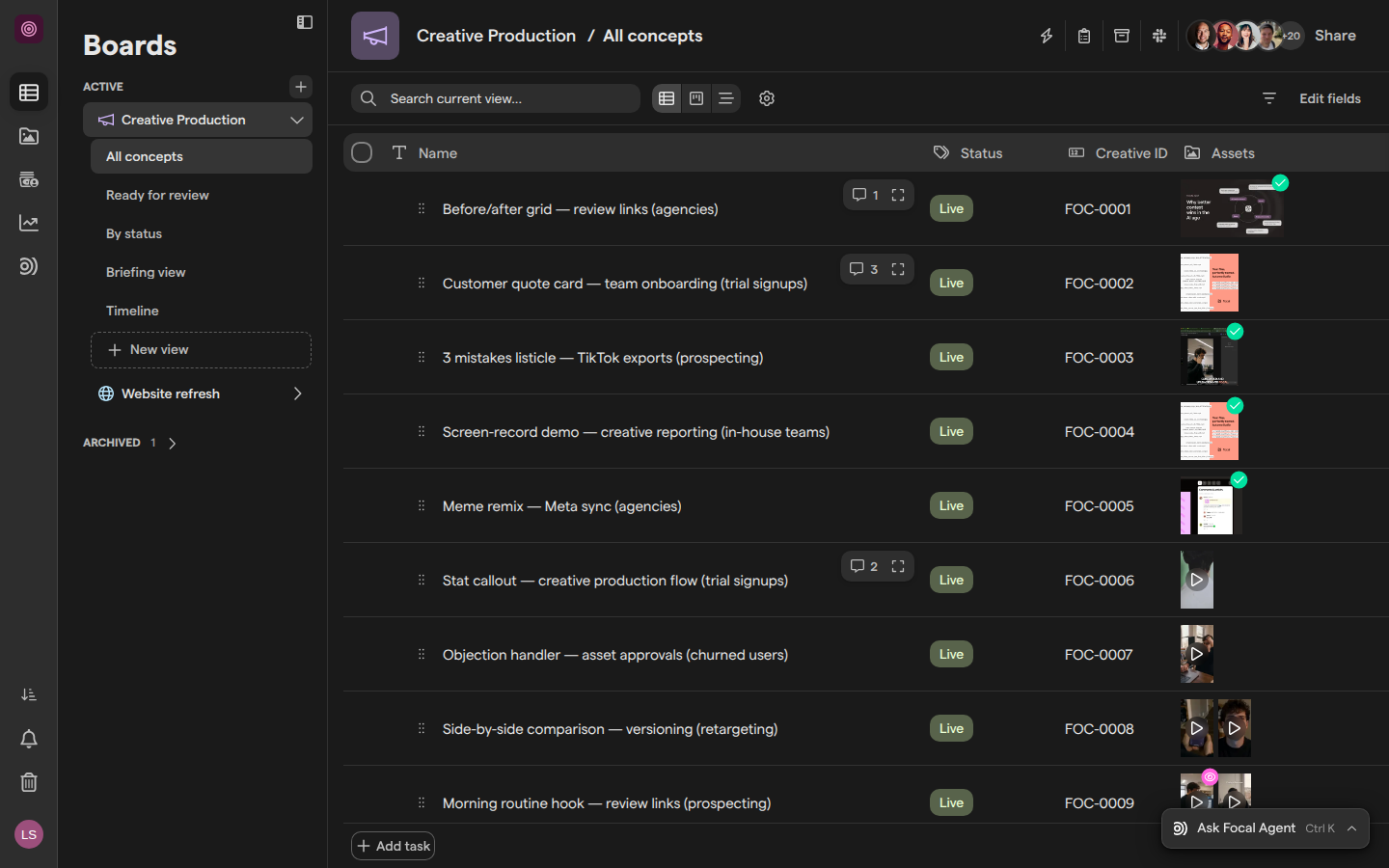
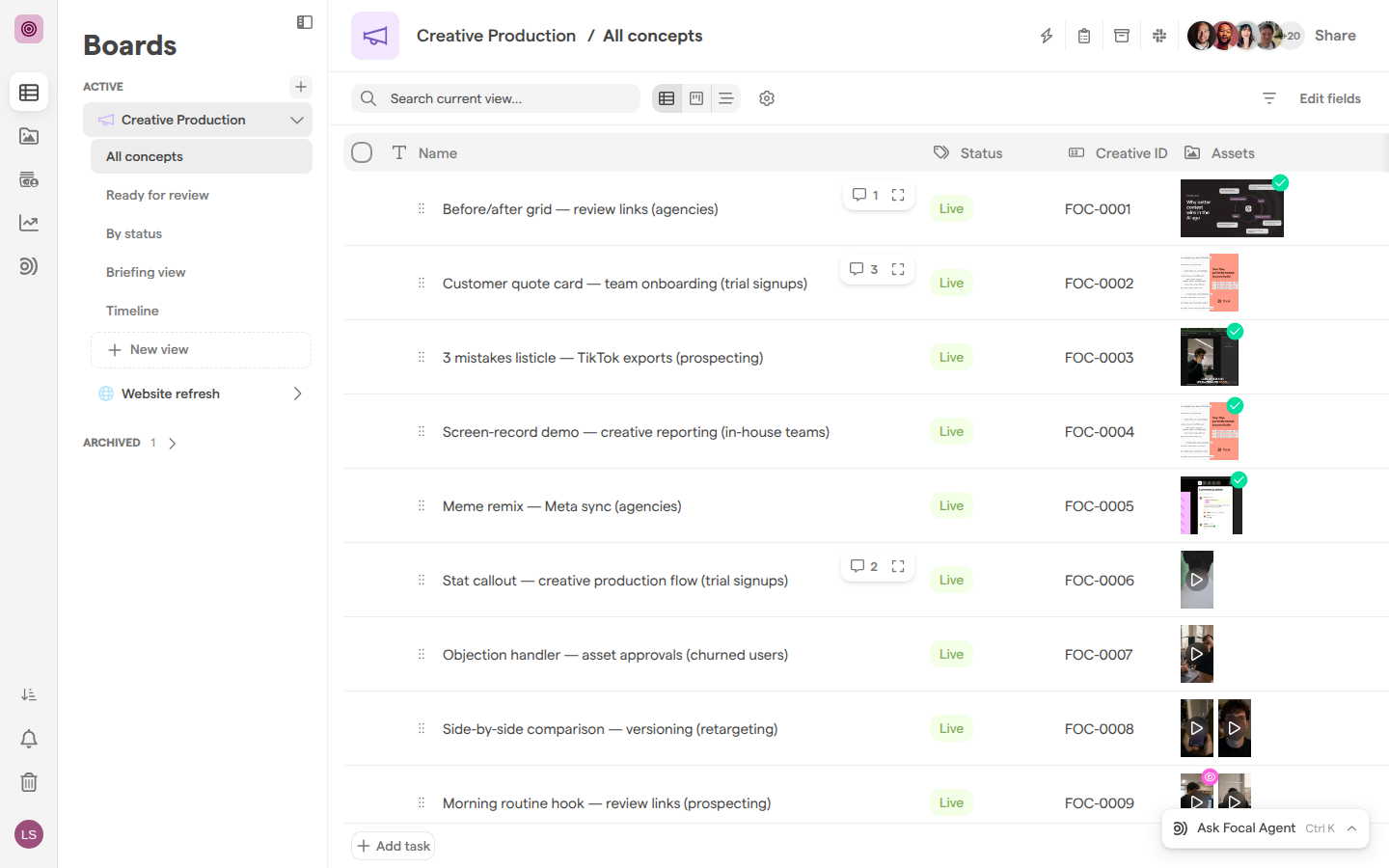
Each column has a name and a type. The type decides what the column holds and which settings it has. Columns belong to the board, and each board view chooses which of them it shows and in what order. Some column types connect a board to the rest of the space: attribute columns show the attributes of the assets on a task, and creative ID columns generate IDs from the space’s naming conventions.
Choose a column type
A column type decides what a board column holds and how you fill it in. You pick the type when you add the column, and it cannot be changed afterwards. These are the types in the Add column panel:
| Type | What the column holds |
|---|---|
| Name, Text, Formatted text | Each task’s title, plain text, or text with formatting. Every board has a Name column |
| Number | A number, optionally with a unit and a thousands separator |
| Selection | One or more options from a list you define. A board’s Status column is a Selection column |
| Date, Start Date, Due Date | A date. Start Date and Due Date are the task’s own start and due dates |
| User | People in the space |
| Checkbox, Color, Link, Rating | A yes or no, a color, a web link, or a rating |
| Media | Assets attached to the task. A column of this type is called an asset column |
| Media Attribute | An attribute of the assets in an asset column |
| Creative ID | A creative ID generated for the task’s assets |
| Checklist, List | A checklist of items you define in the column’s settings, or a list of items added on each task |
| Created at, Updated at, Created by, Updated by | When and by whom the task was created or last changed, filled in automatically |
Name, Start Date, Due Date, Created at, Created by, Updated at, Updated by and Creative ID can each appear only once on a board. When a board already has one, the type is greyed out in the list.
Add a column
Adding a column gives every task on a board a new field. The new column is added to the view you are in and to the task view; Kanban cards do not show it until you add it to them.
- Open the board and the view you want the column in.
- Click Edit fields in the view’s toolbar.
- Click Add new.
- Enter a name in Column name. Column names must be unique on a board.
- Pick a type from the list under Find column types, or type to search for one.
- Set the type’s options, which appear below the type.
- Click Add column.
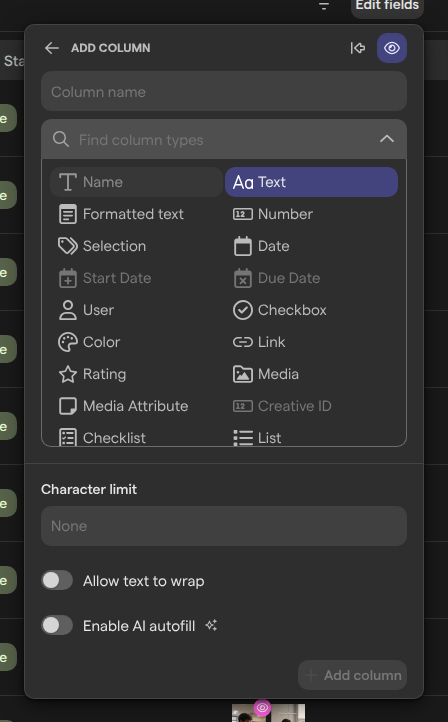
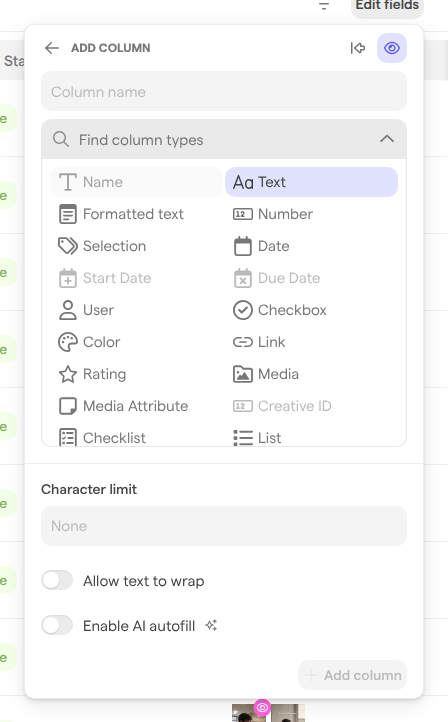
The two buttons at the top of the Add column panel pin the column to the left of the view (Make sticky) and hide it from guests (Hide from Guests). Text, Selection and several other types also have an Enable AI autofill switch, covered in Boards autofill.
Edit a column
Editing a column changes its name or settings for everyone on the board, in every view. The column editor opens from the column’s header in a board’s table view.
- Click the column’s name in the header row of the table.
- Change the name in Column name, or change the settings below it.
- Click outside the Edit column panel or press Esc. Your changes are saved when the panel closes.
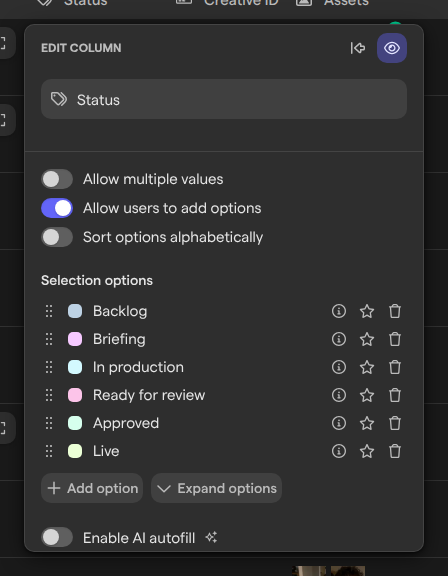
The settings depend on the column type. A Selection column lists its options under Selection options, where Add option adds one, and has switches for:
- Allow multiple values
- Allow users to add options
- Sort options alphabetically
A Number column has Unit and Use thousands separator. An asset column has Folder for new uploads, with an Add to library switch that files uploads in the asset library, and a Default status for new uploads.
Note: Turning off Allow multiple values keeps only the first value on tasks that have more than one. The removed values cannot be recovered, and the app asks you to confirm first.
Show, remove and arrange columns in a view
A board view shows only the columns you choose, in the order you set. Removing a column from a view hides it there; the column and its values stay on the board. The Edit fields panel in the view’s toolbar controls this, with a tab for each way the view can be displayed: Table, Kanban and Task view.
- Click Edit fields in the view’s toolbar.
- Pick the tab you want to change.
- To hide a column, click the cross next to it (Remove from View). It moves to Removed from this view.
- To show a column again, click the plus next to it under Removed from this view.
- To reorder columns, drag them by the handle on the left.
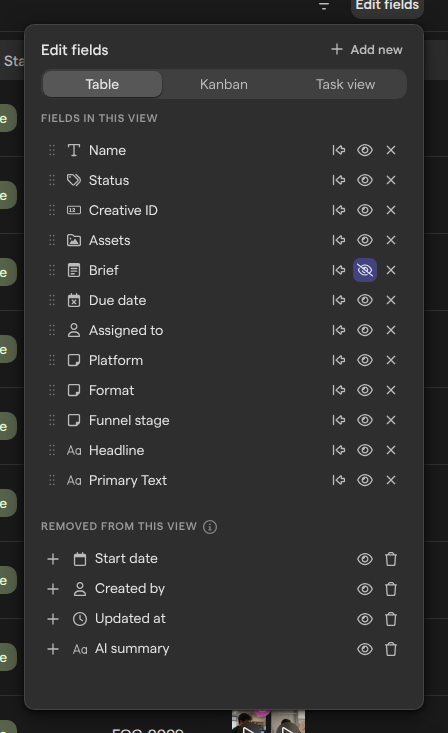
On the Table tab, Pin to left keeps a column in place while you scroll sideways. In the table itself you can also drag a column header to move it, and drag a header’s edge to change the column’s width. On the Kanban tab the buttons read Add to card and Remove from card, and Name is always the card title. For filters, sorting and grouping, see Board views.
Add an attribute column
An attribute column shows the values of one of the space’s media attributes for the assets attached to each task. It lets a board show, for example, the platform or format of each task’s assets without opening them. The column type is called Media Attribute, and it reads from an asset column on the same board.
- Click Edit fields, then Add new.
- Pick Media Attribute as the type.
- Under Attribute, pick the attribute to show.
- Under Target column(s), pick the asset columns it reads from.
- Enter a name and click Add column.
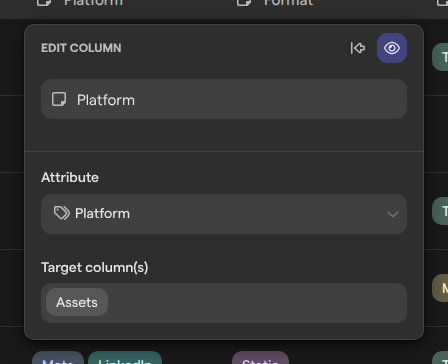
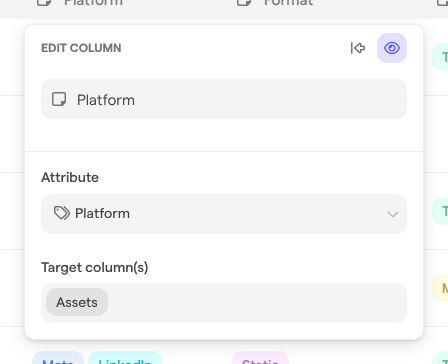
The attribute and the target columns cannot be changed once the column exists; to change them, add a new column. Attributes themselves are defined for the whole space in Attributes settings.
Add a creative ID column
A creative ID column generates a creative ID for the assets attached to each task, following a pattern from the space’s naming conventions. Its values are filled in by Focal and cannot be typed in. A board can have one creative ID column.
- Click Edit fields, then Add new.
- Pick Creative ID as the type.
- Under Creative ID pattern, pick the pattern to use.
- Under Reference columns, pick the asset columns to generate IDs for.
- Under Trigger, choose when IDs are generated:
- As soon as media is uploaded
- When new tasks are added to the board
- an automation that syncs assets into a folder, listed as Automation: and its name
- Enter a name and click Add column.
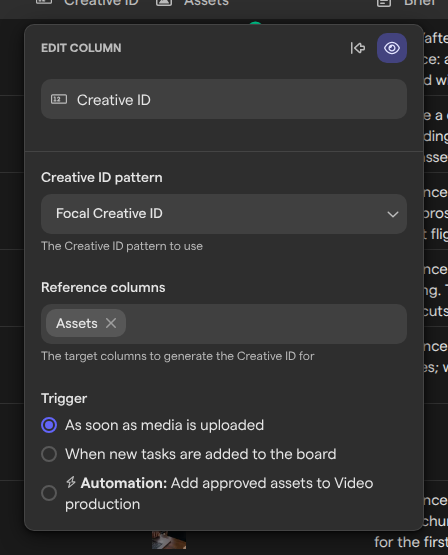
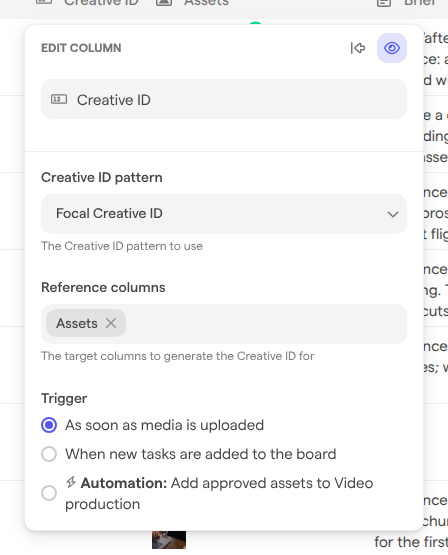
Patterns are managed in Creative IDs settings. If the space has none, the column shows “No Creative ID patterns found. You can create a new pattern in Space Settings > Creative IDs.” If the board has no asset column yet, the list shows “No Media columns found. Create a new Media column in the board first.”
Hide a column from guests
A column hidden from guests is left out of the board for people who are guests in the space, while members see it as usual. Use it for internal notes, budgets or briefs on a board you share with clients or freelancers.
You can hide a column in three places:
- the eye button in the Add column panel (Hide from Guests)
- the eye button in the Edit column panel, which reads Make visible to Guests while the column is hidden
- the eye button next to the column in Edit fields, whose tooltip reads “Hidden from guests” or “Visible to guests”
Hiding applies to the column on the whole board, not just the view you are in. A guest without Full Access to the board does not see the column anywhere on it: not in its views, a task’s details, or the lists for sorting and grouping. A guest with Full Access sees hidden columns like a member does. See Sharing boards for what guests see and can do on a board, and Roles and permissions for who counts as a guest.
Permanently delete a column
Permanently deleting a column removes it from every view of the board and erases its values from every task. Columns cannot be archived, so there is no way to restore a deleted column or its values. We recommend removing a column from a view instead, which hides it there and keeps its data.
Note: Permanently deleting a column cannot be undone. The confirmation dialog warns: “This action cannot be undone and will cause permanent data loss.”
- Click Edit fields.
- If the column is still in the view, click the cross next to it to move it to Removed from this view.
- Click the trash button next to the column (Delete column).
- Confirm in the “Are you sure?” dialog.
The trash button is not available on the Name column. If a board automation used the deleted column, the automation is marked as broken and offers Fix automation, which removes the missing column from it.
Who can change columns
Changing a board’s columns, including adding, editing, hiding from guests, arranging and permanently deleting them, needs Full Access to the board. People with Edit Access can fill in values on tasks but do not see Edit fields and cannot open the column editor. Space owners and organization admins always have Full Access to every board in the space. Guests with Comment Access or View Access see a board’s columns, minus any hidden from guests, but cannot change them. For how access levels are granted, see Sharing boards.