Focal Agent
Focal Agent is an AI assistant that works inside your space: you ask it something in plain words, and it reads your assets, boards, workflows and other content to answer, or makes the changes you ask for. Use it to find assets, summarize what is on a board, fill in fields across many tasks, or work out exact numbers from a spreadsheet you attach.
Each conversation is a chat. Chats are private to the person who started them, and the agent always asks before it changes anything in your space. Focal Agent is in beta and is not yet turned on for every organization.
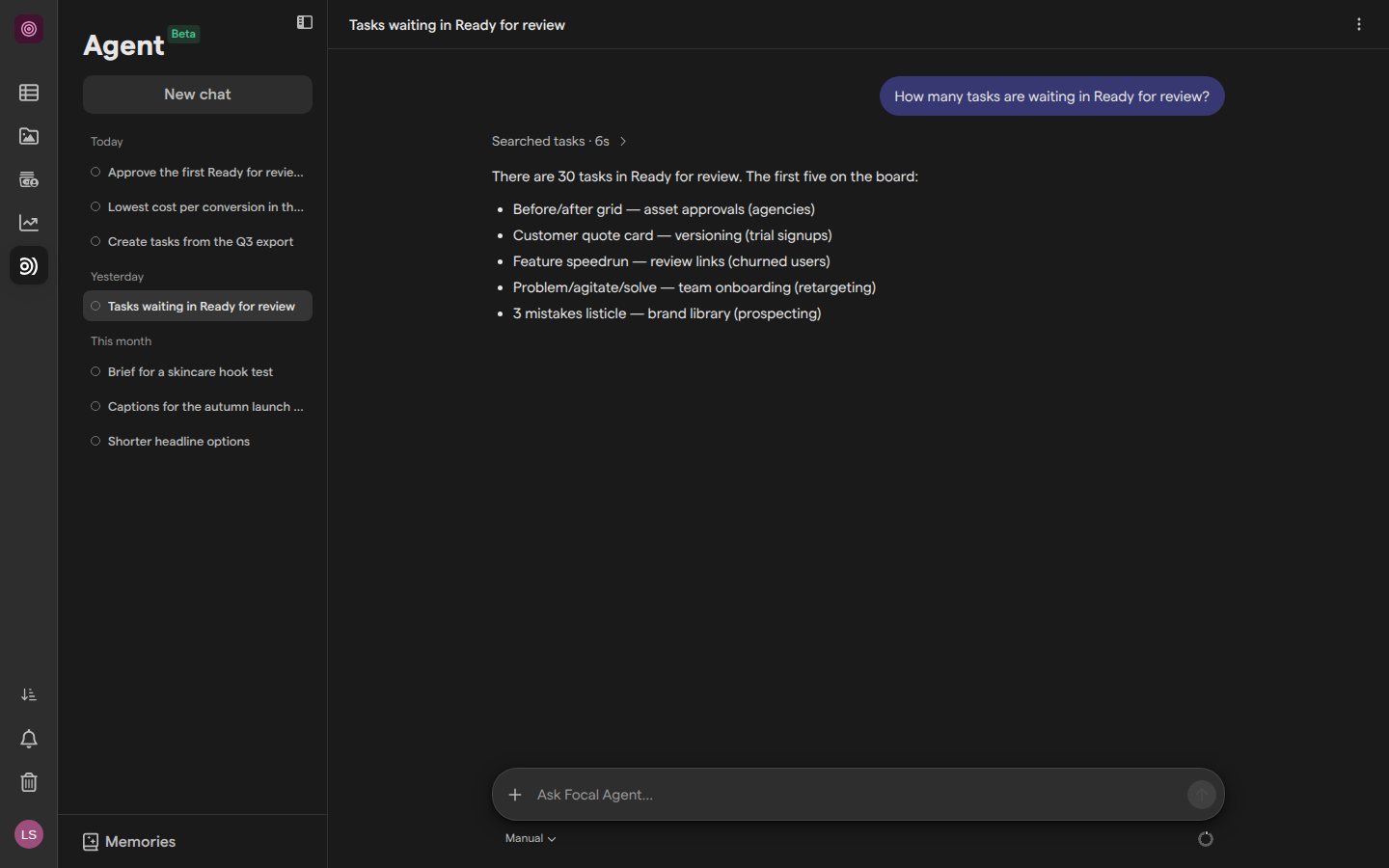
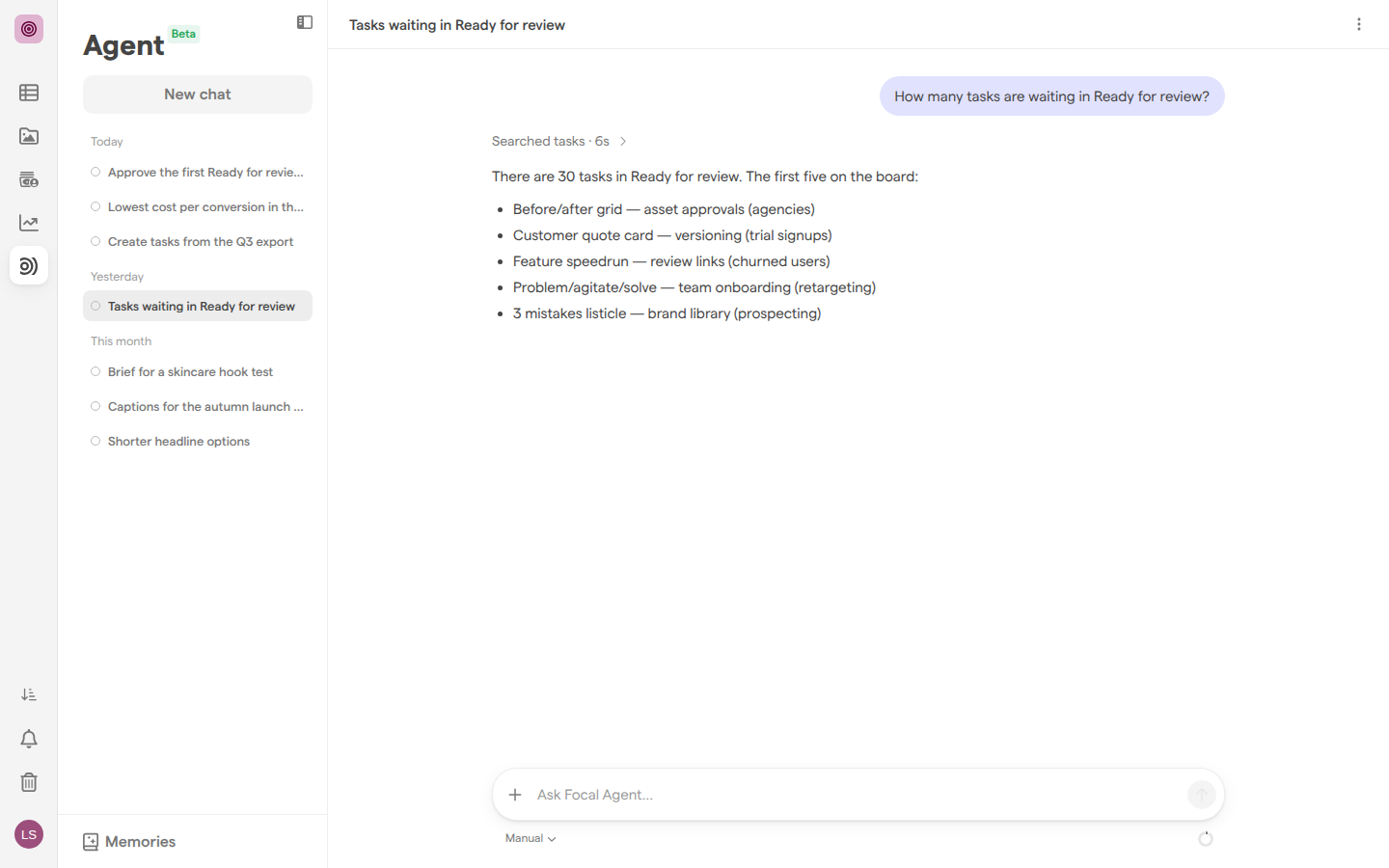
Start a chat
A chat with Focal Agent is one conversation: your messages, the agent’s replies, and a record of everything it did along the way. You can start a chat from the Agent page or from a floating window on any page of the space.
- Open Agent from the space sidebar.
- Click New chat at the top of the chat list.
- Type your request in the “Ask Focal Agent…” box.
- Press Enter to send. Press ShiftEnter for a new line instead.
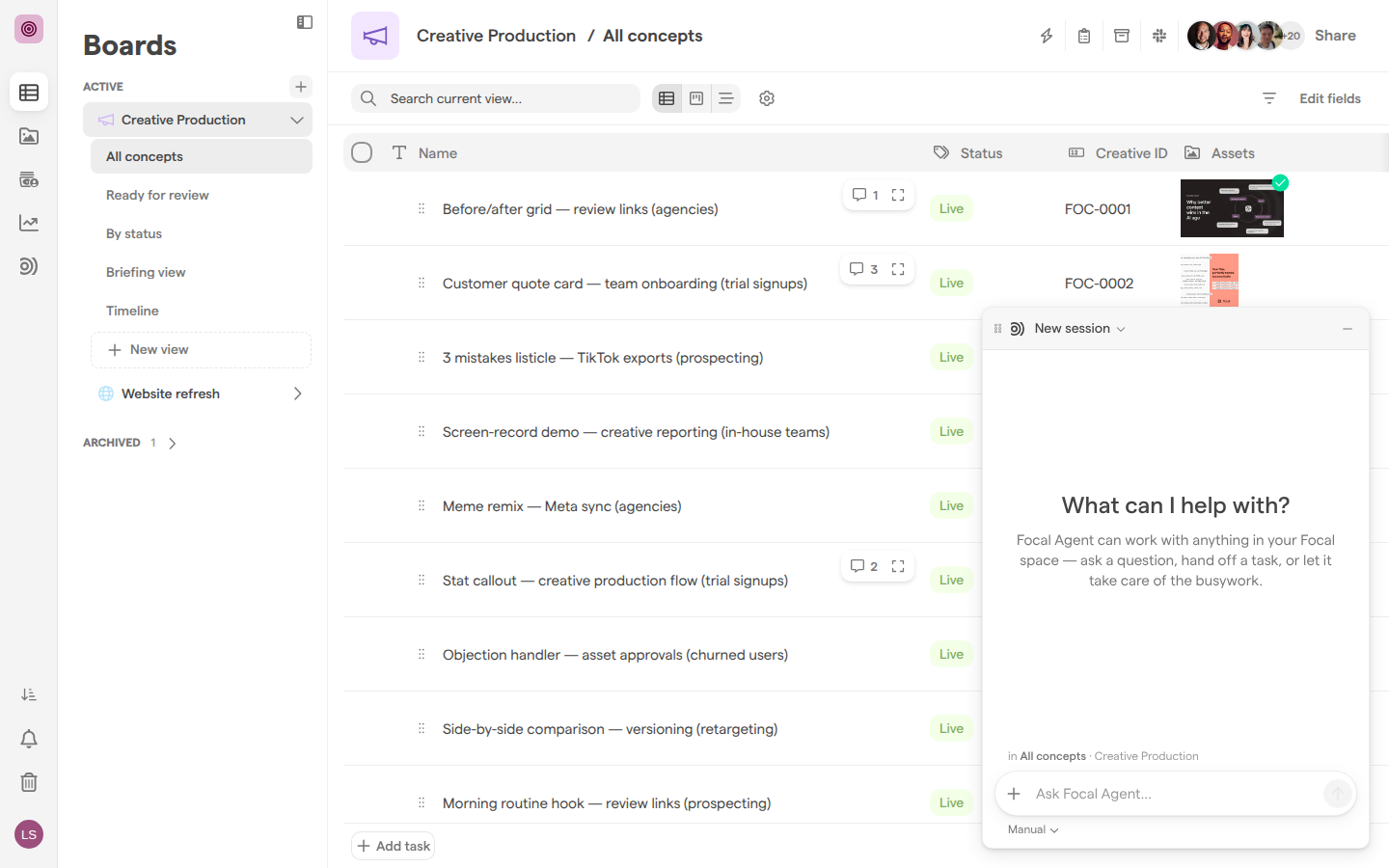
To ask without leaving the page you are on, click the bar at the bottom of the page, or press ⌘K (CtrlK on Windows and Linux). The bar reads “Ask Focal Agent” until you have a chat, then shows the title of your latest one. A small chat window opens over the page, on that chat; to start another, click the chat’s title at the top of the window and choose New session. When you open it from a board, the window shows which view and board you asked from, for example “in All concepts · Creative Production”, so the agent knows what “this board” means. Press Escape to minimize the window; your chat stays where you left it. While an approval is waiting in the window, Escape denies it instead.
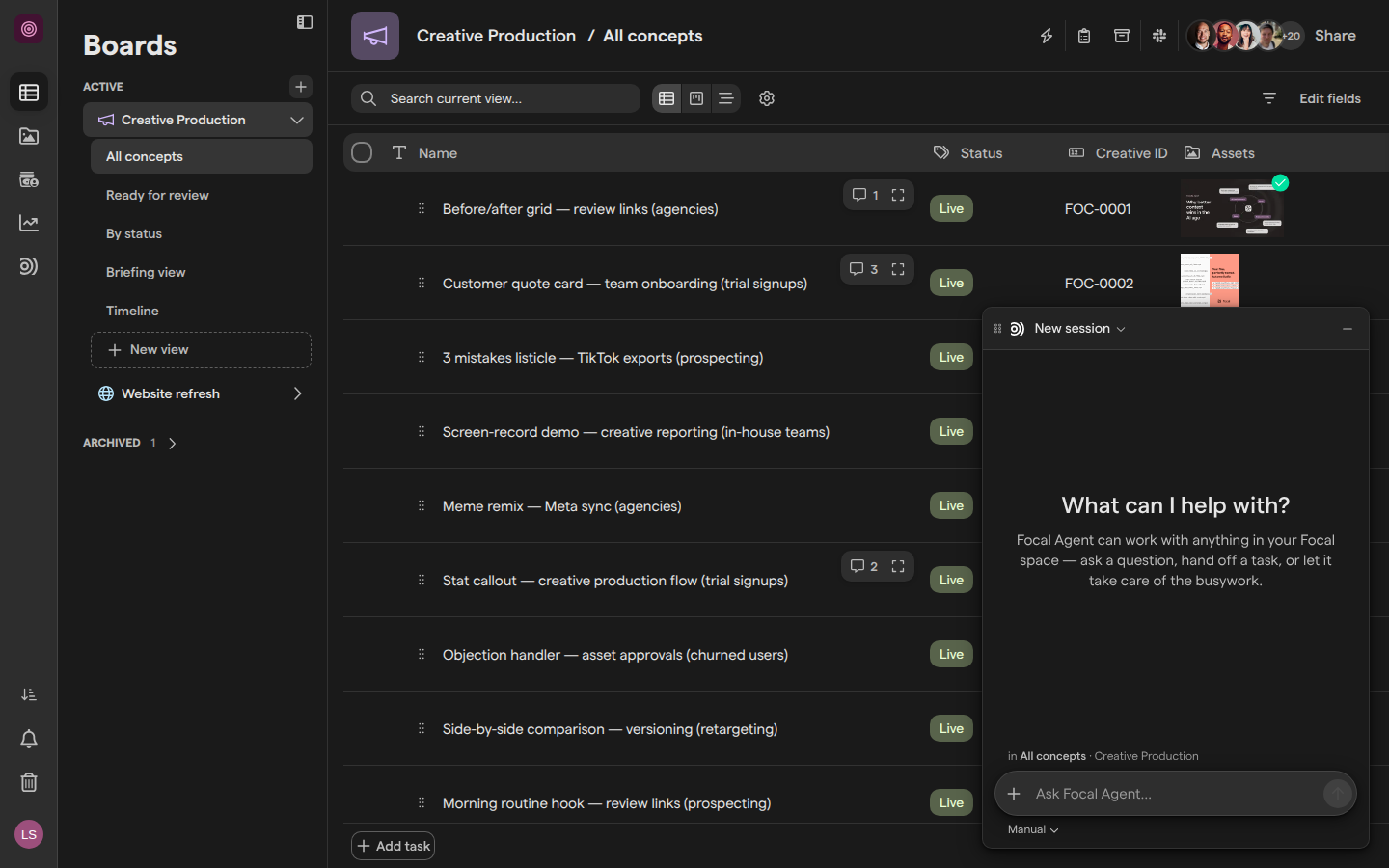
The agent names a new chat after its first messages. A dot next to each chat in the list shows where it stands; hover it to read “Agent is working…”, “Waiting for your approval”, “Waiting for your answer” or “Unread reply”. The floating window shows the same state as “Working…”, “Needs your input” or “Done”.
Ask the agent to do something
Focal Agent works with the same content you do, through a set of tools. It can:
- search and read assets, including their transcripts and the text found in images and video frames, set media attributes, and archive assets
- read, create and update tasks, columns and board views
- manage folders, shared collections, library views and comments
- read, build, publish and start workflows, and look at their runs
- look up people in the space and your connected ad accounts
Each step the agent takes appears in the chat as a short line, such as “Searched media” or “Updated media”; the activity lines call assets “media”. Click a line to list each step, with the agent’s reasoning where it shows any. When a reply contains a table, use Copy to clipboard or Download .csv on the table to take it elsewhere.
Two menus under the message box change how a chat works. Effort sets how much the agent thinks before it answers:
- Auto lets the agent decide from the task
- Max is best on complex tasks at the cost of speed and credits
- Low is faster and cheaper but less accurate on complex tasks
The permissions menu is described in “Approve or deny a change”.
Attach files to a message
An attachment is a file from your computer that you add to a message so the agent can read it: an image, a PDF, a CSV, a spreadsheet or a document. Attachments belong to the chat. They are not added to your asset library unless you ask the agent to save one, which shows in the chat as “Saved file as media”.
- Click + at the left of the message box (its tooltip reads “Attach files”).
- Pick one or more files.
- Type your request and press Enter.
You can also drag files onto the chat, where the drop area reads “Attach to this chat”, or paste a copied file into the message box. To remove an attachment before sending, click Remove on its tile. A message takes up to 20 attachments.
You do not need to attach assets that are already in Focal. Name them, or describe them, and the agent finds them in the asset library.
Approve or deny a change
An approval is the agent asking your permission before it changes something in your space: creating a task, updating an asset, publishing a workflow. Reading never needs approval; every change does. The approval appears above the message box under Focal Agent needs your approval, with a description of what the agent wants to do.
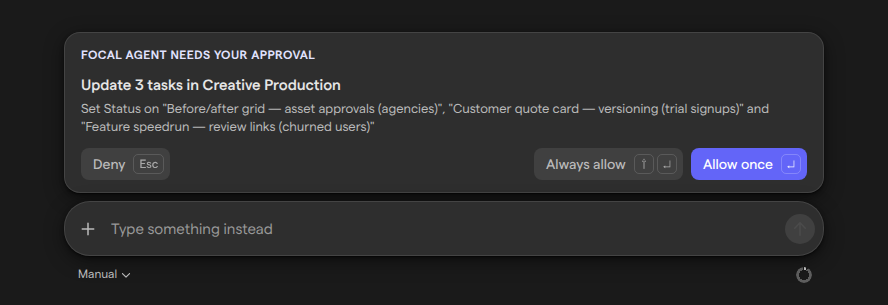
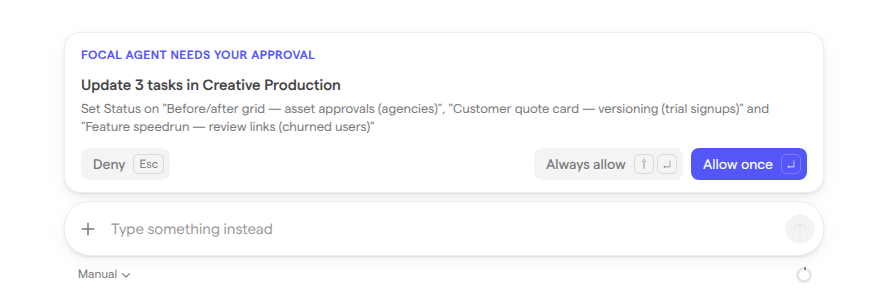
Choose one of three answers:
- Allow once (Enter) runs this one action.
- Always allow (ShiftEnter) runs it and lets the agent use the same tool again in this chat without asking. In Manual, the tools you have allowed are listed under the message box as “1 tool allowed”; open that menu to remove a tool from Auto-allowed in this chat.
- Deny (Escape) stops the action.
A bulk write, where the agent changes more than 25 items at once from a prepared list, always asks, even for a tool you have allowed. A card for a write from a prepared list has no Always allow. An approval you leave for three days expires and shows as “Expired”; sending a new message in the chat dismisses any approval still waiting.
The permissions menu under the message box shows the mode. Manual, “Always ask before making changes”, is where you start. Auto, “Only ask before bulk changes”, lets the agent make changes without asking, except bulk writes. The mode is saved per chat, and a change applies from your next message. A new chat starts in the mode you picked last.
When the agent needs a decision rather than a permission, it asks a question under Focal Agent needs your input. Pick an option with a number key, or type your own answer in Other (type your own answer), then Submit.
Run code on your data
Running code is how Focal Agent gets exact answers from data: totals, counts, averages and top lists from a spreadsheet you attach, or from assets stored in Focal. The agent writes a short Python script, runs it in an isolated environment with no internet access, and answers from the result. The chat shows the step as “Running code”, then “Ran code”. Click the line to see the agent’s reasoning around the step; the script itself and its raw output are not shown in the chat.
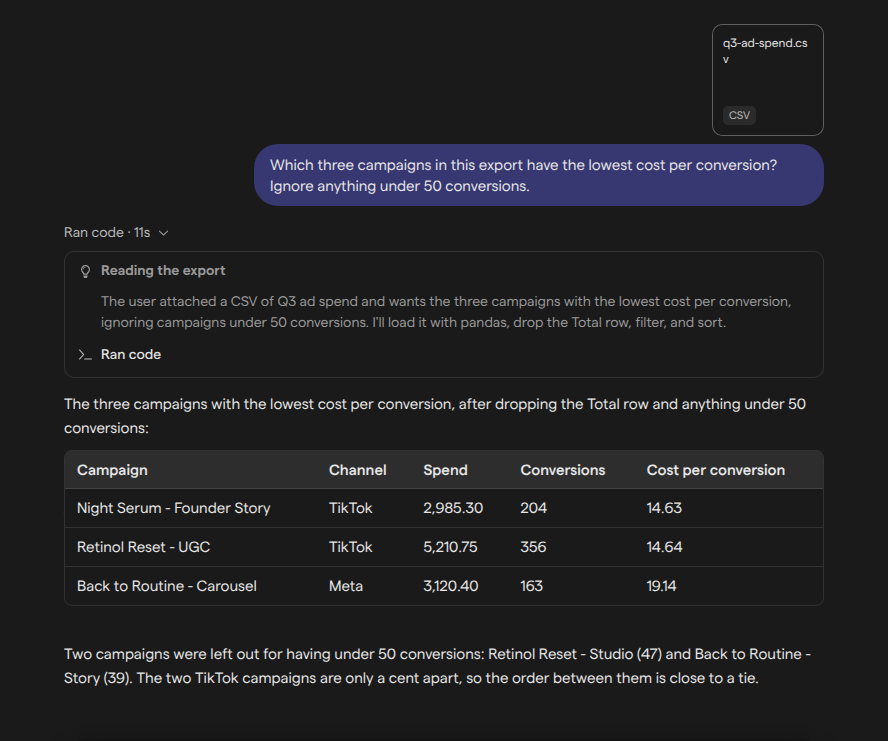
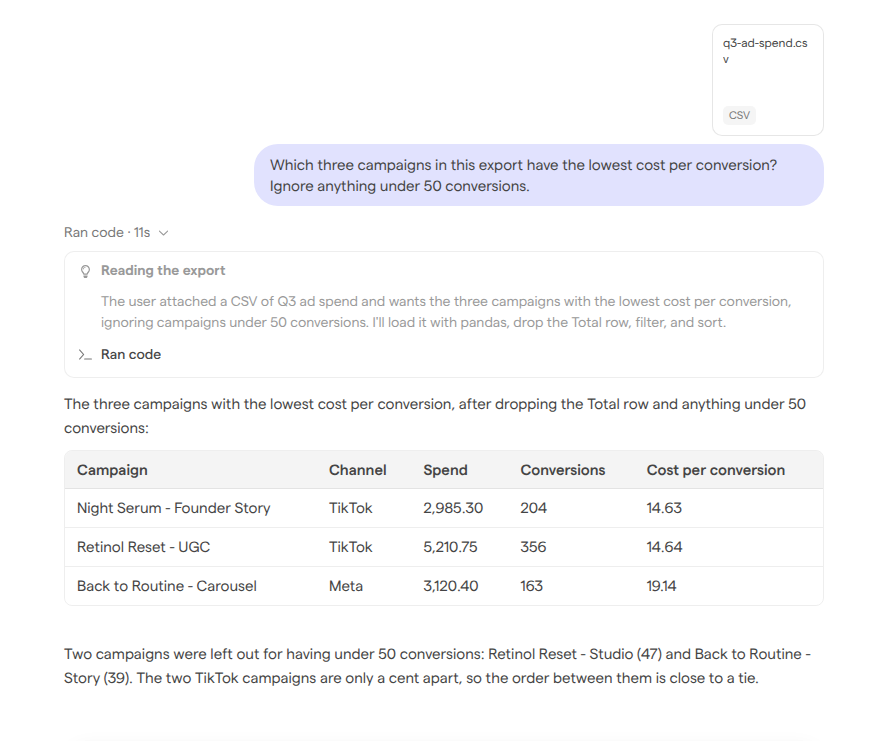
Running code only computes; it does not change your space, so it needs no approval. If the agent then uses the result to change many tasks or assets, that change asks for approval as a bulk write.
A script can also produce files, such as a chart or a cleaned-up spreadsheet. The agent shares the ones you asked for in its reply. A run saves up to 10 files, each up to 25 MB and 50 MB in total, and stops after 300 seconds.
Find, rename and archive a chat
Your chats are listed on the Agent page, newest first, grouped by Today, Yesterday, This week, This month and earlier months. Click Load more at the end of the list to see older chats. The floating window keeps your ten most recent under Recent in its session menu, next to New session.
To rename a chat, click its title at the top of the chat, type the new name and press Enter. Escape puts the old name back.
To archive a chat:
- Open the chat.
- Click the ⋮ menu next to its title.
- Click Archive chat.
An archived chat leaves your list, and there is no way to bring it back from the app.
Review what the agent remembers
Memory is what Focal Agent keeps between chats: your preferences, rules you gave it, and facts about you and your space that change how it should work. Open it with Memories at the bottom of the chat list on the Agent page.
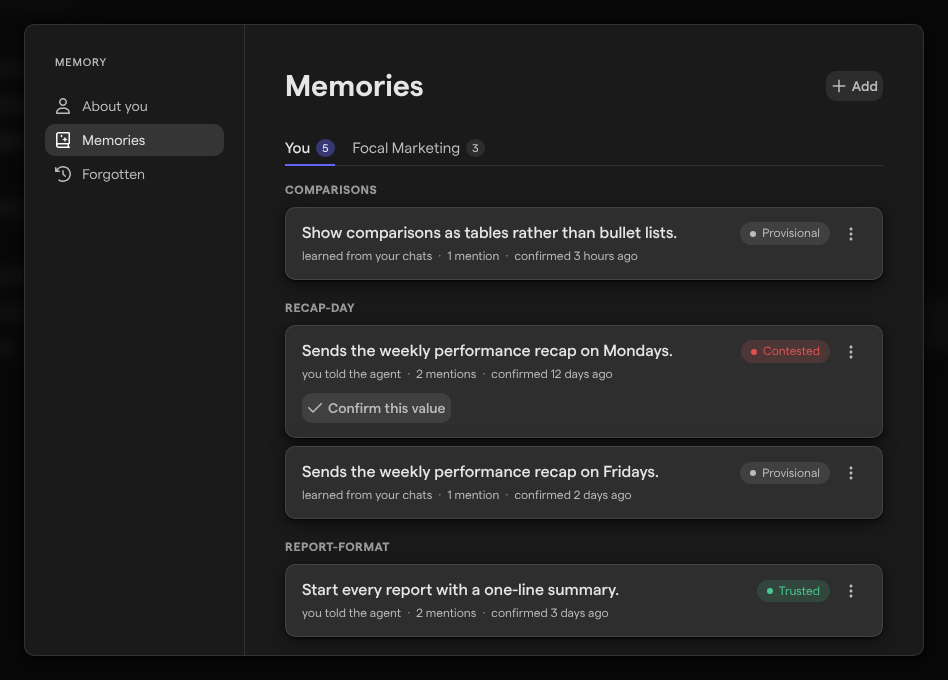
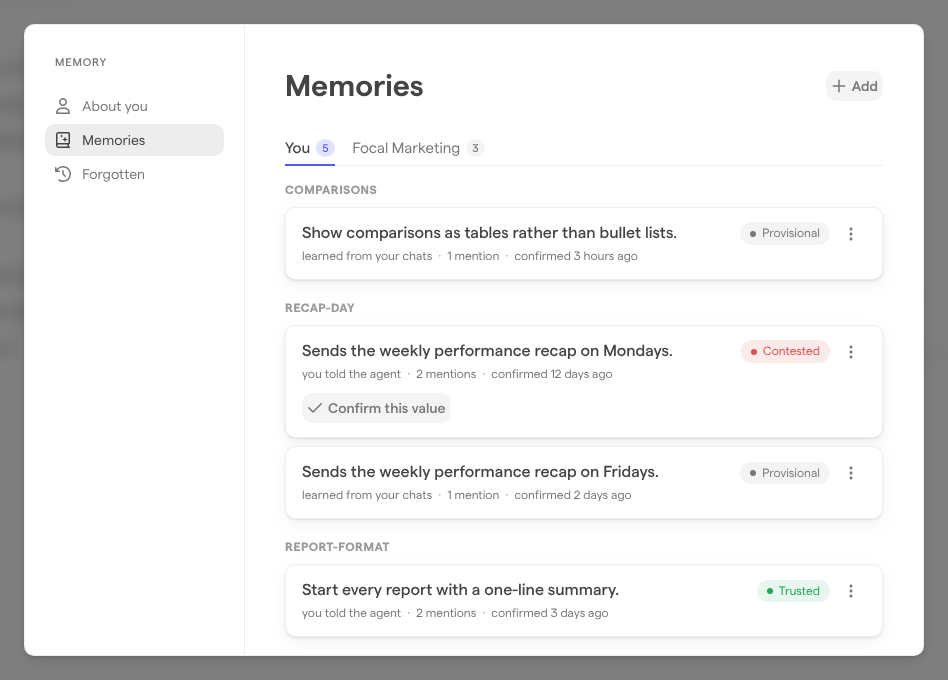
The Memory window has three pages:
- About you is a summary the agent writes once it has learned enough from your chats.
- Memories lists each fact, on the You tab for your own and on the space’s tab for the space. A fact the agent learned is “Provisional” until it comes up again or you use Promote to trusted; a fact you told it is “Trusted”. A fact marked “Contested” has two conflicting values: click Confirm this value on the right one.
- Forgotten holds facts you removed. Click Restore to bring one back.
To change a fact, open its menu and use Edit. To stop the agent using it, choose Forget and confirm with Yes, forget it.
Teach the agent something
The agent picks up lasting facts from your chats on its own, and you can also tell it directly: say “remember that…” in a chat, or add a memory by hand.
- Click Memories at the bottom of the chat list.
- Go to Memories and click Add.
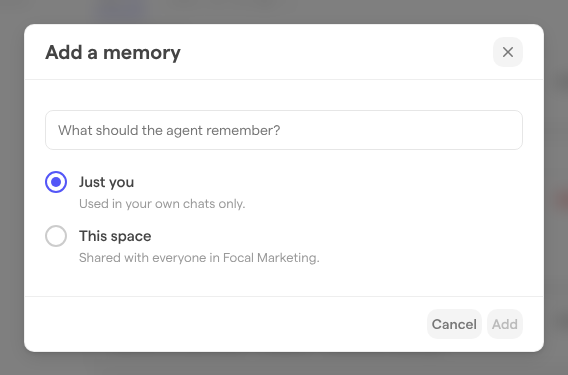
- Type what the agent should remember.
- Choose Just you, used in your own chats only, or This space, shared with everyone in the space.
- Click Add.
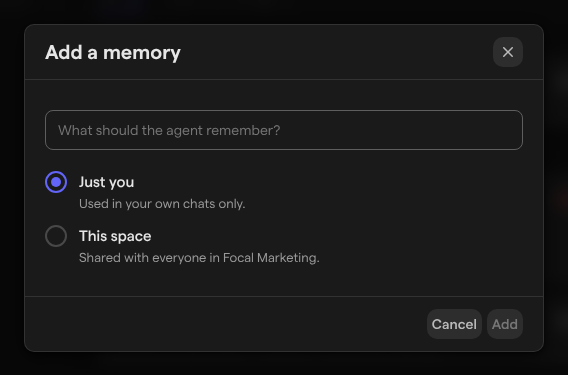
When the agent itself wants to save or forget a space memory in a chat, it asks for approval first, because everyone in the space would see the result. A space memory can be edited or forgotten by the person who added it and by space owners.
Who can use Focal Agent
Focal Agent is available to space members and owners in organizations where it is turned on. Guests in a space do not see it. See Roles and permissions for the roles.
The agent acts as you. It sees only what you can see and can change only what you could change yourself, so a board or asset you cannot open is out of its reach too. Chats are private: nobody else in the space or the organization, admins included, can open your chats. Memories on the You tab are private in the same way; memories on the space’s tab are shared with the whole space.
To use Focal’s data from an AI assistant outside Focal instead, see MCP.
Limits
Focal Agent has these limits:
| What | Limit |
|---|---|
| Message length | 8,000 characters |
| Attachments per message | 20 |
| Chat title | 80 characters |
| One memory | 2,000 characters |
| Time to answer an approval or question | 3 days |
Once a chat is under way, a gauge under the message box shows how much of the chat’s context the agent is using, out of 1,000,000 tokens; click it for the breakdown under Context window. For a very long chat, we recommend starting a new one.