MCP
The MCP connector links Focal to an AI assistant outside Focal, such as Claude, ChatGPT or Cursor, over MCP (Model Context Protocol), an open standard for giving assistants access to other tools. Once you connect, you can ask the assistant to search your assets, read what is said and shown in a video, fill in tasks on a board or look up ad performance, without leaving the assistant.
The connector has two levels. An organization admin turns it on or off for the whole organization. Each person then connects their own assistant and manages their own connections in User settings. A connected assistant acts as the person who connected it, so it can only see and change what that person can in Focal. To work with an assistant inside Focal instead, see Focal Agent.
Turn on the MCP connector for your organization
The MCP connector setting decides whether anyone in your organization can connect an AI assistant to Focal. It is on by default, and only organization admins can see or change it. The setting page also shows the connector URL that assistants connect to.
- Open MCP connector settings, or go to Space Settings → MCP connector in the Organization group.
- Switch on Enable the MCP connector. The change is saved as soon as you switch it.
- Under Instructions, click Copy next to Connector URL to copy the address for your team.
Turning the connector off blocks new connections and every request from assistants that are already connected. No connection is deleted: when an admin turns the connector back on, existing connections work again without anyone reconnecting. While the connector is off, the page says “The MCP connector is disabled for this organization.”
If your organization uses Claude Team or Claude Enterprise, an owner of your Claude organization may need to add the connector in Claude before members can use it. The page links to the MCP server reference, which has the steps in Claude.
Connect an AI assistant to Focal
A connection gives one AI assistant access to Focal on your behalf. Any organization member or admin can connect; guests cannot. You set up the connection in the assistant, and Focal asks you to approve it.
- In Focal, click your profile picture in the sidebar and choose User settings.
- Open the MCP tab.
- Under Advanced, click Copy next to Connector URL. The URL is
https://api.focal.inc/mcp. - In your assistant, add a custom connector or remote MCP server and paste the URL.
- Start the connection in the assistant. A browser window opens Focal’s approval page.
- Review the request on the approval page and click Approve.
Each assistant names these steps differently. The MCP server reference has the exact steps for Claude, Claude Code, ChatGPT, Codex, Cursor and VS Code. Add Focal only once in each assistant: two entries for the same server in one assistant share a sign-in and can log each other out.
Approve a connection request
The approval page is where Focal asks whether an assistant may access your organization. It opens in your browser when you start a connection from an assistant, and it is titled with the assistant’s name, for example “Claude is requesting access”.
- Check the organization. If you belong to more than one, choose it under Choose the organization to authenticate with.
- Read Permissions, which lists what the connection can do. Click Show technical scopes to see the exact list.
- Under Spaces, leave the default to let the connection use every space you have access to, or switch on Restrict to specific spaces and pick the spaces.
- Click Approve, or click Deny and confirm to refuse the request.
The spaces list only offers spaces you can already see. When Restrict to specific spaces is on, you must pick at least one space before you can approve.
An approval request is valid for about 10 minutes. If you wait longer, or open an old link, Focal shows “Connection request not found”: start the connection again from your assistant.
Find your connections
Your connections are the assistants you have approved. Each person sees only their own connections, in User settings → MCP under Your active connections. Nobody else, organization admins included, can see or revoke them.
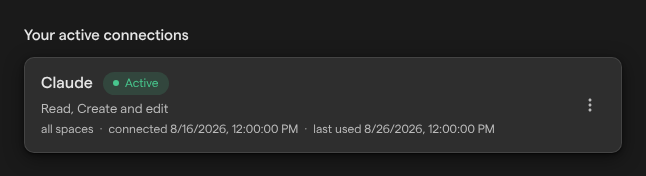
Each connection shows:
- the assistant’s name, such as Claude
- “Active” once the assistant has used the connection, or “Never used” before it has
- a summary of its permissions, such as “Read, Create and edit”; hover over it for the technical list
- the spaces it can use: “all spaces”, or a number of spaces if you restricted it
- when you connected it and when it was last used
If you have not connected anything yet, the list says “No active connections yet. Connections you authorize appear here.”
Revoke a connection
Revoking a connection removes one assistant’s access to Focal straight away. Revoke a connection when you stop using an assistant, or to change which spaces it can use.
- Click your profile picture in the sidebar and choose User settings.
- Open the MCP tab.
- Under Your active connections, click the ⋮ button on the connection.
- Choose Revoke connection.
- Click Revoke connection in the confirmation dialog.
A revoked connection cannot be restored, but you can connect the same assistant again at any time: it goes through the approval page as a new connection. To change the spaces a connection can use, revoke it and connect again with a different choice under Spaces.
What a connected assistant can do
A connected assistant works with the same things you do in Focal. Depending on your permissions, you can ask it to:
- search and browse your assets, including what is said in a video (transcripts) and the text shown on screen
- update asset details and media attributes, and upload assets
- read and edit boards, columns, board views and tasks
- create and organize shared collections
- read and post comments
- read, edit and run Workflows
- look up ad accounts and ad performance, as in Reports
Results the assistant returns link back to the item in Focal. Focal tells the assistant which actions only read and which change or archive something, so an assistant can ask you before it makes a change; whether it asks depends on the assistant. The full list of actions is in the MCP server reference.
Who can connect and what the assistant can see
Access through the MCP connector follows each person’s own Focal permissions. There is no separate permission setting for MCP: a connected assistant acts as you, and every request it makes is checked like a request you make in the app.
| Role | Can connect | What the assistant can do |
|---|---|---|
| Organization admin | Yes | Everything the admin can do, and turn the connector on or off |
| Organization member | Yes | What the member’s space roles and board access allow |
| Guest | No | Nothing |
For example, if you can only view a board, the assistant can read it but not edit it. Workflows are open only to organization admins and space owners, so the assistant of a member who is not a space owner cannot read or run them. Restricting a connection to specific spaces narrows this further; it never adds access you do not have. Roles are described in Roles and permissions.
A guest who opens User settings → MCP sees “The MCP connector isn’t available for guest accounts.” An organization admin can make the guest a member in Organization settings: Users.
How long a connection stays signed in
An MCP connection stays signed in as long as the assistant uses it. The assistant receives a key that lasts one hour and renews it on its own. A connection that goes unused for 30 days is signed out, and you connect again from the assistant.
Each assistant has one connection per person: approving the same assistant again updates its existing connection rather than adding a second one.
For developers building on Focal rather than connecting an assistant, the MCP server reference describes the server in detail, and Organization settings: API tokens covers the tokens for Focal’s REST API.