Organization settings: API tokens
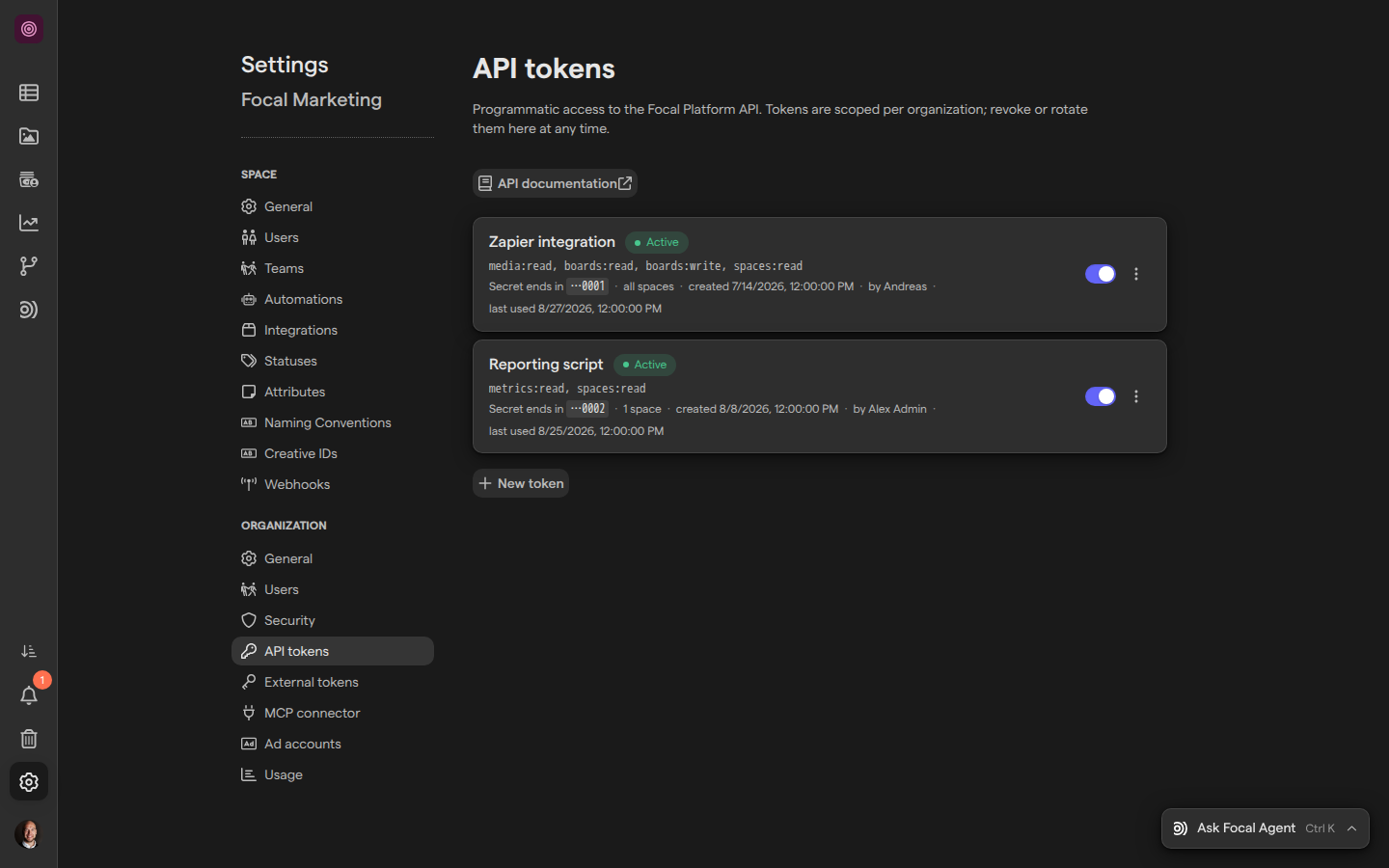
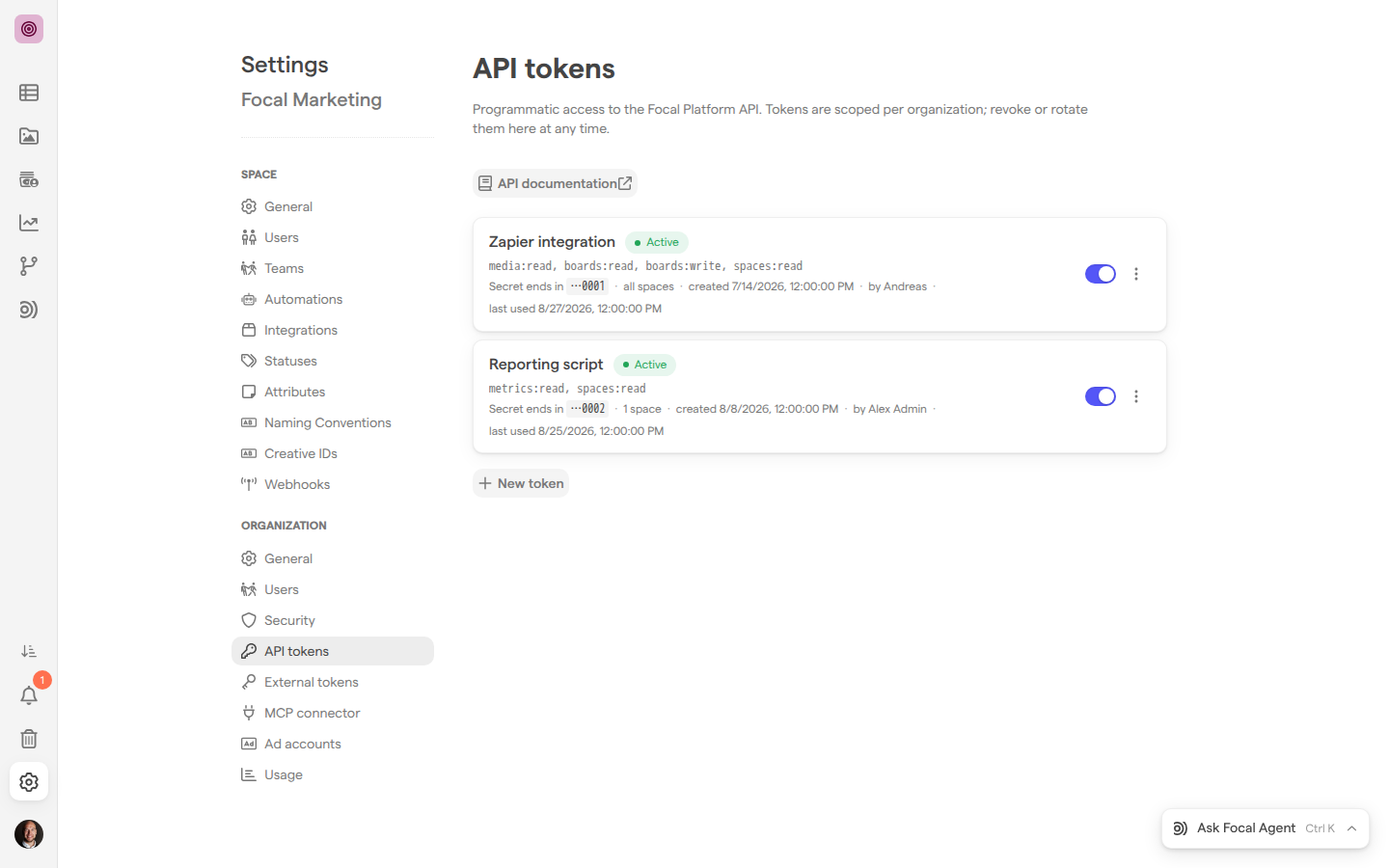
An API token is a secret key that lets another system, such as a script, a reporting tool or an automation platform, read and change data in your organization through the Focal API. Organization admins create tokens on the API tokens page of organization settings, decide what each token may do with its scopes and which spaces it can reach, and turn off, rotate or permanently delete a token when it should no longer work. The page opens from Space Settings → Organization → API tokens (API tokens settings).
A token belongs to the organization, not to the person who created it, and it keeps working until someone turns it off, rotates it or permanently deletes it. The endpoints the API offers and how to call them are described in the API reference, which the page’s API documentation button also opens in a new tab.
Create an API token
Creating an API token gives an outside system its own key to the Focal API. We recommend one token per system, named after it, so you can turn off or replace one without breaking the others.
- Open Space Settings → Organization → API tokens.
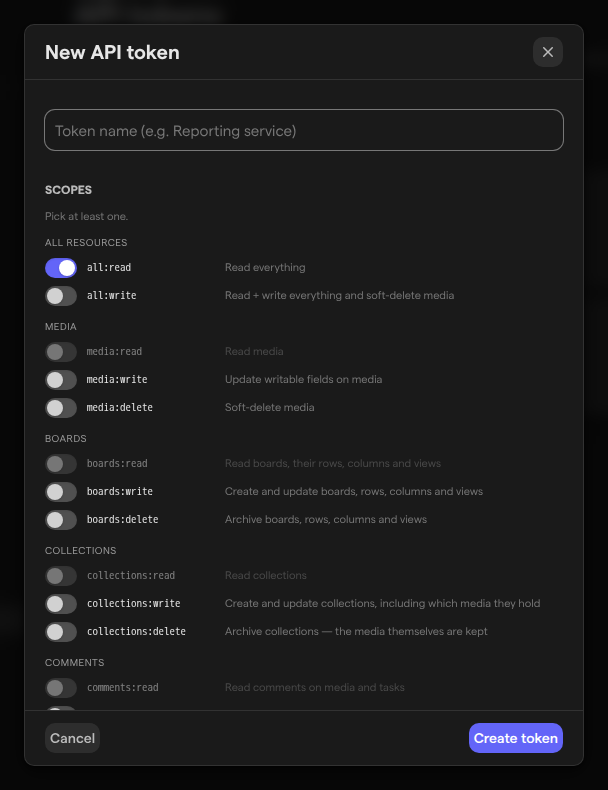
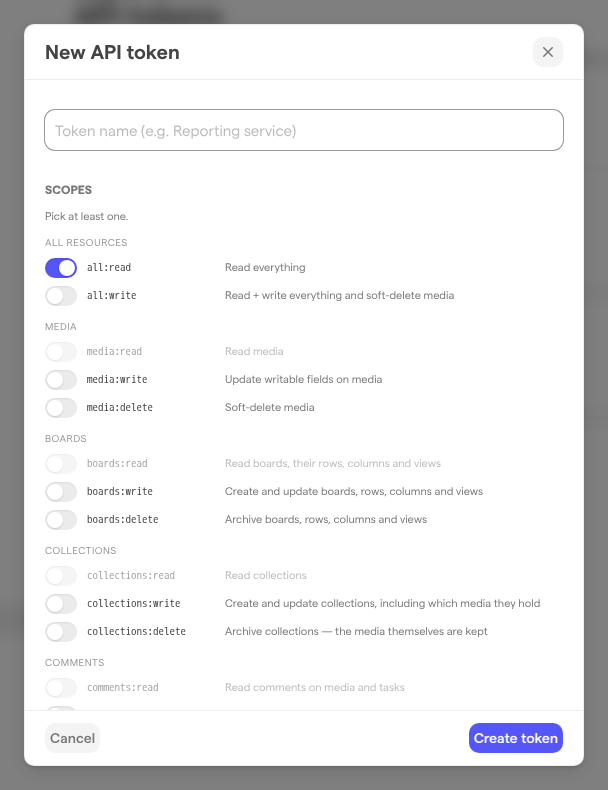
- Select New token. The New API token dialog opens.
- Type a name in “Token name (e.g. Reporting service)”.
- Under Scopes, switch on what the token may do.
all:readis on to start with. - Under Spaces, leave the token open to every space, or limit it to some.
- Leave Active on, so the token works as soon as it is created.
- Select Create token.
The Save your API token dialog then shows the token’s secret, a value that starts with fat_. This is the only time Focal shows it: Focal keeps no copy, and the secret can’t be viewed again later. Select the copy button (“Copy token”) and store the secret somewhere safe, such as your password manager, then select Continue. If copying fails, Focal says “Couldn’t copy automatically — select the text manually.”, and you can select the secret and copy it yourself.
The name can’t be empty (“Name is required.”) and runs to at most 200 characters, and a token needs at least one scope (“Pick at least one scope.”). The system using the token sends the secret with every request, in the Authorization header as Bearer <secret>.
Choose what a token can do
A scope is one permission an API token holds, such as reading boards or changing media assets. A token can do only what its scopes allow, so give each token the fewest scopes the system using it needs. The Scopes section of the token dialog lists them by resource, each with a short description:
| Group | Scopes | What they cover |
|---|---|---|
| All resources | all:read, all:write |
Read everything; read and change everything |
| Media | media:read, media:write, media:delete |
Read media assets, change their writable fields, archive them |
| Boards | boards:read, boards:write, boards:delete |
Read, create and change, or archive boards and their tasks, columns and views |
| Collections | collections:read, collections:write, collections:delete |
Read, create and change, or archive shared collections; archiving keeps the assets |
| Comments | comments:read, comments:write, comments:delete |
Read comments on assets and tasks, post and edit them, remove them |
| Spaces | spaces:read, spaces:write |
List spaces and their users; change space settings, including media attributes |
| Metrics | metrics:read |
Read ad performance data: connected ad accounts, metrics, spend and results |
all:read covers every read scope, metrics:read included, and all:write covers every scope. When a token holds one of them, the narrower scopes it covers are greyed out and can’t be switched on, and switching on all:write switches all:read off. metrics:read is its own scope: media:read doesn’t include ad performance data.
Note:
spaces:writechanges settings that apply to everything in a space, such as its media attributes. Give it only to a system that has to manage space settings.
Limit a token to specific spaces
An API token reaches every space in the organization unless you limit it. Limiting a token is the way to give a system access to one team’s work and nothing else.
- In the token dialog, find the Spaces section.
- Switch on Restrict to specific spaces.
- Switch on each space the token may reach.
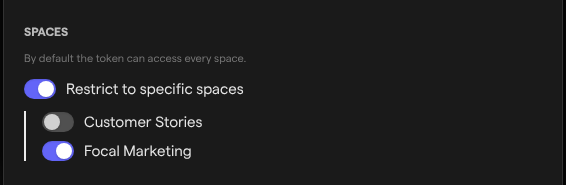
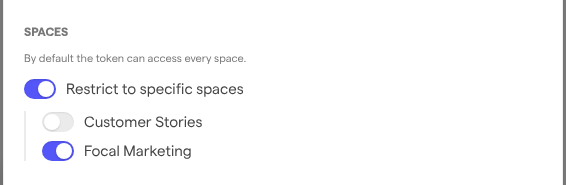
With the restriction on and no space switched on, the dialog warns “No spaces selected — token can’t access any media.” Archived spaces are not in the list. The token list shows a token’s reach as “all spaces”, or as the number of spaces it is limited to, such as “1 space”.
Review your API tokens
The list on the API tokens page shows every token the organization has, and it is the place to check which tokens are still in use. Each entry shows:
- the token’s name and status: “Active” once it has been used, “Never used” before its first request, or “Disabled” when it is turned off
- its scopes
- the last four characters of its secret, as in “Secret ends in …0001”, so you can match the token to the secret a system holds
- which spaces it reaches, when it was created and by whom
- when it was last used
The last-used time is updated at most every five minutes, so it is close to, not exactly, the time of the latest request. A token that shows “Never used” long after it was created is often one nobody set up; we recommend permanently deleting tokens no system uses. Before the first token exists, the page says “No API tokens yet.”
Change a token
Changing an API token updates its name, scopes, spaces or status without changing its secret, so the system that uses it keeps working with the new permissions.
- Open Space Settings → Organization → API tokens.
- Select the ⋮ menu at the end of the token’s entry.
- Select Edit. The Edit API token dialog opens.
- Make your changes.
- Select Save changes.
Focal confirms with “Token updated”, and the token’s next request uses the new scopes and spaces.
Turn a token off and on
Turning an API token off stops it from working without permanently deleting it, which is useful while you check whether a system still needs it. Use the switch at the end of the token’s entry, or the Active switch in the Edit API token dialog. The change is saved at once, with no confirmation, and the token’s status becomes “Disabled”.
A turned-off token refuses every request until you turn it on again. Its secret, scopes and spaces stay as they are, so the system using it works again once the token is back on.
Rotate a token’s secret
Rotating an API token replaces its secret with a new one and keeps its name, scopes and spaces. Rotate a token when its secret may have leaked, or as a regular security routine.
- Select the ⋮ menu at the end of the token’s entry.
- Select Rotate secret.
- Confirm with Rotate token in the “Rotate token?” dialog, or select Cancel.
- Copy the new secret from the Save your API token dialog, then select Continue.
The old secret stops working immediately, so update every system that uses the token with the new secret right away. As with a new token, the new secret is shown only once.
Permanently delete an API token
Permanently deleting an API token removes it for good: it can’t be restored, and any system still using it gets an error (401) from then on. To stop a token only for a while, turn it off instead.
- Select the ⋮ menu at the end of the token’s entry.
- Select Delete.
- Confirm with Delete token in the “Delete token?” dialog, or select Cancel to keep the token.
Note: Permanently deleting a token can’t be undone. If a system still needs access afterwards, create a new token and give it the new secret.
Who can manage API tokens
The API tokens page is open to organization admins only: Admin (an organization admin) is the organization role that can create, change, rotate and permanently delete tokens. Members and guests don’t see the Organization group in the settings menu, and being a space owner doesn’t give access to it. What each role can do is described in Roles and permissions.
API tokens are separate from the other ways systems and assistants connect to Focal. An AI assistant connects through the MCP connector with a person’s own sign-in, and a workflow started by another system uses the token of its Triggered via API trigger.