Workflows
A workflow is an automation in a space that starts when something happens in Focal and then runs a chain of steps on its own. The event that starts it is its trigger, such as a task moving to a new status or an asset being added to the library. The steps after it do the work: check a condition, wait, create or update a task, send a message, ask an AI model, or call another service.
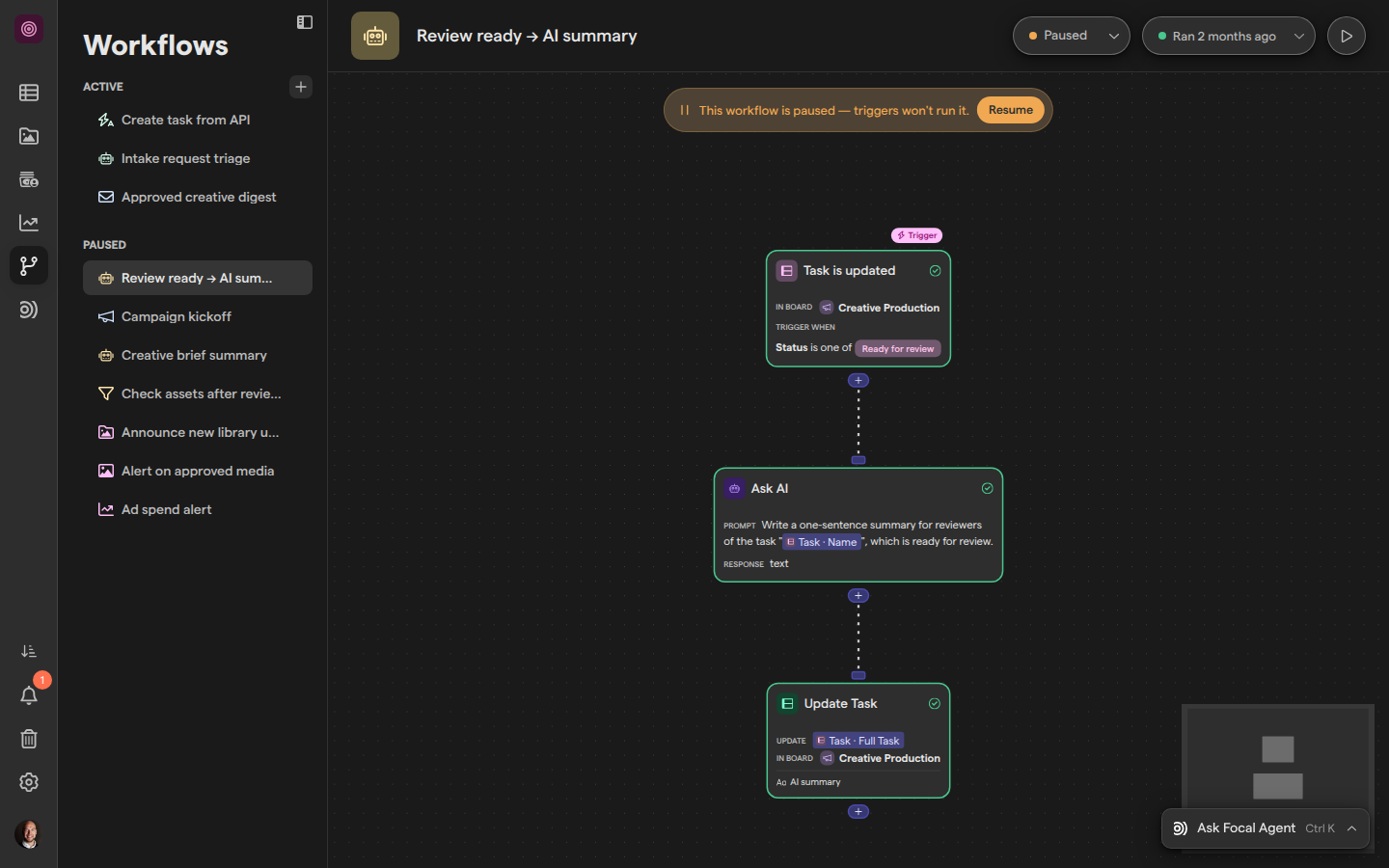
Use a workflow for work your team repeats the same way every time, so nobody has to remember to do it. Workflows live on the Workflows page of a space, listed under Active and Paused in its sidebar, and each one opens in an editor where the trigger sits at the top of a canvas and the steps hang below it.
How a workflow works
A workflow is built from one trigger and the steps connected below it. The trigger decides when a workflow runs, and each step does one thing with the data the trigger and earlier steps pass on.
- The trigger. Every workflow has exactly one. Focal has five: Task is updated, Media is added to library, Media is updated, Ad performance reaches a value and Triggered via API. Most take conditions, so the workflow starts only for the changes you care about.
- Logic steps. A Condition step lets the workflow continue only when something is true, a Filter step keeps only the matching items of a list, and a Wait step pauses the workflow for up to 24 hours.
- Actions. Steps that change something or reach outside Focal:
- Create Task
- Update Task
- Create Media
- Update Media
- Slack Message
- Send Email
- HTTP Request
- Ask AI
- uploads to Meta, TikTok and YouTube
- Variables. Steps read data from the trigger and from earlier steps, such as the name of the task that started the run, by typing
@in their settings.
Edits on the canvas save to the workflow’s draft as you make them. Triggers only ever run the published version, so a change takes effect when you publish it. Every time a workflow goes through its steps is a run, and Focal records each run with what every step received, produced or failed with. A workflow can have at most 50 steps.
Who can use workflows
Workflows are open to the owners of a space and to organization admins. Anyone with that access can create, change, publish, pause, run and permanently delete every workflow in the space; there are no separate view or edit levels for a single workflow, and no approval step before publishing.
Space members and guests who are not organization admins don’t see Workflows in the space sidebar, and a link to a workflow takes them back to the space instead. A workflow still acts on their work: a Task is updated trigger watches every task on its board, whoever changed it.
To give someone access, make them a space owner (see Space users) or an organization admin (see Roles and permissions).
What teams use workflows for
Teams use workflows to take the routine steps out of creative production, asset handling and reporting. A few examples, each built from the triggers and steps above:
- Creative review. When a task on a production board moves to “Ready for review”, an Ask AI step writes a one-sentence summary of the task for reviewers and an Update Task step saves it in a column. A Slack Message step can tell the review channel at the same time (see Slack).
- Intake from other tools. A form tool or script sends a request to a workflow’s Triggered via API trigger, and a Create Task step turns each request into a task on the right board, with its columns filled from the request.
- Asset handling. When an asset is added to the library, an Update Media step fills in its media attributes, with an AI model writing each value from a prompt. When an asset’s asset status becomes “Approved”, an upload step sends it to a Meta or TikTok ad account (see Meta ads export and TikTok export).
- Performance alerts. Ad performance reaches a value checks connected ad accounts once a day, and a Send Email or Slack Message step flags every ad whose spend passes a limit. It reads the same data as Reports.
- Follow-ups. A Wait step holds the workflow for an hour after a task is ready for review, then a Condition step checks whether its status has changed and a Send Email step reminds the reviewer if it hasn’t.
Articles in Workflows
The Workflows section has one article for building a workflow, reference articles for its parts, and one each for publishing and runs.
| Article | What it covers |
|---|---|
| Building a workflow | Create a workflow, find your way around the editor, add, connect, configure and delete steps, and pause or delete a workflow |
| Triggers | The five triggers, what each one watches, their conditions, and when a trigger starts a run |
| Actions | Every action in the step picker, its settings and the output later steps can use, and the limits of actions |
| Conditions and timing | The Condition, Filter and Wait steps: set up conditions, branch a workflow with if/else, filter a list, and pause a run |
| Variables | Pass data between steps with @, the variable menu, global variables, and how to fix a broken variable |
| Publishing and versions | The draft and the published version, publish status, what blocks publishing, version history, and discarding changes |
| Runs | Run a workflow manually, read the run history and a run’s details, find out why a run failed or was skipped, and cancel a run |