Roles and permissions
A role decides what a person can see and do in Focal. Every person has roles at three levels: an organization role for the whole organization, a space role in each space they belong to, and an access level on each board or view shared with them. Check this article before you invite someone or change what they can reach.
The levels work together. The organization role decides who manages the organization and which spaces a person can join. The space role decides whether they work across the space, with the asset library, or only on the boards shared with them. The access level decides what they can do on one board. Organization admins and space owners sit above the board level: they have Full Access to every board in their spaces.
Organization roles
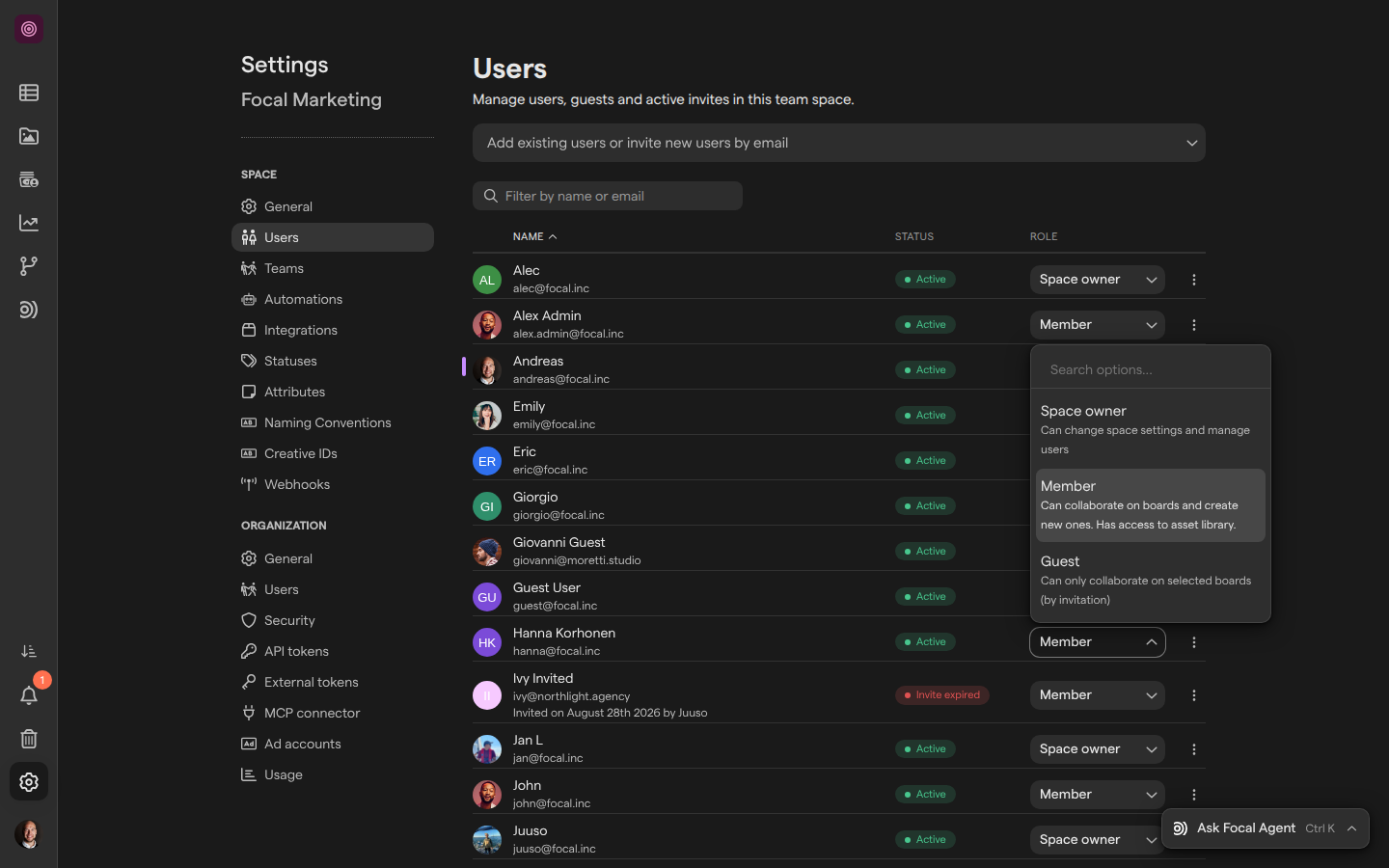
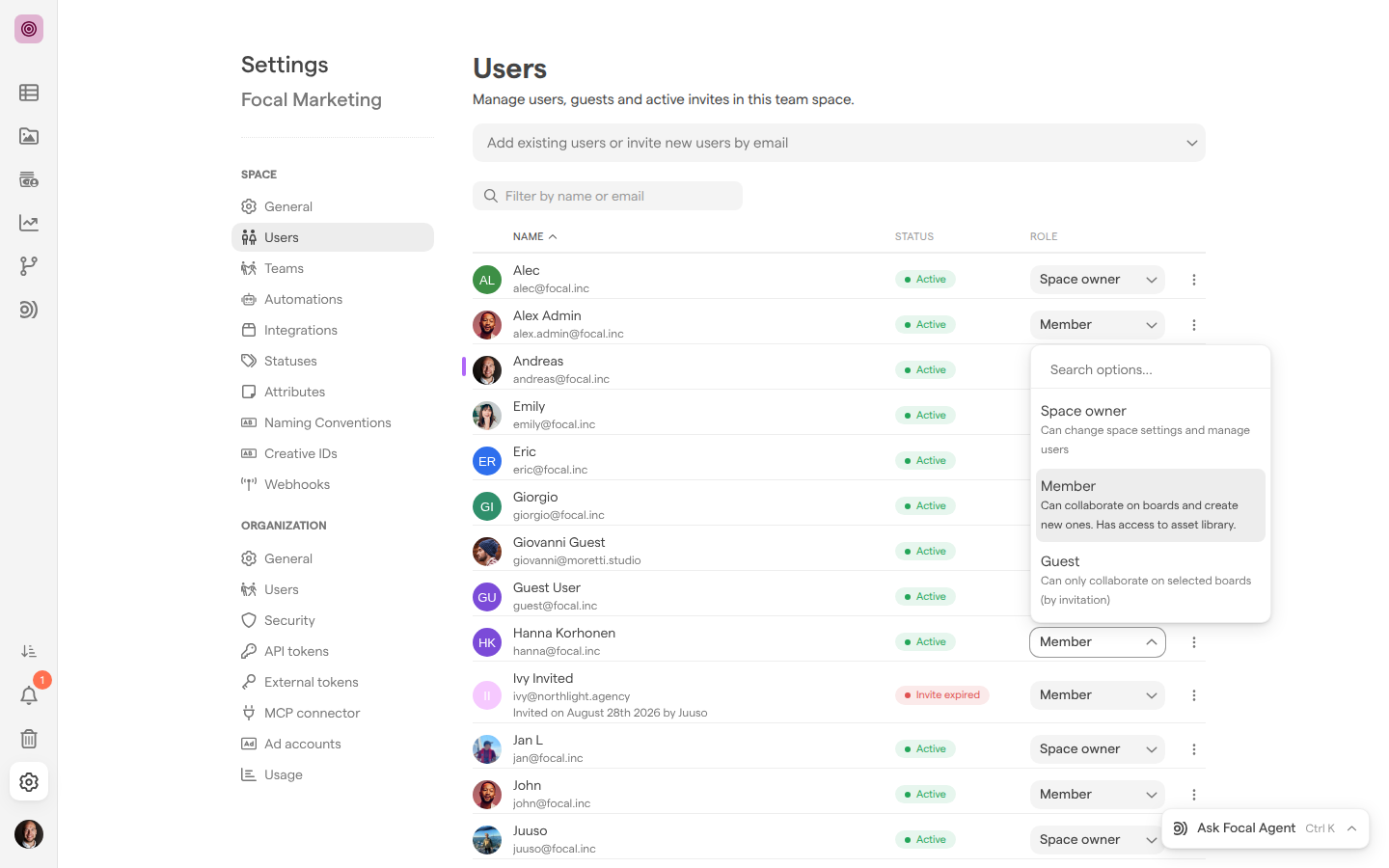
An organization role applies across the whole organization. Each person has one, set by an organization admin on the Users page under Organization in Space Settings (see Organization settings: Users). The role picker shows each role with a short description:
| Role | Description in the app | What it allows |
|---|---|---|
| Admin | Can change organization settings and manage spaces, users | The Organization pages of Space Settings, creating spaces, changing organization roles, and space owner rights in every space |
| Member | Can collaborate, own spaces and join any public space | Joining any public space, and being made a space owner |
| Guest | Can only collaborate on selected spaces (by invitation) | Only the spaces and boards the person is invited to |
Admin (an organization admin) is the role for the people who run Focal for the company. Only organization admins see Add new Space on the home page and the Organization group in Space Settings, which holds the organization’s general settings, users, security, API tokens, MCP connector, ad accounts and usage. An organization admin has the same rights as a space owner in every space, even where Space Settings → Users lists them as a Member.
A member of the organization sees the public spaces they are not in yet under “Join an existing public space in your organization” on the home page; Join adds them to the space as a Member. Whether a space is public is set in Space settings: General. An organization guest can’t join public spaces and can’t use the MCP connector.
Space roles
A space role applies inside one space. Space owners and organization admins set it on the Users page under Space in Space Settings (see Space settings: Users).
| Role | Description in the app | What it allows |
|---|---|---|
| Space owner | Can change space settings and manage users | Everything a member can do, plus Space Settings, Workflows, inviting people to the space, and Full Access to every board in the space |
| Member | Can collaborate on boards and create new ones. Has access to asset library. | The asset library, shared collections, creating boards, and Reports and the Focal Agent where they are turned on |
| Guest | Can only collaborate on selected boards (by invitation) | Only the boards shared with them, at their access level |
A space owner is the only space role that opens Space Settings and Workflows, and the only one that can permanently delete an archived board. Members and owners upload to the asset library, comment on assets, use its Trash, and work in shared collections. Members can archive folders, unless a sync or an automation is attached to the folder.
On boards, a member’s access comes from how each board is shared. A board shared with Members of this Space reaches every member and owner of the space, but never its guests.
Board and view access levels
A board access level is what a person or team can do on one board. Each level includes everything the levels below it allow. The levels are set in the Sharing panel, opened from Share on the board; see Sharing boards.
| Access level | Description in the app | What it adds |
|---|---|---|
| Full Access | Can edit content and change settings | Changing the board’s name, icon, columns, views and sharing; duplicating and archiving the board; its Slack and autofill settings |
| Edit Access | Can edit content and upload files | Adding, changing and archiving tasks and their values; restoring and removing asset versions |
| Upload Access | Can upload files, but not edit content | Uploading assets and new versions to tasks; exporting assets from the board |
| Comment Access | Can view and comment, but not edit | Commenting on tasks and their assets |
| View Access | Can view, but not edit or comment | Seeing the board, opening tasks read-only, downloading assets |
| No Access | Cannot see, edit or comment | Nothing: the board does not open |
A view has the same levels except Full Access, which is set on the whole board only; on a view it shows “Only available at Board level”. Access set on the board carries over to every view and shows there as “Inherited from Board” until someone overrides it for that view.
Space owners and organization admins have Full Access to every board in the space, whatever the Sharing panel lists. A guest with Full Access sees the columns hidden from guests; a guest with any lower level does not.
Change a role or access level
Changing a role is done where the role is set: organization roles and space roles in Space Settings, board access levels on the board. To change a person’s space role:
- Open Space Settings and select Users under Space, or go straight to Space users.
- Find the person in the list, or type their name in Filter by name or email.
- Click the role on the person’s entry.
- Pick Space owner, Member or Guest.
To change an organization role, an organization admin follows the same steps on Users under Organization (Organization users). They pick Admin, Member or Guest.
You can’t change your own role: on your own entry the role is greyed out. Another space owner or organization admin has to change it for you.
To change someone’s access to a board, open the board, click Share and pick a new level on their entry. That takes Full Access to the board. The steps are in Sharing boards.
How board access is worked out
A person’s access to a board can come from several entries in the board’s Sharing panel: their own entry, the entries of the teams they belong to, and the Members of this Space entry. Focal works out one level from them:
- Space owners and organization admins always get Full Access.
- When the person has their own entry or a team entry, those count and the Members of this Space entry does not. Among them, the highest level wins.
- Otherwise a space member or owner gets the level of the Members of this Space entry. A guest gets no access.
So setting a person’s entry to No Access keeps them out of a board the whole space can see, unless one of their teams has its own entry with a higher level. On a view, an entry set for that view replaces the one inherited from the board.
A board always keeps at least one person or team with Full Access. On the last Full Access entry the lower levels are greyed out, with “At least one member must keep Full Access”.
What guests can’t open
A guest is a person with the Guest role in a space, such as a client or a freelancer invited to review one board. A guest works only on the boards shared with them, at the access level each board gives them.
A space guest has none of these in the sidebar, and a link to one of them opens the space’s first page instead:
- the asset library and its Trash
- shared collections
- Reports
- Workflows
- the Focal Agent
- Space Settings
A guest can still open a shared collection’s public link, like anyone else with the link. The sidebar each role sees is shown in Navigation.
To give a guest more, change their space role to Member in Space Settings, or their organization role to Member in the organization’s Users page so they can join public spaces.