Naming conventions
A naming convention is a naming pattern that Focal applies to every asset in a folder of the asset library. You build the pattern once in space settings from fields such as fixed text, the asset’s file type, its upload date, a media attribute or a counter, then turn it on for a folder. From then on Focal renames each asset added to that folder to match, so a team’s creative follows one naming scheme without anyone typing it.
Each space keeps its own list of naming conventions, and one convention can be used by several folders. A folder can have one convention at a time, and a convention can also cover the folder’s subfolders. An asset named by a convention cannot be renamed by hand.
Create a naming convention
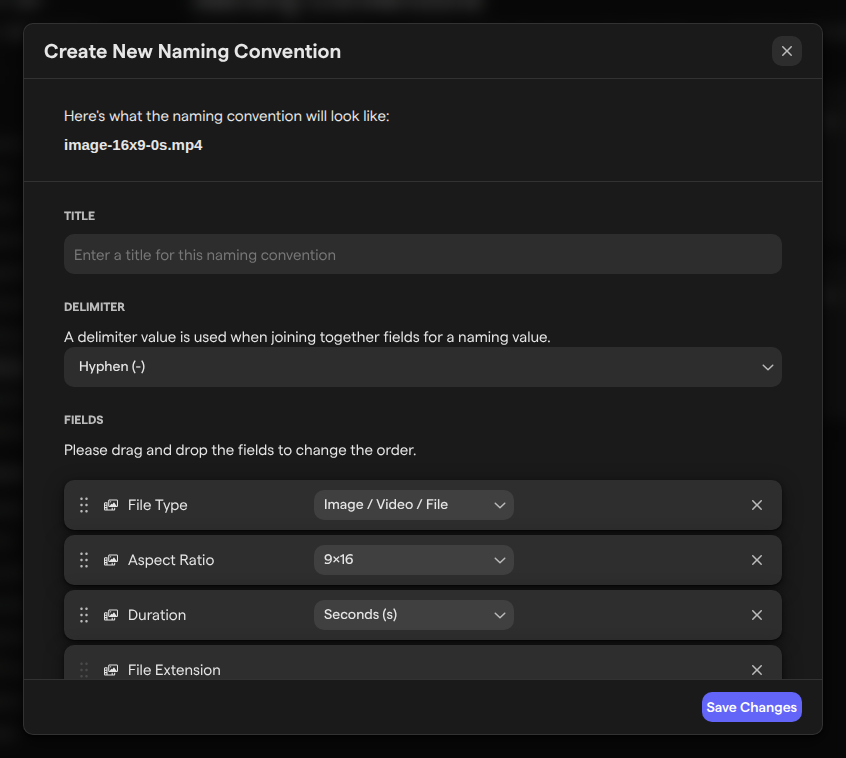
A naming convention is created on the Naming Conventions page of space settings. The dialog shows a live example of the finished name at the top, “Here’s what the naming convention will look like:”, and updates it as you change the fields.
- Open Naming Conventions, under Space Settings → Naming Conventions.
- Click New Naming Convention.
- Enter a name under Title. People pick the convention by this title when they turn it on for a folder.
- Pick a Delimiter, the character placed between the fields.
- Set up the fields under Fields (see “Build a name from fields”).
- Optionally, turn on Convert name to under Text Transformation. Choose lowercase, UPPERCASE or Capitalized Text.
- Click Save Changes.
The delimiter choices are:
- No delimiter
- Hyphen (-)
- Underscore (_)
- Double Underscore (__)
- Combo (-)
- Vertical Bar (|)
- Period
There is no custom delimiter.
Saving a new convention does not rename anything yet. Assets are renamed only once the convention is turned on for a folder.
Build a name from fields
The fields of a naming convention are the parts of the name, joined in order by the delimiter. A new convention starts with:
- File Type
- Aspect Ratio
- Duration
- File Extension
Remove any of them with the cross next to it. To add a field, open the Add another field list. It groups the fields under three headings:
- Media Properties: details Focal reads from the asset, such as:
- Width
- Height
- File Size
- Version
- Status
- Upload Date
- Original File Name
- Creative ID
- Concept ID
- Variant ID
- Media Attributes: the attributes defined for the space in Attributes settings.
- Other:
- Custom Text for fixed text you type
- Counter (1, 2, 3…)
- Creative ID
Most fields have a format list next to them. Upload Date offers date formats such as YYYY-MM-DD and YYYYMMDD. Aspect Ratio offers 9x16, 9-16 or 9:16. An attribute with several values offers Use first available value or Combine values using delimiter. Each field can appear once, except Custom Text.
Drag a field by its handle to change the order. File Extension always stays at the end, so the renamed asset keeps its extension.
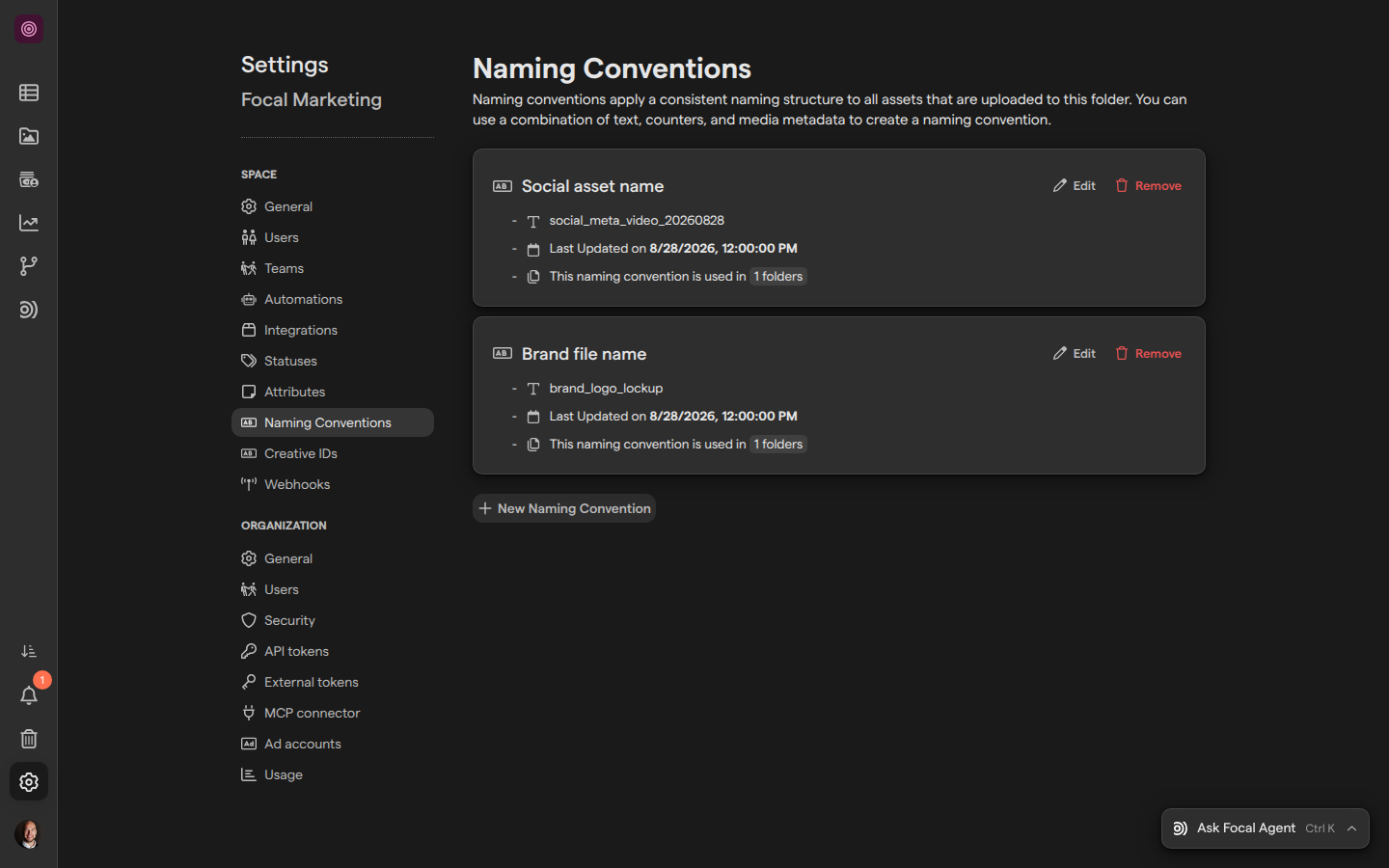
For example, the Social asset name convention in this article’s screenshots joins these fields with Underscore (_), in lowercase:
- Custom Text (“social”)
- the Platform attribute
- File Type
- Upload Date in
YYYYMMDDformat
That is the pattern social_<platform>_<type>_<YYYYMMDD>, which gives names such as social_youtube_image_20260629.
Number assets with a counter
The Counter (1, 2, 3…) field numbers the assets in a folder: the first asset gets 1, the next 2, and so on. The counter’s format list sets the order the numbers follow, as Sort by Media and a property, for example Sort by Media Upload Date or Sort by Media Original File Name.
Each folder counts on its own, and so does each subfolder the convention covers. A convention can hold one counter. Whenever the convention runs on a folder, Focal numbers the whole folder again in the chosen order. With Sort by Media Upload Date, new uploads take the next number and existing assets keep theirs. With another property, a new asset can land in the middle of the order and shift the numbers of the assets after it.
The counter has no starting value, fixed number of digits or reset. For numbers padded with zeros, or a counter that starts again every month or year, use a creative ID: the Creative IDs settings page has its own counter with those options.
Turn on a naming convention for a folder
A naming convention renames assets only in the folders it is turned on for. You turn it on from the folder itself, in the library.
- Open Assets and go to the folder.
- Click the naming convention button in the folder’s header, to the left of Add assets. Its tooltip reads “Configure naming convention”.
- Turn on Enable naming convention.
- Pick a convention from Select a naming convention. Each one is listed with its example name.
- Click Save Changes.
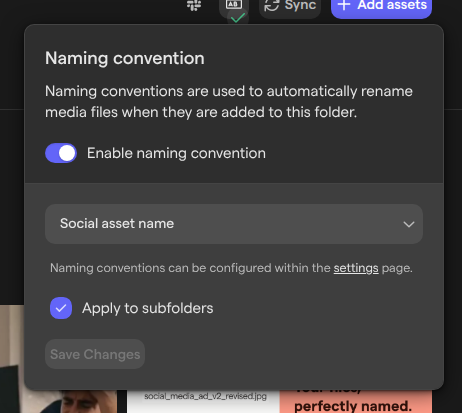
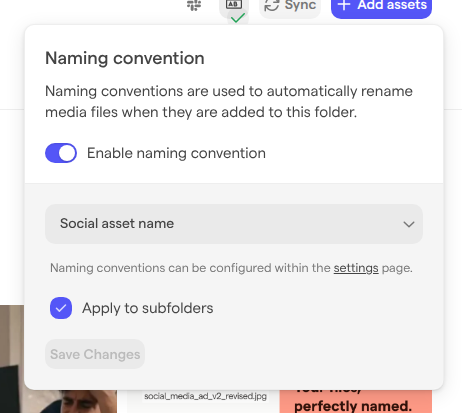
The popover confirms with “Changes saved”. Focal then renames every asset already in the folder to match, within a few minutes. The button shows a check mark from then on, and its tooltip reads “Naming convention enabled. Click to see details”.
When the space has no conventions yet, the popover says “No naming conventions found.” and links to the settings page. The top of the library, All Assets, has no naming convention button: a convention always belongs to a folder.
Apply a naming convention to subfolders
A naming convention can cover a folder and every folder inside it. Tick Apply to subfolders before you click Save Changes in the folder’s naming convention popover. Focal then renames the assets in the subfolders as well.
Apply to subfolders takes over any subfolder that had a convention of its own. The popover warns about this with “Note that all sub folders connected to other naming conventions will be updated to use this naming convention.”
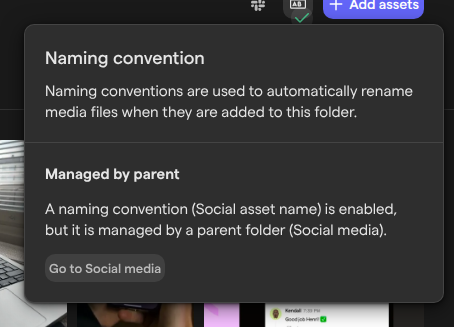
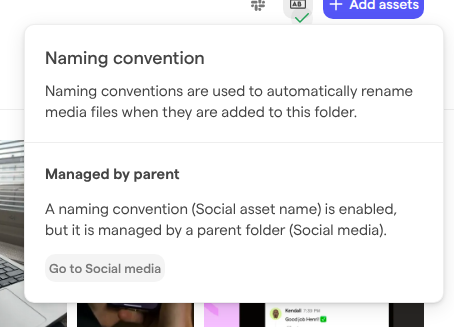
A subfolder covered this way is managed from its parent. Its naming convention popover shows “Managed by parent”, names the convention and the parent folder, and has a Go to <folder name> button that opens the parent, where you change it.
How names are applied on upload
A naming convention runs on its own whenever an asset is added to a folder it covers, whether it is uploaded, dropped, imported or moved in from another folder. The asset first appears under the name of the file you uploaded. Once the upload finishes and Focal has read the file’s details, such as its dimensions, the asset is renamed to the convention’s pattern.
A convention also runs again when something it reads changes. Editing a media attribute that is part of the name renames the asset to the new value. Editing the convention renames every asset in the folders that use it.
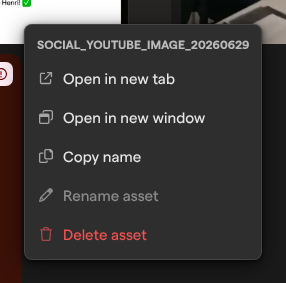
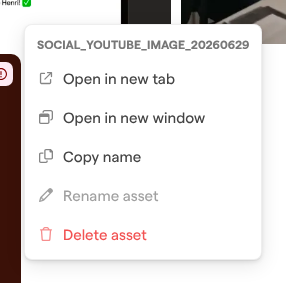
The name belongs to the convention while it is on. In the example below, social_youtube_image_20260629 in the Social media folder was named by the Social asset name convention, so in its right-click menu Rename asset is greyed out, with the tooltip “This asset is named by a naming convention and cannot be renamed.” To name an asset yourself, turn the convention off for its folder first. How uploads work in general is in Uploading assets.
Fix a name that is missing data
An asset’s name can come out incomplete when a field has no value for that asset, for example an attribute nobody has filled in yet. Focal leaves that part out of the name and flags the asset instead of stopping.
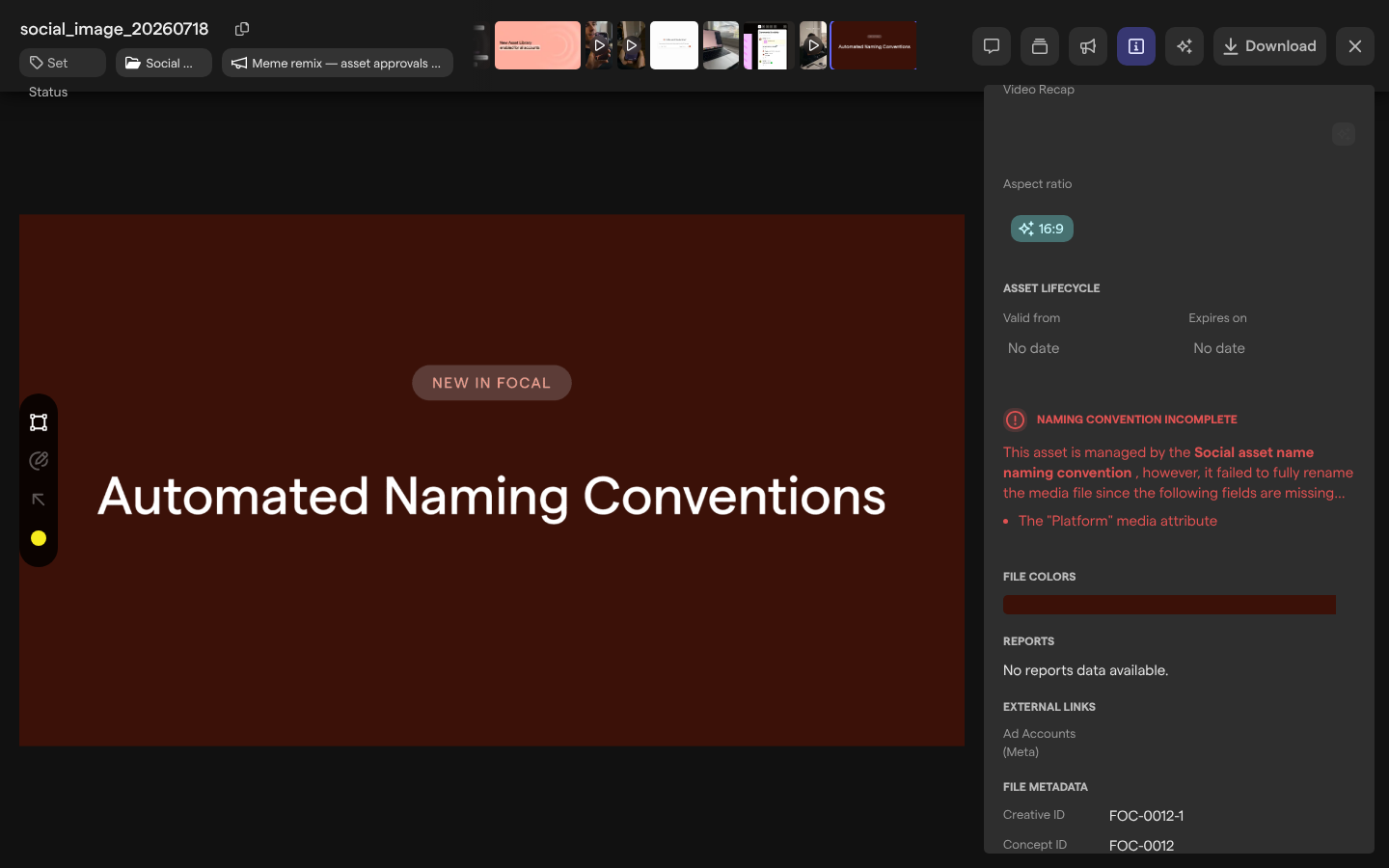
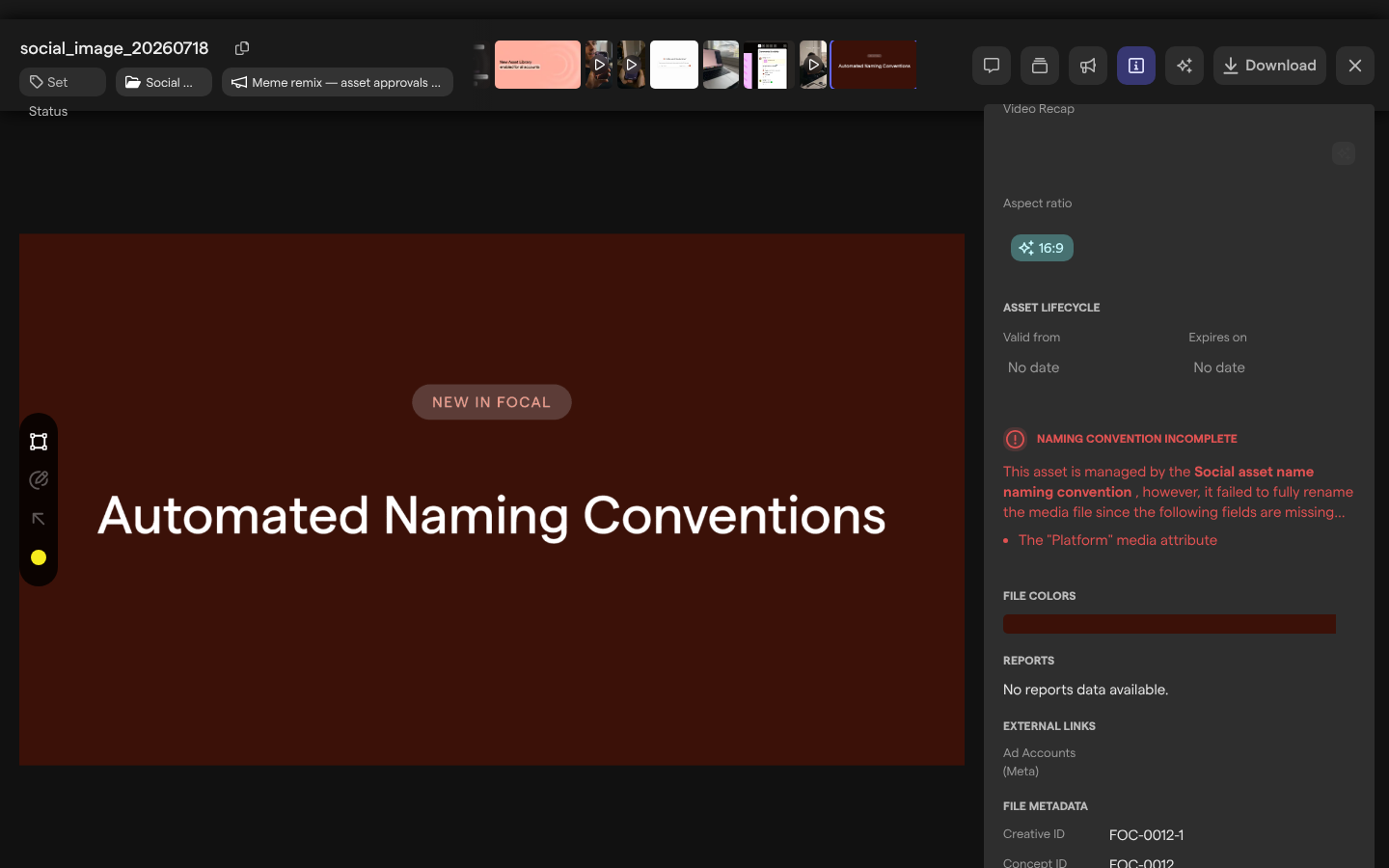
A flagged asset shows a small exclamation mark on its tile, with the tooltip “Naming convention failed due to missing data”. Open the asset and its Attributes tab: near the bottom, “Naming Convention Incomplete” names the convention and lists the fields that are missing. Fill in the missing values, and Focal renames the asset again.
In the example below, social_image_20260718 in the Social media folder has no Platform value, so its name skips the platform and its Attributes tab lists “The “Platform” media attribute” as missing.
Media attribute fields can be marked as required with the warning icon next to them in the convention dialog, whose tooltip switches between “This field is optional” and “This field is required”. The dialog notes “An error will be displayed when any required fields are missing”.
Change or turn off a naming convention
A naming convention is changed on the Naming Conventions page. Each entry shows its example name, “Last Updated on” with the date, and how many folders use it. Click the folder count to list those folders, each linking to the library.
- Open Naming Conventions.
- Click Edit on the convention.
- Change the title, delimiter, fields or text transformation in Update Naming Convention.
- Click Save Changes.
Focal renames the assets in every folder that uses the convention, within a few minutes.
To stop a folder from using a convention, open the folder’s naming convention popover and turn off Enable naming convention. The change is saved at once. The assets keep the names they have, and can be renamed by hand again.
Delete a naming convention
Deleting a naming convention removes it from the space and from every folder that uses it. Assets keep the names the convention gave them.
- Open Naming Conventions.
- Click Remove on the convention.
- Confirm with Yes, I’m sure!.
The dialog warns “Once you delete a naming convention you are not able to get the existing configuration back.” A deleted convention does not go to trash and cannot be restored.
Who can manage naming conventions
Naming conventions are set up in space settings, which only organization admins and space owners can open. Only they can create, edit and delete conventions.
Turning a convention on or off for a folder is open to space members as well, who choose from the conventions an owner has created. Guests cannot change a folder’s naming convention. The roles are described in Roles and permissions.
A folder that an automation creates and fills has no naming convention button: its header shows the automation’s button instead, with the tooltip “Managed by automation. Click for details”.